Implementation: Groups
Enable and configure Groups in Discovery
There are a few steps to including and configuring Groups in Discovery. Permission to update these settings is restricted to System Administrators.
Enabling and synching
1. Enabling Groups
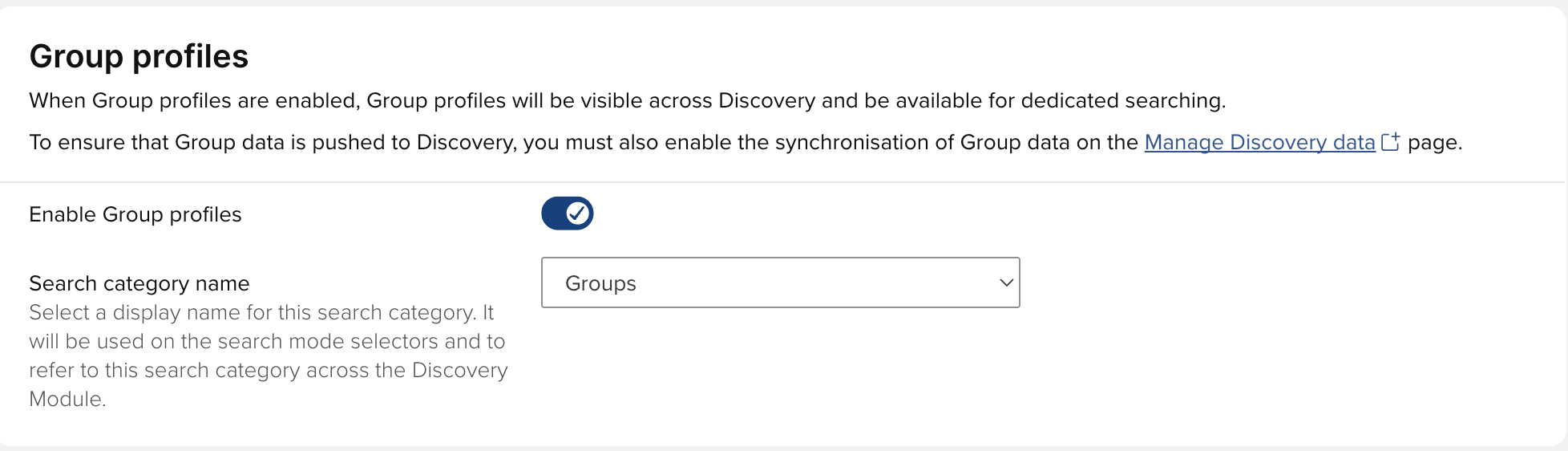
Start at System Admin > General Settings > Discovery Module Configuration and click on the Core settings tab. Enable Group profiles by flipping the slider to the 'Enabled' position.
2. Synchronise Groups data
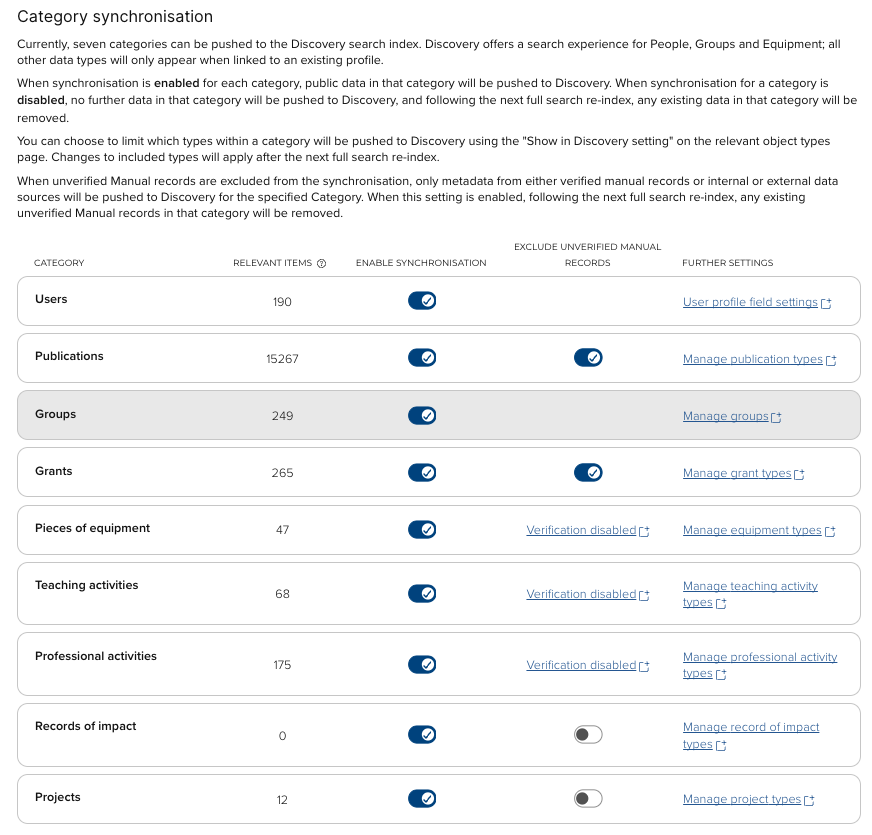
At System Admin > General Settings > Discovery Module Data, go to the Data synchronisation tab and enable the synchronisation of Groups. You can navigate to the 'Manage groups' page to review the privacy settings for Groups and adjust as desired.
Configuring Tags and Filters for Groups in Discovery
3. Configure Tags (optional)
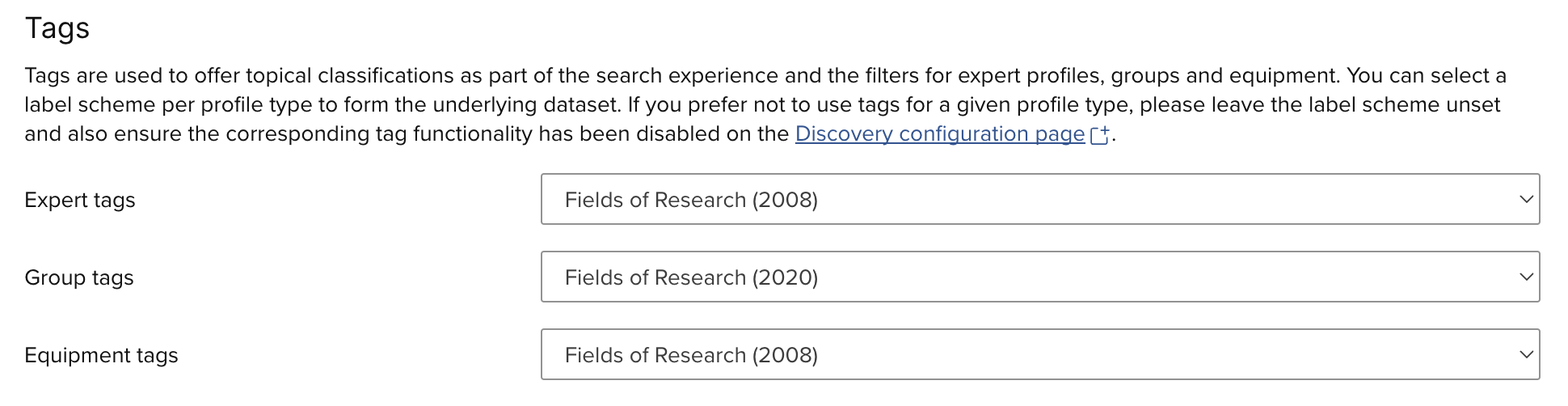
At System Admin > General Settings > Manage Discovery Data, go to the Data source tab and select a label scheme for Groups to form the underlying dataset for Group tags.
4. Configure custom filters (optional)
On the same page, select a label scheme to form the underlying dataset of each custom filter you wish to enable for the group search page.
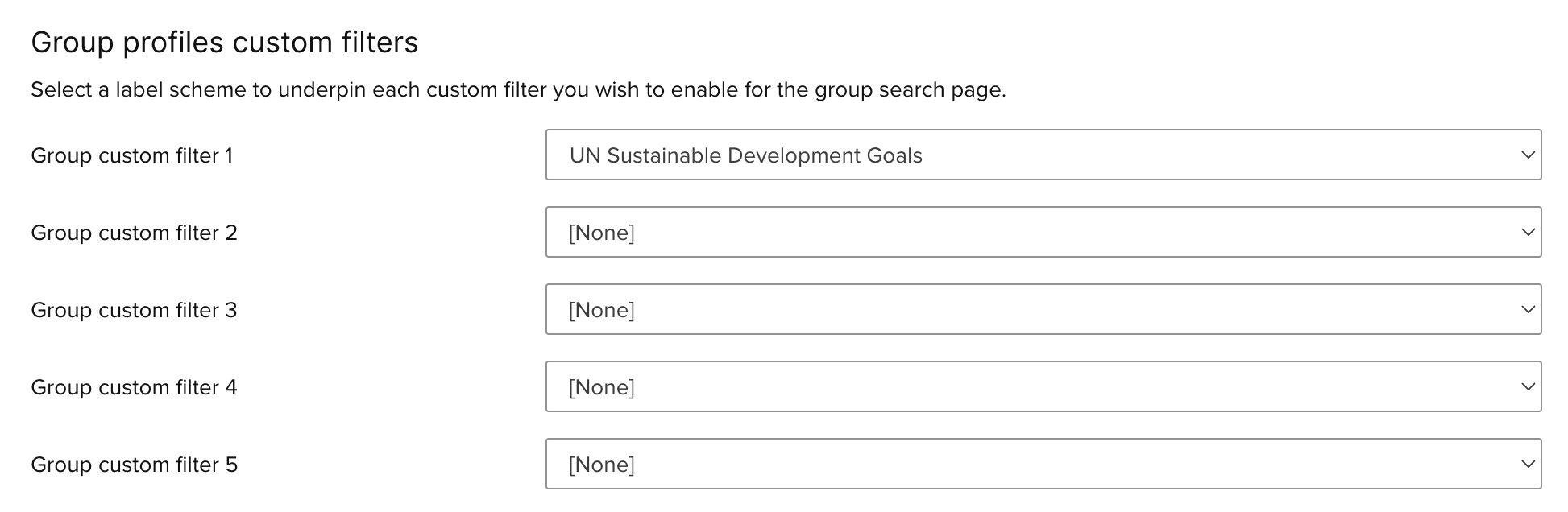
Go to the System Admin > General Settings> Discovery Module Configuration page and find the Filters tab. Configure the desired availability and appearance of Group filters.
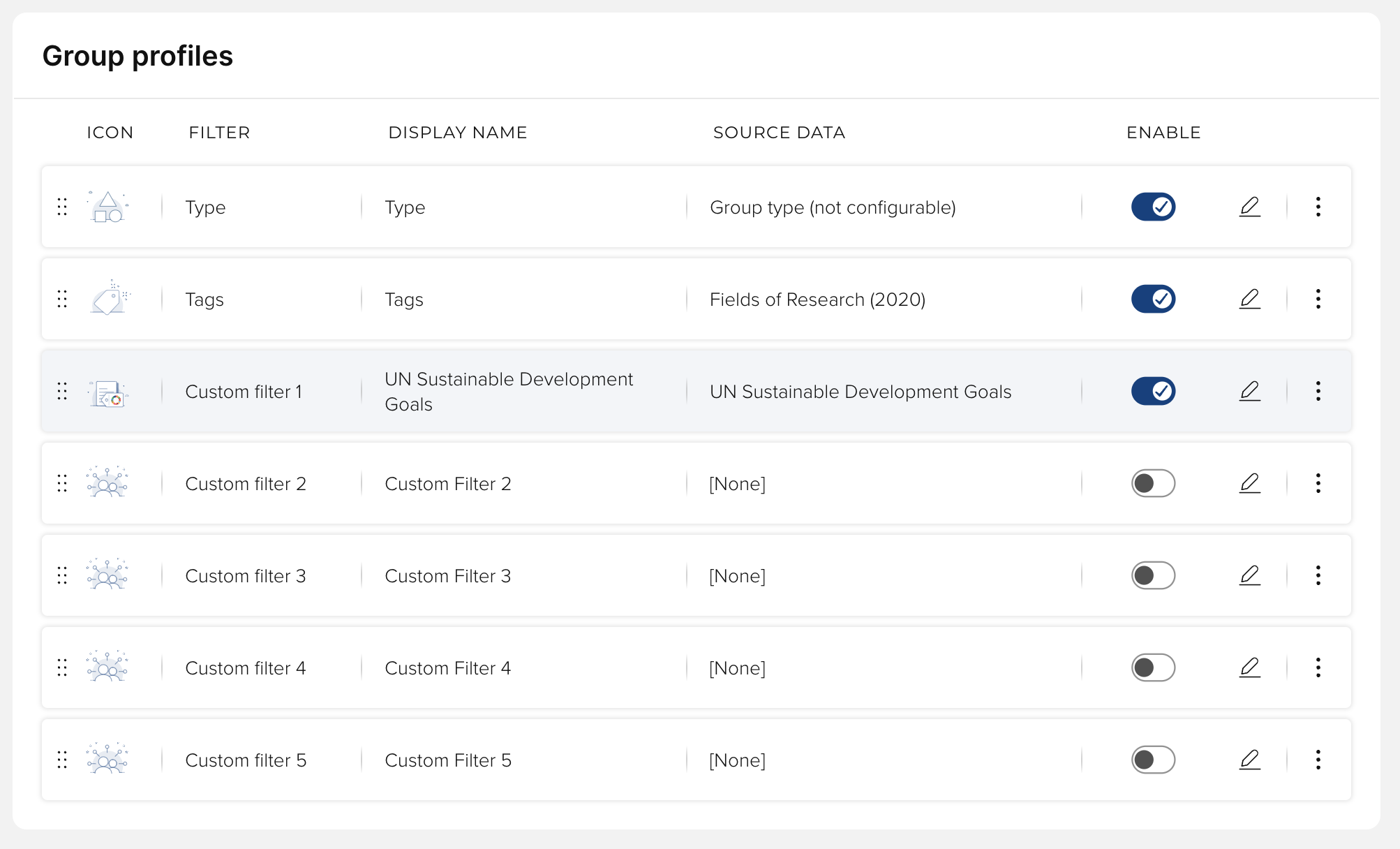
6. Apply configuration settings
Once you have completed steps 1-5, you need to perform the following actions in order to commit the configuration settings to Discovery:
At System Admin > General Settings > Manage Discovery Module Configuration page, find the Publish button at the top of the page and click it to save the changes (further detail on this process is available here).
At System Admin > General Settings > Manage Discovery Data, click the Request Full Reload button at the bottom of the page. The time bar at the top of the page will tell you how long the reload will take.
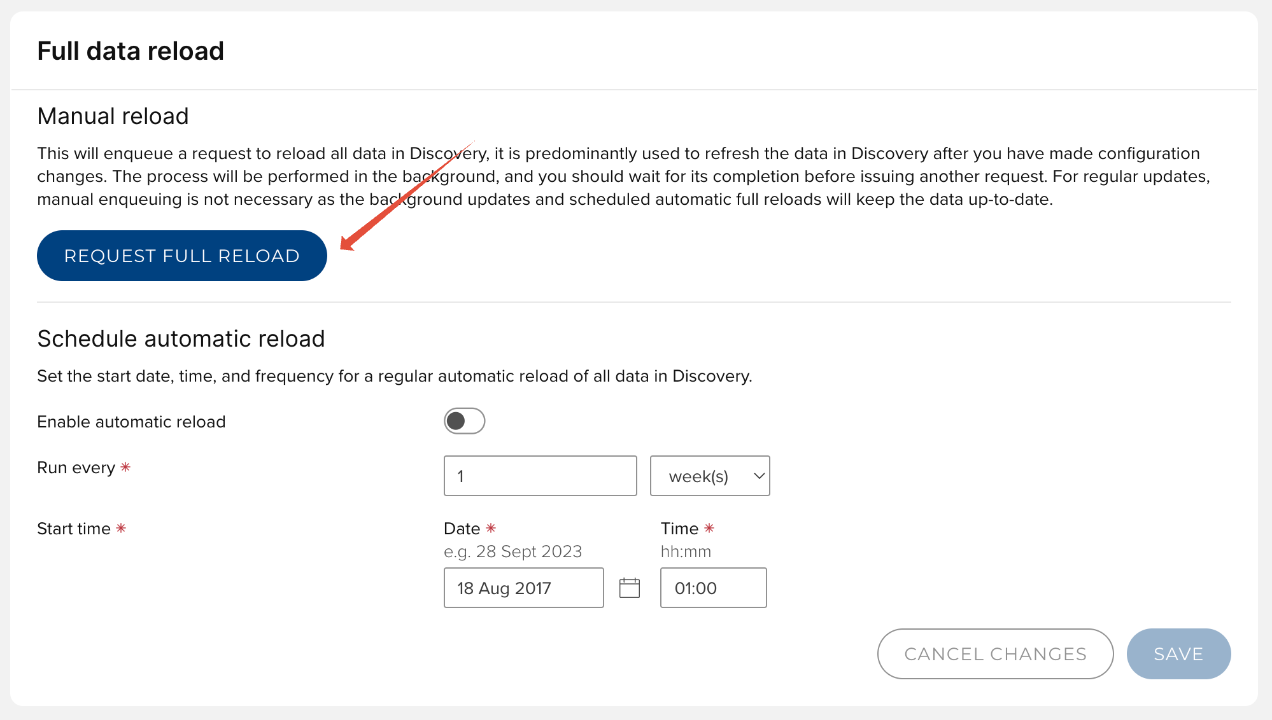
Once both the configuration is published and the full data reload is complete, you should see Groups content available in your Discovery instance, configured as specified.
Group profile page
A Group will be available in Discovery if its Privacy setting is Public.
The data displayed on a Group profile is sourced from the Group details page in Elements.
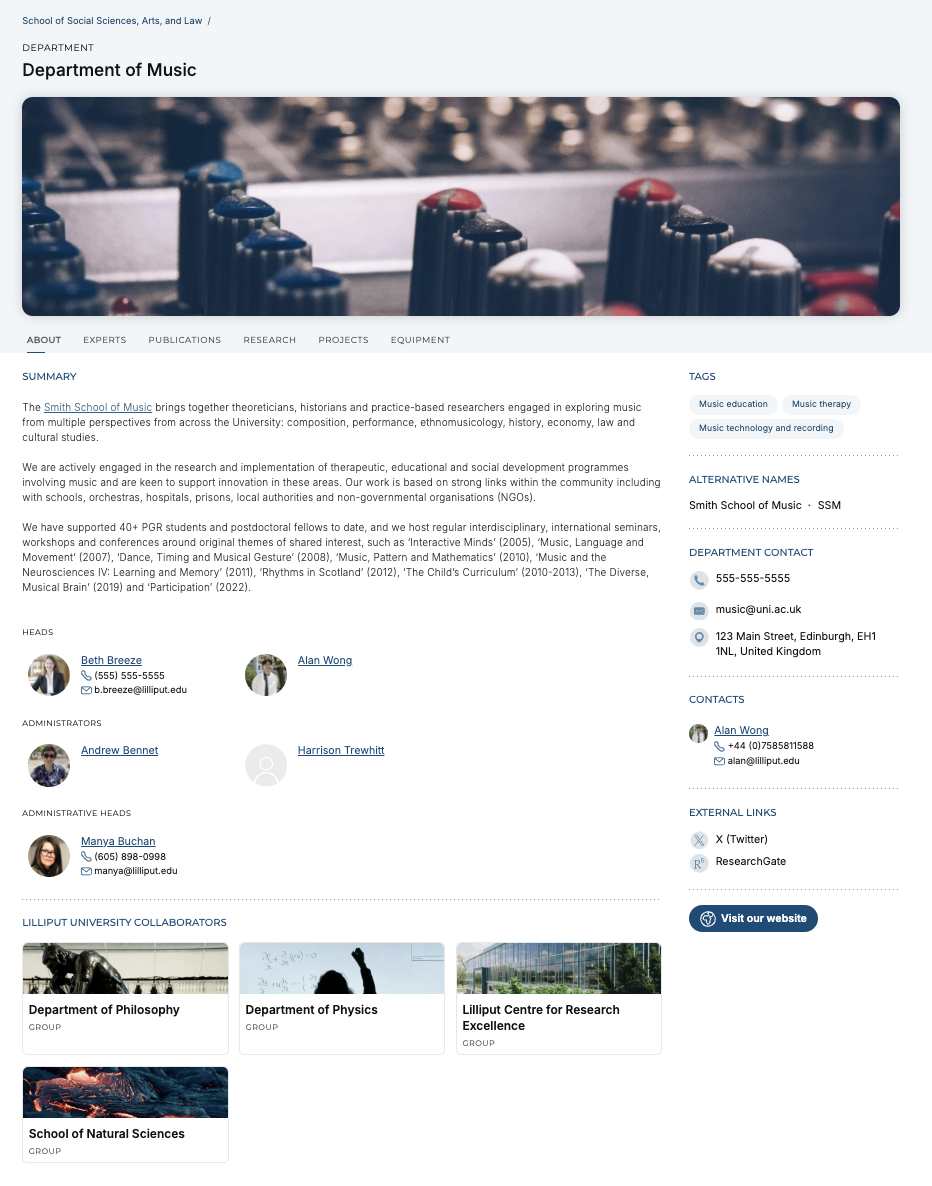
Main body
Field | Source | Notes |
Breadcrumb | Group hierarchy | The breadcrumbs displayed enable the user to navigate up the group hierarchy via the group's parent. |
Type | Group type | |
Name | Name | |
Related content tabs | Relationships | Lists related objects where the object privacy setting is Public.
Publications
Grants
Impact
Projects
Equipment
|
Image | Group image | |
Summary | overview / overview-html | |
Highlighted users | Person lists | The listed users are those captured on the Group record on the following person lists:
Users otherwise related to the Group are not displayed. The following information is displayed per person (where input):
Additional notes:
|
Institutional collaborations | Relationships | Lists 'Collaborates with' related Groups whose privacy setting is Public. Explicit relationships only. |
Related groups | Group hierarchy | Lists all child Groups whose privacy setting is Public. |
Label schemes | Labels |
Sidebar
Field | Source | Notes |
Tags | Labels | Displays applied labels, as per the label scheme configured to form the underlying dataset for Group tags. |
Alternative names | alternative-names | |
Phone | phone-number | |
email-address | ||
Address | addresses | |
Contacts | Person list | The listed users are those captured on the Group record on the 'contacts' person list The following information is displayed per person (where input):
Additional notes:
|
External links | external-links | |
Visit our website | url |
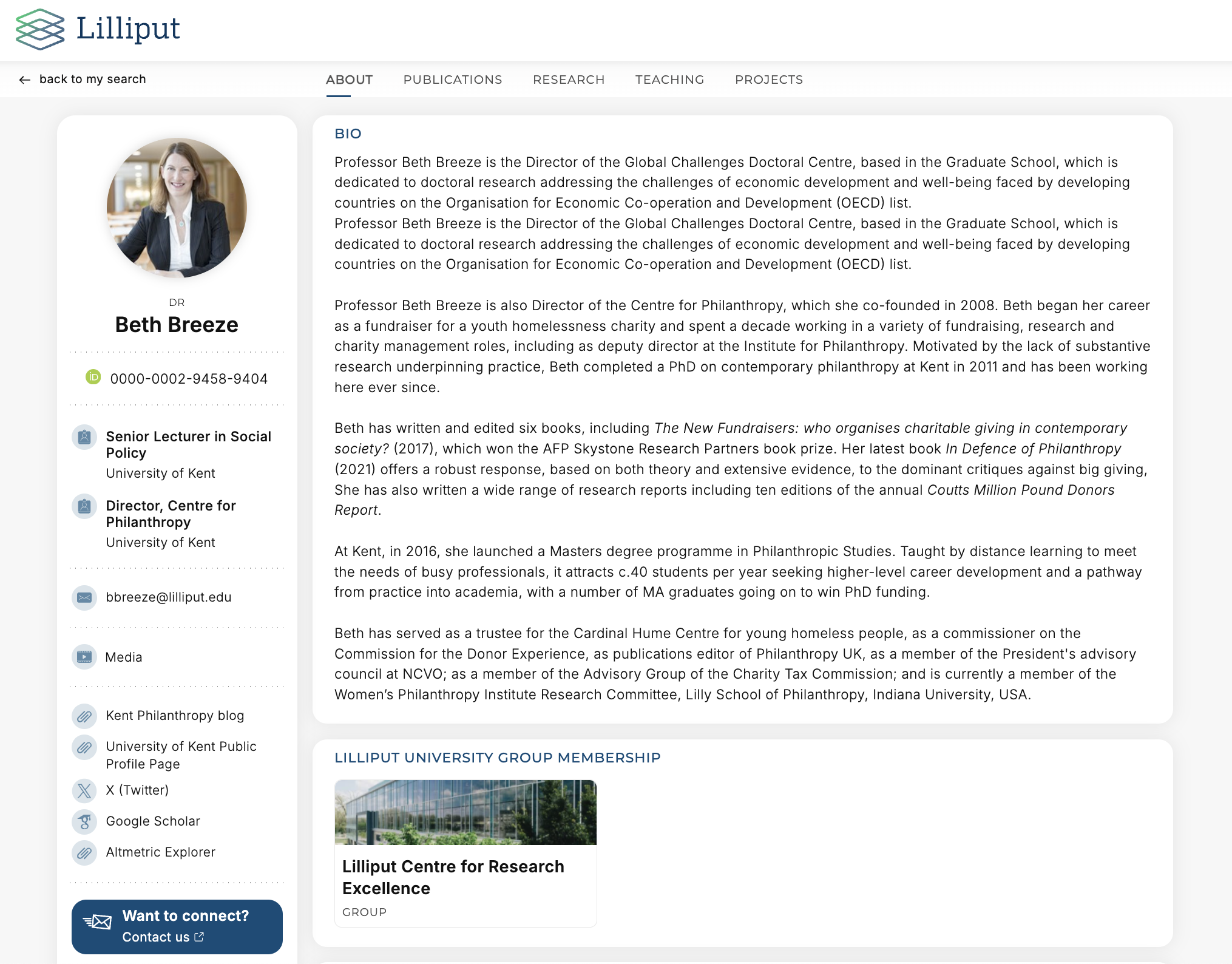
Group membership on Expert profile page
The Expert profile page lists all Groups (where privacy setting is Public) that the user is an explicit member of.