
Cookie Consent Management
Elements 6.20 introduces a built-in cookie consent management system, providing an easy and effective route to compliance with GDPR and other similar legislation.
Disclaimer: This article is intended as guidance on configuring cookie consent management in Elements. Any references to GDPR and/or other legislation are for general information only and do not constitute legal advice. If in doubt, consult your organisation's legal department for advice on applicable legislation.
End-user experience
The system is designed to have minimal impact on end users. If a cookie consent choice is needed when a user logs in, they will first be shown a pop-up with one-click options accept and reject options:

The accept/reject cookie consent pop-up
Clicking "Accept" or "Reject" will record the user's choice and close the pop-up immediately. If the user wants more information, they can click "Cookie settings" to see a larger pop-up with a fuller explanation of cookie functionality and more specific details of the cookies being offered.
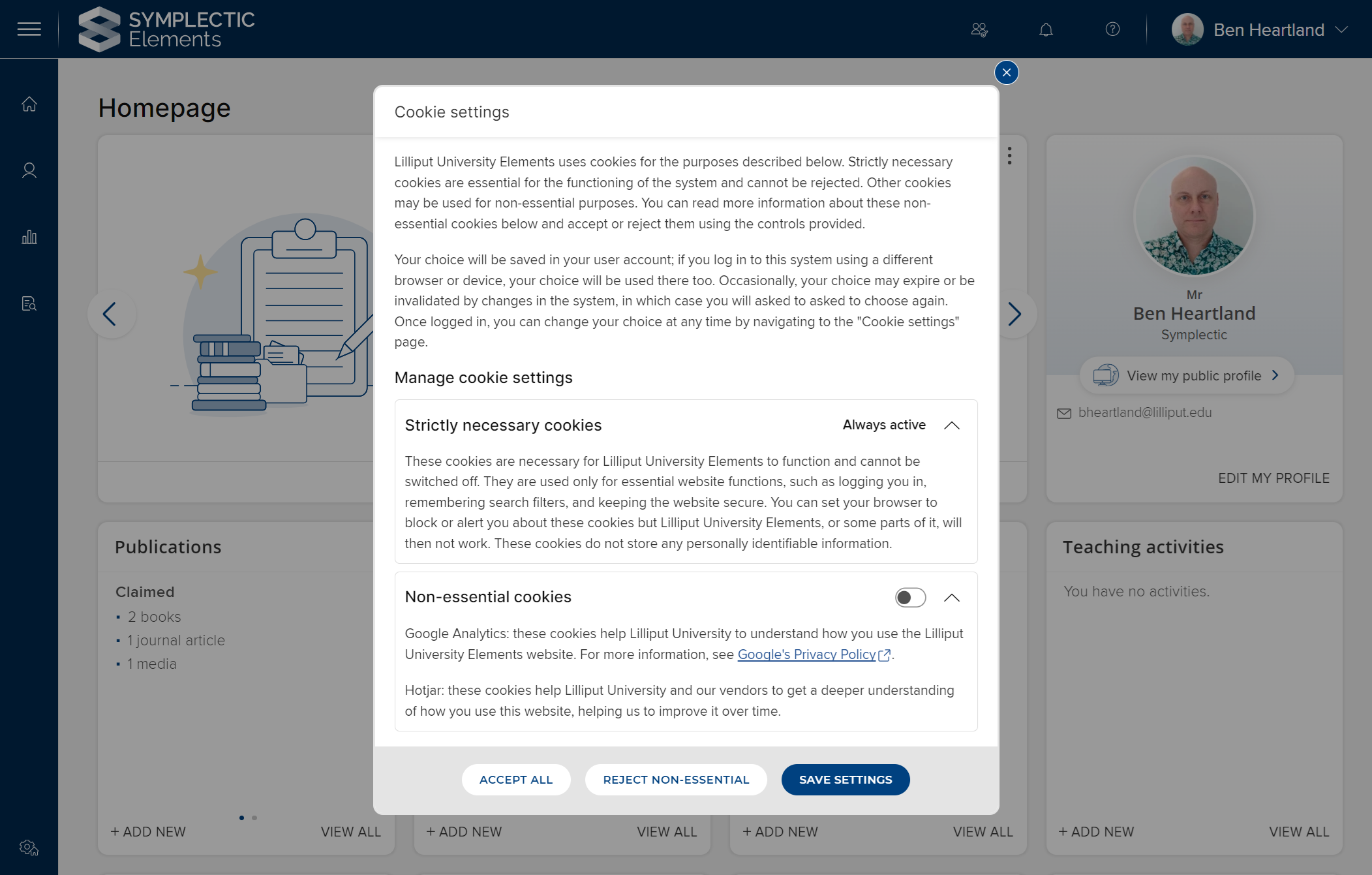
The more detailed "cookie settings" pop-up, with all sections expanded
Once the user makes a choice, it will be remembered in their account settings. This means that they won't be asked for cookie consent repeatedly every time they log in. It also means that their choice will be remembered if they switch to a different browser or device, without the system needing to ask them again.
If the login accouncement pop-up is configured, it will be shown to the user after the cookie consent pop-up.
Changing a cookie consent choice
GDPR requires that a user must be able to change their cookie consent choice at any time. This is done via the Cookie Settings page, which offers the same information and choices as the larger pop-up. It can be accessed via the User Account Options menu or via Account > Cookie Settings.
Configuration
System admins can configure the built-in cookie consent management system via System Admin > General Settings > Cookie Consent Management.
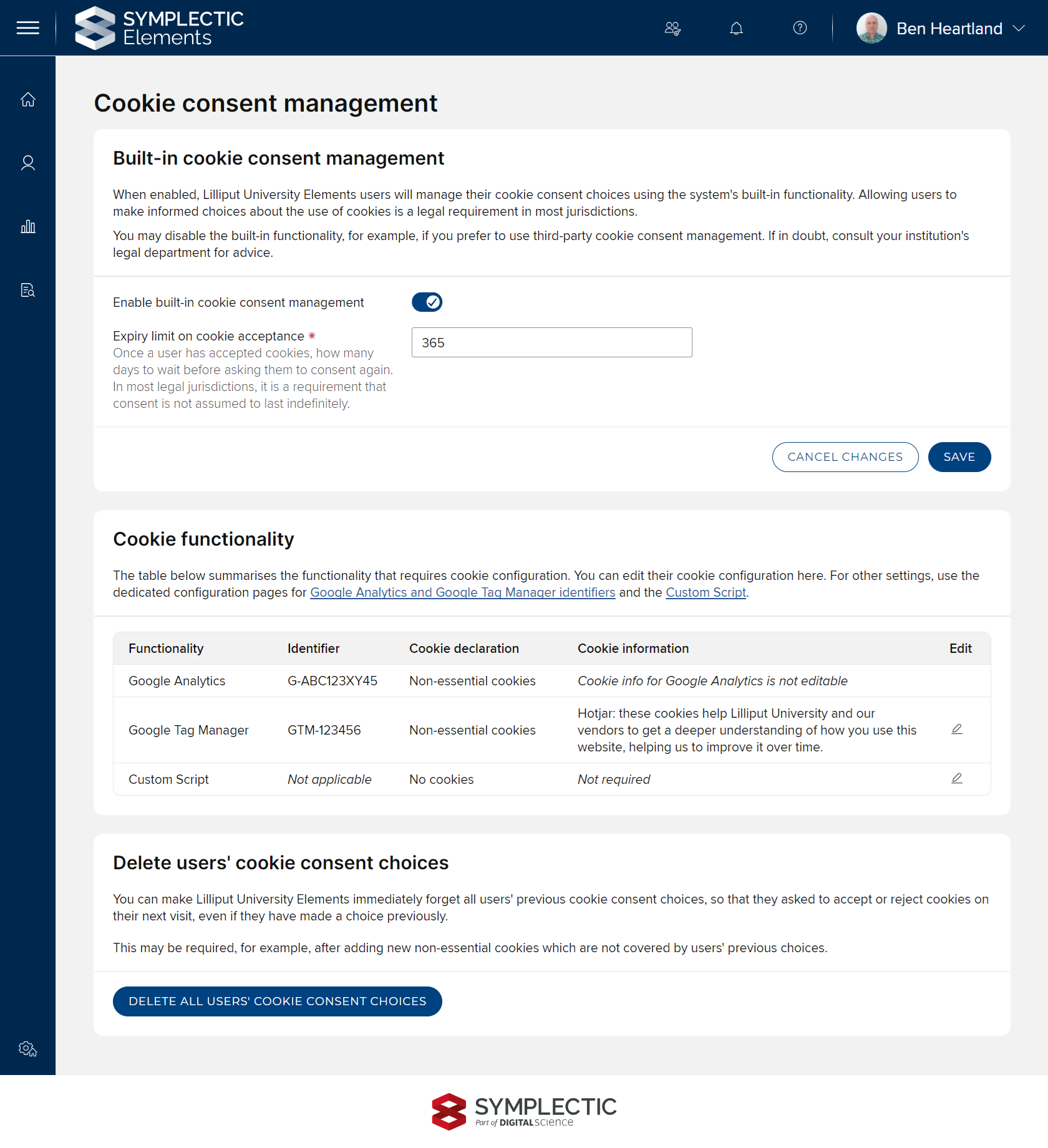
The configuration page for cookie consent managment
The top section of this page gives global options for the system:
Enable built-in cookie consent management: this allows the System Admin to disable built-in cookie consent management completely, for example, in order to use a different cookie consent management system instead.
Expiry limit on cookie acceptance (days): When a user accepts non-essential cookies, that acceptance expires after a given time limit, after which they will shown the cookie consent pop-up on their next login. Here, you can configure that time limit (default 365 days).
N.B. Even if your organisation is located in a legal jurisdiction that does not require cookie consent, it is likely that laws apply which do require it. For example, the European Union's GDPR regulations may apply if your Elements website is accessed by a user who is located within the EU. If in doubt, consult your organisation's legal department.
Cookie functionality section
This section allows you to modify the cookie-related settings of:
enabled Google Tag Manager identifiers
the Custom Script, if this is used
The cookie-related settings that can be edited are:
Cookie declaration
Cookie information
These settings are described in detail below.
Google Tag Manager identifiers that are currently disabled will not be listed here. The Custom Script will only be listed if it is in use, i.e. the script text area on the Custom Script is not empty.
Enabled Google Analytics (GA4) identifiers are also listed here. GA4 identifiers are assumed to set non-essential cookies and the system provides standard cookie information text for them. Accordingly, their cookie-related settings cannot be edited.
Delete users' cookie consent choices section
This section of the page lets a System Admin delete all cookie consent choices currently stored in users' accounts. If this option is used, all users will need to make a choice at their next login, i.e. will be shown the cookie consent pop-up.
This may be needed, for example, if your organisation adds new functionality to an existing Google Tag Manager identifier. Let's say that the GTM ID already sets some non-essential cookies and that users have made their choices about these. If the new functionality sets some more non-essential cookies, it cannot be assumed that users' previous consent also applies to these new cookies. In this case, you should:
Update the cookie information for the GTM ID to include the new cookie purposes.
Click the "Delete all users' cookie consent choices" button so that your users can make an informed choice about the new cookies next time they log in.
Cookie-related settings for the Custom Script and Google Tag Manager identifiers
In order for users to make an informed cookie consent choice and for Elements to apply that choice correctly, some settings need to be made for the Custom Script (if used) and for each Google Tag Manager identifier. You will be prompted to set these when creating or editing the Custom Script or a GTM identifier. The cookie-related settings for an enabled script or tag can also be edited via the Cookie Consent Management admin page (see above).
Cookie declaration
With this setting, a System Admin declares what type of cookies, if any, are set by the Custom Script or Google Tag. There are three options:
Non-essential cookies (default) - select this if the script or tag sets any cookies for purposes that are not essential for the end user to use the website. This includes (but is not limited to) analytics cookies - even if your organisation views website analytics as essential, they are not essential to the end user, so cookies used for this purpose must be declared to be "non-essential". When this option is selected, the system will delete all cookie consent choices currently stored for users. This is required because a previous choice cannot be assumed to apply to the new cookies; the system must therefore ask for consent again.
Strictly necessary cookies - select this if the script or tag only sets cookies that are essential for the proper functioning of the website. Note that 'strictly necessary' means that all cookies are strictly necessary for an end user to be able to use the website.
No cookies - select this only if the script or tag sets no cookies at all.
Cookie information
The information you supply here will be shown to end users in the expanded cookie consent modal and on the cookie settings page. You should supply clear and accurate information about the purpose of the cookie(s) set by the script or tag, to help your users make an informed choice about whether to accept them or not.
You must supply cookie information for strictly necessary cookies as well as non-essential cookies. Although strictly necessary cookies do not require user consent, users should still have access to clear and accurate information about their purpose.
This information is not required:
for a script or tag that is declared to set no cookies
for a Google Tag Manager ID that is currently disabled; although note that you will not be able to enable it until all required information is supplied
if built-in cookie consent management if currently disabled; although note that you will not be able to enable it until all required information is supplied
Google Analytics 4 identifiers
Google Analytics 4 (GA4) identifiers are assumed to set non-essential cookies and the system provides standard cookie information text for them. Accordingly, their cookie-related settings cannot be edited.