
Using SQL Server Change Tracking in the Reporting Database
As a hosted client, one of the supported ways you can customise your Reporting Database is to enable SQL Server Change Tracking functionality on a per-table basis. Please see the following articles for general guidance on customisations:
In line with those articles, we will refer here to your method of applying customisations to your Reporting Database as your Customisation Script.
Version Support
Use of Change Tracking is supported in the Reporting Database from Elements v7.1 onwards.
SQL Server Change Tracking
SQL Server Change Tracking is a lightweight feature of SQL Server that allows your applications to track changes (inserts, updates, and deletes) to data in selected tables without the overhead of full auditing or replication. It provides a simple mechanism to determine what rows have changed since the last set of data changes were made, making it useful for caching, syncing, or incremental data processing scenarios.
Clients may wish to make use of SQL Server Change Tracking functionality to help implement incremental synchronisation of changes from the Elements Reporting Database to a downstream database containing copies of some of the data. Some third-party ETL (Extract, Transform, and Load) tools natively support the implementation of differential data transfer pipelines using the Change Tracking information provided by SQL Server. Custom scripts can also be used to achieve the same.
Please see the following Microsoft documentation for information about Change Tracking:
Enabling SQL Server Change Tracking
To be used, Change Tracking must first be enabled at two levels:
At the database level. You do not need to take any action to enable Change Tracking at the database level, beyond making an initial request that it be enabled for your system(s). Symplectic will then ensure it is enabled as part of your hosted solution.
At the table level. You must enable Change Tracking on each table in which you wish to track changes. To enable a table for Change Tracking, execute the following command in your Customisation Script:
ALTER TABLE <TableName> ENABLE CHANGE_TRACKINGPlease see the following Microsoft article for more information:
Obtaining changes by using change tracking functions
Applications can use the following SQL Server functions to obtain the changes that are made in a tracked table and get information about the changes:
CHANGETABLE(CHANGES ...) function
This is called to retrieve information on changes to a specific Reporting Database table since the last incremental sync.
CHANGE_TRACKING_CURRENT_VERSION() function
This is called, and cached (as the last_sync_version), by the data synchronisation client, to represent how up to date its cache of a table's data is following any incremental sync.
CHANGE_TRACKING_MIN_VALID_VERSION() function
This must be called, and validated, before any incremental sync to establish if the data synchronisation client's cache of a given table's data needs to be re-initialised.
Your ETL tool may be able to use these functions automatically. Please see the following Microsoft article for information about using the above functions:
Please note the very strong advice from Microsoft that "Change tracking has been designed to work well with snapshot isolation." Ensure your scripts or tools issue their queries under the snapshot transaction isolation level. If you do not do this, then using the above functions correctly is much more difficult.
Some gotchas
Change Retention
SQL Server's Change Tracking only retains knowledge of changes for a defined period of time (2 days in this case). If your data synchronisation client does not perform an incremental sync within this period, it must re-initialise its cached data in full. A well coded synchronisation client will validate its last_sync_version against each table's min_valid_version, and automatically trigger a re-initialisation when necessary, but if your client code does not do this, you must ensure that re-initialisation occurs manually.
Reporting Database Lifecycle Events
There are some situations you should take account of when consuming tracked changes from the Reporting Database in your downstream solution. They relate to the significant events in the lifecycle of the Elements Reporting Database and to the general principles you should follow for maintaining database customisations in general. You can refresh yourself on these topics here:
Elements upgrades (Reporting Database drop/recreate)
Elements upgrades generally require the Reporting Database to be dropped and then reinstalled. Obviously, no customisation to the Reporting Database can survive this procedure, including your customisation to opt a table into Change Tracking. You must re-apply your customisations after this operation.
In addition, because the containing database is physically deleted and recreated, the "min_valid_version" of any tables that you opt back into change tracking will be reset to 0. The standard validation process recommended by Microsoft will not detect this situation and trigger a re-initialisation of the data synchronisation client's cached data. You must detect and handle the required re-initialisation another way, e.g.:
Have your synchronisation client monitor the "DatabaseCreatedWhen" column of the "meta.META_tblGlobal" table and re-initialise all cached data if the value changes.
Have your synchronisation client monitor the "Object_ID" associated with each table you opt into Change Tracking, and trigger a re-initialisation if the Object_ID changes. Whilst collision's of this ID are possible between the databases, they are unlikely.
Manually trigger a re-initialisation of your data synchronisation client following any Elements Patch/Upgrade.
Rebuilding the Reporting Database
The "big red button" on the Reporting Synchronisation management page drops all stock tables in the Reporting Database, recreates them, and refills them with data. This is typically done by your institution whenever you wish to update the Reporting Database table structure (e.g. columns) with respect to custom field alterations you have made in Elements.
Any customisation you have applied to a stock table in the Reporting Database will obviously be lost when pressing this button. This includes your customisation to opt a table into Change Tracking. You must re-apply your customisations after this operation.
As the database itself is not dropped during this process, the new "stock" tables that are created following the rebuild will have a min_valid_version greater than any value a previously connected data synchronisation client could have cached. Provided your data synchronisation client validates its last_sync_version and re-initialises when it is invalid, things should work seamlessly after you re-apply your customisation script. If your client does not correctly handle version validation, you must ensure that re-initialisation occurs manually.
Full data synchronisation
The Reporting Synchronisation management page allows you to configure an automated schedule for a "full synchronisation" (reloading all data from scratch). This process leaves the structure of all existing tables alone. It merely truncates all data from stock tables and re-fills them with fresh data. As such, it will leave your customisations in place.
Following the table cleardown, all the "stock" tables will have a min_valid_version greater than any value a previously connected data synchronisation client could have cached. Provided your data synchronisation client validates its last_sync_version and re-initialises when it is invalid, things should work seamlessly. If your client does not correctly handle version validation, you must ensure that re-initialisation occurs manually.
Verifying that Change Tracking is functioning correctly
Change Tracking imposes a variety of subtle requirements related to SQL server and the data synchronisation client (snapshot isolation, validation of last_sync_version, detection of database change, re-initialisation, etc). Failing to follow good practice in any of these areas can lead to unpredictable results, which means that Symplectic cannot guarantee exactly how well any given third party tool will operate.
In order to test whether Change Tracking is working on your server, it is therefore imperative to use standard well known tools, namely SQL Server Management Studio (SSMS). In order to perform these tests you will need two separate instances of SSMS connected to your Elements Reporting database. One should be connected using credentials that are configured as a "reporting-developer", and the other should be connected using credentials that are configured as a "reporting-consumer".
Note: Symplectic's infrastructure team can provide you with suitable credentials if you do not already have them.
As a Reporting Developer
Connect to the Reporting Database via SSMS using the credentials of a "reporting-developer" account. Once connected run the following SQL:
CREATE TABLE [dbo].[TEST_TABLE](ID INT PRIMARY KEY);
ALTER TABLE [dbo].[TEST_TABLE] ENABLE CHANGE_TRACKING;

INSERT INTO [dbo].[TEST_TABLE] VALUES  (1)
INSERT INTO [dbo].[TEST_TABLE] VALUES  (2)
INSERT INTO [dbo].[TEST_TABLE] VALUES  (3)
INSERT INTO [dbo].[TEST_TABLE] VALUES  (4)
INSERT INTO [dbo].[TEST_TABLE] VALUES  (5)

SELECT * FROM [dbo].[TEST_TABLE]

SELECT '[' + s.name + '].[' + t.name + ']' AS Table_name,
tr.*
  FROM sys.change_tracking_tables tr
INNER JOIN sys.tables t on t.object_id = tr.object_id
INNER JOIN sys.schemas s on s.schema_id = t.schema_id
This will return two result sets:
The first just listing the numbers 1-5 - i.e. the contents of the new dbo.Test_Table table.
The second will list all tables that have had change tracking enabled. This list should include the new dbo.Test_Table table:

As a Reporting Consumer
Once you have completed the above, in a separate window connect to the Reporting Database via SSMS using the credentials of a "reporting-consumer" account. Once connected run the following SQL:
DECLARE @DummyLastSyncValue INT = CHANGE_TRACKING_MIN_VALID_VERSION(OBJECT_ID('[dbo].[TEST_TABLE]'))
SELECT @DummyLastSyncValue AS 'RequestedLastSyncVersion (Min value of table)'
SELECT t.ID,
c.*
FROM [dbo].[TEST_TABLE] AS t
JOIN CHANGETABLE(CHANGES [dbo].[TEST_TABLE], @DummyLastSyncValue) AS c
ON t.ID = c.ID;

SELECT @DummyLastSyncValue = SYS_CHANGE_VERSION
FROM [dbo].[TEST_TABLE] AS t
JOIN CHANGETABLE(CHANGES [dbo].[TEST_TABLE], @DummyLastSyncValue) AS c
ON t.ID = c.ID
WHERE t.ID = 3

SELECT @DummyLastSyncValue AS 'RequestedLastSyncVersion (Mid value of table)'
SELECT t.ID,
c.*
FROM [dbo].[TEST_TABLE] AS t
JOIN CHANGETABLE(CHANGES [dbo].[TEST_TABLE], @DummyLastSyncValue) AS c
ON t.ID = c.ID;
This will return 4 result sets:
The first contains a single value "RequestedLastSyncVersion (Min value of table)" this should match the min_valid_version for the dbo.Test_Table from the last query that was run as a reporting developer.
You should see 5 rows (ID's 1 to 5), corresponding to the 5 inserts made into the table by the reporting developer.
This data corresponds to the set of changes returned when asking for all changes that have occurred since the version number returned in the first result set.
The third contains a single value "RequestedLastSyncVersion (Mid value of table)" this should correspond to the "SYS_CHANGE_VERSION value of the preceding result set's middle row (i.e. the row with ID 3).
The fourth should contain 2 rows (ID's 4 and 5) corresponding to the last 2 inserts made into the table by the reporting developer.
This data corresponds to the set of changes returned when asking for all changes that have occurred since the version number that corresponds to the insert of row "3" into dbo.Test_Table.
Example Output:
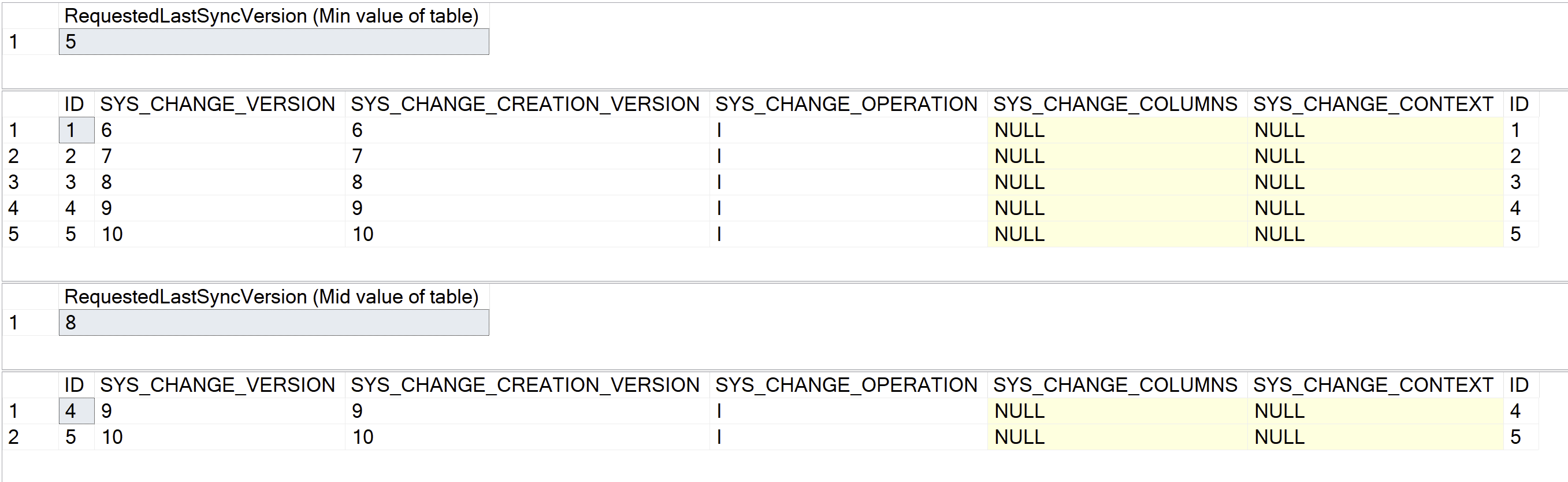
If the data in these tables returns as expected then Change Tracking is working as expected.
Test Clean Up
In order to clean up after the test re-connect to the Reporting Database via SSMS using the credentials of a "reporting-developer" and run the following SQL:
DROP TABLE [dbo].[TEST_TABLE]This will remove the table that you added to perform this test.