
Assessment - Reviewer email notifications
This article explains how to set up and configure email notifications to Assessment reviewers. This feature sends reviewers an email digest when they have assigned reviews that are not yet complete.
Overview: Reviewer email notifications
You can configure Elements to automatically email reviewers when they have outstanding reviews assigned within an Assessment exercise. This feature acts as a proactive nudge, ensuring reviewers are aware of their pending work, thereby improving overall review cycle speed. The email is a digest, notifying the reviewer they have outstanding reviews for a specific exercise, rather than sending a notification for every single review item.
Setup: Scheduled job
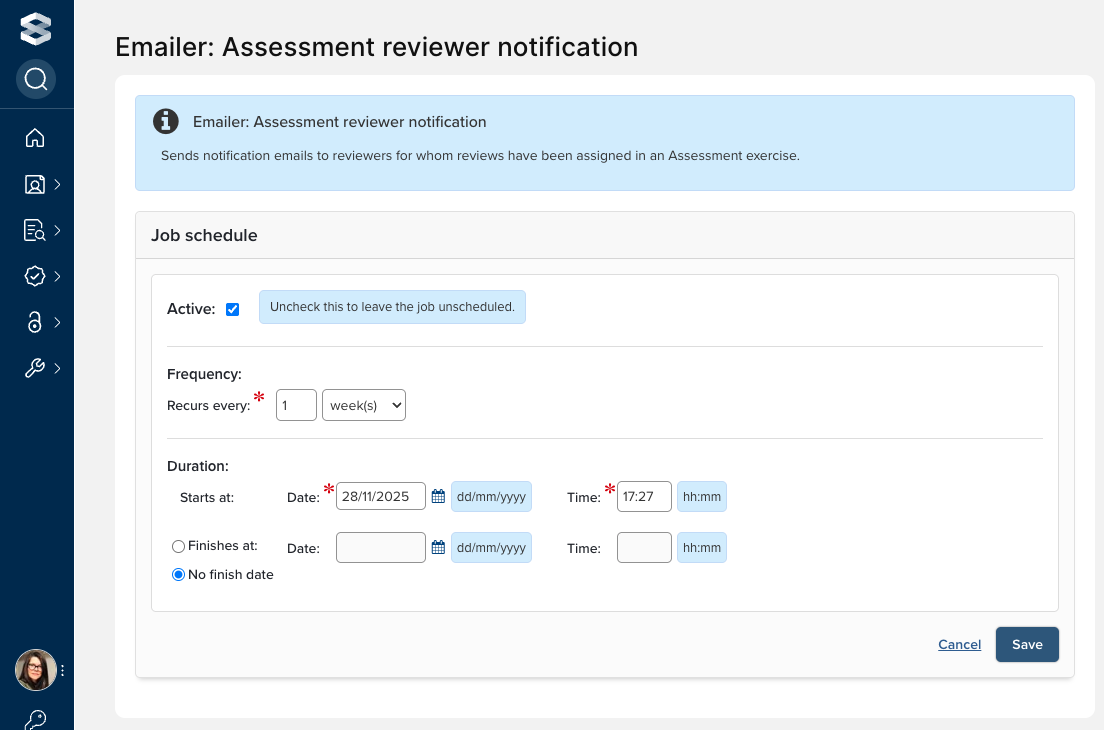
Elements uses a dedicated scheduled job to check for and send these notifications.
Scheduled job: Locate the Emailer: Assessment reviewer notification scheduled job (System Admin > Jobs & scheduling > Scheduled jobs).
Scheduling Recommendation: We strongly recommend configuring this job to run no more frequently than once per day.
Global Setting: Please note that this job is a global setting; the schedule you set applies to the reviewer notifications for all Assessment exercises across your system where reviewer email notifications are enabled.
Configuration: Per-exercise settings
You must enable and configure the email settings within each specific Assessment Exercise definition where you wish to notify reviewers of outstanding reviews.
Critical configuration note
For the best user experience and to prevent notification spam, it is highly recommended that you only enable reviewer email notifications (and the related 'Assessment (single- and multi-response): Reviewer complete reviews' homepage action) if you have also enabled the reviewer setting 'Can mark exercise as done' within the Stages tab of the Exercise definition. Otherwise reviewers will continue to receive notifications until the exercise has moved to the next stage.
Configuration settings
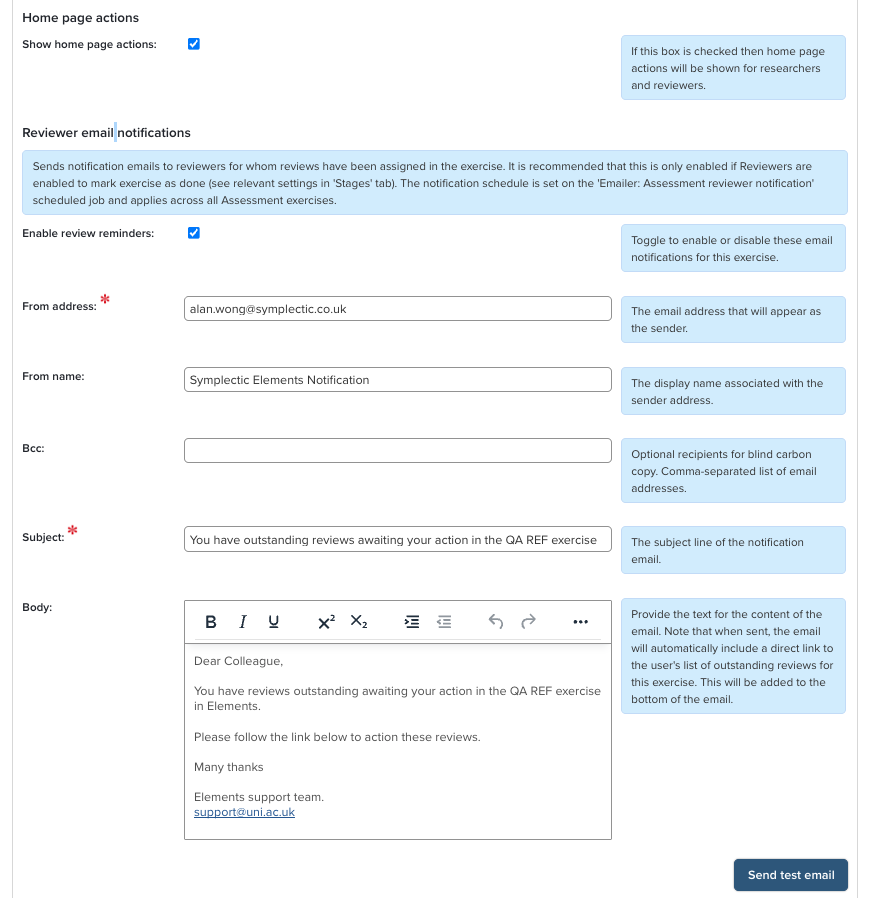
Navigate to the 'Exercise' tab of your Assessment definition, then the 'Notifications' section. In the 'Reviewer email notifications' sub-section, you can configure the email notification settings.
Setting | Description |
Enable review reminders | Toggle to enable or disable these email notifications for this exercise. |
From address | The email address that will appear as the sender. |
From name | The display name associated with the sender address. |
Bcc | Optional recipients for blind carbon copy. Comma-separated list of email addresses. |
Subject | The subject line of the notification email. |
Email body editor | The content of the email. |
Send test email function | Allows you to send a test email to yourself using the current configuration. |
Understanding the notification trigger
The system logic for sending an email is closely aligned with the 'Assessment (single- and multi-response): Reviewer complete reviews' homepage action:
Trigger condition: An email is sent for an exercise only if the reviewer has at least one review assigned that is Not Done at the point of the scheduled job running.
This means the review status is 'Needs attention' OR 'In progress' (i.e., the status is NOT 'Marked done').
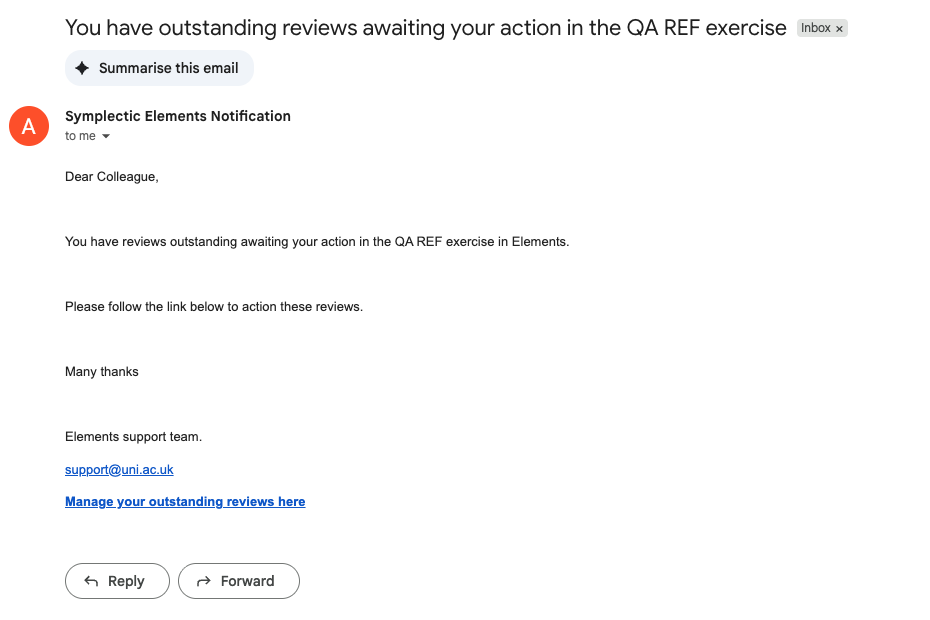
One email per exercise: A reviewer will receive one digest email per exercise they are outstanding in, even if they have multiple reviews within that exercise needing attention.
Direct Link: The email contains a direct link that takes the reviewer to the specific exercise review page, filtered to show only their reviews where the status is 'Not Done' (mirroring the 'View' button on the Assessment (single- and multi-response): Reviewer complete reviews' homepage action).