
Managing AI Features
N.B. This article documents the management of AI features within the core Elements application. For details of AI-powered publication summaries in the Discovery Module, please see the dedicated Discovery Module documentation.
AI Assisted Data Entry
Please note: This functionality is available to Digital Science-hosted Elements customers only. Usage quotas will apply. Additional fees may apply to increase usage limits.
Introduced in Elements 7.2, AI Assisted Data Entry allows a user to create a new item by entering plain text. Access to the feature is controlled via two admin pages:
AI Settings - controls whether the feature is globally enabled, and which data categories is is available for.
Manage feature access - allows admins to grant access only to selected groups or users.
N.B. The "Manage feature access" page is available in Elements 7.3 and upward. In Elements 7.2, the AI Settings page always enables AI Assisted Data Entry globally for all users.
AI Settings page
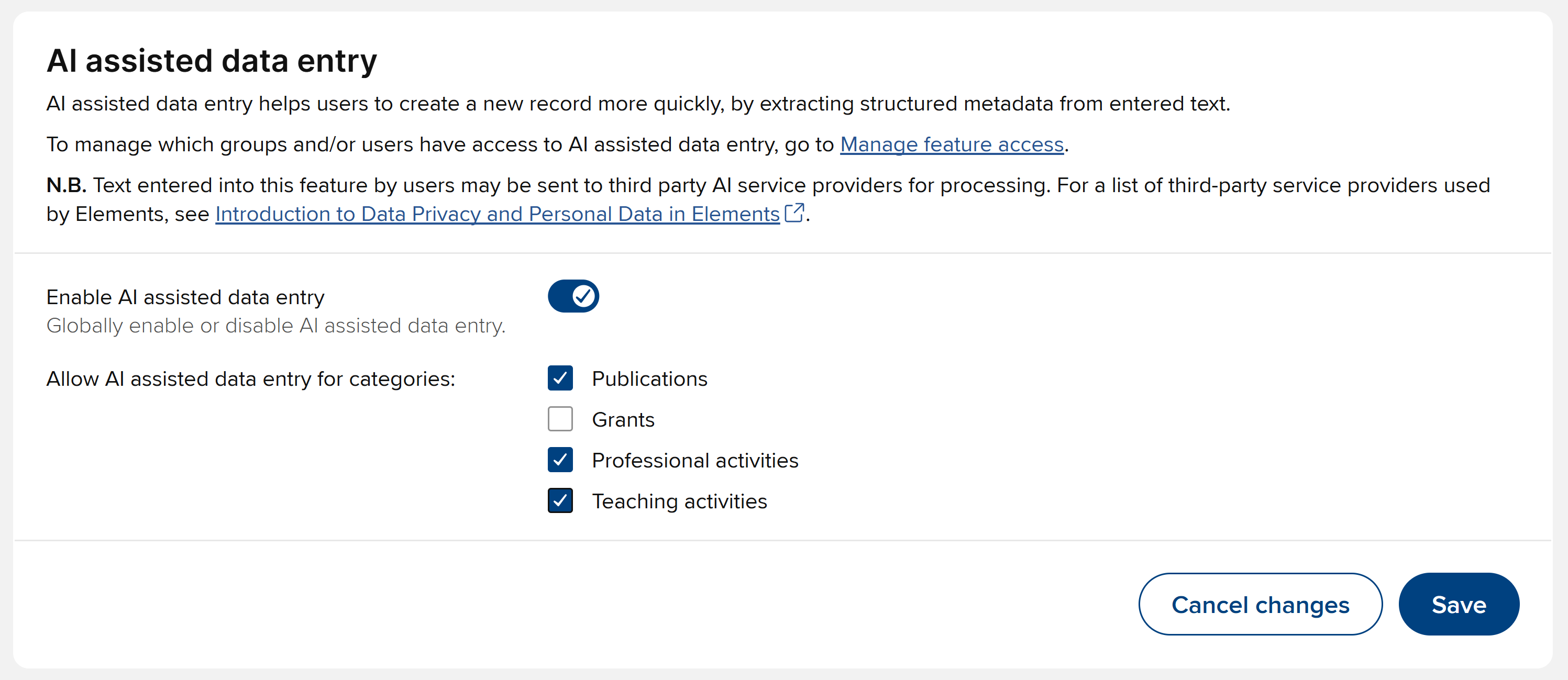
Navigate to System admin > General settings > AI settings. In the "AI assisted data entry" section, the following controls are available:
Enable AI assisted data entry - a global enable/disable control for AI Assisted Data Entry. When disabled, AI Assisted Data Entry is not available and manual entry is the only option when creating a new item. When enabled, a user when creating a new item in one of the supported categories will be offered the choice of AI Assisted Data Entry or manual entry, subject to the individual category settings and feature access setting described below.
Allow AI assisted data entry for categories - These allow you to specify whether AI Assisted Data Entry is allowed for each of the supported categories individually.
Manage feature access
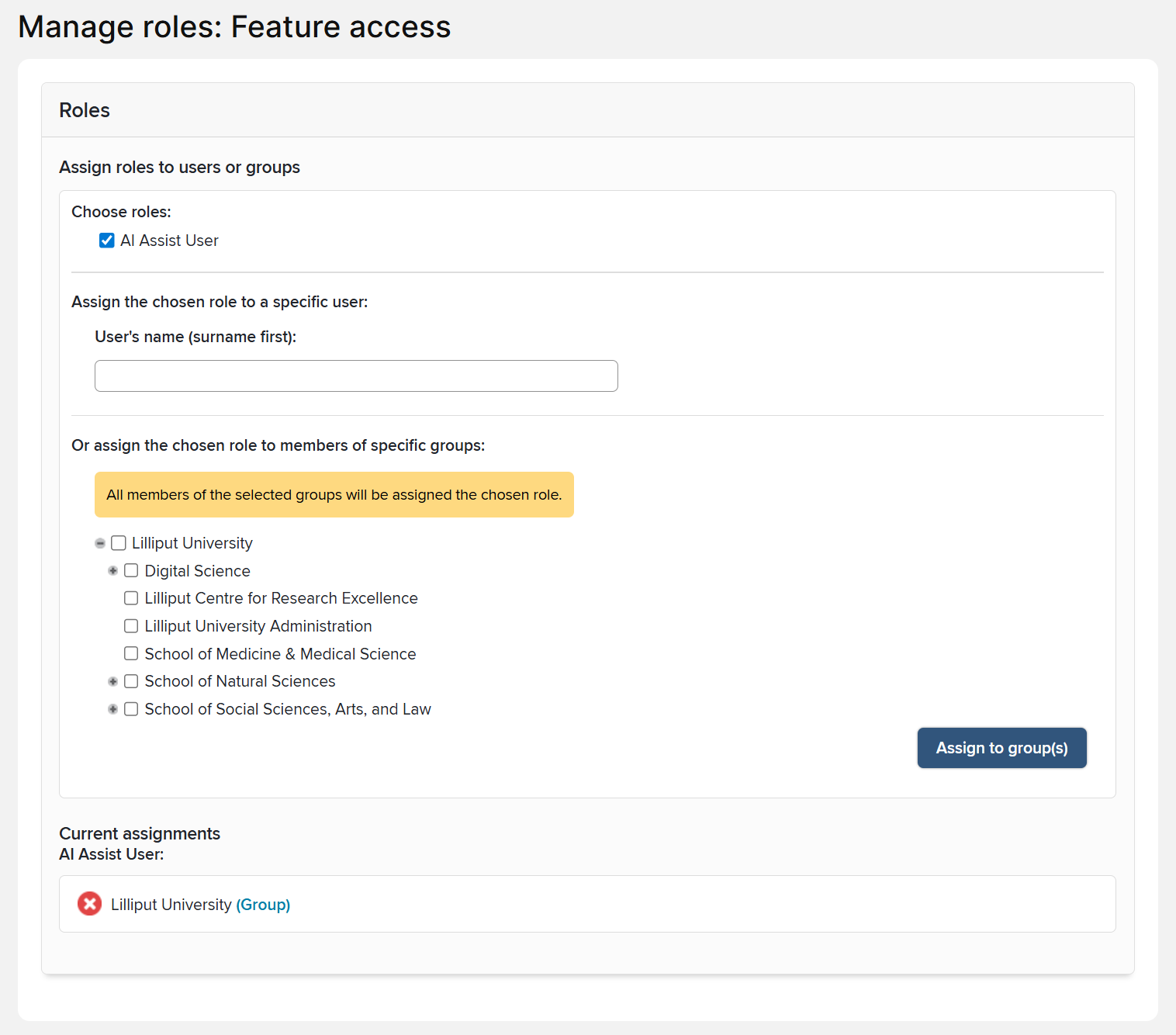
Navigate to System admin > Users & groups > User management > Manage feature access.
Under "Choose roles", select the "AI Assist User" roles
Assign the role to the user(s) or group(s) who should have access to AI assisted data entry.
Remove the AI Assist User role from any group or user who should not have access to AI assisted data entry.
N.B. By default, the AI Assist User role is granted to the top-level group, meaning that all users will have access to the feature when it is enabled. If you are restricting access, remember to remove the role from the top-level group.
Custom types and fields
AI Assisted Data Entry adapts to the custom types and fields in your Elements system. To help AI models infer item types correctly, you should add definitions to your custom types, using the new "Definition" setting on the "edit type" admin pages.
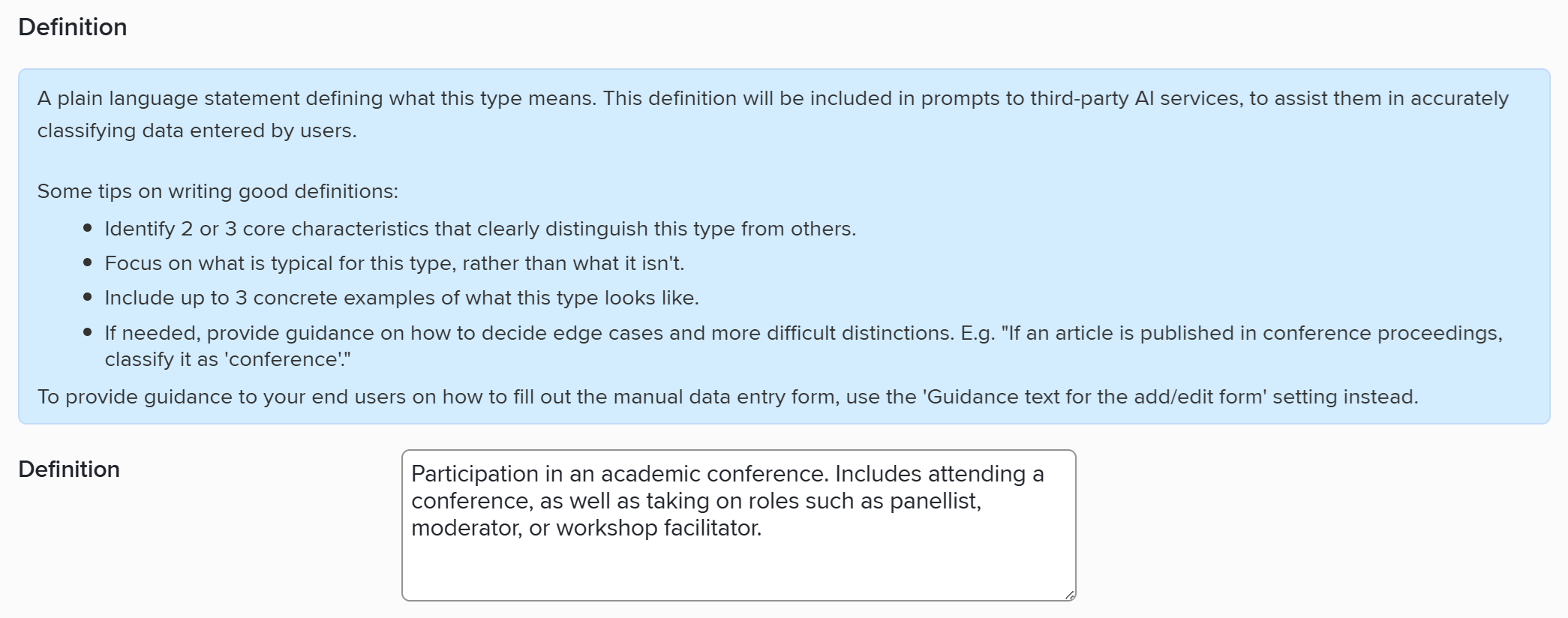
Stock types already have a definition. If needed, you can override this stock definition, for example, if your institution has customised a stock type in such a way that its stock definition is no longer appropriate.