Data Source Management
The System Admin > Data Sources > Data Source Management page allows System Administrators to configure and manage data sources at the system level. There are also settings in Date Source Search to manage the Default Search Settings and Default Search Terms. During an Elements implementation these will need to be configured in conjunction with data sources configuration.
Related documentation about Data Sources: Data source configuration.
Data source settings
Only sources licensed for use in your Elements application will appear in this section.
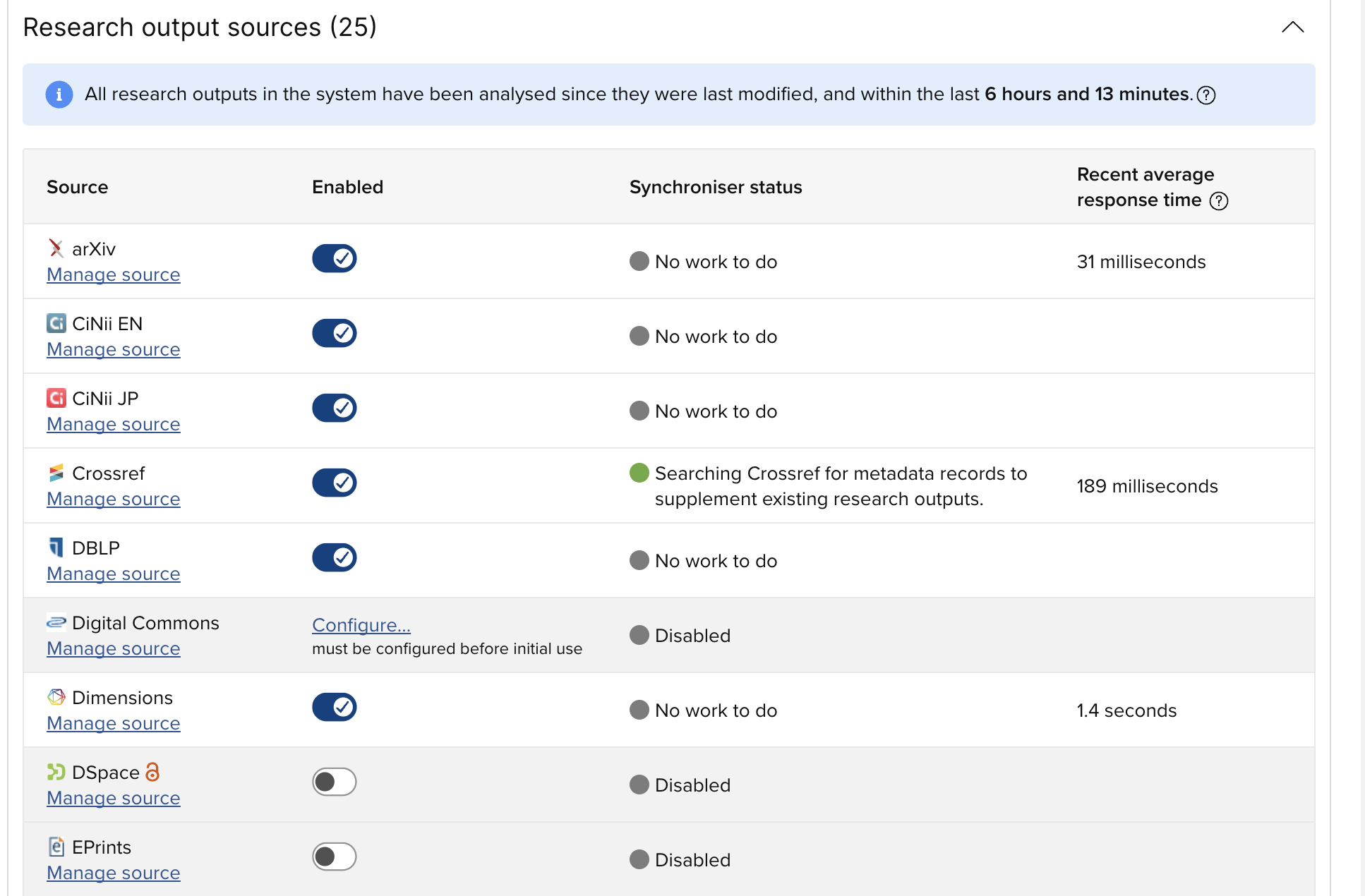
Enabled: This is a master on/off switch. If unchecked, all existing data from this source will be frozen. It will become uneditable (if it was editable at all), new data from the source will not be harvested for users to claim, and existing data will not be refreshed. The data source will not be shown in any data editing or import related contexts. The action of disabling and re-enabling a data source clears the synchronisation queue. The action of disabling a data source and then making a manual change to name based search settings persists even when the data source is re-enabled. Use the "Download all users' name-based search settings report" to check the current status and the "Bulk update users search settings" to re-enable the data source for those users.
Bulk Update User Search Settings
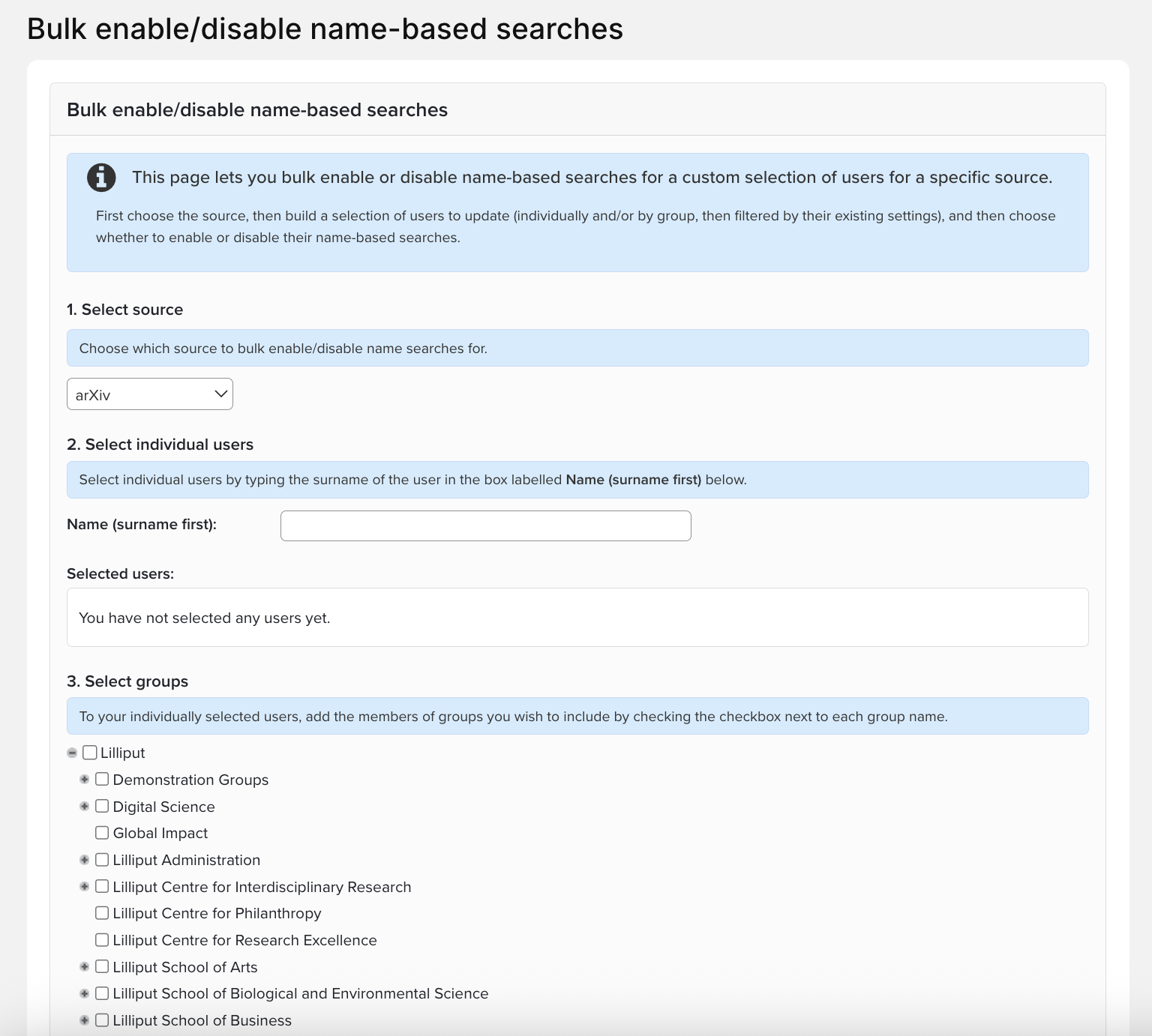
You can disable or enable the search settings for users and groups via the menu item System Admin > Data Sources > Manage Bulk Searches. This is useful, for example, to enable new data sources when they are introduced to Elements, or to disable searches for Administrative staff who need the data source for testing purposes but do not want to be added to the Synchronisation queues. If you enable a data source for inactive users marked as Academic they will be automatically added for a one-time search of the synchronisation queue.
Data source precedence
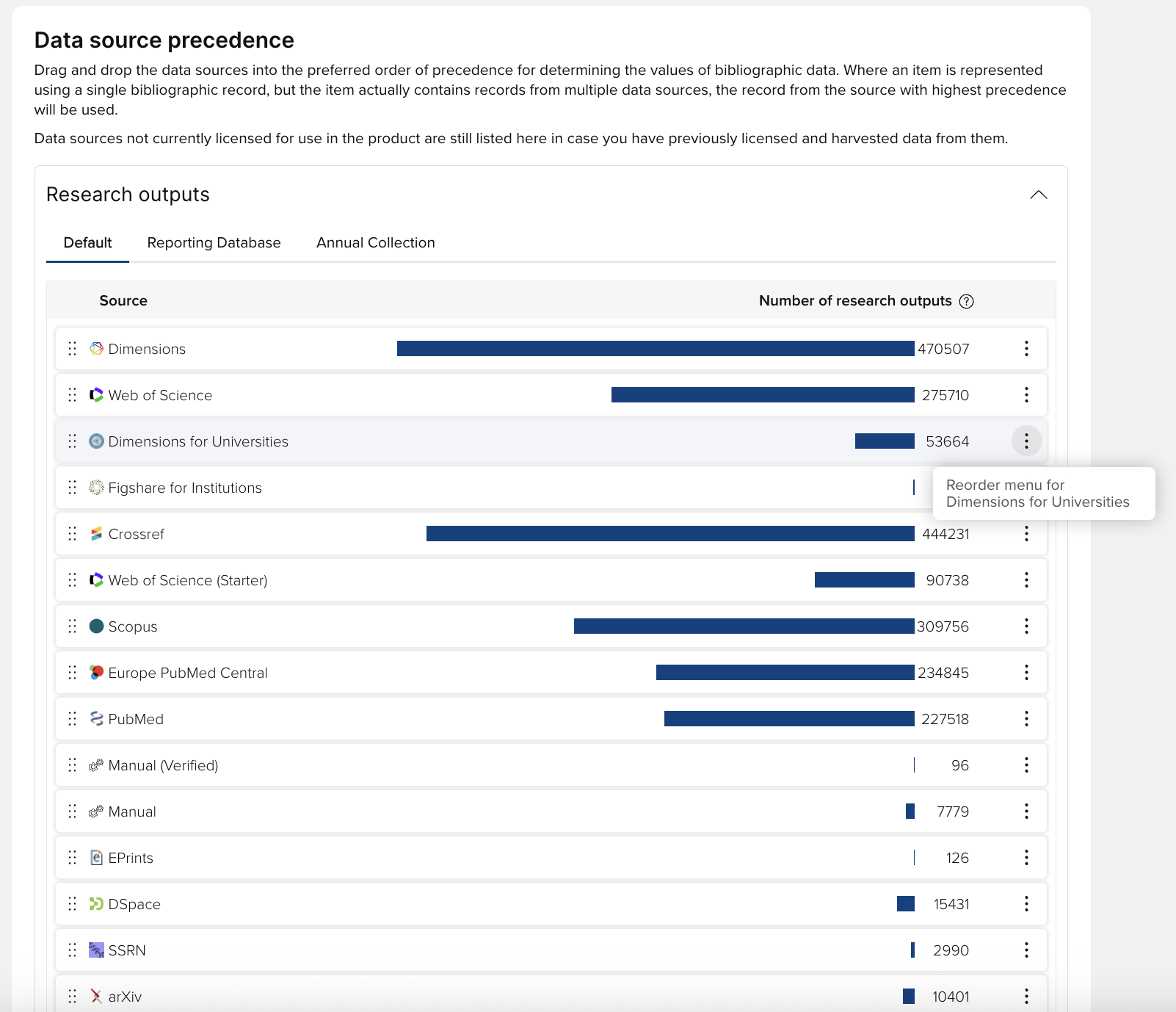
Here you can choose your preferred data source precedence order for determining the values of bibliographic data and metadata fields.
Where a publication or grant contains records from multiple data sources, the record from the source with highest precedence will be used. Disabled data sources are still listed here in case you have previously harvested data from them. If your configuration allows overlapping data sources the record with the more recent reporting date is ranked higher in precedence than the older one.
There are three separate precedence lists that affect different operations:
Default: system-wide precedence; used to display summary results, Assessment selections, profiles, Basic Reports and exports.
Reporting Tools: this applies to data that is exported to the Reporting Database; after changing this precedence list, run a Reporting Database full synchronisation to ensure reporting data uses the new precedence ordering.
Annual Collection: only applies to Annual Collection; the most preferred record is the one referenced by Annual Collection in the Nomination Assessment screens.
Select the one you wish to edit using the "Precedence to edit" drop down box, then use the blue crosses to the left of the data sources to drag and drop them into your preferred order. The top of the list represents the highest precedence. When you are happy with the ordering, click 'Update'.
You can also change the precedence for grants (if enabled) and journals, in the same way as for publications.
Data source intersection
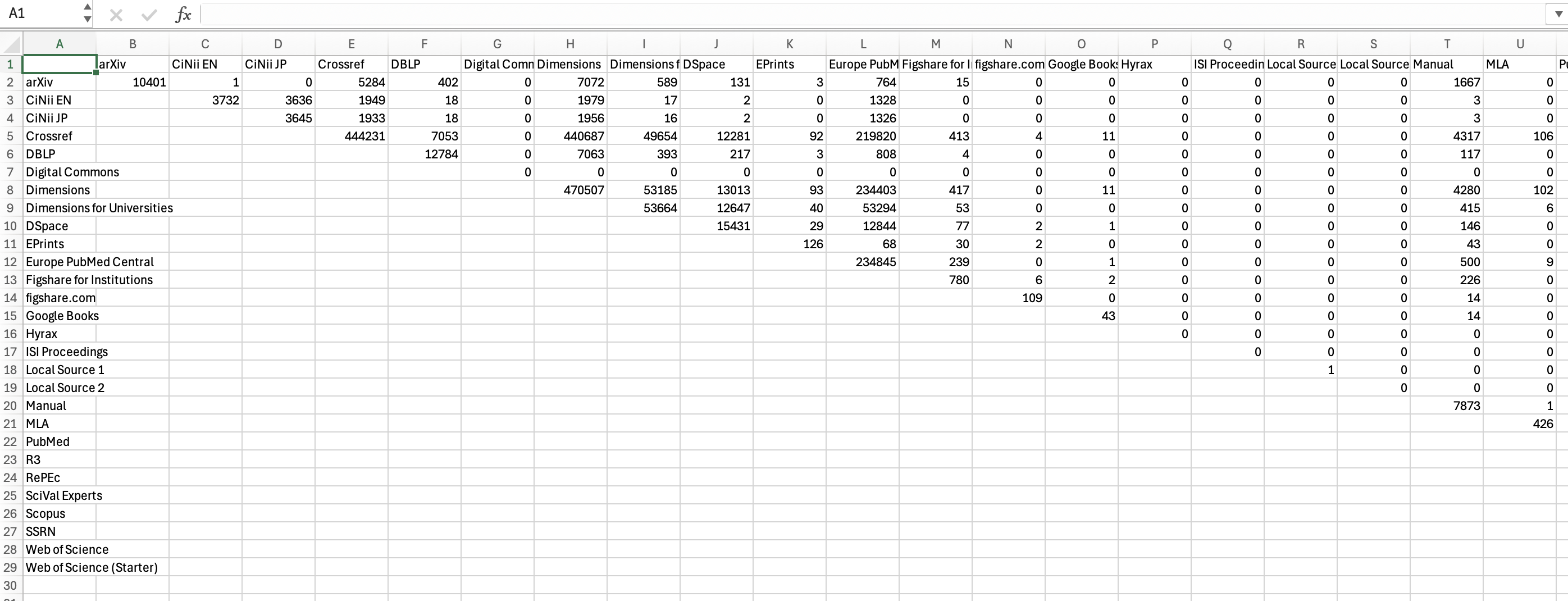
At the bottom of the Data Sources display is a button which can generate a Data Source Intersection report.

Clicking the button will generate a CSV file which displays the distribution and intersection of publications across the various sources. The total number of distinct publication includes items that have been declined.