
Elements Data Sources and configuration
This article is a guide for clients implementing or enabling new data sources in their Elements environments. Details on the system administration settings are available from the Manage Data Sources settings article.
Contents
The table below gives more information about the publication data sources available to Elements:
Data Source | Type | Subscription | Symplectic Hosted | More Detail |
|---|---|---|---|---|
User search | No | No | ||
User search | No | No | ||
User search | No | No | ||
Crossref | Supplementary search | Yes | Yes | Searches for records using existing identifiers |
User search | No | Yes | Refreshed monthly | |
Digital Commons | User search | No | No | To be used in conjunction with Repository Tools 2 |
Dimensions | User search | Yes | No | Can be used as a data source for both publications and grants (v5.15 and above). |
DSpace | User search | No | No | To be used in conjunction with Repository Tools 2 |
Supplementary search | No | No | Searches for records using existing identifiers | |
figshare for Institutions | User search | Yes | No | Institutional subscription required |
User search | No | No | Requires figshare.com user account | |
Google Books | Manual search | No | No | |
Local Source 1 | Not searched | No | No | Typically used for local data sources |
Local Source 2 | Not searched | No | No | Typically used for local data sources |
Manual | Not searched | No | No | |
MLA | User search | Yes | Yes | Institutional subscription required |
ORCiD | User search | No | No | Institutional registration required |
User search | No | No | ||
User search | No | Yes | Refreshed monthly | |
User search | Yes | No | Institutional subscription required | |
No | No | Institutional registration required | ||
User search | No | Yes | Refreshed monthly | |
Web of Science (Expanded) | User search | Yes | No | Institutional subscription required at the Expanded level |
Web of Science (Lite) | User search | Yes | No | Institutional subscription required |
Configure Symplectic hosted services: RePEc, DBLP, SSRN, and MLA
Symplectic hosts the data sources RePec, DBLP, SSRN on their servers. In order to gain access to the data sources, follow these instructions
1. IP Access
The data sources authenticate the users by a list of approved IP addresses. To use these services you will need to request access from Symplectic for the IPs of your servers or any proxies you will use for access. For details of which IPs you will require please contact your internal network staff. Please also inform Symplectic if you change IPs so that the new ones can be added, and the old ones removed from the approval list.
2. Firewall rules
Users wishing to access these services require full outbound access (both on the individual servers used and any other firewalls the institution may implement) through the following ports:
RePEc: 8430
DBLP: 8460
SSRN: 8470
MLA: 8490
3. Test access
Test access to data sources by making the following request in a browser hosted on the same machine as Elements:
If the request returns the following response "No record was found for the requested identifier." then you are reaching the data source.
4. Licensing
Crossref and SSRN require subscription to the Symplectic Hosted data sources package.
MLA requires that you have an institutional subscription to MLA itself and an Elements licence that includes Symplectic Hosted data sources connectivity.
Please create a ticket on this support site with any questions you may have.
Configure Dimensions (and GRID)
Please see Configuring Dimensions as a data source for more details.
Configure Scopus
1. Acquire a Scopus Institutional Token
To enable searching of Scopus, your installation of Elements needs to be configured with a Scopus Institutional Token.
A token can be requested from the Scopus support desk ( https://service.elsevier.com/app/contact/supporthub/scopuscontent/). Suggested text to accompany the request should read something like this:
"Please set up [customer name] with SISID [yourSISID] for insttoken API access to 'Symplectic', and send the insttoken back when complete."
Note: If you do not have your SISID, you can request a token with your account number (form: C0000XXXXX).
2. Update Elements configuration files with your token
Once you have your token, locate two files:
<Main_Installation_Folder>\Sync.Synchronise\Synchronise.exe.config
<Main_Installation_Folder>\Website\web.config
In both files, locate the "scopus-rest-institution-token" key and update its value with your token:
<!--The institution token registered by the customer at Scopus-->
<add key="scopus-rest-institution-token" value="b3500a2a045ee8e086298f14f0dd9ce9" />
Note: make sure that you are editing "scopus-rest-institution-token", not "scopus-rest-api-key". The two values can look very similar.
3. Restart the Elements Synchroniser
Next you must restart the Synchroniser service for the changes to take effect. Go to System Admin > Jobs & Scheduling > Scheduled Jobs. In the "Background services" box at the bottom of the page, stop then restart the Synchroniser.
Note: Unless otherwise agreed with Scopus, rights to access, view and use Scopus data must be limited to the subscriber's current faculty members (including works from previous appointments) and former faculty members (solely with respect to their appointment with the subscriber). Data source attribution is also required.
Configure Web of Science
These instructions assumes that your instance of Symplectic Elements is on 6.7 or higher.
New credentials require approval from the Clarivate team, which may take several days, so please allow ample time.
To enable Symplectic Elements to retrieve data from Web of Science, you must arrange entitlement to one or two services. The services you want to use depends on knowing which Clarivate products are in your subscription bundle.
Which Web of Science APIs do you need?
What was previously known as Web of Science Premium API, is now called Web of Science API Expanded, and is simply referred to as 'Web of Science' on the Symplectic Elements Data Source Management page.
Web of Science API Expanded will provide access to a handful more metadata fields, as you can see in What fields are searched and retrieved from the data sources?
Prior to 2023, access to the Web of Science Expanded API required a subscription to a custom product called InCites. This is no longer true.
The process for acquiring credentials is the same whether you have Web of Science Expanded API or not
If you are entitled to the Expanded API, you need to request access to Web of Science API Expanded
If you are not entitled to the Expanded API, you need to request access for both Web of Science API Lite and Web of Science Starter API up through version 6.23. From 7.0 onward, only the Web of Science Starter API will be required. Make sure to request the 'Institutional' version of the Starter API and not the Free version.
Important: If you are running multiple Symplectic Elements instances (Production, Test, Development), you need separate API keys for each instance of Symplectic Elements.
How to request Web of Science API Keys
Authentication credentials for any of Clarivate's APIs can be requested by following the instructions under How to Get Started.
1. Sign up for the portal
Follow the instructions on How to Get Started to sign up for the portal.
2. Register your application
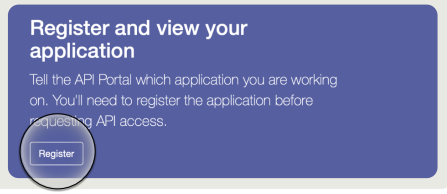
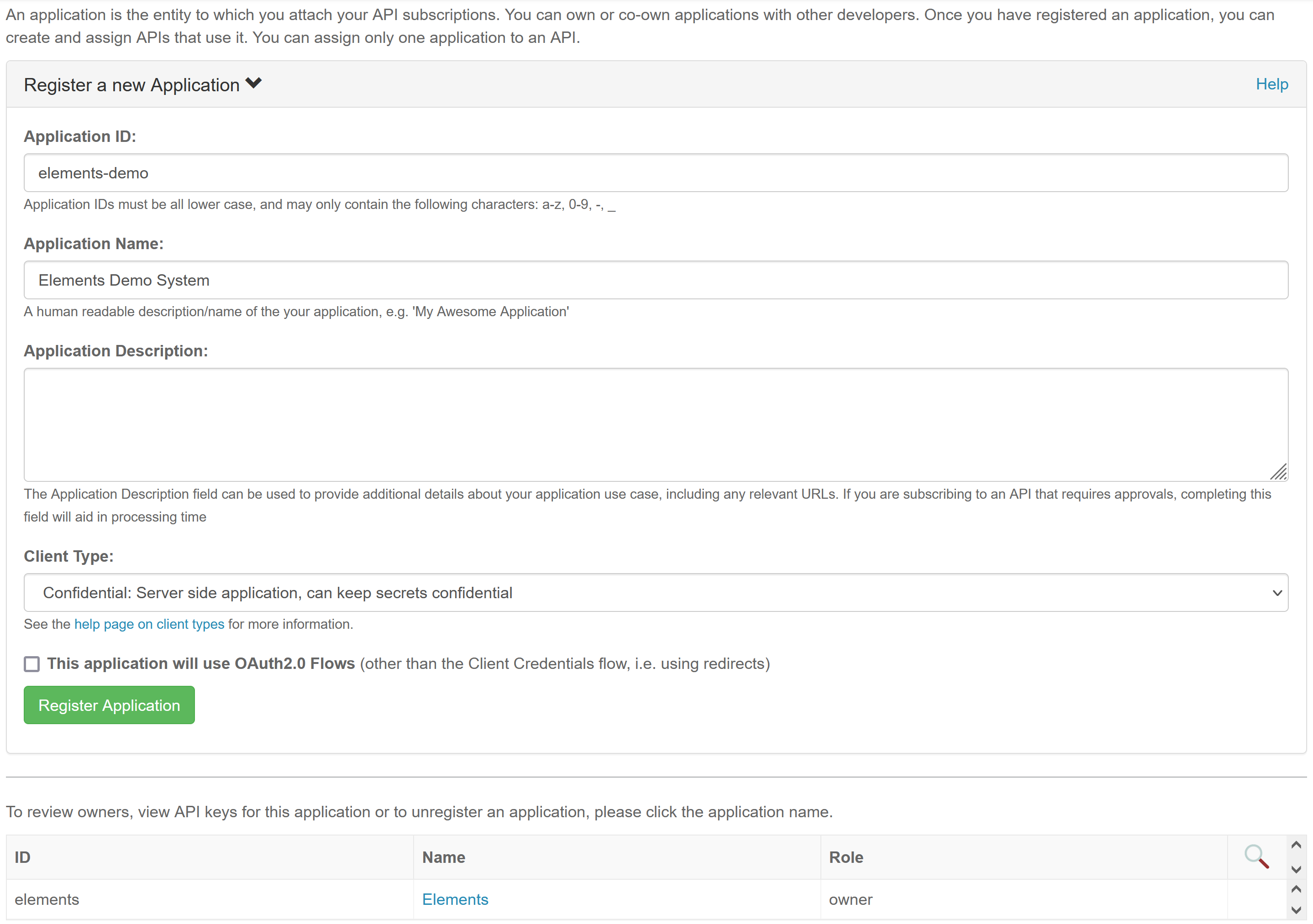
Once logged in, register a new application.
Fill in the details as required.
If you are replacing credentials in Elements, we recommend that you mention that you have an existing subscription and are requesting the new credentials due to moving from WoS SOAP API to REST API.
3. Subscribe to an API
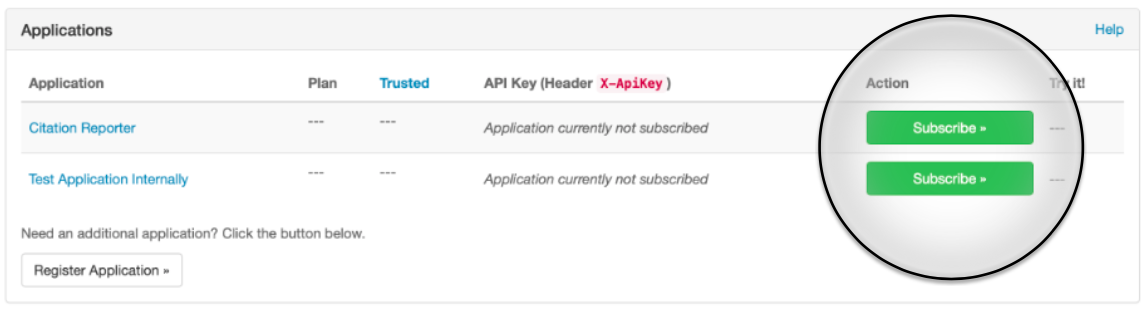
Once you registered the application, select the API you would like to use with the View API button or select the APIs tab on top of the page. If you are not sure which API to select, please contact Clarivate support team.
Once you have selected the API for your application, click Subscribe to continue. Note that this link requires Clarivate approval. If you do not see this option, please contact Clarivate for support.
4. Use the API
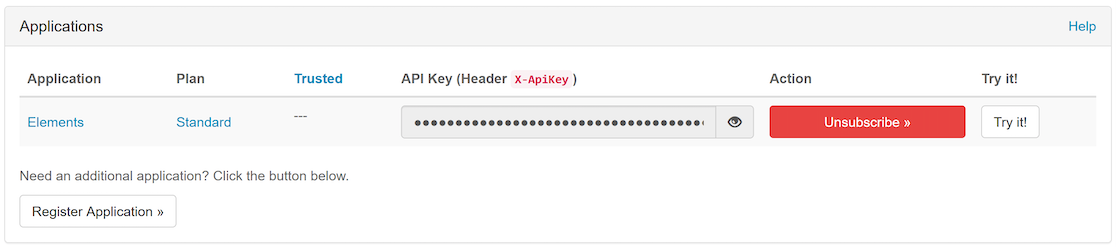
When the application is approved, you will find the API key in the same section.
5. Apply changes to Symplectic Elements
If you are hosted by Digital Science, please securely share the API keys with the Digital Science Support team (or Digital Science Project Manager) and we will configure your systems.
If you are self-hosted, you need to add the API keys to you the following two configuration files:
<Main_Installation_Folder>\Sync.Sychronise\synchronise.exe.config
<Main_Installation_Folder>\Website\web.config
For Web of Science API Expanded subscribers, add the Web of Science Expanded API key here (in both files):
<!-- This wos-premium-api-base-url points to the WoS Expanded REST API's endpoint and should not need altering. -->
    <add key="wos-premium-api-base-url" value="https://wos-api.clarivate.com/api/wos" />
    <!-- The client's API key for authorisation when using the WoS Expanded API, as provided by Clarivate. -->
    <add key="wos-premium-api-key" value="" />
Important: WoS Expanded API clients do not need to configure the Starter API.
For Web of Science Lite subscribers, add the Web of Science API Lite key here (in both files):
 <!-- This wos-lite-api-base-url points to the WoS Lite REST API's endpoint and should not need altering. -->
    <add key="wos-lite-api-base-url" value="https://wos-api.clarivate.com/api/woslite" />
    <!-- The client's API key for authorisation when using the WoS Lite API, as provided by Clarivate. -->
    <add key="wos-lite-api-key" value="" />
and add the Web of Science Starter API key here:
    <!-- This wos-starter-api-base-url points to the WoS Starter API's endpoint and should not need altering. -->
    <add key="wos-starter-api-base-url" value="https://api.clarivate.com/apis/wos-starter/v1" />
    <!-- The client's API key for authorisation when using the WoS Starter API, as provided by Clarivate. -->
    <add key="wos-starter-api-key" value="" />
Finally, in Symplectic Elements, navigate to System Admin > Jobs & Scheduling > Scheduled Jobs, then stop and restart the Synchroniser background service to apply these changes.
Important: If you are running multiple Symplectic Elements instances you must repeat this step on each of the relevant configuration files.
Note: Unless otherwise agreed with Web of Science, rights to access, view and use WoS data must be limited to the subscriber's institution or organization and current faculty members. Data source attribution is also required.
Configure SHERPA/RoMEO
You must register for a specific API key for use with your system at https://v2.sherpa.ac.uk/cgi/register. Please note, you must do this even if you used the earlier integration as the new API requires new credentials.
To configure Elements to use this key, locate the file <Main_Installation_Folder>\Sync.Synchronise\Synchronise.exe.config
In that file locate the line:
<add key="sync-sherpa-api-key" value=" " />And set the "value" attribute to your new API key.
Important: Stop and restart your synchroniser after adding these values.
Important: Add these values to the configuration file of each of your servers.