
What can a Research Information Verifier do?
This article is about the Research Information Verifier role. Essentially, the role is a bibliographic checking role to increase the quality of manually entered items. In versions up through Elements 6.15, the only manual records that can be verified were Publications; in version 6.16 and after, this functionality has been extended to Impact, Grants, Professional and Teaching Activities, Projects and Equipment. Manual records can be checked and updated and then locked to prevent further changes.
Adding a Research Information Role
Navigate to System admin > Users & Groups > User management > Manage system roles, click on the check box for Research Information Verifier and then select the appropriate level/groups or the user to be assigned the role. Research Information Verifiers can verify and lock manual records for all record types in the system.
The Verification Button
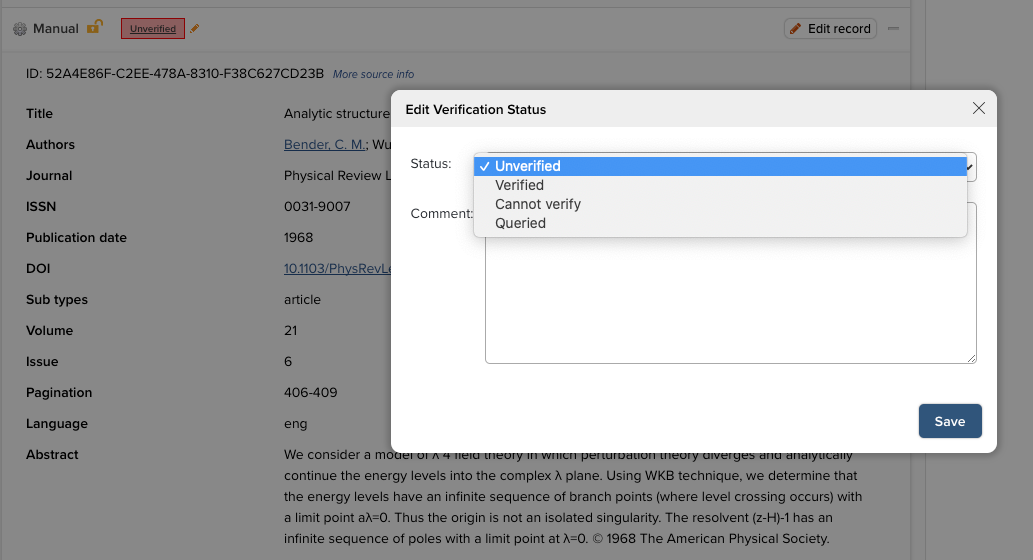
The verification button appears on a manual record within in a record's page. It shows the current verification status of the manual record, and allows System Verifiers to change it. The verification status can take one of four values:
Unverified | Indicates that the manual record has not yet been checked by a Research Information Verifier. This is the default status applied to a manual record when it is created. |
|---|---|
Verified | Indicates that the manual record has been confirmed by a Research Information Verifier to be accurate and sufficiently complete . |
Cannot verify | Indicates that the manual record has been checked by a Research Information Verifier, but that the accuracy and completeness of its data could not be confirmed. |
Queried | Indicates that the verification status of the manual record is currently undecided. |
In addition to changing the verification status, a Research Information Verifier can add a comment or note to explain their decision and/or discuss any outstanding issues with the manual record data.
By default, only System Administrators, Research Information Administrators and Research Information Verifiers can see and use the verification button. To change this default navigate to System admin > General settings > Global settings and change the "Show verification to all users" check box to your desired setting.
Where else is the verification status used?
The verification status and any attached notes are available in reports and via the API.
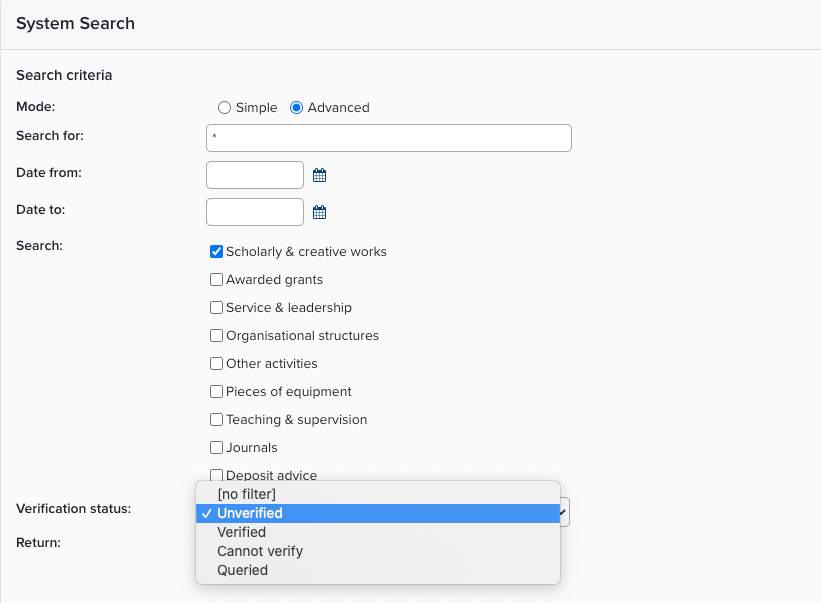
On the System Search page at Search & reporting > Search > System search, you can filter searches by verification status. Begin by selecting the 'Advanced' search option to access the filter.
Verification Status and Record Locking
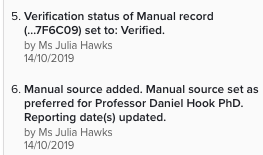
You can impersonate a user and update the status of an item, add notes and lock a record to prevent further changes being made to the item.
Manual Records
Verification can only occur on manual records. If an item is made up of external data sources there will be no option to verify the item. If there is incorrect metadata in an external source (which is rare) you will need to add a manual record and use this for verification.
Verification within the Assessment and Annual Collection Modules
If your requirements are only related to government reporting such as REF, HERDC and PBRF, then there are a range of features within the Assessment and Annual Collection Modules that can assist with the validation of metadata. If you would like further details about these modules, please contact the Symplectic support team.
Research Information Verifiers and reporting
Research Information Verifiers have Statistician data usage rights over all data in Elements. Research Information Verifiers can run Basic Reports, and Data Extract/Formatted Reports available in the Reporting Hub.
Note: Prior to Elements 6.1, Research Information Verifiers were not able to view and run Formatted Reports.
See Elements Basic Reports and Group Statistics for details of how to obtain Basic Reports and Groups Statistics from the System.
See the ‘Report viewing and running permissions’ section of the Introduction to the Reporting Hub for details of how to grant access to Formatted Reports.