
Introduction to the Reporting Hub
What this article covers: |
What kind of reports are included in the Reporting Hub?
Dashboards | Elements dashboards are customisable, interactive visualisations of data fully embedded within the Elements user interface. Please see the following article for more information about dashboards. |
Formatted reports | Elements formatted reports are customisable, downloadable formatted paginated reports, accessible from within the Elements user interface. They are implemented using Microsoft SQL Server Reporting Services (SSRS), a leading reporting platform. Please see the following article for more information about formatted reports. |
Data extracts | Elements data extracts are customisable, downloadable CSV files, accessible from within the Elements user interface. They are implemented as SQL scripts against the Reporting Database. Please see the following article about data extracts: |
Report types serve different needs | Dashboards, formatted reports and data extracts are good at solving different problems. Please see the following article for guidance on choosing between them when creating your own custom reports. |
What prerequisites are required to use the Reporting Hub?
Reporting Database | The vast majority of reports source their data from the Elements Reporting Database. This database must be installed in order for the Reporting Hub to function correctly. Installation of the Reporting Database is handled by Symplectic for hosted instances of Elements. For clients hosting their own instances of Elements, please see the following support articles on how to install the Reporting Database: |
Required licensing | All Elements clients can view stock dashboards, stock formatted reports and stock data extracts, as well as create and use custom formatted reports. An Analytics licence subscription is required to copy, edit, create and view custom dashboards and custom data extracts in Elements. Analytics is included as part of the Activities & Outcomes Solution, which is the standard core offering for all new Elements clients. Check your Licences page in Elements to confirm your access. If you don't have Analytics and would like to discuss adding a licence, contact your Regional Solutions Manager. |
How are reports managed and accessed?
What roles have report management permissions? | Only Elements users in either or both of the System Administrator and Reporting Hub Administrator roles are permitted to design and manage reports in the Reporting Hub. If you wish to allow a user to manage the reports in the Reporting Hub, assign them to the Reporting Hub Administrator system role via the System Admin > Users > Manage System Roles menu option. Users in these roles have the rights to manage all reports in the Reporting Hub. At the current time, it is not possible to restrict a user's management rights to only a subset of the reports in the Reporting Hub. They can either manage none of them or all of them. |
What are the options for managing reports? | Please see the following article for more information about the options available in the Reporting Hub for managing reports: |
How is access to the Reporting Hub controlled? | The running of reports is secured using a two-step process, which is briefly summarised below. Please see the following article for more information about managing the permissions required to view and run reports: |
Viewing reports | Firstly, a report must be shared by a report manager with end-users using viewing permissions. Viewing permissions specify which users and groups are permitted to know of the existence of a report, see that report listed in the Reporting Hub, and attempt to run it. |
Running reports | Some reports, such as group reports, are configured with parameters. These represent questions to ask the user running the report when it is run, typically about what data to target in the report. For example, a group report, by definition, has a group parameter. When a user runs the group report, the report will ask the user to select from amongst the preconfigured set of groups supported by that parameter. However, only those groups on which the user also has suitable data usage rights will be offered. |
Long-running reports | If a report generates a file (dashboards do not generate files) and that process takes more than 10 seconds to complete, users will be offered the option of collecting their files later. The report will continue running in the background and when it completes, the user will receive an in-system notification that their file is ready to collect in the Download Centre (Reporting > Reports & Dashboards > Download Centre). |
Stock reports
What stock reports are included? | Each version of Elements provides its own selection of stock reports for your use. These are intended to serve as examples of the kinds of report that can be built by you, though you may find them useful in their own right. Occasionally, it may become necessary to remove a stock report from Elements as the product evolves. As with any other feature removed in a version of Elements, Symplectic will announce the retirement of any stock report in the relevant release notes.
|
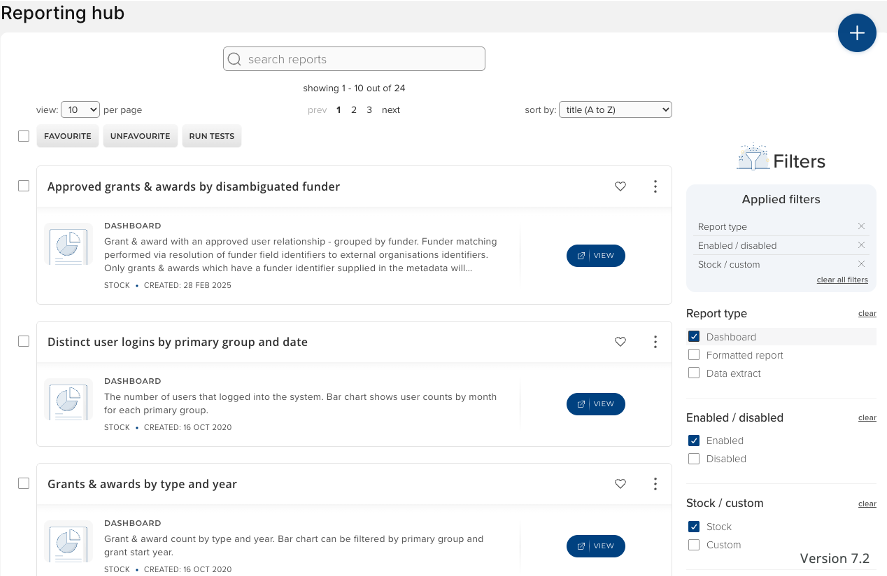
Custom reports
What custom reports can you create? | You can create custom formatted reports in all editions of Elements, and with a licence to the Analytics Module, you can create your own custom dashboards and custom data extracts. Elements even provides functionality that encourages you to copy existing stock or custom dashboards and data extracts for further customisation, providing an easy way for you to jump into the report design experience, and a way to experiment by building on others' design efforts.
|
Report security and data protection | It is important that when designing custom reports, or configuring access to stock or custom reports, you ensure you are meeting the requirements of your organisation's privacy policy, which includes observing the privacy preferences indicated by users of the system. To this end, the following support article provides guidance on secure consumption of data in custom reports and on how to manage the appropriate sharing of access to reports. All users to whom you grant report administration rights must be made familiar with this documentation and any documentation referenced by it. The ease of use of the various report designers and the scope of data reachable using custom SQL queries against the Reporting Database make it possible for report administrators to share data more widely than may be appropriate. |
The Reporting Database
| Reports do not source their data directly from the Elements operational database. Instead, the vast majority source their data from the Elements Reporting Database, which is specifically designed for use by reporting and Business Intelligence tools. The Elements Reporting Database is a customisable traditional relational SQL database supporting direct SQL query access by your institution's data analysts, their BI tools such as Excel or Tableau, and any of the reports in the Reporting Hub. It is updated continuously as changes are made to underlying data in the Elements operational database.
|
Report performance | The Elements data extract and dashboard designers, and the Microsoft SSRS report builder, all support the use of custom SQL queries authored by the user designing a custom report. As such, it is possible to design inefficient reports or craft inefficient SQL queries whose execution can negatively impact the performance of the system as a whole. Users who you allow to manage and author reports become, in effect, auxiliary developers of the system, and should be made aware that responsibility for the performance of their report lies with the institution. In addition to inefficient queries, there are inherent limits on the performance that can be achieved with real-time SQL-driven analysis, particularly against large or complex datasets. This can become particularly important when designing dashboards, whose interactivity depends on short response times. The following articles go into more detail on these subjects and list some options for customising the Reporting Database to better serve the data processing needs of your reports, as well as suggesting alternatives to real-time analysis and in-application dashboards for resource-intensive analyses. Please note that although Symplectic can be asked for support services to advise or help in the area of report performance, it is ultimately the responsibility of the institution to address system performance issues caused by use of reports. |
Maintenance of custom reports through future Elements upgrades | You might develop your custom reports yourselves, commission Symplectic or a third party to develop them for you, or perhaps otherwise obtain copies of useful custom report definitions from the Elements community. These are all encouraged and are all great ways to make the best use of your Elements system. Regardless of the origin of a custom report, even if it was obtained by cloning a stock report from a current or older version of Elements, a custom report is not a part of the Elements product provided by Symplectic and is always owned by your institution. It remains your institution's responsibility to test it and maintain it in working order as you make changes to Elements itself, including upgrading Elements to newer versions. There is helpful functionality for managers of the Reporting Hub for testing that reports whose primary role is to generate a file (formatted reports and data extracts), in particular, can still be rendered after an upgrade. Filter to and then select all relevant reports and click the Run Tests bulk action button. This will cause Elements to run the selected reports using some automatically-chosen parameter values. Any errors running the tests will be shown against the relevant reports as the tests complete.
Please see the following article for more information and advice on maintaining custom reports in working order: |
Sharing reports with the Elements community | Elements supports the export and import of dashboard and data extract definitions as XML and SQL files respectively. In this way, dashboard and data extract definitions can be downloaded from one Elements system and then re-uploaded into an entirely different Elements instance with minimal effort. In addition, those familiar with the Microsoft SSRS management user interface can similarly export and import the definitions of stock formatted reports. However, there is no direct support for this in the Elements user interface, so doing so is more involved than with other types of report. |