
Reporting synchronisation management
The Reporting Synchroniser is the background process that keeps the Elements Reporting Database up to date with the latest data in Elements. The reporting synchroniser process has its own dedicated management page at Search & reporting > Configure reporting > Reporting synchronisation. On this page you can:
Manually stop or start the Reporting Synchroniser background process
Control whether Elements will automatically restart the process if it it stopped
Rebuild the Reporting Database
Clear down and reload all data in the Reporting Database
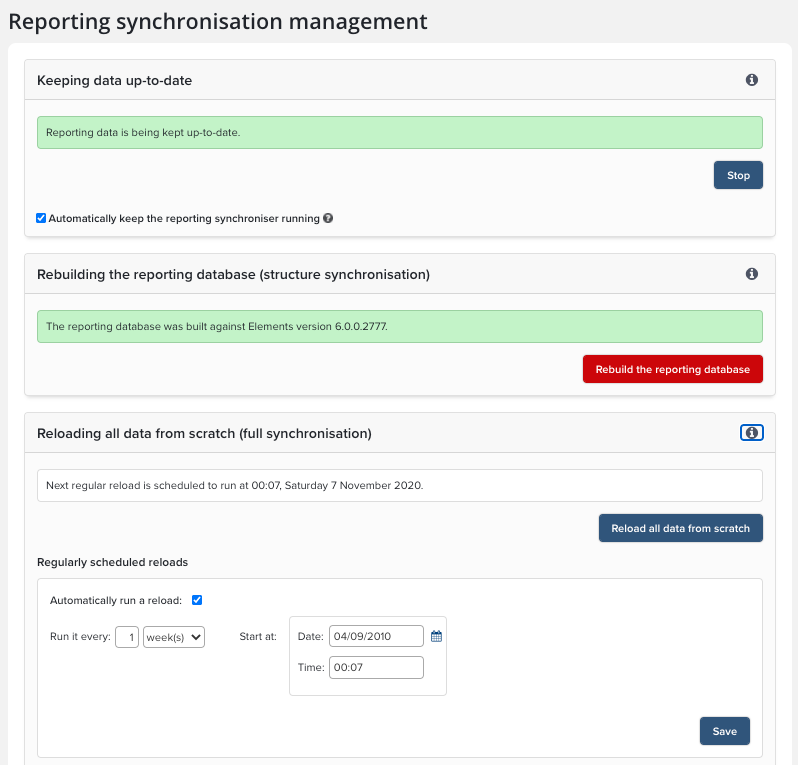
The page is divided into three sections, which are described below.
Keeping data up-to-date
In normal operation, the Reporting Synchroniser should be running constantly, so that the Reporting Database is as up-to-date as possible. On occasion, you may wish to pause synchronisation so the Reporting Database becomes a static snapshot of the data in Elements.
This section has two controls:
Stop/Start button - allows you to manually stop and start the Reporting Synchroniser background process. If you deliberately stop the Reporting Synchroniser with this button, also ensure that the next setting is disabled, to prevent Elements restarting it automatically.
Automatically keep the reporting synchroniser running - when this is checked, Elements will check every few minutes that the Reporting Synchroniser process is running. If the process is not running, it will be automatically be restarted. In general, this setting should be enabled. Disable it only when you want to control the process manually with the Stop/Start button.
Rebuilding the reporting database (structure synchronisation)
Certain changes to Elements configuration require changes to tables and views in the Reporting Database, e.g. adding a new underlying field for Publications will require that a corresponding column is added to the [Publication] and [Publication Record] tables. These Reporting Database changes do not happen automatically; a rebuild of the database is required.
The red Rebuild the reporting database button will delete all data and tables from the Reporting Database and completely rebuild it, using the data structure currently configured in Elements. A rebuild is needed if you:
upgrade or patch Elements
add, delete or edit Underlying Fields in any category
add, delete or edit Types in any category
add, delete or edit supporting fields in an Assessment Exercise definition
make certain other changes to configuration
After the rebuild, a full reload will start automatically.
N.B. If your institution has added customisations to the Reporting Database (such as custom schemas, tables, views, functions, or stored procedures) the rebuild will delete these and you will need recreate them. If you do not need structure synchronisation and simply wish to make sure that all Reporting Database data is up-to-date, perform a reload instead of a rebuild.
N.B. Self-hosted clients: for some upgrades, a rebuild requested via this page will not be sufficient. In these cases, the Reporting Database must be dropped and reinstalled using the Reporting Setup application. See the appropriate version release notes for guidance.
N.B. Symplectic-hosted clients do not need to perform a rebuild after a patch or upgrade; our hosting team will handle this.
Reloading all data from scratch (full synchronisation)
This process deletes all data from the reporting database, then reloads it from scratch. The table structure of the database is kept intact throughout the process. This can be useful to replace large tracts of data rendered out-of-date after wide-ranging changes, such as changes to data source precedence settings. Because a reload leaves the database structure intact, any custom schemas, tables, views, functions, or stored procedures your institution has added to the Reporting Database will be preserved.
Regular reloads can be scheduled to ensure that reporting data is kept in sync with the main database. The recommended reload schedule is once a week over the weekend. While a reload is in progress, the reporting database will be unavailable. Consequently reports that rely on it (including all academic CVs) will be either inaccessible, or may produce inaccurate or incomplete result. You should therefore carefully time any reload for a known quiet period.
Related support articles: