How to enable and configure Waiver generation
Pre-requisites
An Open Access Monitor license
SSRS, and "CV" reporting enabled - see How to configure CVs in Elements
Scope
This guide covers enabling the functionality, and switching it on for groups of users. It does not cover using SSRS to design a waiver template, for registering as an registered report.
Step by Step Guide
1. Enable Waiver Generation
Go to Menu > System admin > [GENERAL SETTINGS] > Global settings (v6 System Admin > System Settings > Global Settings).

2. Enable
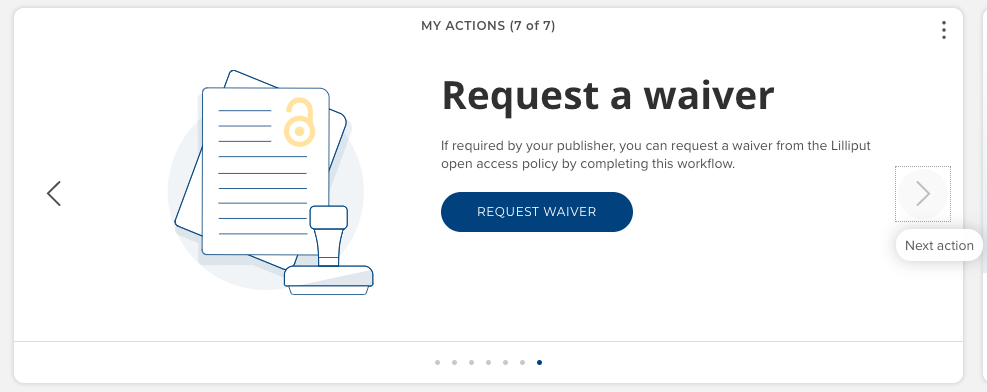
Then, go to Menu > System admin > [NOTIFICATIONS AND ACTIONS] > Homepage actions (v6 System Admin > Notifications and Actions > Homepage Actions) and enable the option "Add a <publication> with a waiver."
3. Add Waiver Requester role
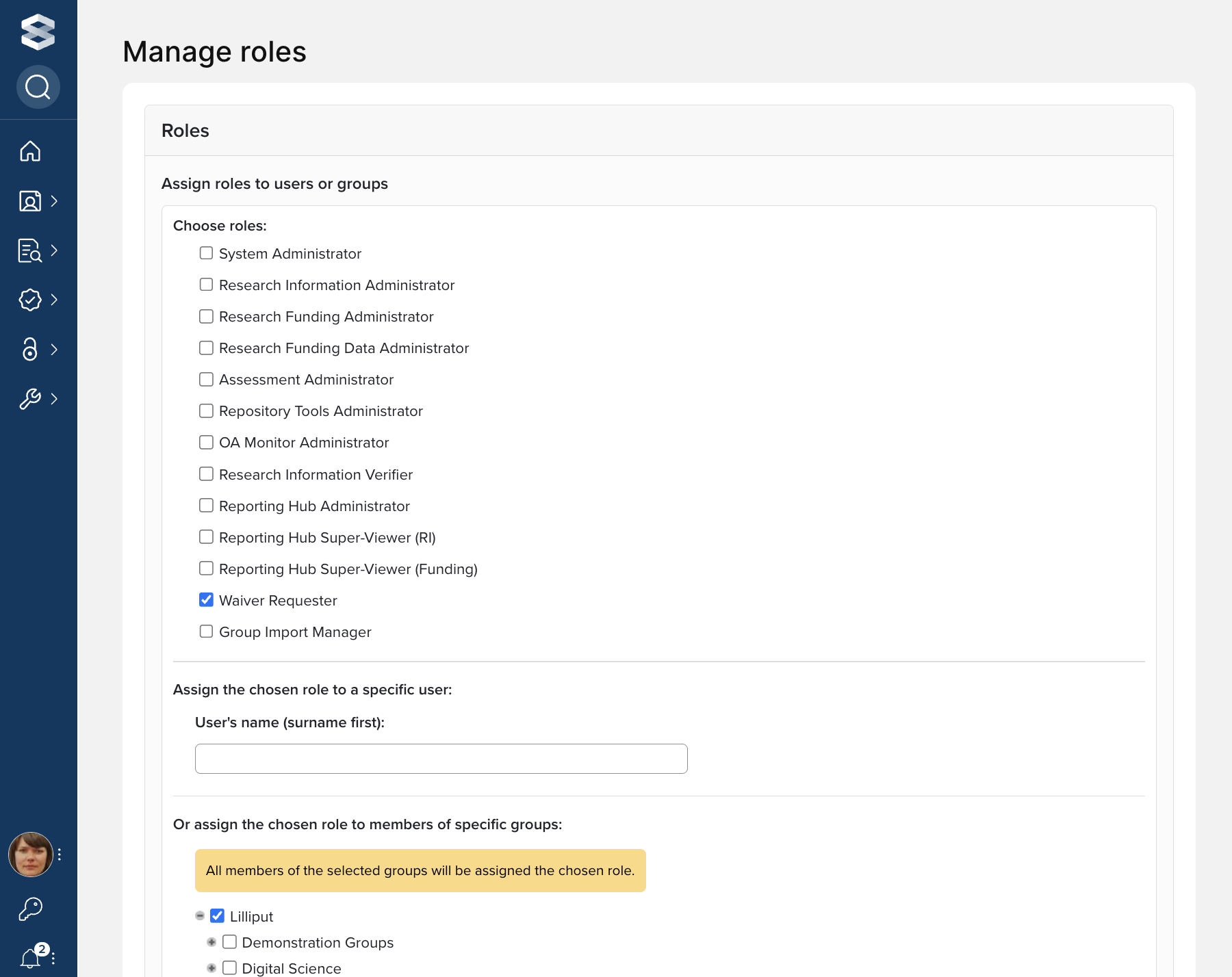
Navigate to the Menu > System admin > [USERS & GROUPS] > User management > Manage system roles.
(v6 System Admin > User Management > Manage System Roles) and confer the "Waiver Requester" system role upon the users or groups of users who will be permitted to request waivers:
4. Enable Waiver report
To test, navigate to the Menu > Search & reporting > [CONFIGURE REPORTING] > Registered reports (v6 Reporting > Configure Reporting > Registered Reports) and enable the report called "Stock Waiver Request Acknowledgement" or, if one exists, your institution's custom waiver acknowledgement report/letters in SSRS format and set availability.
5. Configure OA Monitor and Waiver interaction (optional)
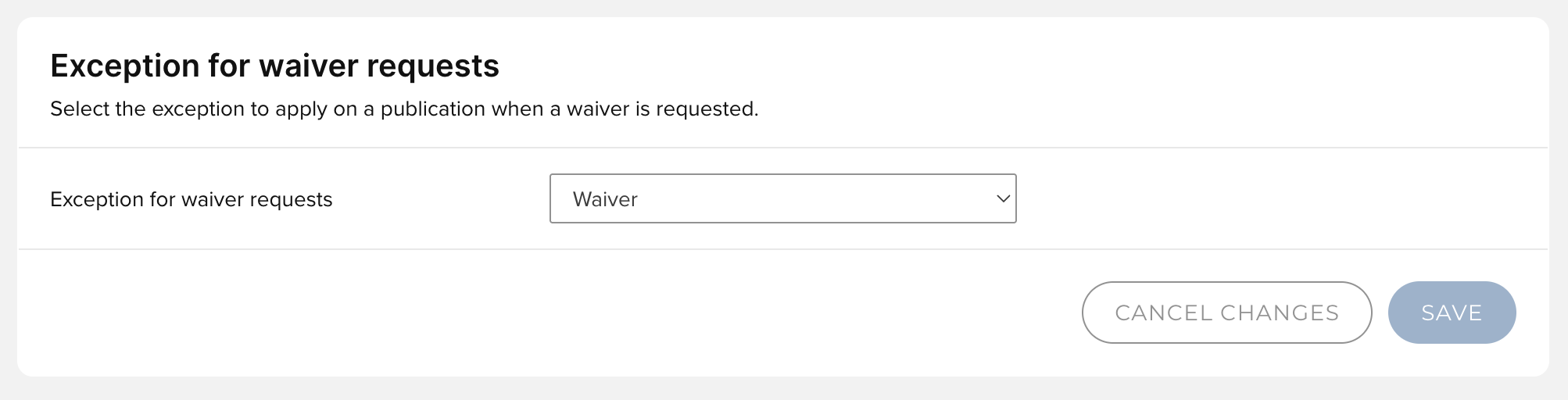
Optionally, configure the desired behaviour / interaction between Waiver Request Generation and Open Access Monitor exceptions. Navigate to Menu > Open access > [MANAGE OPEN ACCESS] > OA Monitor settings (v6.20-v6.23 - Open Access > OA Management > OA Monitor Settings) and select the desired exception to apply on a publication when a waiver is requested. Further detail on this setting is available here.
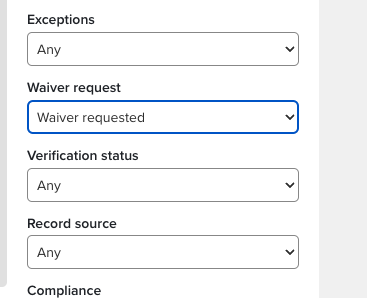
6. A person with the rights to use the OA Monitor can see the publications with waiver requests by using the Waiver Request filter on the right side of the page.