
OA Monitor: Deposit reminder emails
System Administrators and Repository Tools Administrators are able to send out email notifications to users who have publications that fall within the scope of an Open Access scheme (v.6.20+) or policy (v6.19 and previous), but:
have not yet been deposited,
have not been waived, or
have not had an exception applied that has been flagged as 'Excluded from deposit reminders' (see OA Monitor settings support article).
Managing email notifications
Elements can automatically push emails to users provided that email is enabled at System Admin > [NOTIFICATIONS & ACTIONS] > Email Configuration and the Scheduled Job called "Emailer: Notification" is enabled.
Warning: To prevent any unexpected results, deactivate the email notifications. Send a test email to check if the content is appropriate prior to activating the emails.
The deposit reminder emails are not sent immediately but are queued for sending. The emailer schedule settings can be found in System Admin > [JOBS & SCHEDULING] > Scheduled Jobs.
Deposit reminder emails are configured and scheduled separately from the publication notification/reminder emails.
Configuring deposit reminder email notifications
Configuring and enabling deposit reminder emails is a multi-step process:
1. Begin by configuring the Deposit Reminder email at the System level. Navigate to Open Access > [DEPOSIT ADVICE] > Deposit reminder email (or Open Access > Configure OA > Deposit Reminder Email (v6.19 and previous).
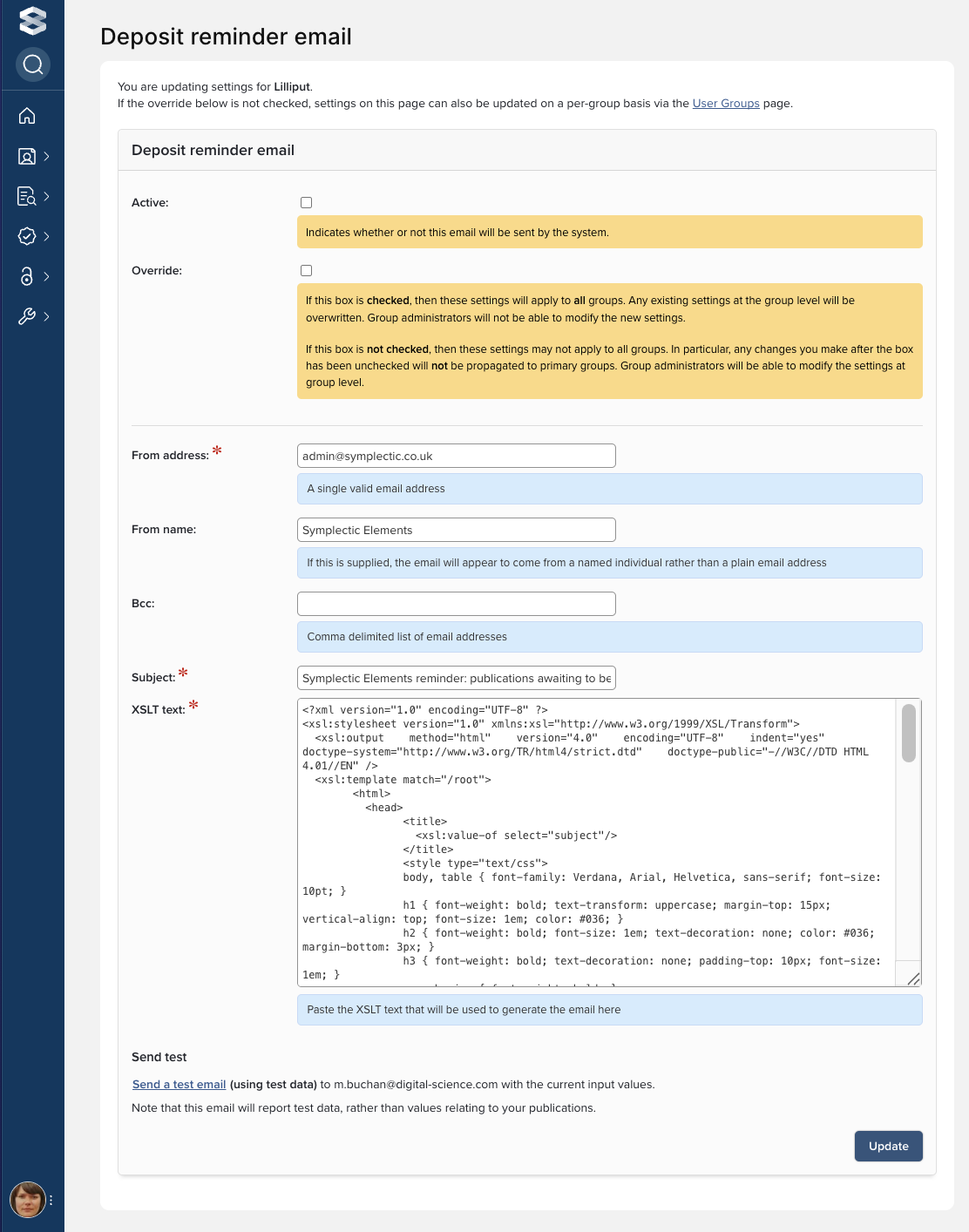
Setting/field | Description |
|---|---|
Active (Y/N) | Turns on/off the emailing functionality at the System level. |
Override (Y/N) | If this box is checked, then the settings specified within this location will apply to all groups. If this box is not checked, then these settings may be configured on a group by group basis. For more information, consult the article about Overriding module settings. |
From address | This is the email address from which the end users will receive the email notifications. |
From name | If this is supplied, the email will appear to come from a named individual rather than a plain email address. It is recommended you use your institutional name for Elements. |
BCC | Comma delimited list of email addresses; if specified will be blind copied on the emails. This can be useful for initial monitoring when rolling out. |
Subject | This will be the subject line on the email. |
Body (XSLT text) | This will be the body of the email notification.
|
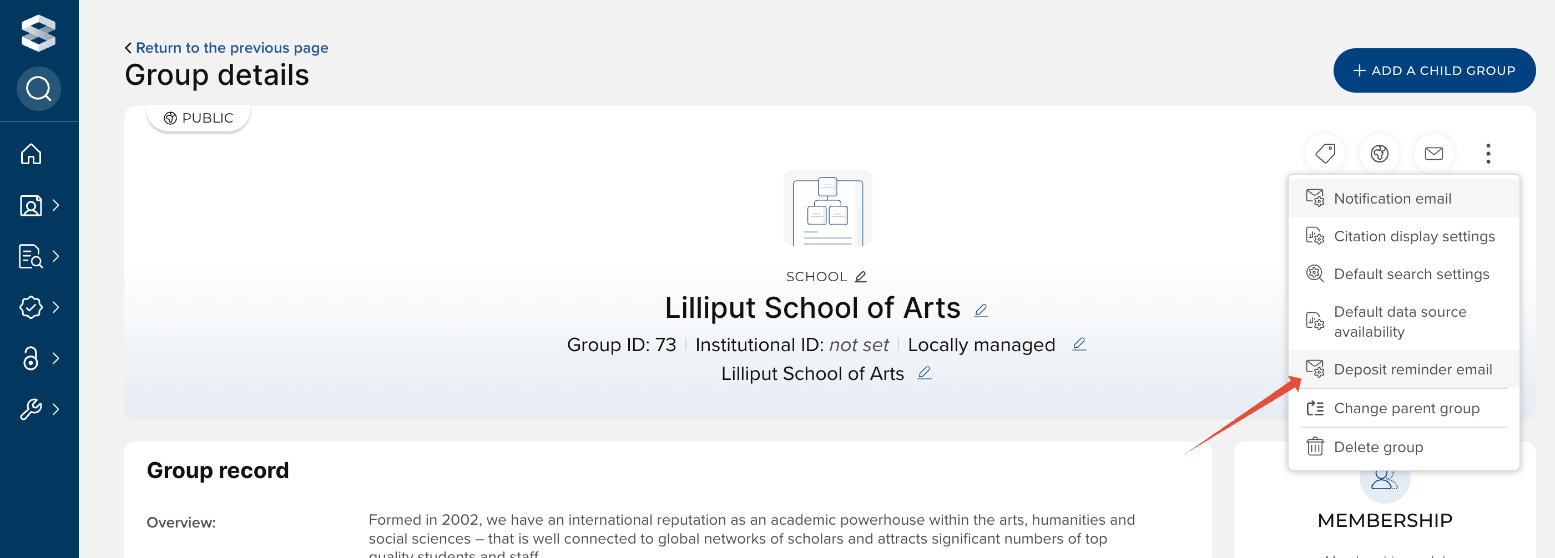
2. If Override is not selected, the next step is to enable and configure the deposit reminders at the Primary Group level. Navigate to System Admin > [USERS & GROUPS] > Group Management > Manage Groups and select the desired primary group. From the options menu, select 'Deposit reminder email'. On this page, the same configuration options will be available as outlined above. Any deviations from the global configuration can be entered here.
3. After the notifications are enabled at the Primary Group level, the Scheduled Job for the Deposit Reminder Emails must be enabled. Navigate to System Admin > [JOBS & SCHEDULING] > Scheduled Jobs and select the job called "Emailer: Deposit Reminder."
Unlike other email-related scheduled jobs, the Deposit Reminder is a manually-triggered process. This scheduled job was included to give institutions some options about how to manage data volumes and minimise load on the system that could cause disruption to users. If you plan to send out emails in small batches - for example, by group with a couple of hundred of researchers at a time - then you could set the scheduler to run every 10 minutes, which will essentially be the same thing as sending out emails almost immediately.
If you think you'll be sending the emails out in larger batches - thousands of researchers at a time - then set the job to run overnight each day as sending out large batches could put a strain on Elements and slow down the system for users during the day. If you aren't sure what your load will be like and it isn't important the emails go out at the second the button is clicked, it would be safest to set it up to run overnight.
N.B. Based on tests at client sites, it appears the least risky approach is to set the job to run once per day.
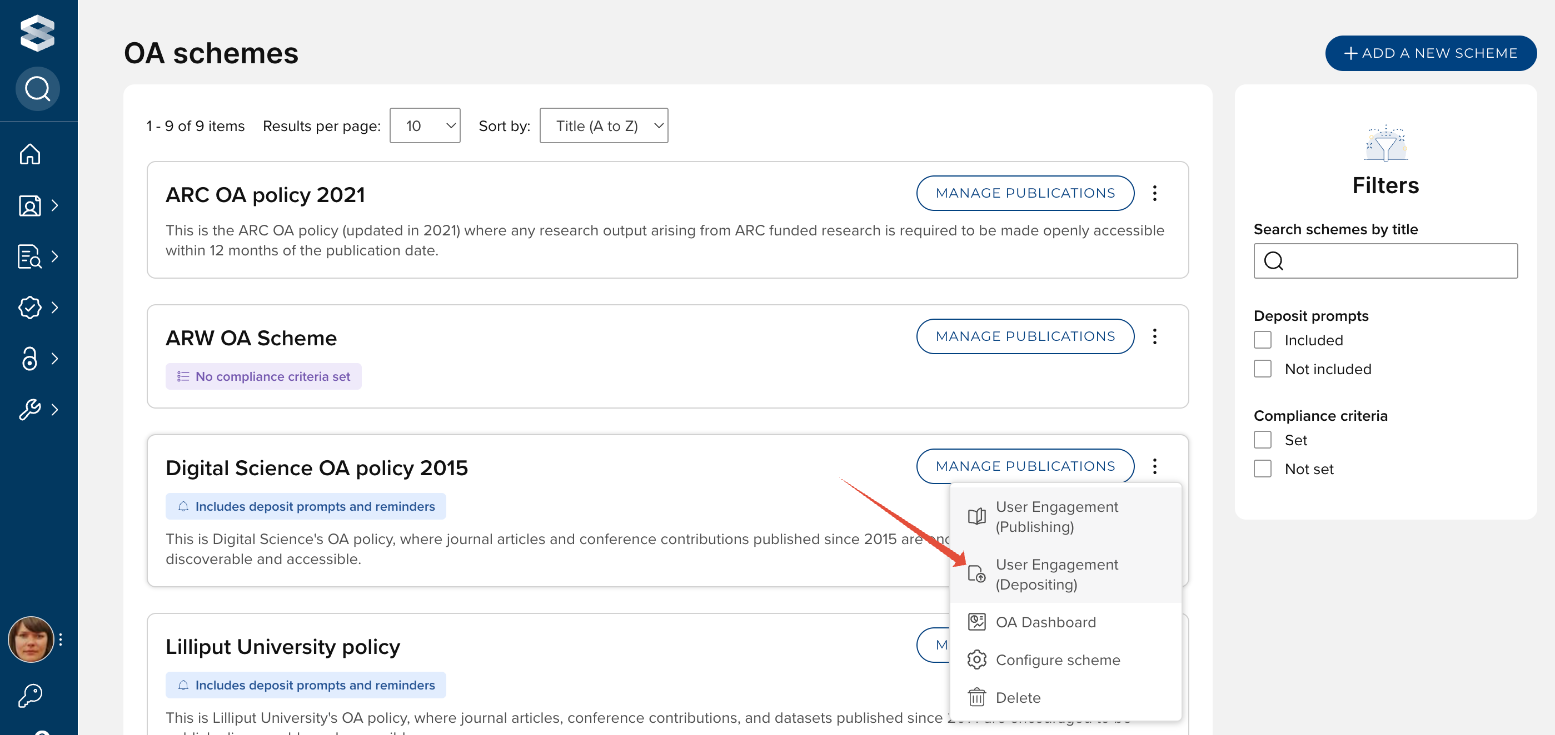
4. The final step is to trigger the emails being sent. Navigate to Open Access > [MANAGE OPEN ACCESS] > OA schemes and for the desired OA scheme, select 'User engagement (Depositing)' from the options menu. (For Elements v6.19 and previous, go to Open Access > OA Monitor > User Engagement (Depositing), and select the appropriate OA policy).
From here:
Click Refine by group(s) or user(s)
Check the box next to the appropriate group(s) or user(s)
Ensure the correct filter is applied:Total publications awaiting deposit (highest to lowest)
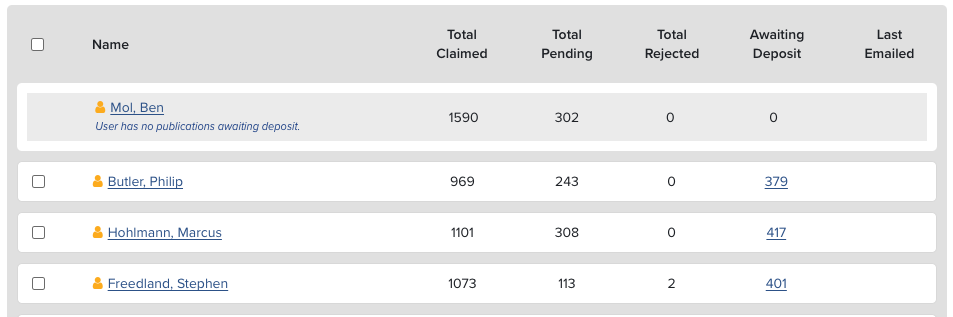
Check the boxes next to each user with >0 in the Awaiting Deposit column
Click Email
Check the box next to Email selected researchers only?
Click Email
N.B. Elements will not permit the sending of reminders to people with 0 publications awaiting deposit. Users with 0 publications are greyed out on the User engagement (Depositing) page and there is no checkbox to be selected.
Choose the policy you want from the group down list
Optional: Refine this further by groups or users
Click Email (the "Email selected users only" box won't be checked)
Click "Email all researchers"
Special thanks to Lauren Clement for letting us crib so much of the work she put into documenting this process.