Projects Module settings
Managing Access
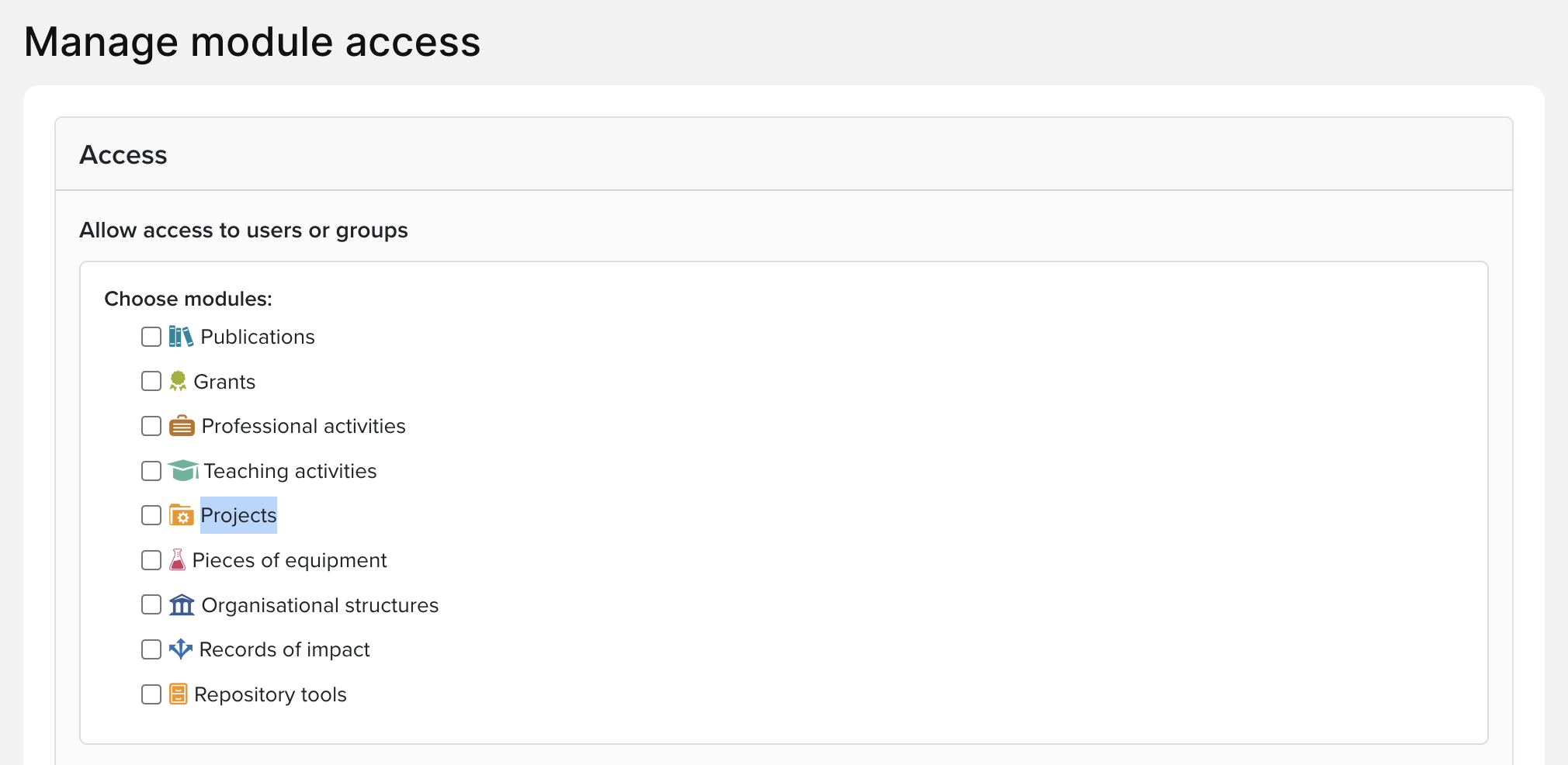
To manage access to the Projects Module, navigate to System admin > Data category settings > Manage module access and select "Projects." From there, groups and/or individuals can be added.
Project settings
To manage the Project category settings, navigate to System admin > Data category settings > Projects. From v6.18, you can configure Projects to be created and modified by users, and enable users to edit Project privacy levels.
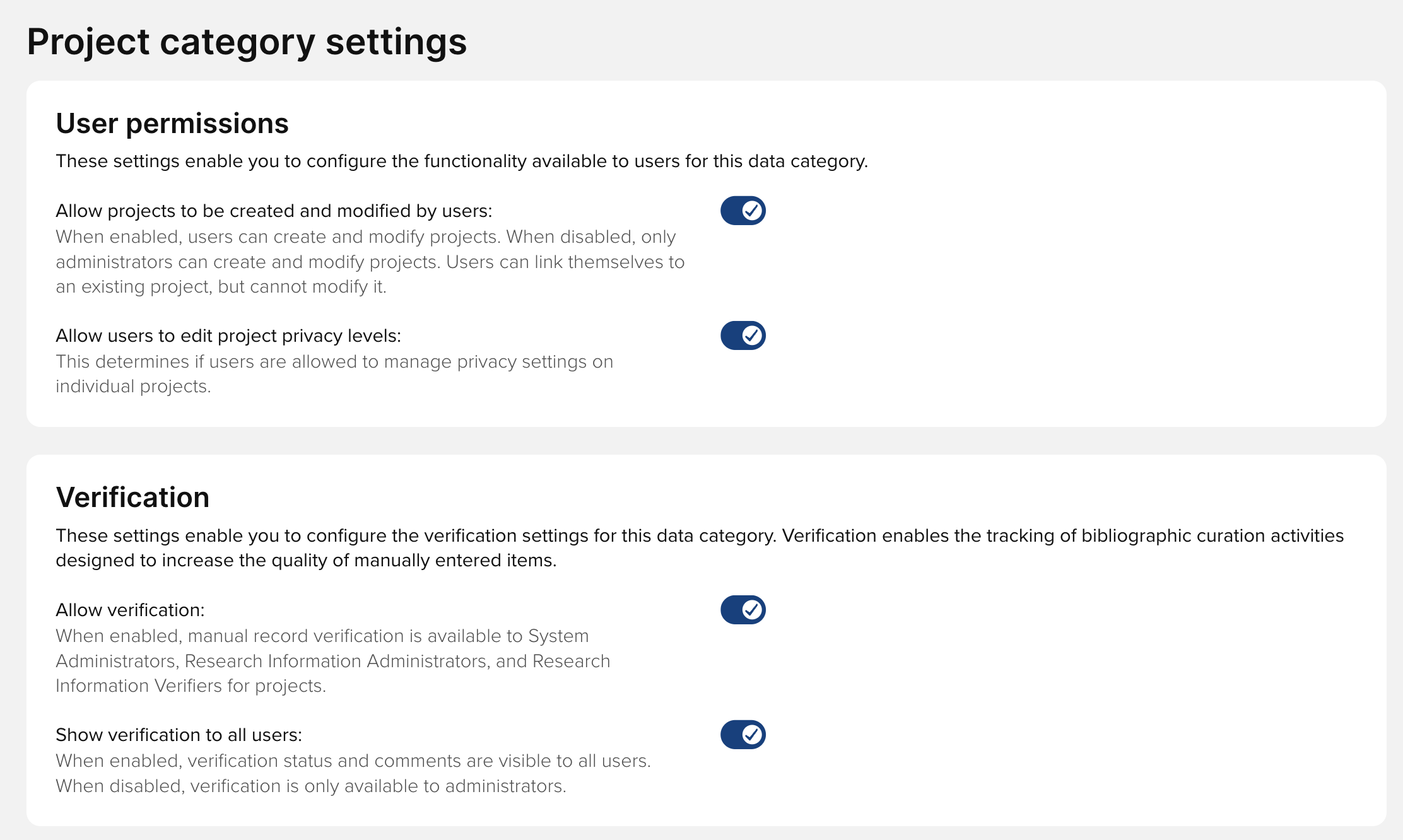
Further information on verification functionality is available in the 'What can a Research Information Verifier do?' support article.
Adding and editing Projects
User management ENABLED
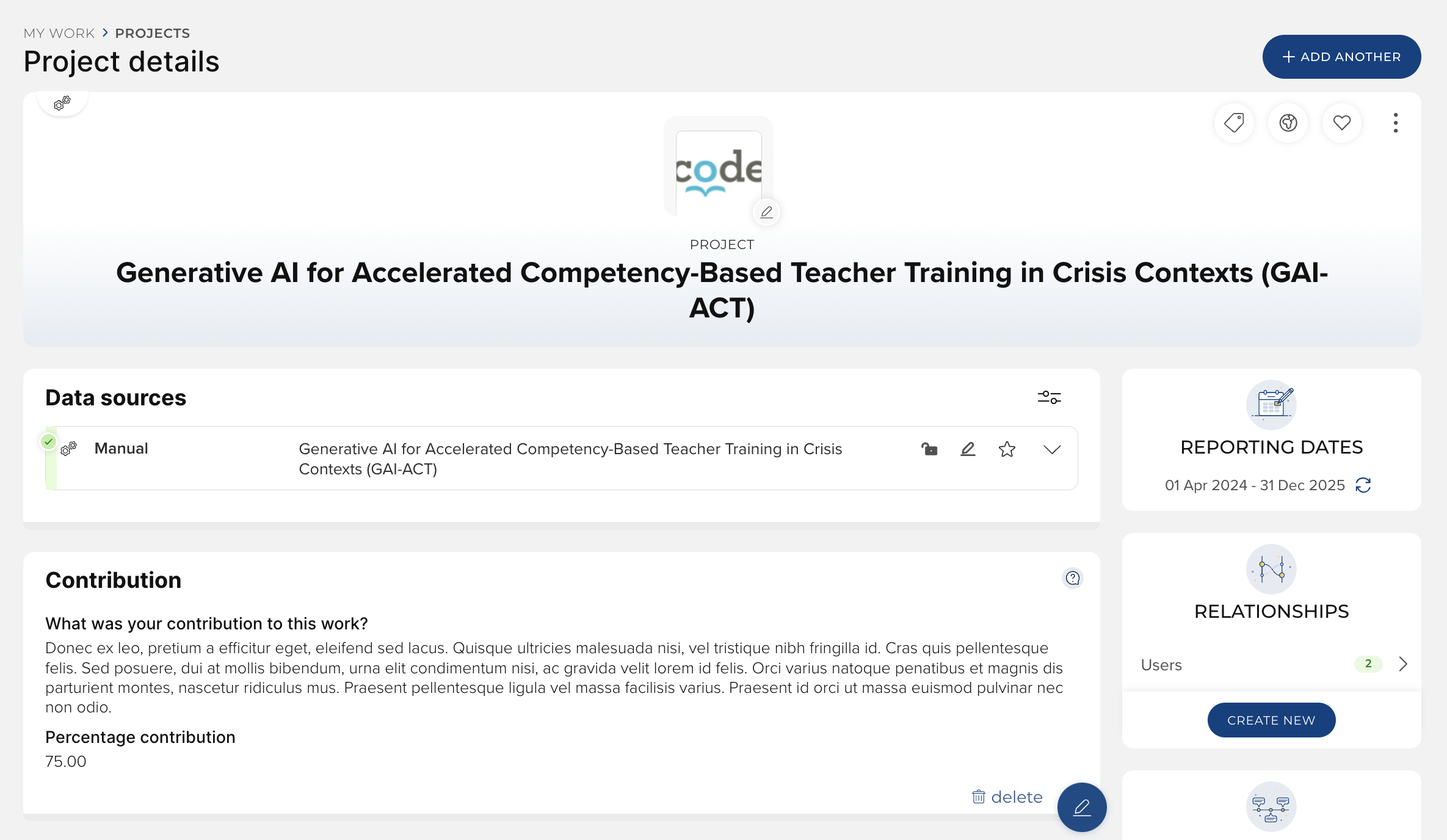
From v6.18, Projects can be configured to be created and modified by users. Users can add / modify Projects from:
Projects homepage tile
My Projects list
within an existing Project's details page
Administrators can add / modify Projects by impersonating users, and from:
Manage Projects page (System admin > Data category settings > Projects > Manage projects)
User management NOT enabled
Where Projects are not configured to be created and modified by users (and pre-v6.18), only System Administrators, Research Information Administrators, and Project Category Admins can add new Projects. The existing list of Projects can be viewed at System admin > Data category settings > Projects > Manage projects.
Create a new Project by clicking the blue + symbol at the top-right side of the page.
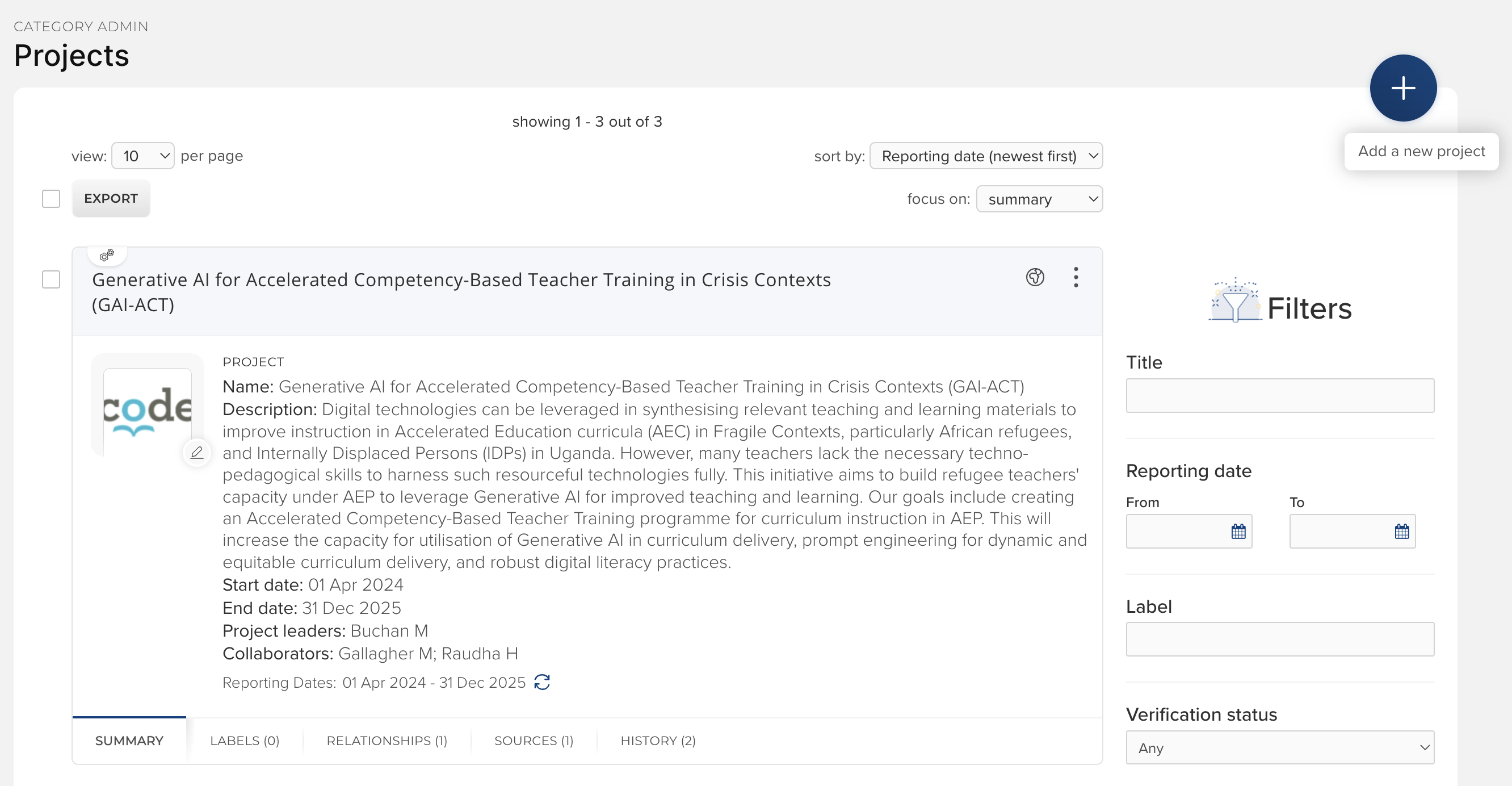
To edit a Project, click on the Project name and then the 'Edit record' button on the record.
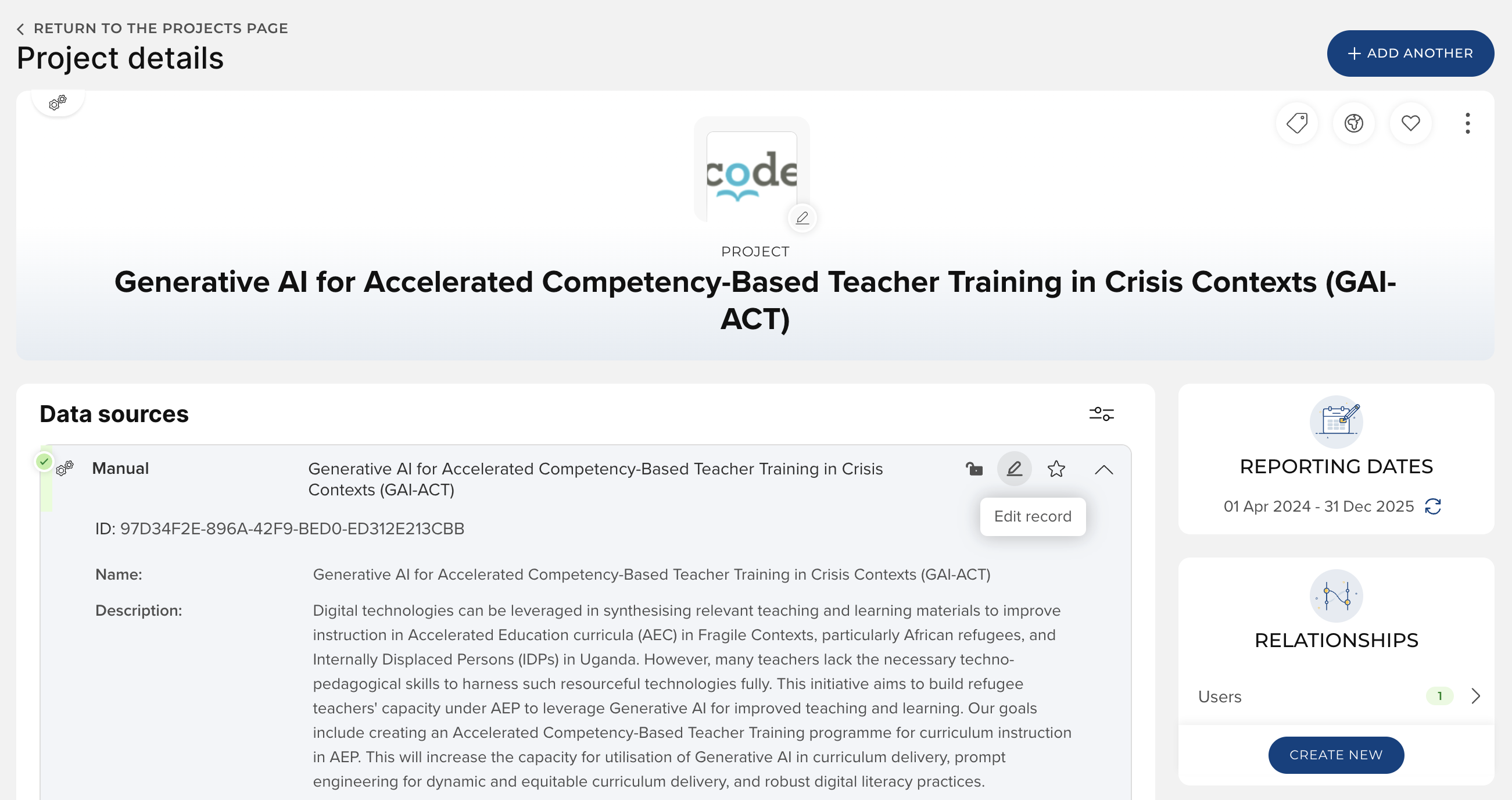
Required fields are marked with a red asterisk.
Adding relationships
Administrators can create relationships with a Project by:
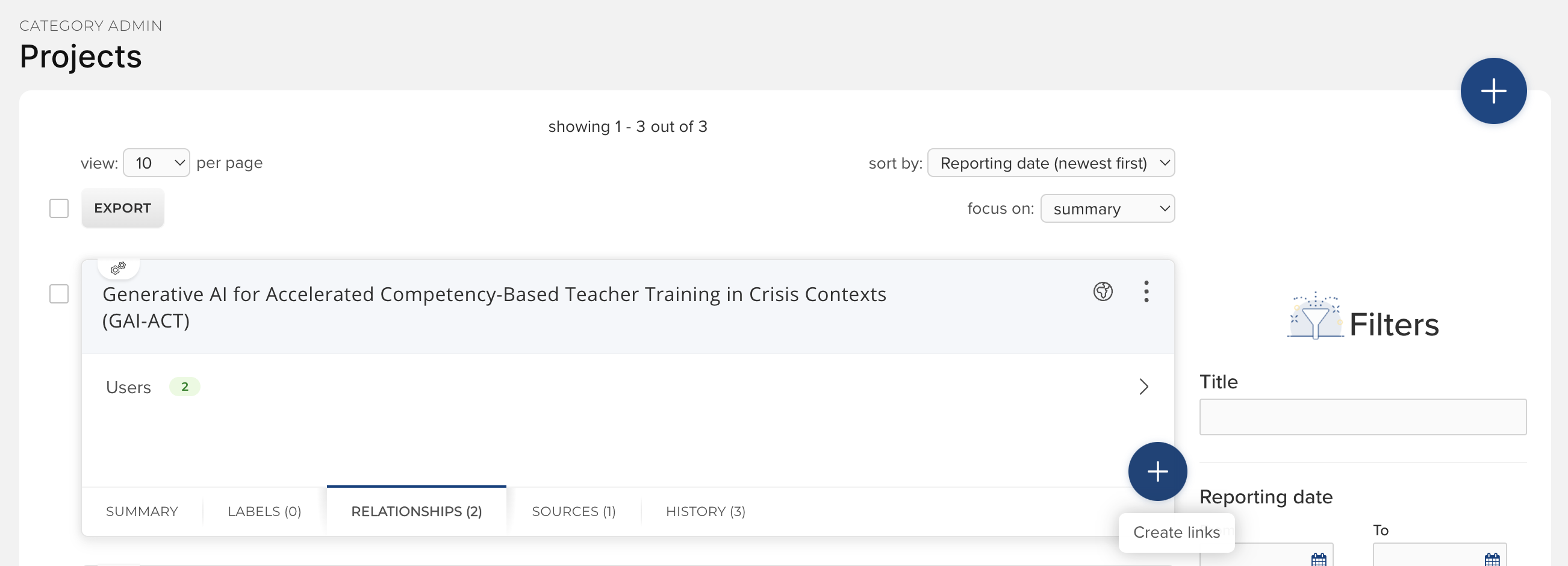
From the Project details page, clicking 'Create New' on the Relationships tab, and selecting the desired category to link to (e.g. User, Publication, Grant).
From the Project list page, clicking on the Relationships tab, and then the blue + button to create a link.
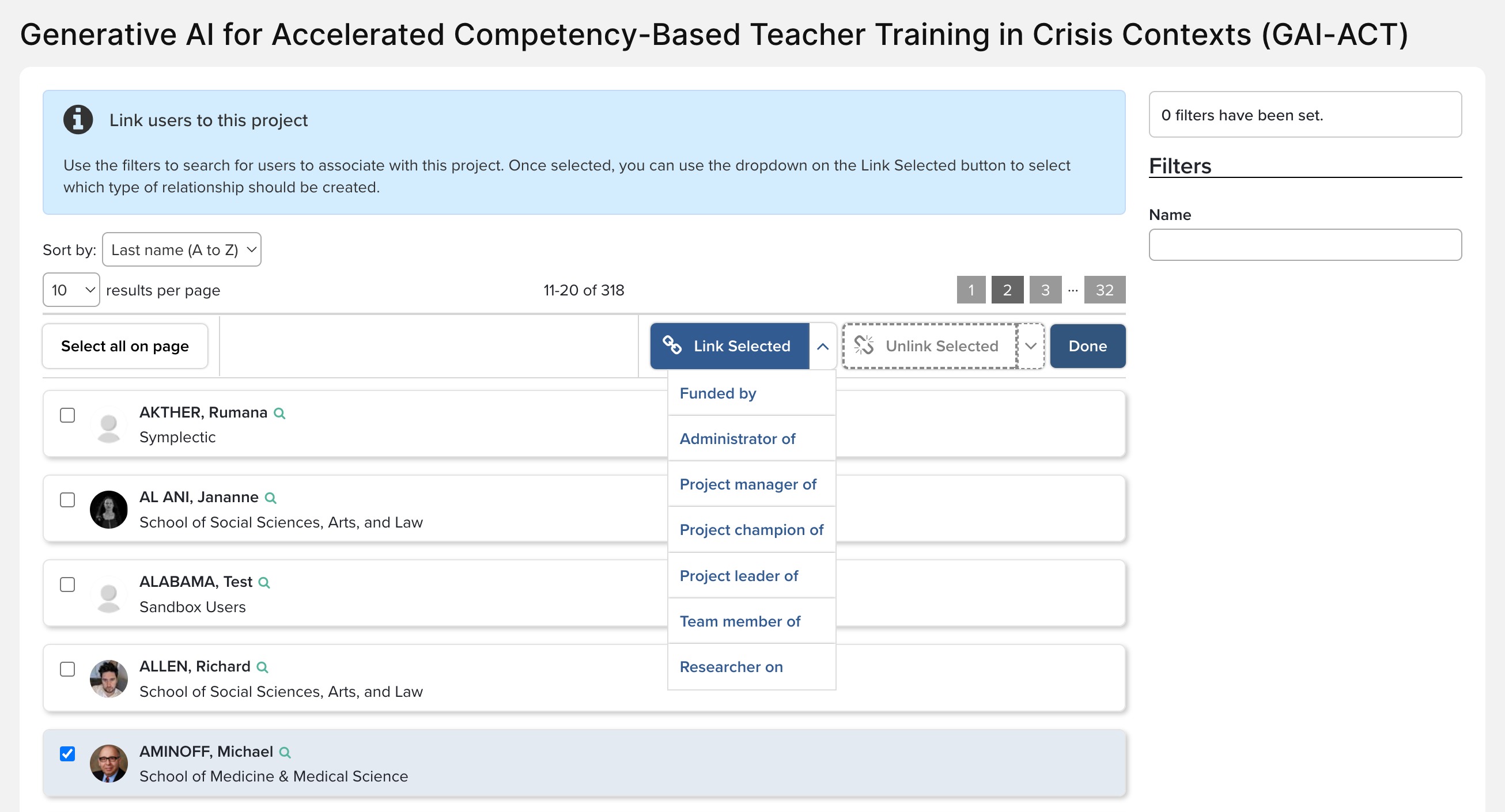
Funded by
Administrator of
Project manager of
Project champion of
Project leader of
Team member of
Researcher on
These relationship types do not change how a user can interact with a Project but can be useful for reporting purposes.
Users can also be linked to Projects via the Elements API.
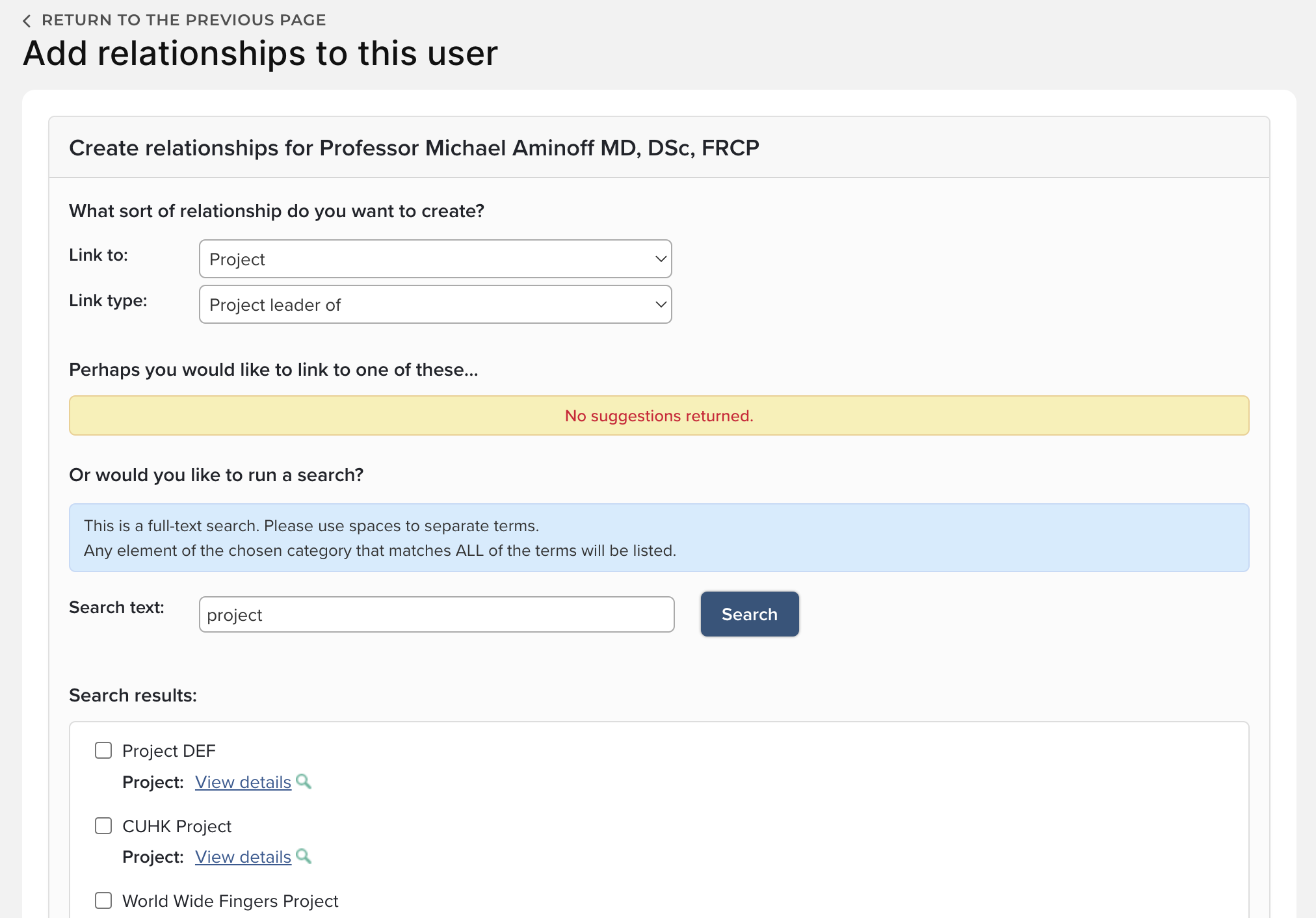
Users can add their relationship to an existing Project from Profile & work > Other activities > Projects. Then, click on the "Add Project relationship" link in the upper right-hand corner.
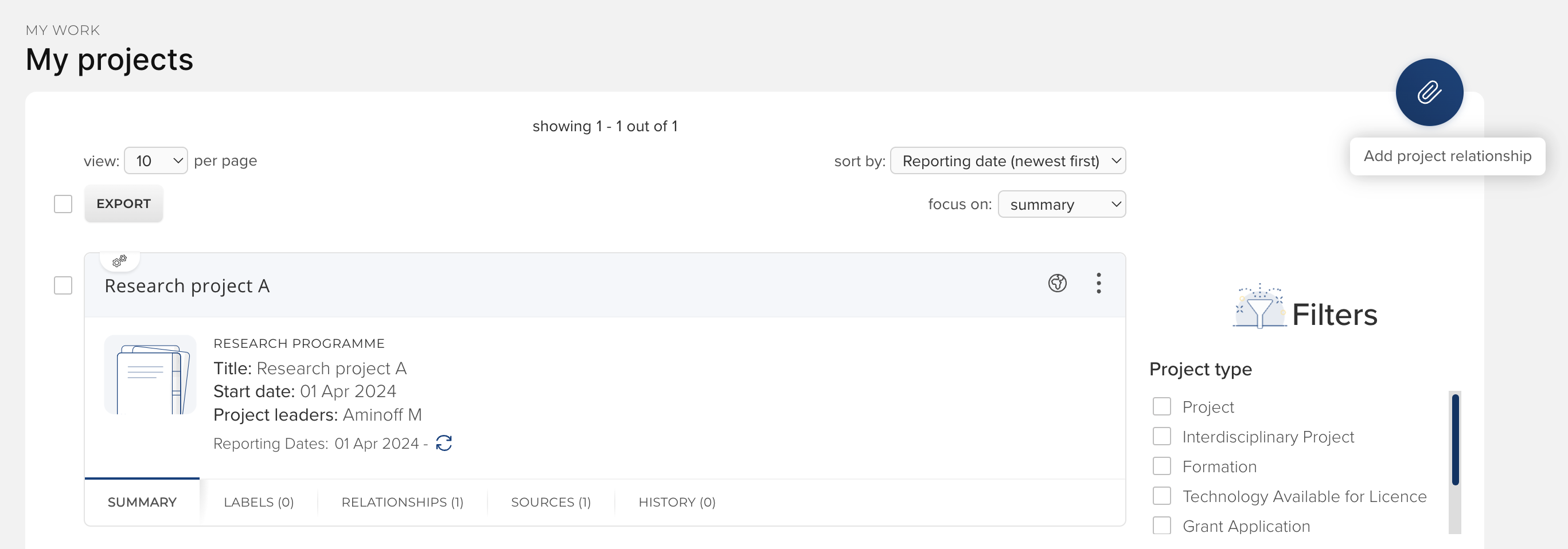
From here the user can select the relationship type and search for a Project to create a relationship between themselves and the Project.
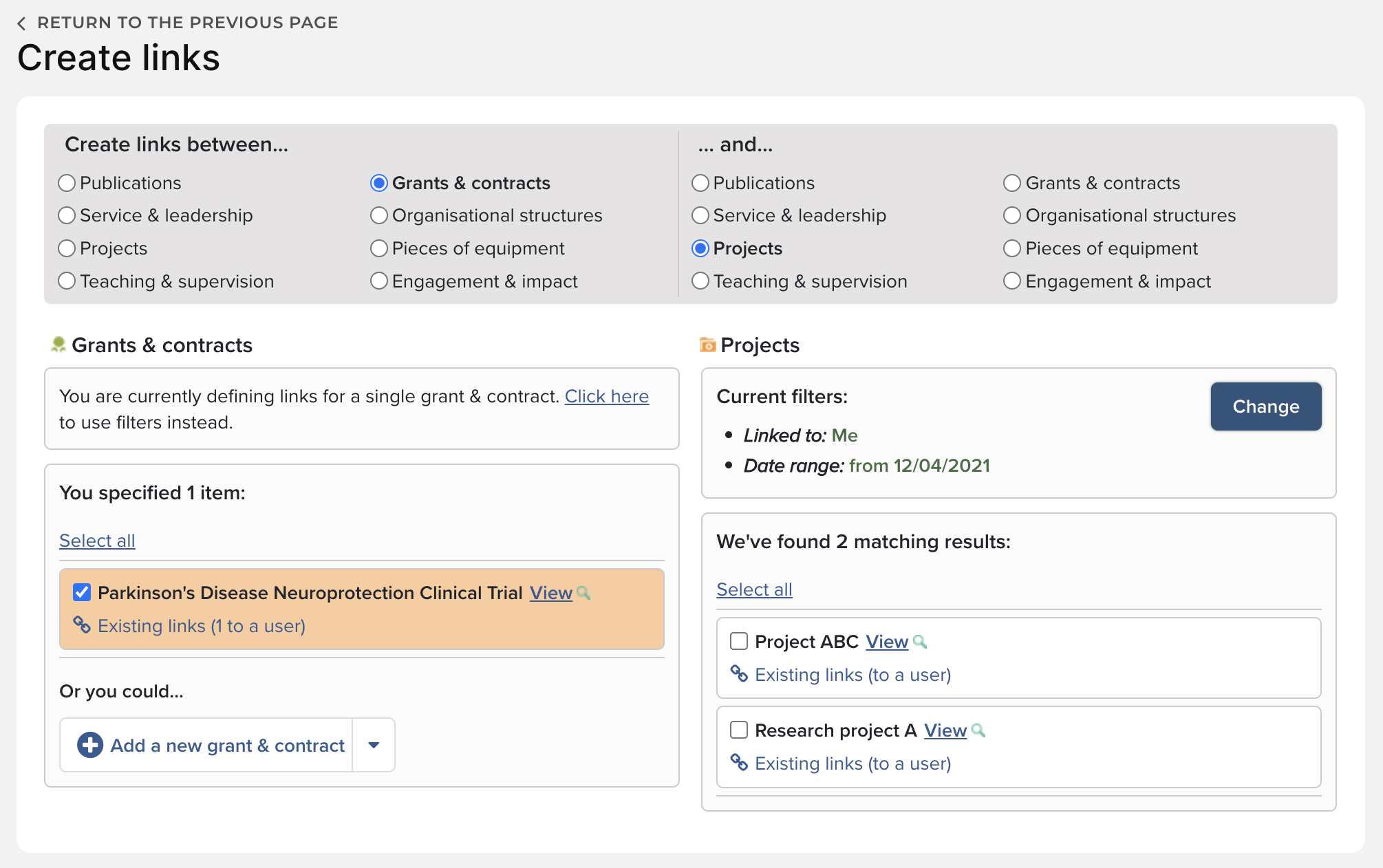
To create links between Projects and other content, the user must navigate to the other content item first and create the relationship from there - it is not possible for users to create relationships with other content from the Project itself when user management is not enabled (or pre-v6.18).
When linking to projects, the default filter returns all Projects that the user has a relationship with within a 3 year date range (these filters can be adjusted using the 'Change' button).
Annotation
From v6.18, Annotation can also be configured for Projects.
If enabled, annotations can always be added and modified by linked users, regardless of whether user management is enabled or not.