
Discovery Module Elements Configuration to be applied by customers (Pre-v6.14)
In order to complete the setup of the Discovery Module there are a number of configuration steps you will need to review and apply. These include:
Ensure teaching summaries and research interest fields and Media are available to be populated
Setting Characteristic fields for grants, teaching activities and professional activities
Selecting which Elements "Types" are shown on the Discovery Module
Configure the User Profile Privacy settings
Ensure Research Interests and Teaching Summary and "Media" Fields are available
These fields are free text fields on the Elements User Profile which allow users to add:
A description of their Research Interests
A Teaching Summary describing their teaching interests and specialities.
As well as being displayed to visitors to the Discovery Module, both of these fields are used by the Discovery Module Search function to help return the most relevant results to users.
You can also optionally enable "Media" which adds a section to the User Profile enabling users to add YouTube Video that can be viewed on the Discovery Module.
To enable the "Media" function, Symplectic also has to make a change to the Configuration which can be requested via the Support Site on a ticket or via Basecamp if you are still in the Implementation phase.
As part of implementing the Discovery Module, please ensure that the selection of fields that you want to use are unticked- and therefore unlocked in Elements.
To check the setting, go to System Admin > User Management > User Profile Field Settings and ensure that the relevant fields are not ticked as locked.
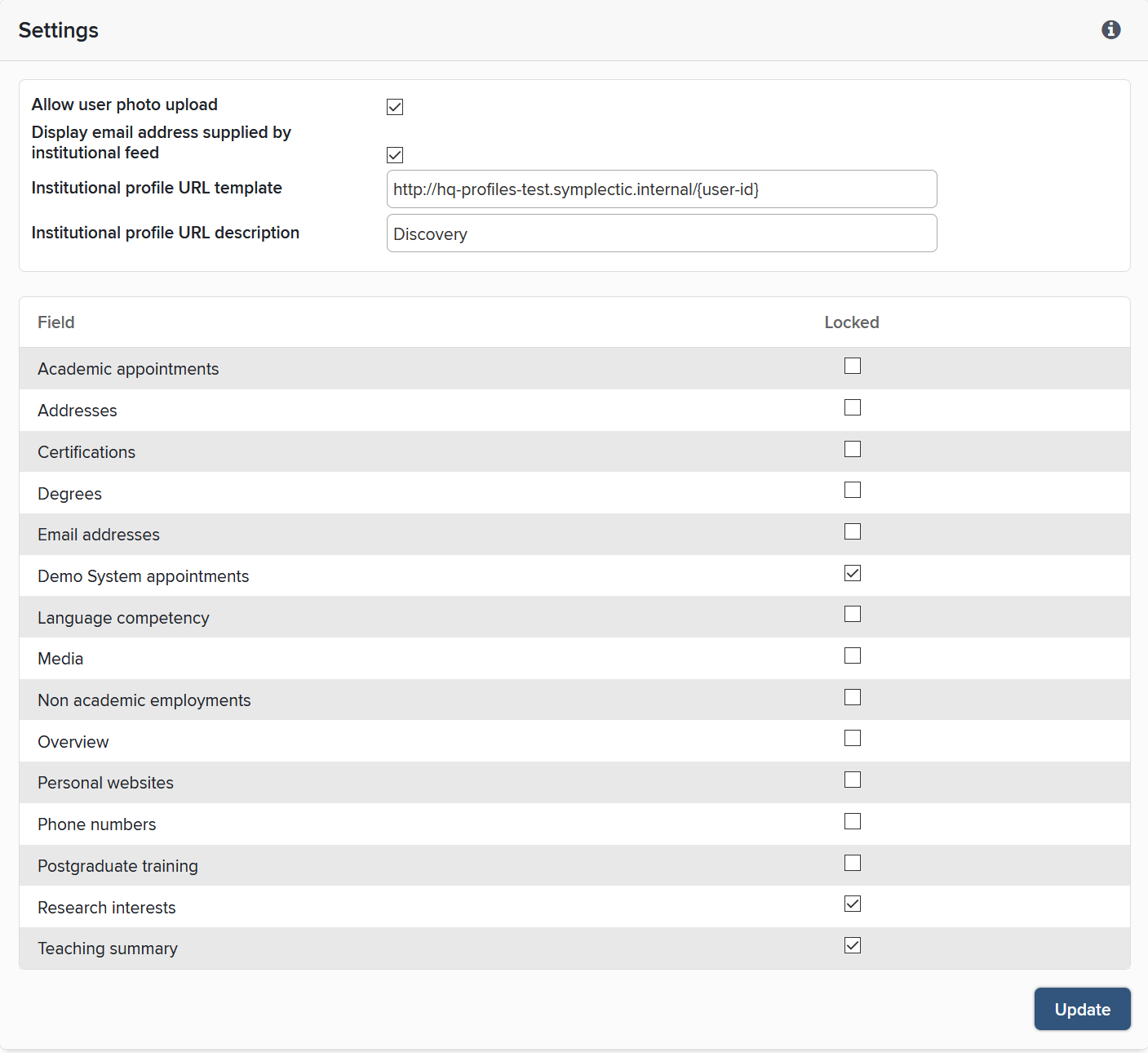
Setting Characteristic Fields for display on Discovery
For Grants, Teaching Activities and Professional activities, you can set a number of fields as 'Characteristic fields' which allows you to choose which metadata fields from Elements will populate key fields in the Discovery Module.
Once you have configured Grants, Teaching Activities and/or Professional Activity object types in Elements, go to Category Admin > [Category]> [Category Types], select a type to edit and scroll to "Characteristic fields".
Here you can set Characteristic Fields for the following fields:
Title field
Additional Information Field
Key URL field
After you have finished setting the characteristic fields, go to System Admin > Operations > Scheduled Jobs and run the Synchroniser: Request full synchronisation of profiles data job. This will apply the changes to all of the relevant objects across Elements and make them visible on the Discovery Module.
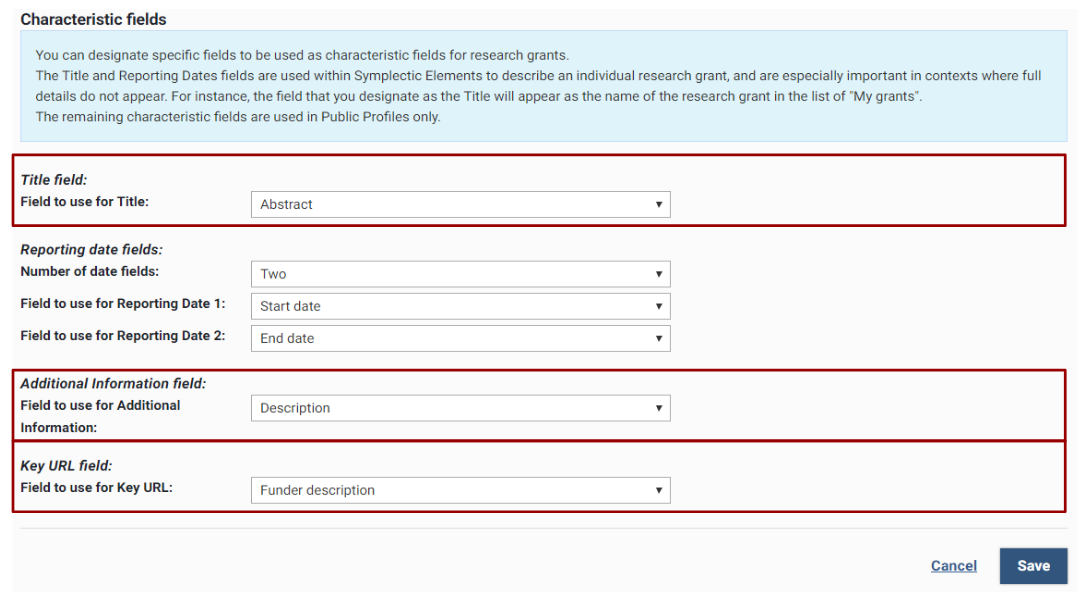
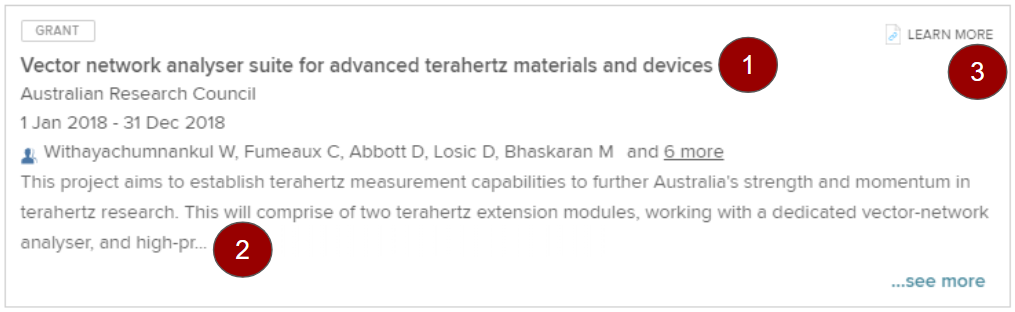
As an example, the Characteristic fields of the image below have been set as follows:
1. Title : Title
2. Additional information field : Abstract
3. Key URL field (Learn more link) : url
Selecting which Elements "Types" are shown on the Discovery Module (v5.17+)
Every customer implementation of Elements is unique, with organisations choosing to add an array of different types to Publications, Grants, Professional Activities and Teaching Activities.
The context of "public" data does not always align with data being captured for internal purposes so a number of organisations have requested that they have the ability to prevent certain data types being shown on the Discovery Module.
This is now possible via an additional setting when viewing the Module Admin > [Publications/Grants/Professional Activities/Teaching Activities] "Types" pages where you can set whether each Type should be shown on the Discovery Module or not.
Additional Information:
If your intention is to never show a specific "Tab" please read the Tab's- "Always Hide" and "Autohide" section in the Discovery Module System Configuration applied by Symplectic article and request that Symplectic "Always hide" the appropriate Tab. This should be used in conjunction with restricting the Elements "Types" described above.
Showing the button to allow users to access their Discovery Module Profile directly from their Elements Profile
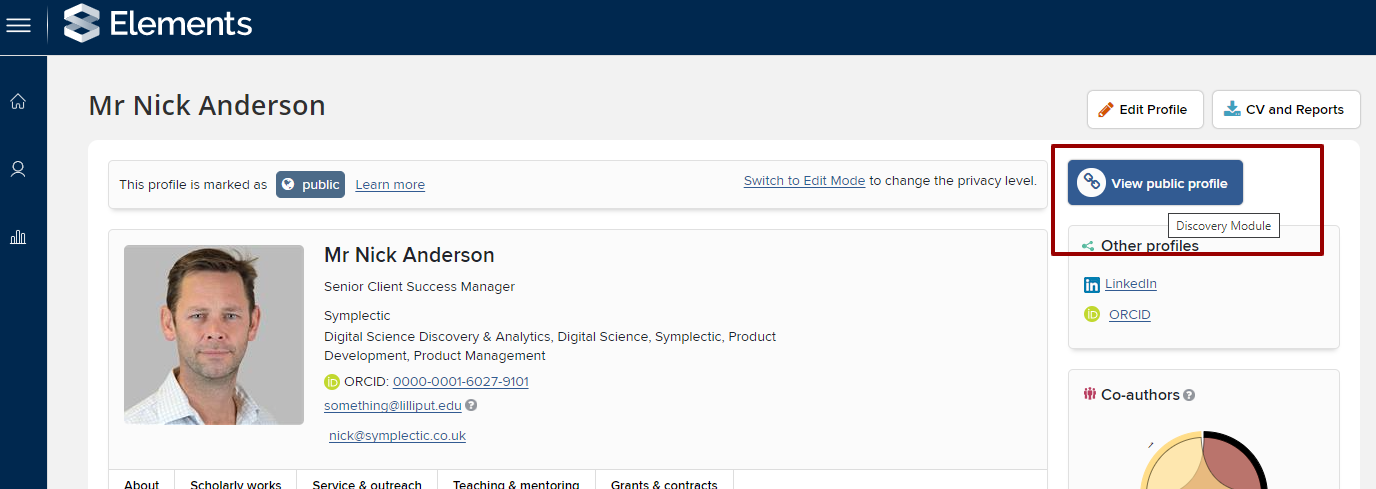
In Elements, navigate to System Admin > [User Management] User Profile Field Settings.
In the section at the top, you will see Institutional profile URL template and Institutional profile URL description.
When populated, the Institutional profile URL template enables the button. Please read the guidance carefully as it is important that you use the correct format. If you need any help with this, please raise a support ticket or post a message on Basecamp if you are still in the process of implementing the Discovery Module.
Populating the Institutional profile URL description sets the hover text.
Adding the Discovery Module to the Reporting menu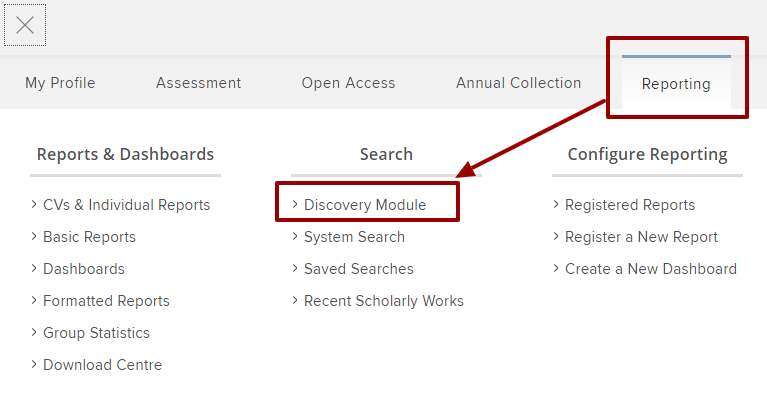
This is simply enabled by navigating to System Admin > System Settings > Global Settings and adding the URL into the Discovery Module URL field at the bottom of the page.
User Profile Privacy Settings and the Discovery Module
The Discovery module is designed to natively respect the user profile privacy settings in Elements. Only users set as 'public' will have profiles appear on the Discovery Module. If a user it set to 'internal' then their profile will not be pushed to Discovery for display.
Please ensure you review and configure the Elements user profile settings as a part of implementing the Discovery Module. Once you've configured the User Profile Privacy settings in Elements there is nothing else for you to do.
Back to the Discovery Module index