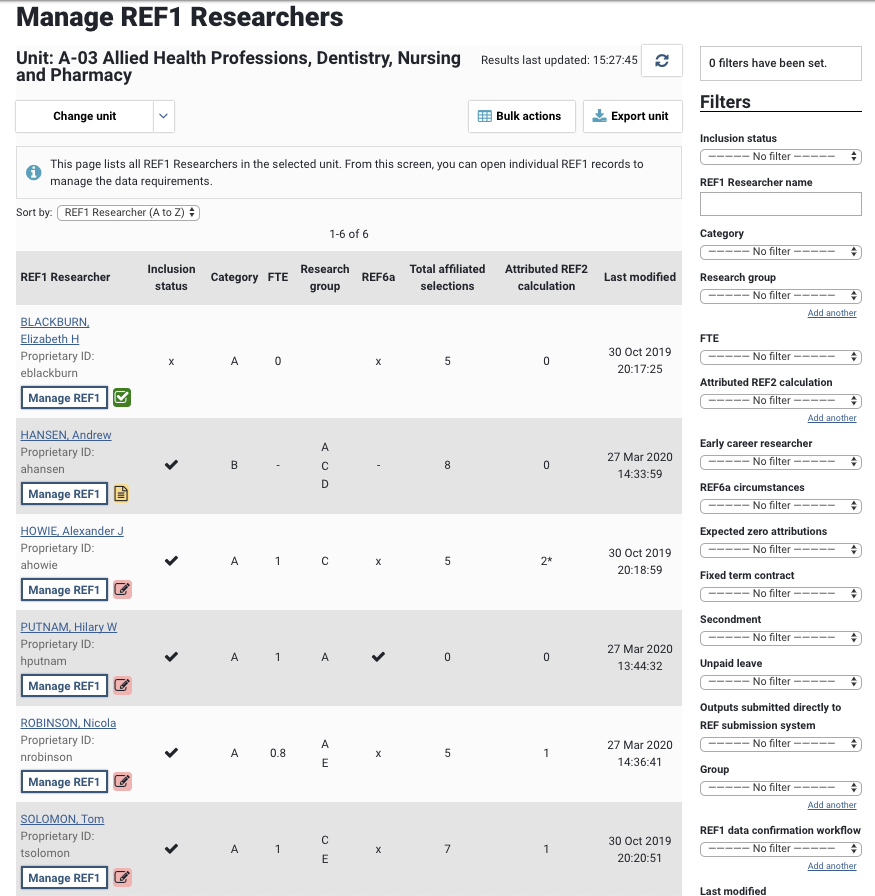
Manage REF1 Researchers screen

Released : 5.18
Updated : 5.19, 5.20
Manage REF1 Researchers screen
Accessible from the Manage Units screen, the Manage REF1 Researchers screen lists all REF1 Researchers in the Unit, along with some summary-level information:
Inclusion status
Category
FTE
Research group (letters only)
REF6a waiver
Total affiliated selections
Attributed REF2 calculation (see Counting REF2 Research outputs) (an asterisk indicates that the individual has at least one attributed output that will be input directly in the REF submission system)
Last modified
Icon indicating the REF1 data confirmation workflow state
From this screen you can open individual REF1 records to manage the required metadata. You can also navigate directly to another Unit's Manage REF1 Researchers screen using the 'Change unit' drop-down.
Filters available include:
Inclusion status
REF1 Researcher name
Category
FTE
Attributed REF2 outputs
Early career researcher
REF6a circumstances
Expected zero attributions
Fixed term contract, Secondment, Unpaid leave
Outputs to be submitted directly to REF submission system
Group
REF1 data confirmation workflow
Last modified
Note that a REF1 Researcher with no 'Last modified' date indicates that the REF1 has not yet been formally created for the individual and the default values of Category A and Included in the submission have been applied. Once you open the REF1 record for that individual and save it, the record will be formally created and the values input saved.