
Manage Units screen

Released : 5.18
Updated : 5.20
Manage Units screen
When accessing your REF exercise, the landing page is the Manage units screen, from which you can access all relevant REF screens for each active Unit.
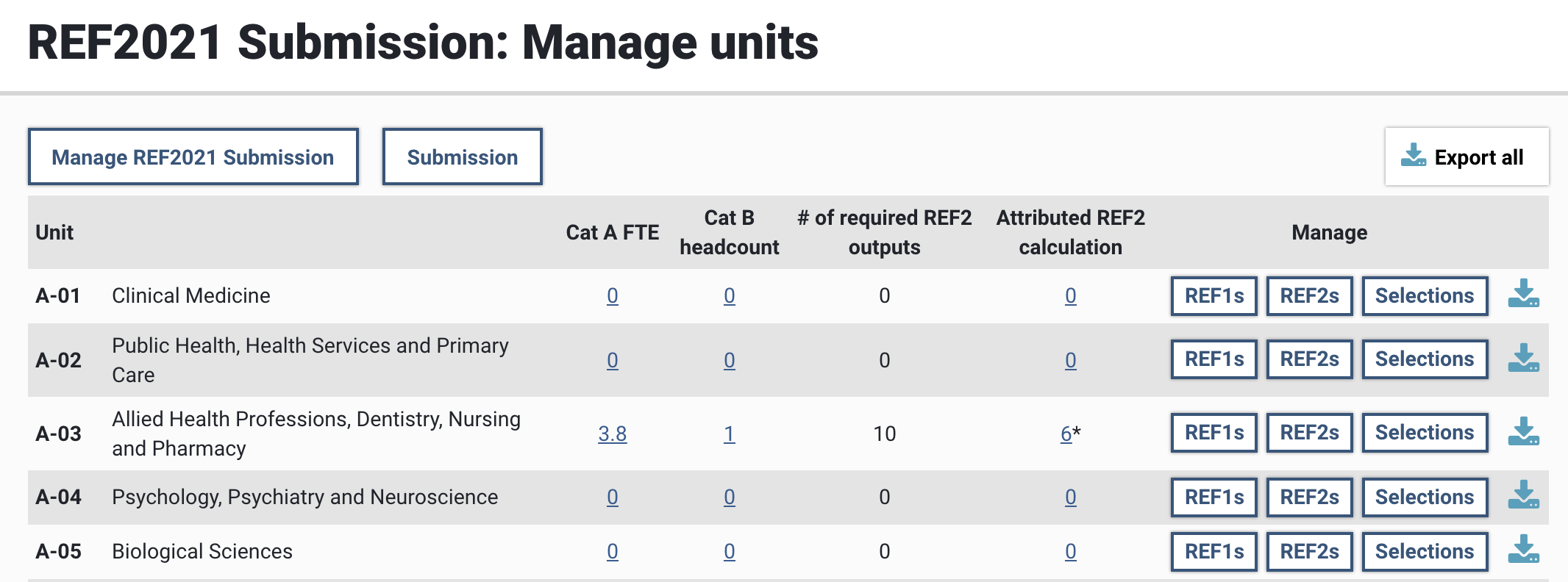
Column | Description |
|---|---|
Cat A FTE | Sum of the FTE for all Category A staff included in the submission. An asterisk indicates that the Cat A FTE for the Unit has been overridden in the Unit form. Selecting the value will navigate you to the Manage REF1 Researchers screen, filtered for 'Category A' and 'Included in submission' |
Cat B headcount | Headcount of all Category B staff included in the submission. Selecting the value will navigate you to the Manage REF1 Researchers screen, filtered for 'Category B' and 'Included in submission' |
# of required REF2 outputs | Number of REF2 outputs required for submission, as per the Unit form calculations |
Attributed REF2 calculation | The total number of attributed REF2 outputs in the submission
Selecting the value will navigate you to the Manage REF2 Research outputs screen, filtered for 'Attributed' Submission status. |
From the Manage Units screen you can access:
Assessment management screen (showing the different stages of selection etc.) for the whole exercise
Manage REF1 Researchers screen for each Unit
Manage REF2 Research outputs screen for each Unit
Manage Selections screen for each unit
Submission screen for the institution (available only to System Administrators and Exercise Managers)