
Report security and data protection
This article happens to use examples that reference dashboard functionality in Elements v5.19 and later. Before this version, dashboards did not support use of the Reporting Database and could not be designed within the browser. However, the principles outlined in this document apply to all forms of report available in Elements.
It is important that when designing custom reports and configuring access to custom or stock reports, you ensure you are meeting the requirements of your institution's privacy policy, including observing the privacy preferences indicated by users of the system. To this end, the following support article provides guidance on secure consumption of data in custom reports and on how to manage the appropriate sharing of access to reports.
Report managers
All users to whom you grant report administration rights must be made familiar with this documentation and any documentation referenced by it, as it is they who are responsible for what data is surfaced by a report, and with whom the report may be shared.
The ease of use of report-authoring functionality such as the Elements integrated dashboard designer, as well as the scope of data reachable using custom SQL queries against the Reporting Database, make it possible for report administrators to share data more widely than may be appropriate.
The Reporting Database contains private data!
The Reporting Database is not restricted to containing data that is "safe" for sharing in reports across your institution. Therefore, it is up to you to ensure you are using data from the Reporting Database in a manner that is consistent with its level of privacy.
An example of inappropriate sharing of data
As a useful demonstration of how it is possible to share data more widely than is appropriate, consider the following steps. We will then discuss what went wrong and how to avoid similar incidents.
The Elements system administrator grants membership of the Reporting Hub Administrator role to the author of a new dashboard.
The author creates a new blank dashboard.
The dashboard is to include a pie chart showing the distribution of departments of a particular publication's institutional authors. To avoid having to discuss the topic of dashboard parameters, we will assume a hard-coded publication ID for now. The dashboard author configures the following SQL query against the Reporting Database to extract the required information:
SELECT	[User].ID, [User].[Computed Name Full], [User].[Primary Group Descriptor]
FROM	[User] JOIN [Publication User Relationship] ON [Publication User Relationship].[User ID] = [User].ID
WHERE	[Publication User Relationship].[Publication ID] = 27455
The author adds a pie chart counting the IDs and using the Primary Group Descriptor as the "Argument" for the pie chart
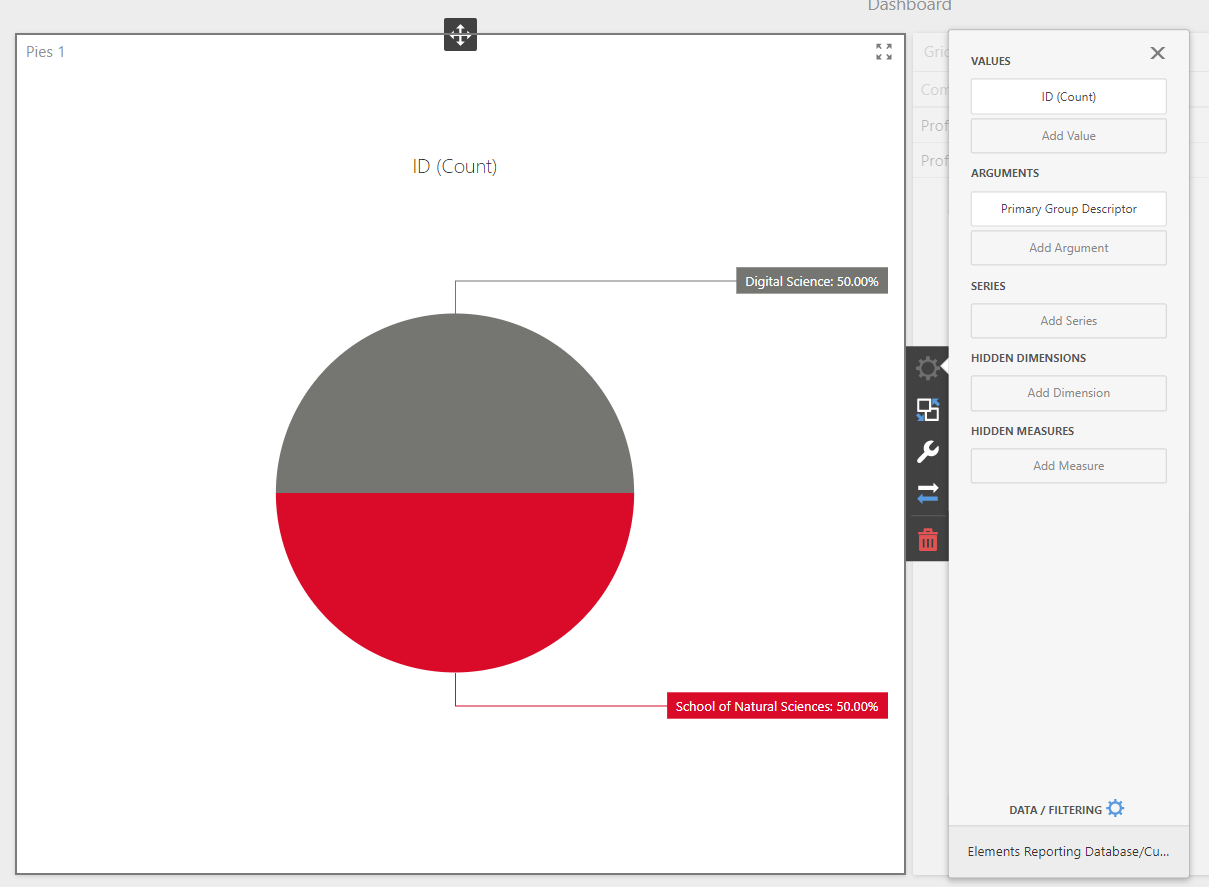
In order to support a convenient form of drill-through to the details of the publication's authors, the dashboard author adds a grid component and binds the [Computed Name Full] and [Primary Group Descriptor] of the same query to the columns of the grid:
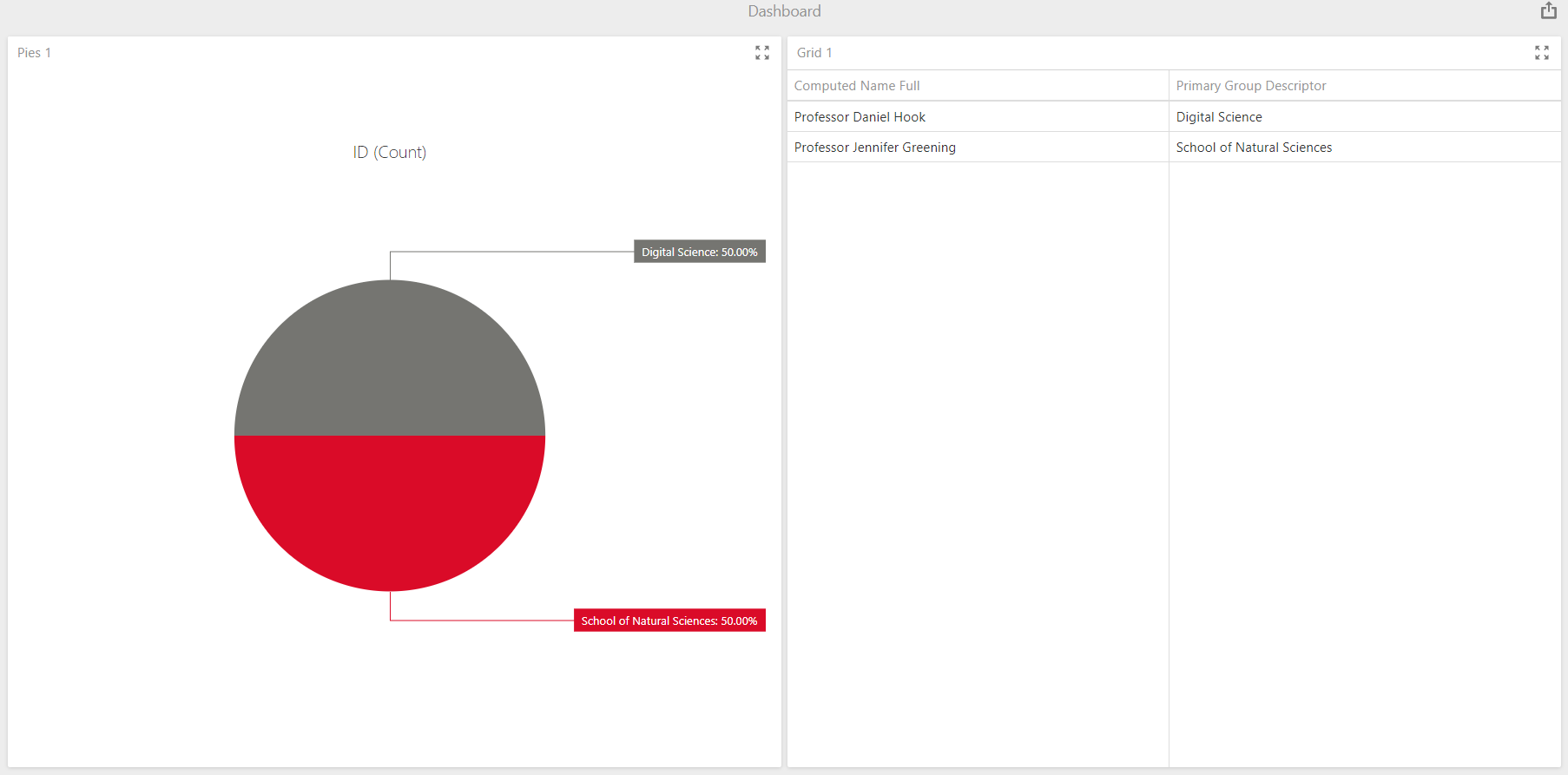
Not the prettiest or most useful dashboard, but it is simple and will do for our purposes. The pie chart shows that the publication is weighted equally between two different departments, and the grid shows the authors' names and their departments.
Finally, suppose the dashboard author assigns viewing permissions to all users in Elements.
The result
It turns out that Professor Jennifer Greening (the second author of the publication, detailed in the grid above) had marked her relationship with the publication as Private, using the following privacy control button in Elements:
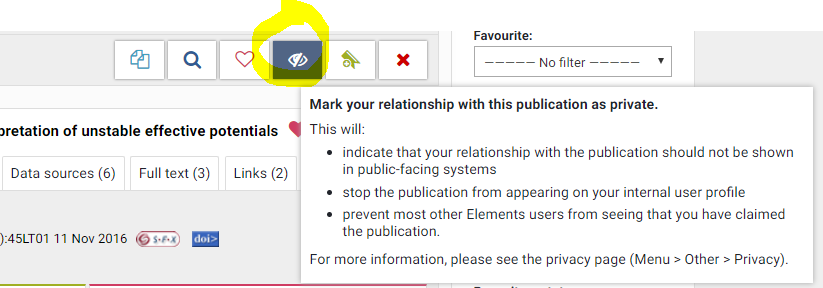
As a result, she does not expect information about her having claimed authorship of the publication will be shared across the institution. This dashboard, having been shared with all users of Elements, has broken that promise.
What went wrong?
The system administrator did not train the dashboard author with respect to their data protection responsibilities and ensure the dashboard author had a good Introduction to Data Privacy and Personal Data in Elements when assigning them to the Reporting Hub Administrator role, or refer them to this document.
The dashboard author was not aware of the general approach to data protection required when consuming data in the Reporting Database in particular, and did not read specific documentation for the tables and columns their dashboard accessed, all available in the Reporting Database Guide. They may have been under the misapprehension that their level of access to the Reporting Database would not allow them to reach data inappropriate to their particular task. Had they read documentation for the [User Publication Relationship] table, they would have discovered the [Privacy Level] column and its warnings.
The system administrator did not perform a technical and business review of the dashboard from a data privacy perspective before allowing it to be shared across the institution.
What might have been the correct dashboard implementation?
There is often no single correct solution. In this case, the following improved SQL query for the dashboard would have prevented the leaking of the private information across the institution:
SELECT  [User].ID, [User].[Computed Name Full], [User].[Primary Group Descriptor]
FROM  [User] JOIN [Publication User Relationship] ON [Publication User Relationship].[User ID] = [User].ID
WHERE  [Publication User Relationship].[Publication ID] = 27455
    AND [Publication User Relationship].[Privacy Level] != 'Private'
Another approach, given that the information shown by the pie chart alone does not necessarily reveal the identity of the privately associated author, would have been not to include the grid component, and to base the pie chart on an SQL query that did not select author names and which aggregated the required results set before it could be returned to the browser.
SELECT  COUNT([User].ID) AS [User Count], [User].[Primary Group Descriptor]
FROM  [User] JOIN [Publication User Relationship] ON [Publication User Relationship].[User ID] = [User].ID
WHERE  [Publication User Relationship].[Publication ID] = 27455
GROUP BY [User].[Primary Group Descriptor]
The same principles apply to any type of report
The above example focused on dashboards, but the same principles apply to any form of report you might create in Elements. Please see the following article for more information about the types of report supported in the Reporting Hub, for example:
Sharing access to reports
When a new custom report is created in Elements, it is placed into a disabled state. This prevents it from being accessed by any user who is not a manager of the report.
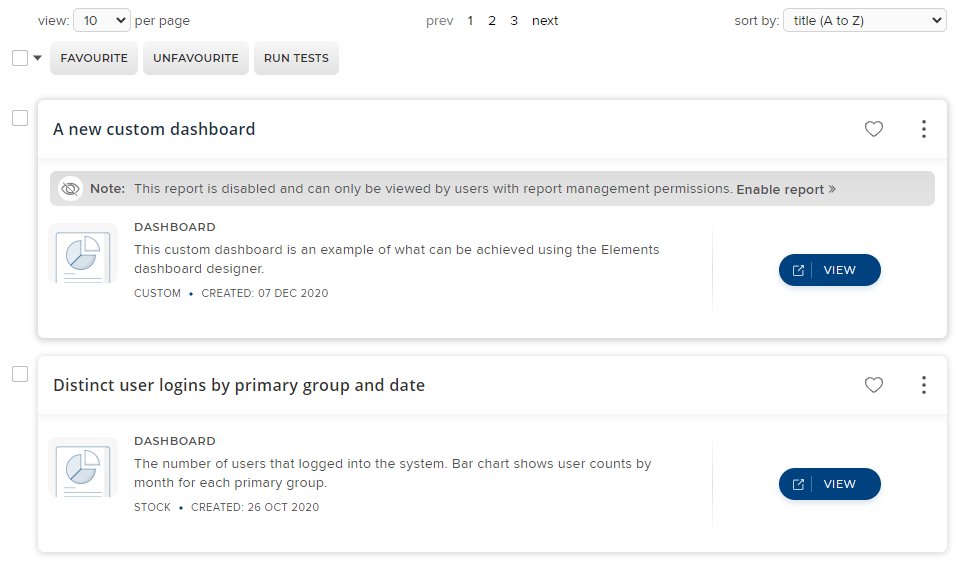
To modify viewing permissions, use the context menu available on the report and select the Viewing Permissions menu entry, or visit the dedicated page for the report and modify the Viewing Permissions directly there. To assign individuals or groups Once the report is Enabled, this will allow the specified users to view the report.
Guidelines on securing reports
All users granted rights to manage reports should read the following support article:
In addition, familiarity with the following documentation is critical in order to understand how the Reporting Database is designed with respect to data privacy, and therefore how to protect the privacy of data stored in it.
Maintenance of the security of reports
Finally, when upgrading Elements to newer versions in the future, your acceptance process for adoption of the newer version should include a formal review of any changed functionality in the newer version of Elements relating to data consumed by your custom reports.
It is particularly important to take account of any new privacy controls relating to data being consumed by older custom reports. Without corresponding changes to your report, this could render your report's consumption of that data insecure in the newer version.