
Enabling the ORCID Write Integration
Elements’ integration with ORCID has been extended to include a ‘write’ component. This allows users to send publications from Elements to their ORCID account. Prior to this, Elements utilised ORCID iDs in two ways;
1. Automatic claiming - Users can add an ORCID iD to the list of external identifiers that represent them in external data sources. They can then define how Elements behaves when it finds this ORCID iD in publication metadata. For example, a user could choose to have Elements automatically claim a publication for them if it is associated with their ORCID iD.
2. Supplementary search - As well as using ORCID iDs for automatic claiming, users can connect to their ORCID account, granting Elements permission to collect information from ORCID. Elements will search a user’s ORCID account for a range of publication persistent identifiers. These are then used to search Elements’ data sources and return publication metadata to users.
These two processes continue to function in the same way following the release of the write integration.
Warning: You must register your QA server against the ORCID development sandbox so that you can do testing without any fear of corrupting production data. You MUST only connect your production environment to the live ORCID registry.
Mapping Elements publications to ORCID works
A key step to complete when enabling the integration is to confirm the mapping between Elements publication types and ORCID work types. A default mapping has been set up to work out-of-the-box (see table below). However, if any modifications have been made to Elements’ publication types then the default mapping will need to be updated so that these changes are accurately reflected when publications are sent to ORCID. You can find a summary list of all ORCID work types in ORCID's Integration and API FAQ.
Elements name | ORCID work type |
Artefact | other |
Book | book |
Chapter | book-chapter |
Composition | other |
Conference | conference-paper |
Dataset | data-set |
Design | other |
Exhibition | other |
Figure | other |
Fileset | other |
Internet publication | online-resource |
Journal article | journal-article |
Media | other |
Other | other |
Patent | patent |
Performance | artistic-performance |
Presentation | lecture-speech |
Poster | conference-poster |
Report | report |
Scholarly edition | other |
Software / Code | software |
Thesis / Dissertation | dissertation-thesis |
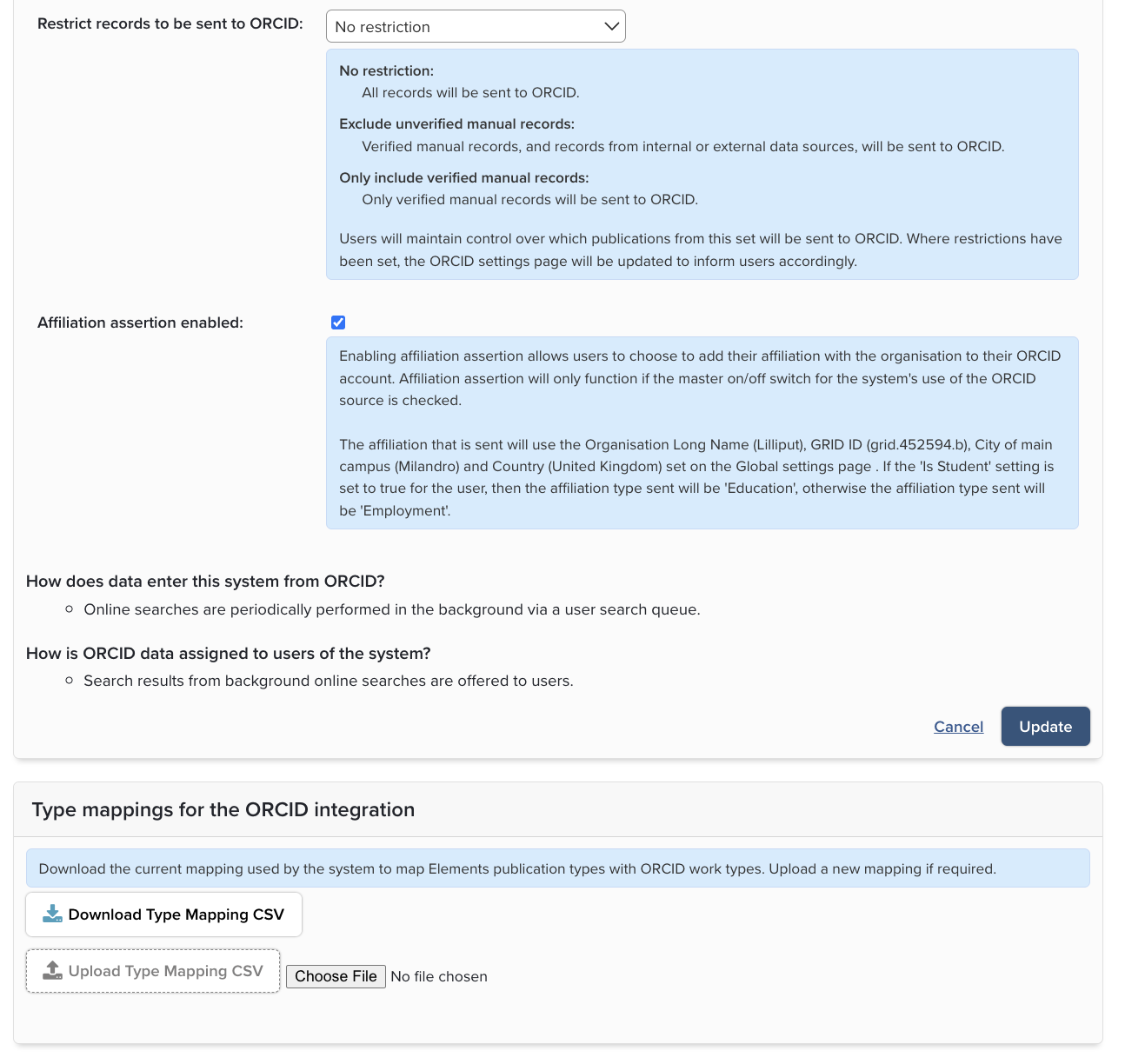
To view the current mapping between Elements publication types and ORCID work types, go to System Admin > Data Sources > Data Source Management > ORCID and click the "Download Type Mapping CSV" button. The CSV consists of two columns:
Elements type - an Elements publication type. Use the type's identifier name, not the display name (e.g. use "journal-article", not "Journal article").
ORCID type - the ORCID work type that the Elements type maps to. Use the 'API work type for integrators', not the user interface display name (e.g. use "book-chapter", not "Book chapter").
To customise the mapping:
Modify the downloaded CSV, for example by adding new rows to reflect any custom publication types that have been added to Elements.
Upload the modified file using the "Upload Type Mapping CSV" button.
The uploaded file will be a complete replacement for the mapping (i.e. you must include all type mappings, not just the ones you want to change). The system will validate all Elements publication types included in the upload CSV. If any rows fail validation the update will fail.
Warning: As the list of ORCID work types is not static, it is not possible to validate the upload file against ORCID work types. You should therefore take care to use the exact API work type string in the "ORCID type" column, as listed in ORCID's API documentation.
All Elements publication types should be mapped to ORCID. If there is not an obvious equivalent ORCID work type you should map to "other". Any Elements types that aren’t mapped in the uploaded file will default to the ORCID work type "other’.
Enabling the write integration
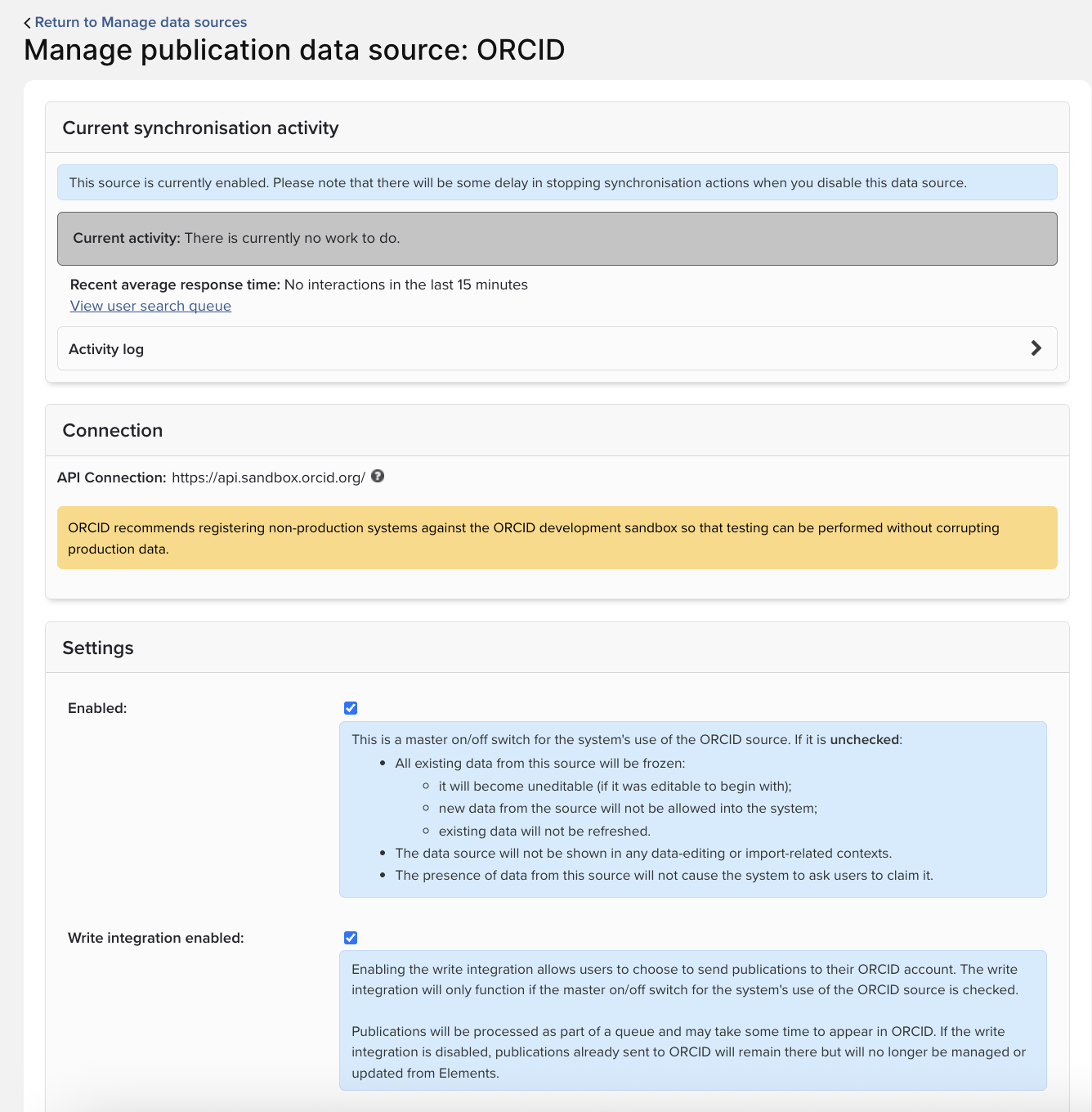
To enable the write integration it is necessary to first enable Elements to search ORCID as a data source.
To enable the write integration go to System Admin > Data Sources > Data Source Management > ORCID and select ‘Write integration enabled’. The integration is configured globally and cannot be controlled independently for different groups.
If the write integration is disabled after it has been enabled, users will lose access to the ORCID settings page and no longer be able to manage the integration from Elements. All publication metadata already sent to ORCID will remain there. However, no updates will be sent from Elements to ORCID.
Warning: If your institution has ever used ORCID’s ‘batch create’ process to add publications to ORCID, please contact Symplectic for guidance before enabling the ORCID write integration.
Only send verified manual records to ORCID
It is possible for administrators to choose to only allow verified manual records to be sent to ORCID. This setting can be enabled on the ORCID Data Source Management page.
It is highly recommended that you do not enable this setting without ensuring that you have opted to ‘Show verification to all users’ on the Global Settings page at System Admin > General Settings > Global Settings. This is to ensure a clear user experience.
Once the setting to ‘Only allow verified records to be sent to ORCID’ has been enabled the ORCID settings page will be updated to inform users that only publications that have been verified by your organisation will be sent to ORCID. The counts on the bottom of the page will reflect the fact that only verified publications will be sent.
Note: Any items that do not contain a manual verified record will not be sent to ORCID.
User control of the write integration
Once the write integration is enabled users can access the ORCID settings page at Profile & Work > Personal Profile & Identifiers > ORCID Settings. From here users can opt to send publications to their ORCID account and control which publications get sent.
NB: This process is continuous. This means that if a user changes their settings, the set of publications sent to ORCID may change. e.g. If a user opted to only send 'favourite' publication, any non-favourite publications that have already been sent would be removed from their ORCID record by Elements.
Only claimed ORCID iDs will be displayed on the ORCID settings page. If the user has not claimed any ORCID iDs they will be able to connect to ORCID from this page (they can still connect to ORCID from the ‘My Actions’ prompt and the ‘Automatic claiming’ page).
NB: For security reasons, users who have already connected to ORCID and authenticated read access will need to re-authenticate (this is done be clicking the 'Reconnect your ORCID iD' button). This will grant the system full access to their ORCID account.
Users have three choices when defining how Elements should treat their connected ORCID iD;
read from and write publication data to my ORCID account
read data from my ORCID account
only use my ORCID to support automatic claiming
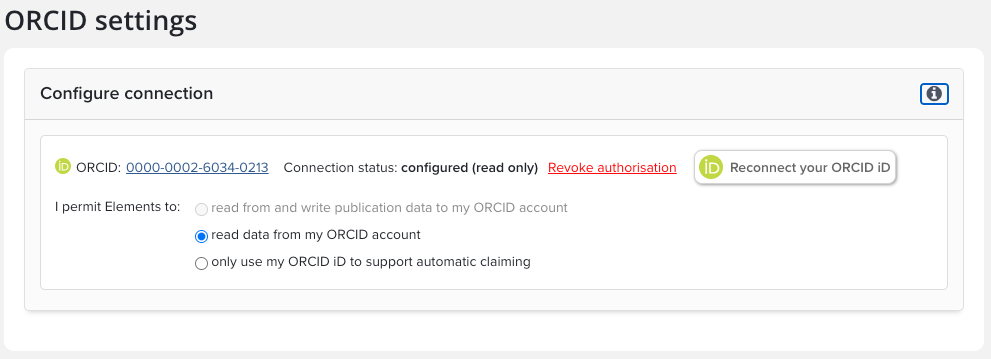
Read from and write publication data to my ORCID account - Users will be able to send publications from Elements to ORCID. Elements will also read the information contained in the user’s ORCID account to improve the accuracy of their search results as part of the supplementary search mechanism.
Read data from my ORCID account - Elements will read the information contained in the user’s ORCID account to improve the accuracy of their search results. If the user has previously connected to ORCID this setting will be preselected as this was the permission level granted to Elements.
Only use my ORCID to support automatic claiming - Elements will neither read from, nor write to the user’s ORCID account. If a user has previously claimed an ORCID iD but not connected to it, this setting will be preselected. Elements will still use the ORCID iD for automatic claiming which will continue to be managed on the automatic claiming page. Read more about automatic claiming in Elements.
If a user opts to enable ‘Read from and write publication data to my ORCID account’ they will have a number of options to define which publications are sent to ORCID.
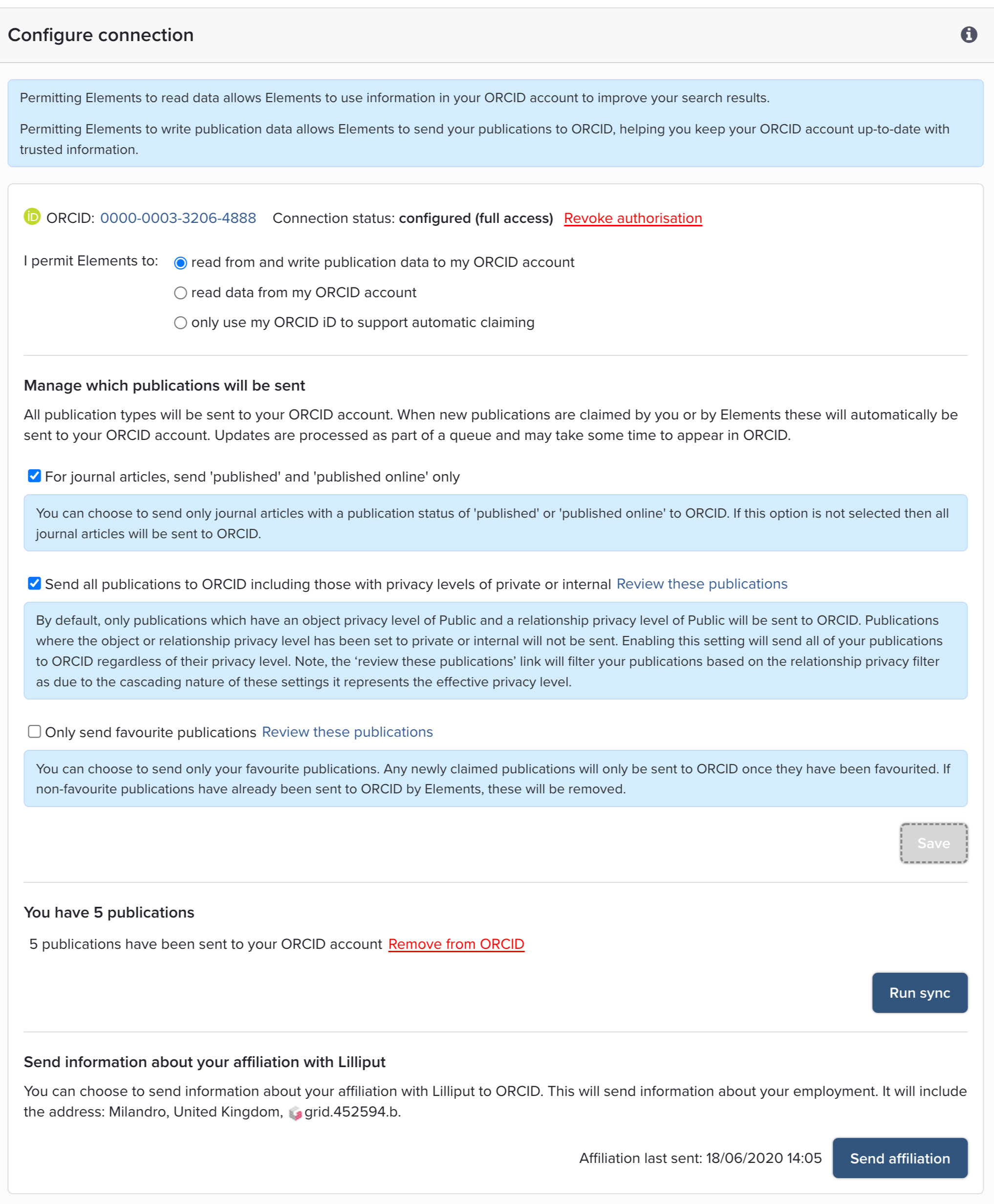
For journal articles, send ‘published’ or ‘published online’ only - This option is selected by default. This restriction prevents journal articles that do not have a publication status of ‘published’ or ‘published online’ from being sent to ORCID. Users can choose to deselect this option so that all journal articles are sent, irrespective of their publication status.
Send all publications to ORCID including those with privacy levels of private or internal - By default, publications where a user has marked their relationship as private and internal are not sent to ORCID. Users can opt to send publications with these settings to ORCID by checking this configuration.
NB: Publications with private relationships will not be sent to a user’s ORCID account. However, if a different user has a relationship with the same publication it can still be sent to this user’s ORCID account and appear publicly. Following the introduction of object privacy in Elements v6.2, the inferred relationship privacy levels can be effected by the profile privacy level. Users with a profile set to 'internal' will need to use this override to send publications to ORCID.
Only send favourite publications - Users have the option of choosing to only send publications that they have favourited. If this option is not chosen, a new publication that is claimed by the user or by the system will automatically be sent to ORCID. If this option is chosen, the user will need to favourite the publication before it is sent.
Users can manage their publications with private relationships and favourite publications by clicking the ‘Review these publications’ link. This will take them to their list of claimed publications, filtered to show either publications with private links or favourited publications respectively.
Removing publications from ORCID
Users can remove all the publications that have been sent to ORCID from Elements, from their ORCID account, should they wish. This is achieved by selecting the ‘Remove from ORCID’ link. If a user confirms that they would like to remove publications from ORCID, their ORCID settings page will be frozen, pending deletion of the publications. Following deletion their integration settings will be reset to ‘read data from my ORCID account'.
How publication metadata gets sent
Updates to ORCID are processed as part of a queue and may take some time to appear. Users are systematically added to the queue to check if they have new publications, or if there are any changes to publication metadata that should be sent. The time taken for updates to be sent will depend on the number of users who have enabled the write integration and the activity across the system as a whole (i.e. search of publication data sources). Users can push themselves to the front of the queue by clicking the ‘Run Sync’ button.
Metadata updates to publications that already exist in ORCID are sent with a lower priority than 'add' or 'delete' updates. These types of updates will appear within 30 days, but may be faster.
A user cannot enable the write integration for an ORCID account if another user has already enabled the write integration for that ORCID iD, or previously sent any publications to that ORCID account. If logged in as an admin the error message will display which user has already interacted with the ORCID iD. This information will aid with resolving the issue.
For each publication the metadata from the highest precedent record is sent. If a user has set a preferred record this will be the record that is sent to ORCID. The contributor field in ORCID is completed from the publication’s ‘Authors’ field and the ‘Editors’ field.
If a user hides or rejects a publication this update is sent to ORCID with higher priority than regular ORCID write actions.
A user will only be automatically added to the queue if ‘IsCurrent = true’ and ‘Login Allowed’ = true. This means that if a user leaves the institution no metadata updates will be sent to ORCID. Users can also revoke the authorisation they have given Elements from their ORCID account settings under ‘Trusted organisations’.
Once a publication has been sent, ORCID groups duplicate publications based on the presence of matching persistent identifiers. If these are lacking on either the publication sent by Elements or already in ORCID from another source then there is a risk that duplicates may appear in a user’s list of ORCID works. This can be dealt with using ORCID’s combine work items functionality.