
Hello, World! A custom OLAP dashboard
This article walks you through the process of creating a new custom OLAP-based dashboard in Elements. It aims to leave you with familiarity of the basics of how to create, design and save a new dashboard that draws its data from the Elements Analytics Database, and finally deploy the dashboard to the appropriate end-users.
This article assumes you are already familiar with the contents of the Introduction to Dashboards support article.
Create a new blank dashboard
Navigate to Search & Reporting > Configure Reporting > Create a New Hub Report.
Note: If your organisation does not license the Analytics Module you will not be able to create new dashboard.
This will open up the dashboard properties page, where you need to provide a few pieces of information about your new dashboard.
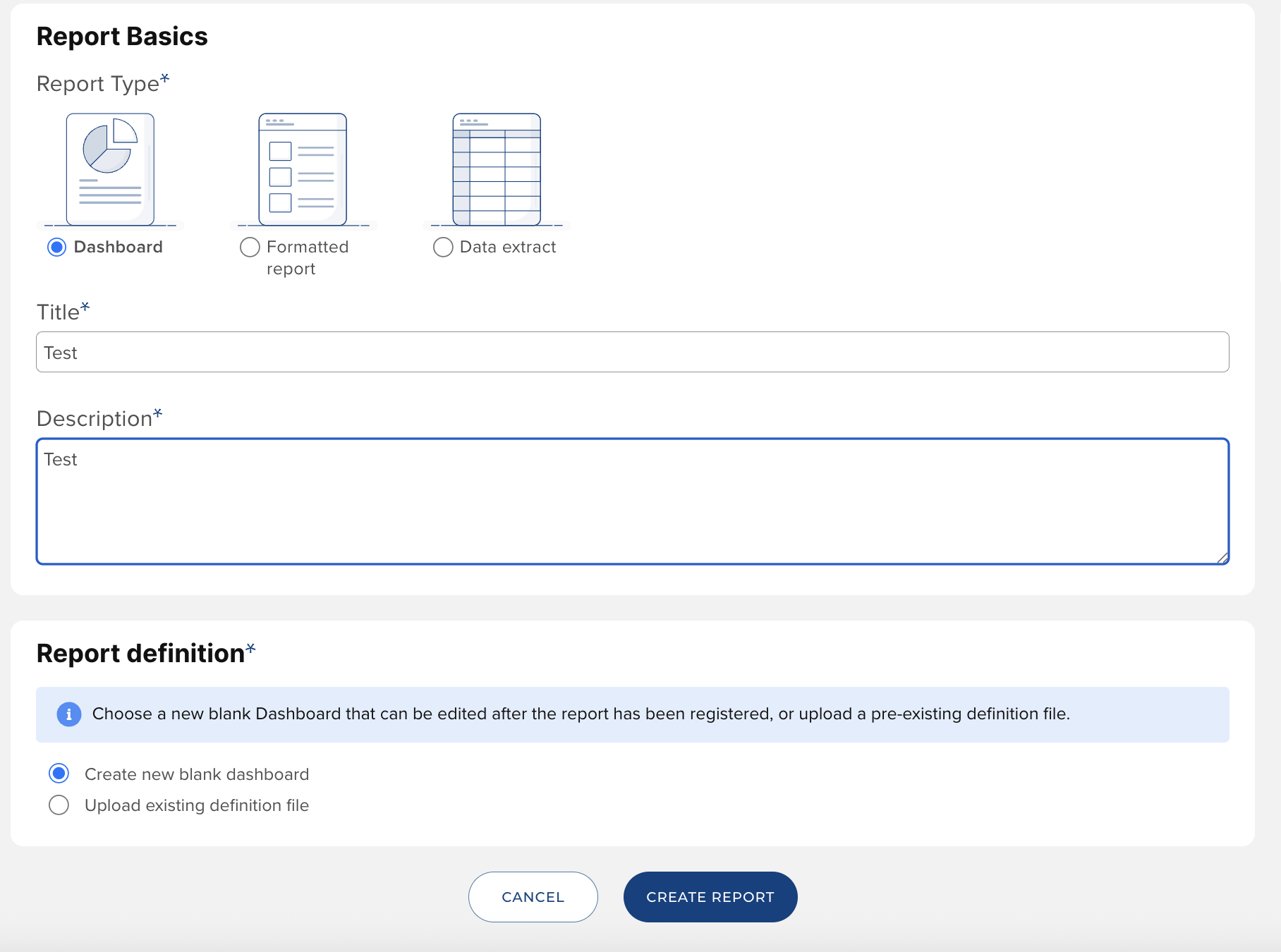
Keep the New Blank Dashboard option selected. Provide a display name for your dashboard, and a description. The name and description will be made available to all users to whom you later provide access to the dashboard. Click the Design link in the menu when you have finished.
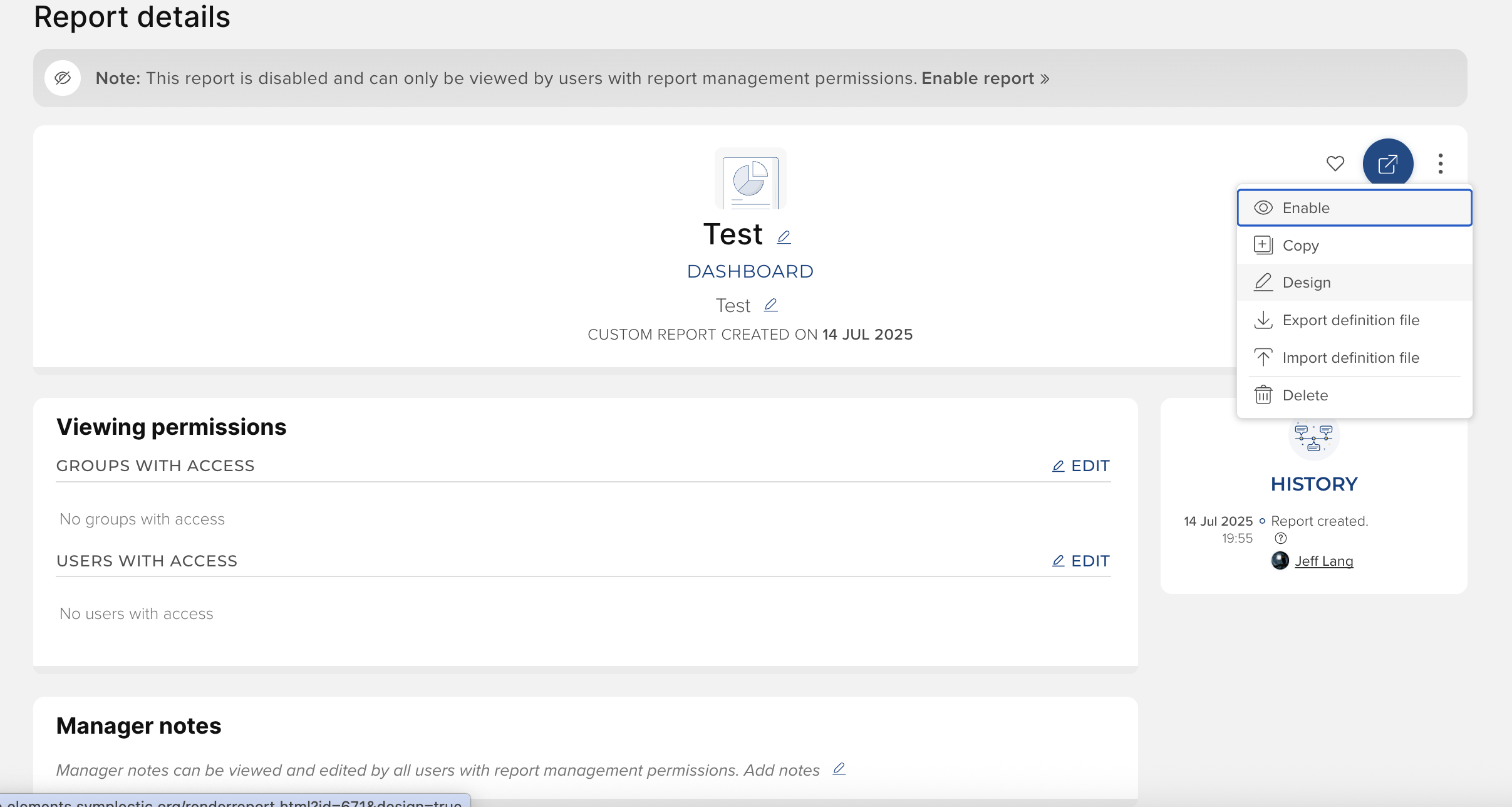
Once the designer has loaded, it may show a popup message reminding you of the need to regularly save your dashboard. This is important, as it is currently possible for you to lose unsaved changes if you allow (through inactivity) your login session to expire.
Select data
After dismissing the popup, you will see the design tools down the left and the design surface in the middle of the page. The designer's menu button is highlighted below.
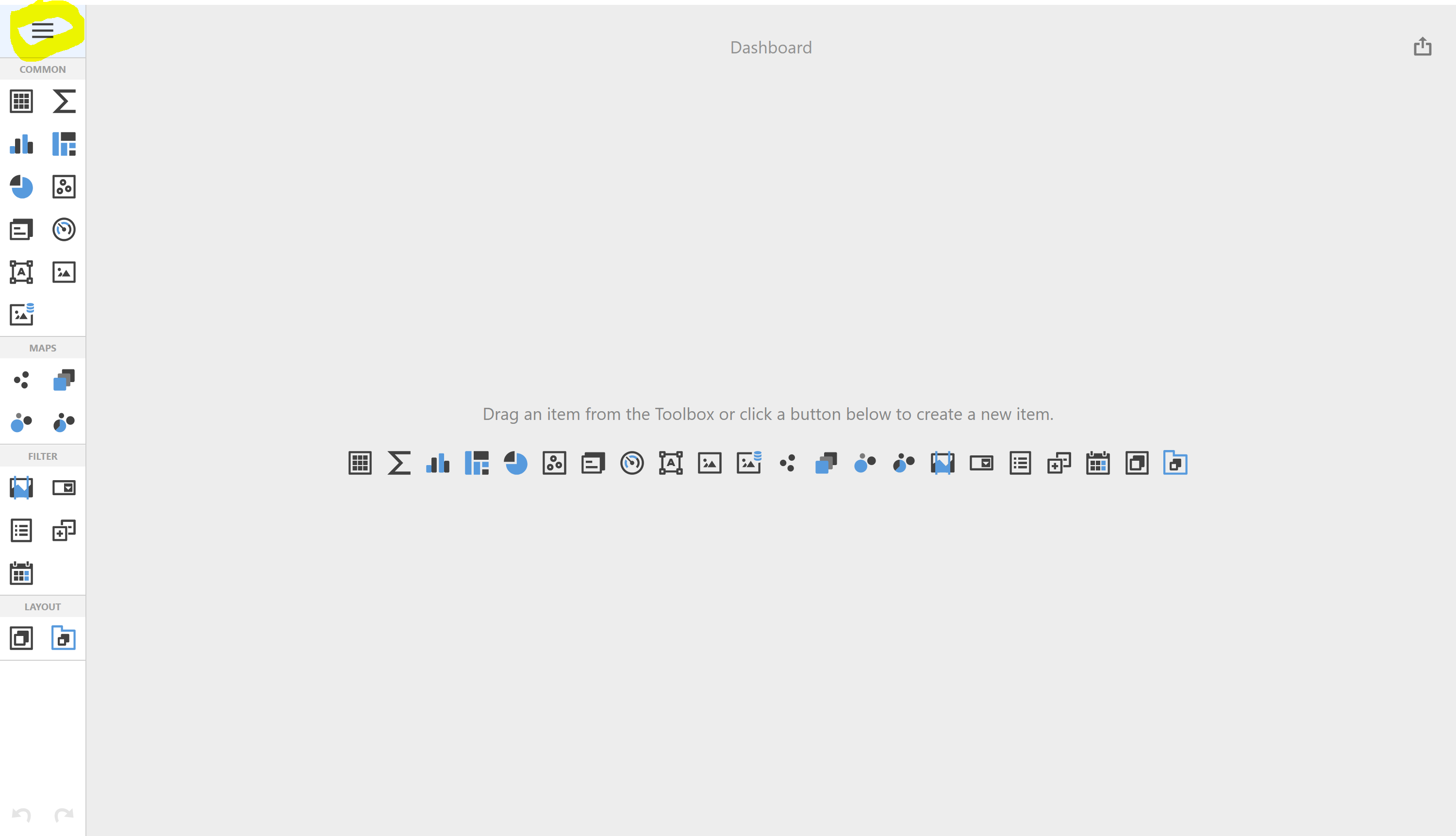
We are going to configure the dashboard to select some interesting data from the Elements Analytics Database. We will later bind this data to items on the dashboard in order to visualise it. Click on the menu button and select Data Sources. From there select the Add hyperlink to add a data source to the dashboard.
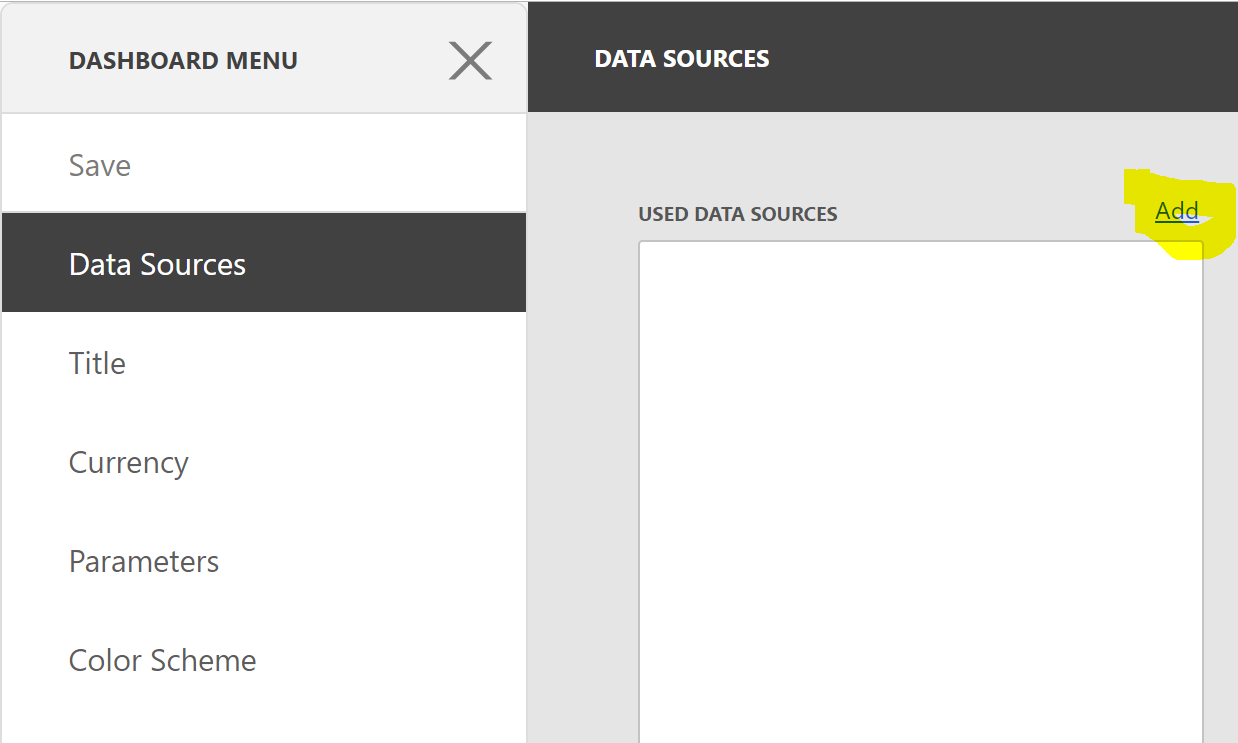
Elements supports just two data sources for dashboards. This article focuses on using the Elements Analytics Database as the data source. Select the Elements Analytics Database data source and click the Add button. There is an option to "Create Data Source...", but this does not offer the ability to choose a data source other than the two supported data sources. Choosing that option will currently just permit you to create a new data source using one of the two underlying data connections used by the existing supported data sources. It doesn't get you anywhere new.
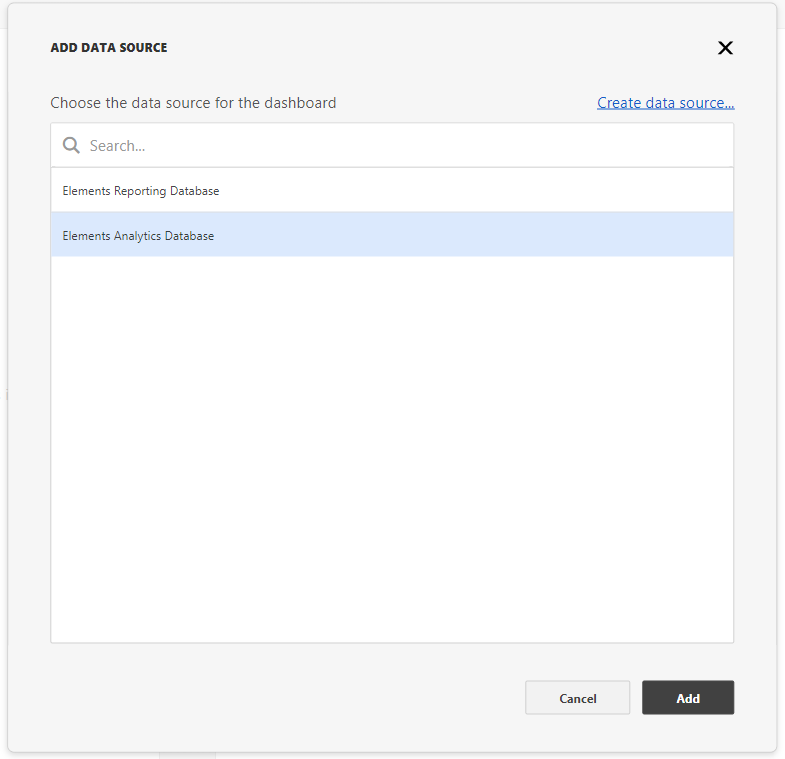
Once you have added the Elements Analytics Database as the data source for your dashboard, you will see all of the available measures (ways to aggregate data) and dimensions (ways to slice and dice data) of the connected cube (table analogue) in the database. Close the dashboard menu by clicking on the large grey cross at the top of the dashboard menu.
Create a chart
Add a bar chart item to the dashboard by clicking on either instance of the bar chart icon:
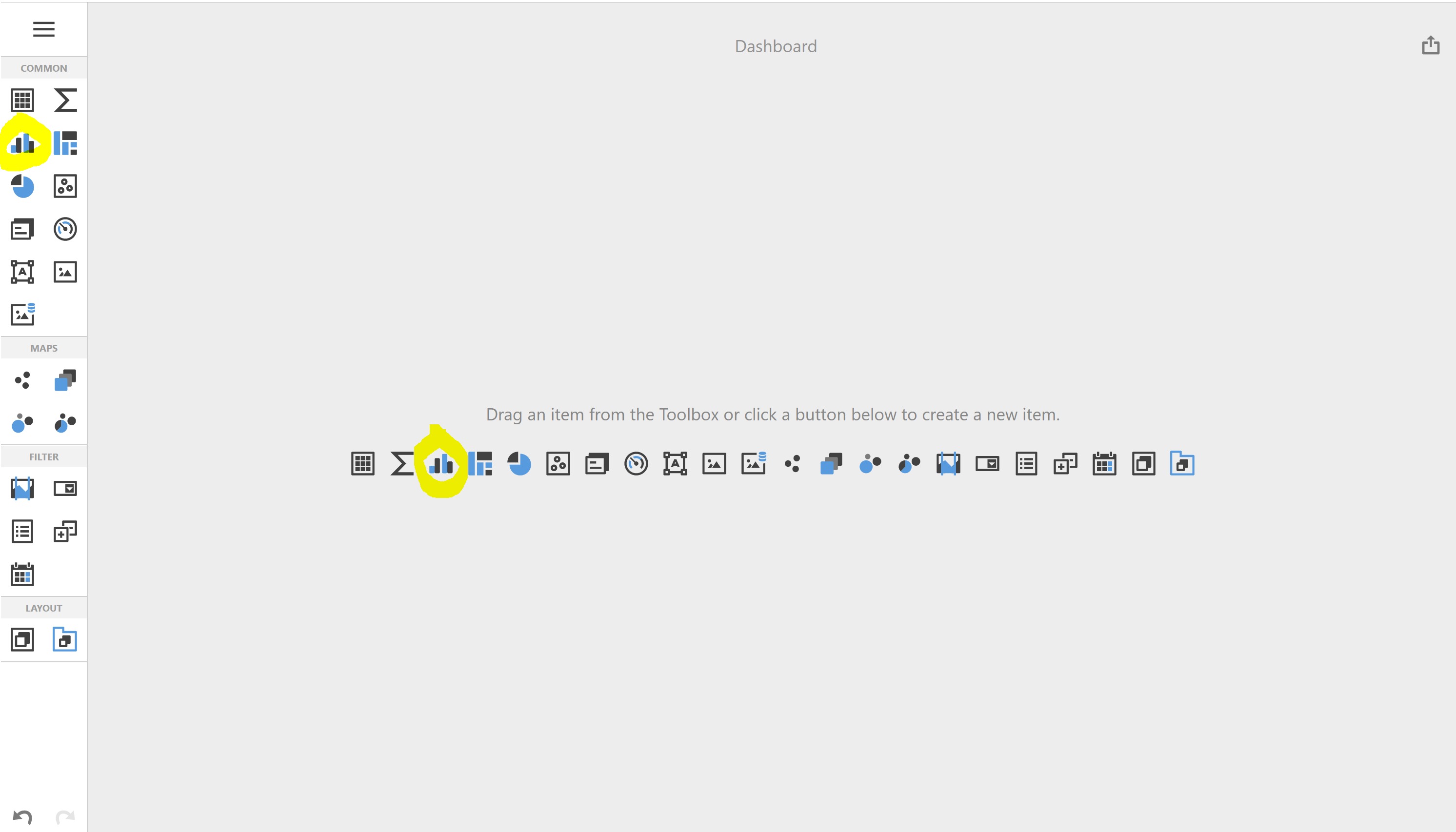
The designer will now show an empty bar chart item that takes up the whole of the design surface of the dashboard. It is now our job to bind the bar chart to the measures and dimensions available in the Analytics Database. Click on the cog icon that appears when mousing over the chart item to open the data binding interface for the item, or click the "Click here to bind this item to data" hyperlink in the chart item's area.
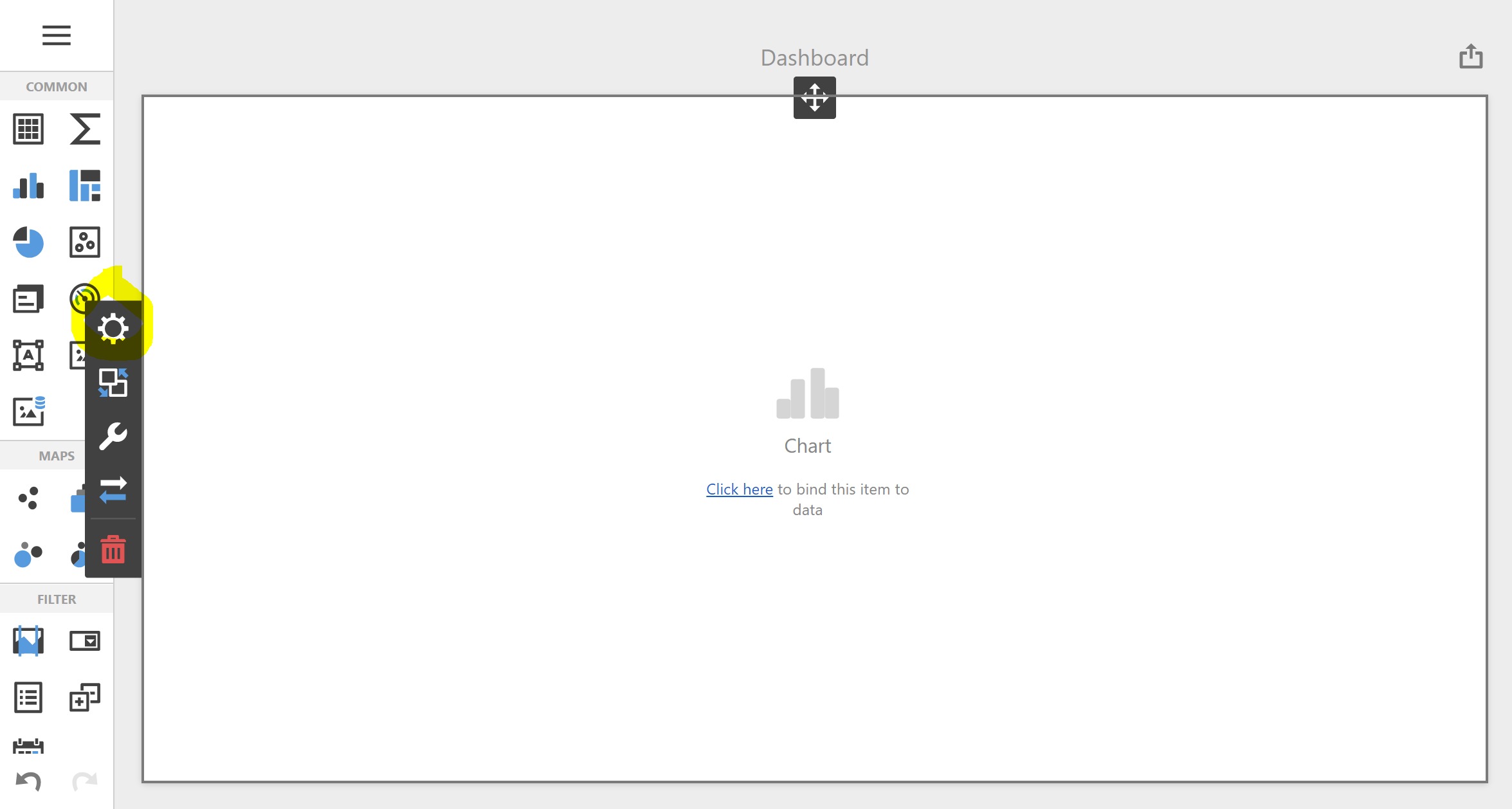
We would like our bar chart to measure the average value of the grants associated with each department. To do this, we need to think about how a bar chart should deal with the various columns in our query. But first, we need to ensure that the chart is bound to the correct data source (in general, we might have added more than one data source to the dashboard).
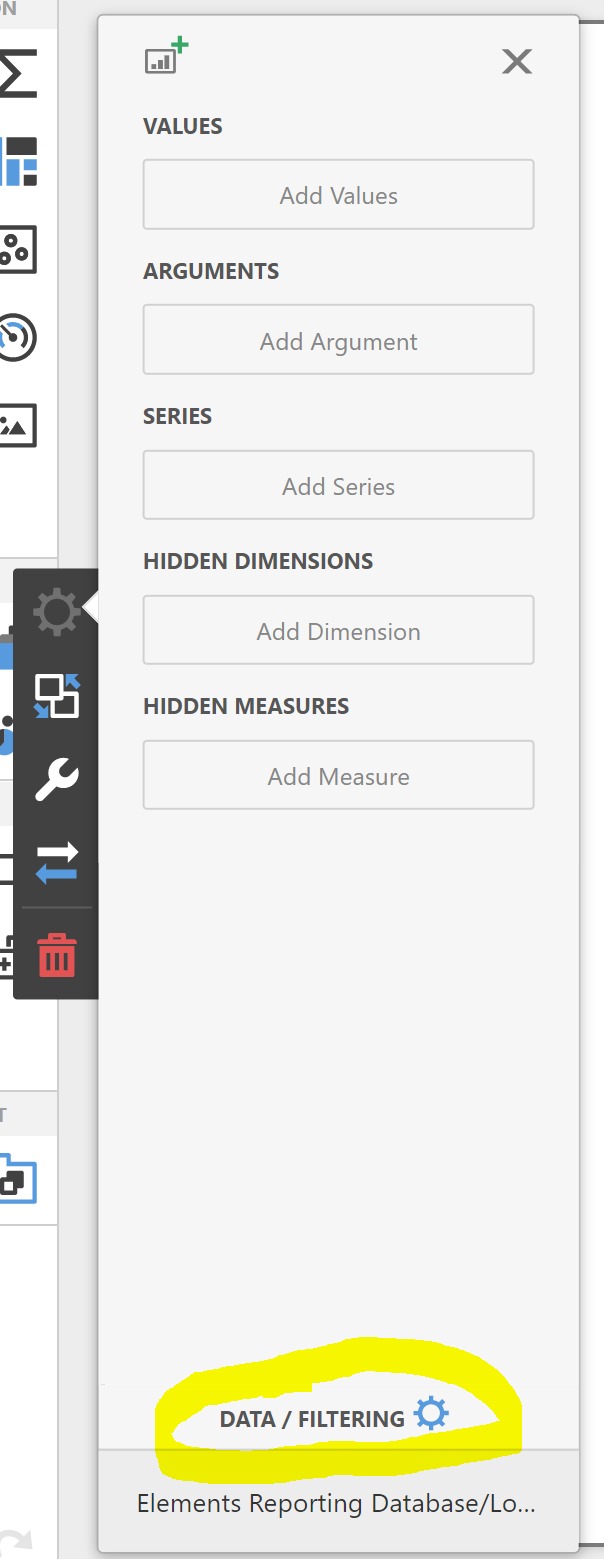
Click on the Data / Filtering link at the bottom of the binding configuration area. This will open up and provide information showing us that the chart is bound to the Analytics Database.
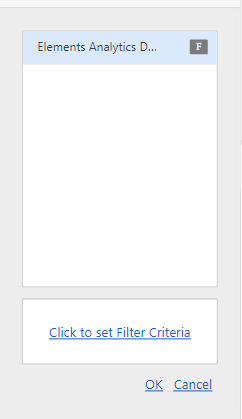
Click Cancel.
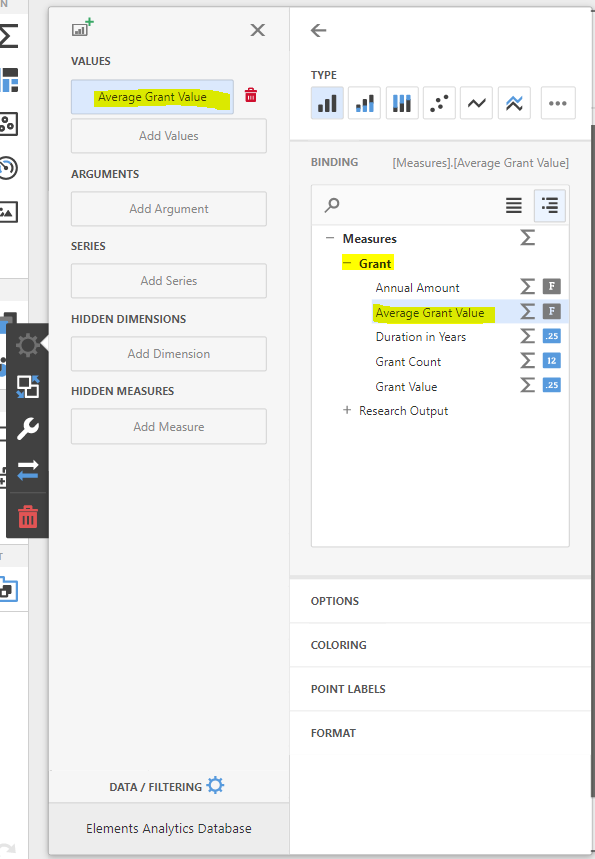
Click on the Add Value box under the Values section of the binding configuration area. "Values" are the things we typically want to count, add, average or otherwise aggregate or measure. In this case we are going to average grant values. Select the Grant measure group, and within it the Average Grant Value measure.
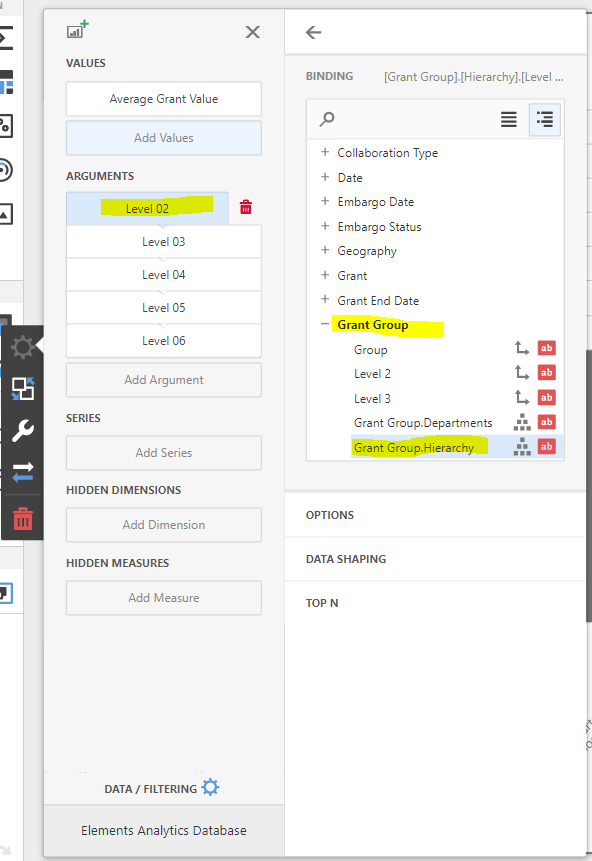
We would like a one-dimensional bar chart where the dimension (grouping) is an Elements group (often used to represent departments). To configure a departmental grouping you should click the Add Argument button in the Arguments section of the binding configuration area. The designer often refers to dimensions of analysis as "Arguments". Then, select the Grant Group dimension, and within it the "Grant Group.Hierarchy" dimension attribute. The designer notices that the "Grant Group.Hierarchy" dimension attribute contains a structured hierarchy of values, which we can take advantage of later.
The ability to select from pre-configured measures and dimensions in the Analytics Database provides you with a lot of convenience in analysing data. Close the binding control area to view the dashboard you have designed.
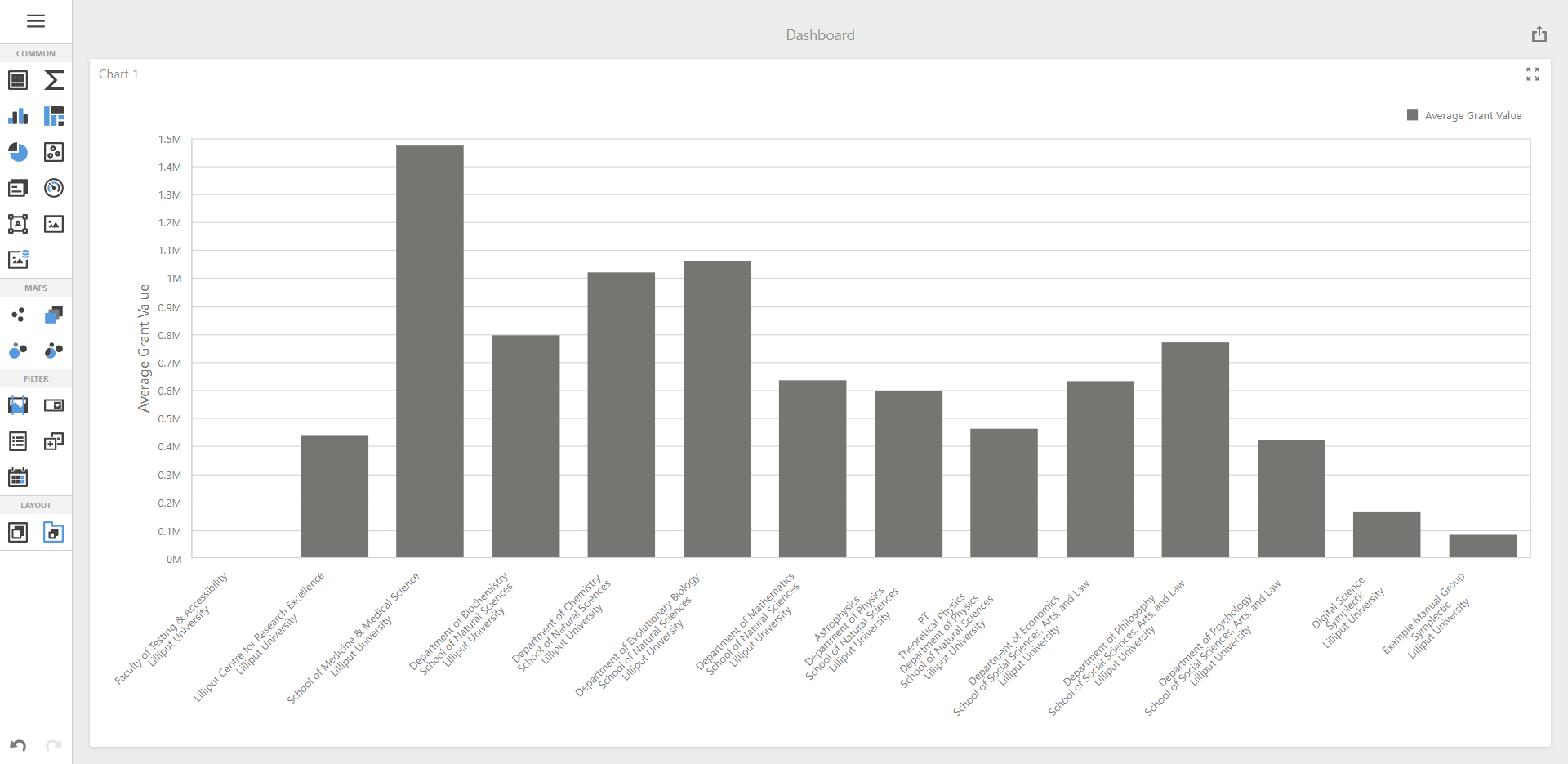
This dashboard is now measuring the average value of grants associated with groups of users in the the system.
But what if instead, you wanted to average annual value of the grants associated with those groups instead of the average total values? Let's modify the dashboard to additionally measure this statistic.
Reopen the binding configuration area by clicking on the cog symbol that appears to the left of the chart area when hovering over the chart. Click on the Add Values button, again selecting the Annual Amount attribute of the Grant dimension.
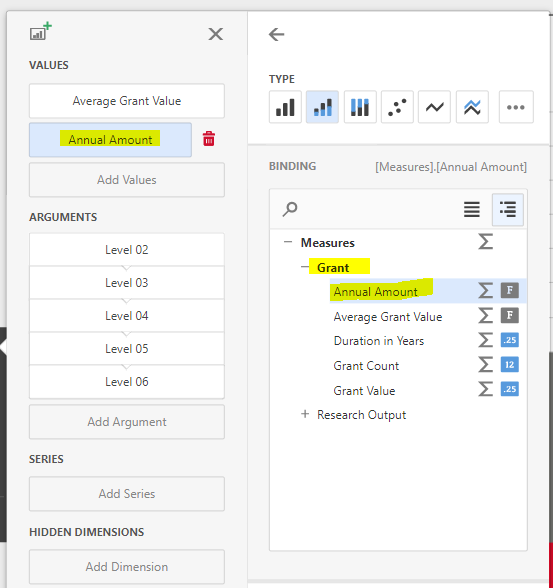
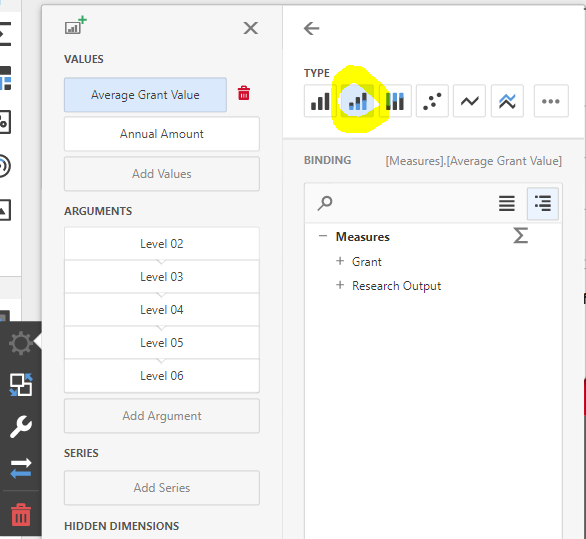
This will alter the way the graph is drawn to cause the second series to be drawn over the first. This gives the following pleasing representation to the chart.
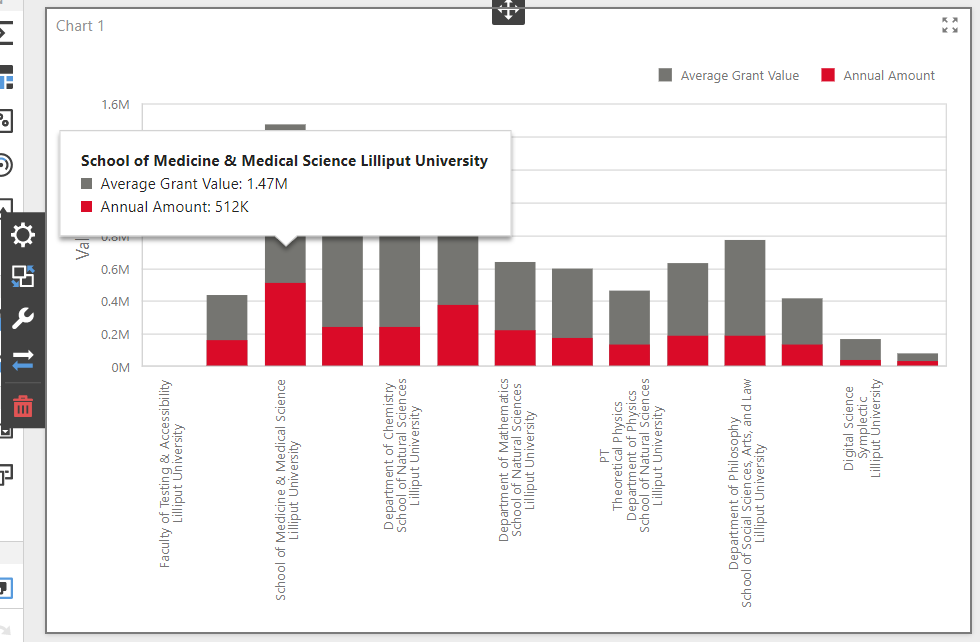
You can now see the average grant value by group, and the average grant value per year by group.
Presentational changes
You can also see in the screenshot above the tooltip that is automatically shown by the chart when mousing over a bar, and the legend for the two series. These can be very helpful to viewers. By default, they show the name(s) of the bound measure(s) and the function you chose when measuring them, but you can alter the display name of each binding to better describe what is being shown. Reopen the binding configuration and select the "Annual Amount" value. Open the Options section to its right and enter the word "Average Annual Grant Value" into the Caption textbox.
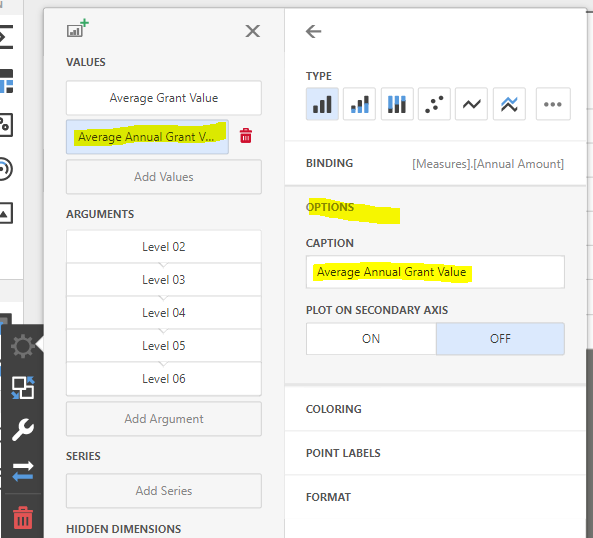
Next, use the Format submenu of each measure's binding settings to set the Format Type to Currency and the Currency to GBP.
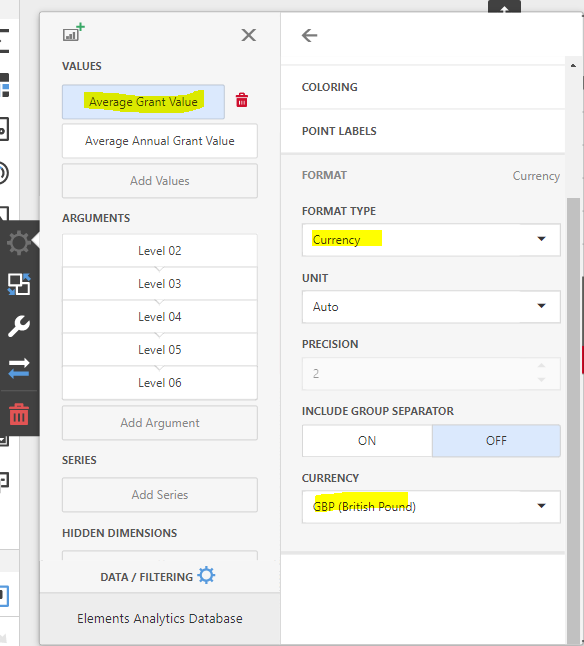
These display preferences will now be used by the dashboard in the names and values of the two graphed series.
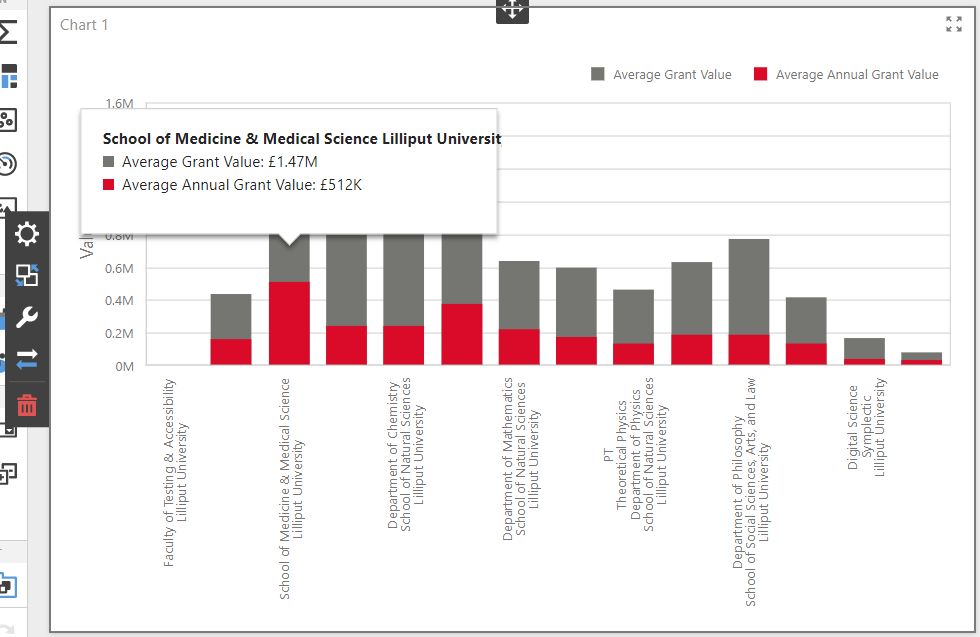
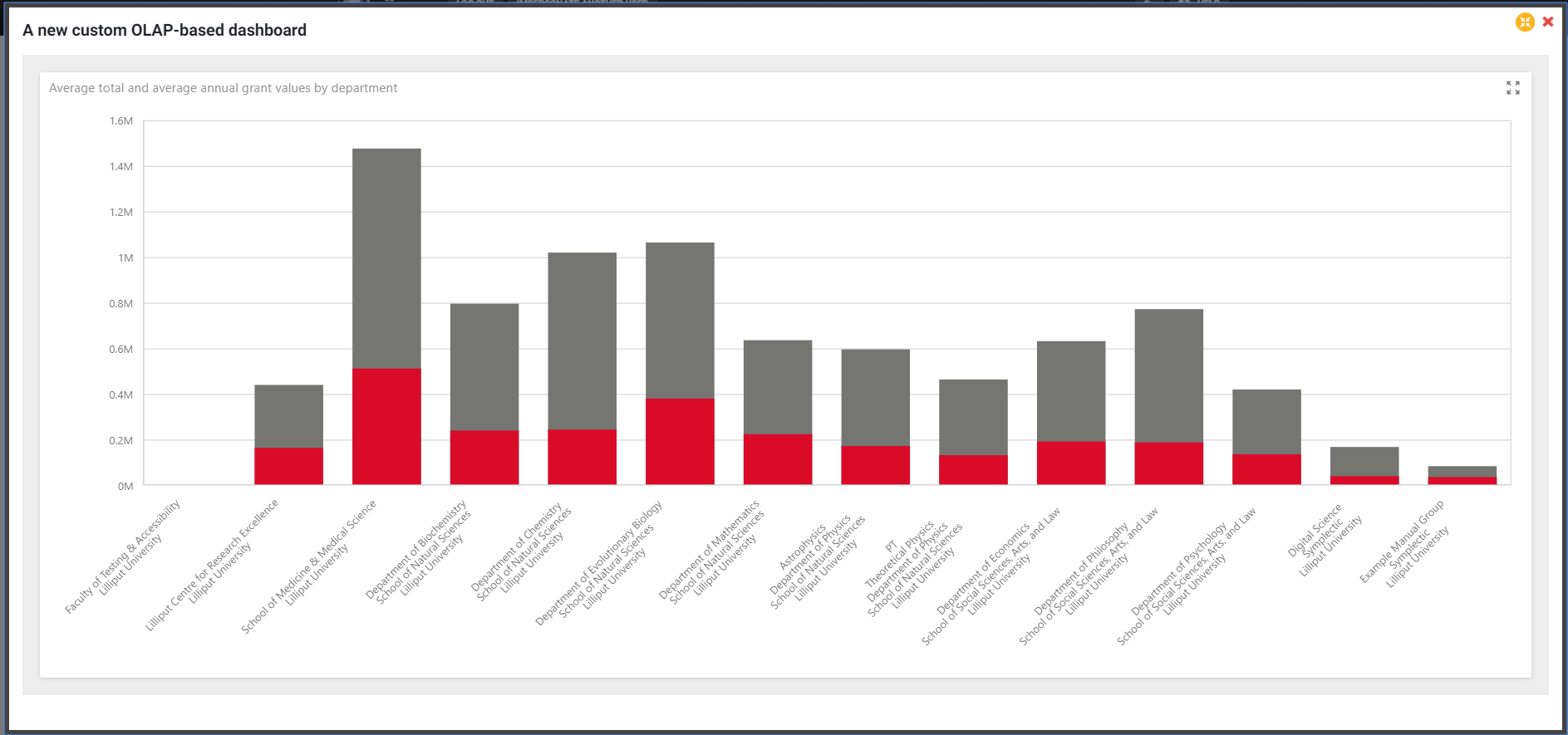
Set the title of the chart by opening its Options menu (the spanner icon to the left of the chart) and setting the Caption there to "Average total and average annual grant values by department". Remove the y-axis label by opening the Axis Y section of the same Options menu, switching the Title toggle to Off. You can go further by hiding the dashboard title (which is separate to the chart title) by opening the dashboard menu (top left), selecting the Title submenu and unchecking the Visible checkbox. For maximal decluttering, try also removing the legend (using the Legend submenu of the chart Options menu).
Save the dashboard
Don't forget to save your changes by selecting the Save menu option from the main dashboard menu. Then close the browser tab and navigate back to Search & Reporting > Reporting > Dashboards.
Dashboard deployment
You should now be able to preview the dashboard by clicking the Preview button against your dashboard on the Manage Dashboards page.
Consider with whom you should share the dashboard. As well as usefulness to the audience, your main concern should be around data security. Who should be permitted to view the dashboard? Please see the following article for more information on dashboard security and data privacy:
Click on the Permissions hyperlink next to your dashboard entry on the Dashboards page at Search & Reporting > Reporting > Dashboards. Select the 'Permissions' link and add users or groups as required.
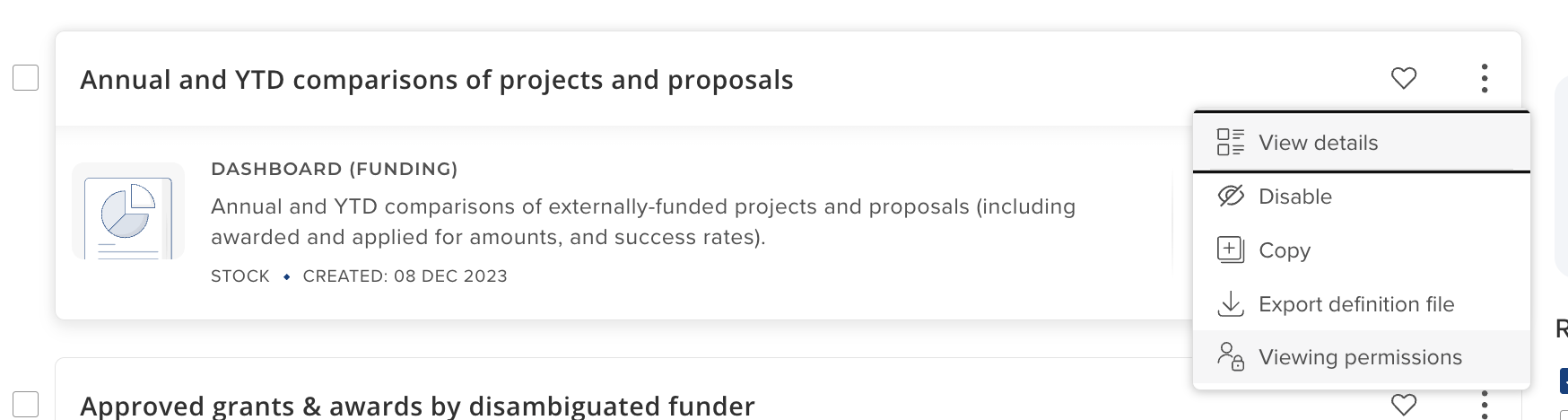
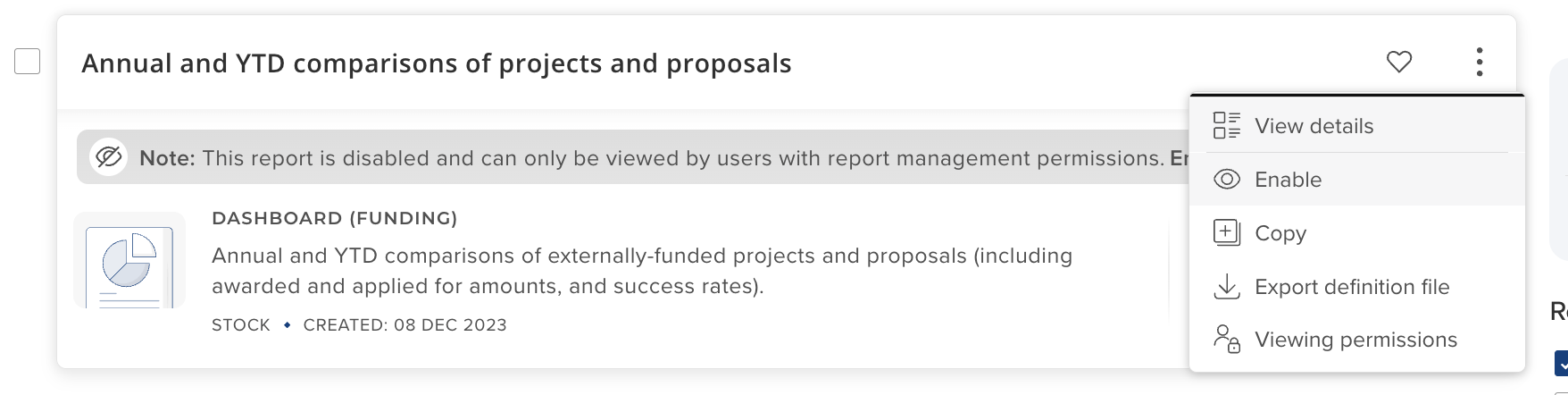
Now that the dashboard is designed and its permissions have been configured, you are in a position to "go live" with the dashboard, by checking the Enable button next to the dashboard entry on the Dashboards page.
Final steps
You have designed and deployed a custom dashboard, consuming data directly from the Analytics Database!
Update your upgrade project checklist
Now would be a good time to ensure your custom dashboard and its usage of the Analytics Database features on your institution's Elements upgrade acceptance tests checklist - your institution should work through this checklist on each future upgrade of Elements to ensure your dashboard still functions as intended, and in particular with respect to data security.
This will give you the opportunity to maintain your custom dashboard in working order on newer versions of Elements, should any changes become necessary.
Consider sharing your dashboard with the Elements community
Elements supports the export and import of dashboard definitions as XML files. In this way, dashboards can be downloaded from one Elements system and then re-uploaded into an entirely different Elements instance with minimal effort. This is something we really hope clients will take full advantage of. We encourage you to share your creation with other members of the Elements community via the Symplectic figshare community portal: