
Roles in Elements
The various roles in Elements are described below.
System roles
Begin by navigating to System admin > Users & groups > User management > Manage system roles. Select the role checkbox and check the groups or users who require access, then click the appropriate "Add" button. After you select "Add," the role assignment will be updated in the lower part of the screen. To remove groups or users, use the red X button.
Note that a user may be an explicit and/or implicit member of any given group. Explicit membership occurs when:
their Primary Group Descriptor matches that of a Primary Group
their user data satisfies the WHERE clause of an Auto Group
they have been explicitly assigned to a Manual Group
Implicit membership occurs when:
they are an explicit member of any descendant group.
When assigning roles to a group, both explicit and implicit members of that group will receive the role and be granted the permissions associated with it. You should therefore exercise care when assigning roles to groups, especially if those groups have descendant groups, or may gain them in the future.
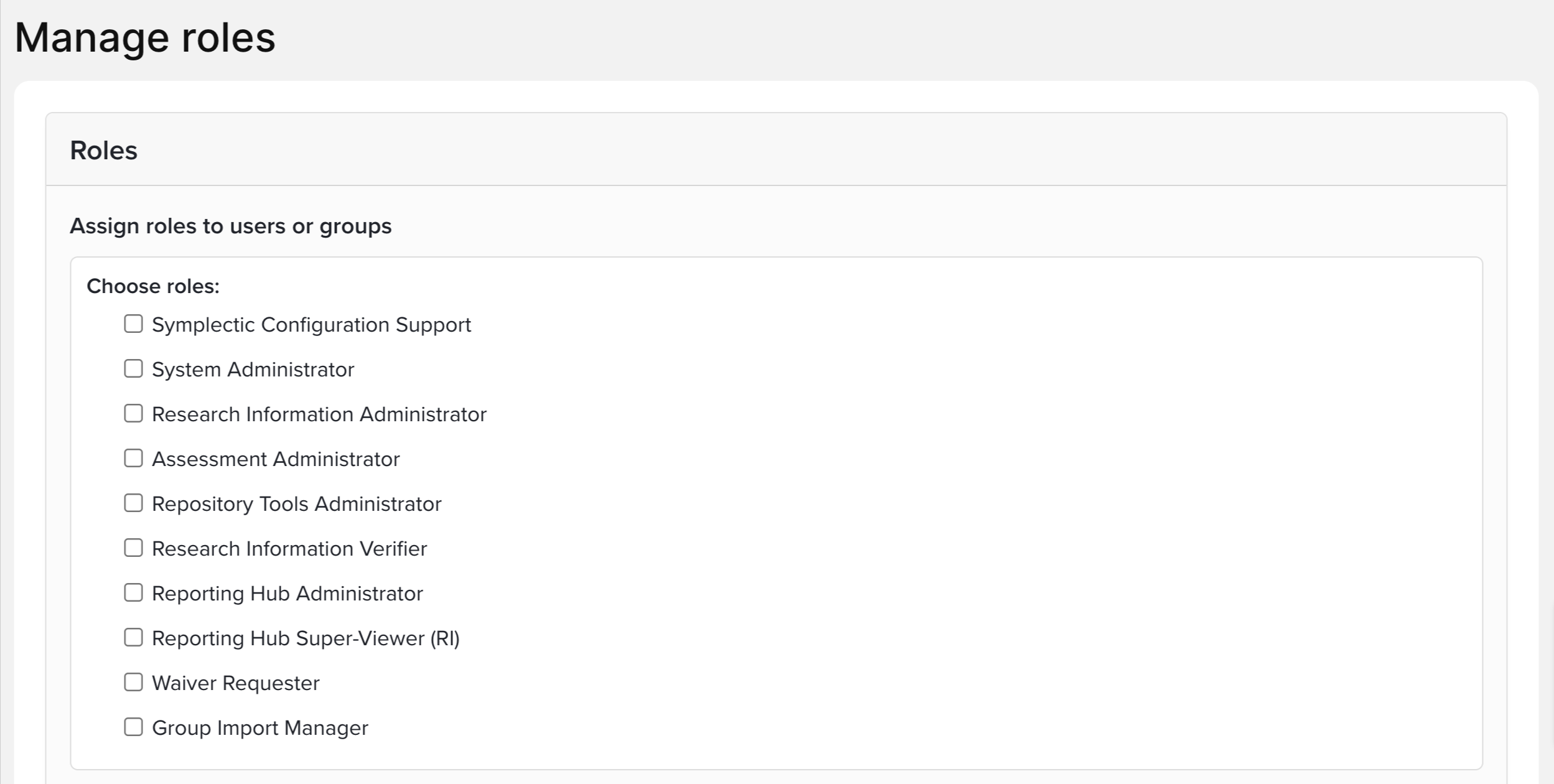
Reporting Hub Administrator
A Reporting Hub Administrator has permission to view and manage all reports in the Reporting Hub. Reporting Hub Administrators have usage rights over all groups data and can run Formatted Reports on any group. You may decide not to have a separate Reporting Hub Administrator if you wish to use your general System Administrators to manage reports. Please see the Introduction to the Reporting Hub for further information about configuring reports.
Note: Prior to Elements version 6.1, the equivalent of the Reporting Hub Administrator role was the ‘Dashboard Administrator’ role. On upgrade to 6.1+ users with the ‘Dashboard Administrator’ role will automatically be given the ‘Reporting Hub Administrator’ role.
Users in this role have the rights to manage all reports in the system. It is not possible to restrict a user's management rights to only a subset of the reports in Elements.
Reporting Hub Super-Viewer (RI)
A Reporting Hub Super-Viewer (RI) can view all reports in the Reporting Hub but does not have the ability to manage them. This role has usage rights of all groups data and, like the Reporting Hub Administrator, will be able to Run Formatted Reports on any group that the report has been configured to run against.
Note: Prior to Elements version 6.1, the equivalent of the Reporting Hub Super-Viewer (RI) role was the ‘Dashboard Super-Viewer’ role. On upgrade to 6.1+ users with the ‘Dashboard Super-Viewer’ role will automatically be given the ‘Reporting Hub Super-Viewer (RI)’ role.
Repository Tools Administrator
A Repository Module administrator can change settings for the Repository Module. You may decide not to have a Repository Tools Administrator if your System Administrators are able to manage and configure the Repository Module.
OA Monitor Administrator
A OA Monitor administrator can change settings in the OA Monitor.
It is expected that this role will usually be filled by a central Librarian or other central research support staff, who have the task of managing and monitoring the institution’s Open Access compliance, including configuring OA schemes.
If both Repository Tools and Open Access Monitor are licenced, for a specific admin user to perform all repository, deposit, and OA configuration and management functions, they should be assigned both the Repository Tools Administrator and OA Monitor Administrator roles.
System Configuration Support
This is a role which can be used to allow Symplectic staff to assist clients using the Elements Research Funding Solution (RFS) with more complex configurations. To access this you need to login with the system user and password. Contact Symplectic support for assistance.
System Administrators
The most powerful role in Elements is the System Administrator. They see all the menu options, can make changes to all parts of the system and embody all other roles in Elements. There should be relatively few System Administrators. Only System Administrators can add local users and create other System Administrators. System Administrators cannot remove themselves from this list. If someone needs to be removed, another System Administrator must complete this task.
Research Information Administrators
The Research Information Administrator is a powerful role in Elements. They see most menu options, can make changes to most parts of the system, and embody all other roles (except for System Administrator) in Elements. There should be relatively few Research Information Administrators.
Research Information Verifier
Research Information Verifiers will see additional tools in the publications lists of the users they impersonate. In these lists, the verification status of publications will be shown in the header bar. Verification staff can change this status, and can also filter the list to show only papers with a particular status. The ability to 'lock' manually added records will be limited to users granted a new 'Research Information Verifier' role. N.B. In version 6.16 of Elements, this functionality was extended to include other data types, including Impact, Grants, Professional and Teaching Activities, Projects and Equipment.
Read more about the Research Information Verifier role in Elements.
Assessment Administrator
Assessment Administrators can create, modify and delete exercise definitions within the Assessment Module, and modify the users and reviewers allocated to them.
Group Import Manager
The Group Import Manager has access to the ‘Group import’ page and can run a group import. They can also set a group as ‘externally managed’ or ‘locally managed’. These management permissions over groups extend to being able to edit all groups in the system, including deleting, creating and moving. Group Import Managers cannot modify group roles.
It is important to note that while Group Import Managers cannot directly modify group roles or system roles, it is possible for them to indirectly grant group roles to users (including themselves) by changing the group structure. If system roles have been assigned to groups, then the same logic also applies. You should therefore assume that a Group Import Manager is capable of granting themselves the System Administrator role.
Rights for System Roles
The following table summarises the rights available to the System roles:
Role | Activity Type |
|---|---|
Group Import Manager | Run a group import from the ‘Group import’ page, view and edit group Institutional Identifiers and set groups to be externally managed. |
Reporting Hub [pre-6.1: Dashboards] Administrator | View all reports and dashboards |
Reporting Hub [pre-6.1: Dashboards] Super-Viewer | View all reports and dashboards |
Repository Tools Administrator | Change Repository Module configuration for RT1 and RT2 in v6.x |
OA Monitor Administrator | Can perform all functions in OA Monitor |
Access any group as statistician | |
Research Information Administrator | Create, edit and delete a user |
System Administrator | Edit any Module Access (including RFS) |
Group Roles
Begin by navigating to System admin > Users & groups > Group management > Manage groups. Select the group you wish to manage. The roles section on the right-hand side shows a summary of the roles that have been assigned that target this group. Selecting ‘Manage’ opens the ‘Manage roles’ page for the group where you can assign roles that target this group to users or groups.
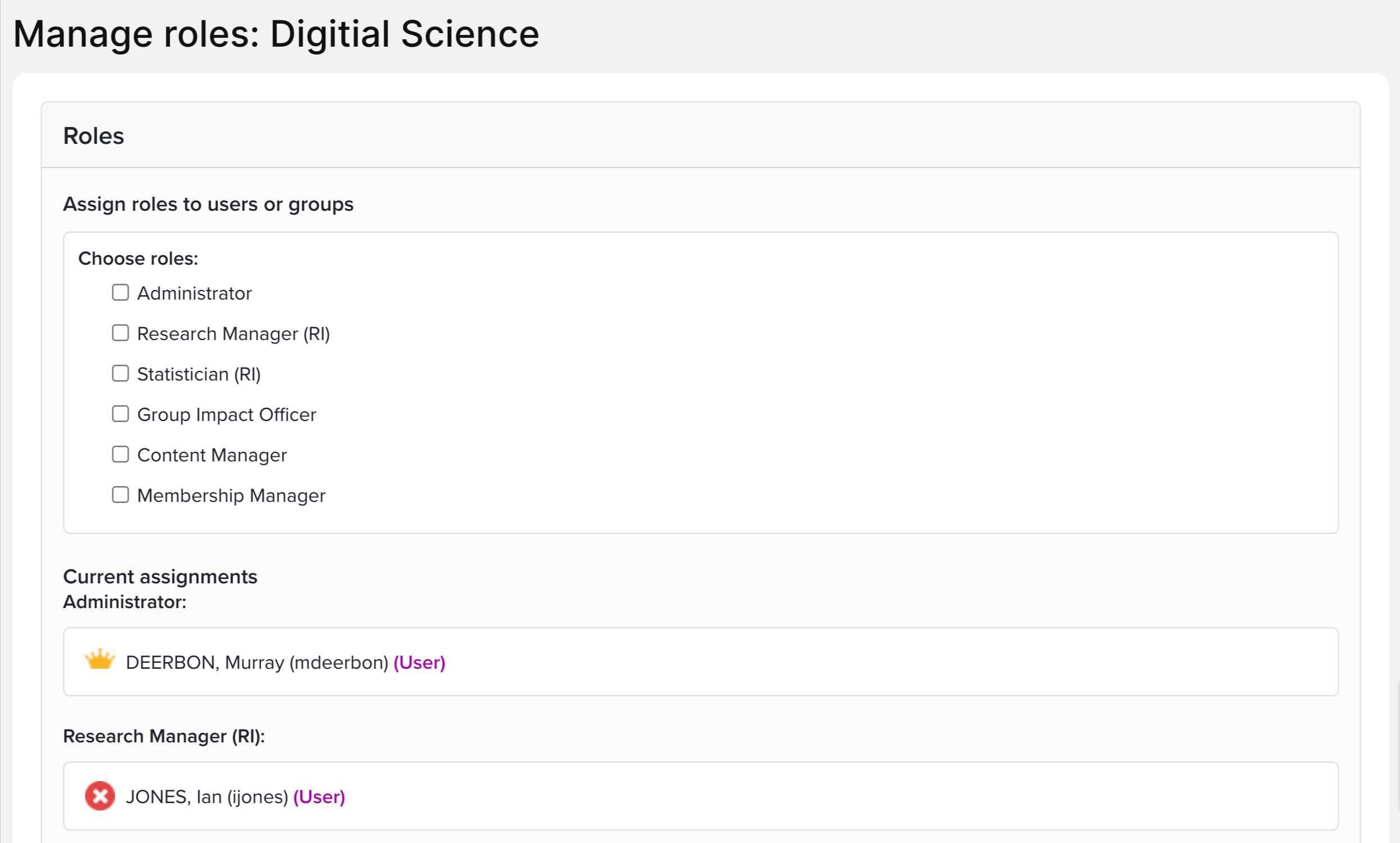
Group Administrators
Group Administrators (listed as Administrator in the menu) can change group properties, group membership and can also assign users and other administrators to their groups. In addition, for Primary Groups, they can change module settings for these groups of users. They also get automatic rights to impersonate all members of their group. It is expected that this role will usually be filled by a person who will be the point of contact and administrator for the system for a large (usually Primary) group of people. Only a System Admin can assign a Group Administrator role.
Group Administrators will have a System Admin section in their menu.
Research Manager (RI)
Research Managers (RI) have the right to impersonate all members in their group. The primary reason to give them this ability is so that they can change their search terms or help with approvals, but they can perform any other function that impersonation allows. They do not have the right to change group properties, membership or roles. Even if they are Research Manager (RI) for a Primary Group, they will not have access to its module settings. It is expected that this role will usually be filled by department or faculty administrators, who have the task of helping a set of people with the day-to-day management of their records.
When you have the role of Research Manager (RI) and you impersonate an end user, your actions are recorded in the history of an item.
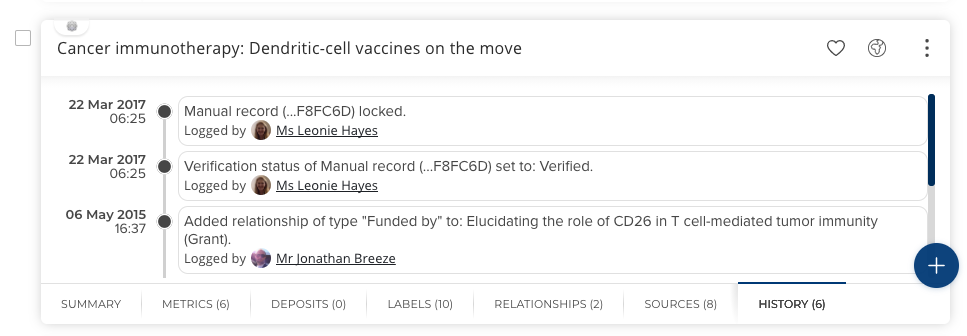
Research Managers (RI) are automatically given rights to use the OA Monitor and could therefore deposit publications into a repository without impersonating a user.
Read more about the Research Manager role in Elements.
Statistician (RI)
Statisticians (RI) have the ability to run reports on groups, and members of the groups, that they have statistician access to.
Tip: Group Administrators and Research Managers (RI) do not automatically acquire the Statistician (RI) role for their groups - it has to be explicitly given in addition to other roles.
Statistician's should see Elements Reporting and Statistics for details of how to obtain reports from the system.
Read more about the Statistician role in Elements.
Content Manager
Content managers have permission to edit group record metadata and various other group properties. This means that the responsibility for keeping this information up-to-date can be distributed across an organisation. Content managers are not able to modify group membership or roles. Content managers cannot delete, create or move groups. Content managers are also unable to impersonate members of a group.
Content managers can edit;
Group record metadata
Group labels
Group and name and description
Group privacy
Group relationships
Membership Manager
Membership managers have permission to edit the membership of groups. This is particularly relevant for groups with the ‘manual’ membership model, where the membership is manually set. This means that the responsibility for keeping this information up-to-date can be distributed across an organisation. Membership managers cannot make any changes to group content. Membership managers are also unable to impersonate members of a group.
OA Manager
OA Managers have the ability to manage publications within the OA Monitor that are affiliated with members of the group(s) that they have OA Manager access to, including depositing full-text files on a user's behalf (if RT2 is also licenced). OA Managers do not have permission to create or configure OA schemes, nor override the compliance status of a publication or exclude a publication from a scheme.
This role is only available if the Open Access Monitor is licenced.
Group Impact Officer
The Group Impact Officer can create and manage records that have links to users in their assigned group. The role is only available if the Impact Module is licensed.
Category roles
Every module (Publications, Grants, Teaching Activities & etc.) has a menu item called "Roles." Clicking this link brings up a menu that lists only a single role called Category Admin. From here, the System Admin (or another Category Admin) can grant individual users or groups the rights of a Category Admin.
The Category Admin can only do two things: 1.) Add other Category Admins 2.) Create or edit any object in a module type, noting that the only modules where the ability to create or edit an object is of value are the Impact module and the Equipment module.
Rights for Group Roles
The following table summarises the rights available to the Group roles:
Activity Type | Group Administrator | Research Manager (RI) | Statistician (RI) | OA Manager | Assessment Reviewer |
|---|---|---|---|---|---|
Change module settings | X |
|
|
| |
Edit deposit advice | X |
|
|
| |
Edit group | X |
|
|
| |
Edit members of group | X |
|
|
| |
Edit general deposit advice | X |
|
|
| |
View search errors in Admin dashboard | X | X |
|
| |
Email group members | X | X |
| X |
|
Impersonate all members of a group | X | X |
|
| |
View members of a group | X | X |
|
| |
View profile statistics of group members | X |
| X |
| |
View and download group custom reports including data extract and formatted group reports from the Reporting Hub |
| X | X | X |
|
Edit search settings and clear pending for a group member (when impersonating) |
| X |
|
| |
Deposit publications on the users behalf |
| X |
| X |
|
Manage publications in an OA scheme | X | ||||
Review research assessment exercises |
|
|
| X |
User Roles - Module Access
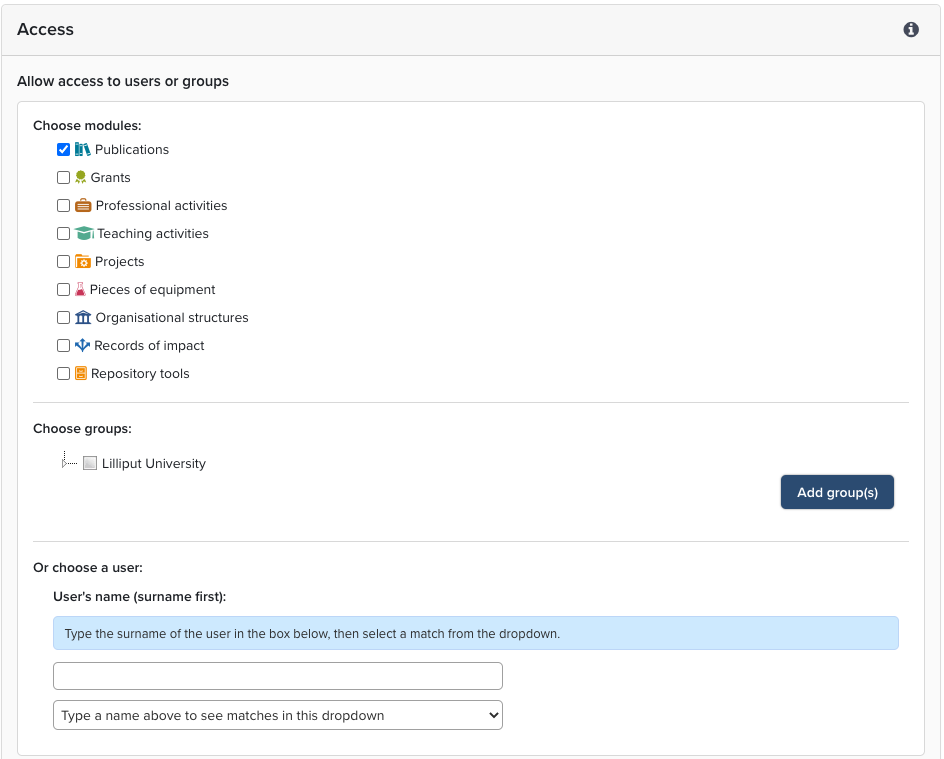
As a System Administrator, to enable access for end users, you will need to add users or groups. Begin by navigating to System admin > Data category settings > Manage module access. Each of the modules available will be visible in the list. Select the module checkbox and check the groups or users who require access, then click 'Add. After you select "Add" the role assignment will be updated in the lower part of the screen. To remove groups or users use the red cross.
Users of a module will then have access to the end-user functionality and see the module in their Home page. Typically the whole organisation is added but selected group/user(s) can be added during testing, implementation or for a pilot evaluation.
Access to Additional Modules and Specialised Functionality
Repository
The repository deposit page, the full text tab, and upload icons will be available after users have been added to the module. During the early part of your implementation, you may wish to limit the users who can access Repository Tools while you test the connector, upload sample files, and verify metadata crosswalks.
OA Monitor
The System Administrator, Research Information Administrator, and OA Monitor Administrator can view the OA Monitor and change the settings. The Research Information Verifier and OA Manager can also view the OA Monitor, but not change the settings. System Administrators, Research Information Administrators, OA Monitor Administrators, and Research Information Verifiers can exclude individual publications from OA policies, and override compliance on the Publications in OA policy page (OA Managers cannot).
Annual Collection
Access to the Annual Collection - HERDC Module (Australia only) is controlled within the Module by the addition of an organisational field and group configuration. See the Annual Collection Guides for more details.
Assessment
Roles applicable to the Assessment Module are described in a separate article.
Item evaluation
Roles applicable to the Item Evaluation Module are described in a separate article.
Awards Management
Roles applicable to the Awards Management Module are described in a separate article.