
Validating a proposal
When a Proposal is submitted, it must first be validated by a relevant Admin Console user. Validation involves:
Checking the Proposal has all information provided necessary for internal review and approval decisions
Optionally completing a validation checklist (get in touch with us if you would like to implement a validation checklist)
Viewing internal project team members and making modifications where required
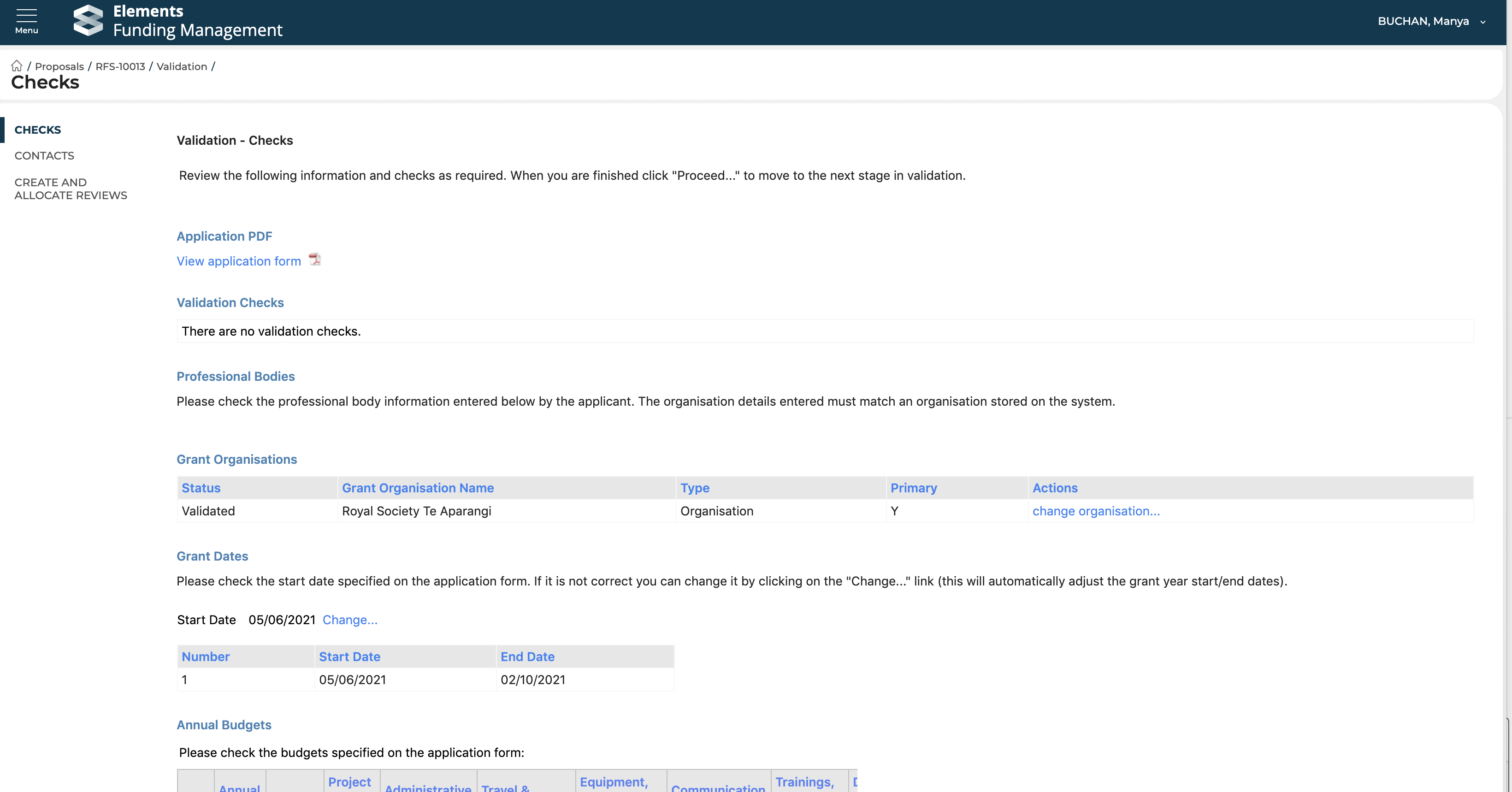
To validate a proposal, open the submitted Proposal and navigate to the 'Validation' tab. There are then 3 screens to proceed through:
Validation intro
Select 'Proceed'
Validation - checks
View the Proposal (PDF)
Undertake specified validation checks (if a validation checklist has been enabled)
Check whether any selected organisations require validation (see the 'Validating organisations' section at the bottom of the Organisations support article)
Modify the Project start date (if needed)
View the project budget, and modify if needed
Select 'Proceed' at the bottom when you have completed your checks
Validation - contacts
View internal project team members
Add / remove internal project team members
Select 'Proceed' at the bottom when you have completed your checks
Once you have completed all validation checks, you will be re-directed to the 'Create and allocate reviews' page, where you can assign and dispatch reviews and approvals.