Organisations
Awards Management holds information on external organisations in order to affiliate content with Funders and other external organisations (e.g. collaborating institutions).
Note that external organisation content in Awards Management is maintained separately to External Organisations in Elements.
Organisations content in Awards Management is managed in the Funding Management Console main menu, under Communications & Content > Organisations.
To ensure that organisational metadata (e.g. metadata about funders or external collaborators) is as structured and reusable as possible, the organisation model in Awards Management integrates directly with GRID. This means that external organisation records in Awards Management are sourced from GRID where possible, but can also be supplemented and enhanced through the use of local records.
Viewing organisations
Organisations that exist in Awards Management are available to view in Communications & Content > Organisations. You can filter the list as needed, and export the list to excel.
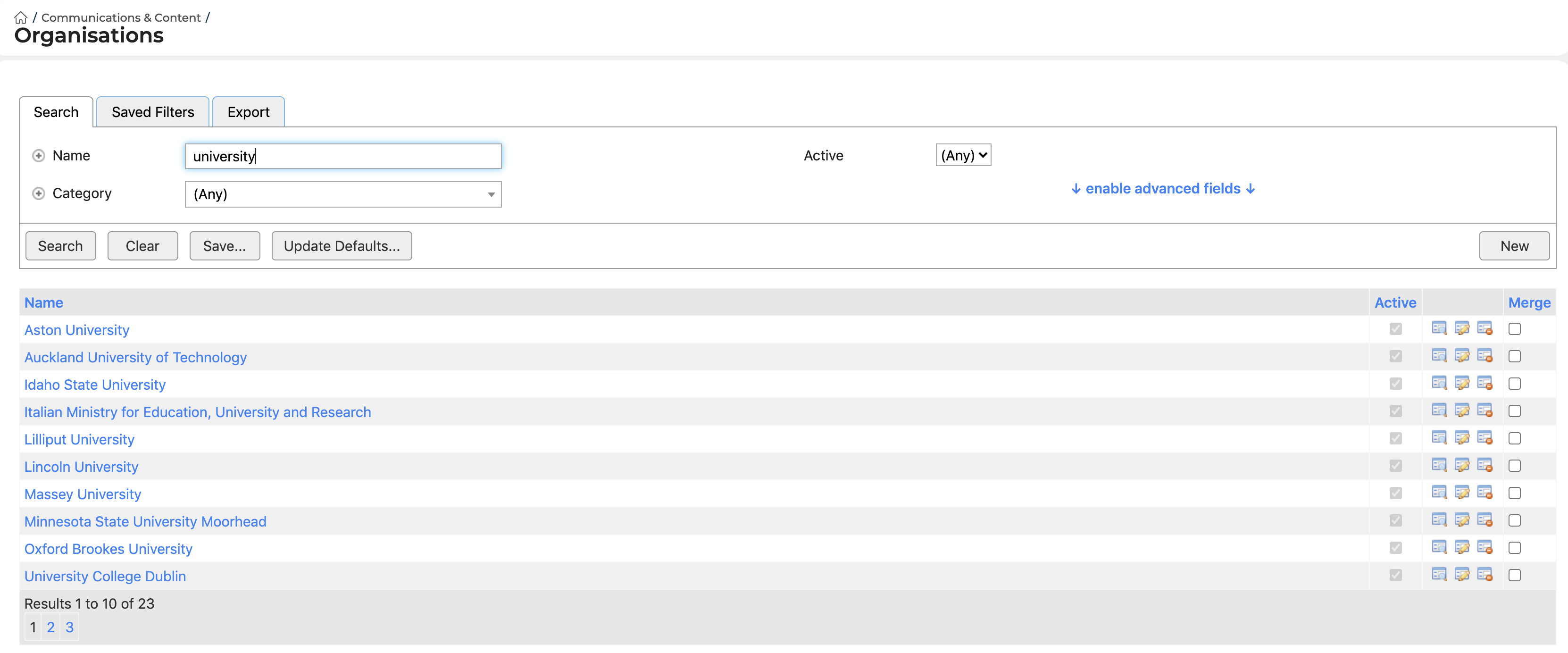
Selecting an organisation will open the organisation's record in Awards Management, where you can:
Edit the organisation details (see below)
View all affiliated content (e.g. Proposals)
Capture notes against the organisation, using the Journal function
Creating organisations
Organisations can be created in the Console, or by users when completing a funding proposal or updating a project's details.
You will want to ensure that all of the Funders you work with exist as organisations in Awards Management as, to be selected as a Funder on a Funding Opportunity, the Funder must first exist as an organisation in Awards Management.
All other organisations can be created ad-hoc, by users when completing a funding proposal or updating a project's details.
Create in Console
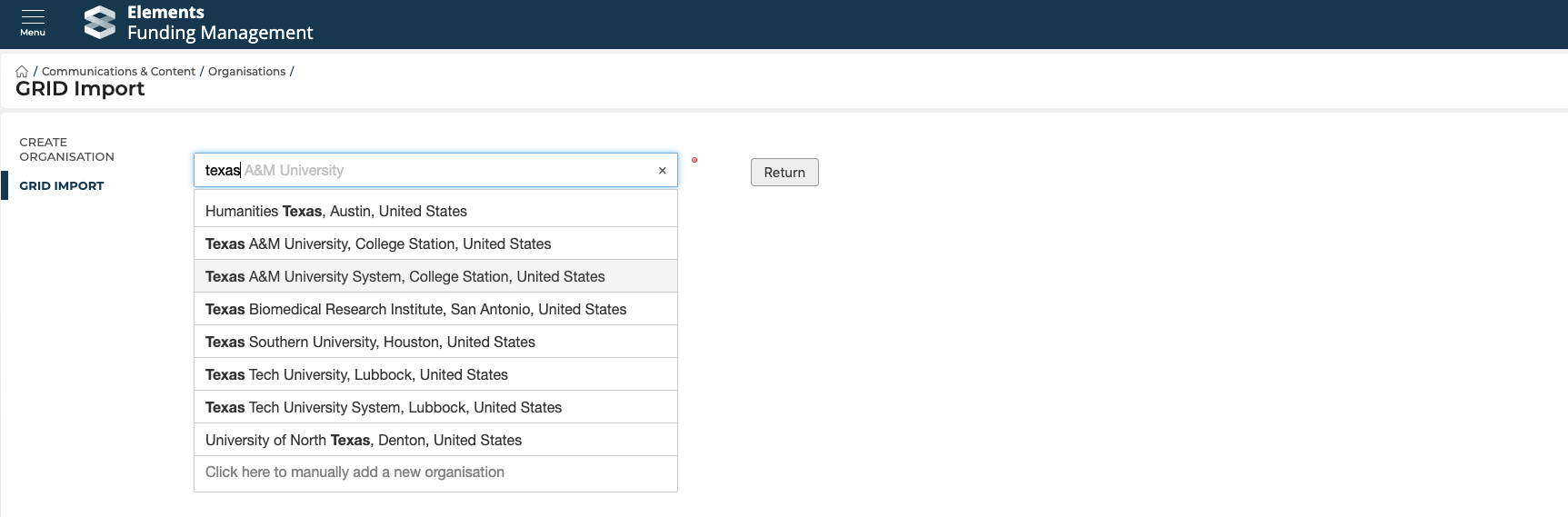
Go to Communications & Content > Organisations in the Console, and select the 'New' button in the top right-hand corner. This will then present you with a type-ahead search field. Once you find the desired organisation, select it from the list.
The screen will then re-load, showing you details from GRID (e.g. GRID ID, organisation type, address, other identifiers). If this is the correct organisation, select 'Save' at the bottom of the screen. You will then be directed to the organisation's newly created record in Awards Management. Available actions are listed above under 'Viewing organisations'.
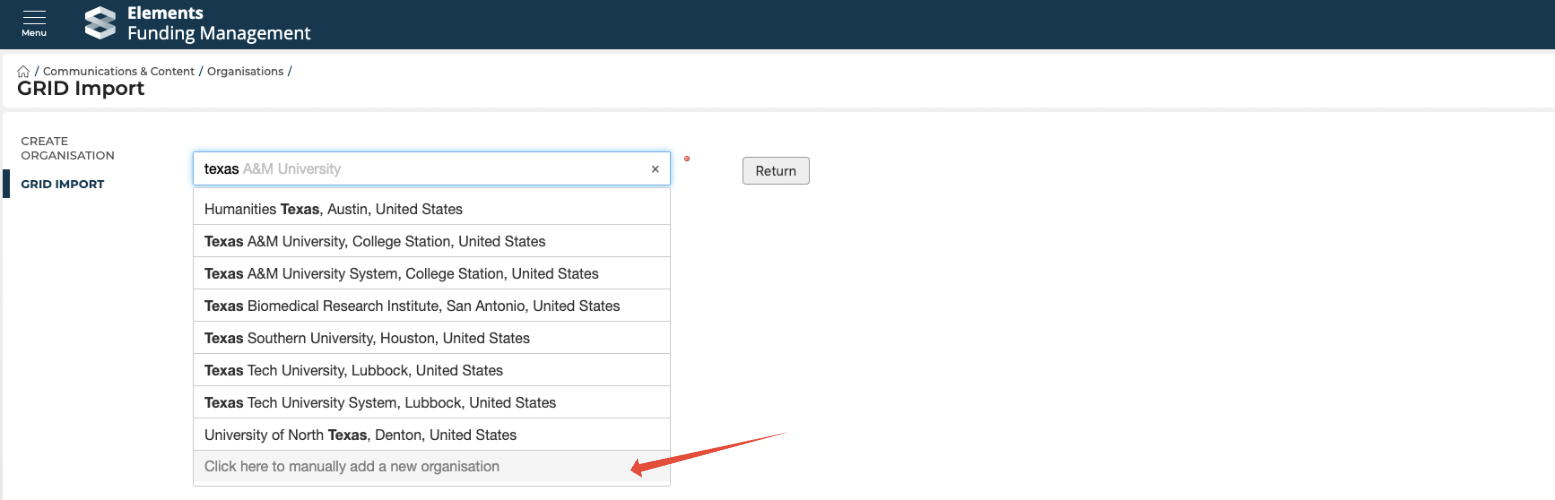
If the organisation you are looking for isn't listed, this likely means it does not exist in GRID and you can therefore create it manually by selecting 'Click here to manually add a new organisation'.
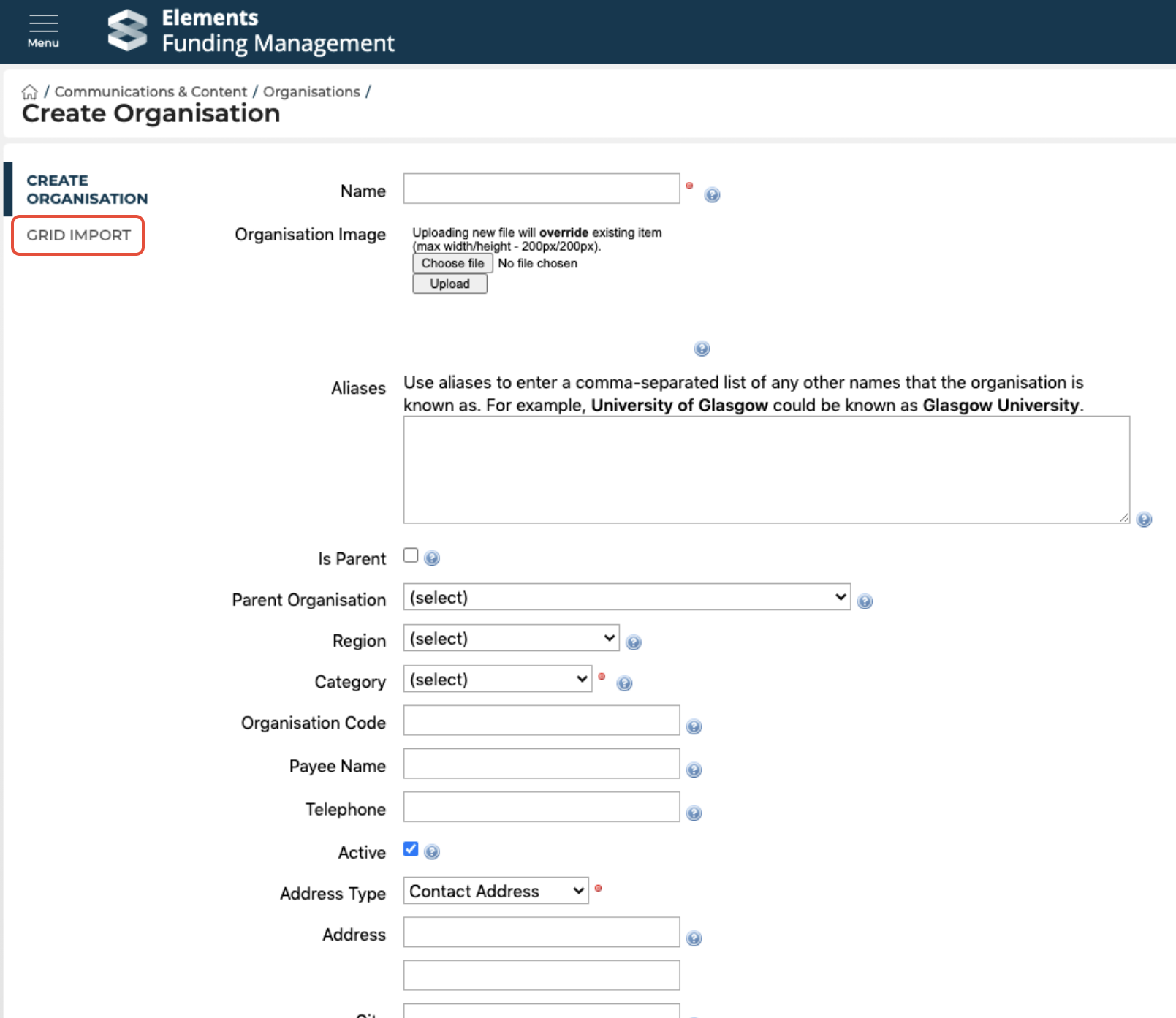
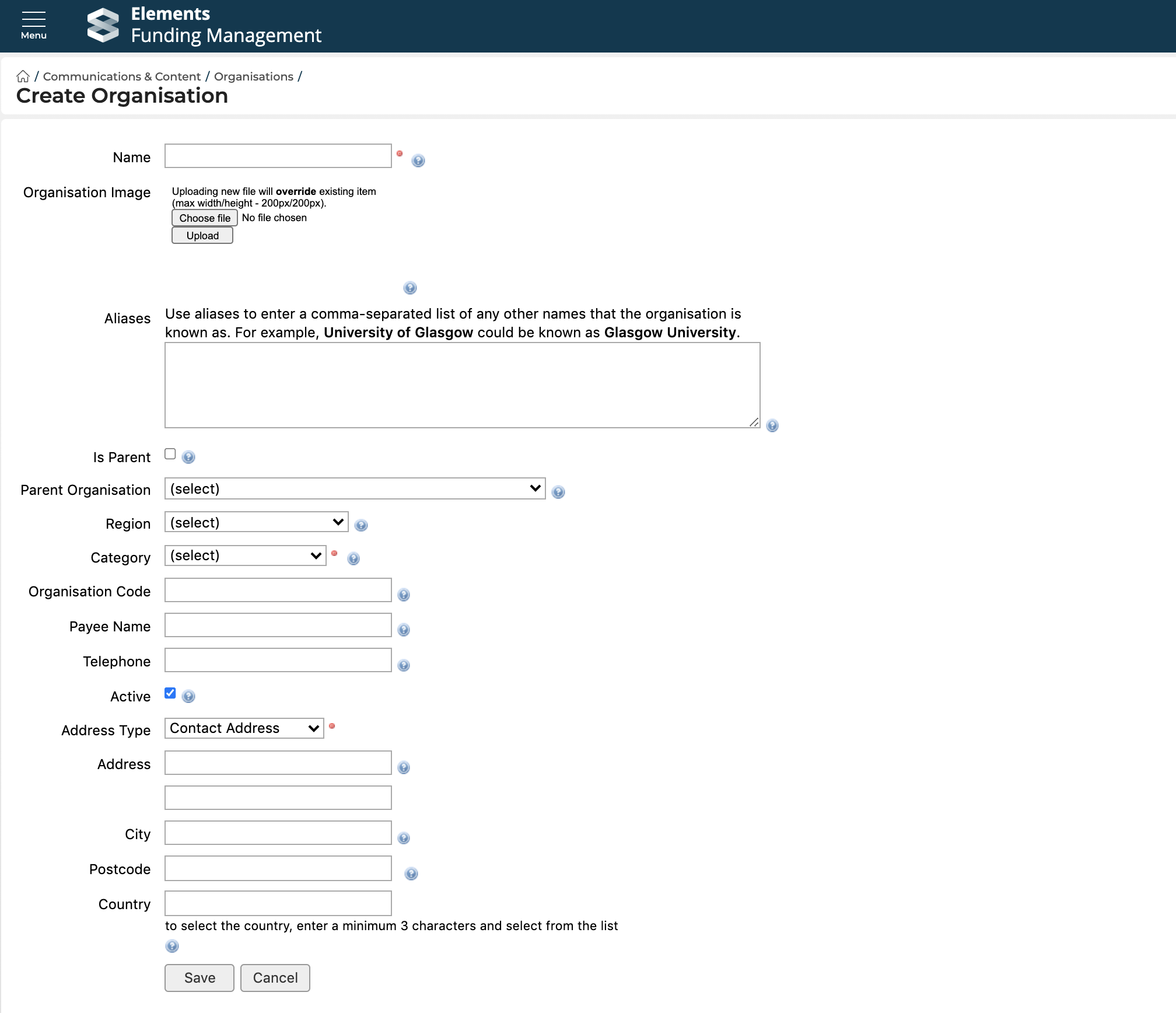
This then opens a new organisation record where you can capture all relevant details about the organisation (e.g. name, aliases, address, logo).
Create in form
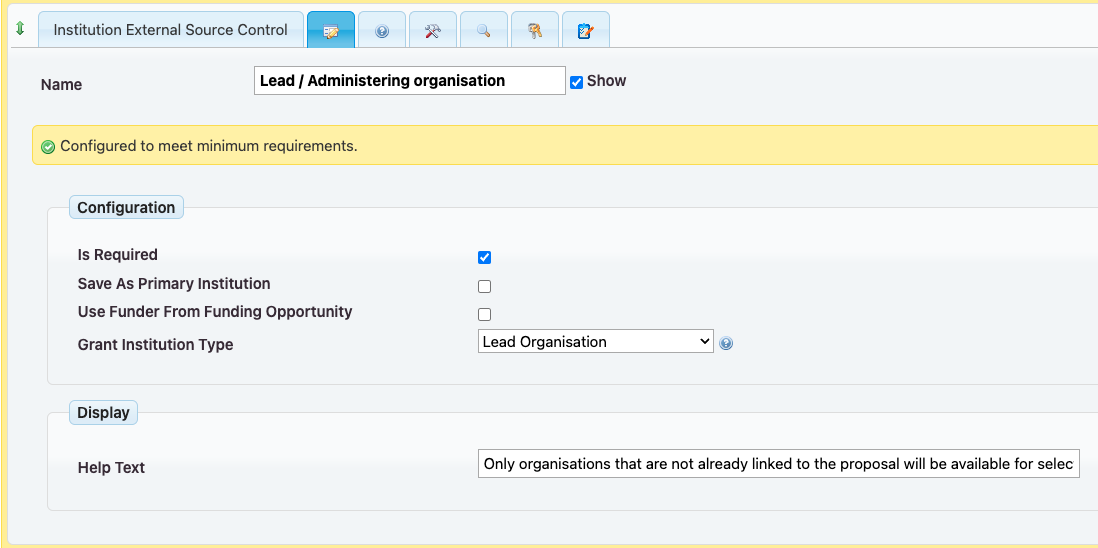
Where asked in the relevant form (using the 'Institution External Source control) (e.g. where asked for external collaborator institution(s), or the lead / administering institution of the project), the user will be presented with a type-ahead search box that searches existing organisations in Awards Management and the GRID database.
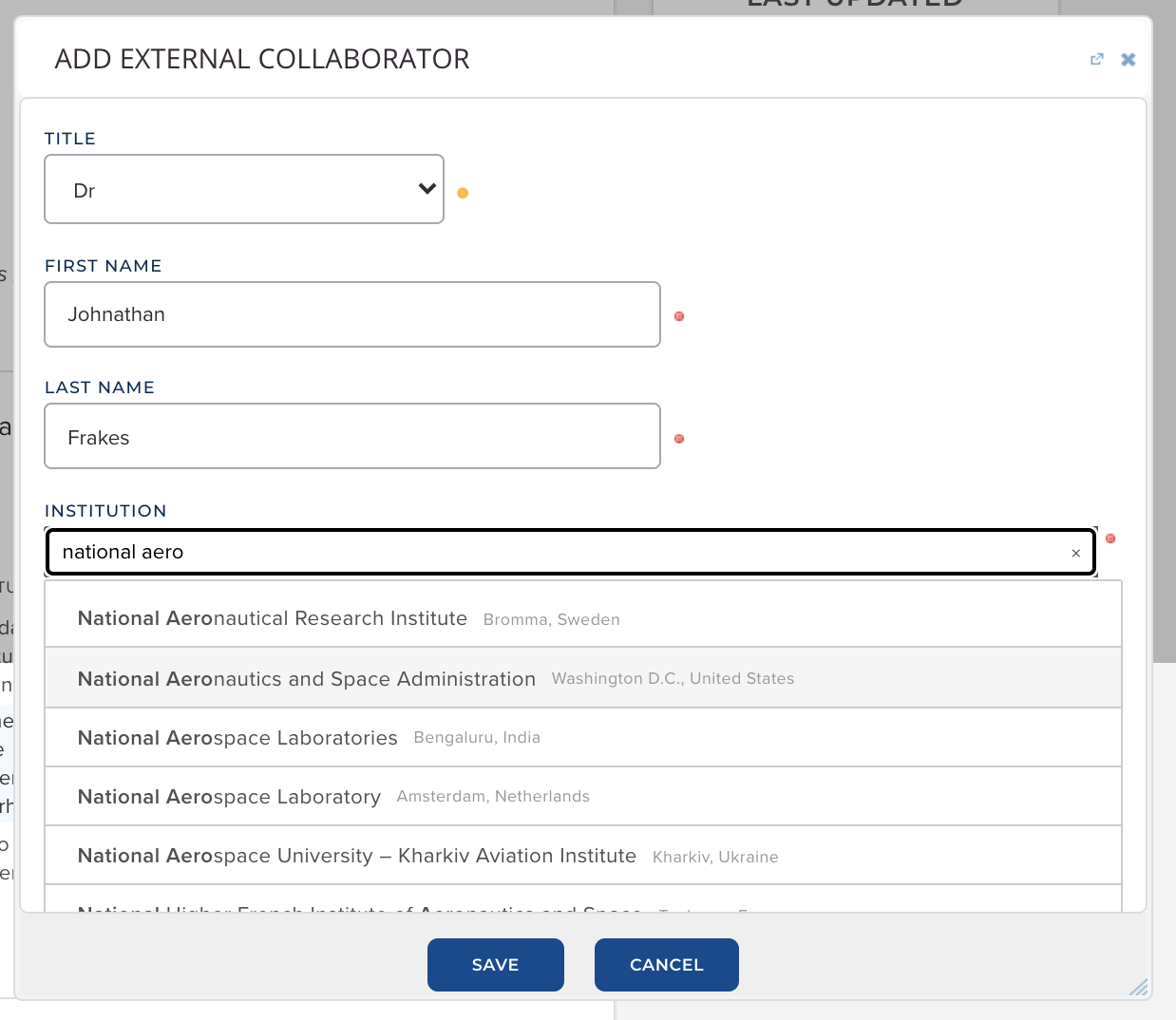
If the user selects a matching organisation, if this organisation already exists in Awards Management, a relationship will be created between the organisation and the entity. If the organisation didn't already exist in Awards Management, a new organisation record will automatically be created in Awards Management (based off of GRID data) and a relationship will be created between the organisation and the entity.
If the user is not able to find a match, they can input the organisation details and proceed with the completion of their form. Upon submission of the form, the Console user validating the submitted entity will need to validate that organisation - see the 'Validating organisations' section below.
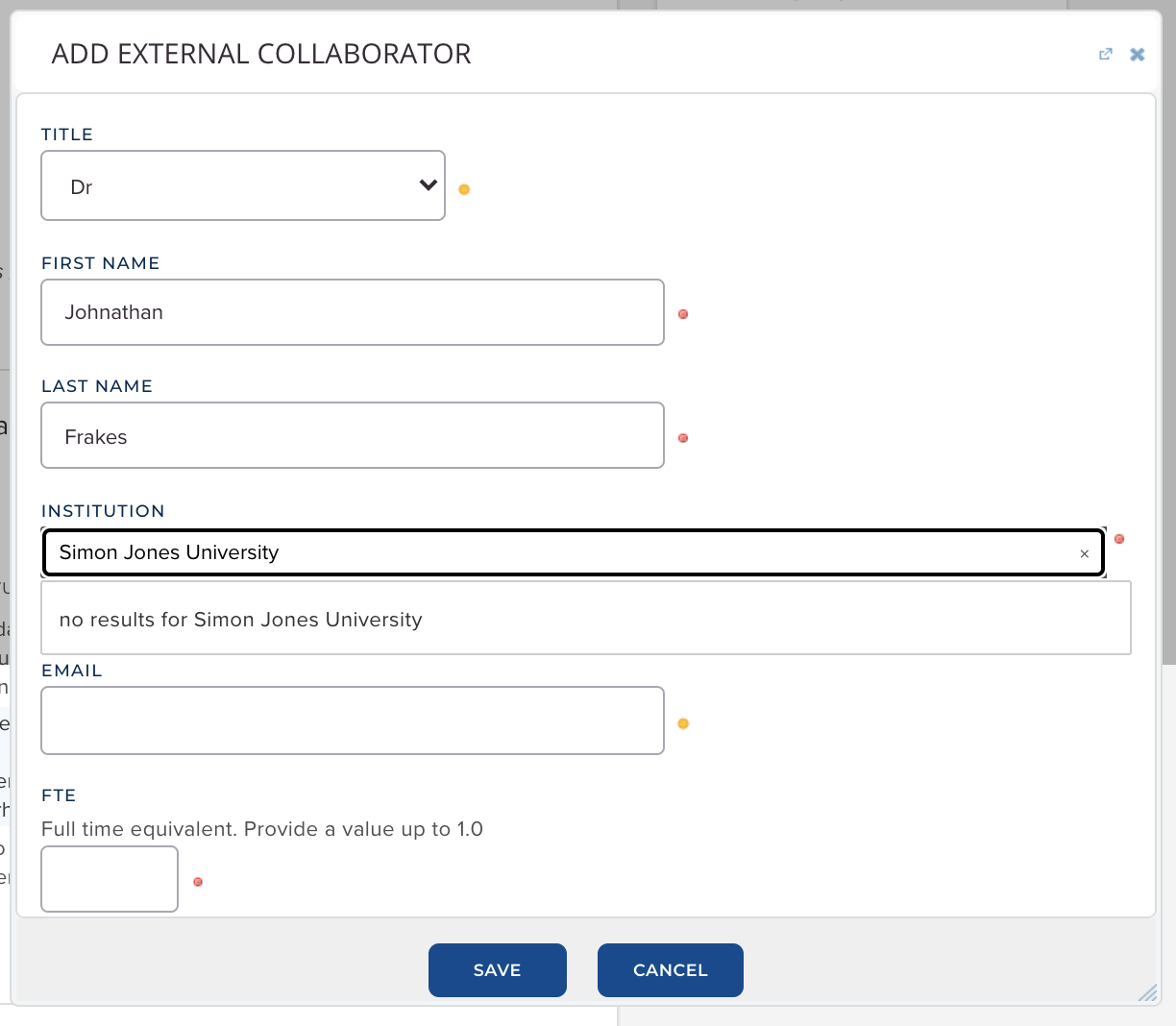
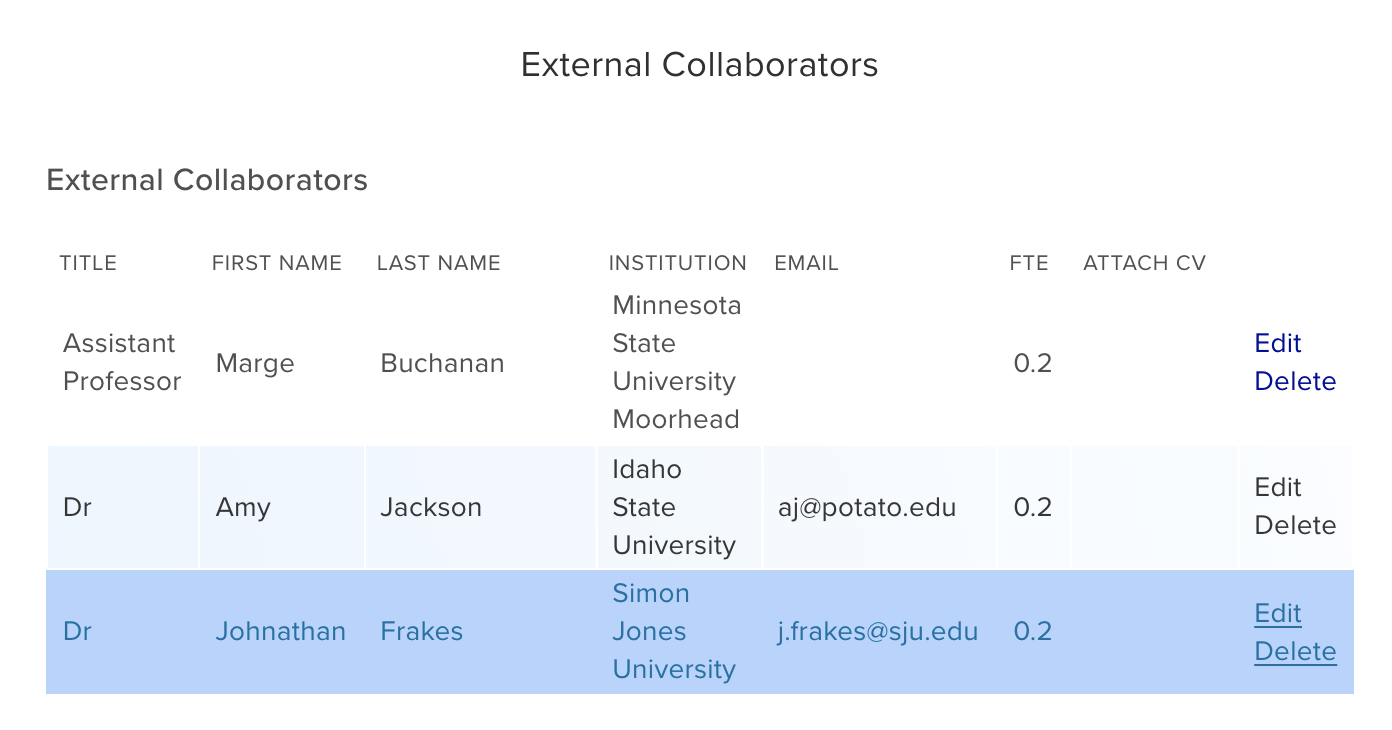
A note on the 'Institution External Source' control
| |||||||||||||||||||||||||||
Editing organisations
To edit an organisation, select the desired organisation, then select 'Edit' in the left-hand navigation.
Where an organisation was parsed from GRID, data sourced from GRID cannot be edited - but you can modify other content (e.g. adding a logo, a contact email or phone number).
Additional notes:
In order for an organisation image to display correctly on Funding Opportunities to users, the image must be square - max 200x200 pixels.
Merging organisations
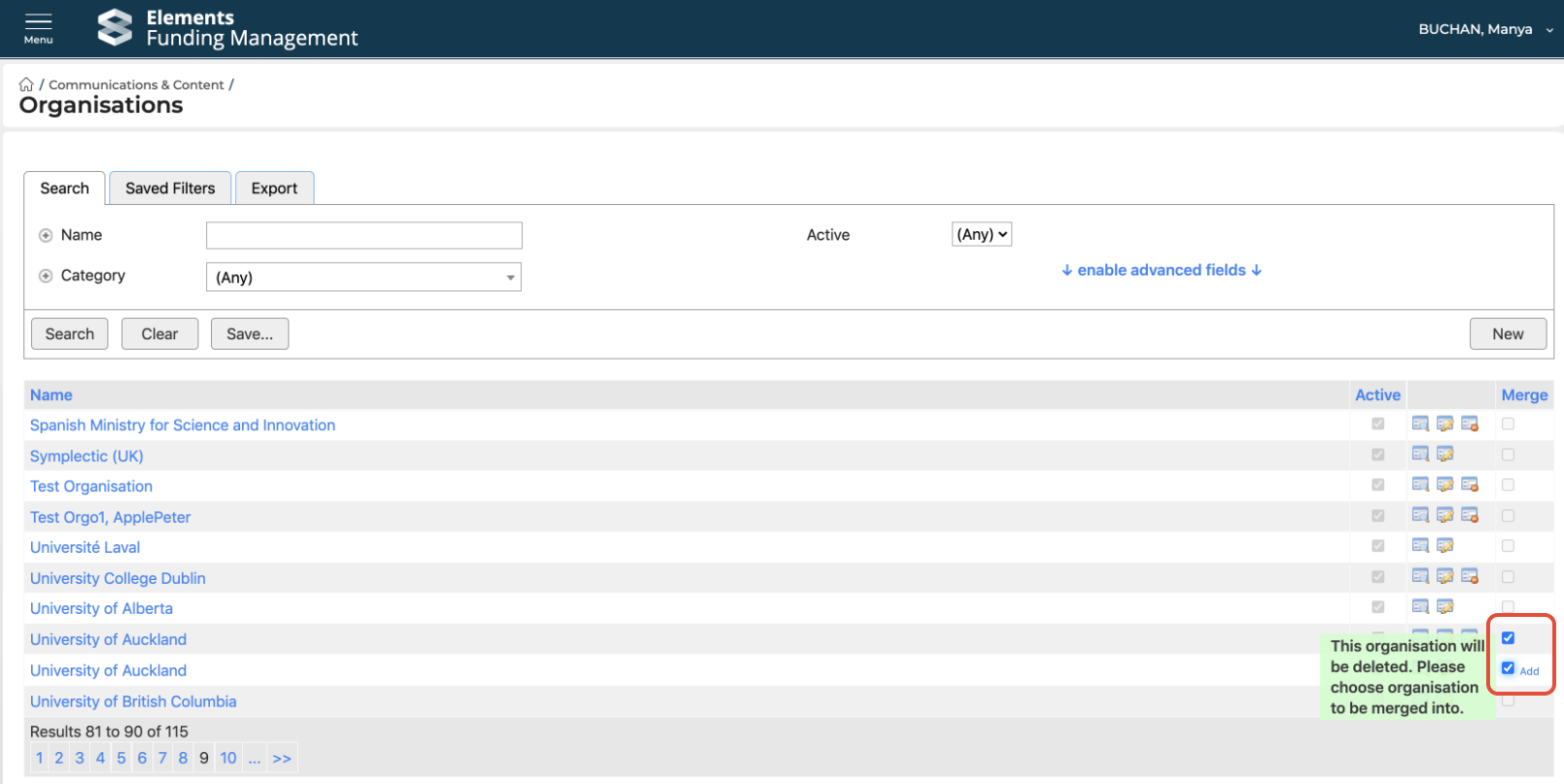
From the Organisations list screen, first select the organisation you wish to merge into another (this org record will ultimately be flagged as inactive), then select the organisation you wish to merge into. Then select 'Add ...'
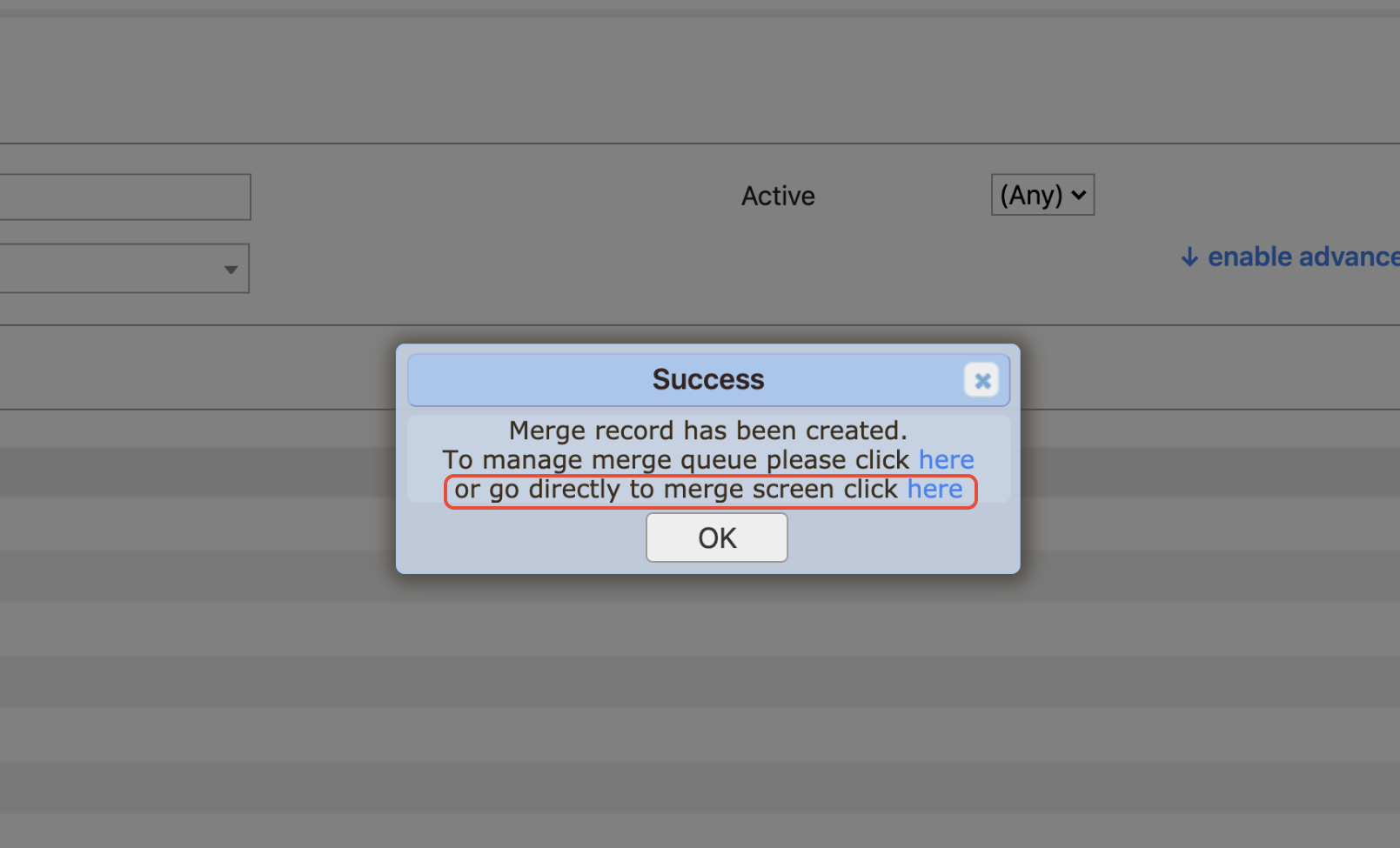
Then select to go directly to the merge screen.
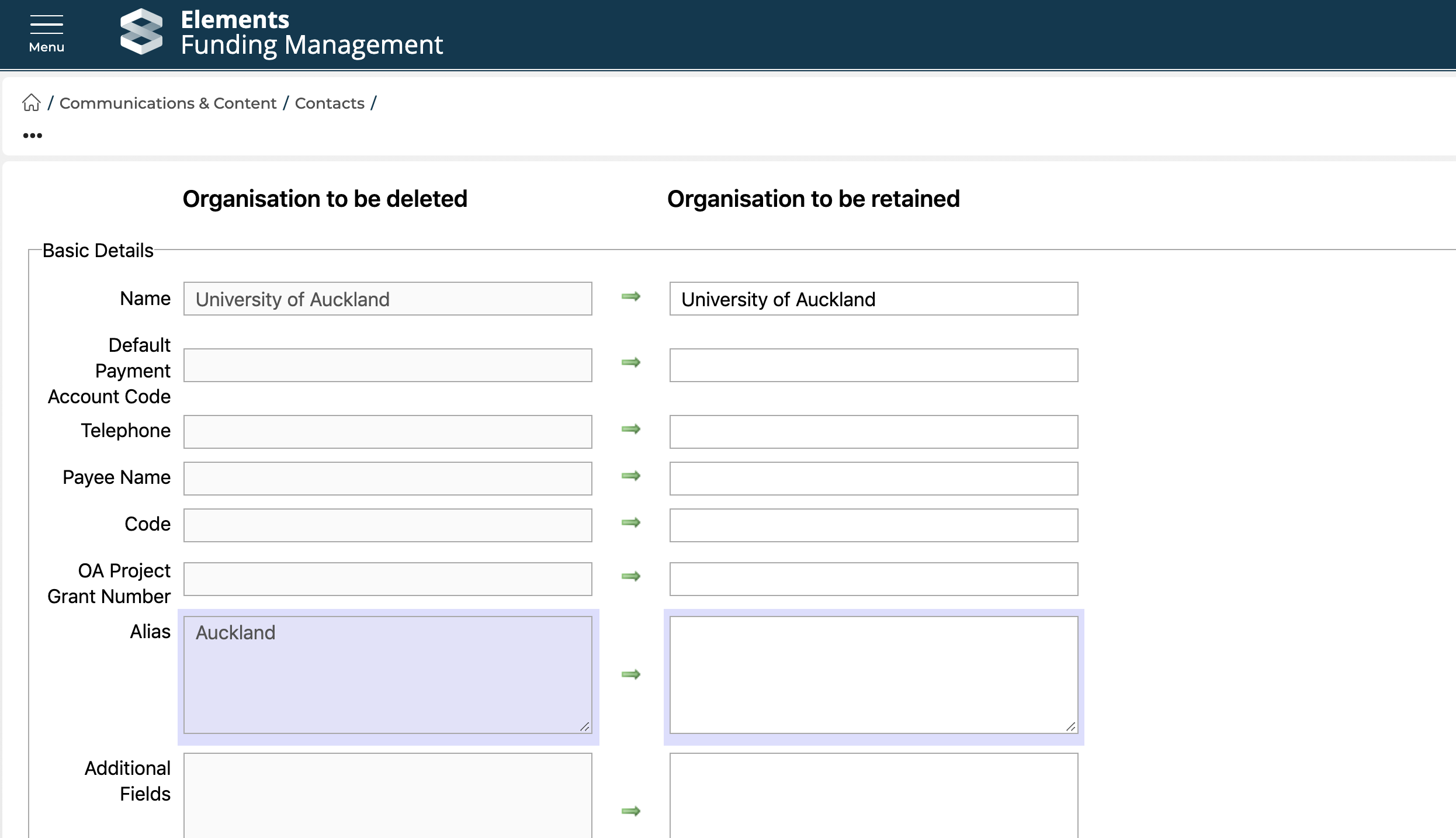
Note that where organisations sourced from GRID are involved:
it is not possible to merge together organisations sourced from GRID
it is only possible to select an organisation sourced from GRID as the merge target (i.e. you can merge a manually created organisation into a GRID organisation, but not the other way around)
when merging, it is recommended you don't modify any of the content sourced from GRID as this will be overwritten if GRID data is updated
Deleting organisations
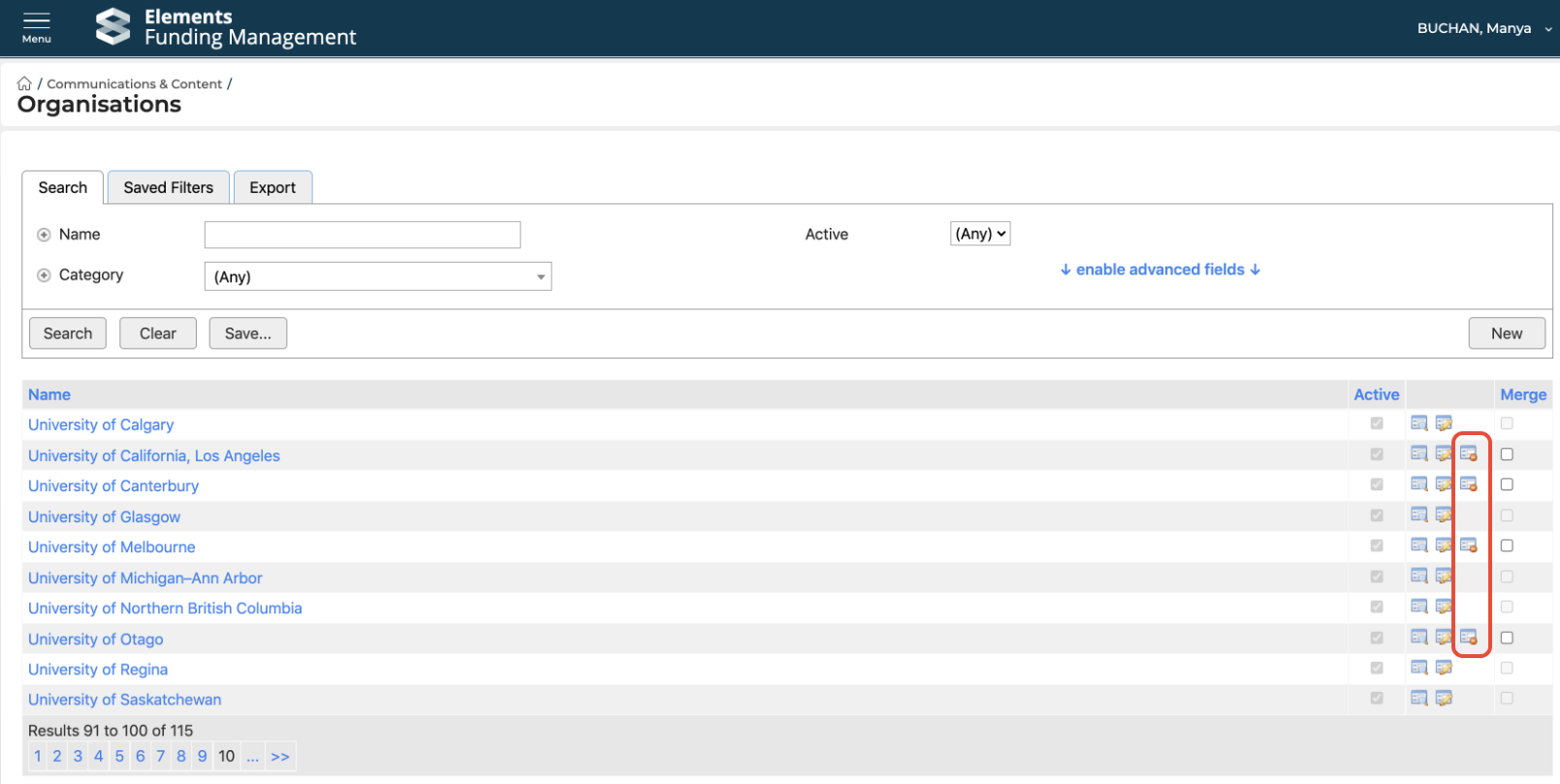
In Awards Management it is not possible to delete an organisation - only flag it as active / not. This can be done either in the Organisation list page, using the 'Delete' function:
... or in the organisation Edit screen:
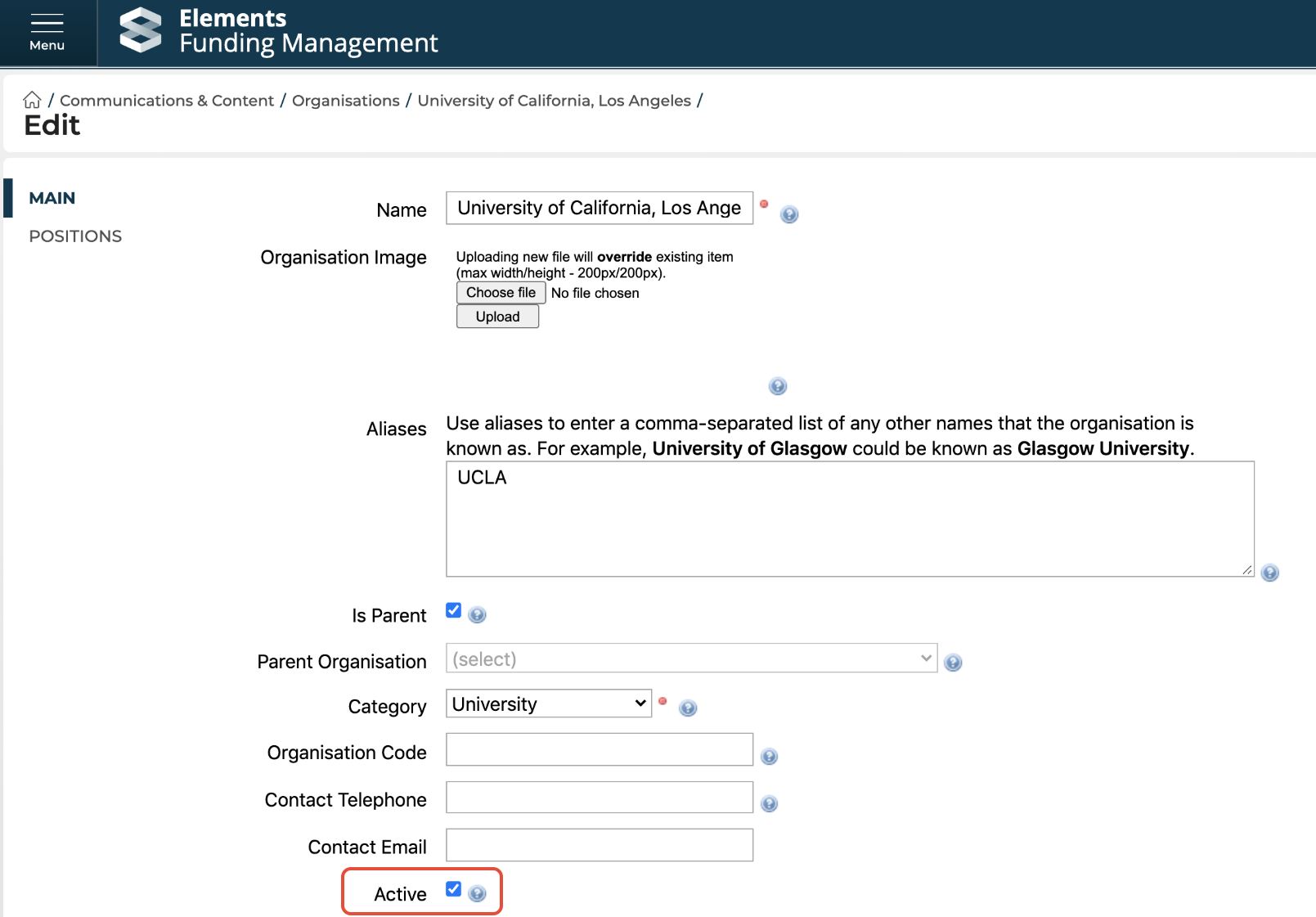
Note that it is not possible to flag an organisation that was sourced from GRID as inactive.
Validating organisations
Where a user has added organisations in a form, these will all be listed in the 'Grant Organisations' table on the proposal Validation screen (see the Validating a Proposal support article).
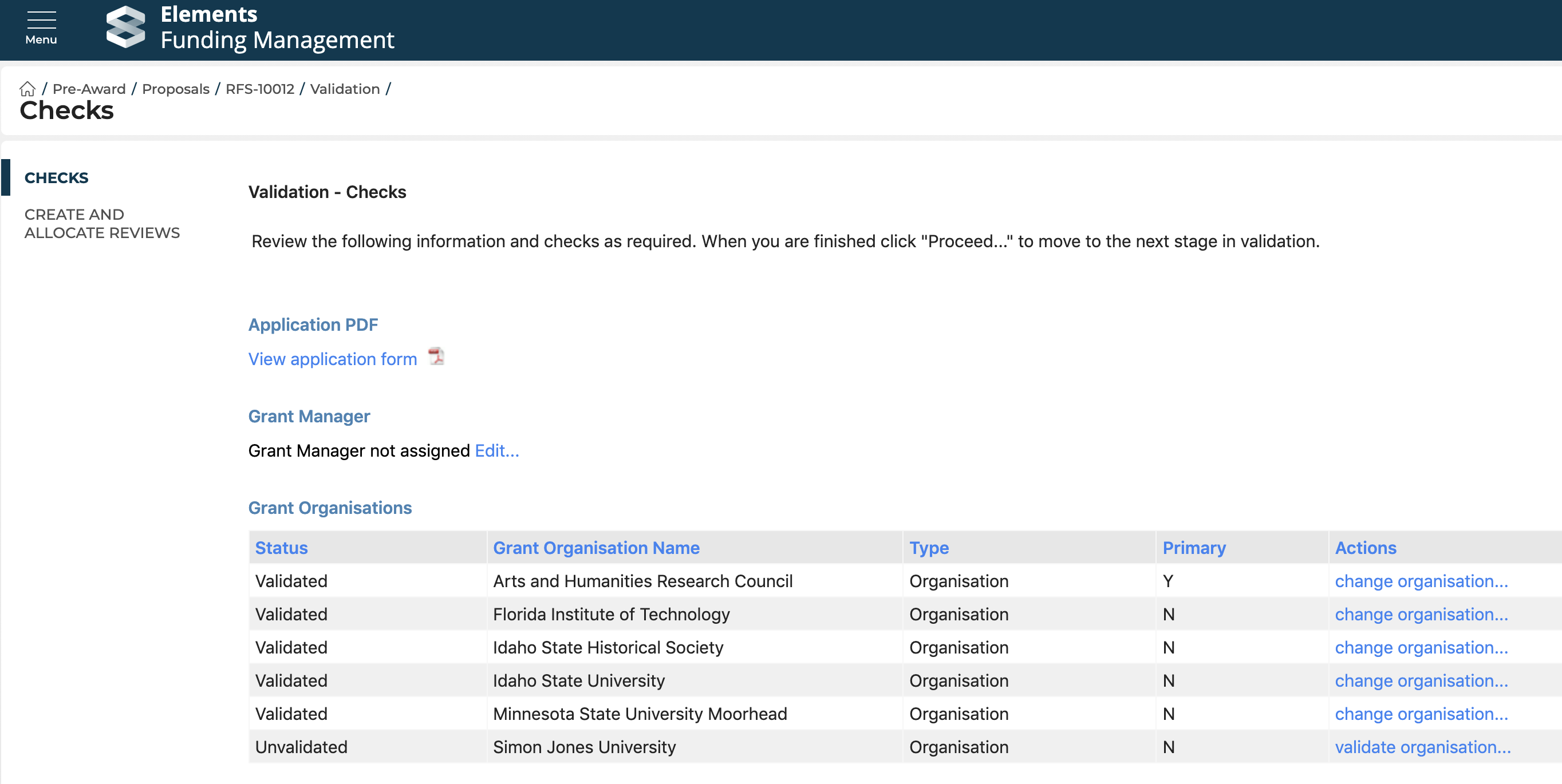
Where a user has added an organisation in the form that did not match any organisation in GRID or any existing organisation in Awards Management, this is listed as 'Unvalidated', and you'll need to validate the organisation for an organisation record to be created in Awards Management for this org.
Click 'validate organisation ...' in the Actions column. This then gives you the ability to search for an organisation that exists in Awards Management (note it does not search GRID - only existing Organisations in Awards Management). If there is a match, select that match then click 'Save ...'
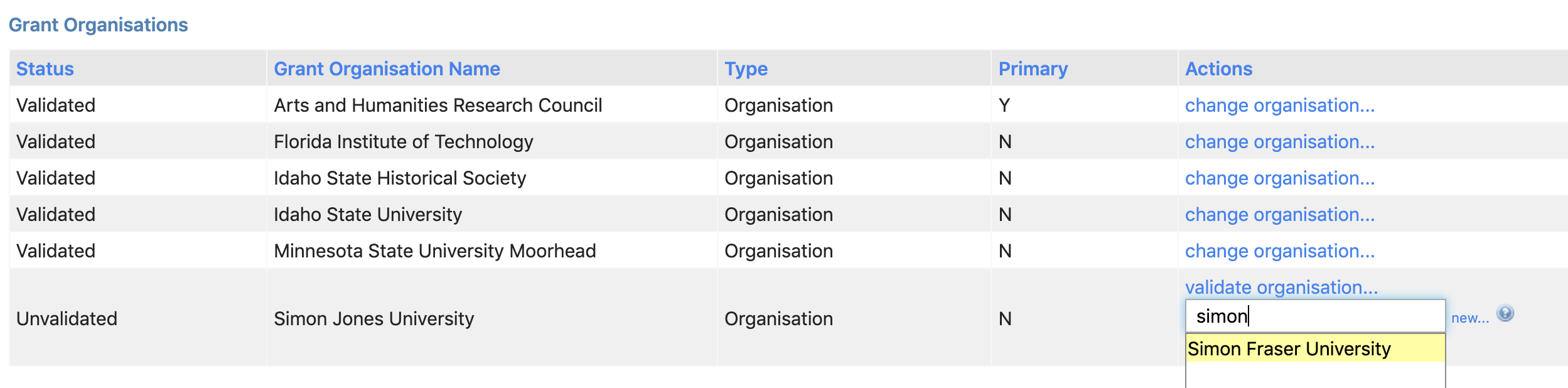
If no matching organisation exists, select 'New' next to the input box. This will then re-direct you to the 'Create organisation' screen. From there navigate to the 'GRID import' page in the left-hand navigation and follow the steps as per the 'Creating organisations' section above. Once you have created the new organisation, you will need to return to the Proposal validation screen, select 'validate organisation ...' and search for the organisation you just created.