
Contract review
The Awards Management module includes functionality to support the contract review process for successful applications. This includes capturing contract documentation, assigning internal reviewers, and tracking communications with the funder.
This functionality is available to authorised users in the Funding Management Console.
Once a Proposal has been moved to Approved status (see the Recording the approval decision support article), the 'Contracts and Activation' page becomes available on the Proposal's page in the Console. Go to Contracting & Post-award > Approved > and select 'Process contract' Action icon for the Proposal.
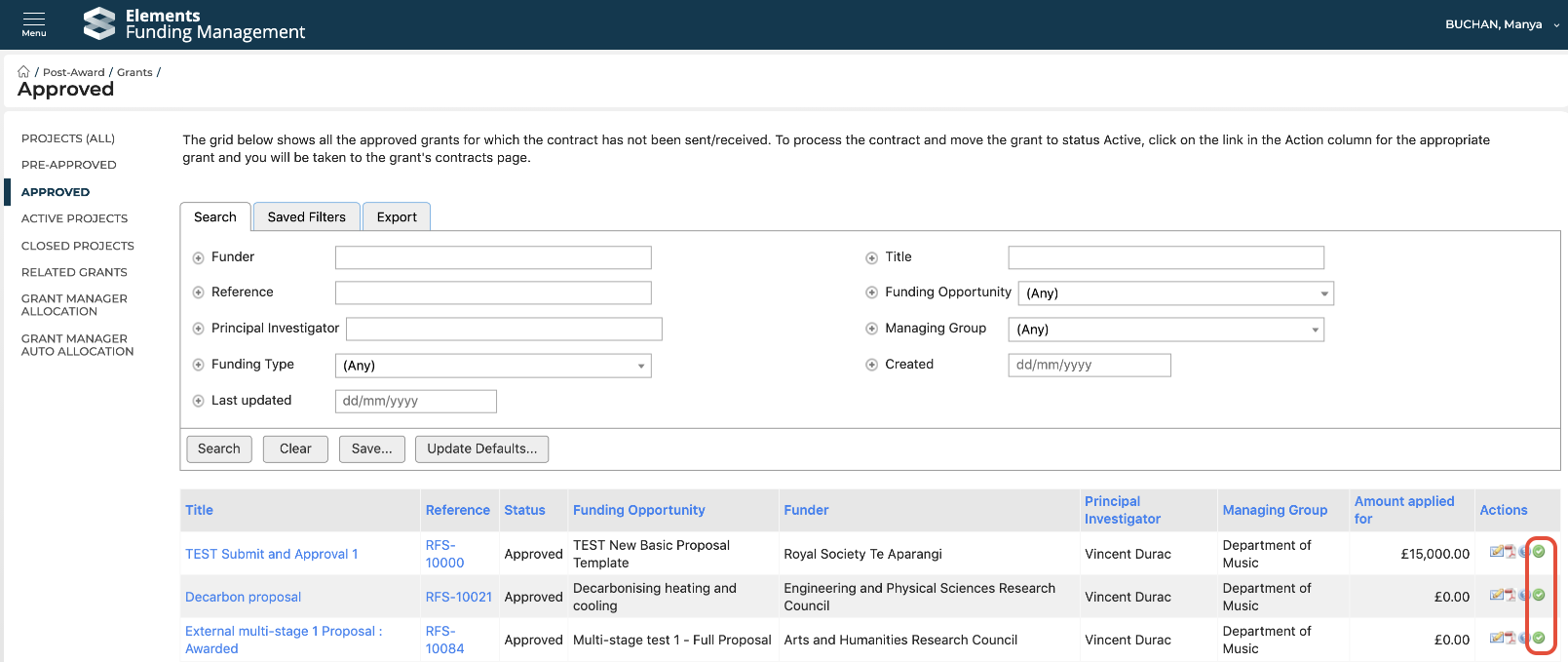
You can get to the same screen by selecting the Proposal and navigating to the 'Contracts and Activation' page in the left-hand navigation.
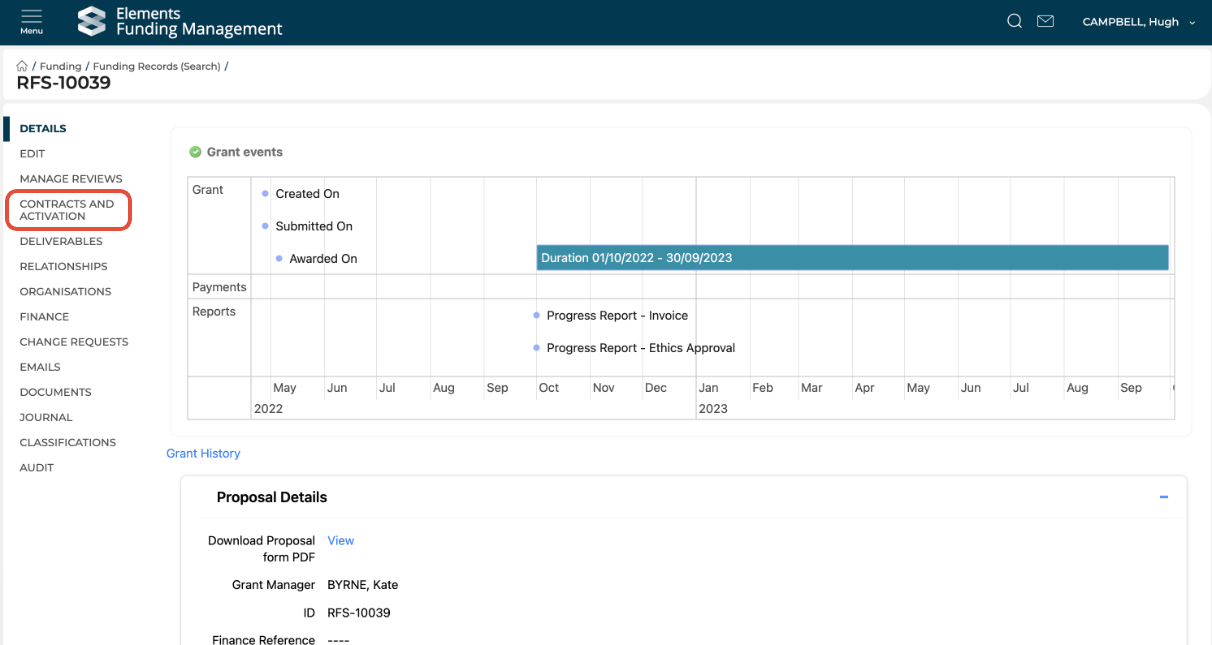
Upload the Contract document(s)
Select 'Generate empty contract' to create a contract record for the Proposal.
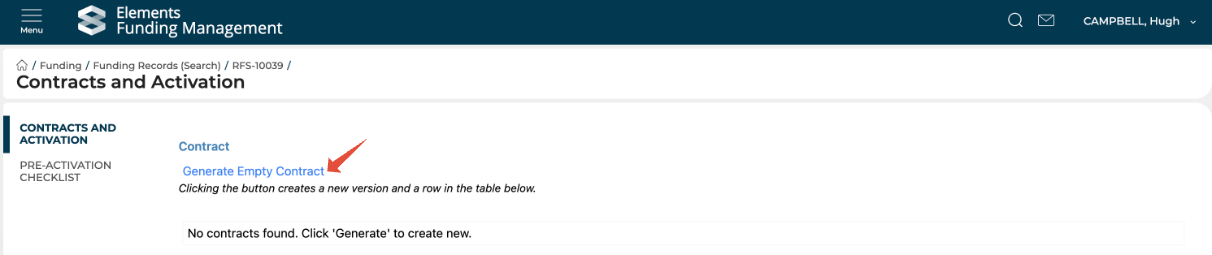
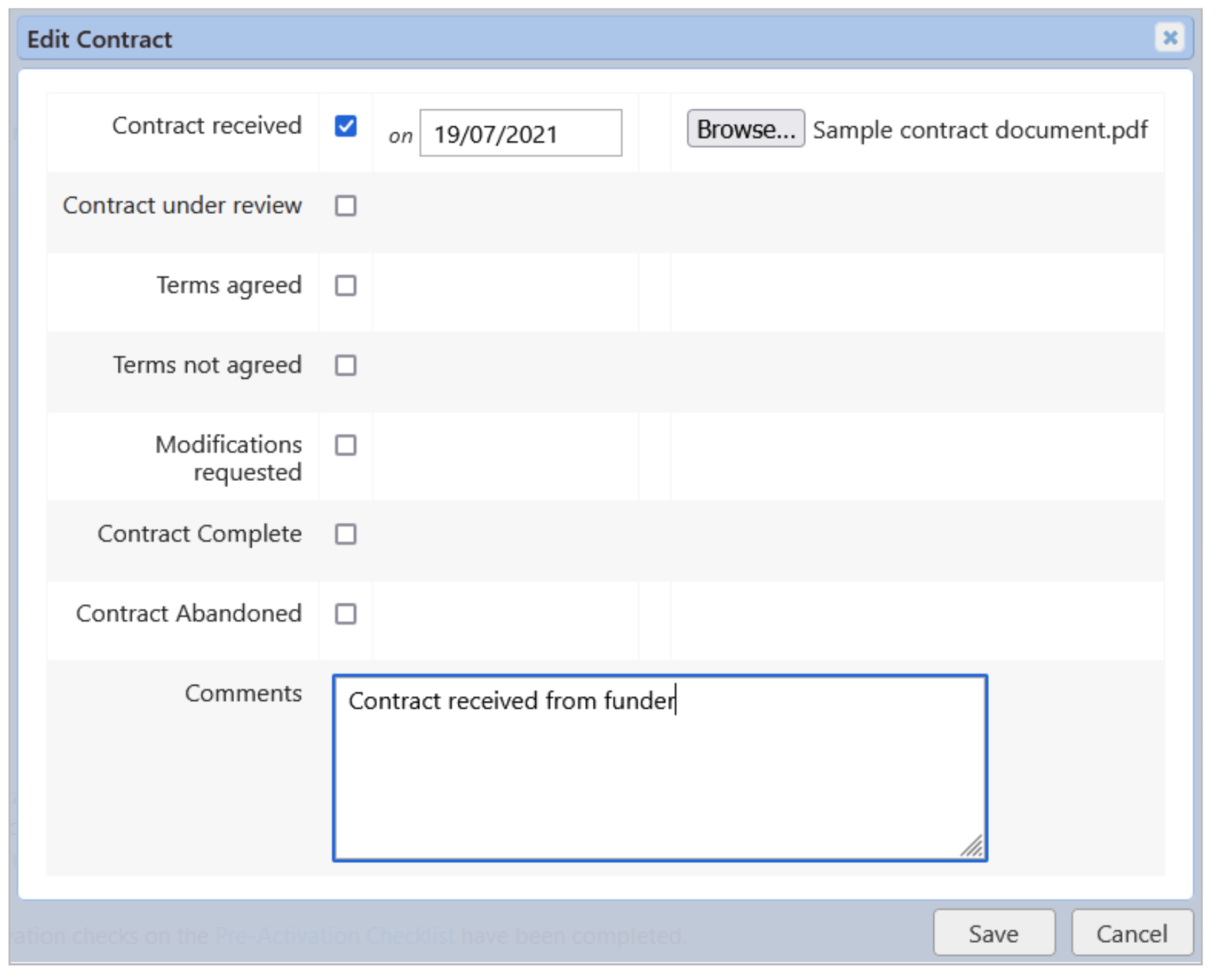
Once the new contract appears in the table, select 'Edit' in the Action column, which will open the Contract Document Edit pop-up window.
select the 'Contract received' checkbox
enter the date the contract was received
upload the contract document
add any comments if needed
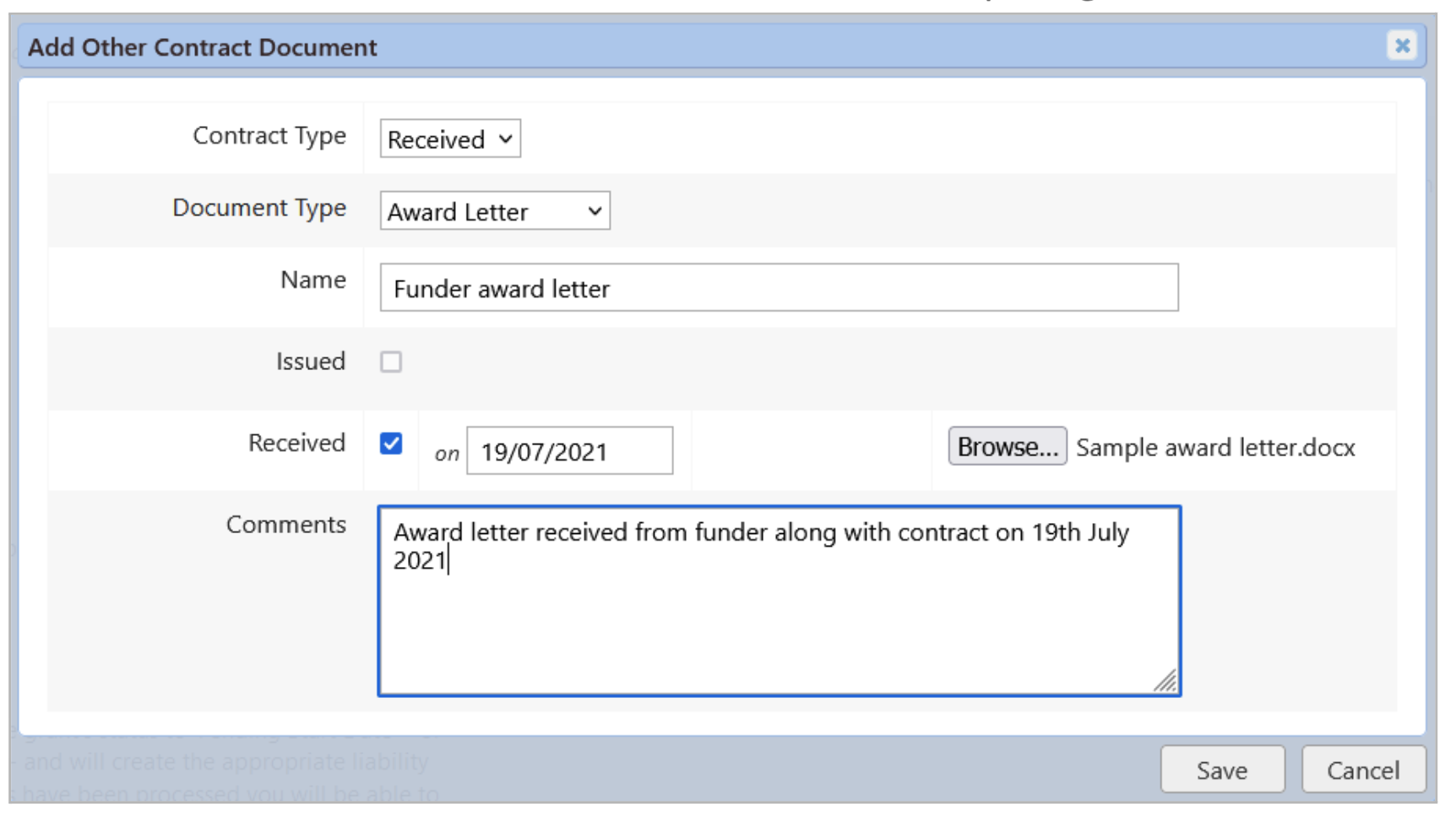
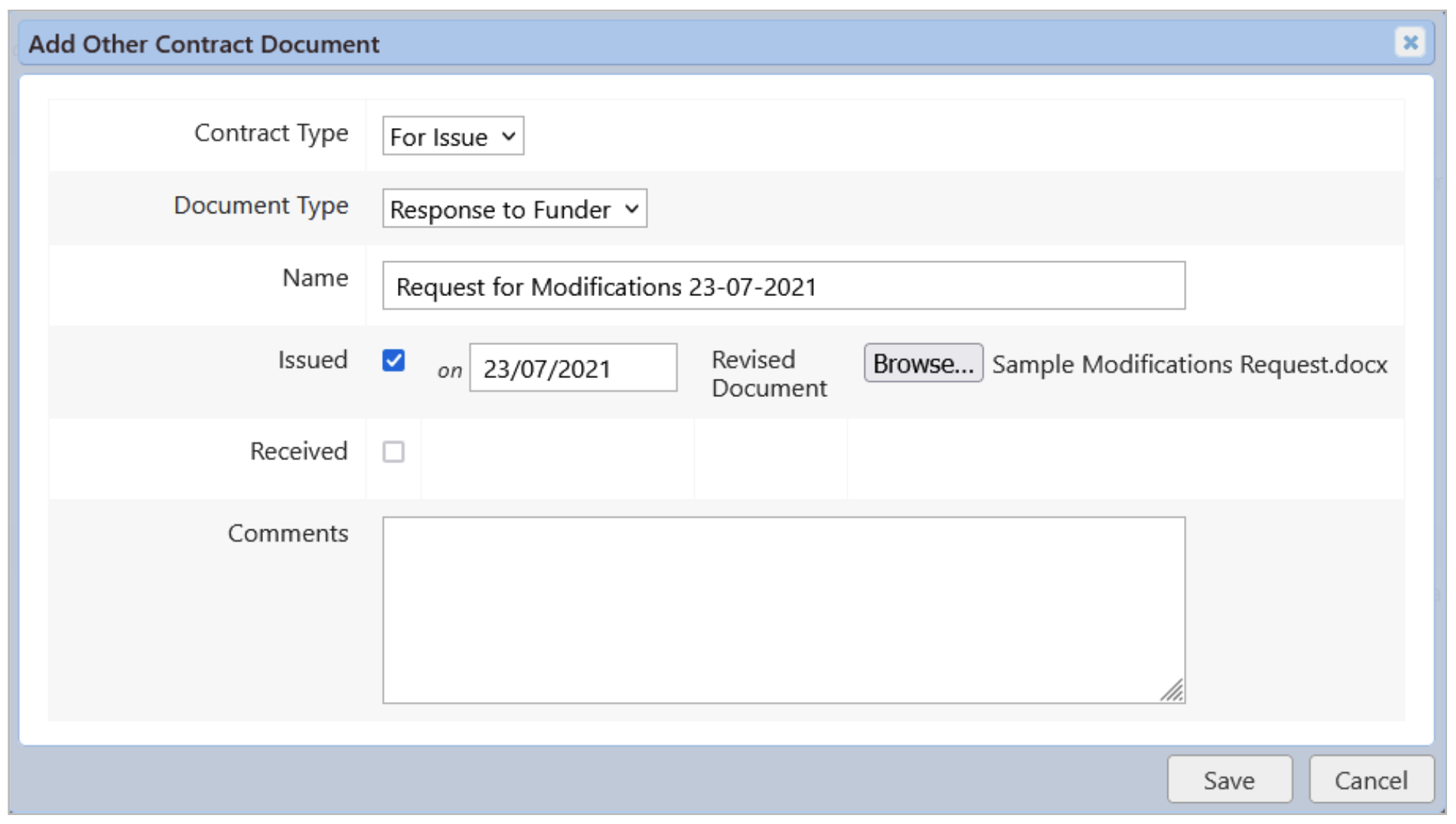
If there are any other documents related to the contract, upload these by clicking the 'Add new document ...' link under 'Other Contract Documents' and completing the details.
Initiate contract review
Record details of contract reviews
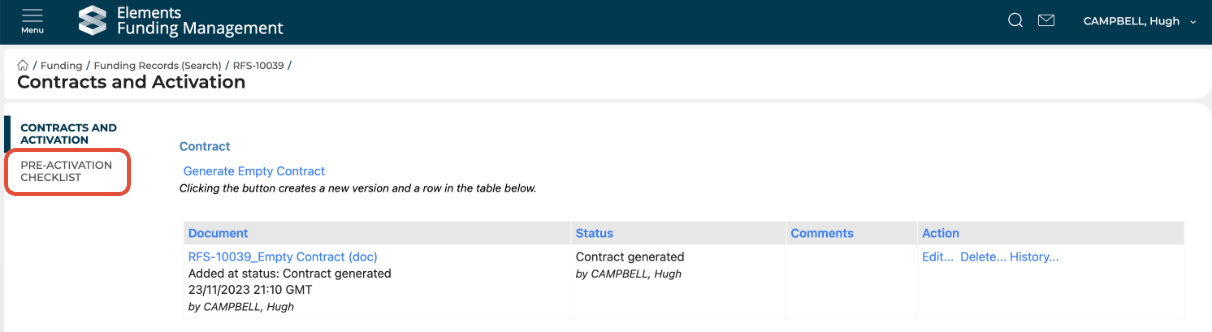
From the Contracts page, click the 'Pre-activation checklist' in the left-hand navigation.
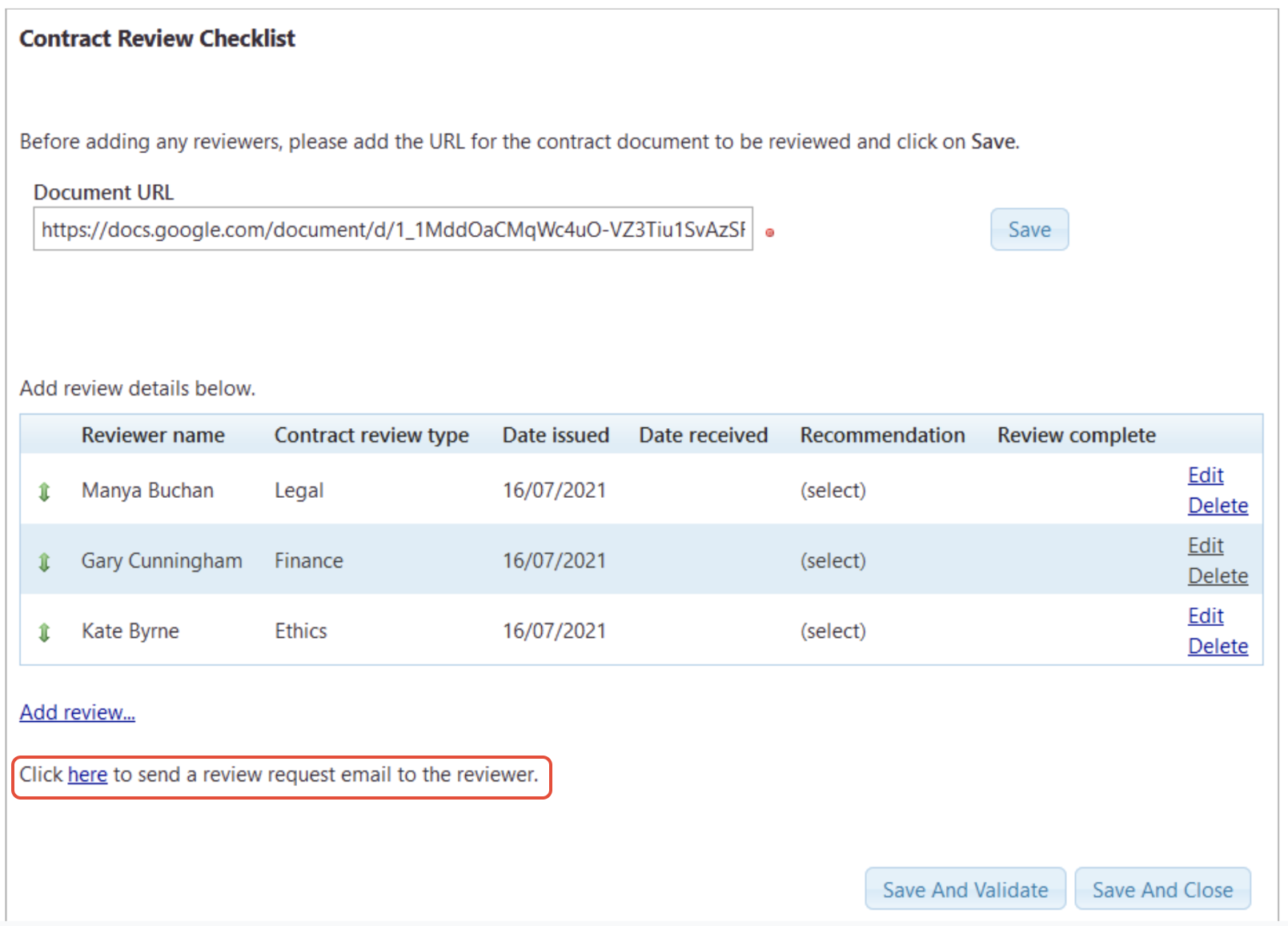
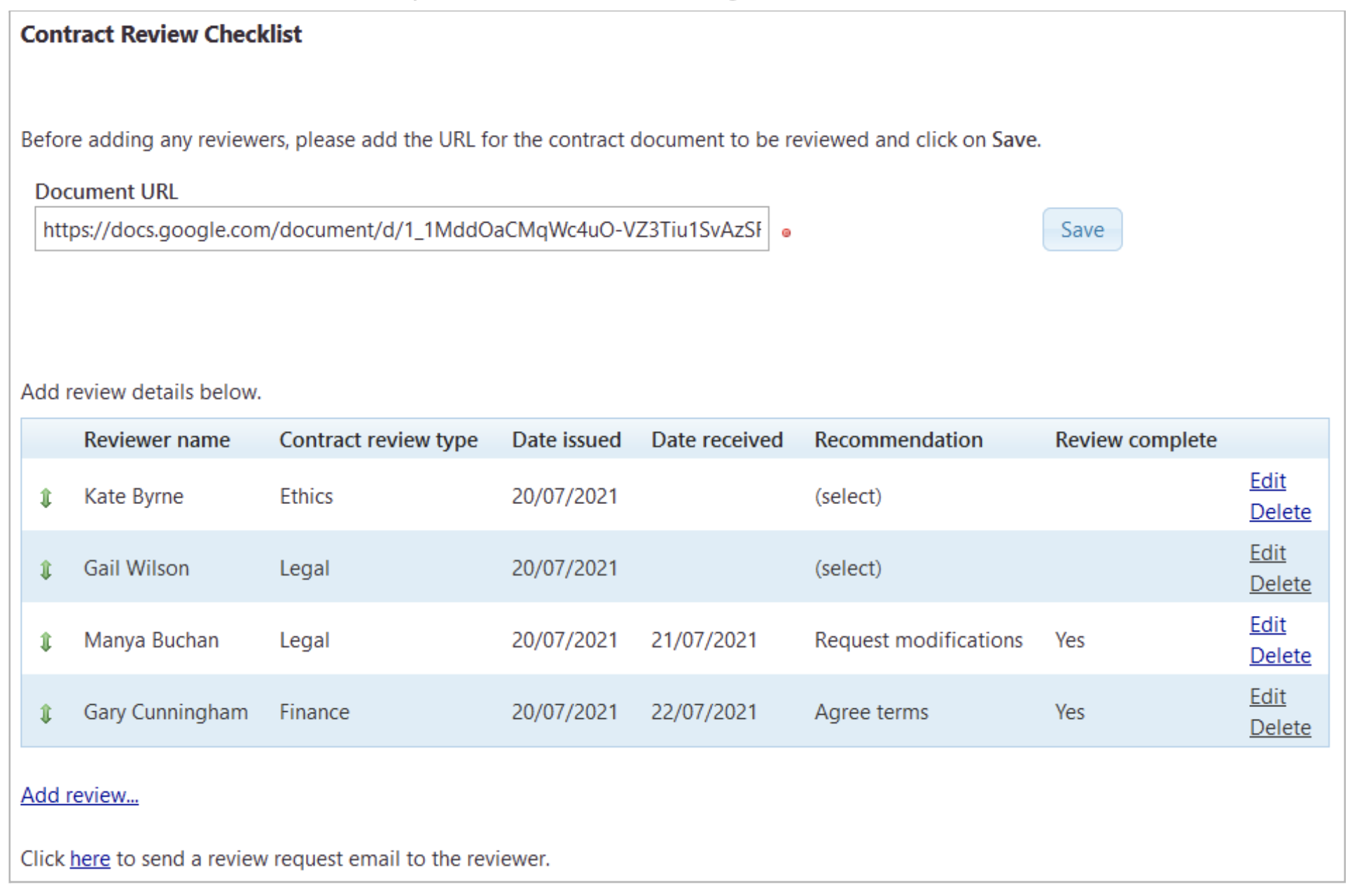
Add Document URL
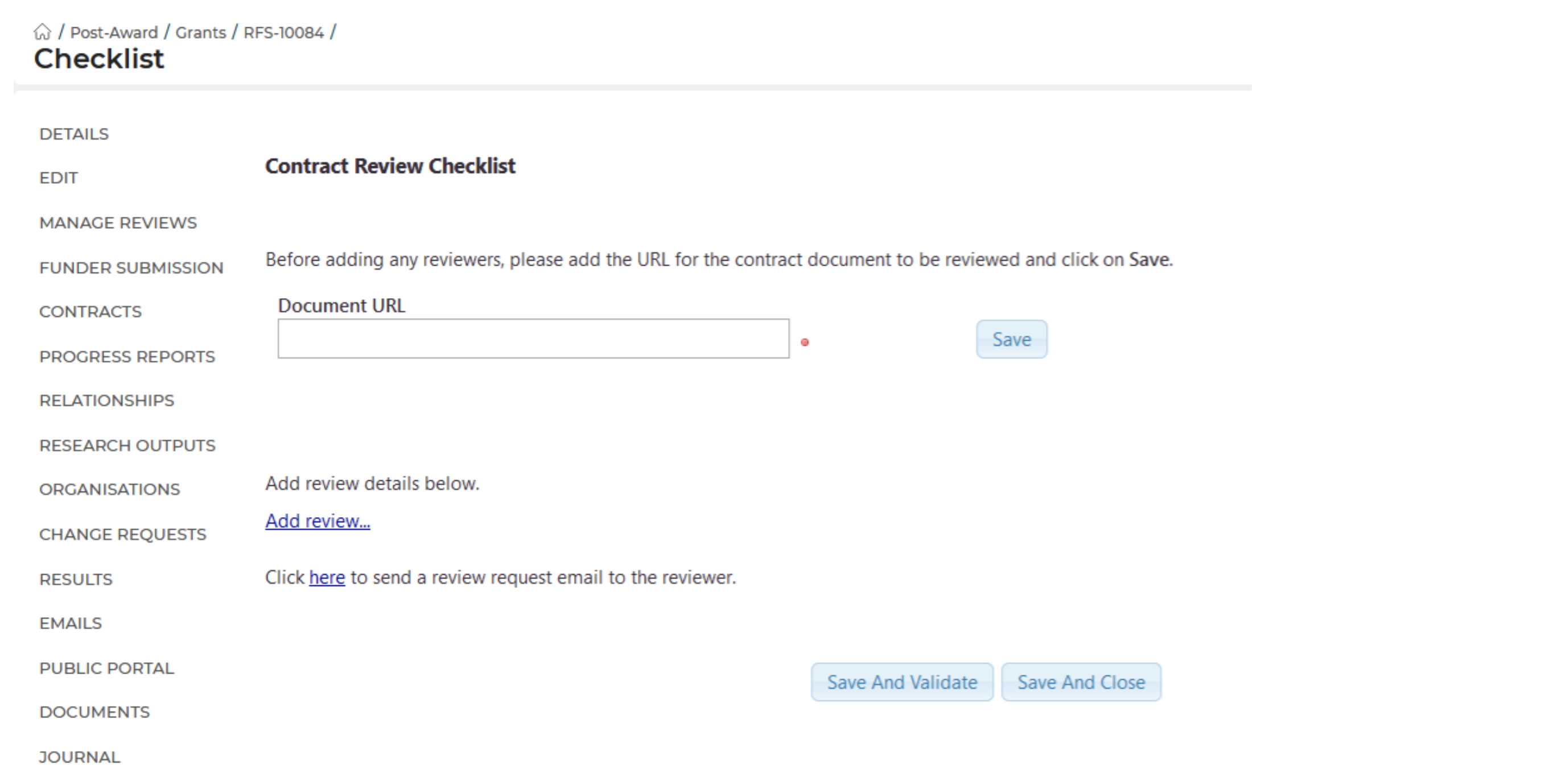
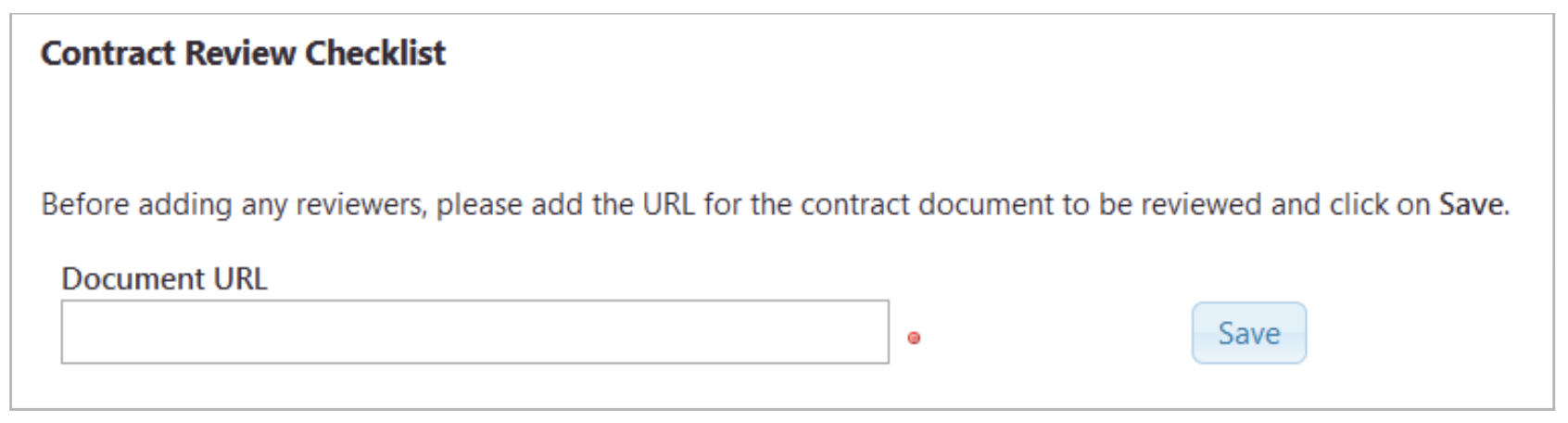
If you are using shared drives for contract review, the checklist page will include a field to record the document URL. This should be completed and saved before adding any reviews.
Visibility of this field is configurable and normally enabled during implementation (i.e. if you don't use shared drives to manage contract reviews, we will disable this field).
Add Review Details
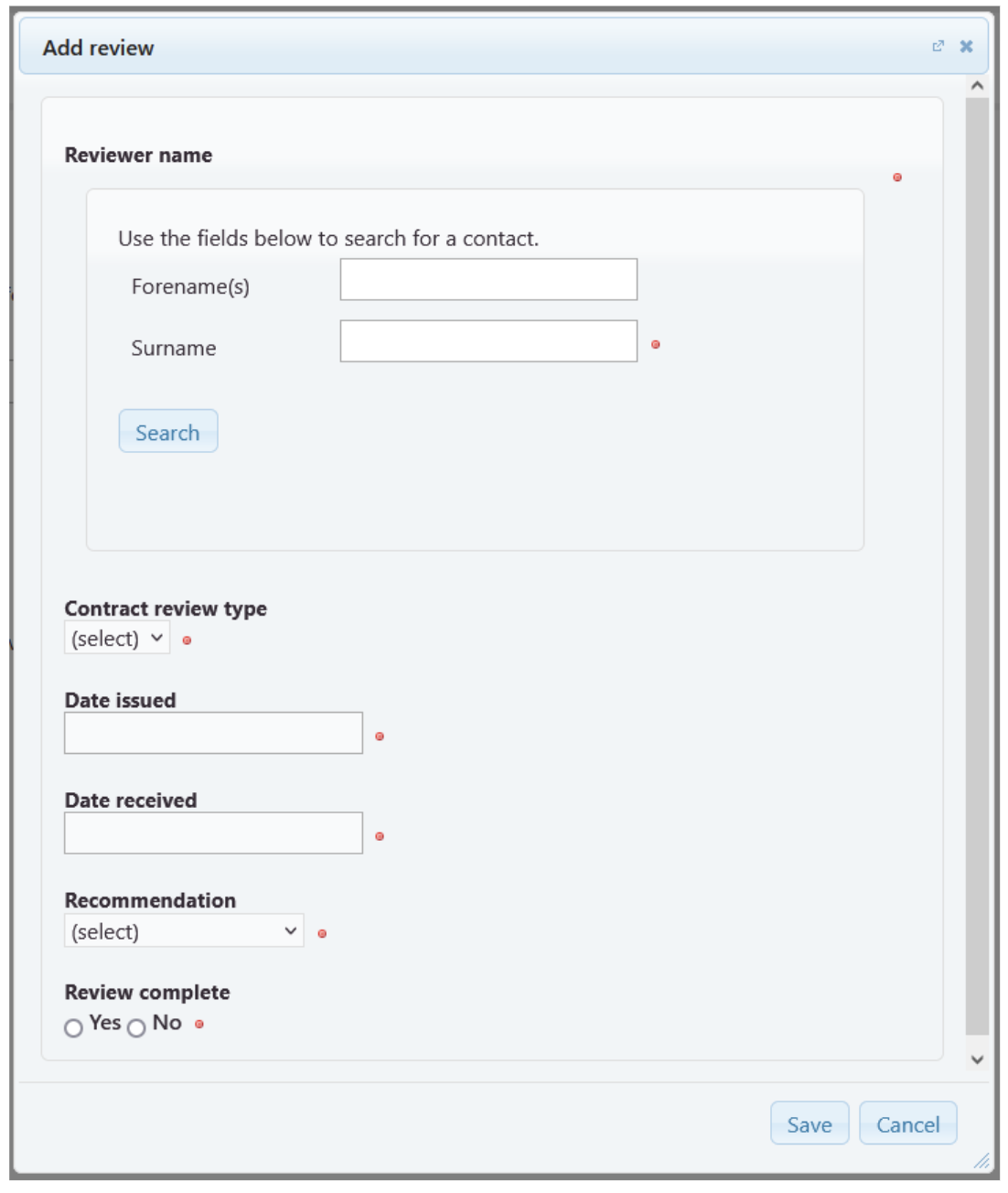
Click the 'Add review ...' link to add details of all required contract reviews.
Search for and select the reviewer (all Awards Management users are available for selection)
Select the review type
Select the date the review will be issued
The additional fields allow you to subsequently record the progress and ultimate of the review.
Date review response received
Reviewer's recommendation
Select whether the review is complete / not
All fields for all Contract reviews must be completed before the Proposal can be activated as a Project.
Notify Reviewers of contract review
Once all of the reviews have been set up, click the link to send review request emails to the reviewers.
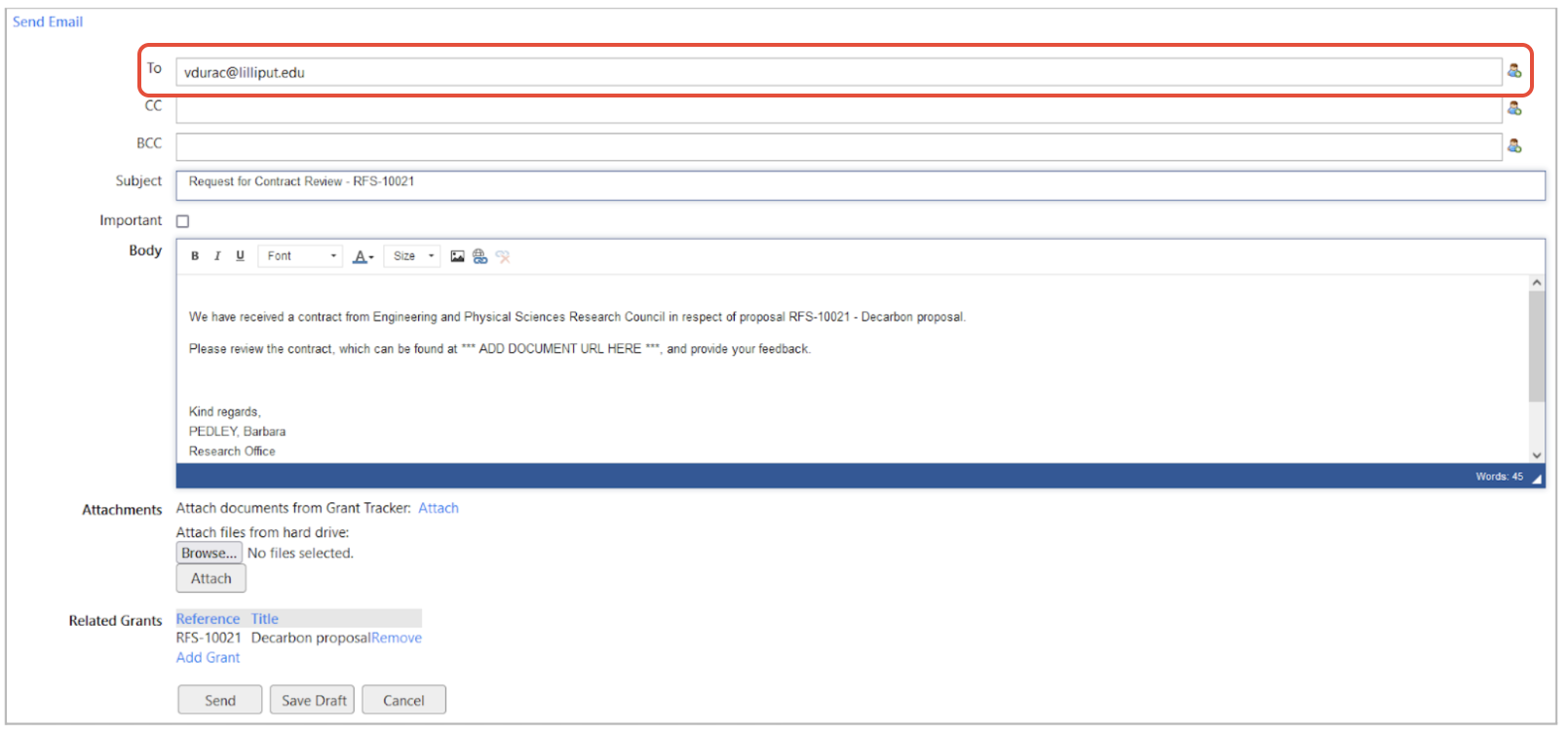
A new tab will open with an email edit page, pre-populated with a contract review request email template.
IMPORTANT: The 'To' field will be populated with the PI's email by default and you may wish to remove it (or move to the CC field). The reviewers' emails can be added using the icon at the end of the 'To' field.
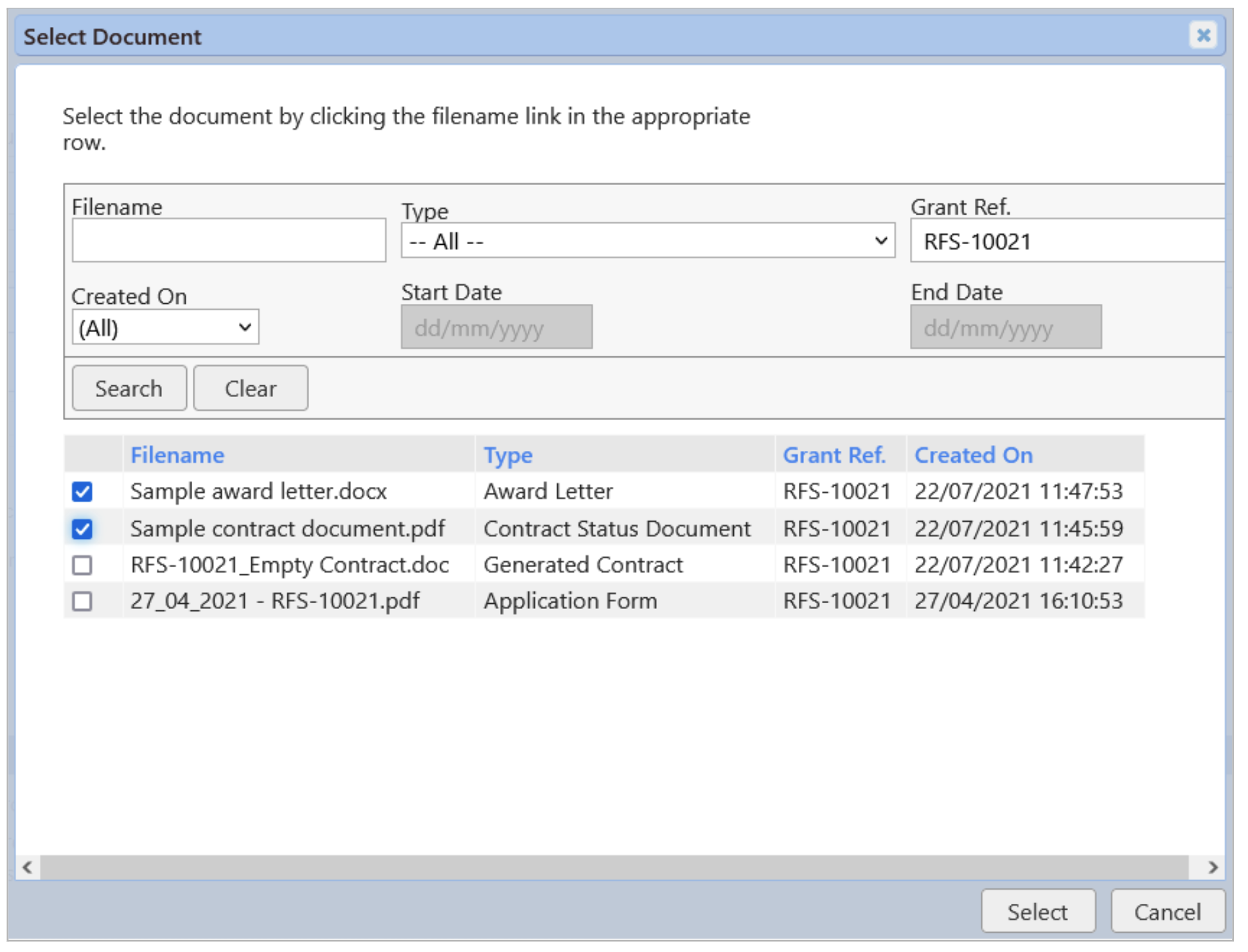
If required, use the 'Attach' link in the 'Attachments' section to include relevant documents (e.g. the Contract documentation) as email attachments.
'Save and Close' the checklist to return to the Contracts page.
Update the Contract Status
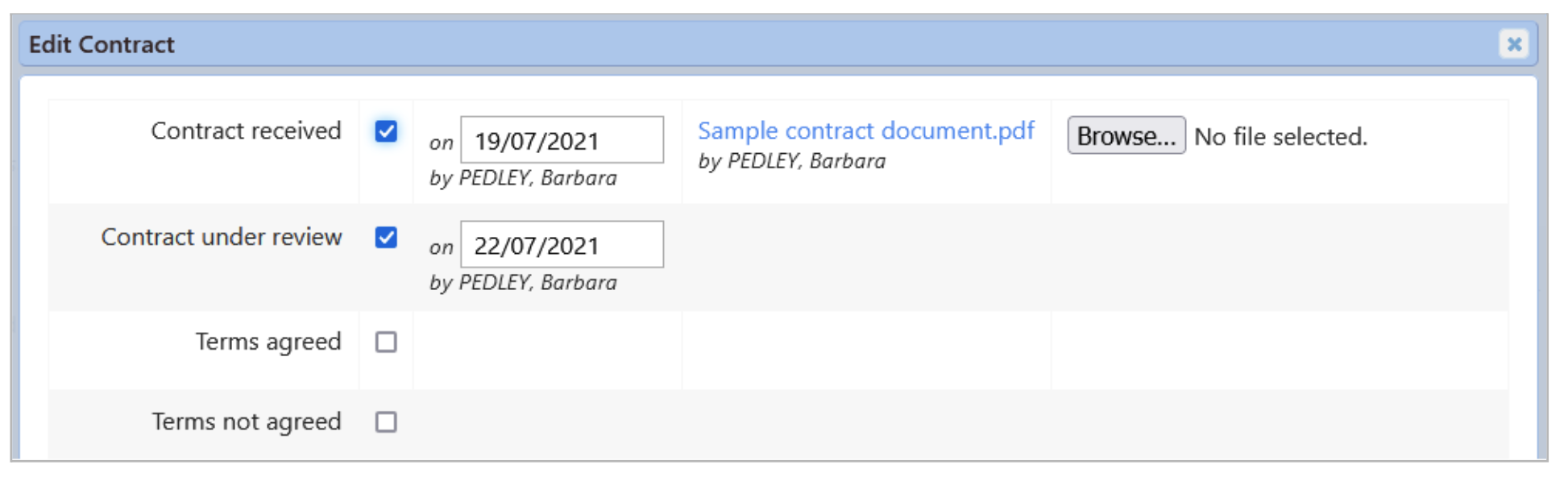
Back on the Contracts page, click the 'Edit ...' link in the Action column, and tick the 'Contract under review' status and provide the date.
Monitor Contract Reviews
Review responses are managed off-system and details should be updated on the Contract Review Checklist page. From the Contract page, click the 'Contract review checklist' in the left-hand navigation and add details of completed reviews via the Edit link on the relevant review.
New reviews can be added if required, and the left-hand green arrows allow reviews to be sorted.
Record review outcome
From the 'Contracts' page, select 'Edit' in the Action column, which will open the Contract Document Edit pop-up window.
Terms agreed
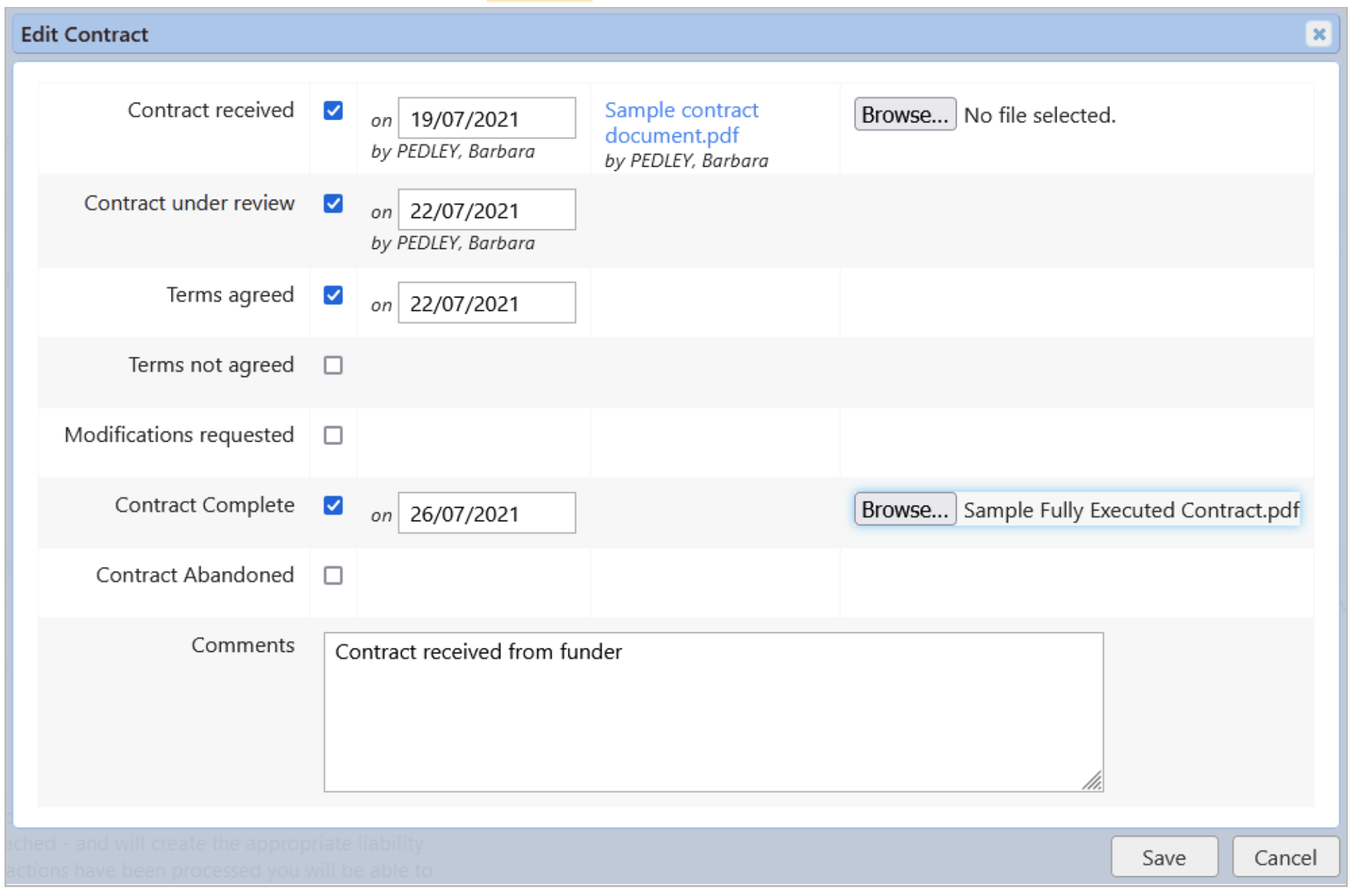
If the contract terms are agreed, update the contract status to 'Terms agreed' and provide the date.
Once the fully executed contract is received from the funder:
Update the contract status to 'Contract complete'
Provide the date
Upload the final version of the contract
Terms not agreed
If the contract terms are not agreed, update the contract status to 'Terms not agreed' and provide the date.
Close the proposal as 'Declined'.
Modifications requested
If modifications to the contract are to be requested:
Update the contract status to 'Modifications requested' and provide the date.
Upload the response to the funder by clicking the 'Add new document ...' link in the 'Other Contract Documents' section of the Contracts page
Revised contract issued
If the funder issues a revised contract in response to the modification request:
Update the previous contract status to 'Contract abandoned'
Upload the revised contract as described in 'Upload the Contract Document(s)' above, and proceed to review as before.
Funder rejects modification request
If the funder rejects the modification request, a decision is needed on whether to accept the previous terms or decline the offer.
If the previous terms are to be accepted, follow the steps described in 'Terms agreed' above.
If the offer is to be declined, follow the steps described in 'Terms not agreed' above.