
Links to external content on Discovery publications and other data objects
What this article covers: |
External Links on Publications
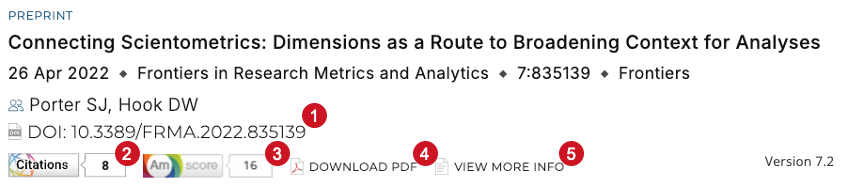
What external links are included on Publications? | Publications displayed on Discovery (on both Expert and Equipment profiles) offer up to five link-out items:
|
How does the DOI link work? | The DOI link takes the user to the publication's page on the publisher's website. A link is displayed for every publication in Discovery that has a non-null DOI value.
|
How do the Dimensions and Altmetric badges work? | Dimensions and Altmetric badges link the user to their respective webpages where further metrics details of the publication can be found. To display these badges, a publication needs a non-null DOI value. Elements sends the Dimensions/ Altmetric APIs the the DOI, and if that DOI is recognised by either provider, a badge will be rendered.
|
How does the Repository | Where possible, Discovery offers a downloadable full-text or preview of the full-text via a “DOWNLOAD PDF” link.
The “DOWNLOAD PDF” link is rendered when a repository PDF url can be supplied by Elements. To do this, Elements considers all deposited files within all items in all RT2-sources relevant for the publication. Only files which meet the following criteria are considered:
When there are multiple files in consideration, Elements selects the url of the top file based on file version in the following precedence order:
If there are still multiple files available, Elements selects the file that was deposited most recently. |
How does the GetFTR View/Get PDF link work? | If the Download PDF link is not available, where possible, Discovery offers a downloadable full-text or preview of the full-text via a GetFTR “VIEW/GET PDF” link.
This link looks similar to the DOWNLOAD PDF link and displays either "VIEW PDF" or "GET PDF". The links are rendered when Elements cannot supply a url from the repository (see above for the logic). To render this link, the publication needs to have a DOI. This DOI is sent to a GetFTR API, which renders a link if 1) the DOI is recognised by GetFTR and 2) access to the full-text or a preview of the full-text is allowed. Otherwise no link will be rendered.
|
How does the View More Info link work? | The View More Info nk takes the user to the publication's page in the repository or on other sites. It displays the first non-null url value from the following fields according to system precedence list (in the following order):
|
Other External Links in Discovery
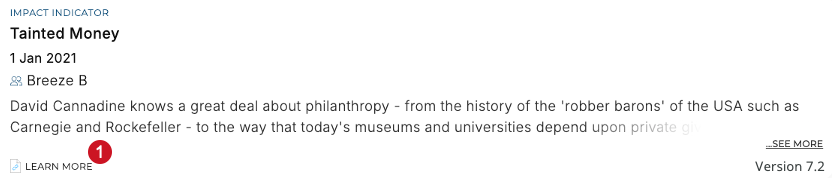
What other external links are available in Discovery? | All other objects on a user or equipment profile (grants, teaching and professional activities) can have up to one “LEARN MORE” link.
Similarly, the DESCRIPTION section on ABOUT tab of an equipment profile can have up to one "LEARN MORE" link that takes the user to an external site. This is rendered if there is a value in the "URL" field in the highest precedent record. |
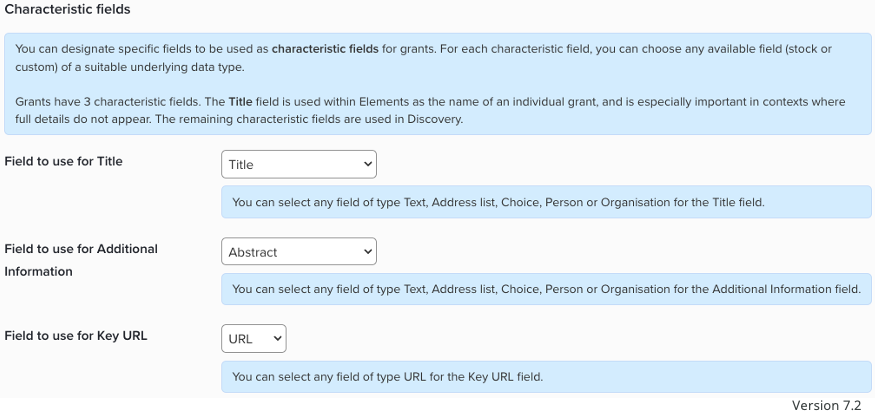
How are the links on data objects configured? | An administrator can determine which url field is used for these links via the "Key URL" field in the "Characteristic Fields" section of the data category configuration page. To update the field for grant type 'grant':
|
Back to the Discovery Module index