
Cost centre
Projects can be assigned to a Cost Centre as part of Project set up prior to activation. If set in Awards Management, the selected Cost Centre will be included in the Project extract for ingestion by your Finance system.
Cost Centres should only be enabled in Awards Management if these values are to be assigned in Awards Management as part of Project activation activities. If Cost Centres are assigned in your Finance system, you should not enable them in Awards Management (in order to ensure integrity of the data held in Finance).
Initial population of Cost Centres
During your Finance integration implementation, you will need to provide us with a list of the Cost Centres you wish to be available in Awards Management, along with the Group mapping for each (where relevant). Following this initial import, you can maintain your list of Cost Centres (and mappings) in the Console, as described below.
The Group mapping will ensure that only Cost Centres relevant for the Managing Group of the Project are available for selection. It is possible for a single Group to have multiple available Cost Centres, and each Cost Centre to be mapped to multiple Groups.
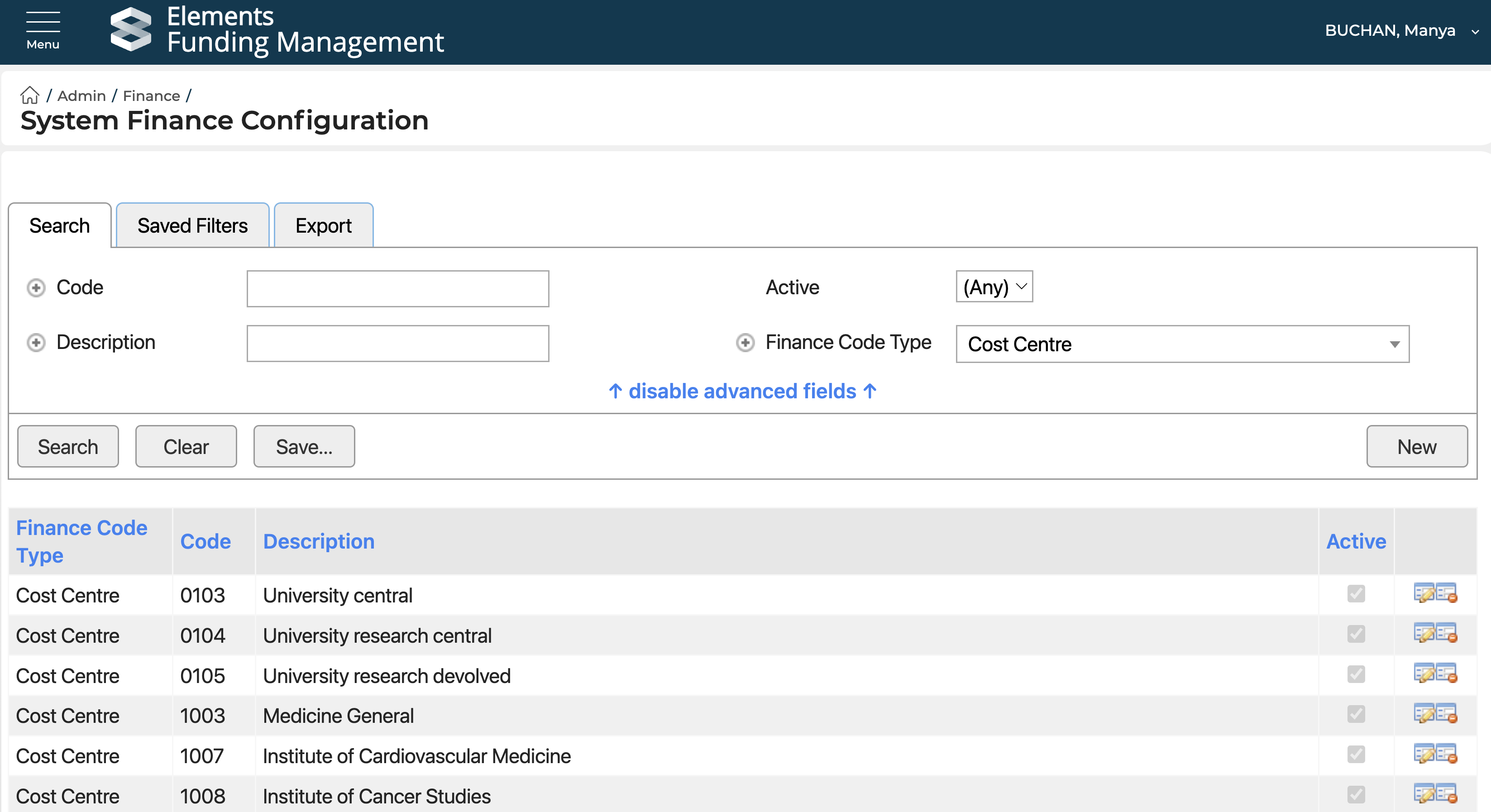
Cost Centres are managed in the Admin > Finance > System Finance Configuration pages, accessible to System Administrators and Research Funding Administrators. Note that this screen is only visible following the initial population of Cost Centres as described above.
Adding new Cost Centres
To add a new Cost Centre, go to Admin > Finance > System Finance Configuration, and select 'New' on the right-hand side of the screen.
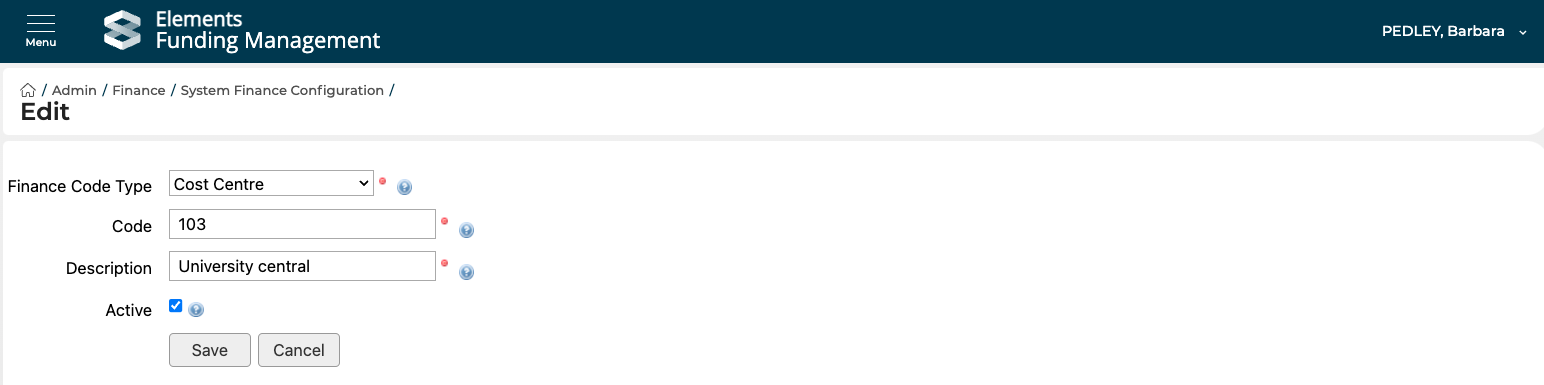
Provide the following values:
Finance Code Type | Select 'Cost Centre' |
Code | Provide the Cost Centre code |
Description | Provide the Cost Centre name |
Active | Select TRUE (if you want this Cost Centre to be available for selection) |
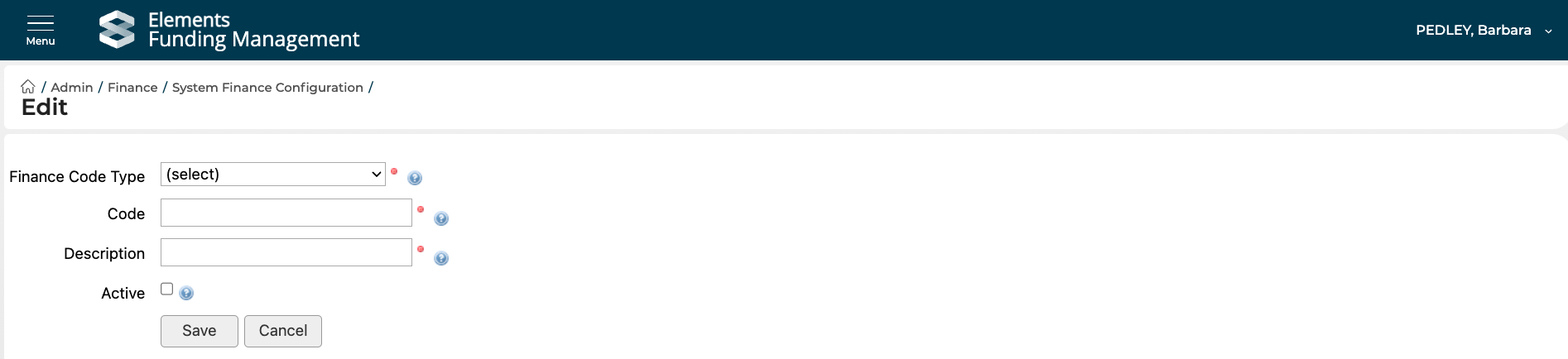
Select 'Save'.
If you want to map the Cost Centre to a Group (thereby ensuring that the Cost Centre will only be available for selection against mapped Project Managing Group(s)), follow the steps outlined in the 'Mapping a new Cost Centre to a Group' section below.
Mapping a Cost Centre to a Group
Setting a Group mapping will ensure that only Cost Centres relevant for the Managing Group of the Project are available for selection.
Go to Communications & Content > Contacts and select the Group you want to introduce a mapping for. Then go to Finance Codes in the left-hand navigation.
If there are existing mappings, the screen will display the number of existing mappings ('Number of items'). To add new mappings, select the Edit icon.
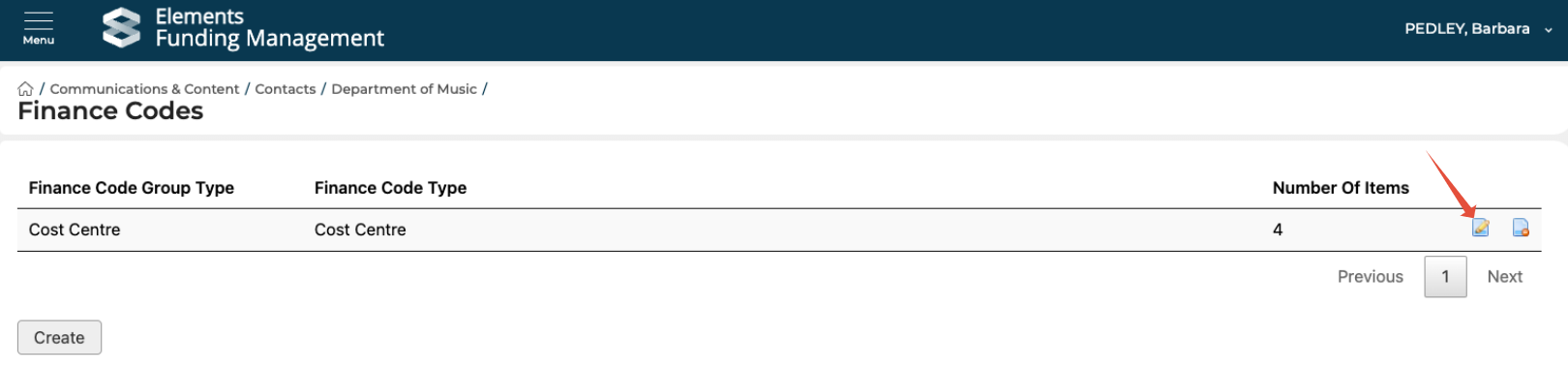
If there are no existing mappings, you first need to create the mapping grouping. Select Create, then select Finance Code Group Type = Cost Centre. All Cost Centres will then be available for selection.

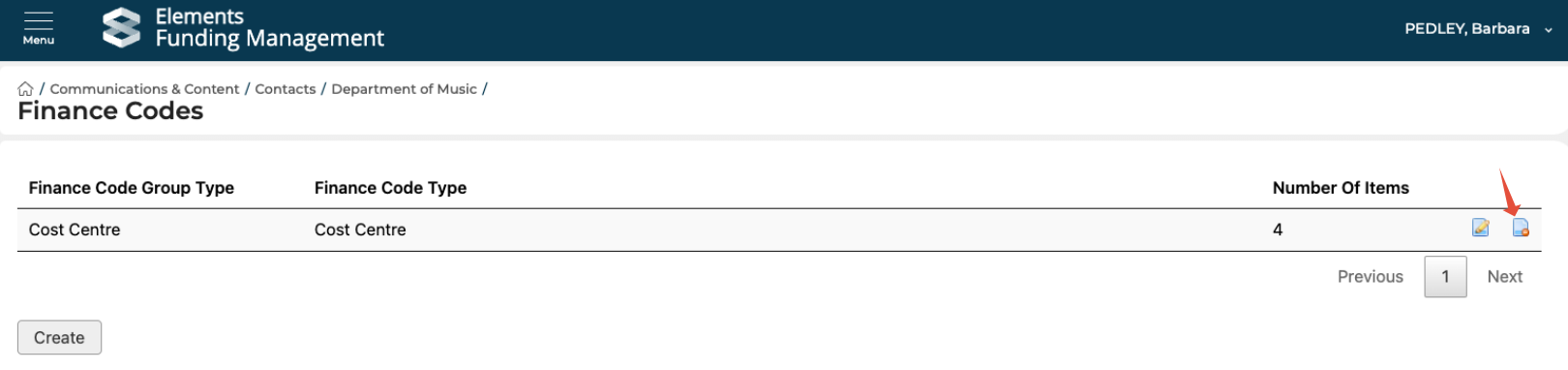
To delete existing mappings, select the 'Delete' icon.
Editing an existing Cost Centre
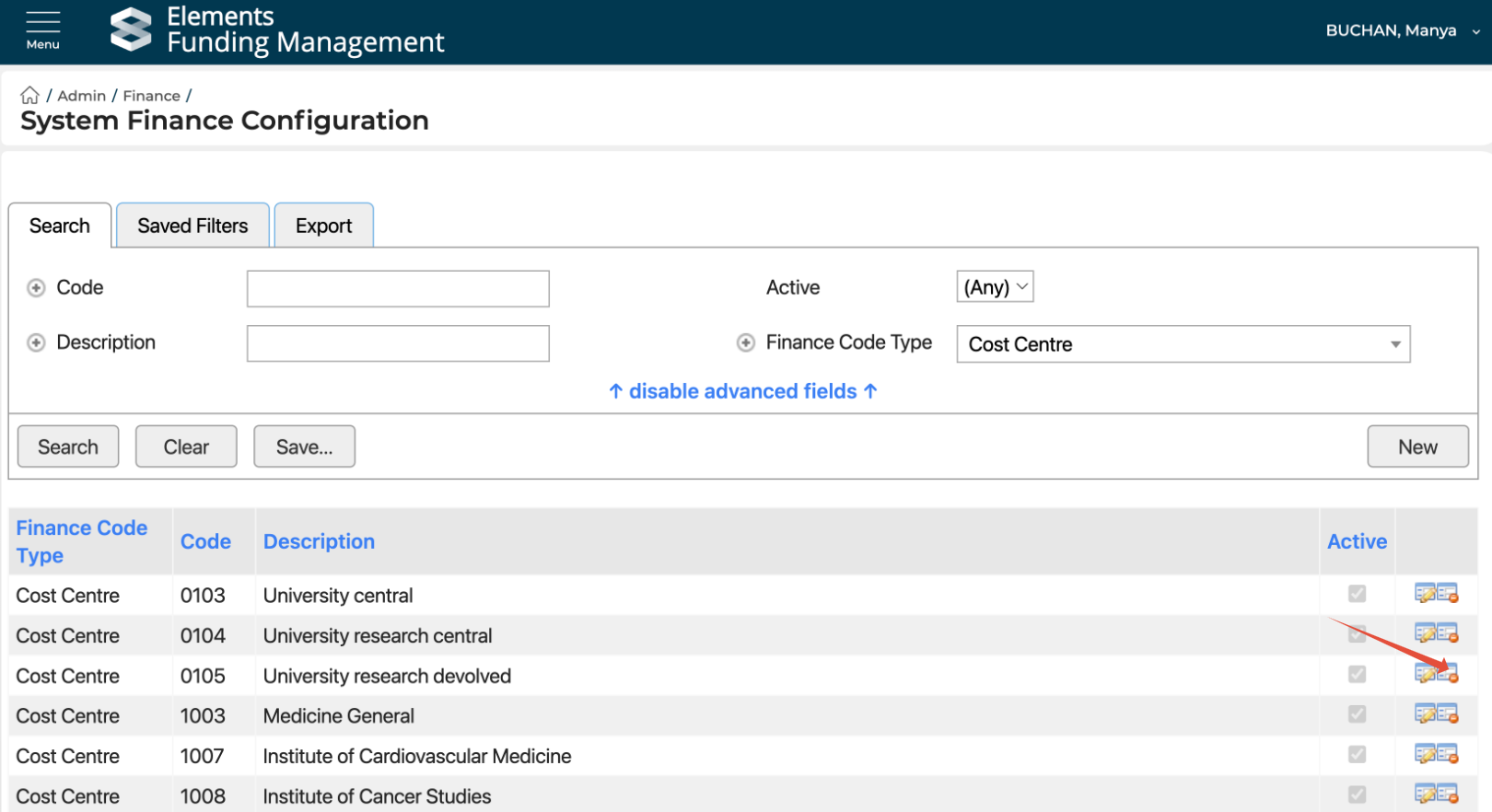
Go to Admin > Finance > System Finance Configuration, and select the Edit icon for the selected Cost Centre.

You can then edit the relevant details and save your changes.
Deleting a Cost Centre
To delete an existing Cost Centre, go to Admin > Finance > System Finance Configuration, and select the Delete icon for the selected Cost Centre.
Note that you will be unable to delete a Cost Centre that has any associated Proposals or Projects, or is mapped to a Group.
To keep a Cost Centre but make in unavailable for future selection, you should mark it as Not Active, as per the guidance above on editing a Cost Centre.
Assigning a Proposal / Project to a Cost Centre
All Console users can assign a Proposal / Project to a Cost Centre (so long as they have the right to access the Proposal / Project itself).
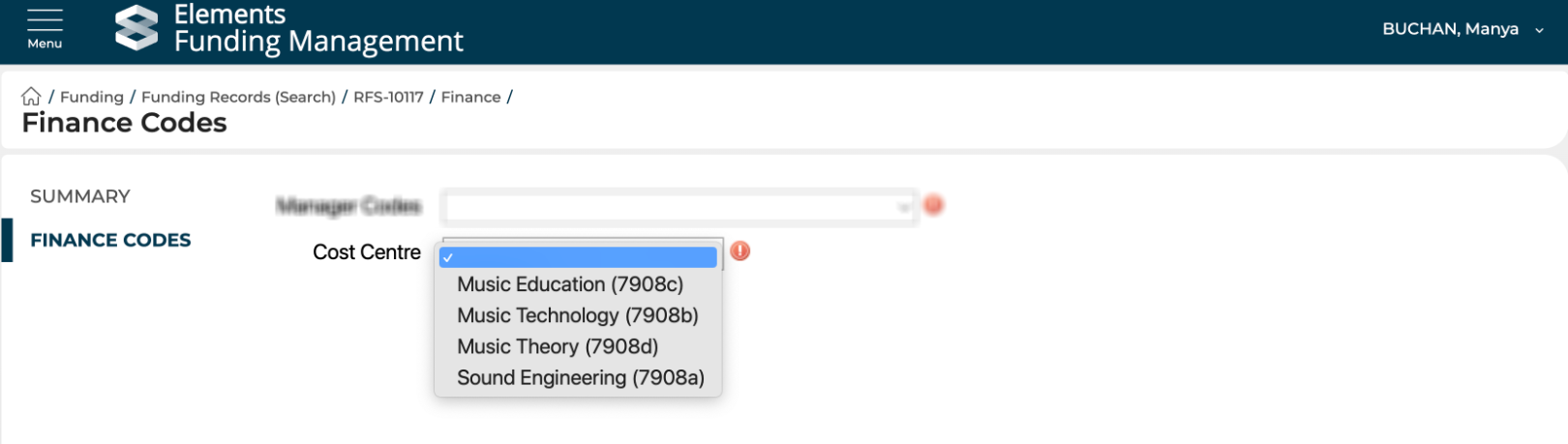
Navigate to the Proposal / Project in the Console, then go to Finance > Finance Codes in the left-hand navigation. Select the desired Cost Centre from the drop-down list, and save your changes.
The Cost Centres available from the list are those active Cost Centres mapped to the Managing Group of the Proposal / Project, as per the 'Mapping a Cost Centre to a Group' description above. If no mapping has been defined, all Cost Centres will be available for selection.
Note that if you require the Cost Centre to be selected prior to Project activation, you may wish to update your Project activation checklist to include a check for the Cost Centre.