Budget transfers
The ability to perform budget transfers is restricted to System Administrators and Research Funding Administrators.
It is expected that budget transfers may only be applicable where a 'Distributed budget' or 'External distribution of funds' sub-grant has been created, but the function is not limited to these relationship types.
Budget can only be transferred to records that are at least in the Approved state and are not Closed.
To initiate a budget transfer, navigate to the funding record where you wish the funds to be transferred from, and go to the Finance > Budget transfer page in the left-hand navigation.
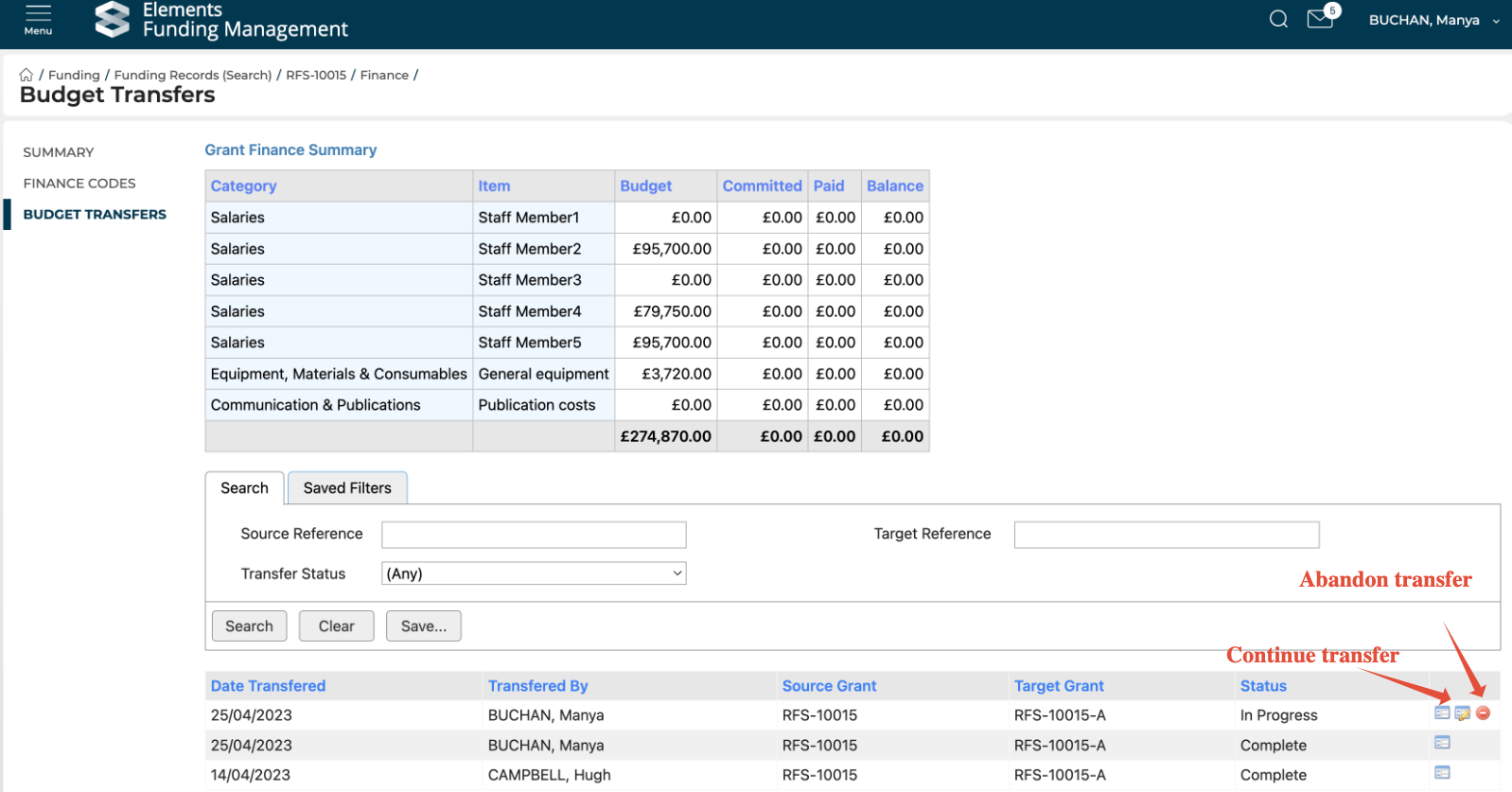
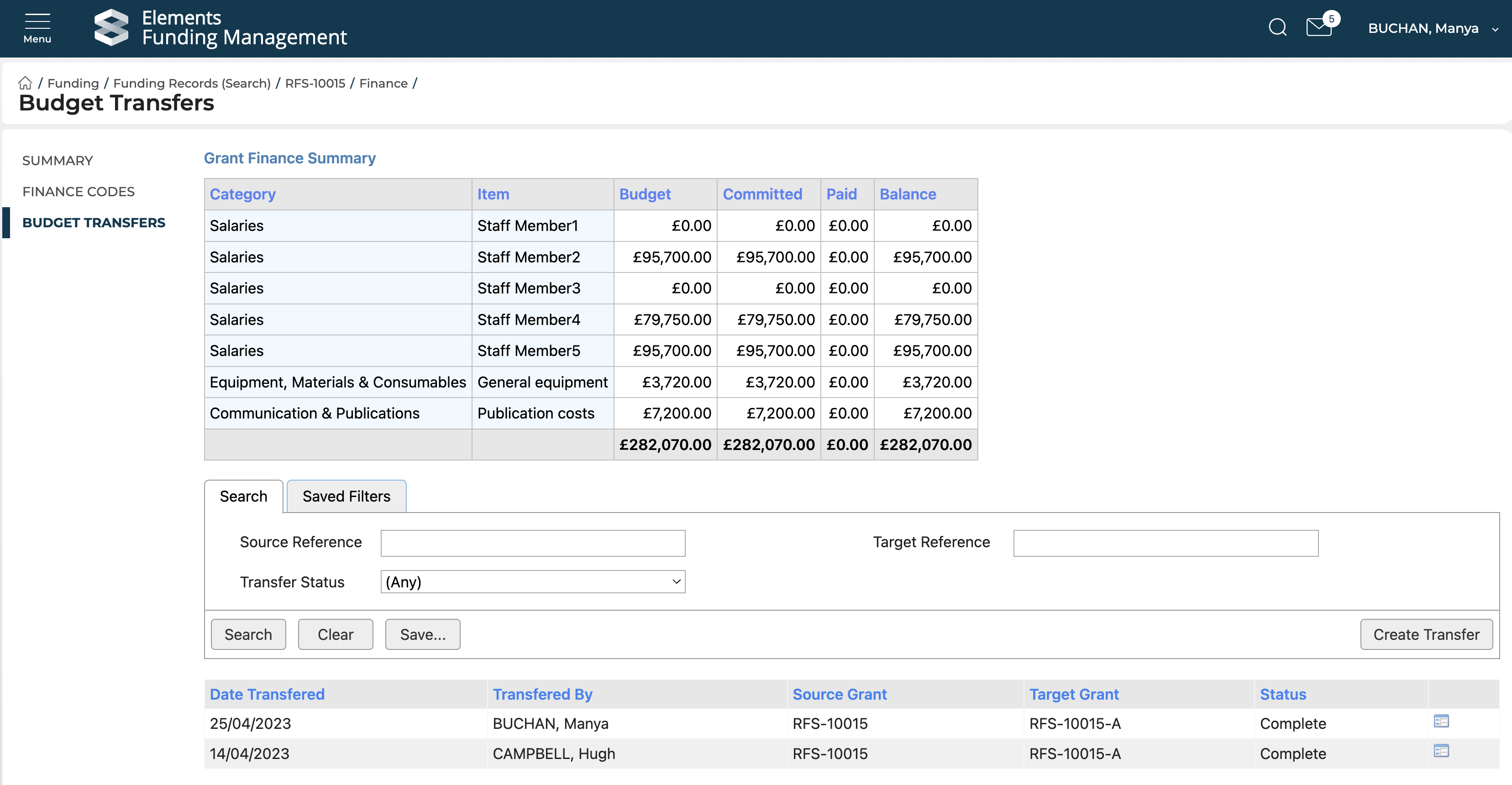
On this page you can see any previously actioned / initiated budget transfers (and view their details by selecting the icon on the right-hand side), and create a new one.
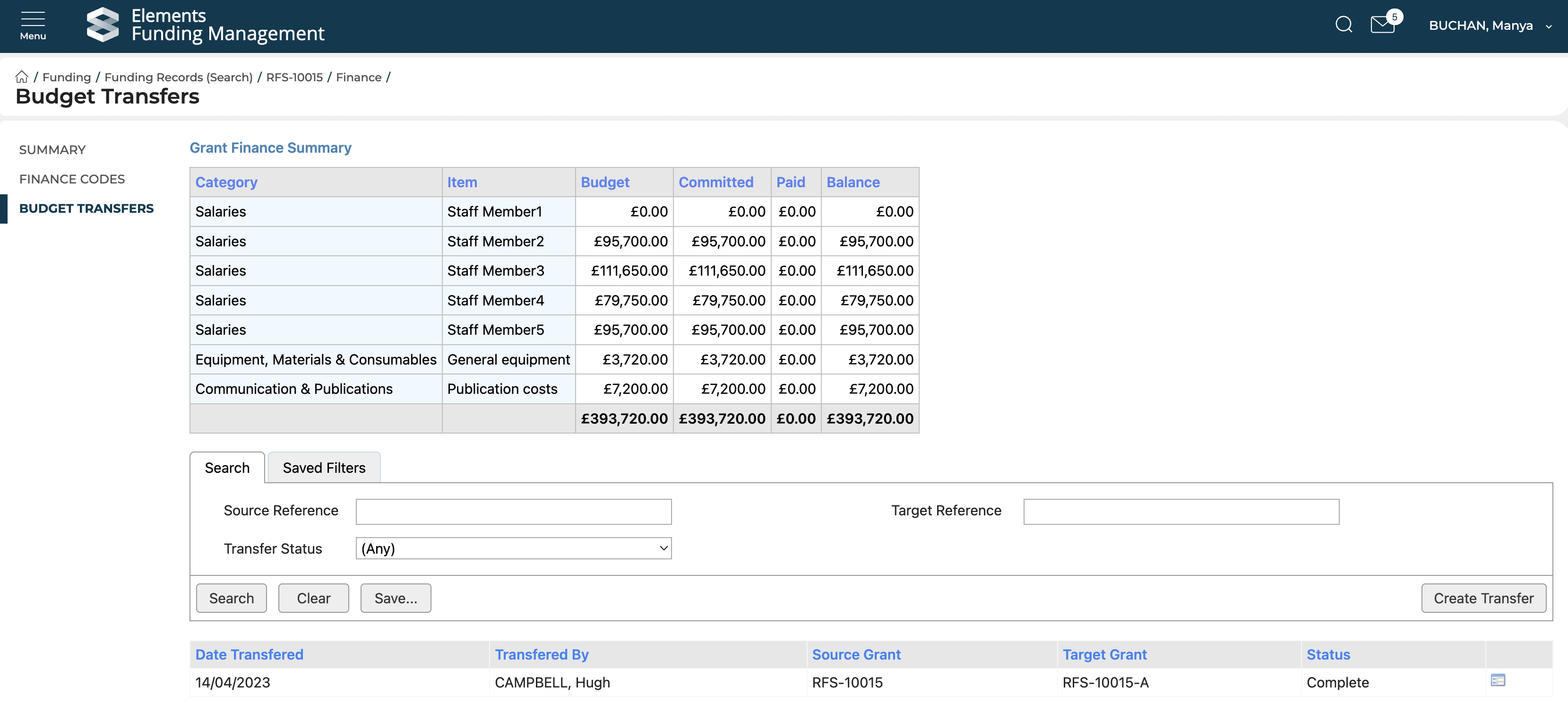
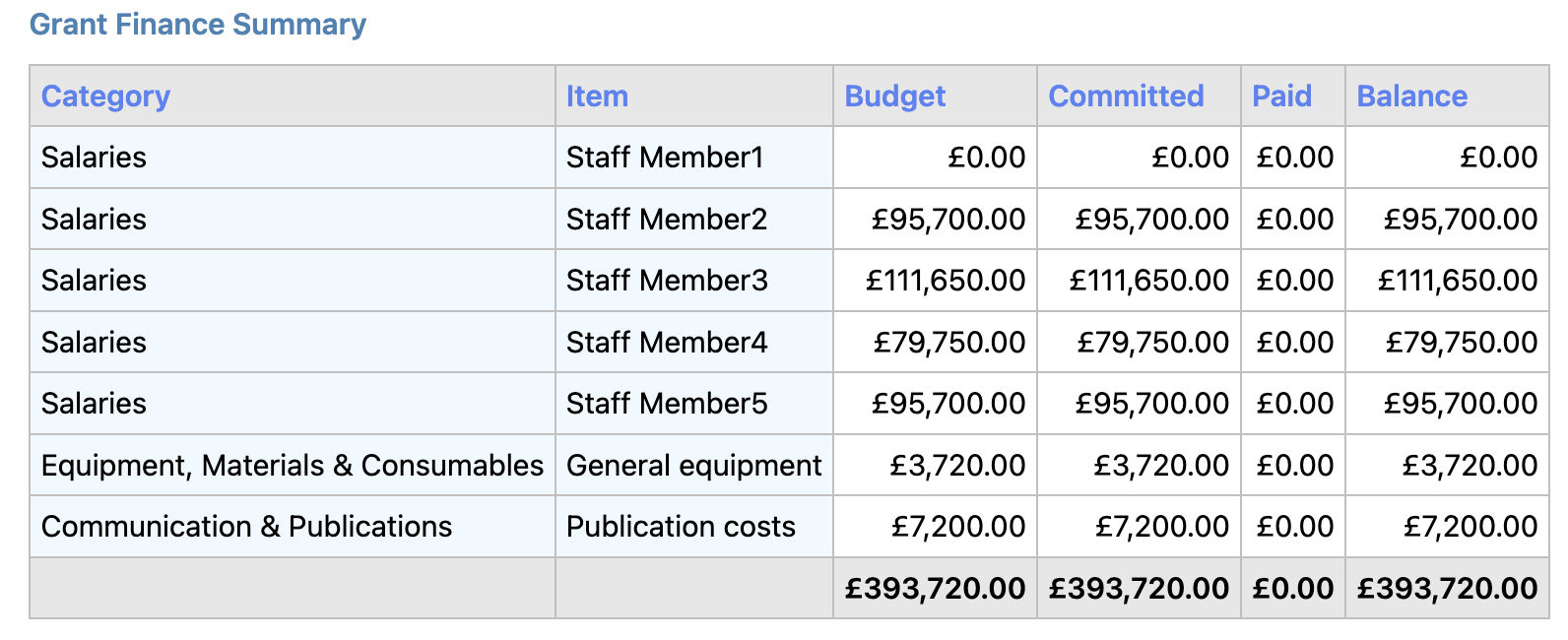
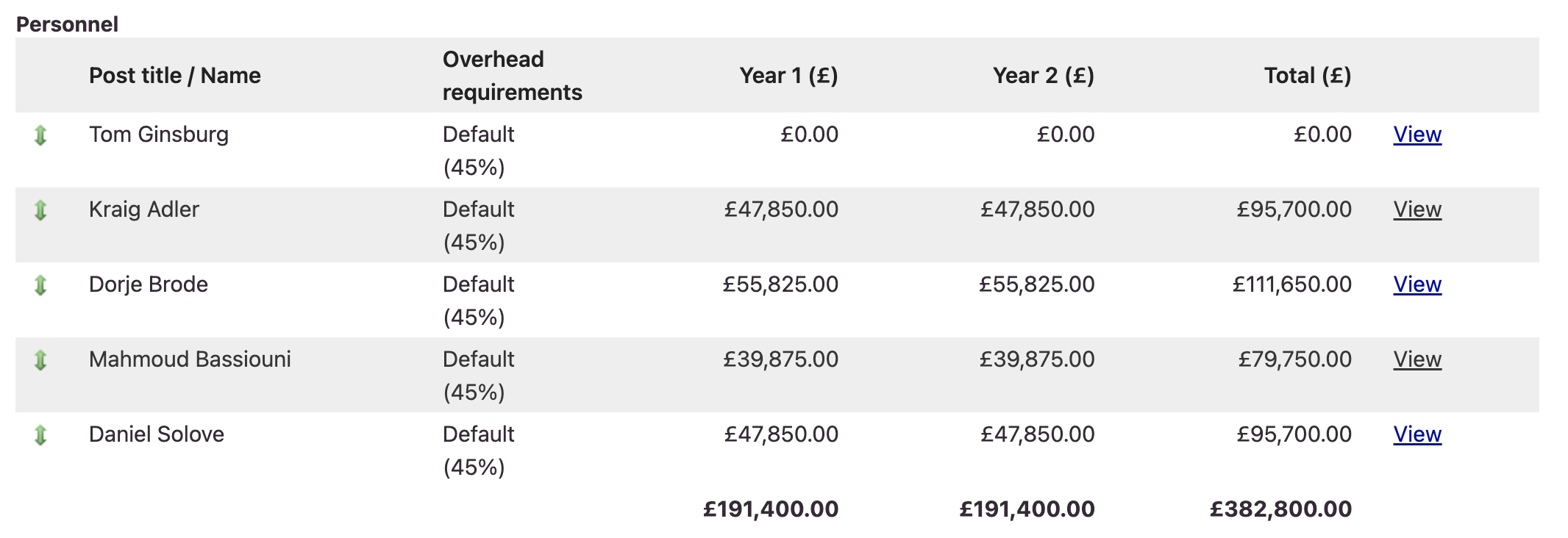
Note that the Grant Finance Summary table on the Budget Transfers screen (and elsewhere during the budget transfer process) presents Salaries data in a way that may be unfamiliar to you.
Grant Finance Summary | Budget Edit page |
|
|
To initiate a new transfer, select the 'Create Transfer' button on the right side of the screen. You will then begin a step-by-step process of transferring budget out of the source record, and into the target record.
Step 1 : Identify the target funding record
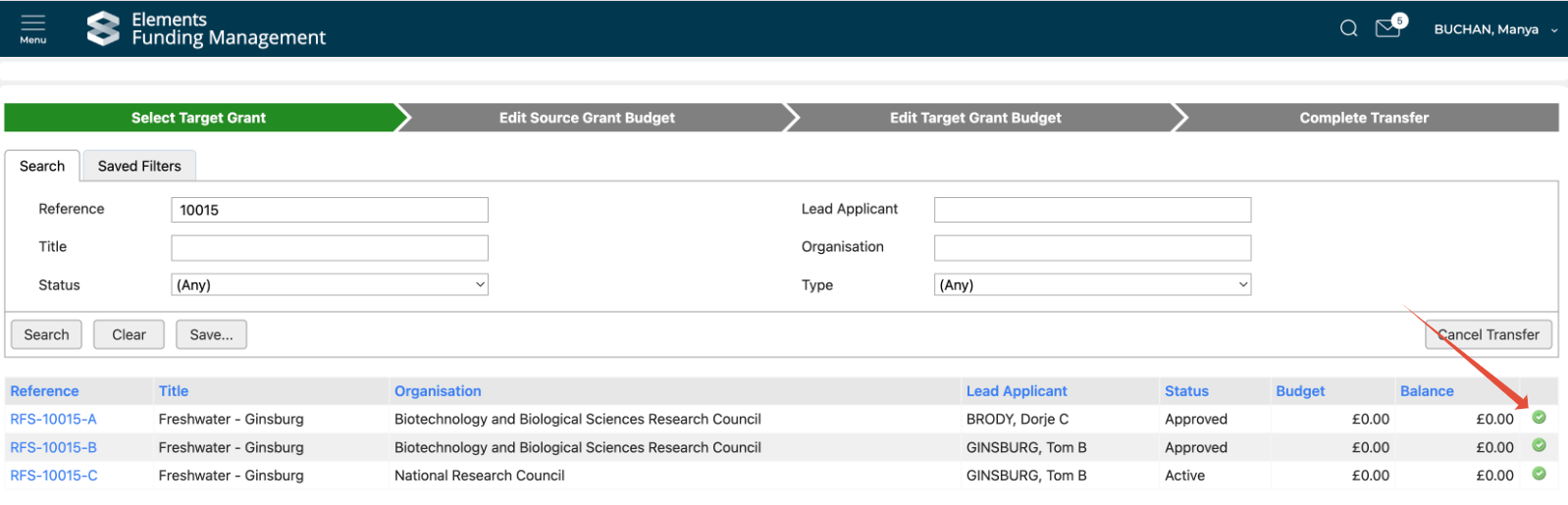
The first step is to identify the target funding record (where you wish to transfer budget to). You are restricted to transferring budget between directly related funding records. You can use the search function to help narrow the field down.
Select the ✅ action on the right-hand side for your target funding record, and confirm.

Step 2 : Edit the source record's budget
Modify the budget of the source record, reducing the desired budget items by the amount you wish to transfer to the target record. You will see the net change at the top of the screen.
Note that initiating a budget transfer from an Active project creates a Draft budget on the source record, behaving in the same way as a direct budget edit on an Active project (see further details here).
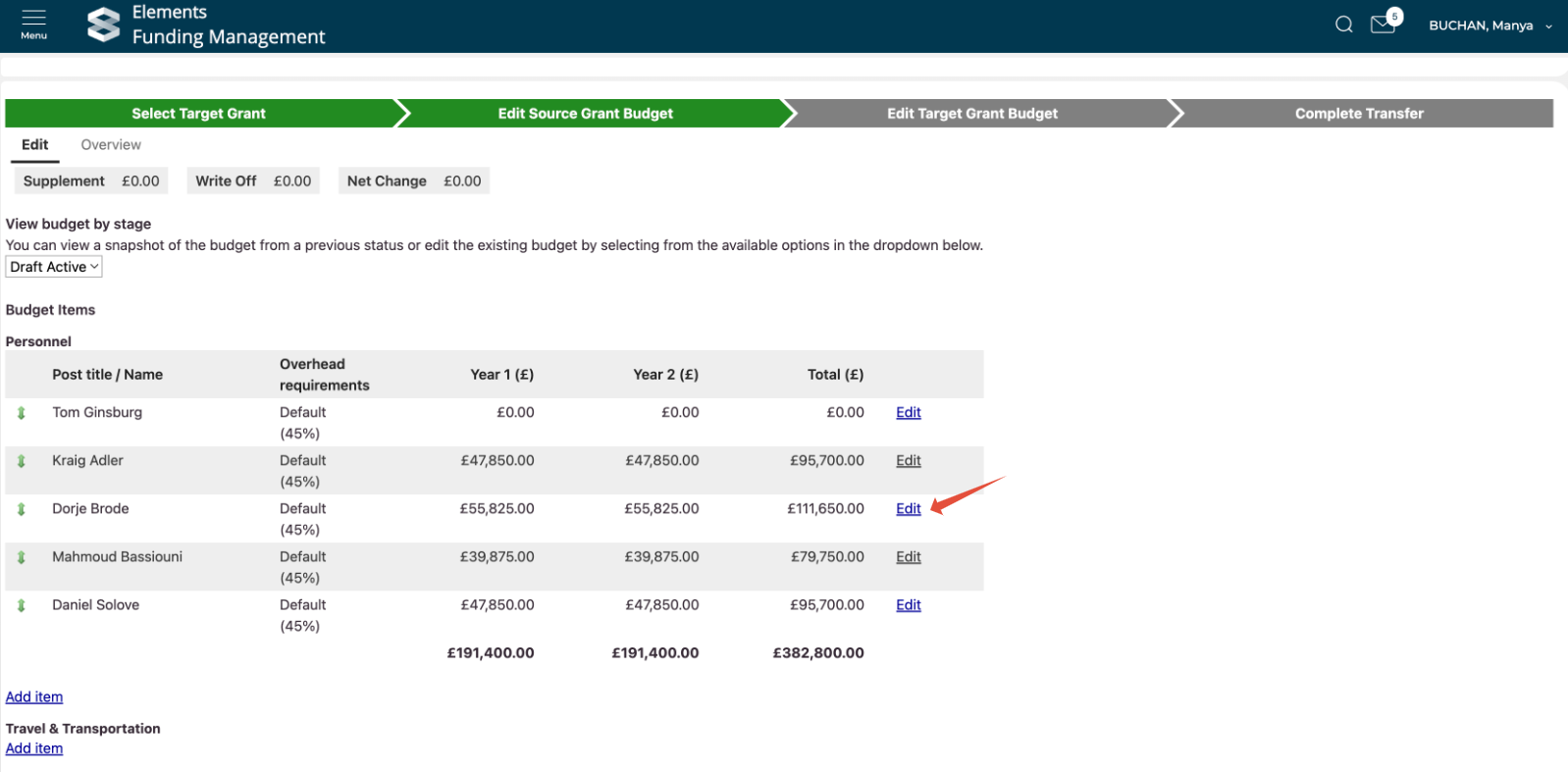
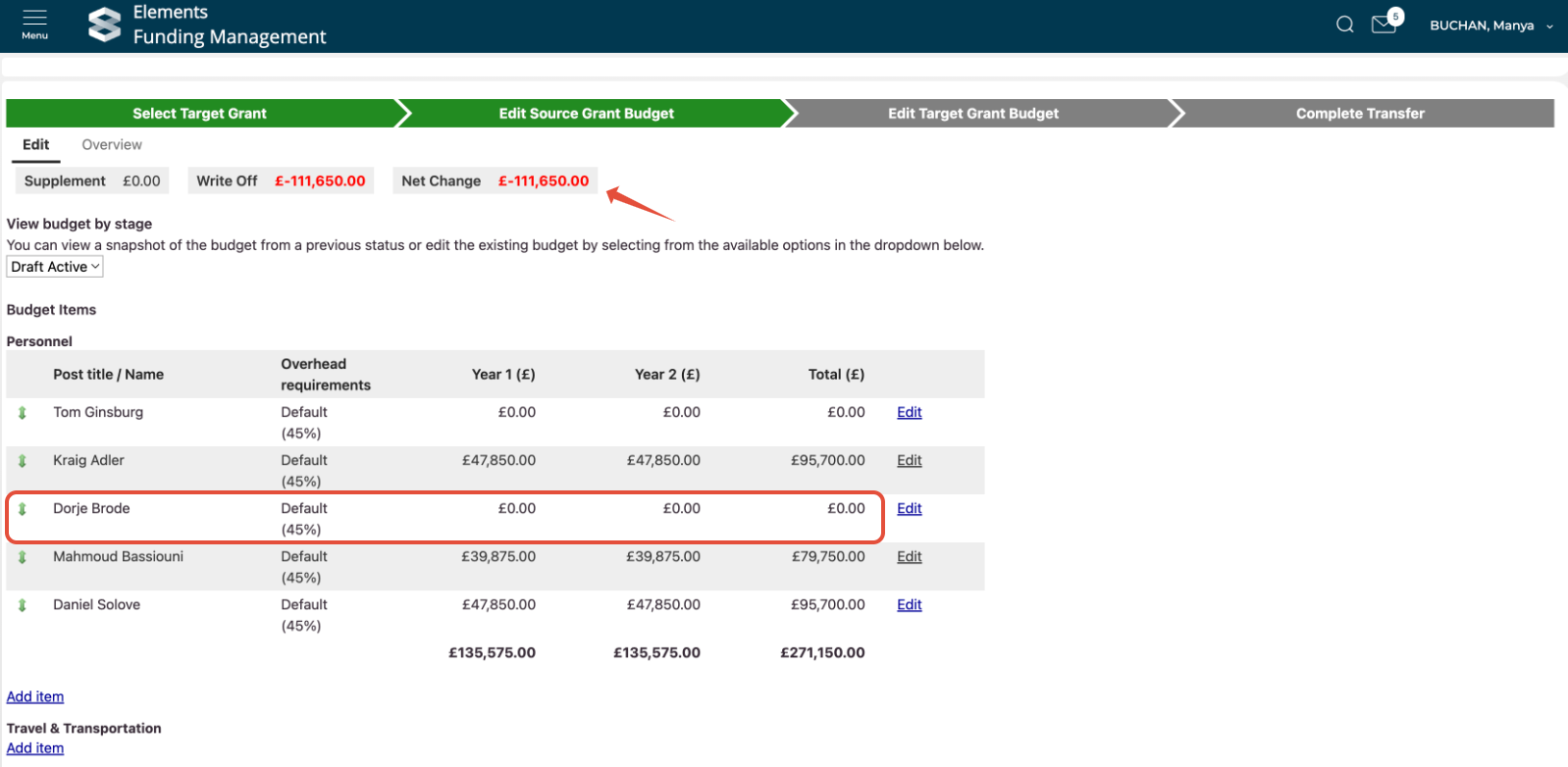
Once you have made all desired modifications to the source record, select 'Next page' (at the bottom of the page).
Step 3 : Edit the target record's budget
Modify the budget of the target record, adding the desired budget items by the amount you wish to transfer from the source record. You will see the budget transfer summary and the net change at the top of the screen.
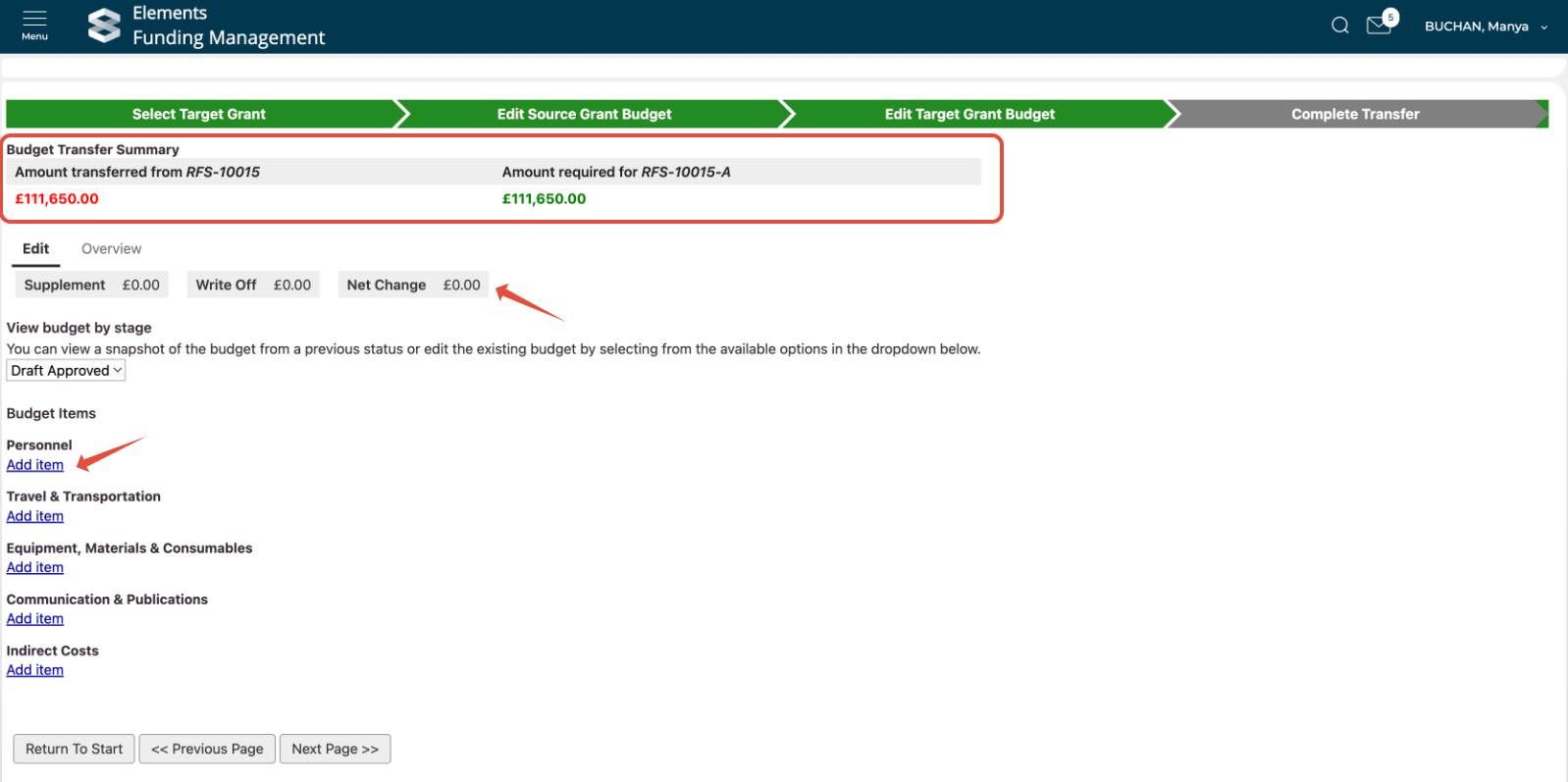
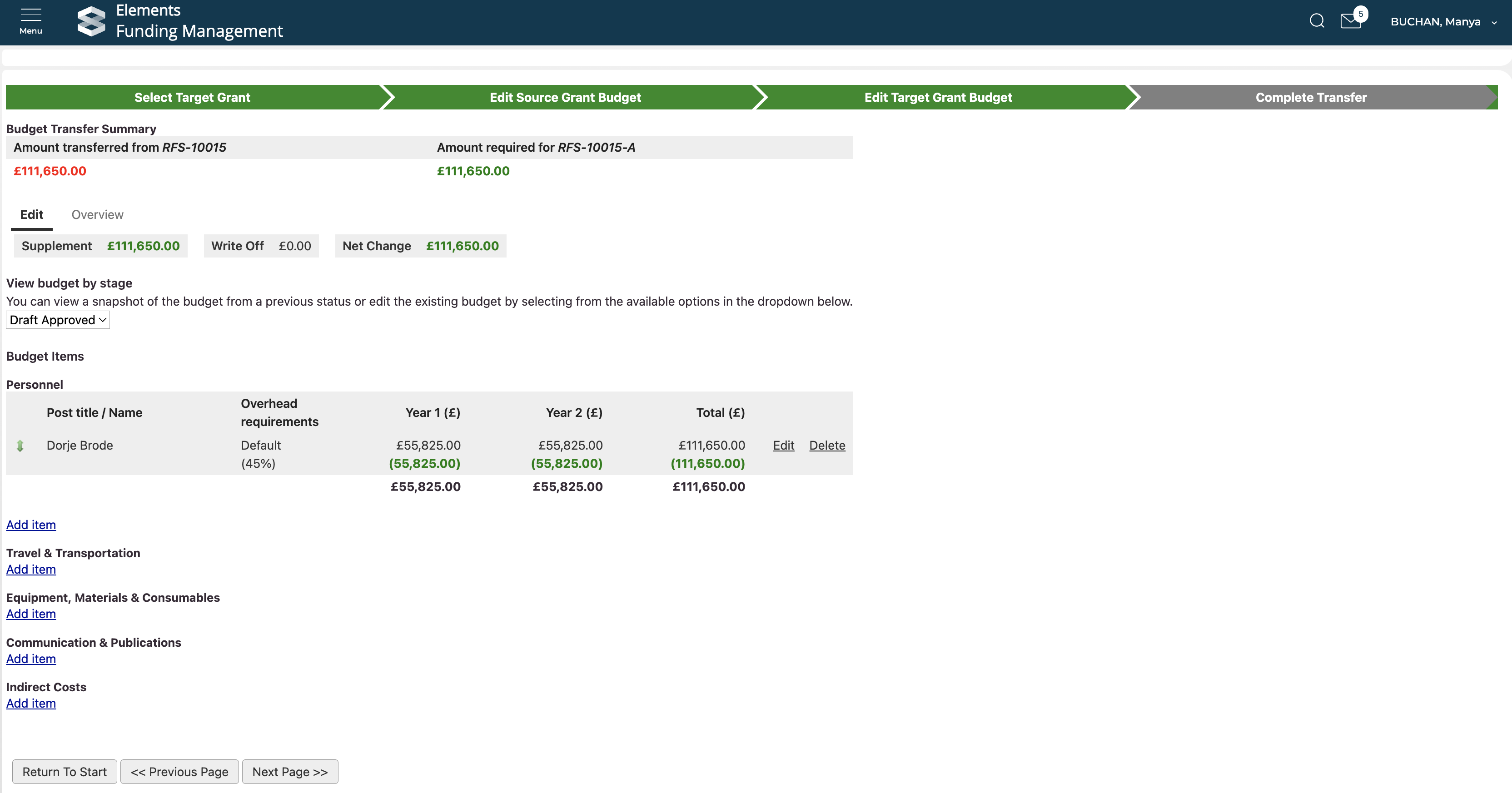
Once you have made all desired modifications to the target record, select 'Next page'.
Step 4 : Complete transfer
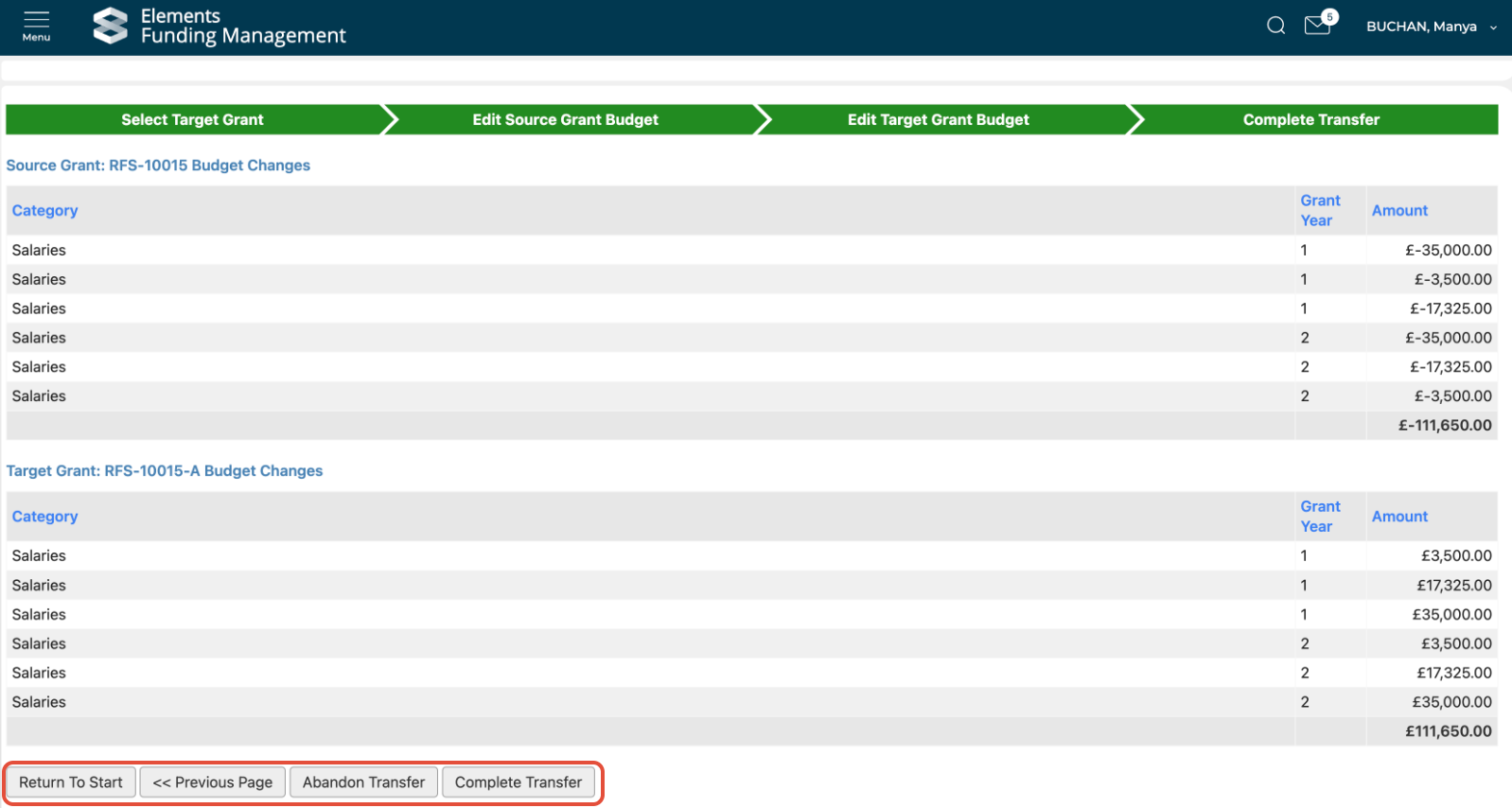
The Complete Transfer page summarises the changes made to both the source and target record's budgets. If you are happy to proceed with the transfer, select 'Complete transfer' at the bottom of the page, and confirm. You can also abandon the transfer, or return to the previous page to make further adjustments.

Return to start
At any point in Steps 2-4 you can return to the start ('Return to start' button at the bottom of the page). This will return you to the Budget Transfers home page, and will flag the budget transfer you were working on as 'In progress'. At any point you can resume your work (by selecting the 'Continue transfer' action), or you can abandon the budget transfer (by selecting the 'Abandon transfer' action). Note that you will be unable to create any new budget transfers if you already have one in progress.