
The Elements group structure feed - v6.18+
Groups in Elements play a pivotal role in organising user data, underpinning the configuration of the system, as well as facilitating reporting and analytics. Building upon the foundational capabilities of the group importer, the group feed provides greater automation, helping to streamline the management of your organisational group hierarchy. The group feed lessens the administrative workload by ensuring your organisational structure remains up-to-date in Elements with minimal manual intervention.
The feed allows information in upstream systems, which act as the source-of-truth for your organisational structure, to be automatically reflected in Elements. This is achieved by fetching a CSV file that outlines the requisite group structure as part of a scheduled task and processing the file. Provided that no cutoff thresholds are met, it then automatically applies the necessary changes to the system. Further information about the use of cutoffs can be found in this support article. This automation ensures that your organisational hierarchy is always up-to-date and accurately reflected in Elements.
Configuring the feed
We have created a new role to provide granular control over users with permission to manage the group importer. Only users with the ‘Group import Manager’ or ‘System Administrator’ roles can make changes relating to group import functionality.
Functionality that allows control over the group importer is not displayed to users without these elevated permissions.
Schedule
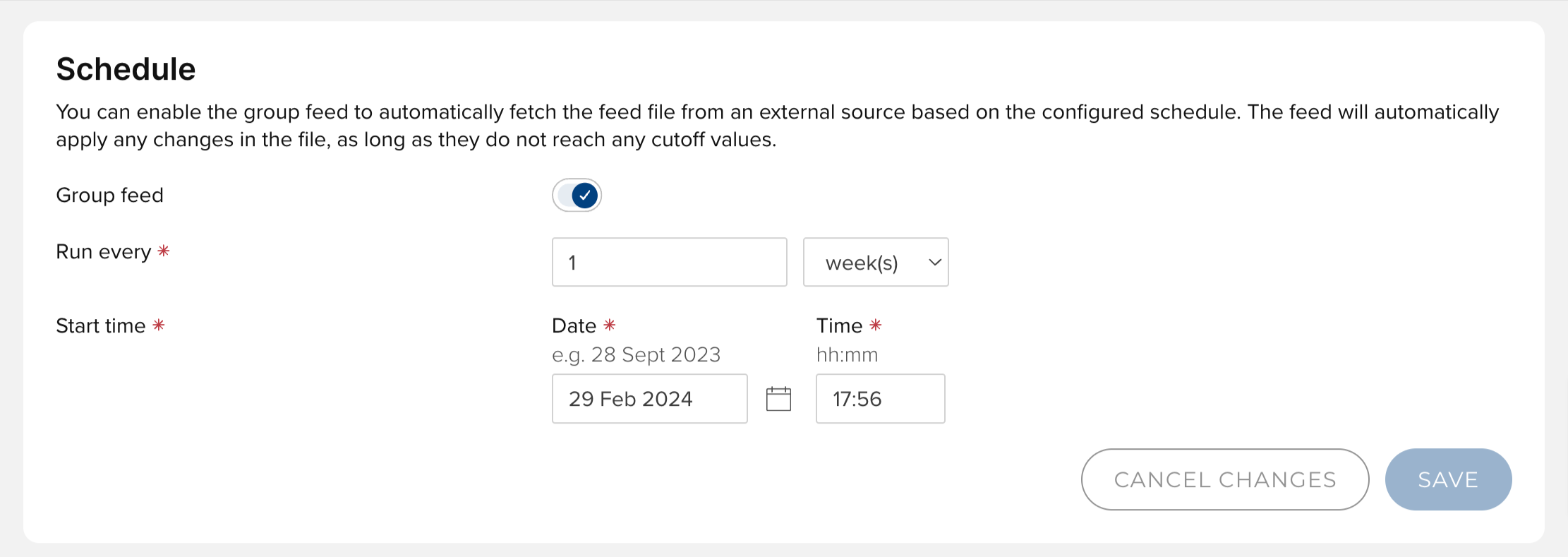
This section is where the group feed is enabled. This is contingent on ‘external management’ being enabled on the ‘General’ tab.
Administrators have the ability to set the frequency of the group feed through the ‘Run every’ setting. This will reflect how often you expect the group hierarchy to change and is expected to usually be in the region of weeks to months.
The ‘Start time’ setting should align the group feed’s execution during periods of minimal activity, ideally overnight. It is also important to ensure that the relative timing of the group feed and the HR feed are considered, so that the information contained in the HR feed reflects the new group structure.
Source file location
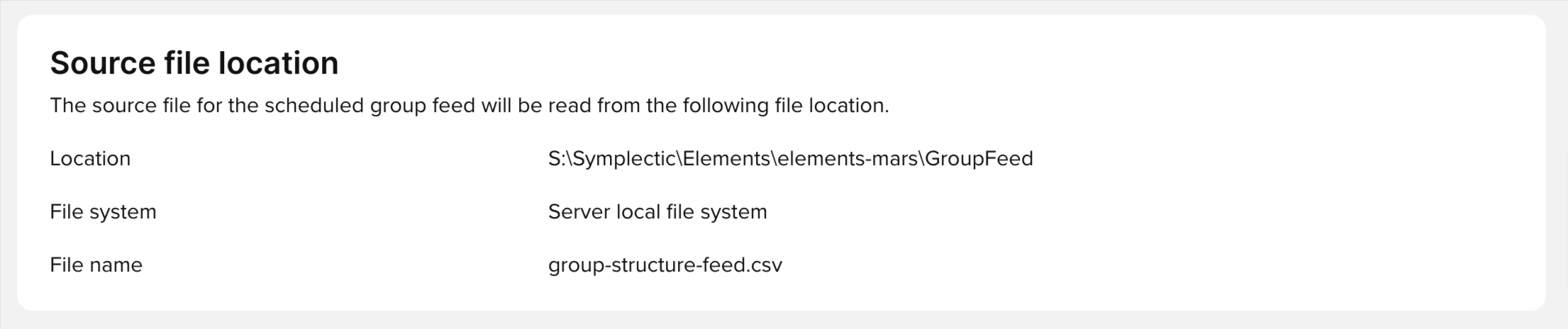
This section specifies details about the feed file’s required storage location. For self-hosted clients, this section will surface the local file system’s path as defined in the configuration file SharedSettings.config, which can be found in the ..\AdvancedConfiguration folder. For hosted clients this will specify the S3 bucket and folder name. These locations must contain the feed file in order for the group feed to function. The file system’s designation will vary accordingly, being ‘Server local file system’ for self-hosted clients and ‘Amazon S3’ for hosted clients. Note: The feed file must be named ‘group-structure-feed.csv’ in order for it to be processed by the feed.
Email notification
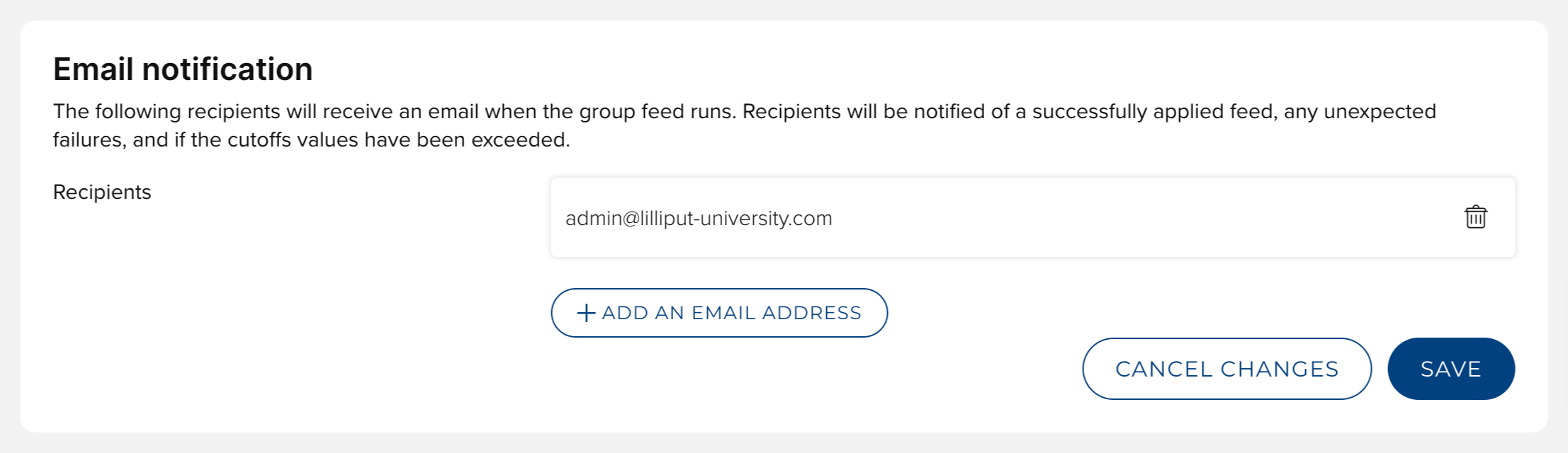
The final section allows administrators to configure email notifications, supporting the monitoring of the feed’s activity. Email recipients will be notified of a successfully applied feed, any unexpected failures, and if the cutoffs values have been exceeded. This allows administrators to have oversight of the feed process and to review and apply the import if cutoffs have been reached. This can be managed on the ‘Group import’ page.
Managing credentials for Amazon S3
The ‘Uploader Account Management’ page in Elements facilitates the management of Amazon S3 storage location credentials directly within the platform. This allows for a straightforward process in handling access to cloud storage resources.
Adding New Credentials: Users can generate new credentials by clicking the plus button. It's necessary to provide a username for the account during this process. Once a credential is created, Elements will display the access key and grant one-time access to the secret key. Users must make a note of the secret key as it will not be shown again. Further details on utilising these keys for Amazon S3 access can be found here.
Managing Credentials: The system enables users to easily enable or disable a set of credentials according to their requirements. It also displays the last usage of the credentials for accessing Amazon S3, offering insights into their activity.
Deletion of Credentials: Should the need arise, users have the option to delete a set of credentials. This action removes access permissions associated with the deleted credentials.
This functionality ensures users can efficiently manage their Amazon S3 storage access within Elements, providing essential control over credential management, including creation, activation, monitoring, and deletion.
Group import page
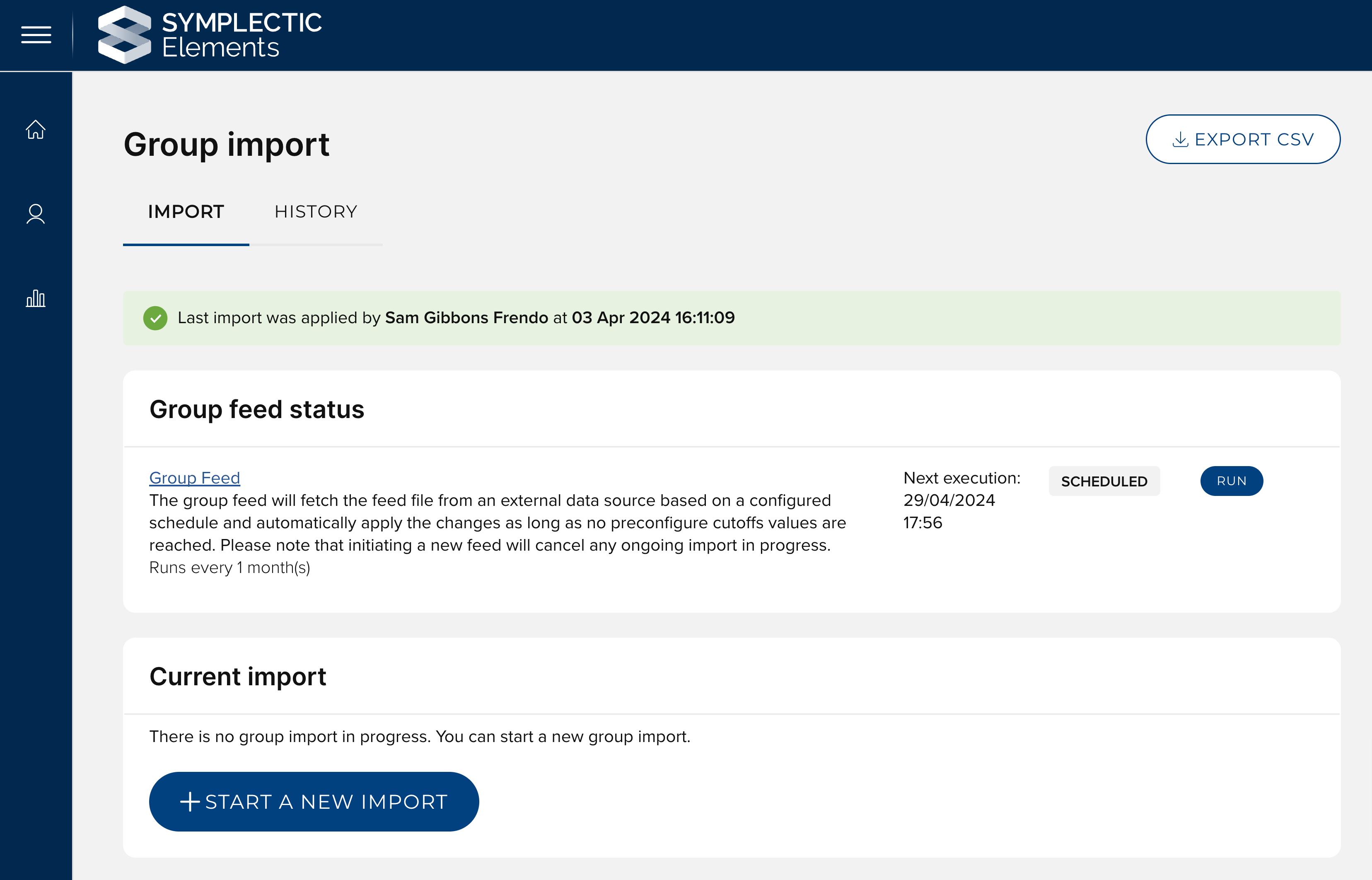
When the group feed is enabled, the 'Group import' page is updated to present information about the status of the group feed. This section provides administrators with control over the group feed's operation. Key information displayed includes:
The scheduled frequency of the group feed, offering a clear indication of how often the organisational structure is updated.
The precise day and time slated for the next execution of the feed, allowing administrators to know when the feed will next run.
An indicator of the feed's current state - whether it is scheduled, actively running, or in the process of stopping - providing real-time visibility of the feed's operation.
An option to manually run the group feed, allowing administrators to initiate the feed at their discretion. Manually running the feed will not modify the next execution time scheduled.
Upon selecting 'Run', the feed transitions to a 'Running' state, and the 'Run' button updates to a 'Stop' button. This gives administrators the ability to halt the feed if necessary. Should the 'Stopping' process extend beyond a reasonable timeframe, a 'Terminate' button appears, allowing administrators the ability to forcibly end the operation.
As the group feed imports data, if cutoff thresholds are reached, necessitating a review and apply step, this step is displayed, and administrators can decide whether or not to manually apply the changes initiated by the feed. Conversely, if no cutoffs are encountered, the feed automatically applies the changes, streamlining the update process.
The capability for manually running a group import remains unaffected by the group feed being enabled. However, administrators should be aware of the potential for updates from manual imports to be overwritten by subsequent automated feed runs, especially if the source file is not updated.