
Nominate items to an Item evaluation exercise
The 'My nominations' page (Evaluation & review > [ITEM EVALUATION] > My nominations) lists all non-Draft exercises where a user is a member.
Note - if the Item evaluation exercise has just been created / made active, you may need to log out and log back in to Elements for the menu item to appear.
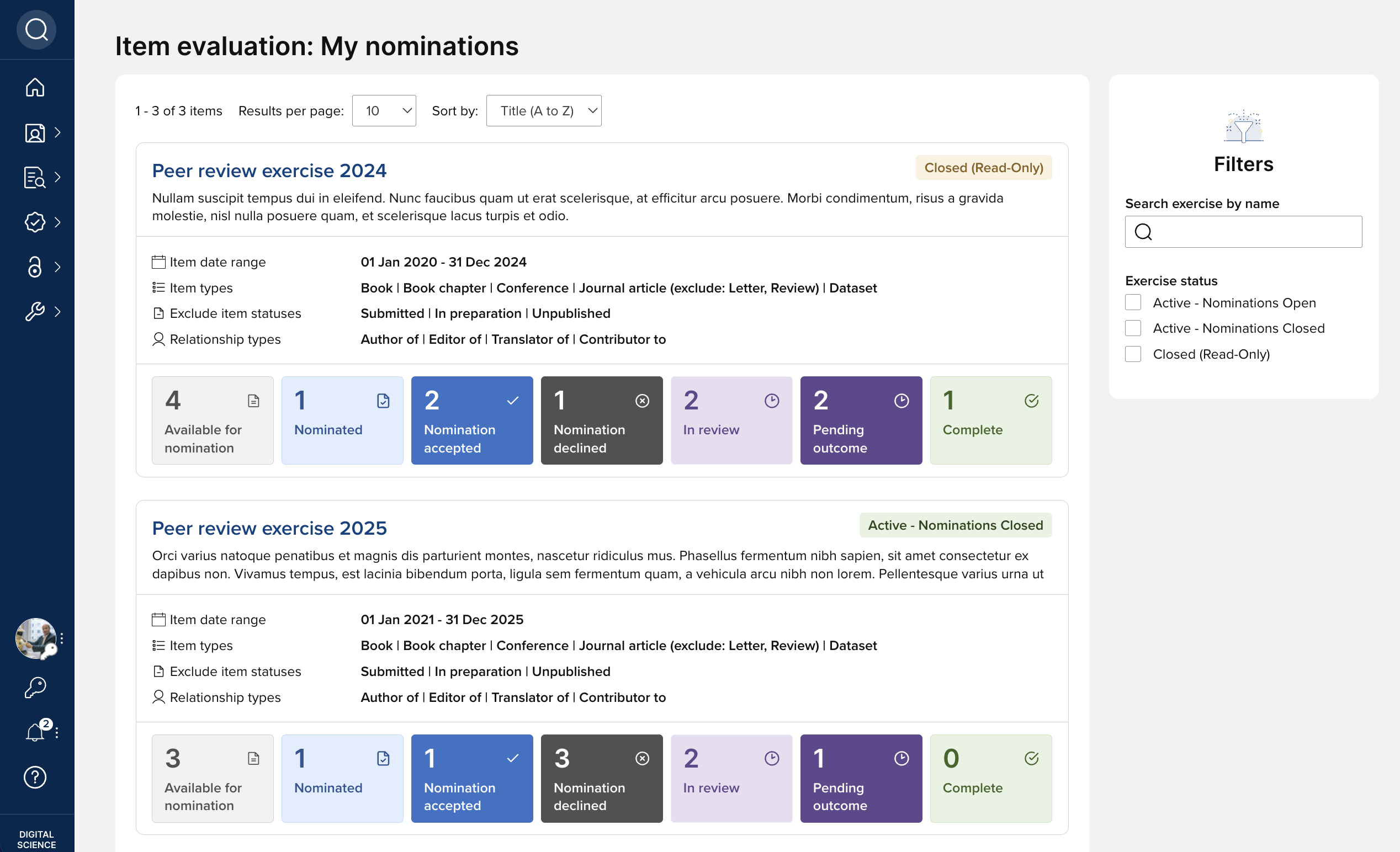
Selecting the exercise name navigates the user to their list of items for the exercise in question. The page header provides a summary of the scope criteria applicable in the exercise.
Depending on the exercise status, from this page users can:
Nominate eligible items for review
Delete nominations (if status = Nominated, and they were the user who originally nominated the item)
View existing nominations, including those nominated by their co-authors (or equivalent) or their unit manager
The statuses available for items are described in the 'Item evaluation statuses' support article.
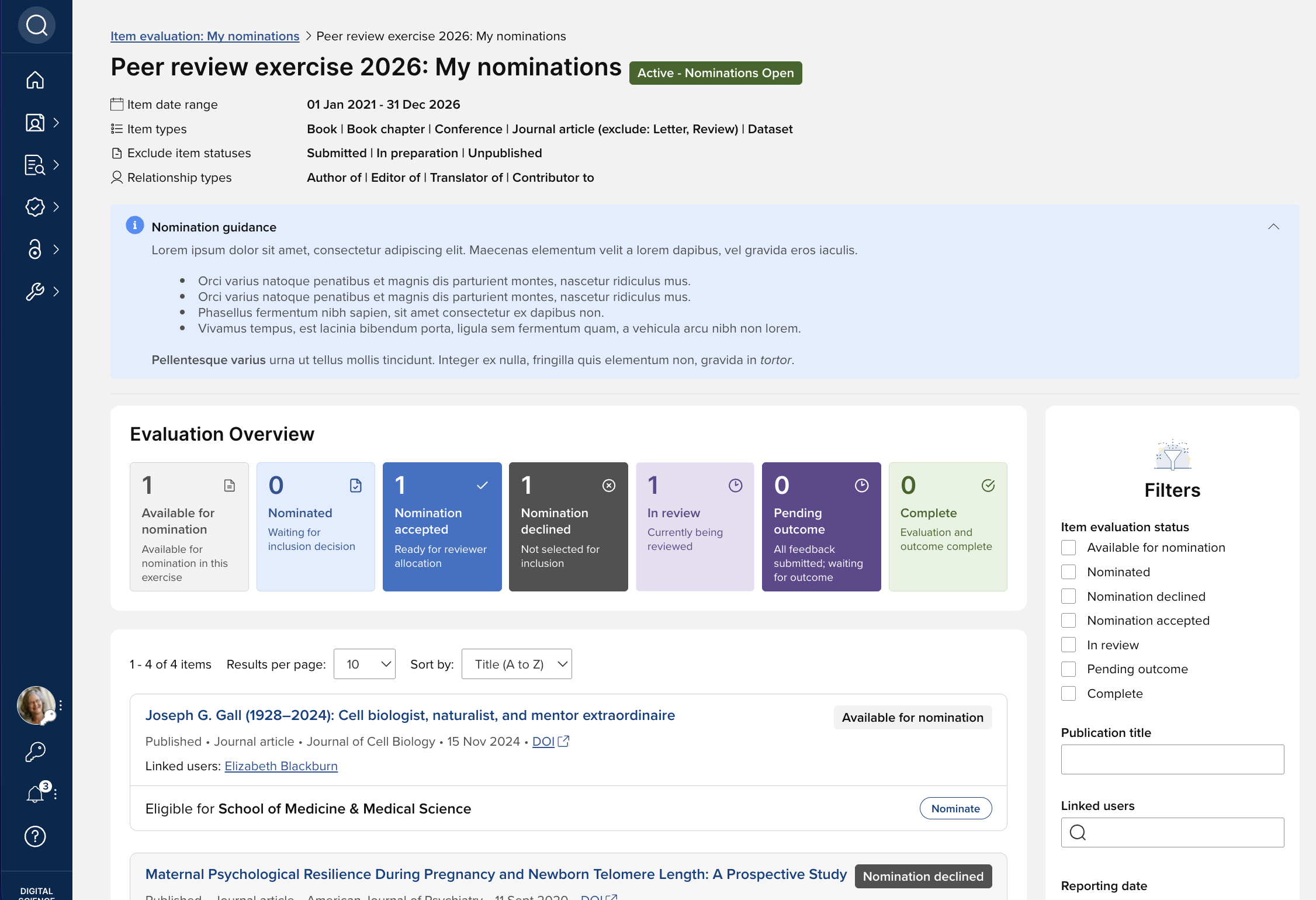
Nominate an item
To nominate an item for review, select the 'Nominate' action on the publication card.

If the item has already been nominated to another unit by a co-author (or equivalent), the user can nominate the item to their unit(s) by using the 'Nominate to additional unit' available in the action menu (see below).
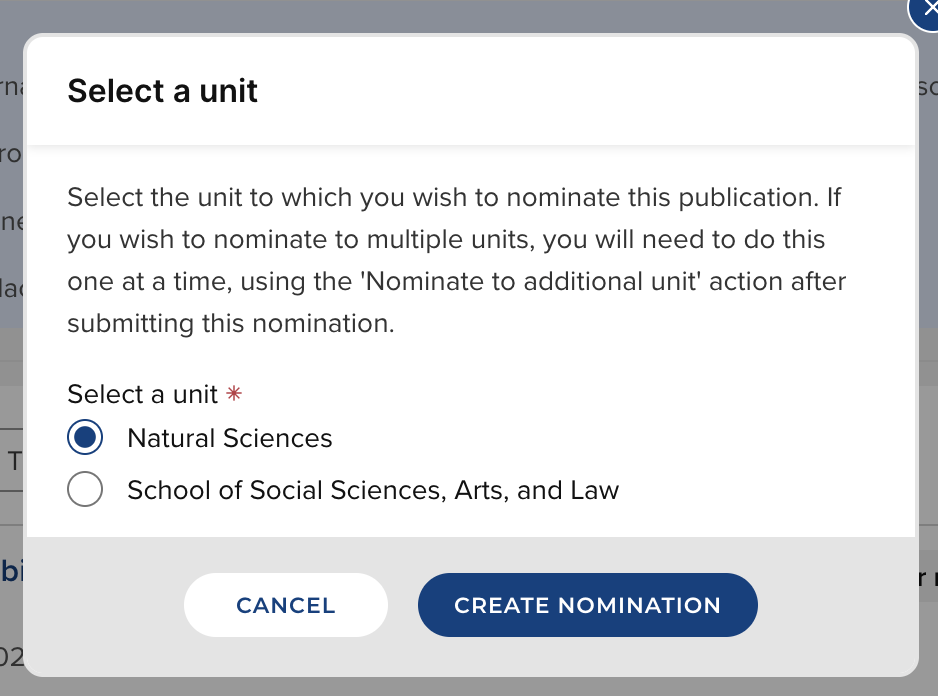
Where a user is a member of multiple units within the exercise, when they select 'Nominate', they will be asked to select which unit they would like to nominate the item to (if they wish to nominate the item multiple units, they will need to do this one at a time, using the ‘Nominate to additional unit’ action after submitting this nomination (see below)).
If a nomination form has been configured for this exercise, the user will then be prompted to complete the form and submit the nomination. Otherwise, the 'Nominate' / 'Create nomination' action will change the status of the item from 'Available for nomination' to 'Nominated' and it will be visible to Admins / Managers on the 'Manage [unit]'s exercise' page.
Nominate an item to an additional unit
Where a user is a member of multiple units within the exercise, or where a co-author (or equivalent) has already nominated the item to another unit, the user can nominate the item to additional units using the 'Nominate to additional unit' action.
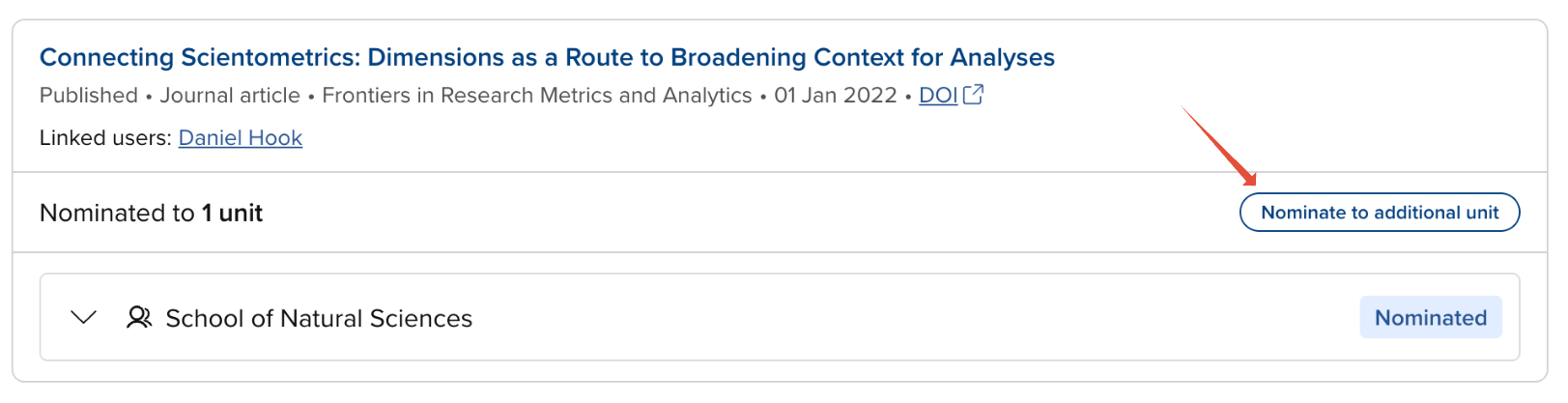
When a publication is nominated to multiple units, each individual nomination is visible and can be acted upon (actions available depend on the status of the item, and whether the user was the original nominator).
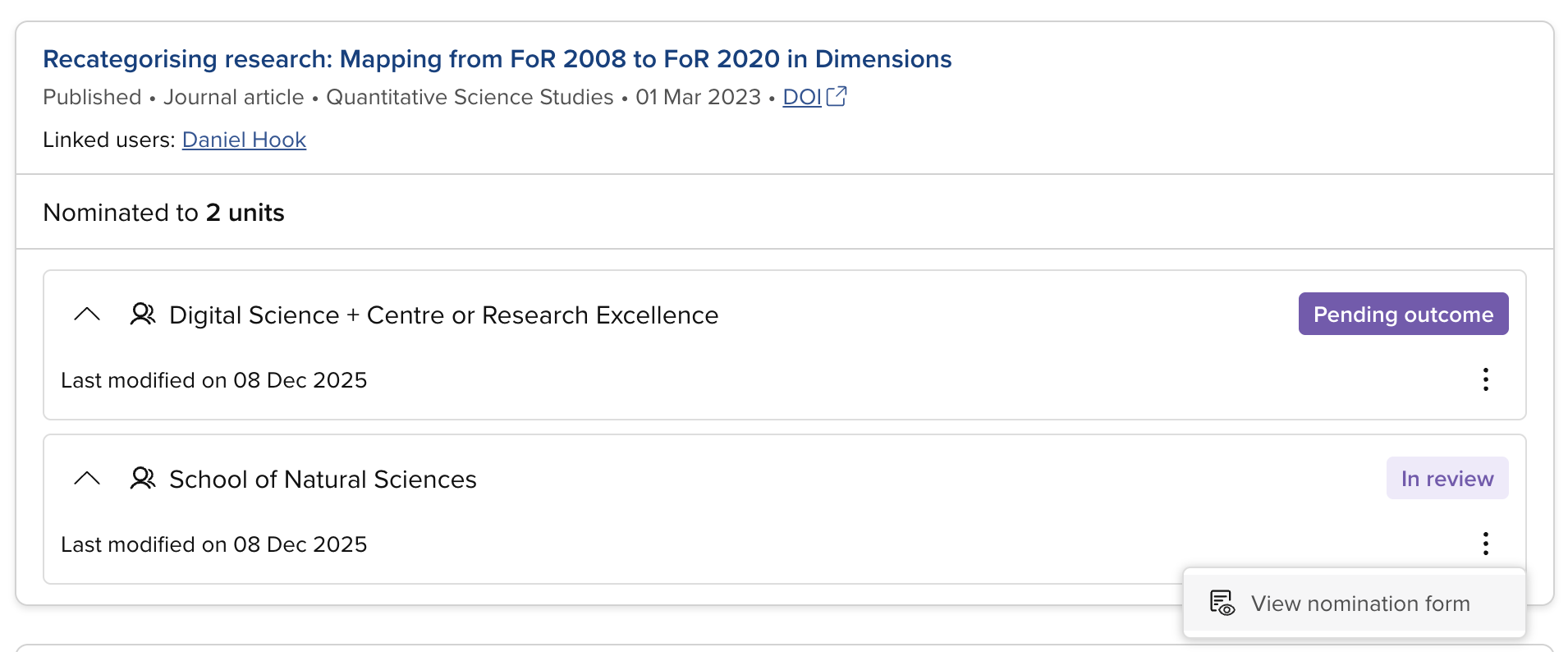
View / Edit nomination form
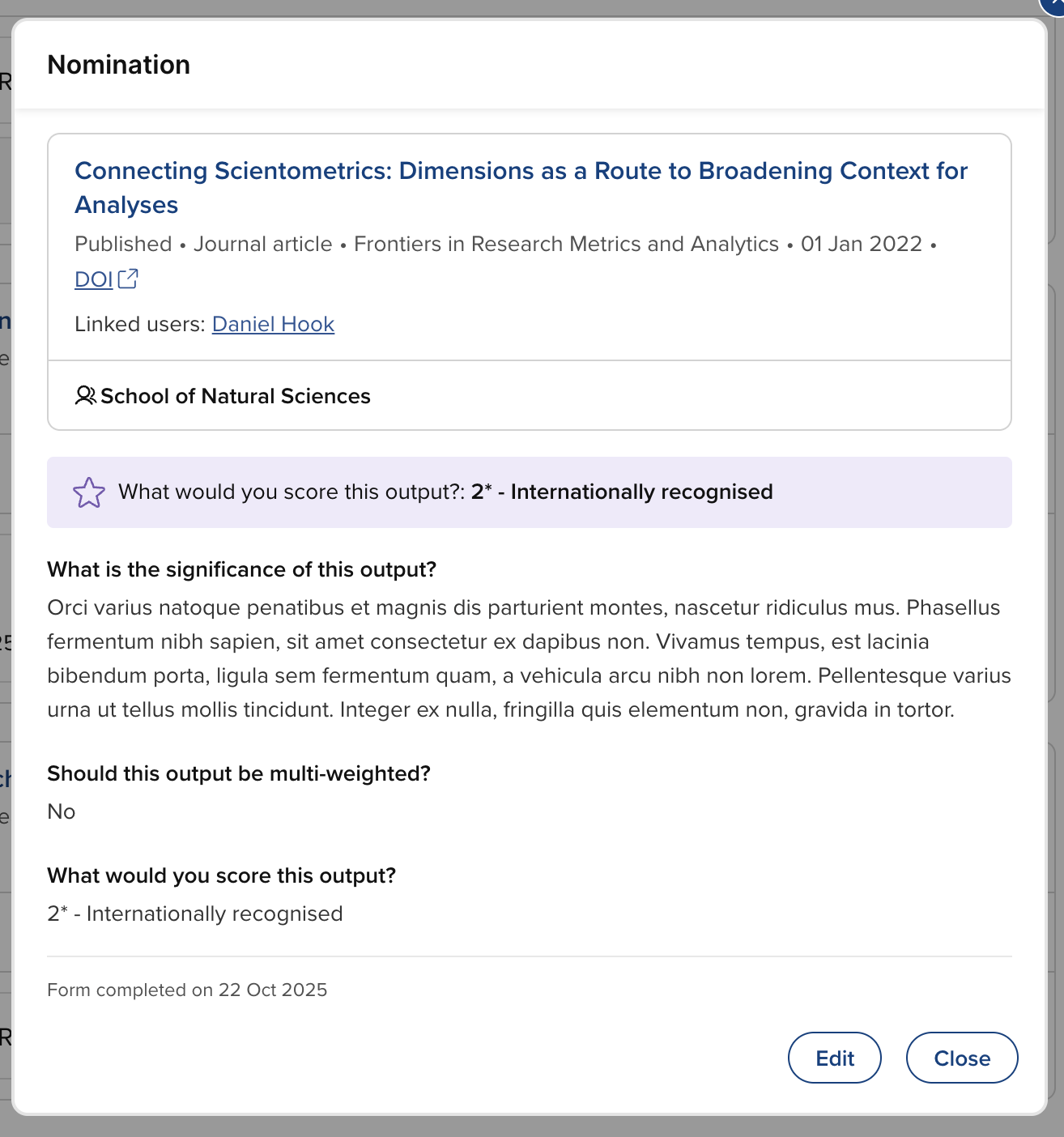
To view the nomination form, select 'View nomination form' from the action menu.
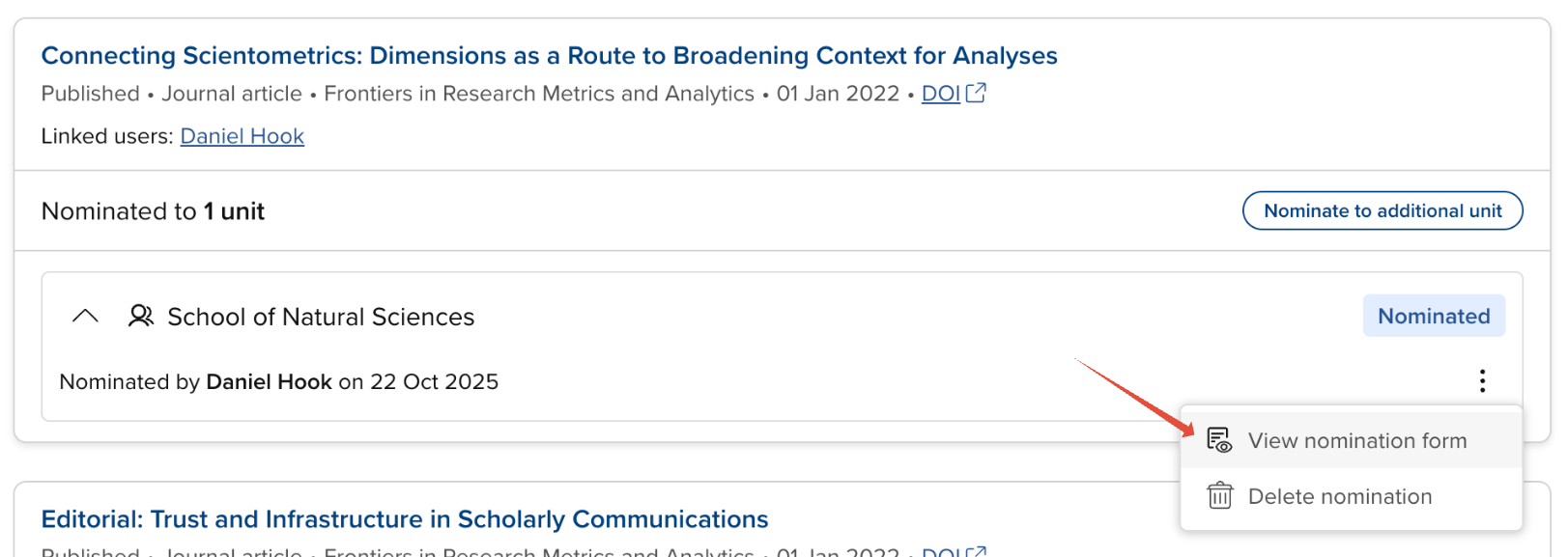
Where the item's status is 'Nominated', the nominating user can continue to edit the nomination form. Other linked users can only view the nomination form.
Delete a nomination
Where the item's status is 'Nominated', the nominating user can delete the nomination. Deleting a nomination deletes the nomination form (if present) and reverts the status of the nomination to 'Available for nomination'. The action cannot be undone, but the item can be nominated again in future if desired.
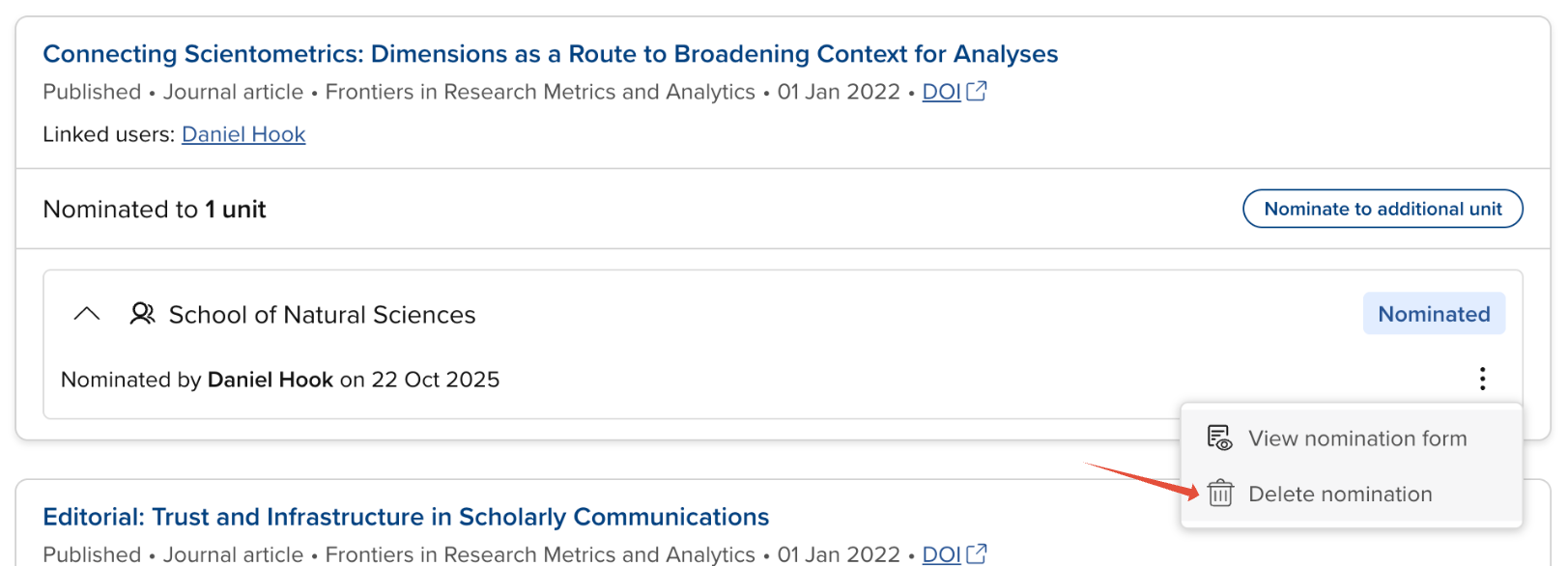
Only the original nominator can delete a nomination.
Additional notes
For a particular item, all linked users within the scope of an exercise can nominate items to those Units where they have been selected as members.
Nominations are visible to all linked users within the exercise.
Once nominated to a Unit, an item cannot be nominated to that same Unit again (unless that nomination is deleted).
If a user has elevated rights (e.g. is also a Unit Manager), they will be able to perform elevated actions on items in the 'My nominations' page (e.g. continue to edit the Nomination form when nominations are closed)
Items can also be nominated by Administrators and Unit managers, as described in the 'Manage items in an item evaluation exercise' support article.