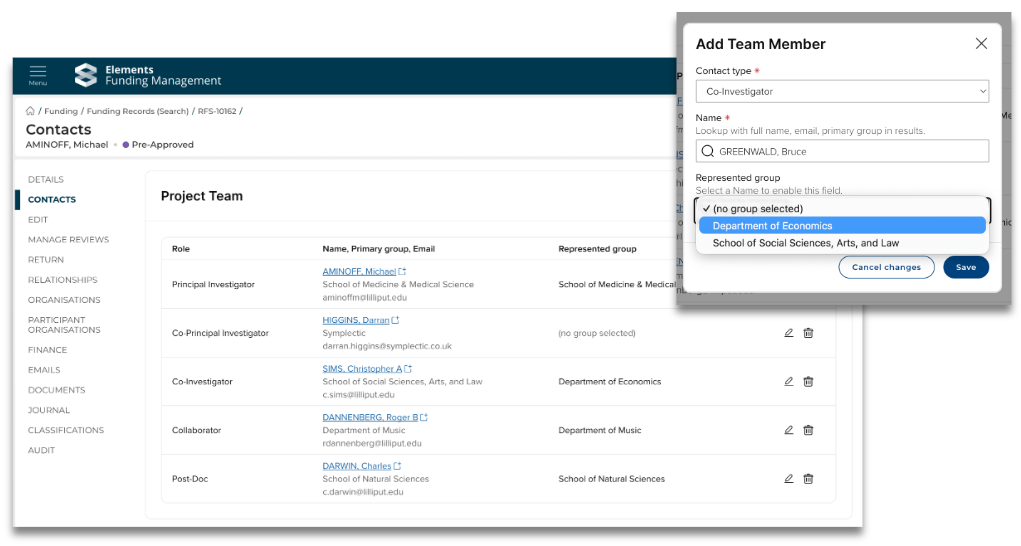
Capturing group affiliations in a proposal
Capturing project collaborators' represented groups on a project gives greater visibility of the organisational units involved in a project, which can be valuable for many reasons, such as determining approval pathways and financial planning.
You can configure Awards Management to capture a group affiliation for each named internal collaborator, based off of their group membership(s) in Elements.
General configuration
This functionality is by default ENABLED upon upgrade to v7.2. If you want to disable this functionality, please just get in touch.
You may wish to restrict the group types available for selection. For example, you may want collaborators' group affiliations on proposals to always be at the Department level, rather than a mix of all group types like Faculty, Institute, Centre, etc. In a future release, we plan to enable you to set such restrictions yourself - but in the meantime, just get in touch and we can apply any restrictions you need.
You may also wish to change the label used to refer to this group affiliation (e.g. if you have set the restriction to be Department, you may wish the label to say 'Department'). Again, in a future release, we plan to enable you to manage this yourself - but in the meantime, just get in touch and we can change the label name.
Capturing represented groups on the proposal form
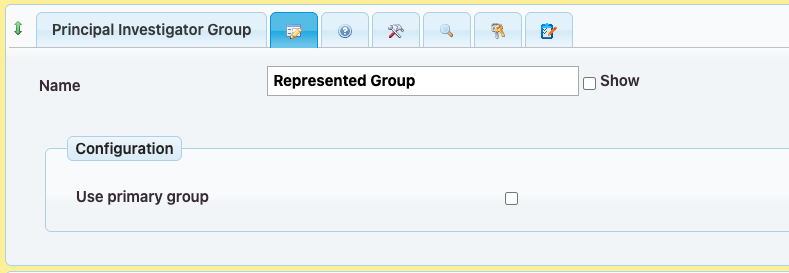
Principal Investigator : Configuring the Principal Investigator Group control
Including this control on the form will enable the specification of a group affiliation for the PI.
If the 'Use primary group' setting is enabled, the group affiliation will be automatically populated with the PI's Primary group. If this setting is not enabled, the user will be prompted to select the Group to affiliate against the PI for this proposal (as described in the next sub-section).
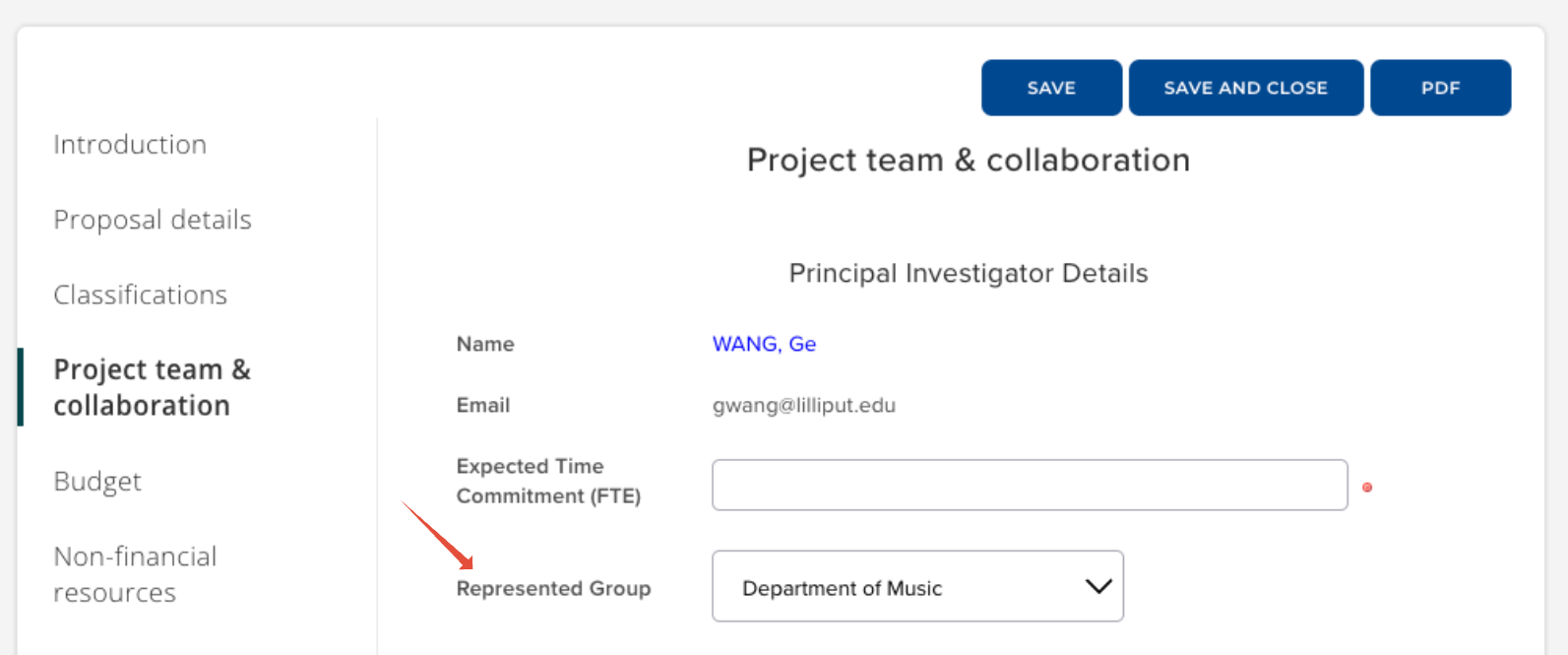
Principal Investigator : Selecting the PI's group in the form
When the 'Principal Investigator Group' control is included on the form, the user will be prompted to select the Group to affiliate against the PI for this proposal.
Notes:
Where the PI has multiple memberships of the available group type(s) (e.g. they are a member of both the Department of Chemistry and the Department of Mathematics), all will be available for selection.
Where the PI only has one membership of the available group type(s) (e.g. they are only a member of the Department of Physics, or the 'Use primary group' setting is enabled), this will automatically be selected and it cannot be edited.
Where the PI has no membership of the available group type(s) (e.g. they are a member of the Faculty of Science, but none of its departments), 'No groups available' will be displayed.
Principal Investigator : Multi-stage proposals
Note that where the Principal Investigator Group control is used for multi-stage proposals (e.g. EOI > Full proposal), the control must be added to the form mappings for the values to successfully map from one stage to the next.
Collaborators : Configuring the Participant Single control
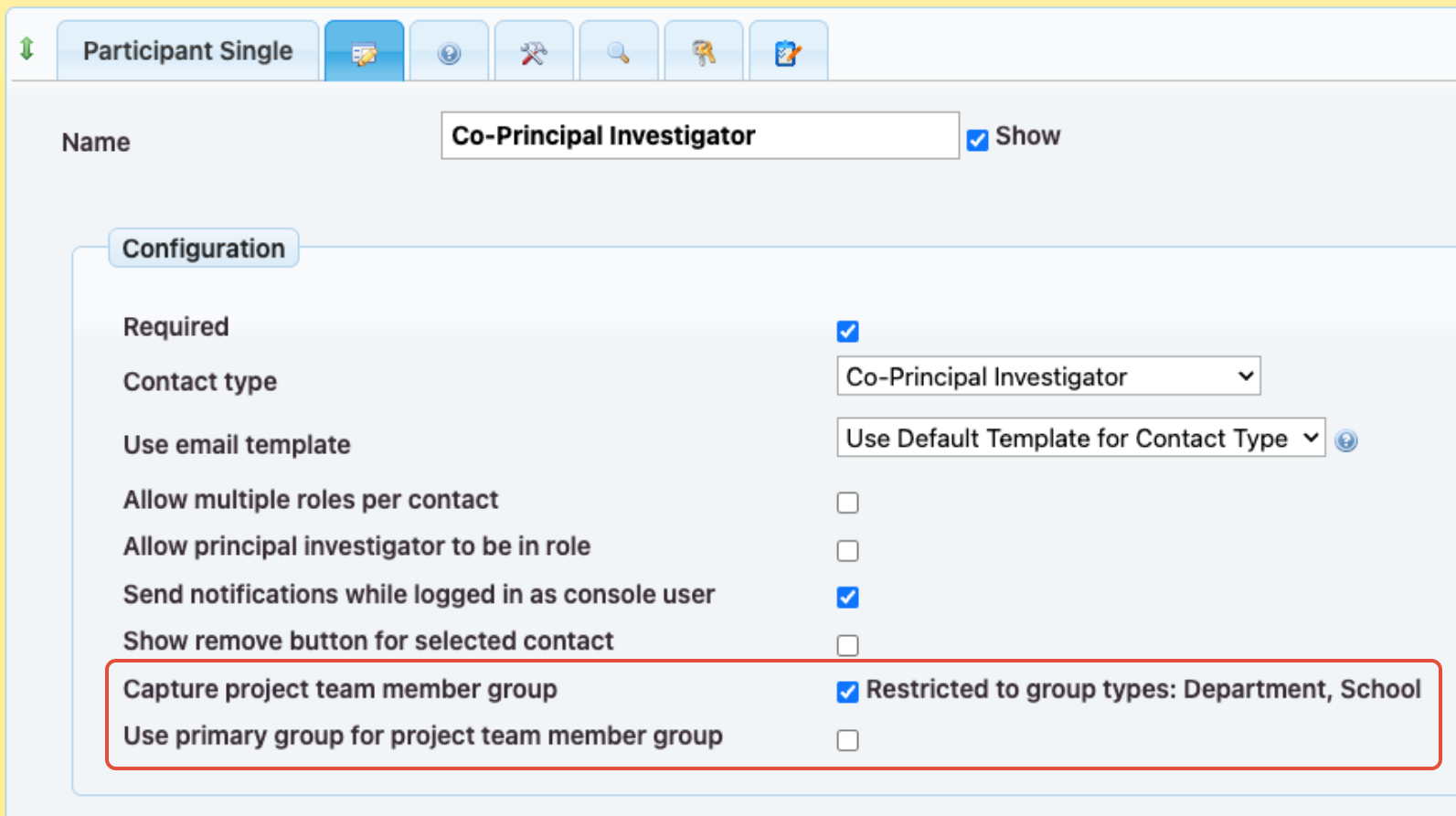
There are two configuration options available in the Participant single control.
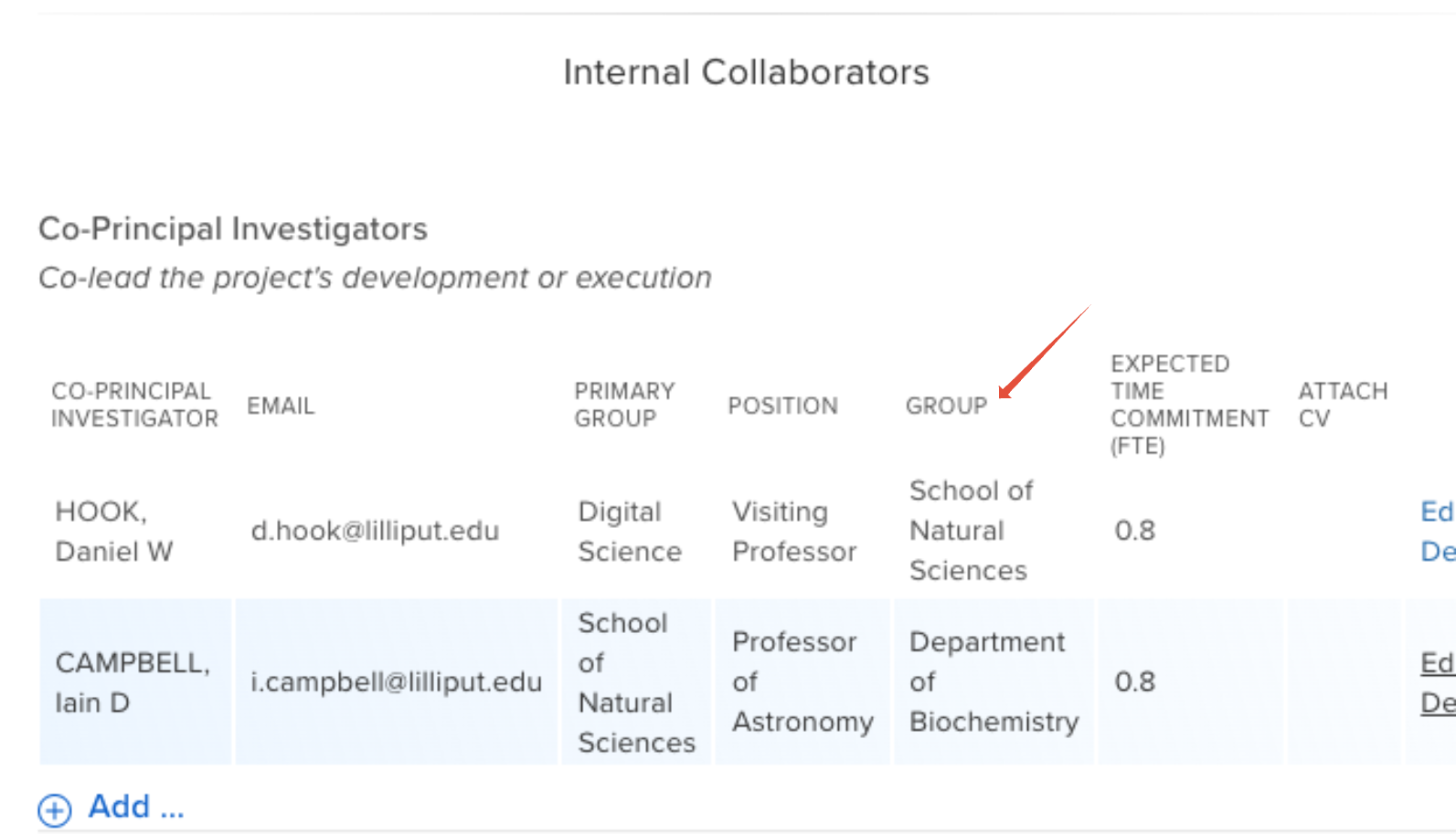
Capture project team member group | If enabled, will enable the specification of a group affiliation for each project team member against the project. |
Use primary group for project team member group | If enabled, will automatically populate each project team member's Primary group as their affiliated group on the project. DOES THIS TAKE GROUP TYPE RESTRICTIONS INTO ACCOUNT? |
You can enable 'Capture project team member group', 'Use primary group for project team member group', or neither. However, both settings cannot be active simultaneously.
Collaborators : Selecting the team member's group in the form
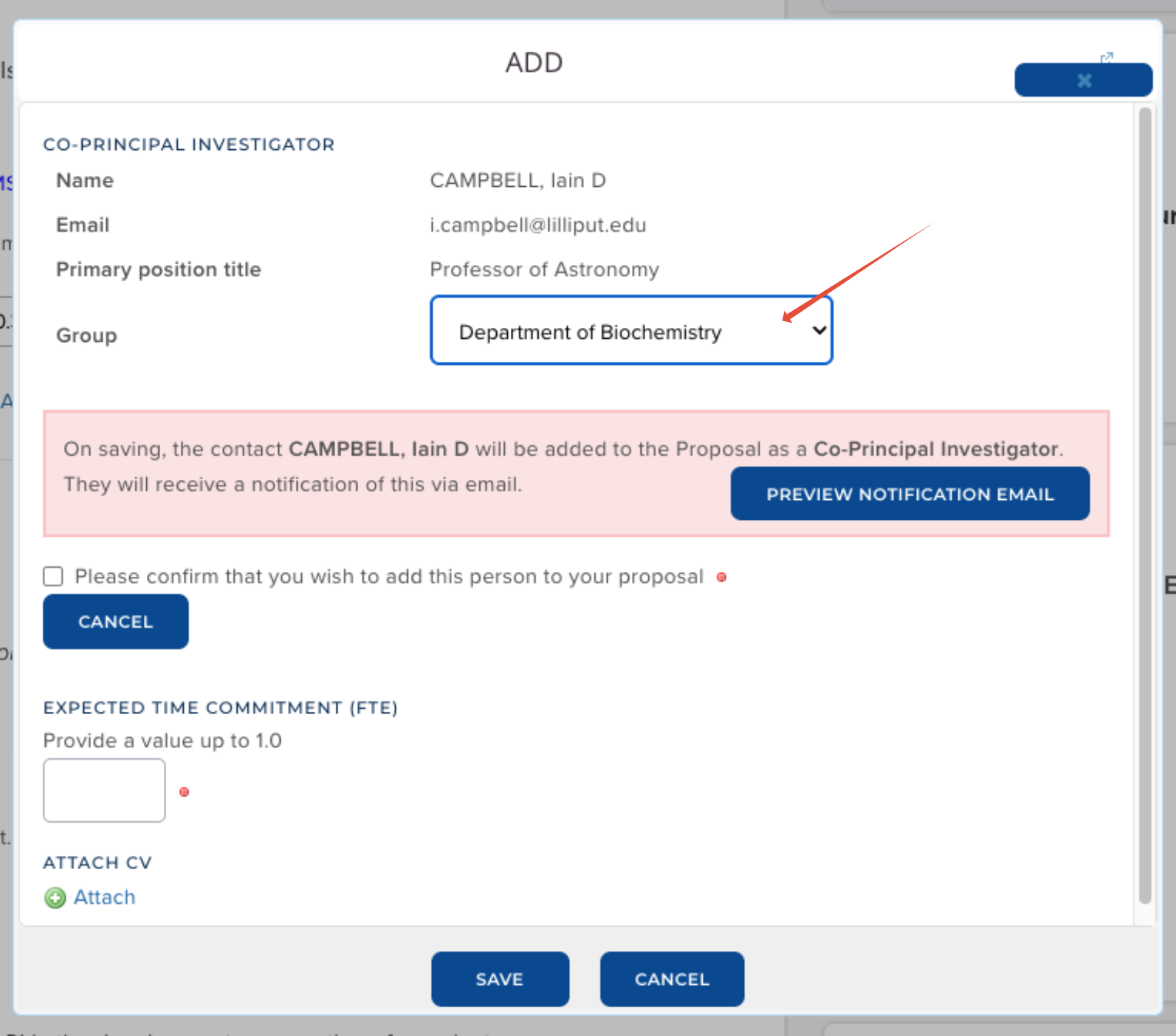
When the 'Capture project team member group' setting is enabled on the Participant Single control, when a team member is added to a proposal, in the 'ADD' modal the user will be prompted to select the Group to affiliate against this team member for this proposal.
Notes:
Where a user has multiple memberships of the available group type(s) (e.g. they are a member of both the Department of Chemistry and the Department of Mathematics), all will be available for selection.
Where a user only has one membership of the available group type(s) (e.g. they are only a member of the Department of Physics, or the 'Use primary group for project team member group' setting is enabled), this will automatically by default be selected and it cannot be edited.
Where a user has no membership of the available group type(s) (e.g. they are a member of the Faculty of Science, but none of its departments), 'No groups available' will be displayed.
Capturing represented groups in the Console
For all project participants, it is possible to edit the represented group via the 'Contacts' page.
Notes:
Where a user has multiple memberships of the available group type(s) (e.g. they are a member of both the Department of Chemistry and the Department of Mathematics), all will be available for selection.
Where a user only has one membership of the available group type(s) (e.g. they are only a member of the Department of Physics), this will automatically by default be selected and it cannot be edited.
Where a user has no membership of the available group type(s) (e.g. they are a member of the Faculty of Science, but none of its departments), 'No groups available' will be displayed.