Grants module settings
The Grants module settings controls the ability to add manual grants, grant types and underlying fields.
Roles
Roles can be assigned to Users and/or Groups via System Admin > Data Category Settings > Manage Module Access. To assign a role to a Group, check the appropriate box and click “Add group(s)”. To assign a role to a User, type the User’s surname in the box, select the user from the drop-down list and click "Add user". The User must already be in Elements to be assigned. For more information about Roles, please refer to Roles in Elements.
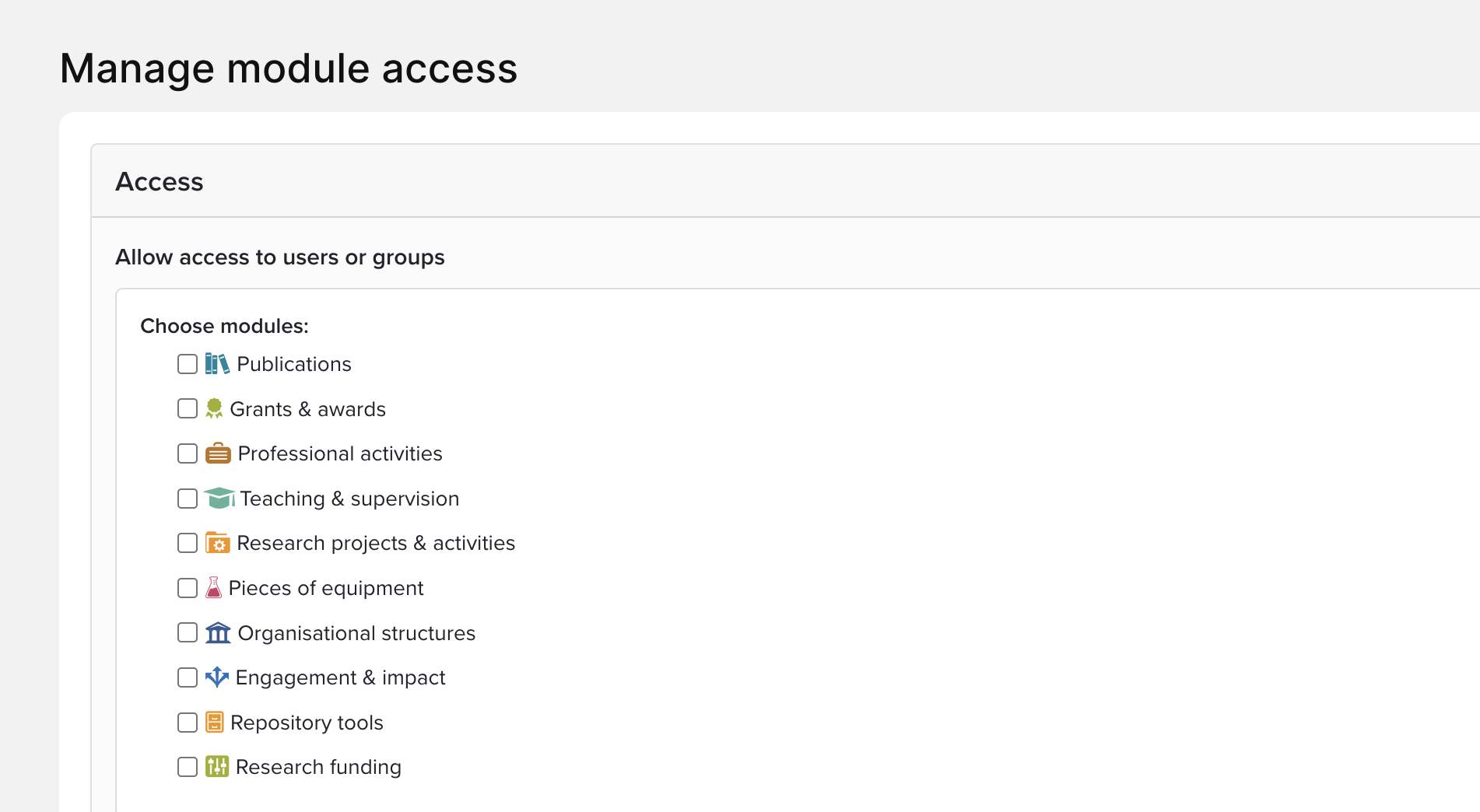
For more details, see Manage module access
Grant module settings
Grants Module Administrators can customise the experience for all users of the Grants Module. These settings can only be configured at a System level, and not a Primary Group level.
Navigate to System Admin > Data Category Settings > Grants > Category Settings.
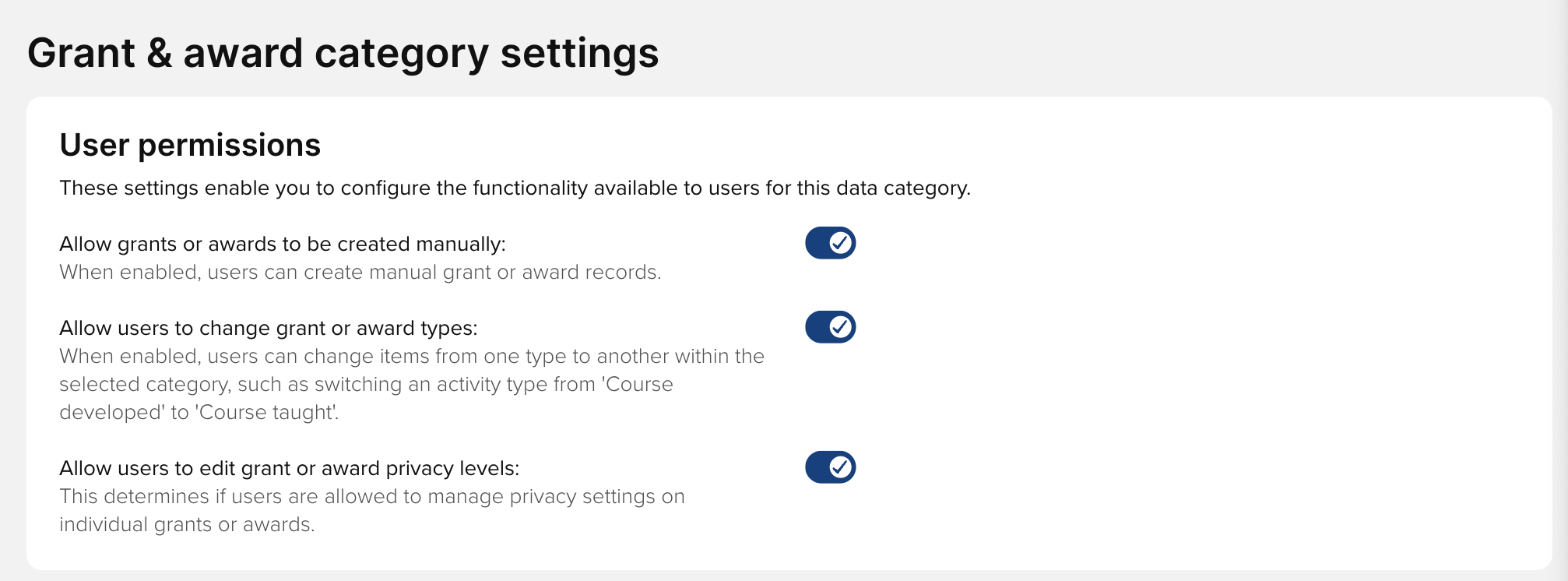
The first section is about User permissions.
- Allow grants or awards to be created manually controls whether grants can be added from the Elements Home page. If the + Add New link isn't found at the bottom of the module on the Home page, the likely cause is that this configuration has not been enabled.
- Allow users to change grant or award types controls whether the 'Edit type' icon appears beside the type indicator:

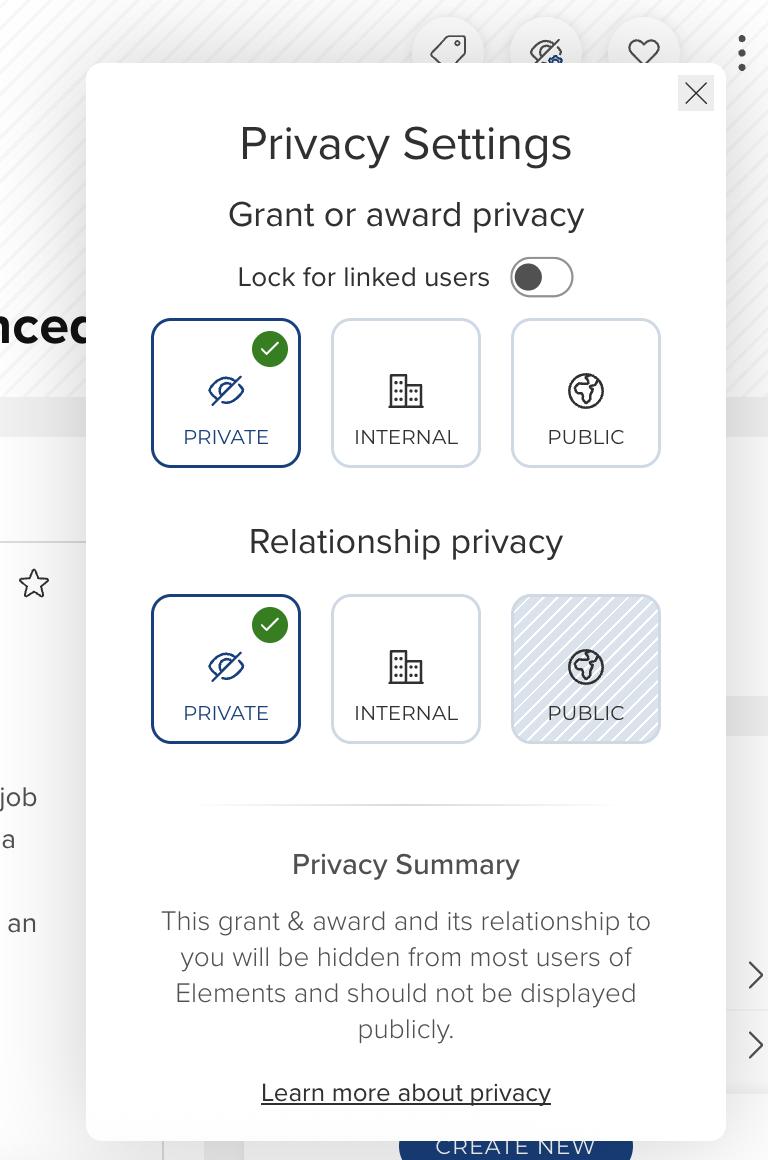
- Allow users to edit grant or award privacy levels controls whether the Privacy controls for an object can be edited by users:
The second section controls Verification. For more information about Verification, please see
What can a Research Information Verifier do?
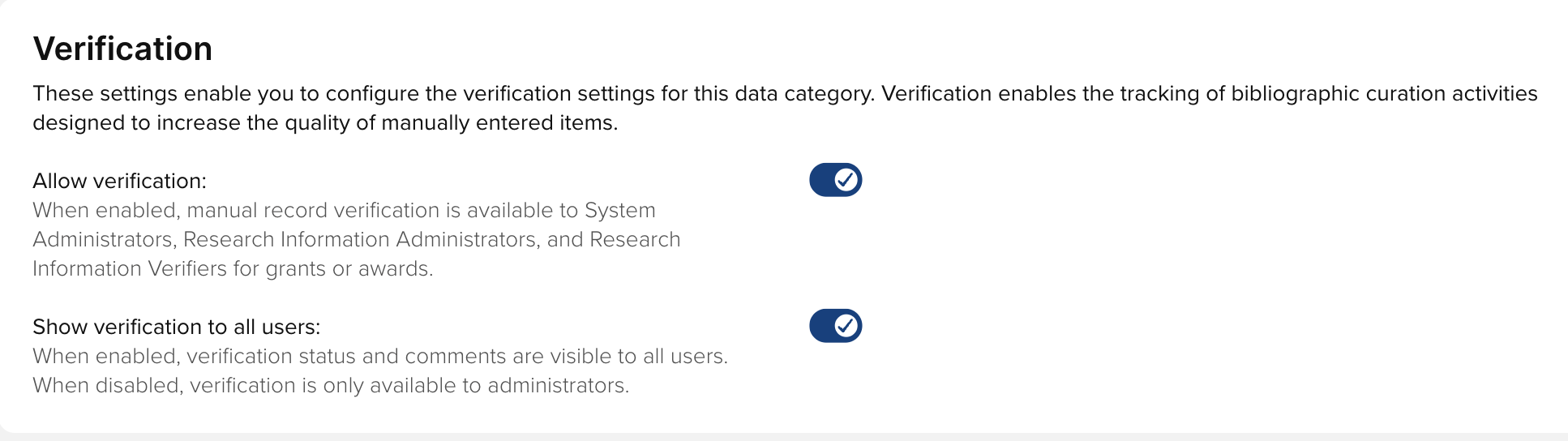
Section three controls Percentages on links:
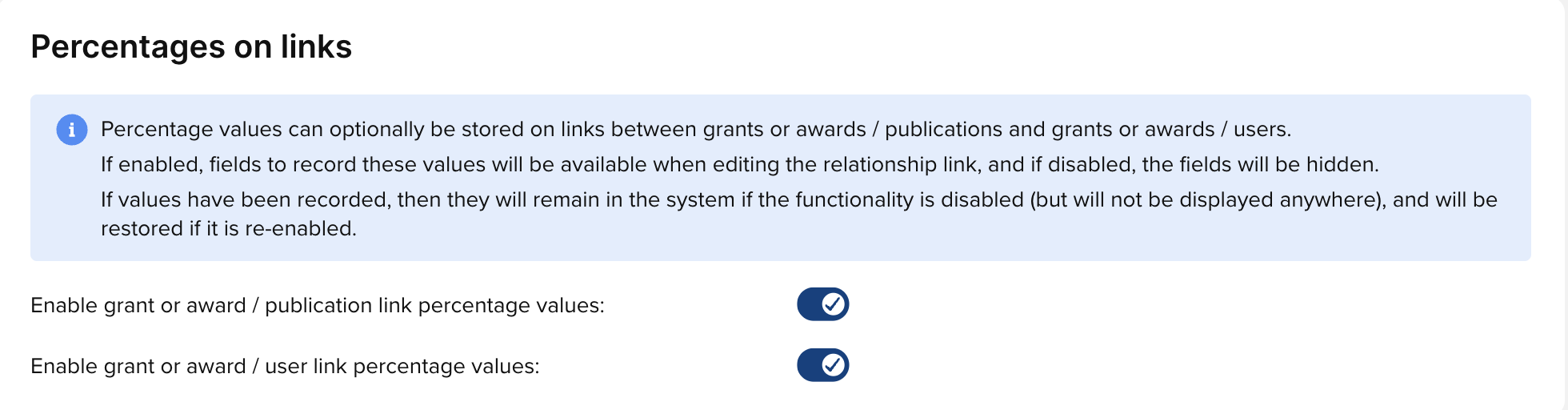
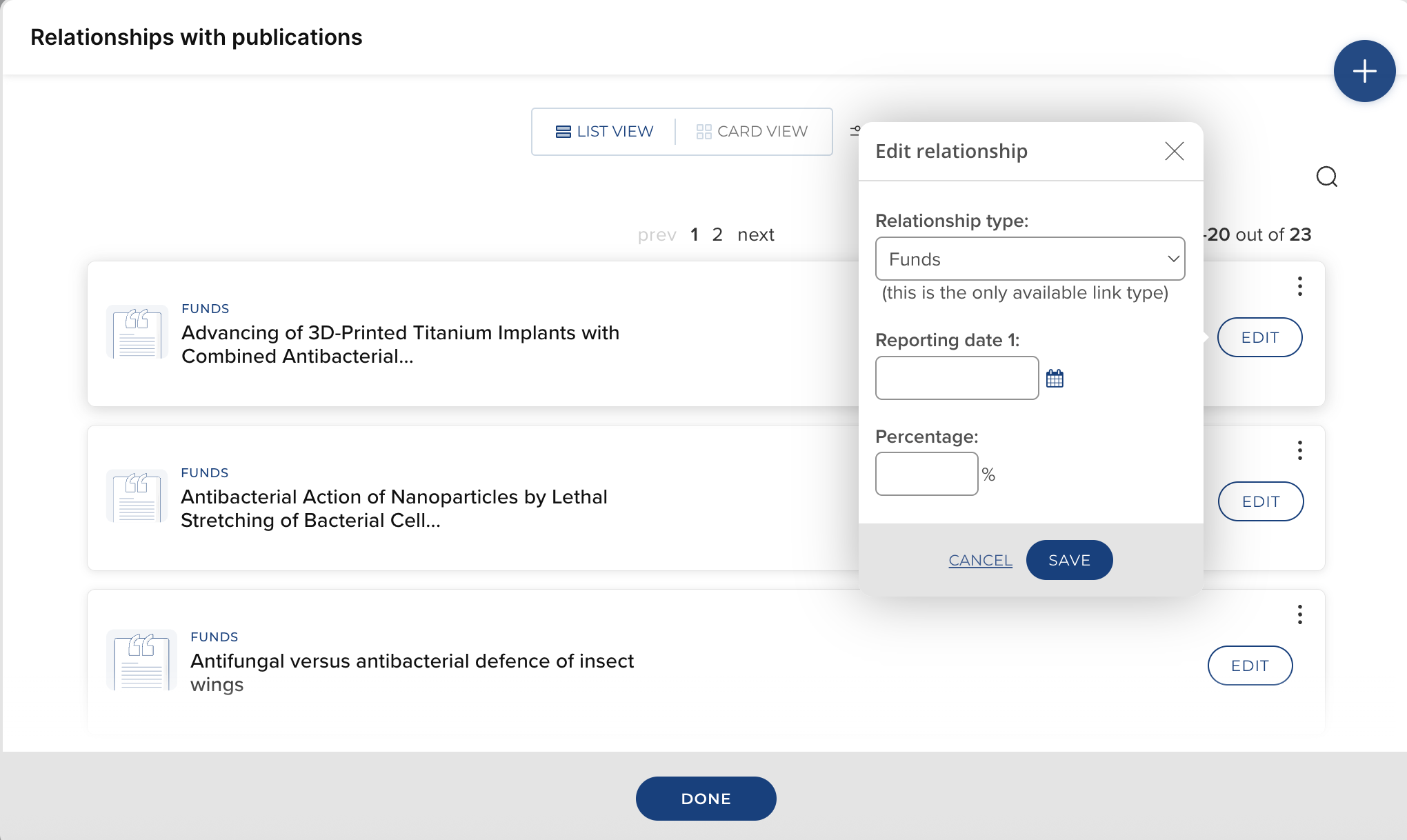
- Enable grant or award/publication link percentage values controls whether the option to enter percentage data when creating links between grants/awards and publications. This can be reached by going to the Links menu and then clicking 'Edit.'
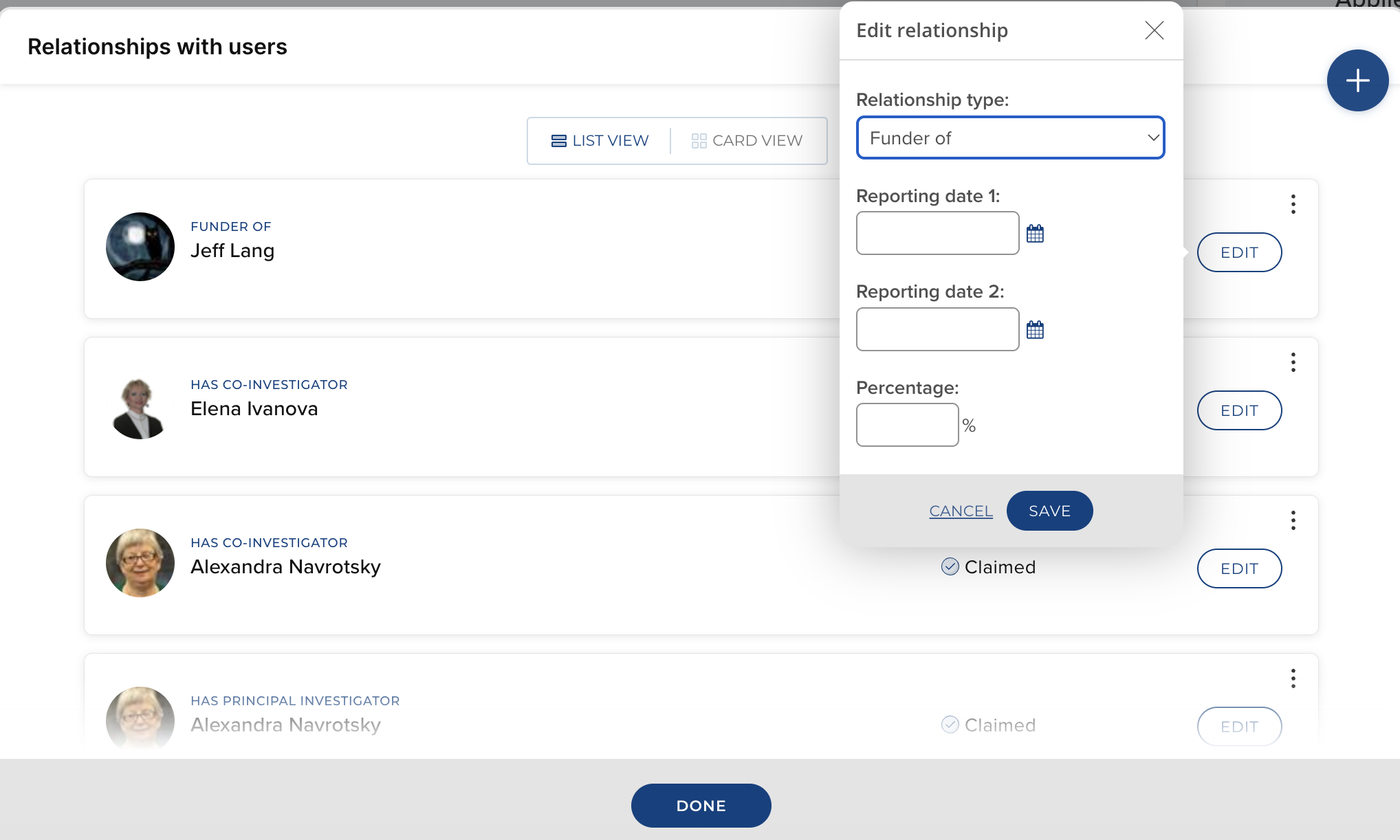
- Enable grant or award/user link percentage values controls the option to enter percentage data when creating relationships between grants/awards and users:
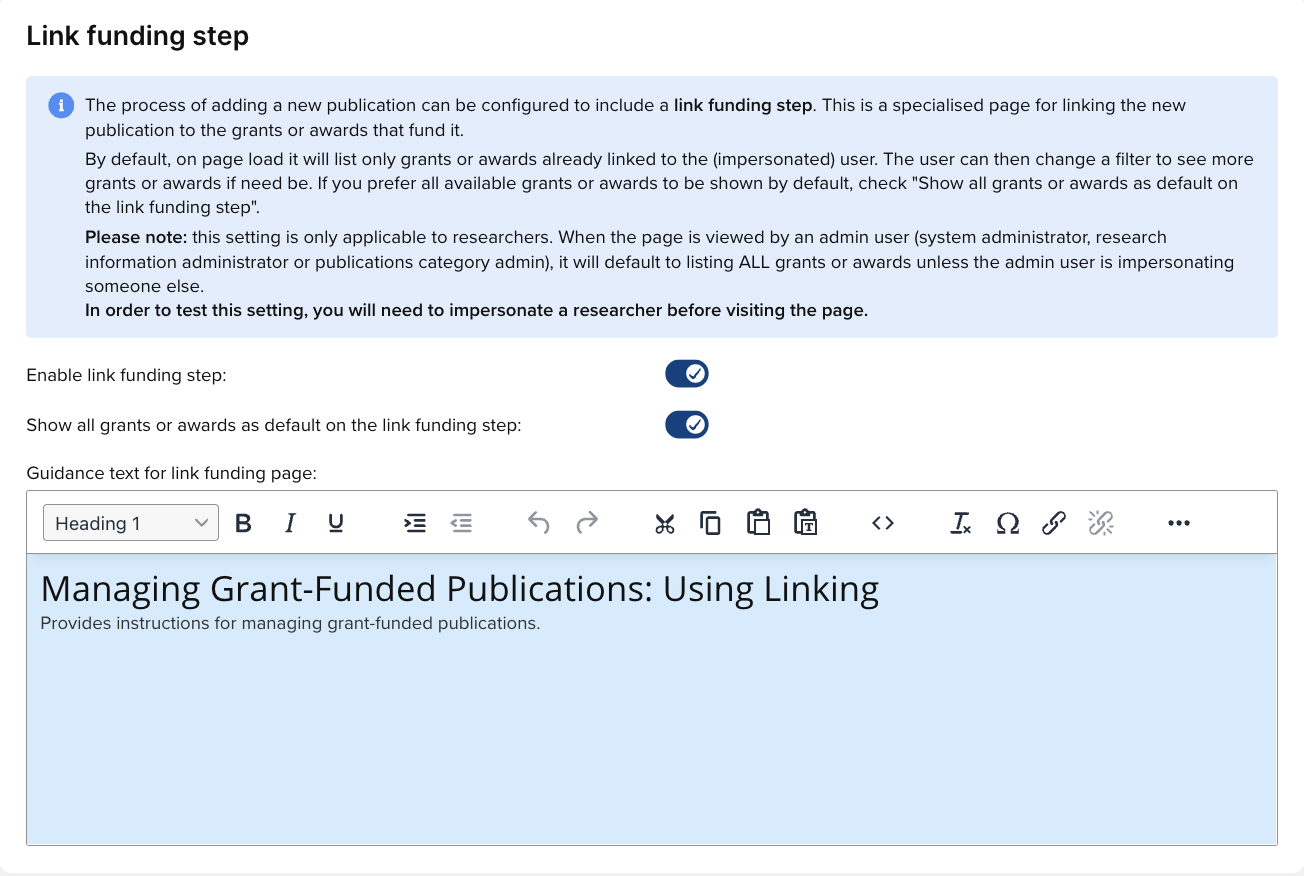
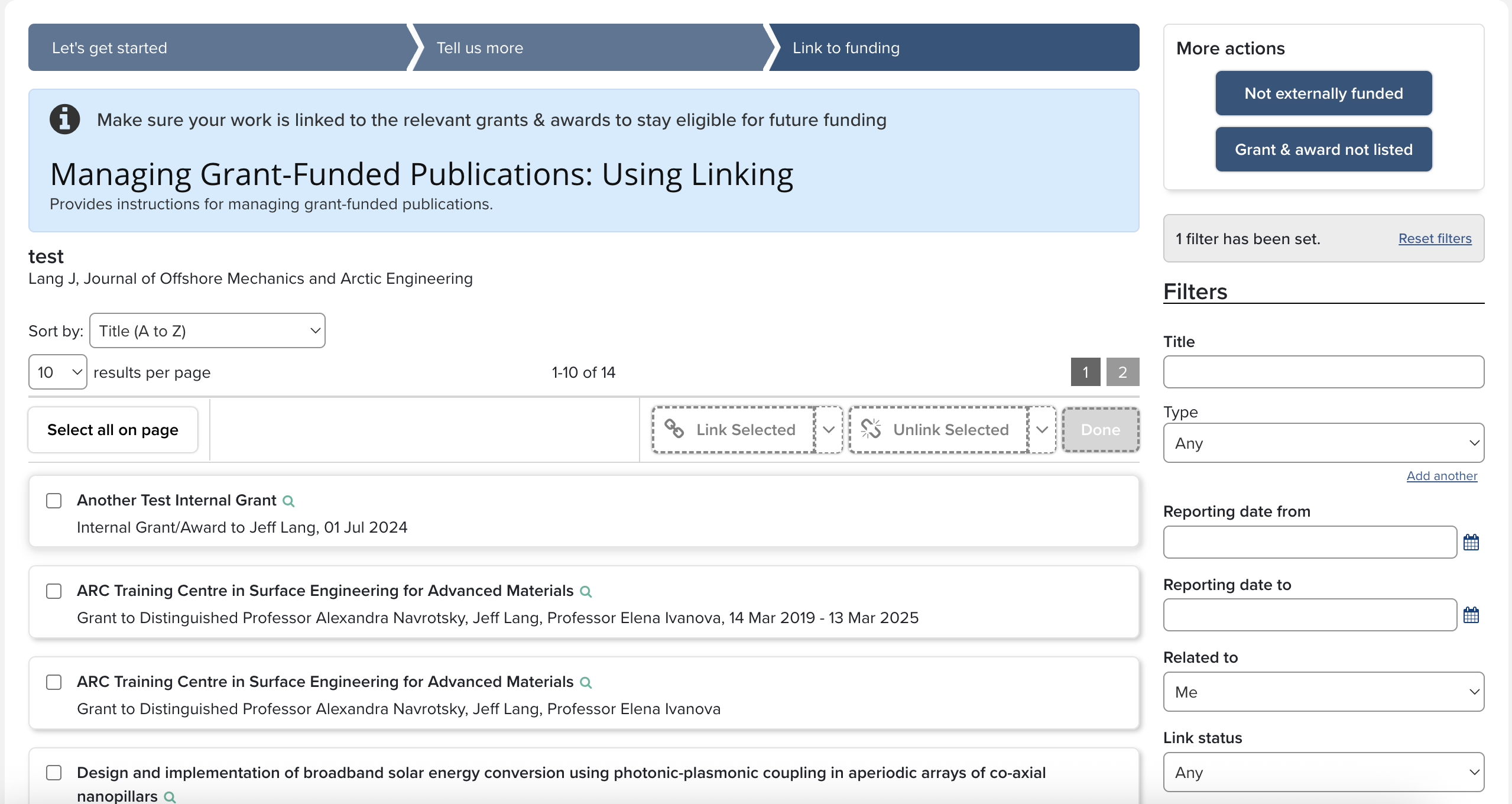
- Enable link funding step controls whether the Link funding step is automatically presented when an author creates a new manual record. By default, the only grants offered are ones where the author is already linked:
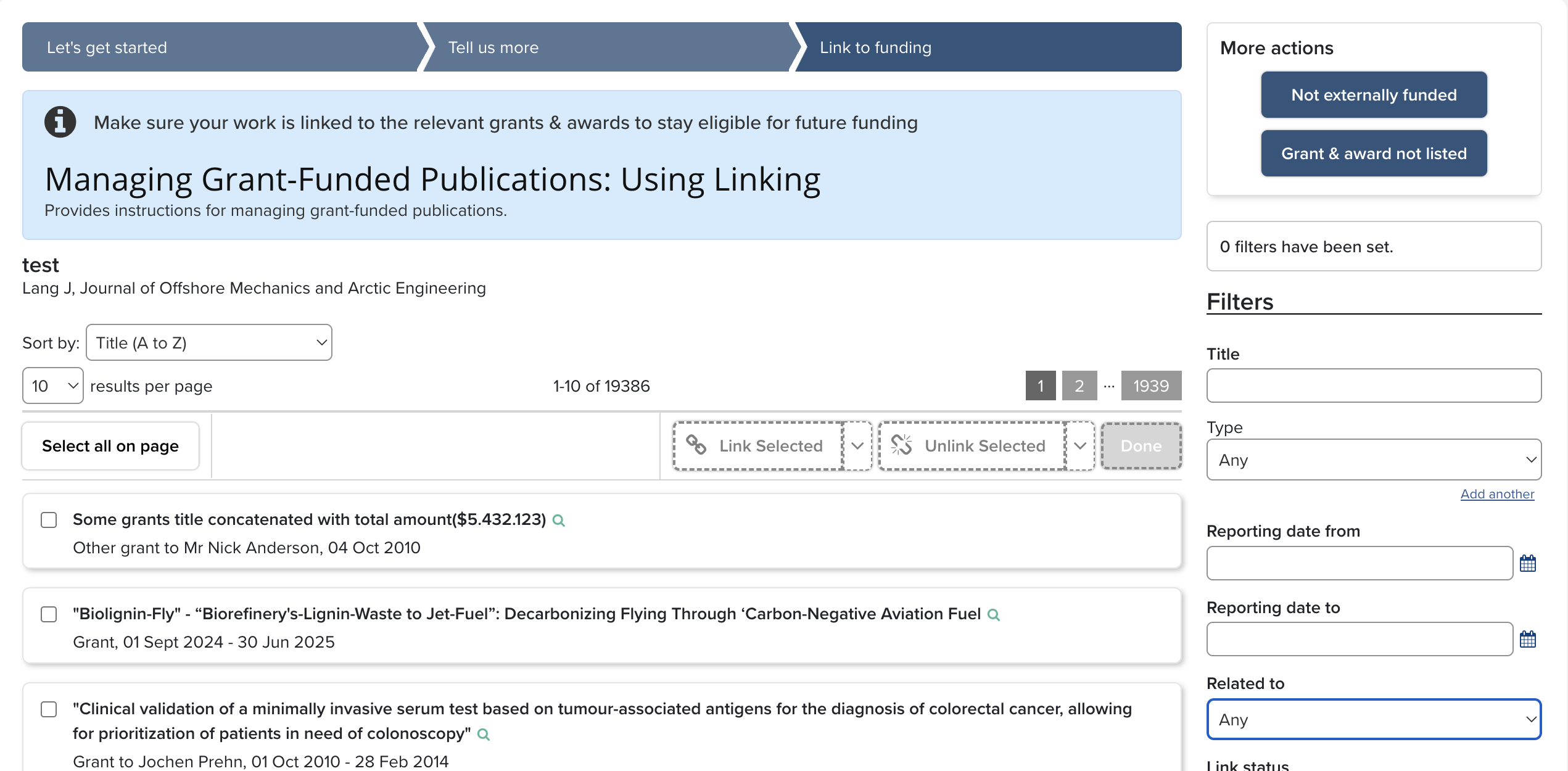
If the Show all grants or awards as default on the link funding page option is enabled, the default will be that all grants are shown whether the author is already linked or not:
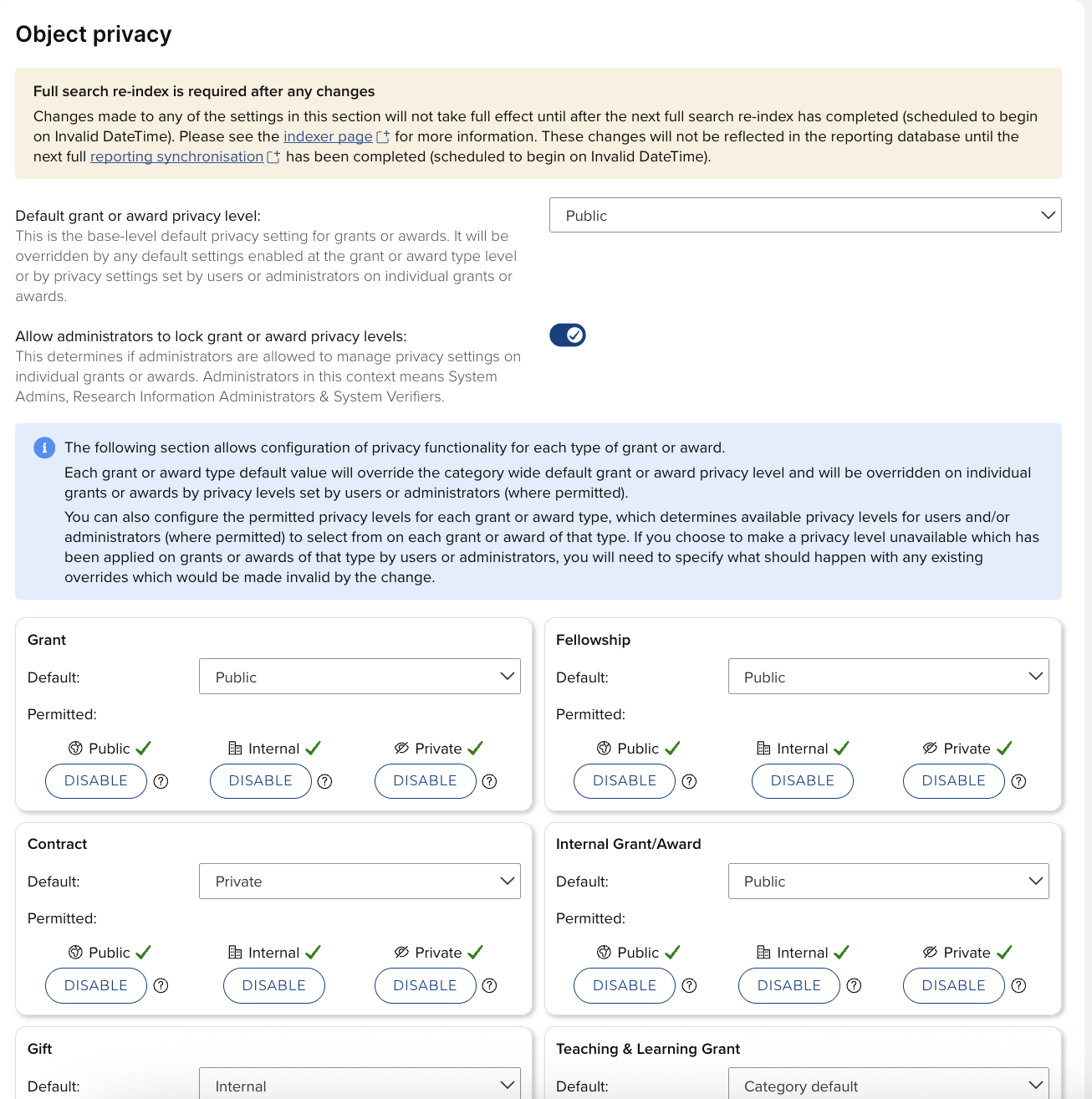
The last section is about Object privacy. Here the System Administrator can configure settings that determine how users can manage privacy settings for all the object types in the category. For more information about Privacy settings, please see Introducing Object Privacy.