
How to configure Dimensions as a data source
This article is intended as a guide for clients who have licensed Dimensions as a data source, either separately or as part of their Elements or Dimensions subscription. Dimensions is currently the only data source that can harvest records for both publications (incl. preprints) and grants, and, in addition, create links between the two. Dimensions also disambiguates authors automatically and provides researcher IDs which can be used to automatically claim publications and grants (example: Dimensions profile for Daniel Hook).

TABLE OF CONTENTS
Prerequisites
Elements v6.7 (for integration via the Dimensions CRIS API, v3) or later
Existing license for Dimensions as a data source (separate or as part of your Elements license) or existing license for Dimensions Analytics & API (if you're unsure whether you're entitled to use Dimensions as a data source, please check with your account manager);
API keys / credentials for Dimensions
(and GRID);
Please review the recommendations below to make sure your Elements instances are prepared and configured optimally for use with Dimensions.
Technical set-up
The below instructions apply if you host your own Elements systems. If you are hosted by us, simply raise a new support ticket, letting us know that you wish to set up the Dimensions data sources.
1. Request Dimensions API key (Elements v5.19+)
To receive the licensed Dimensions API key, please raise a new ticket on the support site. Please include the following information:
Number and name (PROD / TEST/ DEV / STAGING / QA, etc.) of Elements instances
Current Elements version(s) of your instance(s)
2. Update Elements configuration files with your API key
After receiving the required API key, add them to the following config files found on the server by populating the provided values for 'dimensions-cris-api-url' and 'dimensions-api-key' (Elements v5.19+):
<Main_Installation_Folder>\Sync.Synchronise\Synchronise.exe.config
<Main_Installation_Folder>\Website\web.config
3. Restart the Elements Synchroniser
Next, you must restart the Synchroniser service for the changes to take effect. Go to System Admin > Operations > Scheduled Jobs. In the "Background services" box at the bottom of the page, stop, then restart the Synchroniser.
4. Turn on the data source
Navigate to System Admin > Data Sources Management and enable either ‘Dimensions’ in the ‘Publication sources’ section, and/or ‘Dimensions Grants’ in the ‘Grants sources’ section.
IMPORTANT: We recommend reviewing the guidance below before enabling the data source and making it accessible to users.IMPORTANT: Before turning on the Dimensions Grants integration users should confirm that the grant field 'Researchers' resolves to a link type (e.g. not 'none').5. Configure GRID (Elements v5.19 to v6.21 inclusive)
Together with your Dimensions API key / credentials you should also have received GRID API keys for each of your instances. Add the keys to each instance's Synchroniser.exe.config file for the 'grid-api-key' and restart the Synchroniser again.
You should now begin to see the GRID icon appear against author addresses in the system.
N.B. In Elements v6.22 and above, a separate GRID API key is not required. Elements will harvest organisation metadata from the Dimensions API, using the API key added in step 2.
Harvesting options and recommendations
With the Dimensions data source, you have various options to harvest data:
publications (can be enabled via data source management),
grants (can be enabled via data source management),
institutional grants harvest (can be configured and enabled for you by us).
Publications data source
This works more or less like the other subscription data sources.
Using realistic test data
We recommend making sure that the data in your TEST system is as close to that in your PROD system as possible, so if you haven't had one in a long time, we'd recommend doing a data refresh from PROD to TEST before starting to test Dimensions.
Author identifiers and search settings
Due to the size of the Dimensions database, some more specific search settings are required to avoid bringing in lots of false-positive suggestions and 'noise'. A review of your default global, group and user search settings is therefore highly recommended. We usually recommend the following steps:
1. Running an import of known Dimensions author identifiers
We can do this for you based on your HR data (user first name, last name and current affiliation). We will use this data to run a search in Dimensions to retrieve potential matches and provide you with the results in a Google Sheet. You will then be asked to review these results to make sure they are correct and we remove any potentially incorrect matches or duplicates before importing the IDs and adding them to the users' automatic claiming settings (we can set these to either auto-claim or auto-suggest). Some users may have multiple IDs in Dimensions, as the author profiles are aggregated automatically and we prefer to err on the side of caution and avoid merging profiles that are actually two different people. This step should help reduce the number of false-positive suggested publications especially for users with common names.
2. Adding full name variants to user search settings
Again to avoid too many false-positive records to be suggested to users, all users should have their full name in their user search settings. Newer versions of Elements set both the full name and first-name initial + last name as default search settings when a new user enters the system. However, this setting is not applied to existing users. So if you've had Elements for quite some time, you may have many users with just initialed first name + last name as a search term. If you find yourself in this situation, to remedy this, we recommend resetting default search settings for all users via the Global Settings. You may want to work with colleagues who can query the reporting database for existing search terms to get an idea of the impact of resetting those. The relevant table to look at is [User Search Term Defaults].
3. Reviewing address search terms
Elements will use default and user-generated address terms as filters as part of the name-based search in Dimensions. We recommend reviewing these to ensure they are not too broad or ambiguous as they may otherwise bring in too many irrelevant results, especially combined with a name search for a user with a common name / initialed first name (e.g. the search terms "Kim, J." for name and "MIT" for address would generate more than 3,000 results, which would trigger a search error in Elements. As with name terms, a reset of the address search terms should be considered, if necessary.
We recommend testing the Dimensions data source search with a smaller number of users (e.g. a single user group / department / school) in your TEST instance first to get an idea of the results and potential issues to consider before opening it up to the entire organisation. Suggested steps are:
Go to System Admin > Data Sources > Manage Bulk Searches, select the group of users, then choose Dimensions as the Source filter.
Bulk-enable user searches for Dimensions Publications: Users will be promoted in the user sync queue. This may take some time to run depending on the number of users.
Then bulk-enable user searches for Dimensions Grants (optional).
Review the publication approval accounts / Basic Report or Dashboard to identify users with high pending counts. Prioritise users with high pending counts and consider the need to modify name variants and/or add address terms to limit results.
Monitor the logs for search errors which may require some modification of search settings to be resolved.
When you are confident with the process, repeat the bulk-enable steps for the rest of the organisation and review.
If you're happy with the results, enable the Dimensions Publications (and Grants) data source(s) in your PROD instance.
Data source precedence
We recommend reviewing your data source precedence settings to consider moving Dimensions up in the list. This is particularly important if you would like to make use of some of the additional benefits, such as reporting on Altmetric Attention Scores. For the latter to be added to the [Publication] table in the Reporting Database, Dimensions needs to be set as the highest-precedence data source for reporting; otherwise, the additional metadata will only be available directly from the Dimensions [Publication Record] table.
Preprints
One additional aspect to consider is the preprints publication type added in Elements v6.1, as Dimensions is a primary data source for this type. You may want to review the information in this support article: Are preprints available through Elements?
Grants data source
Just like publications, Elements can harvest grants records from Dimensions, using name- and identifier-based search settings. This can be enabled separately from the publications search. The general caveats regarding user identifiers and search terms apply in a similar way.
Additionally, before turning on the Dimensions Grants integration, you should confirm that the grant field 'Researchers' is used and resolves to a link type (e.g. not 'none'). Just like publication records, grants records will be suggested to users, and will also be added to existing grant records if they match. If information on resulting publications is available from Dimensions, Elements will also create links between these and the grant if found. There's also a stock dashboard available showing grants with linked publications.
Institutional grants harvest
In addition to user name- and identifier-based search, this option can be used to search Dimensions for grants that are associated directly with your institution. To enable this, add your institution's GRID ID to dimensions-grant-harvest-grid-ids in the synchroniser config file. Grant records harvested in this way will be kept in Elements even if they're not linked to individual users (i.e. they won't be removed by the background job that deletes orphaned records). Just as with grants found by user search, Elements will try and match them to users as well as any existing grant records (manual or institutional) that you already have in the system. Also, links to known resulting publications will be established if these are found in your Elements system.
Additional benefits of using Dimensions
Metrics, indicators and label schemes
Once you have enabled Dimensions, you will not only benefit from the additional records for publications (and grants), but also from additional article-level metrics and indicators that will be added and become available for reporting, such as:
Dimensions citation count
Relative Citation Ratio (RCR)
Field Citation Ratio (FCR)
Research classification labels, including Research, Condition and Disease Categorization (RCDC) and U.N. Sustainable Development Goals (SDG - in v6.5+).
Affiliation disambiguation
If you're entitled to use the Dimensions data source, this also allows you to benefit from Elements' integration with Dimensions' affiliation disambiguation service. Once configured, the service will run in the background and will try to resolve affiliation strings found in publications records (from any data source) to standardised Dimensions records. The resolved organisation and address data from Dimensions will be added to your reporting database so you have additional data to base reports on, e.g. for collaboration analysis.
Dimensions Metrics badges (licence not required)
Dimensions also provides publication metrics badges that are displayed, where available, on publications in Elements and Discovery websites. These badges are made available under the Dimensions Badges and Metrics API Terms of Use and do not require a Dimensions licence.
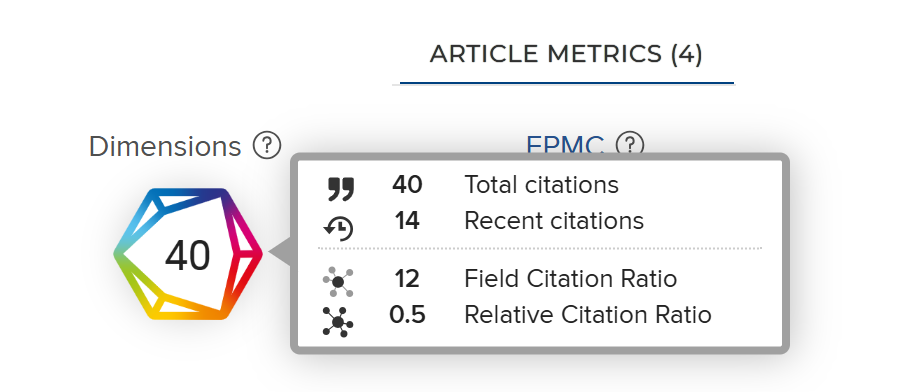
Note that the metrics displayed by these badges include the Dimensions citation count, Field Citation Ratio (FCR), and Relative Citation Ratio (RCR) mentioned above. If you do not have a Dimensions licence, these metrics will still be visible in the badges on individual publications but will not be available for reporting.