
Managing an Assessment Exercise
The purpose of this article is to explain how the Assessment Manager can use the Assessment Management page to oversee an Assessment exercise.
Roles
The Assessment Manager is a role distinct from the Assessment Administrator. Assessment Administrator is assigned at the system level via System admin > Users & groups > User management > Manage system roles. The Assessment Manager is assigned on a "per exercise" level within an exercise. For more about Assessment Roles, please see Assessment Module - Roles and Permissions.
The Assessment Administrator has the rights to create or administer all exercise definitions via Evaluation & review > Assessment > Exercise definitions.
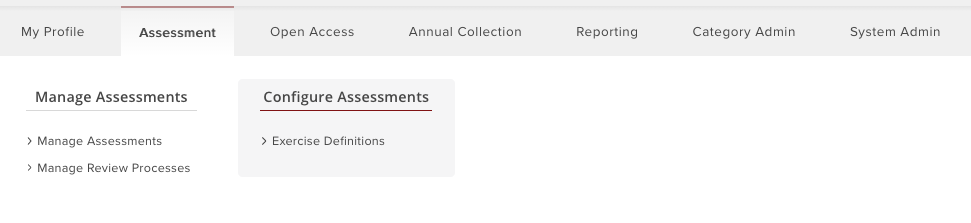
After an Exercise has been created, the Assessment Manager can monitor assigned exercises, having the ability to move items between stages, lock and unlock individual responses, and download Excel/CSV/PDF/Word reports. Assessment Managers can find the exercises for which they are responsible at Evaluation & review > Assessment > Manage assessment > Assessments.
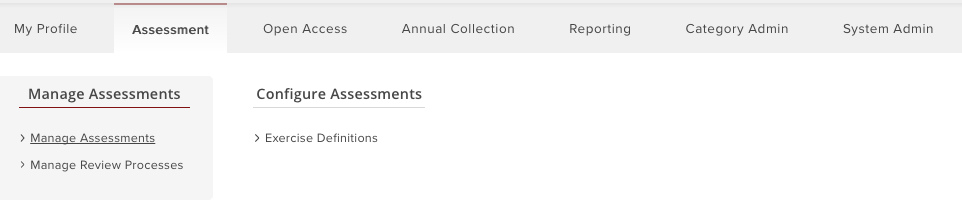
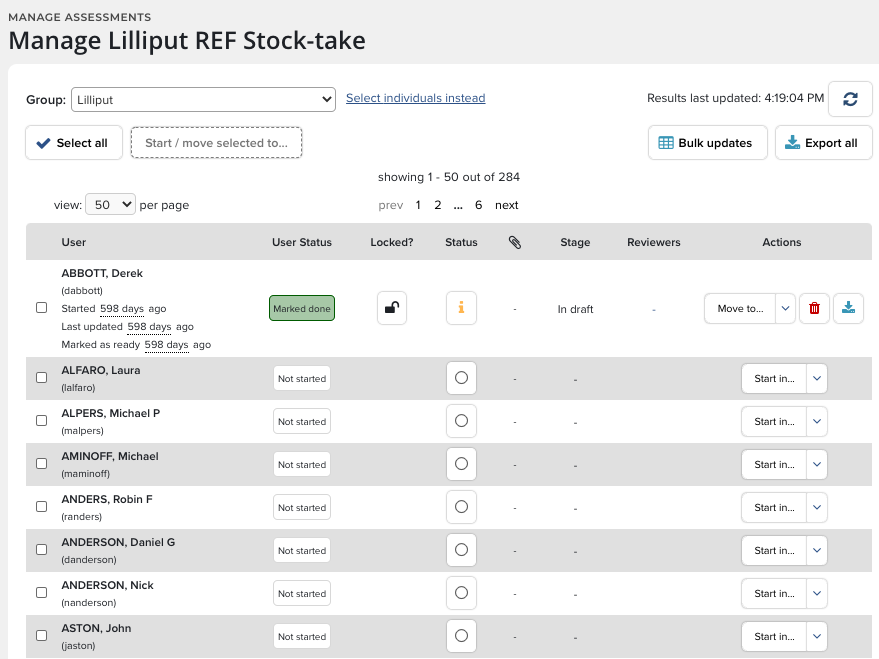
On the Assessment Management page, the Assessment Manager can manage multiple users...
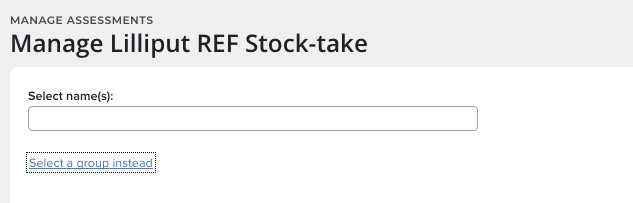
...or select an individual user via the Select user instead link.
Managing Users
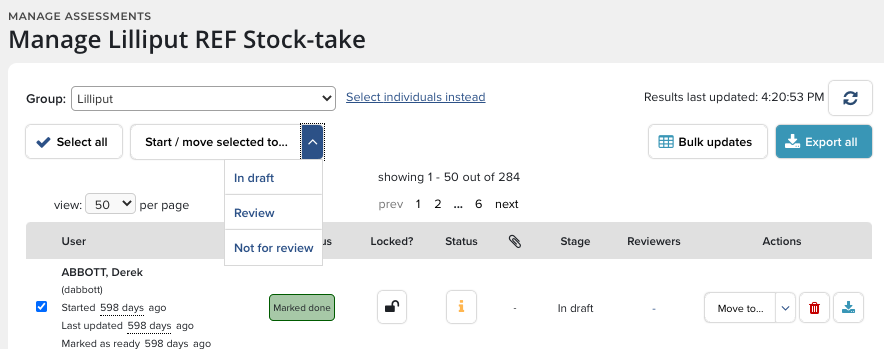
Use the Select all button to manage the actions of groups of users all at once. For example the Assessment Manager could shift an entire group to another stage with the click of a link.
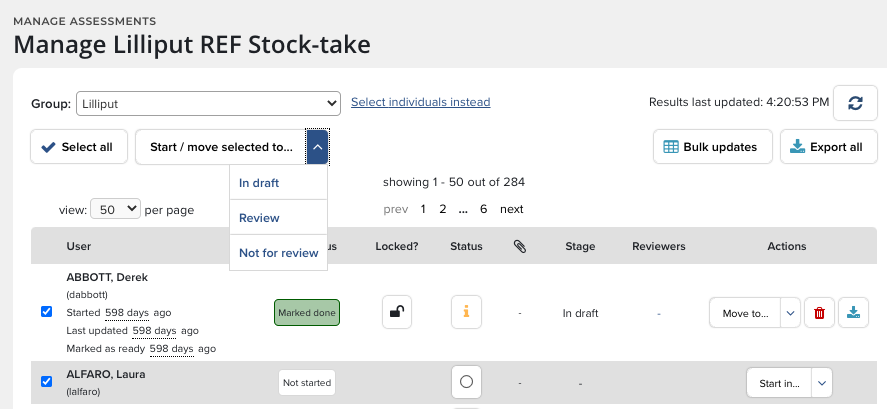
From left to right these are the actions and options available on the Assessment Management page:
- The tick box activates the "Move selected to..." menu so the Assessment Manager can move the author from one stage to the next.
- If the author has begun work on the Assessment exercise, the number of hours elapsed since starting and the number of hours since the last update will appear under the User name.
- The User Status? column indicates the status of the exercise, these are: Not started, In progress, Marked done, Needs attention or completed it, in which case a dash appears.
- Locked? is used to lock or unlock the author's exercise. The options are Locked, Unlocked, or a blank, which means the exercise has not been started.
- If the review process is unfinished, a red triangle with an exclamation point (!) will appear under the Status column. The likely cause for a review being incomplete is that there are no attachments. An empty circle indicates the review process has not started. The letter "i" in a box means the outputs need attention.
- The Paperclip icon shows whether the exercise has attachments and the number underneath indicates how many. Attachments cannot be printed out from this menu. The Assessment Manager will have to go into the individual author's exercise and download from there.
- Stage indicates which stage the exercise is in. A blank means the exercise has not been started.
- Reviewers is the number of reviewers who have been defined for a stage. Clicking the number will show the reviewers' names, the status of the review, and the date of the most recent update.
- Actions gives the Assessment Manager the ability to progress the exercise in a variety of ways. The "Move to" dropdown will move the exercise to a new stage. Clicking the "Trashcan" icon will delete the exercise. The "Export" icon will present the option to print a summary of all the information entered to date in PDF or Word format.
Clicking the Bulk updates button will open the "Select bulk update operation" menu where Item Selections and Reviewer scores can be managed. For more information, please see the support article Assessment - Uploading item selections in bulk via CSV import.
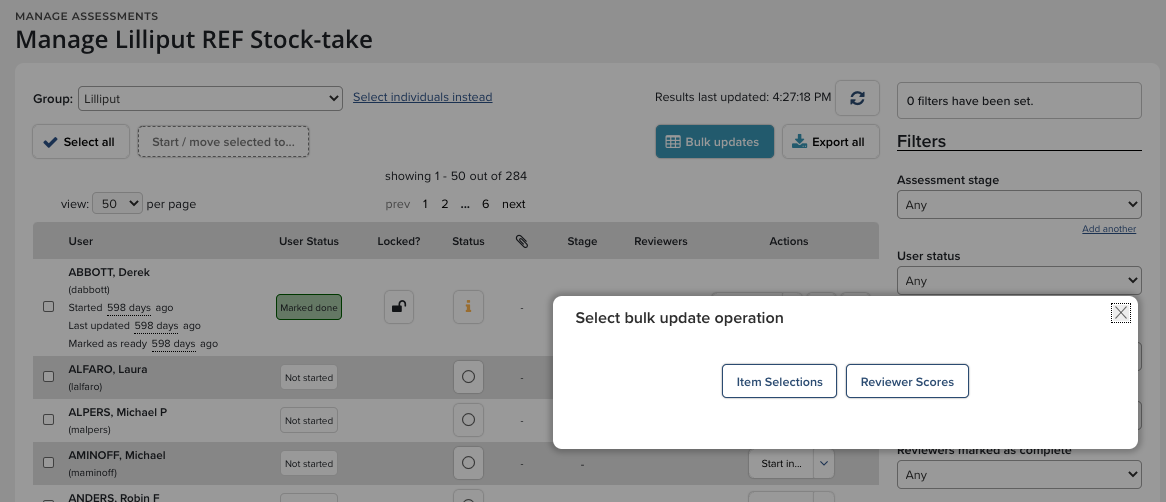
Clicking the Export button at the top of the page will generate a CSV report showing the dates, status, lock value and review stage for each response to an exercise definition.
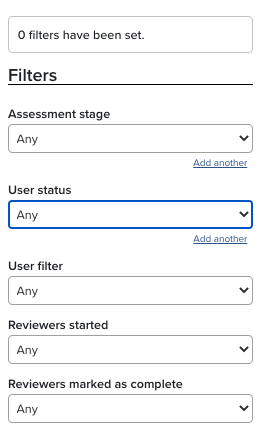
Filters
The filters on the right side of the page give the Assessment Manager the option to filter authors by Assessment stage, User status, User filter, Reviewers started, and Reviewers marked as complete.
Export
Making reports available for users requires that the reports be registered and made available to the appropriate exercise users. Elements comes preconfigured with five canned reports for the Assessment module:
- Full Export: An export of an individual's assessment exercise.
- Exercise Report: A report that shows the status of an exercise for groups of users. Fields include Username, User, Last login, Start date, Updated date, Contents User Lock, Current Stage and User Status.
- PBRF Progress Report: A report that shows the status of a PBRF exercise. Fields include Username, User, Last login, Start date, Updated date, Portfolio Key Fields, NRO Selections, NRO w/Contributor and NRO w/Description.
- REF Managers Publication Report: A report that shows List name, User name, Proprietary ID, Output type, DOI, Reviewer 1 Name, Reviewer 1 Comments, Reviewer 2 Name, Reviewer 2 Comments, and Journal Title.
- Visual Progress report: Shows the status of the exercise.
To make a report available, go to Reporting > Configure Reporting > Registered Reports and enable the desired report by ticking the check box. Then, click the Set availability link and click the exercise upon which reports should be generated. Don't forget to click Save.