Roles and permissions

Roles and permissions
The generic Assessment module roles and permissions apply to the REF exercise. Basic REF-specific permissions are as follows (see below for additional REF configurations):
Feature | User | Reviewer | Unit manager | Exercise manager | Assessment module admin | System admin |
x | x | Y | Y | Y | Y | |
x | x | Y | Y | Y | Y | |
x | x | Y | Y | Y | Y | |
x | x | Y | Y | Y | Y | |
x | x | Y | Y | Y | Y | |
x | x | Y | Y | Y | Y | |
x | x | Y | Y | Y | Y | |
x | x | Y | Y | Y | Y | |
x | x | Y | Y | Y | Y | |
x | x | x | Y | x | Y |
Notes:
Unit manager only has access to those Units for which they have been granted rights
Note the following for the Item selection and Reviewer content bulk functions (non REF-specific)
Prior to 5.18, Unit managers had access to all selections and reviews in the exercise
In 5.18, these bulk functions were restricted to Exercise managers, Assessment module admins, and System admins
From 5.19, we have modified this to make these bulk functions available to Unit managers again, but the content available to them is now restricted to include only those users assigned to the Unit(s) to which they have been granted rights
REF Open Access Manager
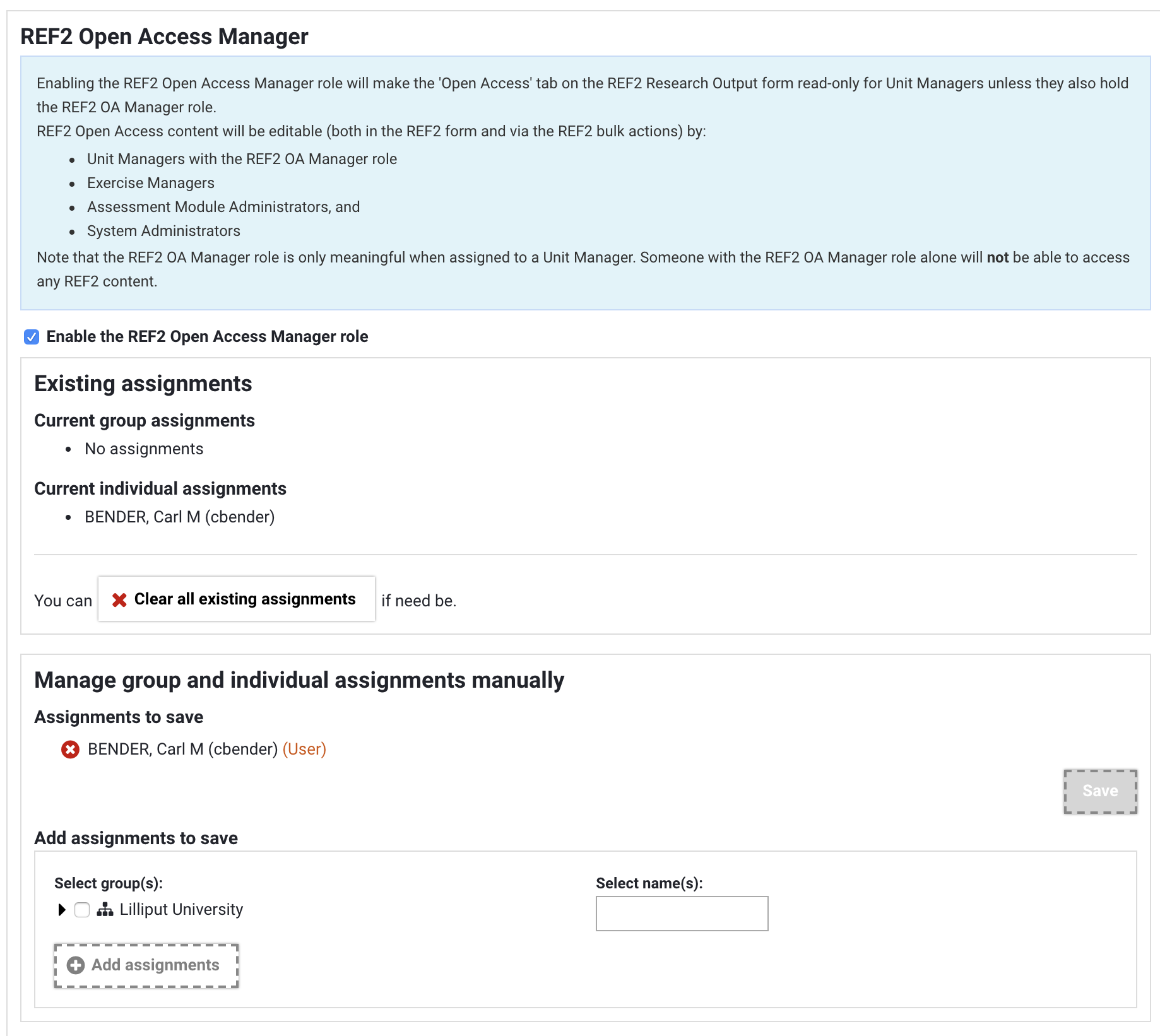
If you would like to restrict the ability to edit REF2 Open Access data to only specified users, you can do this by enabling the 'REF Open Access Manager' role in the REF Exercise Definition.
Enabling the REF2 Open Access manager role will make the 'Open Access' tab on the REF2 Research Output form read-only for Unit Managers, making REF2 Open Access content editable by only REF2 Open Access Managers (if any are named), Exercise Managers, Assessment Module Admins, and System Admins (both in the REF2 form and via the REF2 bulk actions).
Go to your REF Exercise definition and navigate to the 'Managers' tab. At the bottom of the screen there is a section for 'REF2 Open Access Manager'.
Once you enable the REF2 Open Access Manager role, you can:
Take no further action
This will then restrict edit access to REF2 OA content (both in the REF2 form and via the REF2 bulk actions) to:
Exercise Managers
Assessment Module Admins
System Admins
Assign individual users the REF2 OA Manager role
This will then restrict edit access to REF2 OA content (both in the REF2 form and via the REF2 bulk actions) to:
REF2 OA Managers
Exercise Managers
Assessment Module Admins
System Admins
To successfully give a user REF2 OA Manager permissions, they must already have a Manager role for the exercise (so must already be a Unit Manager, Exercise Manager, Assessment Module Admin, or System Admin)
If you wish to combine the REF2 OA Manager role with a Unit Manager role, note that the REF OA Manager role is assigned at the Exercise-level, while Unit Managers are assigned per Unit - so if you wish to give a REF2 OA Manager access to all REF2s in the exercise, you must assign them as a Unit Manager in all Units.
Note that where a user does not have edit access to REF OA content, if using the REF2 Metdata bulk job, warnings will be generated if any REF OA data is included in the upload file (even if no change to the data is attempted). The REF OA content will simply be ignored and the records updated otherwise.
Making REF1 Researcher data read only
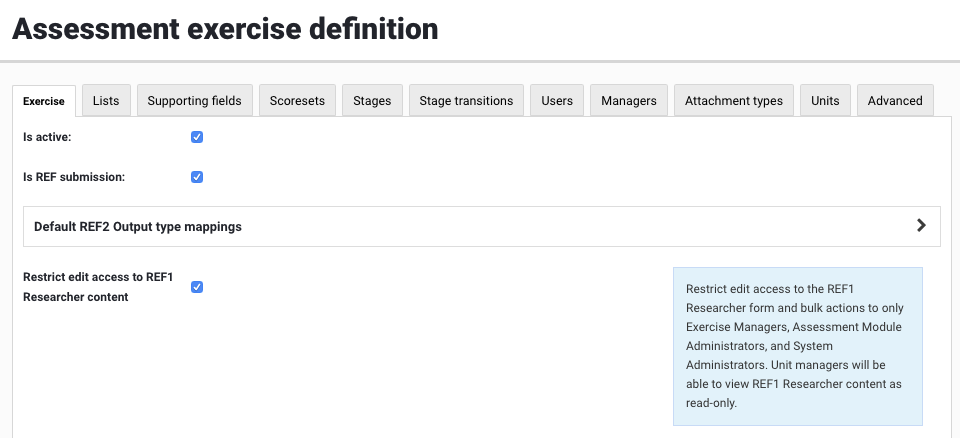
If you would like to restrict the ability to edit REF1 Researcher content to only specified users, you can do this by enabling the 'Restrict edit access to REF1 Researcher content' in the REF Exercise Definition.
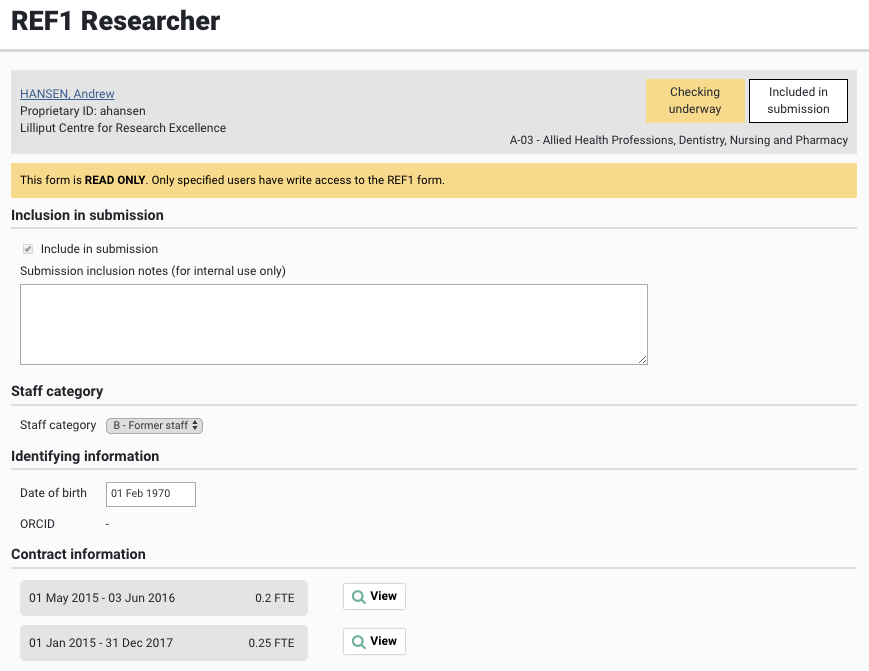
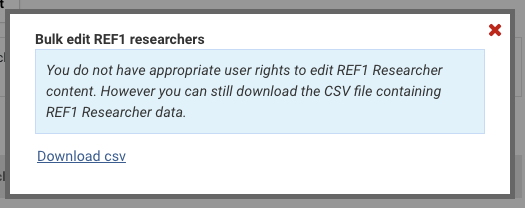
Enabling this configuration will make the REF1 Researcher form read-only for Unit Managers, making REF1 Researcher content editable by only Exercise Managers, Assessment Module Admins, and System Admins (both in the REF1 form and via the REF1 bulk actions).
Go to your REF Exercise definition and navigate to the 'Exercise' tab; you will see the 'Restrict edit access to REF1 Researcher content' configuration near the top of the screen.