
Symplectic Elements v6.0 - Release Notes
Elements v6.0
Introduction
Welcome to Elements v6.0!
Normally, we start these release notes by telling you all how excited we are about what’s in the release, but this time excitement doesn’t even begin to cover it. This release represents both the culmination of over a year’s worth of planning, design and development as well as the beginning of our Version 6 Journey.
Our vision for Elements Version 6 is to enhance the Elements user experience, give the system a refreshed, contemporary look & feel and renew our foundations to support future projects. In Elements v6.0 we have focussed on redesigning some of the most frequently used pages in Elements, establishing updated frameworks which we will build upon in future version 6.x releases.
Key changes in Elements v6.0 include:
Homepage: We have redesigned the Elements homepage to create an action-oriented dashboard-style experience. The new homepage features configurable ‘tiles’ allowing users to choose which tiles are displayed on their homepage. We’ve also revamped the familiar ‘My Actions’ section adding new visuals and additional guidance information to ensure researchers are empowered to complete key tasks.
Menu: We have rearchitected the Elements menu to focus on key use cases, providing users with a clear overview of the functionality available to them, while the new design creates more space within the menu and improves readability. We’ve also introduced a new ‘menu search’ to allow you to quickly find the page you need.
My <objects> page (e.g. ‘My publications’): The My <objects> page is one of the most powerful and most used pages in the system and we’ve redesigned it to make it even easier to manage publications and other kinds of data captured in the system. Highlights of this redesign include the new labels and metrics tabs and our new ‘Focus on’ selector which allows users to open all of their outputs to a specific tab.
Configurable Module Display Names: In response to a long-standing feature request, we are introducing the ability to select a ‘display name’ for a number of our modules including Publications, Grants, Professional Activities, Teaching Activities, and Projects. This new functionality ensures Elements can accurately represent the true scope of scholarly activities at each organisation.
Branding: We have redesigned Elements’ branding functionality to align Elements’ new UI. You can now build custom themes to brand your Elements instances by selecting your choice of branding colour for the header and sidebar, choosing one of our colour palettes for use through the Elements UI and uploading an SVG of your logo. Please note that as branding functionality has changed significantly from v5 to v6, the system will not retain your V5 branding upon upgrade. We recommend that you capture a copy of your v5 branding colours prior to upgrade if needed.
In-system Notifications: As the first step on a broader project to improve notification functionality, we have redesigned Elements’ in-system notifications, retiring the Elements ‘inbox’ and replacing it with new notifications functionality embedded within the Elements header.
For all the details about Elements V6.0, you can continue reading below. As always, the new version of Elements and associated upgrade instructions can be found in the Elements upgrade forum.
Because the look and feel of the system has changed significantly we recommend that you undertake some additional planning prior to upgrading to consider how you will roll out the changes to your user community. To assist with this, we have created a guide for administrators to help you plan your V6 adoption pathway. However, please rest assured that the technical process for upgrading to Elements Version 6.0 is no different from a standard Elements upgrade.
We hope that you love Elements Version 6.0 as much as we do!
Redesigned ‘action-oriented’ homepage
The Elements homepage is one of the most important pages in the system. As the first page a user sees when logging in, the homepage sets a user’s expectations, provides vital sign-posting to guide them to core functionality and provides a quick overview of the information already collected in the system. In Elements Version 6.0, we have redesigned the homepage to create an action-oriented dashboard-style experience whilst still bringing together all of the information users are familiar with from v5.
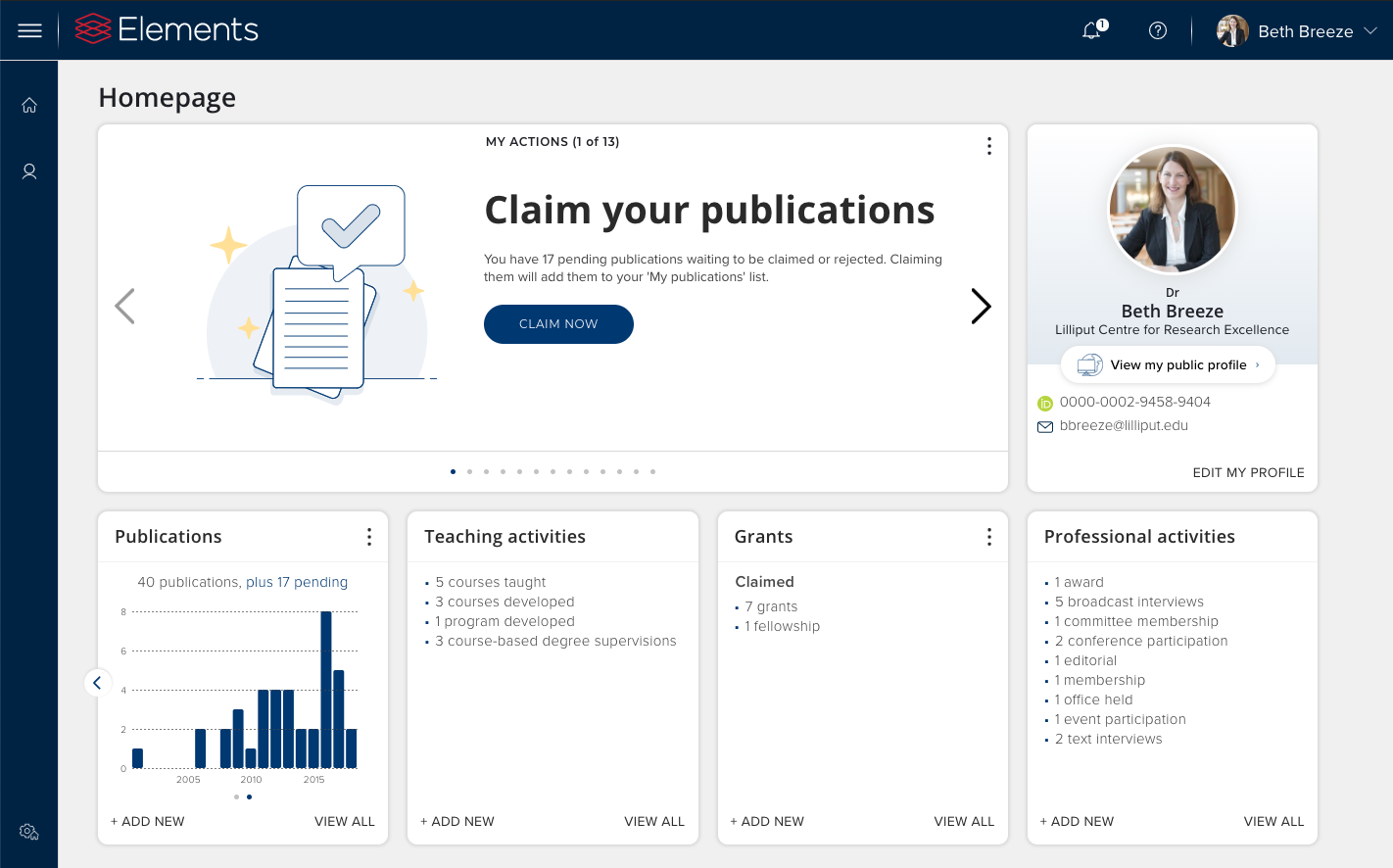
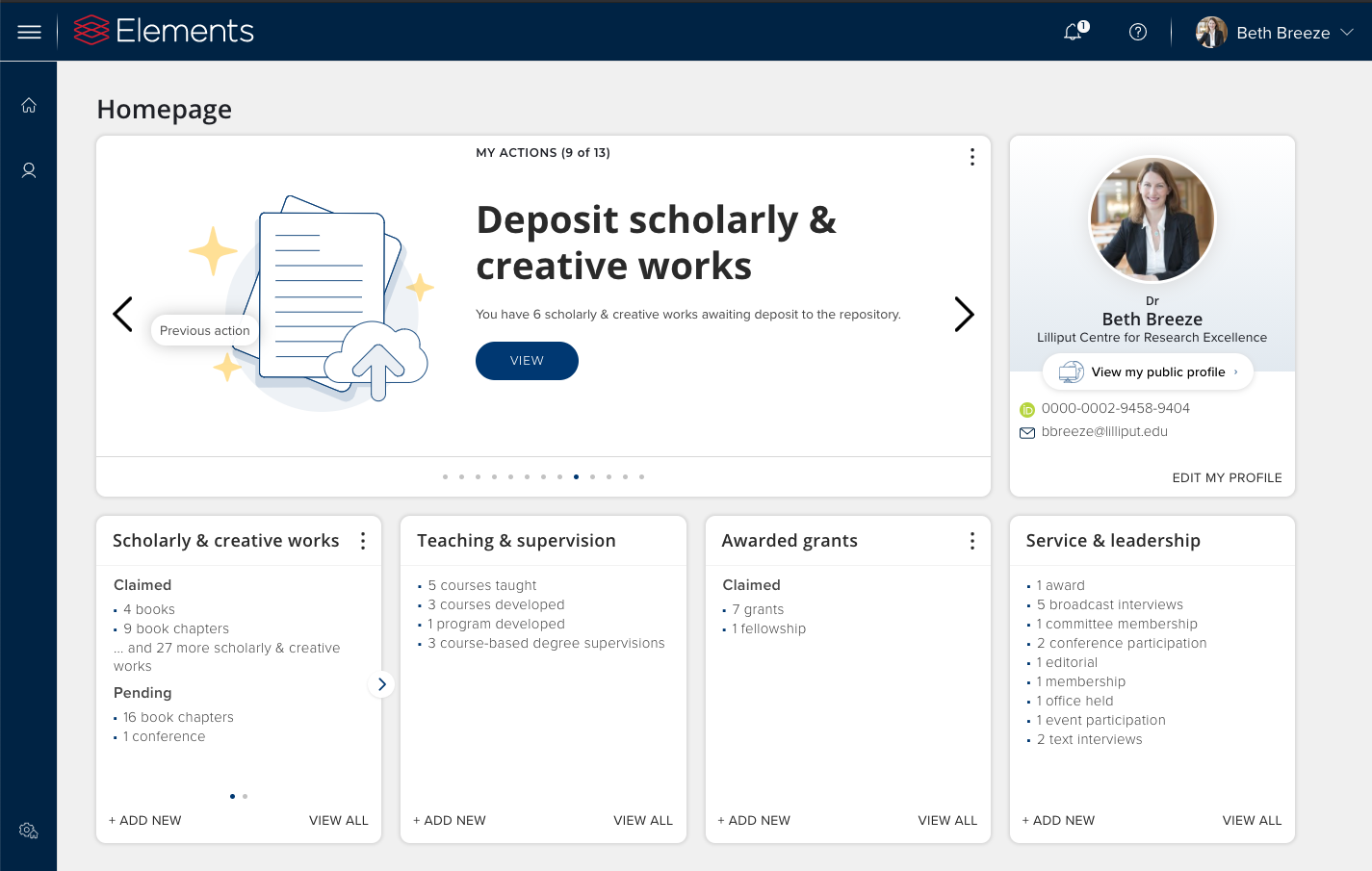
Image: An example of the new Elements homepage featuring the My Actions panel, profile tile and configurable data category tiles.
The new homepage features configurable ‘tiles’ allowing users to configure their own homepage, selecting the tiles they feel are most relevant to them. We’ve also revamped the familiar ‘My Actions’ section adding new visuals and additional guidance information to ensure researchers are empowered to complete key tasks.
Updated ‘My Actions’ panel
We’ve updated the familiar ‘My Actions’ panel adding new visuals to increase its prominence and additional guidance information to assist researchers in completing key tasks. The ‘My Actions’ panel provides users with an ordered list of actions which highlights key tasks they need to complete. Each action features a clear ‘call-to-action’ which will take the user directly to the relevant part of Elements to complete the task. Users can choose to click through a carousel to view all of their actions, or can switch to list view if desired.
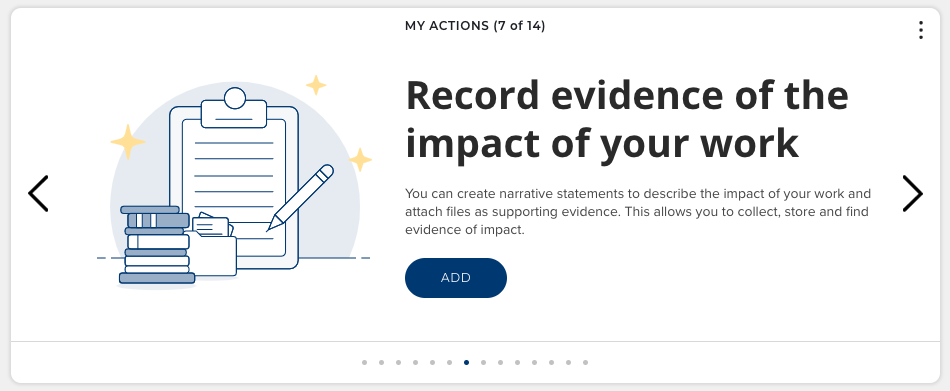
Image: The ‘My Actions’ tile allows users to work through a priority list of key actions.
In line with the functionality offered in previous versions of Elements, organisations are able to configure which actions should be displayed to their users and order them according to priority via the ‘Homepage Actions’ page available via the System Admin tab in the menu.
Redesigned Profile tile
The profile tile provides users with strong visual confirmation when they first login that they are viewing the data associated with their profile in the system and provides them with an overview of key profile data points, and direct access to begin editing their profile.
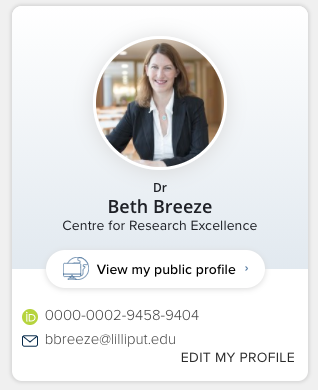
Image: The profile tile provides a snapshot of information about the user.
The profile tile can also provide users with easy access to view their associated public profile, linking to either an associated Elements Discovery Module profile or another public profile managed by the organisation. In order for the link to the public profile to appear here, the profile’s URL must be captured within Elements and the user’s profile must be set to ‘public’. For more information about configuring Elements to capture public profile URLs, please see the support site.
Configurable homepage tiles
The Elements homepage now features a configurable tile framework, which allows users to choose which ‘tiles’ they would like to display on their homepage and in what order.
For v6.0 we have introduced two kinds of tile: data category tiles which display information on the different activities associated with the user and an H-Index tile, to replace the v5.x h-index functionality. This new framework will allow us to add further tiles aimed at either summarising or visualising information relevant to a user’s profile.
The Publications tile provides users with the option of switching between a list view and a visualisation displaying a histogram of publication count across time. This allows researchers to easily view their publication history. Additional data category tiles for Grants, Professional activities, teaching activities and records of impact all list the users collected data by type, providing direct links to view those already collected or add additional records.
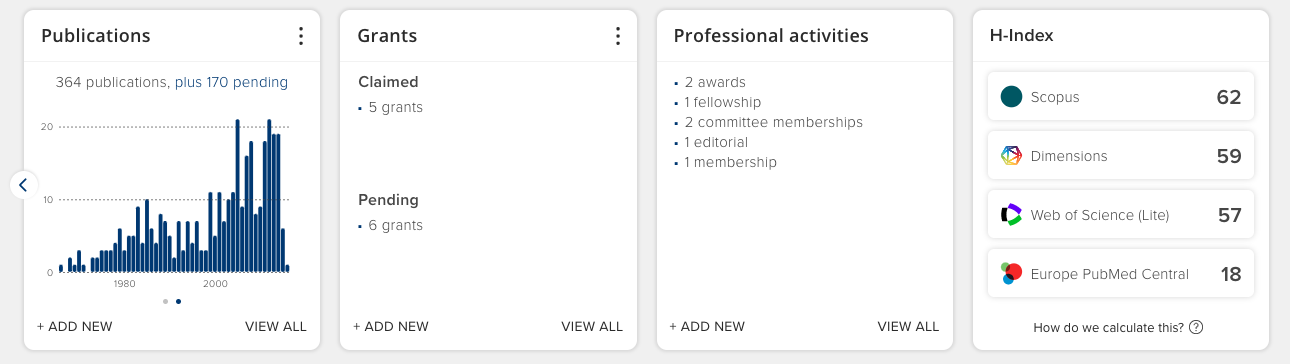
Image: Data category tiles on the homepage display counts of different category types. Users can toggle to see a graph which displays publication counts across time. The H-Index tile displays values calculated by Elements based on citation counts from different data sources.
The administrator settings ‘Clear pending’ and ‘Clear rejected’ are available when impersonating a user via the three dot (vertical ellipsis ⋮ ) 'more' menu icon. These settings are only available to administrators with a suitable role, and allow the administrator to clear a user’s pending publications/grants as well as any associated identifiers, or to clear rejected publications/grants.
User’s can configure their homepage via the new ‘Customise homepage tiles’ page accessible via the icon at the base of the sidebar. From this page, users can control which tiles they wish to display on their homepage using our drag and drop interface. It is also possible to configure the order in which the tiles will be displayed on the homepage.
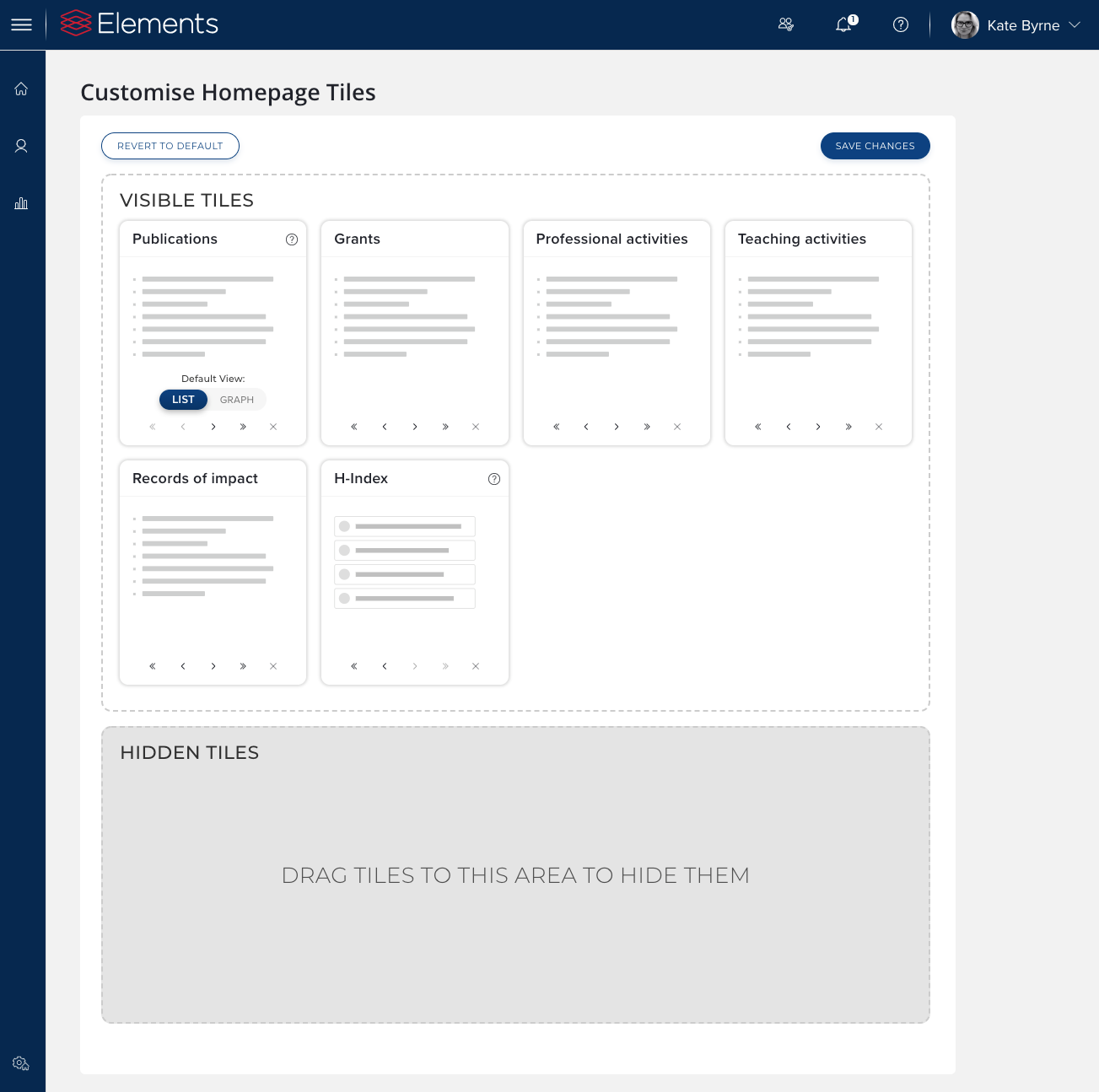
Image: Researchers can customise their homepage by choosing which data categories tiles are displayed on their homepage, as well as what order they are displayed in.
Please note: Exactly which tiles are available will depend on how Elements is configured at your organisation. Users will only see tiles for modules they are permitted to access.
Introducing our new Menu
Since Elements version 5 was launched, the system has grown significantly as we’ve added new modules, integrations and many new features. In fact, Elements had grown so much, we were starting to run out of room in the v5 menu! For Elements Version 6.0, we are introducing a new menu for Elements that makes it easier for users to find their way around the system and that provides the space we need for Elements to continue to grow for many years to come.
We have redesigned the menu’s information architecture to consolidate functionality related to key Elements use cases into tabs, providing users with a clear overview of the functionality available to them.The menu consistently flows from the personal to the administrative as you move left to right across each tab as well as the menu as a whole. This gathers pages relating to a particular use case (eg. Open Access) in one place whilst still clearly and simply differentiating researcher-facing pages from administrative pages.
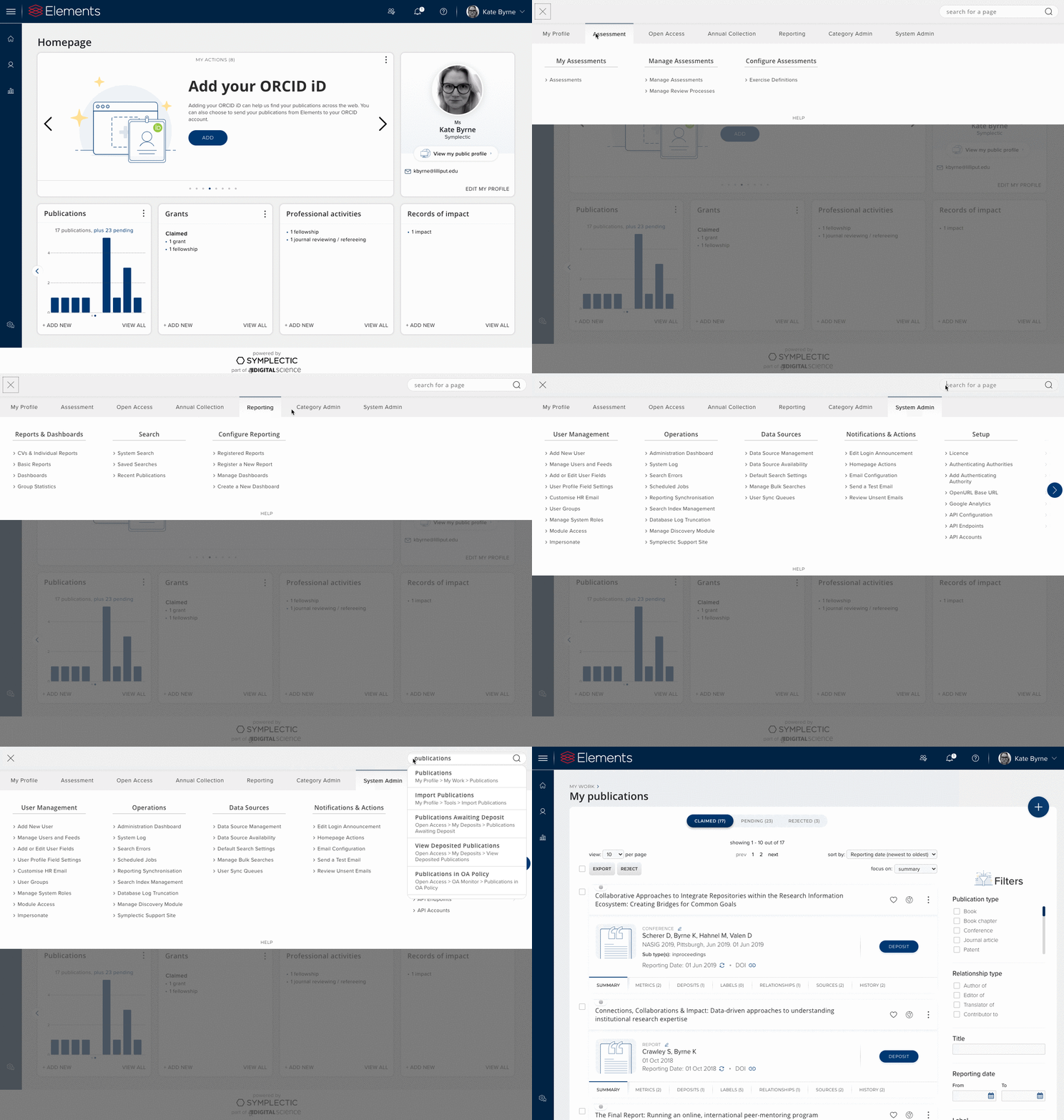
Image: Exploring the new v6.0 menu and using the new menu search to find a particular page.
The new design creates more space within the menu, improving readability and making it easier for users to orient themselves within the system. To make it easier than ever before to jump straight to the page you’re looking for, we’ve also introduced a new ‘menu search’ to allow you to quickly find the page you need.
As per the v5 menu, users will only see the sections of the menu relevant to them based on their roles within the system. For example, if you use our OA functionality, both researchers and administrators will see the new Open Access tab, however researchers will only see the new ‘My Deposits’ section while administrators with a relevant role will also see the new OA Monitor, Repository Tools, Deposit Advice and Configure OA sections.
Redesigned ‘My <objects>’ pages
The My <objects> page (My publications, My grants etc) is one of the most powerful and most used pages in the system. For v6.0 we’ve redesigned it to make it even easier to manage publications and other kinds of data captured in the system.
The ‘My publications’ page is the most complex version of the page and is central to a number of commonly used workflows (e.g. ‘Claiming’ and ’Rejecting’ publications, depositing to repositories etc.) The changes outlined below are therefore described in the context of the ‘My publications’ page. However, we do recommend you review all relevant forms of the page following your upgrade.
Harnessing the power of tabs
The My publications page presents the rich data collected about each publication in a series of tabs, each focussed on a different metadata facet. In v6.0, we have both extended and refined this tabbed interface, adding new tabs and additional filter options making it easier both for users to browse through the information and enrich it adding labels or creating links to other users, outputs and activities. The updated UI provides the foundation for future product extensions to make administrative tasks quicker to perform (e.g. adding new bulk actions). While all tabs have been redesigned, the release notes focus on the tabs that have been most significantly changed.
Ability to 'focus on' different tabs
We have introduced a new ‘focus on’ option at the top of the page which allows users to select to open all publications to a specific tab. This makes it possible to switch between tabs across all publications in the ‘list view’ in one go, opening up powerful workflows allowing users to view all of the information about their metrics or deposits with just a few clicks.
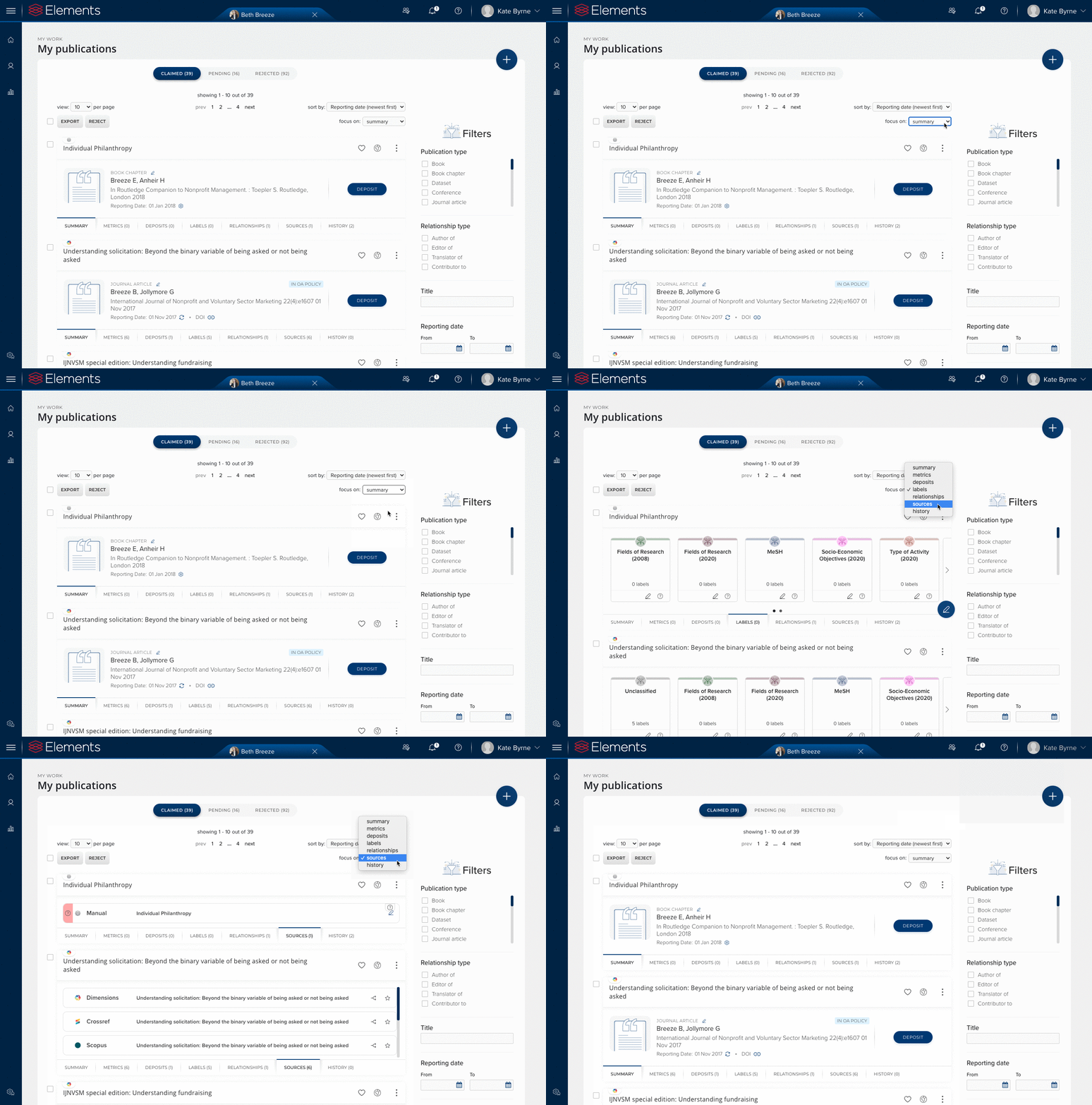
Image: You can use the ‘Focus on’ dropdown to choose which tabs you want to see.
Metrics tab
We have relocated metrics into a new ‘Metrics’ tab, a dedicated space with sub-tabs to clearly differentiate between article and journal metrics. The new design allows us to provide more context information to ensure we are presenting metrics responsibly and clearly informing users about what each of the metrics represents. It will also allow us to consider the inclusion of additional metrics (eg. repository related metrics) in future releases.
All organisations will now have the option to include ‘Dimensions badges’ on the metrics tab for publications with a DOI. Dimensions badges include four metrics (total citations, recent citations, the Field Citation Ratio and the Relative Citation Ratio), which are refreshed automatically with data from Dimensions upon page load and allow the user to link out to Dimensions for more information about the metrics. As in previous versions, organisations can configure which metrics should be displayed via the ‘Display Citations & Metrics’ and ‘Display Journal Metrics’ pages in the Category Admin menu tab. More information about metrics in Elements and journal metrics can be found on the support site.
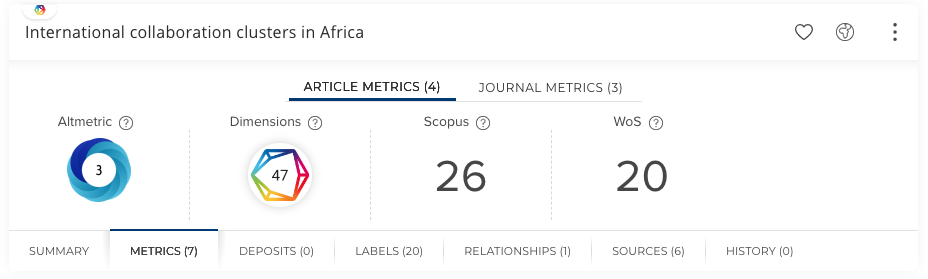
Image: The new metrics tab displays article and journal level metrics for a publication. Users can link directly to Dimensions or Altmetric to further explore the information provided.
Labels tab
Labels have become a popular and powerful way of categorising and managing publications, user profiles and other object categories within Elements. Our labelling functionality is highly flexible, and organisations can choose to use either one of stock label schemes, or to create their own custom label schemes to support specific use cases. More information about the use of labels in Elements can be found on the support site.
In response to community feedback, we have significantly enhanced the visibility of label functionality by creating a new Labels tab. This new tab allows labels to be viewed and managed from the ‘list view’ when previously this information was only available on the ‘details’ page.
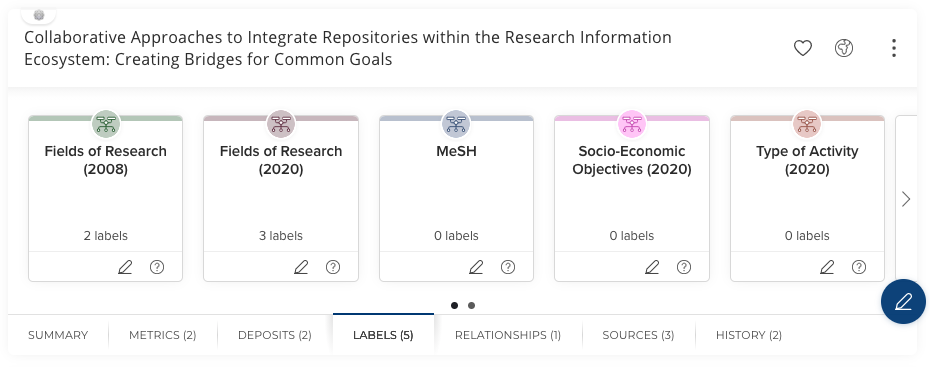
Image: The display of label schema on the ‘Labels’ tab allows users to determine how many labels have been added from each scheme. Users can also enter the ‘add/edit labels’ workflow directly from the tab.
The tab shows users a carousel of available label schemes including a count of the labels applied for each. Users click the edit icon to open a new ‘edit labels’ interface to add or remove labels or set percentages where permitted. The new interface also includes a description about each label scheme to ensure users are informed about which scheme to use.
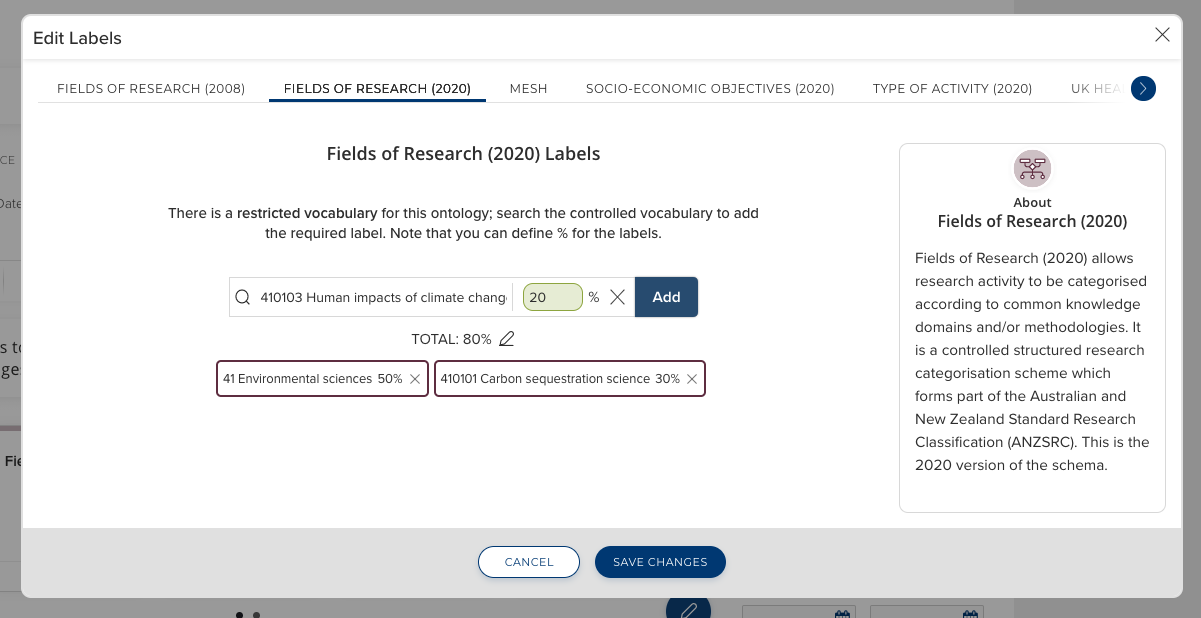
Image: Labels can now be edited directly from the 'list view'. Users can view all available schemes
Relationships tab
One of the core strengths of Elements is the ability for users to build up a network of relationships between users, outputs and activities. The ‘Users’ and ‘Links’ tab (present on the Publications and Grants pages in v5) have been combined in our new ‘Relationships’ tab which provides an overview of all relationships between an object and its associated users and/or objects and the ability for users to add, remove and edit links to users or other objects (where permitted).
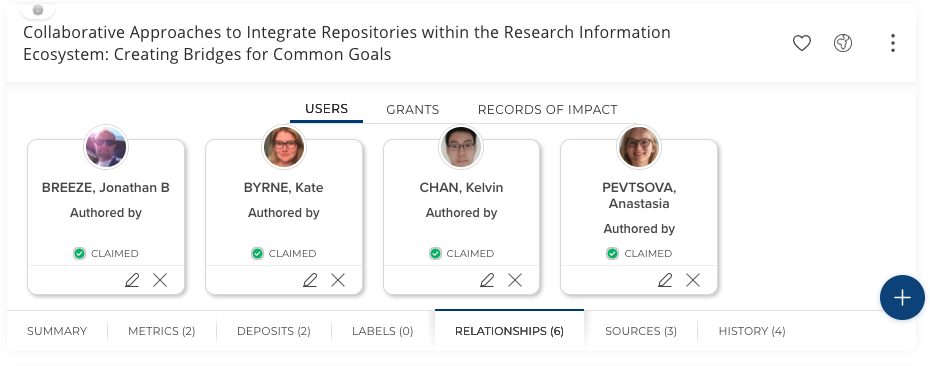
Image: The ‘Relationships’ tab displays the relationship between a publication and users or other objects. It includes the relationship type and status (e.g. claimed or pending).
Sources tab
Elements is designed to harvest and capture records from a range of different data sources, and link them together to create compound ‘objects’. The new ‘Sources’ tab continues to provide users with an overview of sources available for each publication and allows users to split a particular record from the object and set a preferred record.
In addition, it is now possible to view and set the verification status for a manual record from the ‘Sources’ tab. In combination with the configurable ‘verification status’ filter (controlled by the ‘Show verification to all users’ setting introduced earlier this year), the My Publications screen now raises the visibility of the ‘verification workflow’ and makes it easier for administrators to verify all of a researcher’s publications in one place.
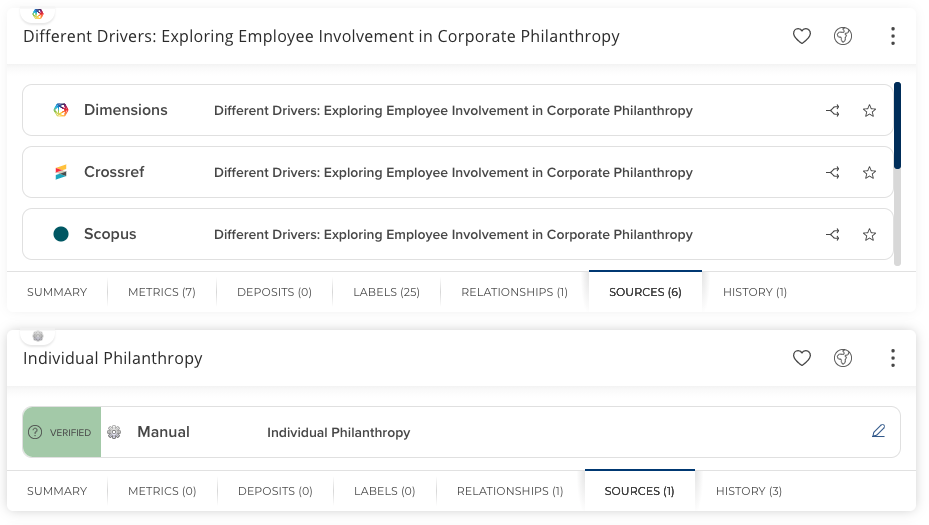
Image: The ‘Sources’ tab displays information about each record from different data sources. The verification status for Manual records can now be viewed and edited from the list objects page.
Improved filters
We have updated the filters on this page to improve usability and introduce new multi-select filters for ‘Publication types’ and ‘Relationship types. We have also introduced a new filter to show when publications have ‘external files’ available which could potentially be deposited to an integrated repository.
Introducing ‘Notifications’
A ‘Notifications’ component has been added to the header. Notifications provide users with useful information about the state of the system. Surfacing this information in the header allows it to be viewed no matter what page a user is on - raising its visibility and providing a new way to communicate key updates to researchers when they log in. Notifications can be disabled by administrators from the Global Settings page.
Four new notifications have been added;
Pending publications - Provides a count of any pending publications. The researcher can click ‘view’ to be taken to their pending publications list.
Pending grants - Provides a count of pending grants. The researcher can click ‘view’ to be taken to their pending grants list.
Files found - Provides a count of publications where Elements has found a file in an external data source that can be deposited to a connected repository. The count will only include publications that are in the institutional OA policy. This notification replaces the existing ‘inbox’ functionality.
Additional information needed - For users of the ‘Annual Collection module’, this notification provides a count of nominated publications where an assessor has requested more information about the nomination. This notification replaces the existing ‘inbox’ functionality. The contact user functionality in details has been removed to allow for default notifications.
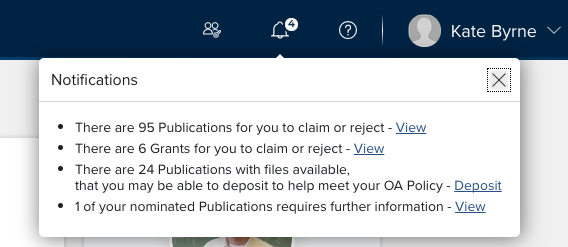
Image: The notifications component in the header provides users with a snapshot of useful information and allows them to link directly to the relevant pages.
Configure display names for key modules
In response to a long-standing feature request, we have added a new configuration option which allows system administrators to select a ‘display name’ within Elements for a number of our modules. This new functionality ensures Elements can accurately represent the true scope of scholarly activities at each organisation. Initially, we have introduced this new ‘Module display name’ functionality for five of our key data category modules: Publications, Grants, Professional Activities, Teaching Activities, and Projects.
System administrators can select a display name for each of these modules from a predefined list by simply selecting their preferred name from the relevant dropdown on the new ‘Configure module display names’ page. Choosing a display name for a module will update key references to the module's name across the Elements user interface including renaming module-specific pages, and updating references to that module within the Menu. Please note, it will not change references to the module's name in the operational database, reporting database or API (eg. in field names or table names) to avoid introducing breaking changes.
Branding
To support our new ‘Version 6’ UI, we have updated Elements’ branding functionality, introducing a new branding page which allows you to create your own custom themes, upload copies of your logo and select your choice of colour palette for our dashboard.
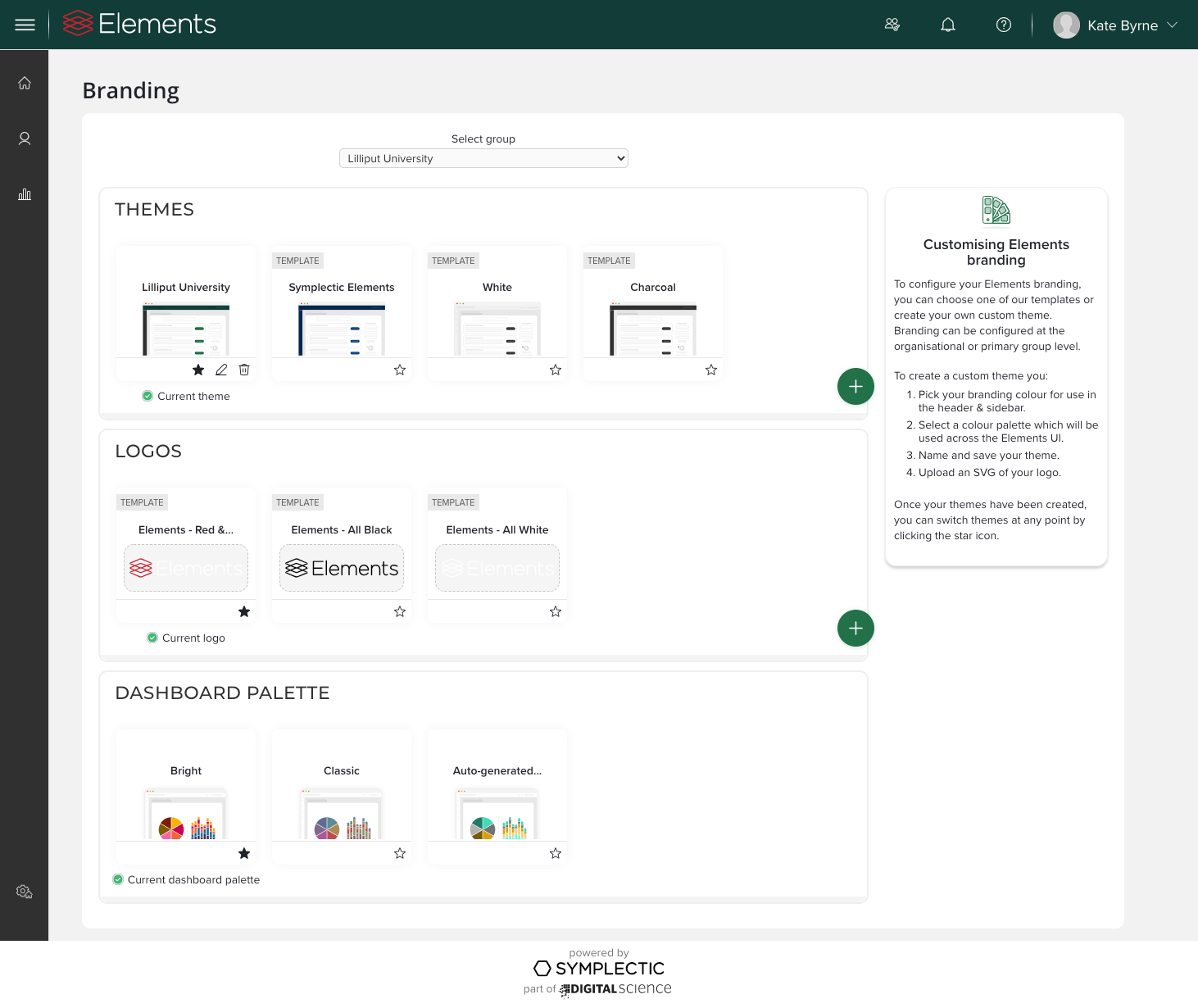
The new branding page is an evolution of our previous branding functionality. Just like in v5, each organisation can ‘brand’ Elements to help the system feel familiar to your users by choosing colours and adding your organisation's logo. You can brand the system at the organisational level, and then optionally override the ‘default’ branding to select custom themes or logos on a per primary group level.
From V6.0, you brand the system by creating your own custom ‘themes’. Each theme contains your choice of branding colour for use on the system’s header and sidebar, and choose one of our colour palettes for use through the Elements UI. You can also upload an SVG of your logo which will be displayed on the header through the system and on the Elements login page (where used).
Please note: As the branding functionality has changed significantly the system will not retain your V5 branding upon upgrade. We recommend that you capture a copy of your v5 branding colours prior to upgrade if needed.
The less visible changes
In addition to delivering a high quality UI and lots of interesting new features, we are committed to the continual improvement of the Elements ‘back-end’. Much of this kind of development work is largely invisible to our community, but it ensures that Elements remains a robust, secure and performant system and ensures we have sound foundations from which we can continue to grow. As a part of this release we have updated several of our underpinning technologies to help us on our V6 journey.
We have also:
Made improvements to the Elements Search index to further reduce the time needed to complete a full reindex. We anticipate that most organisations should see approximately a 20-25% reduction in reindexing time.
Introduced support for SQL Server 2019. Organisations looking to migrate from SQL Server 2014 ahead of its end of support are welcome to move directly to SQL server 2019 if desired. Please note for organisations using our hosting services, all such maintenance is managed for you by our infrastructure team.
Accessibility
We want to ensure that all of our users have a good experience working with Elements and improving accessibility has been at the core of our work on Elements v6.0. All new pages and components have been developed in conformance with the WCAG 2.1 AA standards. This work will be ongoing beyond the 6.0 release as we work towards the next items on our roadmap, prioritising redevelopment of the most commonly used Elements pages & expanding out from there over time.
Other improvements
The three new 2020 ANZSRC classification codes (Fields of Research, Socio-Economic Objectives and Types of Activity) have been added as label schemes within Elements. They can be enabled via the Manage Label Scheme page under the System Admin tab in the menu. As a part of this change the existing Fields of Research Label scheme has been renamed to Fields of Research (2008) in the Elements UI. Please note that the 2008 scheme name remains unchanged in the Elements API and Reporting database to avoid breaking existing queries and integrations.
On the Discovery Module, publisher metadata will be included for publications where available.
The new v6.0 menu can now include a link for the Discovery Module alongside the other Elements search functionality. To enable this feature, just populate the new Discovery Module URL field on the Discovery Module management page with a link to your Discovery Module home page.
Introduced a new configuration option for the Discovery Module to populate the Position and Department fields using the Elements Appointments fields.
Further Discovery Module accessibility improvements.
Added optional Google Analytics IP anonymisation to the Discovery Module. In response to a feature request, a new configuration flag has been added “googleAnalyticsAnonymizeIp” which will initialise the Google analytics script to anonymise IPs.
Users with the “Repository Manager” role can now configure RT2 sources, accessing them via the new Open Access tab in the V6 Menu.
Extended the RT2 Crosswalk map with support for max/min aggregation features.
The RT1 configuration settings for deposit licences and file version information have been consolidated within the RT1 Repository Connection Page.
‘Reporting date status’ (ie. manually or automatically managed) is now captured in the Reporting Database. This will help organisations reviewing reporting dates to possibly make future bulk updates via the API.
When adding a manual record for a publication, the system will no longer validate that an acceptance date is before a publication date. This change is due changes in the publishing world, where post-publishing peer review (eg. on Wellcome Open Research) is considered to mean a work is 'accepted' after it is published.
Fixes
Resolved an issue on the Discovery Module where the additional information field was not displaying for Grants.
In the Assessment Module’s item selection bulk update function, whenever new supporting info is added for an item that did not previously have supporting info, an error would occur. This has been fixed.
There was an issue with user selection for the Reset Search Settings function on the Global Settings page. This has been fixed.
End of support
So that we can continue to deliver a great product and excellent support, it is necessary for us to periodically end support for older technologies. From v6.0, Elements will no longer support: Windows Server 2012 (note, Windows Server 2012 R2 is still supported) and Internet Explorer 11 as it is being phased out by Microsoft and replaced by Microsoft Edge (Please note we recommend upgrading to a recent version of Edge as ‘Legacy Edge’ is being de-supported by Microsoft). We have also retired the Comparative Statistics page from Elements as of v6.0 as it is not in keeping with DORA principles relating to the responsible use of metrics.
As always, we recommend that you regularly review our End of Support Announcements for information about upcoming end of support in Elements for various technologies.
Learn more about the release
If you would like to learn more about Elements Version 6.0 you can join us for a webinar about the new release on the 21 Oct 2020 (register here!) You can also request access to our Preview sandbox instance if you’d like to explore the release before upgrading your own instances.
One of the most special things about Symplectic is our amazing community who are willing to share their experiences with each other. We would love you to consider sharing some of your updated guidance materials, roll out approaches and even testing plans with the community to help others, via our community forums, our community Slack channel or on our community repository.
We hope you enjoy getting to know Elements version 6.0. Remember as you prepare for this transition we are here to help, should any questions arise you can contact us at support@symplectic.co.uk for assistance.
Best wishes,
The Symplectic Team