
Manage and Create Label Schemes
Label Schemes can be created, removed and managed by going to System admin > Links & labels > Configure label schemes.
In this article
Default Schemes
There are twelve default label schemes supplied in Elements:
All Science Journal Classification codes: Developed by Elsevier: Four codes (Health Sciences, Life Sciences, Physical Sciences and Social Sciences) that define broad classifications of science
Availability: A researcher assigned label for use in public profile
Fields of Research 2008: The Fields of Research ontology is a controlled structured research categorisation scheme created, maintained and provided by the Australian Bureau of Statistics. Keywords can be automatically inferred from ISSNs using the Australian Research Council's ERA 2018 Journal List when this is enabled.
Fields of Research 2020: allows research activity to be categorised according to common knowledge domains and/or methodologies. It is a controlled structured research categorisation scheme which forms part of the Australian and New Zealand Standard Research Classification (ANZSRC). This is the 2020 version of the schema.
Impact Types: The summary of impact types defined by HEFCE after the REF 2014.
MeSH: The Medical Subject Headings 2017 ontology is a controlled structured medical subject vocabulary created, maintained and provided by the US National Library of Medicine. MeSH keywords data are provided primarily through PubMed and Europe PubMed Central.
Research Condition and Disease Categorization: a computerised process the NIH uses to categorise and report the amount it funded in each of 233 reported categories of disease, condition, or research area.
Science-Metrix: The Science-Metrix ontology of Science is a controlled structured research categorisation scheme created, maintained and provided by Science-Metrix. Keywords are automatically inferred from ISSNs using the Science-Metrix Journal Classification list.
Socio-Economic Objectives 2020: allows research activity to be categorised according to the intended purpose or outcome of the research as perceived by the researcher or data provider. It is a hierarchical classification which forms part of the Australian and New Zealand Standard Research Classification (ANZSRC). This is the 2020 version of the schema.
Type of Activity 2020: allows research activity to be categorised according to the type of research effort. It is a flat classification with four categories which forms part of the Australian and New Zealand Standard Research Classification (ANZSRC). This is the 2020 version of the schema.
UK Health Research Classification System Health Category: (HRCS) is a bespoke system for classifying the full spectrum of biomedical and health research. Health Categories are used to classify the type of health or disease being studied.
UK Health Research Classification System Research Activity Code: Research Activity Codes classify the type of research activity being undertaken.
An example of the labels applied to a publication:
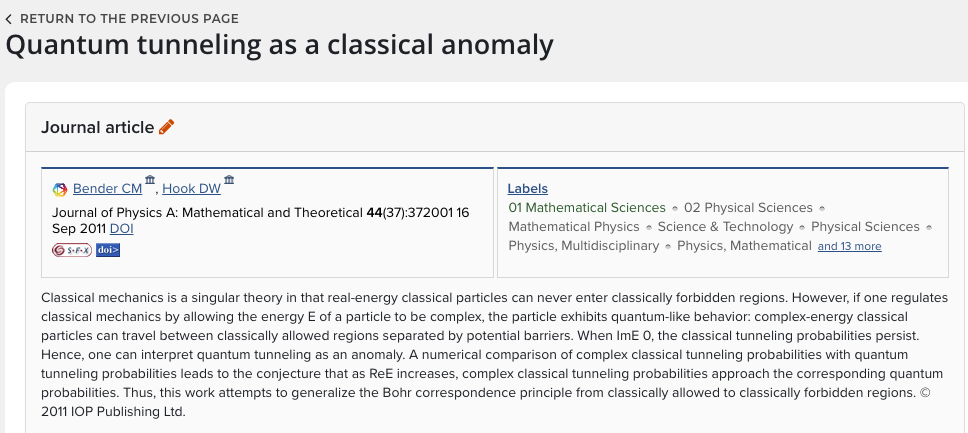
Clicking on the hypertext link will display all of the labels associated with the article and present the option to enter more.
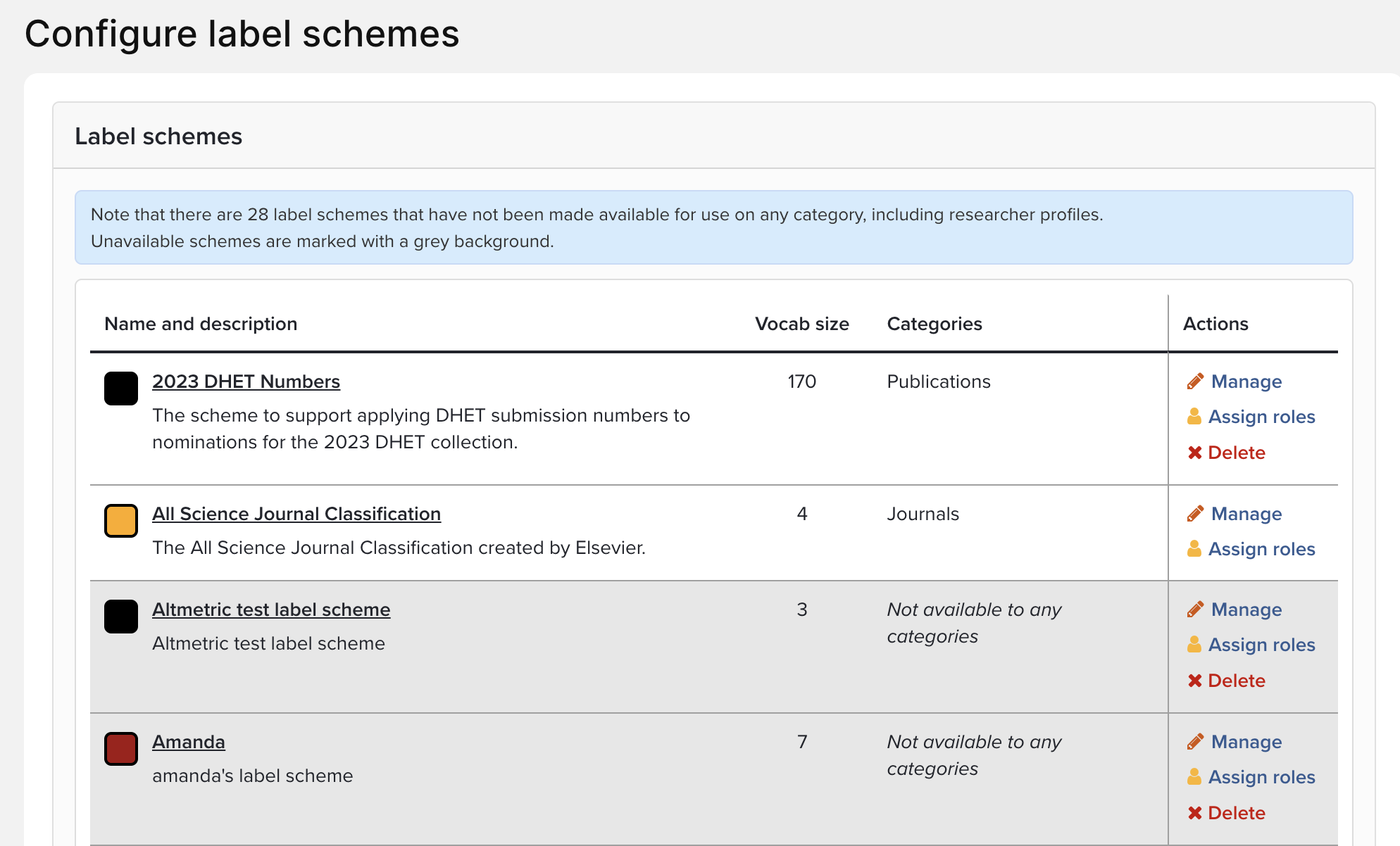
Editing the properties of a scheme
You can alter the following properties of a default label:
Colour: Please use the colour picker (the coloured square) to choose the colour
Display on: you have the ability to control the display of labels. This article Controlled vocabulary labels on the Profile page provides more information about using controlled vocabularies on Researcher Profiles.
Apply labels automatically: Available for built-in Field of Research 2008 and Science-Metrix schemes and uses ISSN lookup. Labels applied this way will not be editable. Unchecking this box will cause all such previously applied Fields of Research labels to disappear from the relevant publications. Any changes to this setting will require a full search engine re-index before automatically applied labels are correctly searchable. Within the label management screen, a mouse over dialog identifies how the label was applied
Allow percentages: Whether to allow percentage weightings to be set/updated for labels of this scheme. Updating this value will not affect any existing weightings
Restrict Labels to vocabulary: When checked, the user interface will not allow the creation of any new labels for this scheme outside of the controlled vocabulary. This restriction does not apply to labels entering the system through any automated process, including through the API, or from external data sources. Caution advised when un-checking this box for existing vocabulary schemes.
Roles: A Label Editor role allows users to apply the label to an item. A Label Scheme administrator is able to manage the properties of a label. System administrators inherit roles. Note: The "Label Editor" role should be applied to any Scheme if you require users to modify labels. If you want to ensure that users cannot modify labels do not add users or groups to the label editor role.
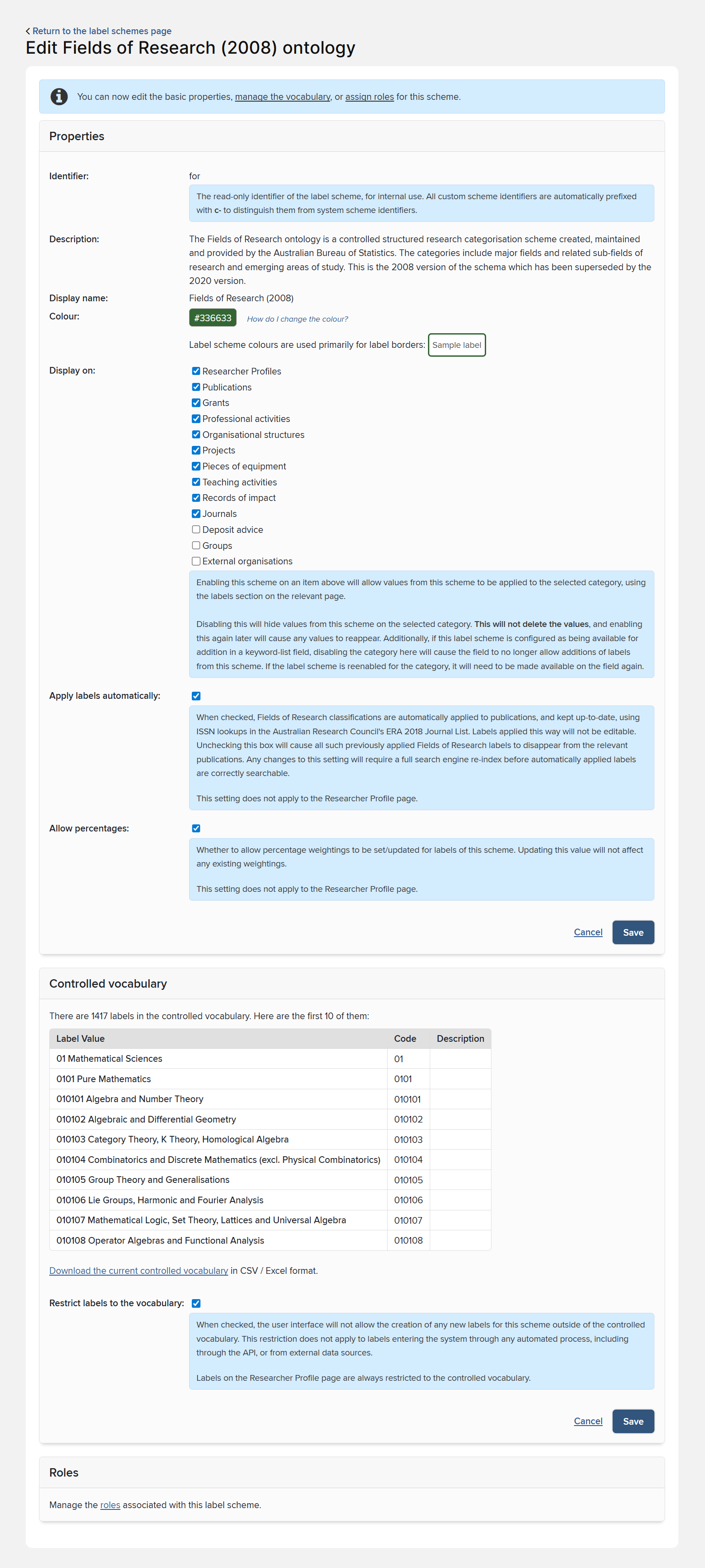
Custom Scheme
1. Add a new label scheme
Navigate to System admin > Links & labels > Configure label schemes. The Add a new label scheme link at the bottom of the page.
2. Set the label scheme properties
Complete the following properties for the new label scheme:
Identifier: This is a read-only identifier of the new label scheme
Description: This is the description of the label scheme, which appears in the Manage Labels dialogue on the publication page
Display name: This is the display name for the label scheme, which appears as a tooltip on labels on the publication page
Colour: This sets the colour when labels from this scheme are displayed
Display on: This allows you to control where the label will be applied.
Allow percentages: This determines whether percentage weightings can be set or updated for labels in the scheme.
This is a categorisation scheme: When checked, this determines whether the user interface will attempt to enforce during editing that no more than one label from this scheme can be present for any given publication.
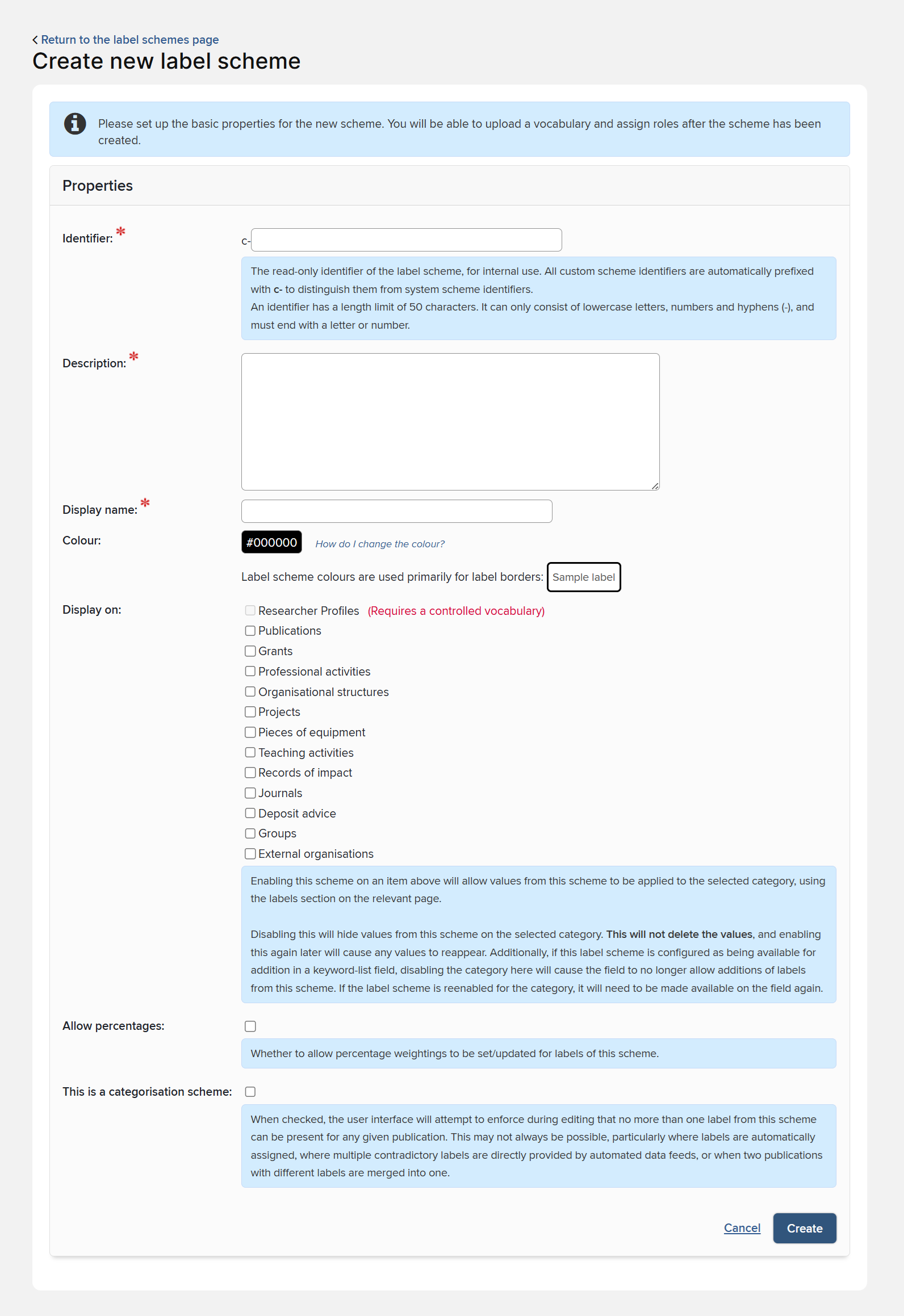
Once created, you will be able to import a controlled vocabulary.
3. Import controlled vocabulary
Provide a headerless CSV file with one column containing the entries in the controlled vocabulary.
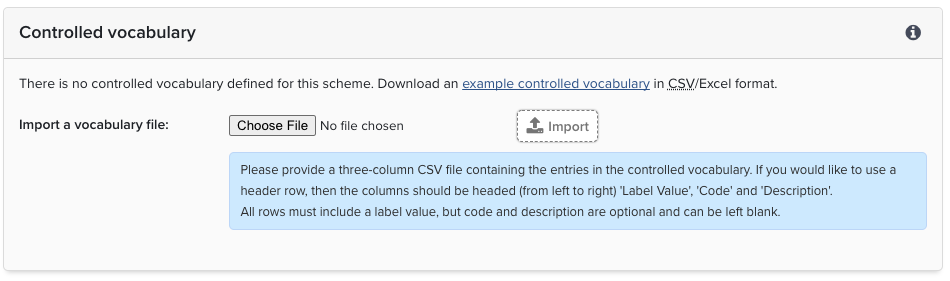
4. Verify vocabulary and restrict labels (optional)
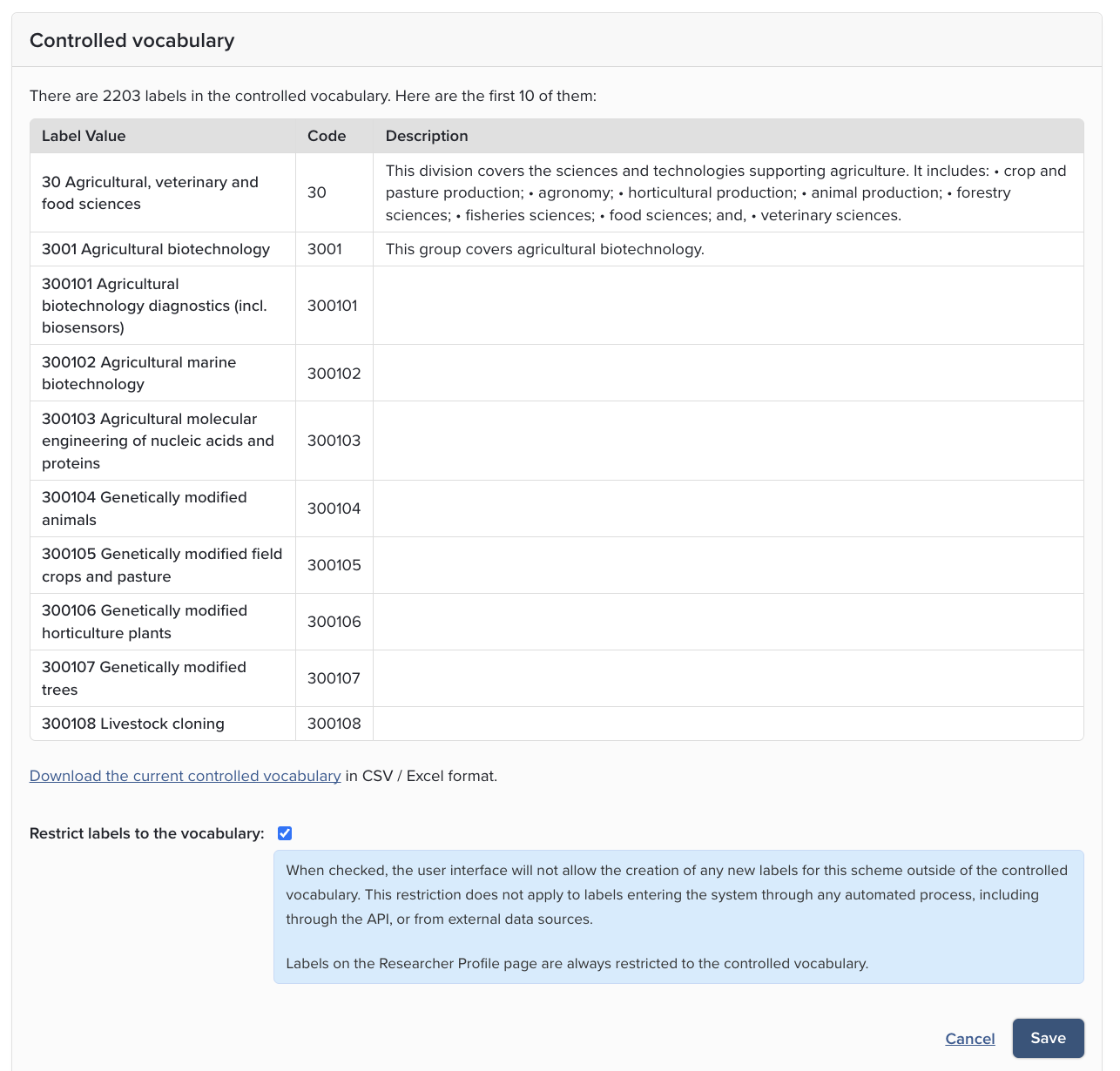
Once the new vocabulary has been imported, the first ten will be displayed.
If you choose to Restrict labels to the vocabulary, the user interface will not allow the creation of any new labels for this scheme outside of the controlled vocabulary.
Note: This restriction does not apply to labels entering the system through any automated process, including through the API, or from external data sources.
Also note: Labels on the Researcher Profile page are always restricted to the controlled vocabulary.
5. Test the new label scheme
After setting up a new label scheme, please ensure that you test it by adding and deleting a label from the new label scheme to a publication in the system.
Add keywords from label schemes to data entry forms
When adding keywords to manually added publication records, users can now have the option of choosing values from label schemes. More information about labels can be found on the support site. This expanded use of labels helps categorise research outputs at the time of entry.
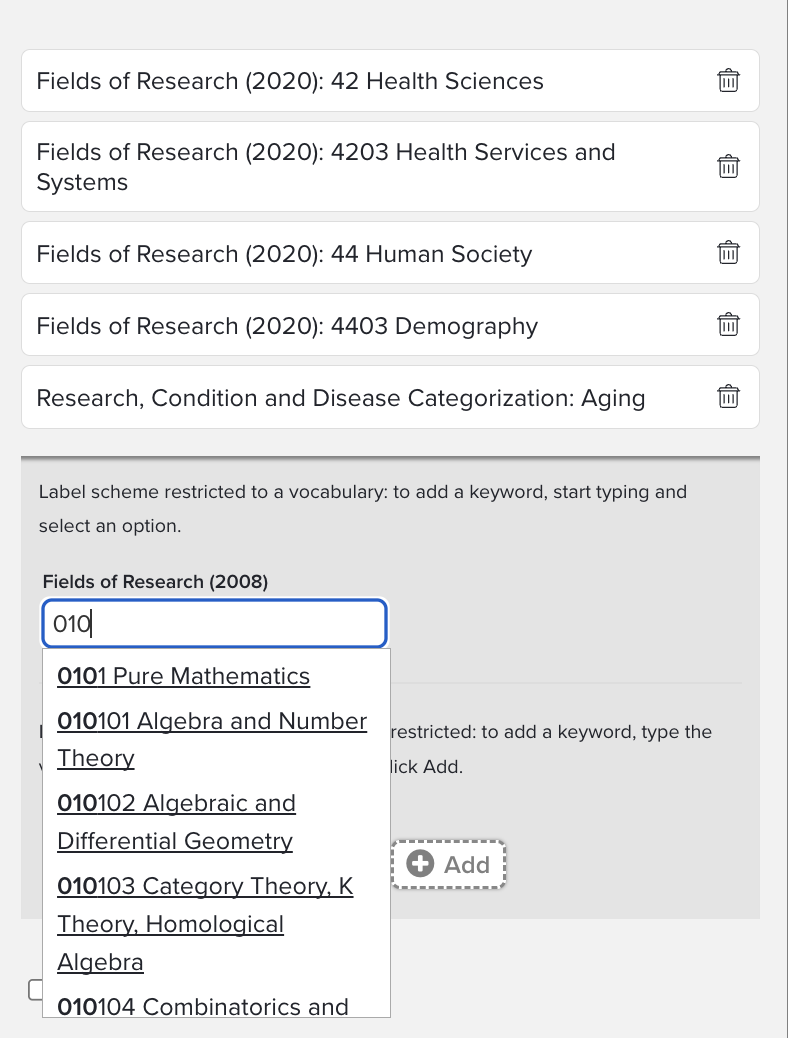
Image: Adding FOR labels to a publication during the manual entry process
This functionality can be enabled for each publication type. This is done from the Category Admin > Publications > Publication Types. First, select the publication type that you would like to update – then, select the ‘Keywords’. From the ‘Edit field’ page you have the option of enabling any of the available label schemes to be used.
This functionality supports the use of label schemes with and without a controlled vocabulary (pre-defined set of values). Use of a controlled vocabulary for keywords helps improve data consistency. For label schemes that have a controlled vocabulary the user will be presented with an autocomplete textbox to add values.
Frequently Asked Questions
How do institutions use labels?
Here are some ways we have seen labels used since their introduction:
Create categorisation for specialised or locally created publication categories, government returns or external reporting requirements.
Tag a research institute or writing group for reporting purposes.
Use subject-based ontologies to categorise disciplines.
Flag a specific institutional status of a publication. Like your own - Peer Review Status.
Manifest a specialised tag for a creative work.
Tag categories describing a manifestation like Textual or Non Textual.
Assign a set of publications to a portfolio.
How do I find out more about label assignment?
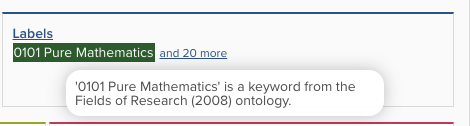
Mousing over a label will identify the source or if it has been assigned from ISSN lookup.
How are unclassified labels assigned?
Any keywords will automatically be used to create unclassified labels, including records imported, migrated or from external sources.
Why can't I edit a label?
The label editor role may not be applied to the scheme. Turn this on if you need end-users to edit labels.
Can I add/edit labels in bulk?
Labels can be added, updated and removed via the API to all available Elements categories (Researcher Profiles, Publications, Grants, Professional Activities, Teaching Activities, Records of Impact, Projects, Pieces of Equipment, External Organisations and Organisational Structures.). For full details see /{cats}/{id} in the API v5.5 Resources and Operations and Patch Label article.
Can labels be made available for crosswalking to a repository?
Yes, but only for RT2 installations.
What is the maximum file upload size for label schemes?
Yes, the maximum size is 5MB.
How can I ensure that some users do not modify a label value?
If you want to ensure that users cannot modify labels do not add users or groups to the label editor role.
Can I make a label Mandatory in a manual record?
Yes - When adding keywords to manually added publication records, users can now have the option of choosing values from label schemes. This expanded use of labels helps categorise research outputs at the time of entry. The configuration settings are available in each Publication Type for full details see the Manage Publication Types article
If I add Field of Research for Journal objects how does journal data source precedence work?
Sources with higher precedence “overwrite” FOR codes that also appear in lower precedence sources. However, if a lower precedence source has a code that doesn’t exist in a higher precedence source, it will appear in the labels (it won’t be overwritten).