Create and submit a proposal in Awards Management
About funding proposals
The Awards Management module supports the creation and submission of Research Proposals. There are two routes available to do so:
Researcher creation of funding proposal in the portal
This route enables researchers to inform the institution of their intention to apply for a specified research grant and for their proposal to be reviewed and approved by relevant institutional stakeholders. The information requested from researchers is flexible and is specified per Funding Opportunity (see also the Proposal and Eligibility forms).
The rest of this support article describes this route.Admin creation of funding proposal in the Console
This route enables administrators to create proposals directly in the Management Console at the desired pre-award status (e.g. if the review workflow isn’t required, if funds and approvals have already been secured).
Further detail on this route is available in this support article.
Creating a funding proposal
To initiate a proposal, first navigate to the relevant Funding Opportunity, and click on 'Begin proposal' (either directly from the Funding Opportunities list page, or from the Funding Opportunity Details page.
NOTE: Only the Principal Investigator (PI) can initiate a Proposal in Awards Management (the user that initiates the Proposal will automatically be named the PI and this can only be modified later by a Management Console user). Once created, any named project team member can modify the form, but only the PI can initiate and submit the Proposal.
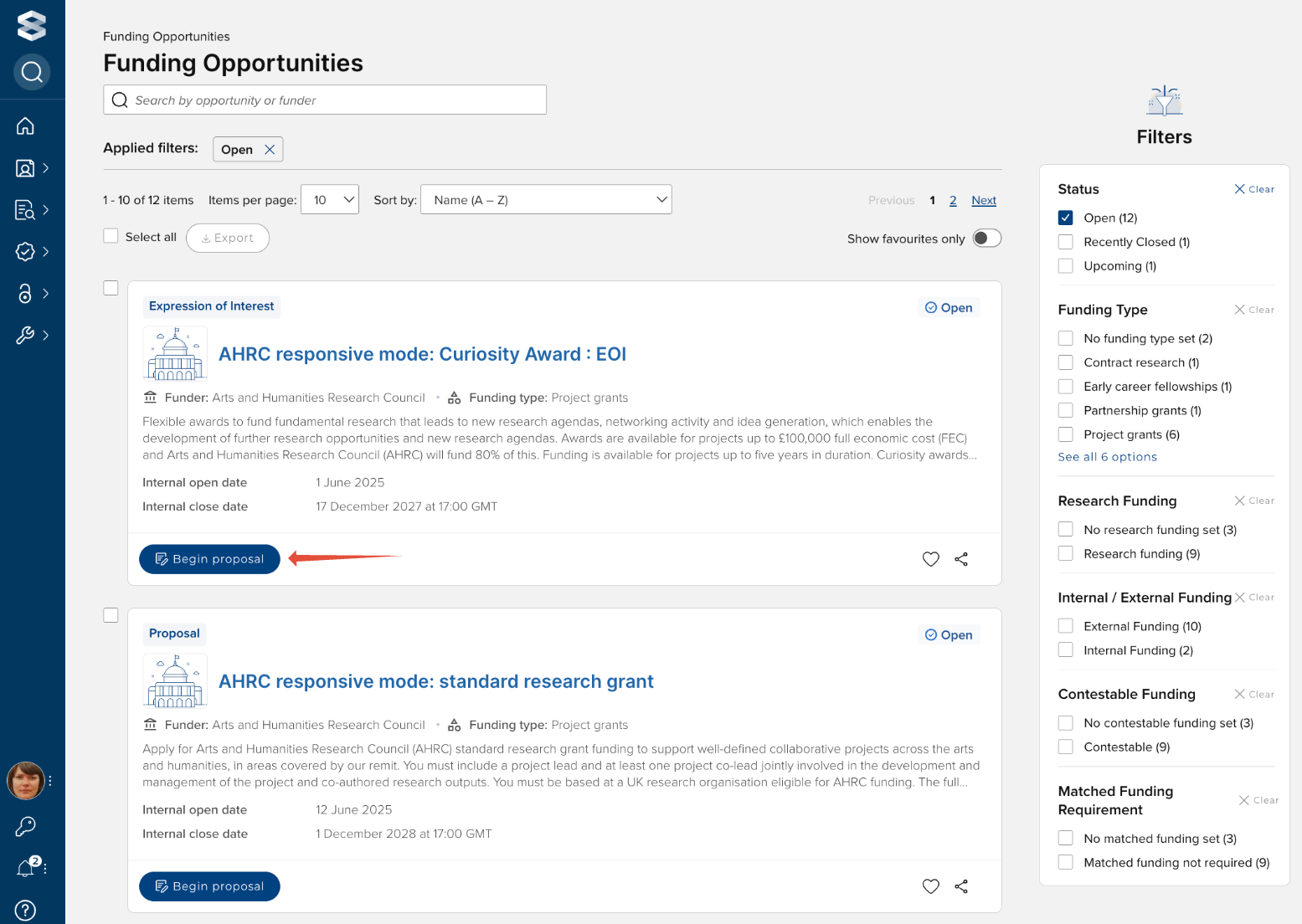
This will then initiate a Proposal.
The nature of the funding opportunity will determine the information that is requested and the instructions that are provided. In general, the Proposal form will ask the Principal Investigator to provide information about their Proposal, such as:
confirmation that all funder eligibility criteria has been met
a description of the research project
intended project start and end dates
project team members
project budget
Navigating the form
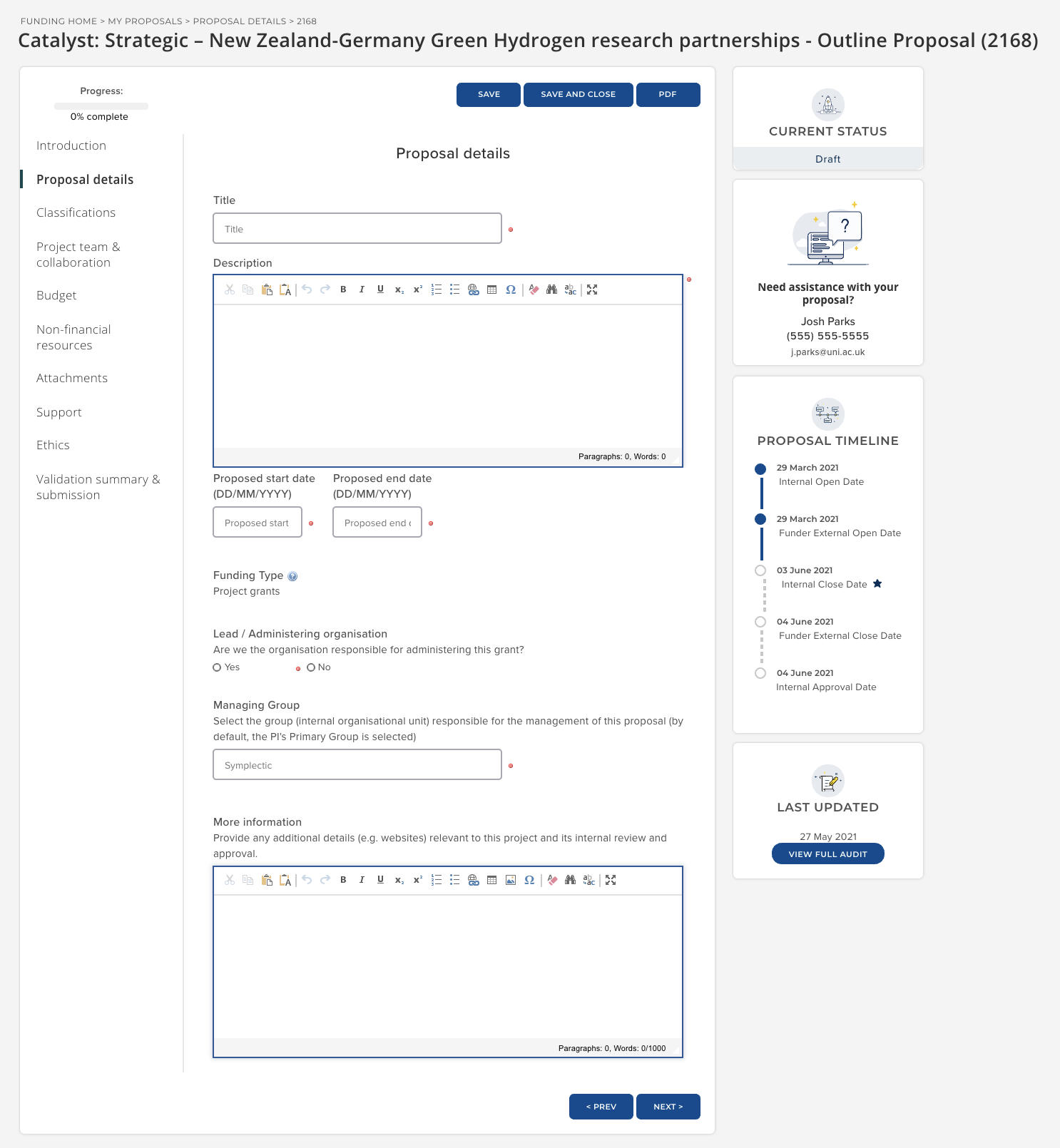
As you work through the form, you can navigate using the Prev and Next buttons at the bottom of the page (whenever you navigate to another page in the form, it will save your work). Use the Save button at the top to save your data, or Save and Close to return later. You can also jump to different pages by clicking on the page headings in the left-hand navigation bar.
Clicking the PDF button generates a PDF download of the proposal.
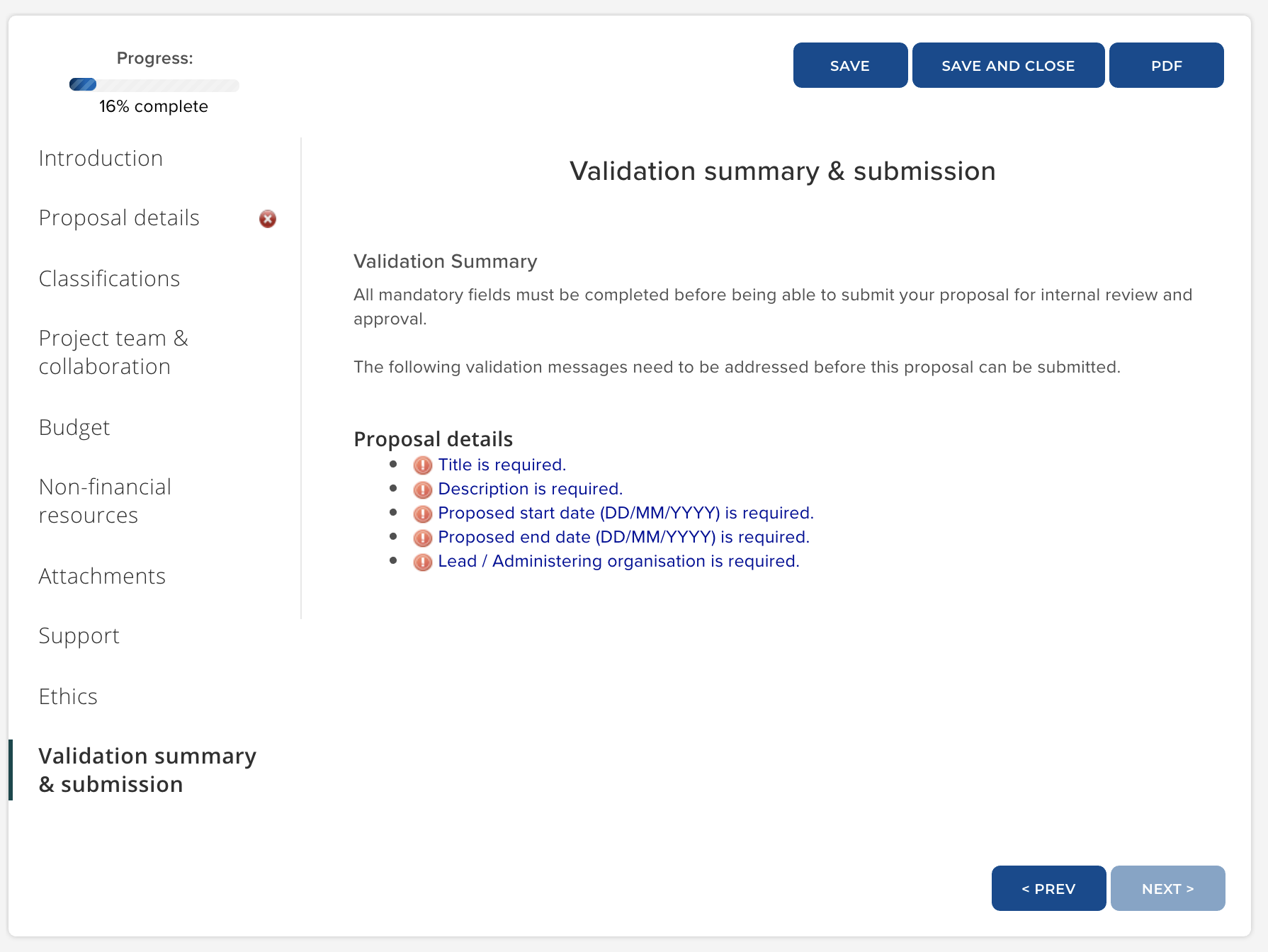
As you complete the form, various validation checks are being undertaken (e.g. all mandatory fields are completed, data is in the expected format). You will get an indication of validation issues on a page in the left-hand navigation bar, and you can see a summary of all validation issues in the final tab.
Submitting the form
Once you have completed the form, there are no validation issues, and you are ready to submit your proposal for internal review and approval, go to the final page of the Proposal form and click ‘Submit’ (only available to the Principal Investigator).
Once you submit your proposal, it will be reviewed by relevant research management colleagues (e.g. Research Office, Head of School, Dean) (the nature of this workflow may vary depending on the nature of the opportunity being applied for). You will be notified of the outcome of these reviews in due course.
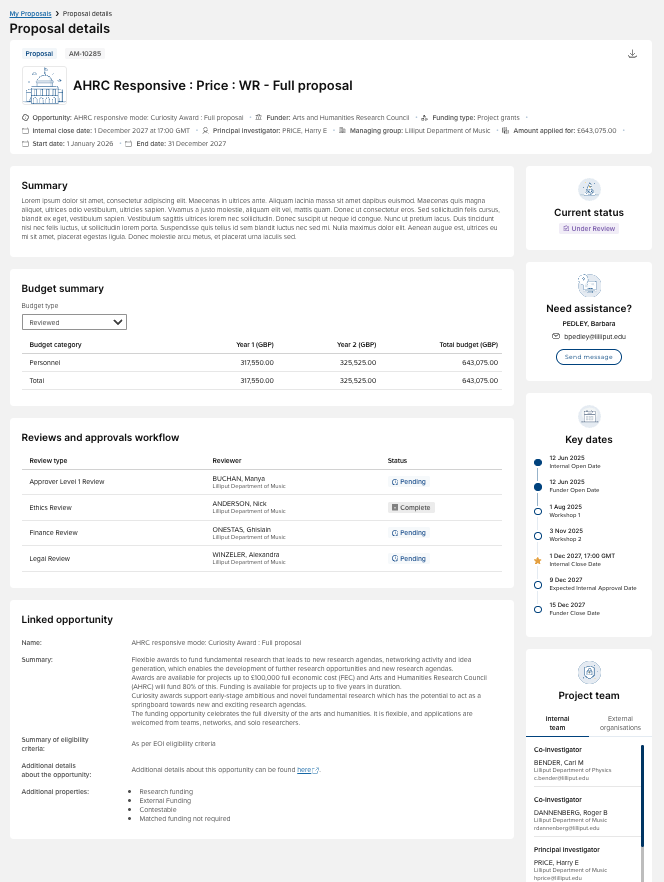
You will no longer be able to edit the Proposal form directly once you submit it, but you can continue to access summary level information and the PDF from the Proposal Details page. You can also view the current status of your proposal (e.g. Submitted, Under review, Approved) from this page.