
Creating a proposal directly in the Management Console
System Administrators, Research Funding Administrators, and Research Funding Data Administrators can create proposals directly in the Management Console at the desired pre-award status. This can be helpful in scenarios where, for example, the review workflow isn’t required, or if funds and approvals have already been secured.
Details on how researchers can create and submit proposals are available in this support article.
Note that when creating a proposal directly in the Console:
No proposal form will exist for the proposal.
The proposal reference (ID) will be generated as per the 'Reference format' logic defined on the selected funding opportunity.
Depending on the status you create the proposal at, budget snapshots for those stages that were skipped will simply reflect the value of the snapshot at the status that the proposal was created (e.g. creating a proposal at Approved status will mean the Applied, Validated, and Reviewed budget snapshots will be the same as the Approved snapshot).
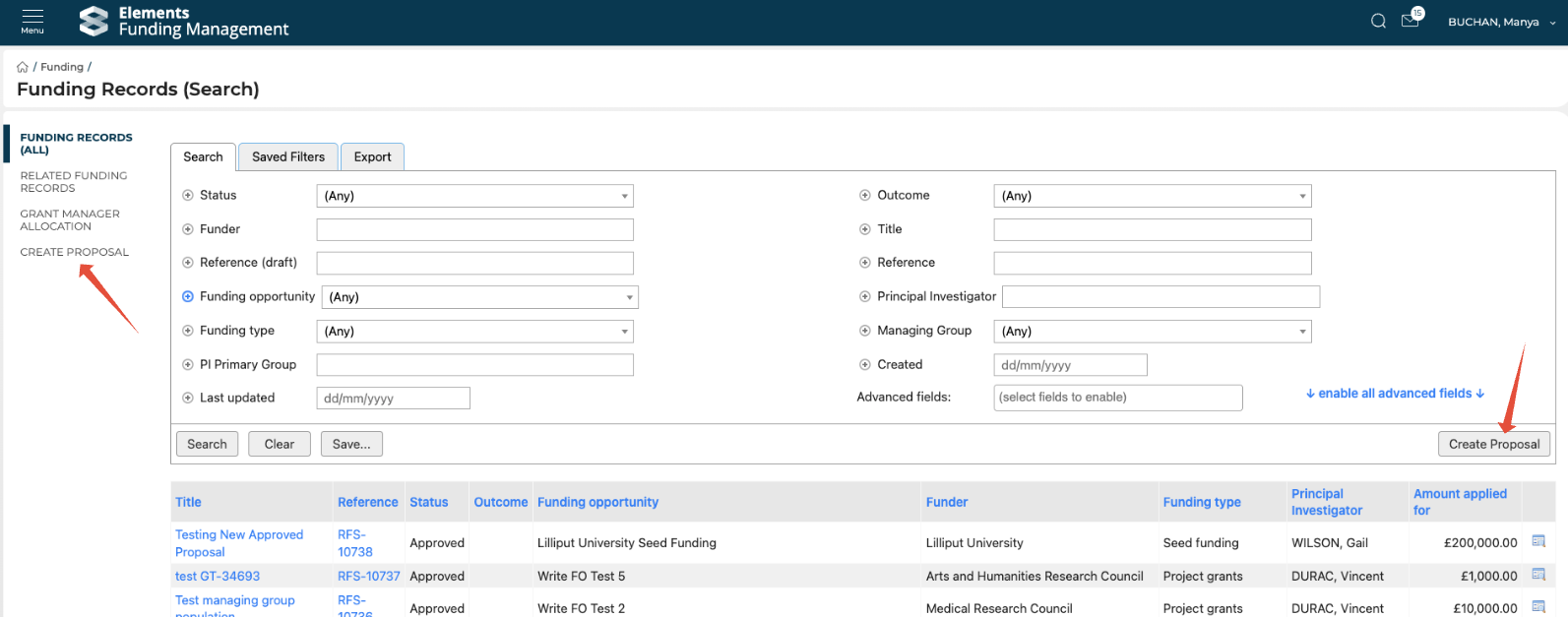
To create a proposal, go to Main menu > Funding > Funding records (search) > Create proposal.
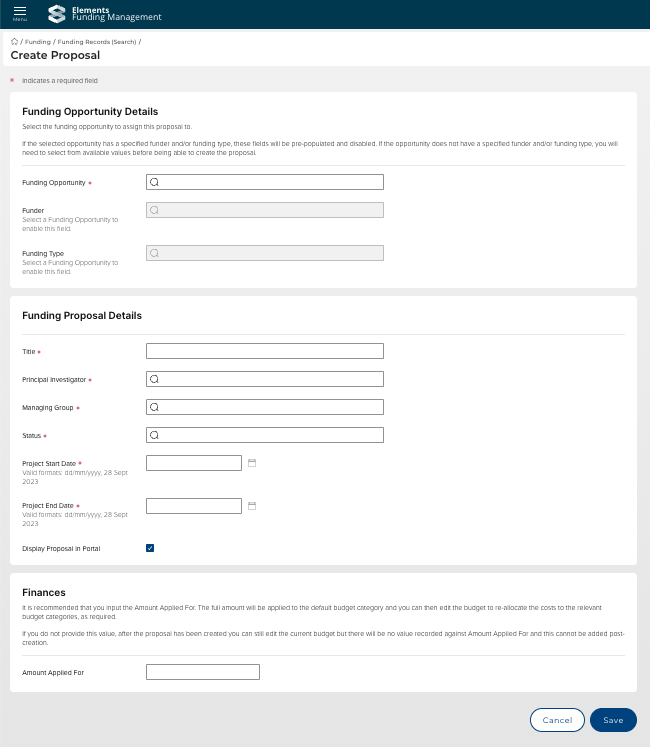
When creating a proposal, the following fields are prompted to be provided. Remaining project details (e.g. internal and external collaborators, project synopsis) can be added to the proposal following its creation.
Funding opportunity details | |||
Funding opportunity | Select the relevant funding opportunity (typeahead). Only those with status 'Applications open' and 'Applications closed' are available to select. | Mandatory | |
Funder | If populated on the selected funding opportunity, will be automatically populated here. | Mandatory | |
Funding type | If populated on the selected funding opportunity, will be automatically populated here. | Mandatory | |
Funding proposal details | |||
Title | Provide the project title. | Mandatory | |
Principal investigator | Select the Principal Investigator (typeahead). | Mandatory | |
Managing group | Select the Managing Group (typeahead). Default populates with the PI's primary group. | Mandatory | |
Status | Select the relevant pre-award status to create the Proposal at.
| Mandatory | |
Project start date | Provide the project start date. | Mandatory | |
Project end date | Provide the project end date. | Mandatory | |
Display proposal in portal | Indicate whether the proposal should be visible to project team members on the Portal. | ||
Finances | |||
Proposal created at any status other than Approved | Amount applied for | If you enter an Amount Applied For, the full amount will be applied to the default budget category. You can then edit the budget to re-allocate the costs to the relevant budget categories, as required, once the proposal has been created. If you leave this blank, after the proposal has been created you can still edit the current budget but there will be no value recorded against Amount Applied For (and this cannot be added post-creation). | |
Proposal created at status = Approved | Amount applied for | Records a value against the Amount Applied For (and cannot be edited post-creation). | Mandatory |
Awarded amount | If you enter an Awarded Amount, the full amount will be applied to the default budget category. You can then edit the budget to re-allocate the costs to the relevant budget categories, as required, once the proposal has been created. | ||