Funder submission and outcome
Where the Funding Opportunity is an external call, the Awards Management module supports tracking funder submission activities and capturing funder outcome details.
To enable this functionality for Initial EOIs / EOIs / Proposals for a particular Funding Opportunity, the opportunity must be configured appropriately - see the Configuring a Funding Opportunity end-to-end support article.
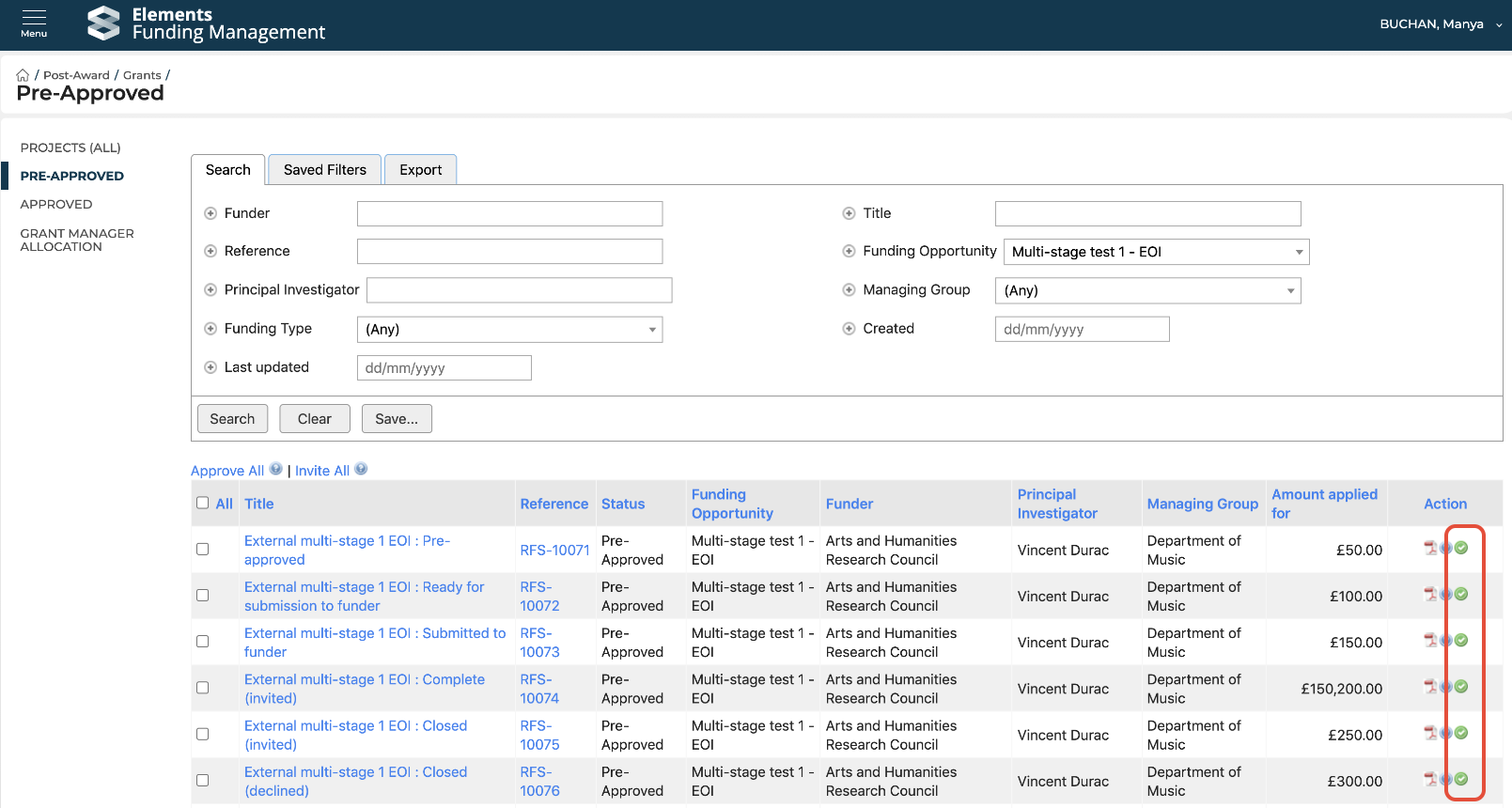
After capturing the overall internal approval decision, navigate to Pre-award > Proposals > Pre-approved. Clicking the Action icon will then initiate the funder submission tracking process.
You can notify the PI of the movement of funding records through this process using the various email prompts and templates available:
Approved and Ready for submission to funder
Submitted to funder
Funder outcome - Awarded
Funder outcome - Invited to apply
Funder outcome - Reserve
Funder outcome - Unsuccessful
Ready for submission to funder
Upon selecting the Action icon for the Initial EOI / EOI / Proposal in question, you will be directed to the 'Funder submission status' screen.
Here you can choose to:
Reject (status changes to 'Not approved' (and the EOI / Proposal will be listed in the list of 'Pre-rejected' items, ready for closure - see the 'Close proposal' section at the bottom of the Recording the approval decision article))
Withdraw (status changes to 'Closed (withdrawn)')
Proceed (status changes to 'Ready for submission to funder')
Bulk action
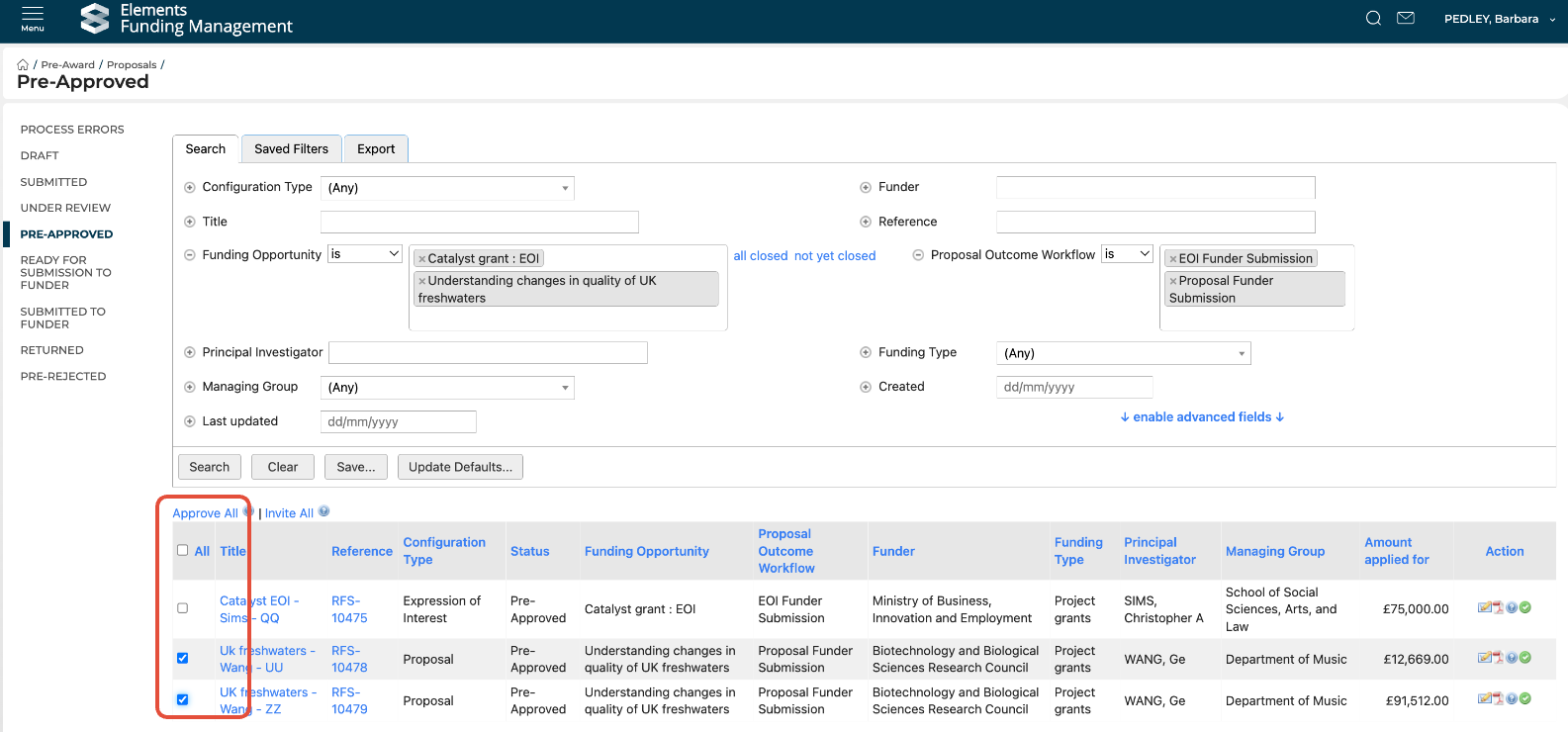
You can also move a group of external Initial EOIs / EOIs / Proposals directly to the 'Ready for submission to funder' status via the Pre-approved search screen.
Select the desired Initial EOIs / EOIs / Proposals using the selection boxes on the left, then the 'Approve all' action above.
Note that for this action to be successful, all selected Initial EOIs / EOIs / Proposals must be external, as defined by their 'Proposal outcome workflow' (i.e. Proposal / EOI funder submission).
Capturing Funder submission details
Once the Initial EOI / EOI / Proposal is in the 'Ready for submission to funder' state, it is possible to then capture the Funder submission details and move the status to 'Submitted to funder'.
Select the Proposal, then navigate to the 'Funder submission and outcome' tab. Then select 'Funder submission status'.
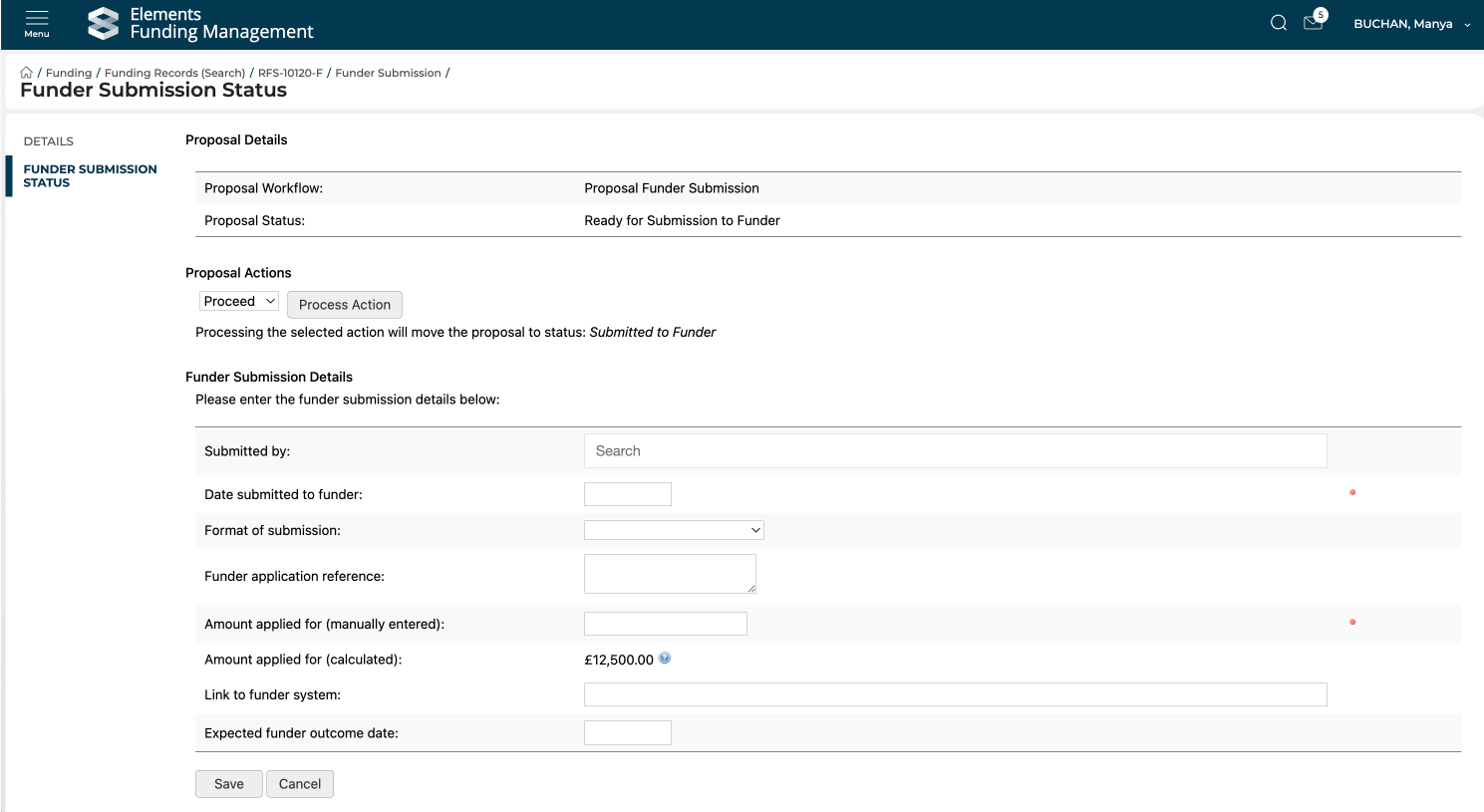
Capture the relevant funder submission details:
Field name | Description | Mandatory |
Submitted by | Name of the user who submitted the application to the funder | |
Date submitted to funder | Date the application was submitted to the funder | Mandatory |
Format of submission | Format of the submission - choose from:
| |
Funder application reference | The funder's application reference | |
Amount applied for (manually entered) | The total amount applied for (in your base currency) | Mandatory |
Amount applied for (calculated) | If this value does not match the actual amount applied for (in your base currency) to the funder (as input above), you must ensure that the budget is updated prior to moving the Proposal to 'Approved', in order to ensure an accurate snapshot of the applied for budget. | |
Funder currency | The funder currency identified on the Funding Opportunity or Proposal form. | |
Amount applied for in funder currency | The total amount applied for (in the funder's currency). | |
Exchange rate applied at funder submission | The exchange rate applied at the point of funder submission. | |
Link to funder system | Link to the application in the funder's system | |
Expected funder outcome date | When you expect the funder to notify you of the outcome |
Then select to Proceed (which will move the Proposal status to 'Submitted to funder').
It is also possible to Withdraw the Initial EOI / EOI / Proposal at this stage, changing the status to 'Closed (withdrawn)'.
Capturing funder outcome details
Once the Initial EOI / EOI / Proposal is in the 'Submitted to funder' state, it is possible to then capture the Funder outcome details.
Select the Proposal, then navigate to the 'Funder submission and outcome' tab. Then select 'Funder submission status'.
Initial Expression of Interest / Expression of Interest
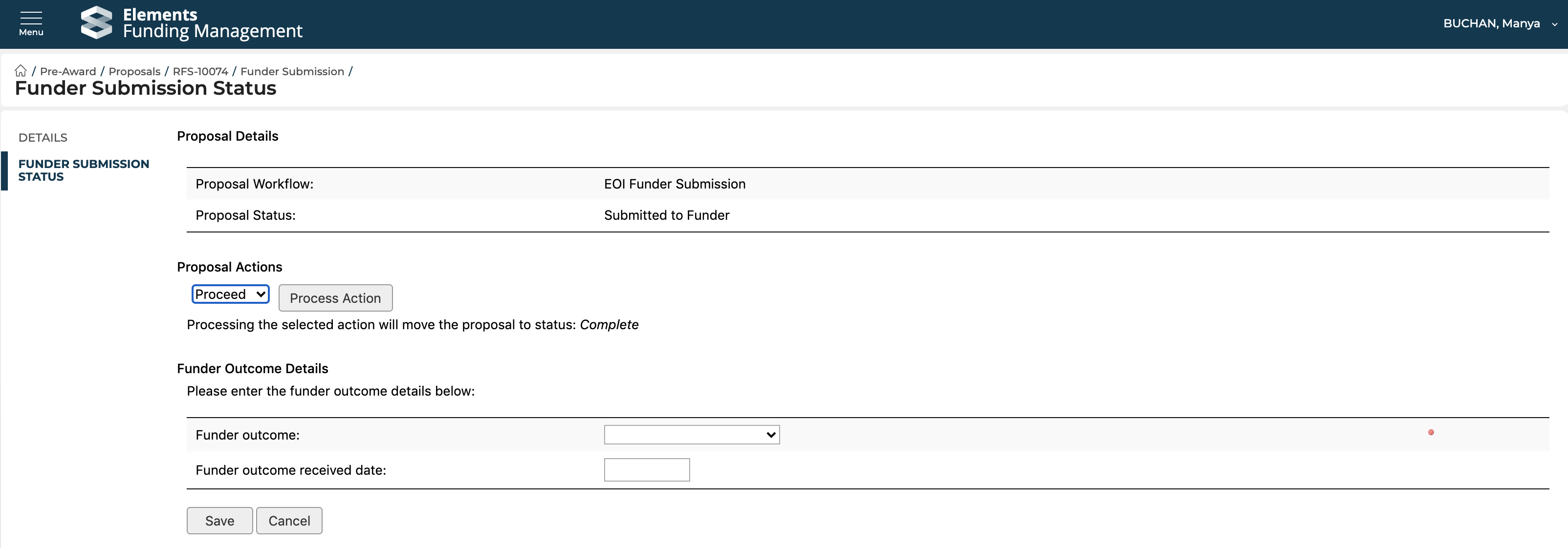
Capture the relevant funder outcome details:
Field name | Description | Mandatory |
Funder outcome | Choose from:
| Mandatory |
Notification from funder received | Indicate whether the unsuccessful outcome was received from the funder or is assumed | Mandatory |
Funder outcome received date | Date the funder outcome was received |
If the funder outcome is 'Unsuccessful', select 'Unsuccessful' as the Proposal action and 'Process Action'. This will then change the status to 'Closed', with an outcome of 'Unsuccessful'.
If the funder outcome is 'Invited to apply':
To proceed to the next stage (EOI for Initial EOI, or full Proposal for EOI), select 'Proceed' as the Proposal action and 'Process Action'. This then opens the 'Full application invitation' screen. Select the next stage from the 'Move into Round' drop-down, then select the desired form mapping and click 'Create Full Application'. This will then automatically create a Proposal (pre-populated with data from the previous round, as per your selected mapping) for this next stage. Further details on this process are available here.
To decline the invitation, select 'Decline' as the Proposal action and 'Process Action'. This will change the status to 'Closed (offer declined)'.
Proposal
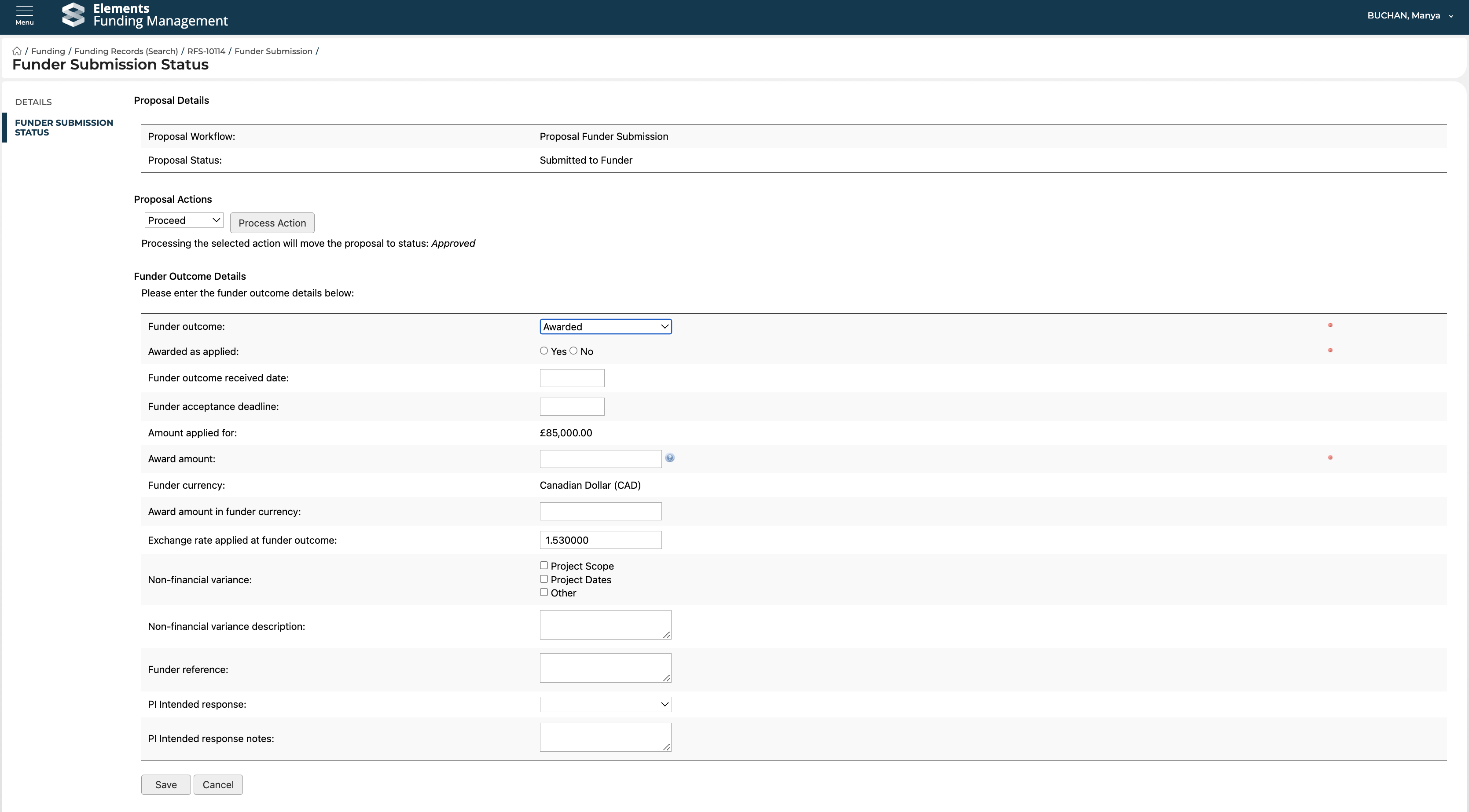
Capture the relevant funder outcome details (the fields available will differ based on the funder outcome selected):
Field name | Description | Mandatory |
Funder outcome | Choose from:
| Mandatory |
Notification from funder received | Indicate whether the unsuccessful outcome was received from the funder or is assumed | Mandatory |
Funder outcome received date | Date the funder outcome was received | |
Awarded as applied | Indicate whether the award was made as applied, or with variances | Mandatory |
Funder acceptance deadline | Date by which the funder expects a response | |
Amount applied for | Displays the total amount applied for (as captured in the 'Amount applied for (manually entered)' field on the previous 'Submitted to funder' screen) | |
Award amount | Total award amount (in your base currency) | Mandatory |
Funder currency | The funder currency identified on the Funding Opportunity or Proposal form. | |
Award amount in funder currency | The total amount awarded (in the funder's currency). | |
Exchange rate applied at funder outcome | The exchange rate applied at the point of funder outcome (default populates with the exchange rate applied at funder submission, but can be overwritten). | |
Non-financial variance | If the award is not as applied, indicate the non-financial variances (if any) | |
Non-financial variance description | Provide additional description (if required) of any non-financial variances | |
Funder reference | The funder's grant reference | |
PI intended response | Select the PI's intended response:
| |
PI intended response notes | Provide additional notes (if required) on the PI's intended response |
If the funder outcome is 'Unsuccessful', select 'Unsuccessful' as the Proposal action and 'Process Action'. This will then change the status to 'Closed', with an outcome of 'Unsuccessful'.
If the funder outcome is 'Reserve' (meaning that the funding may be awarded at some point in future, should other awards not proceed), select 'Reserve'. There is no accompanying Proposal action - a Reserve proposal will remain in the 'Submitted to funder' status until the eventual final award decision is known (or presumed).
If the funder outcome is 'Awarded':
Select 'Proceed' as the Proposal action and 'Process Action'. This then changes the status to 'Approved'.
To decline the award, select 'Decline' as the Proposal action and 'Process Action'. This will change the status to 'Closed (offer declined)'.
It is also possible to upload certain funder outcome data in bulk - details are available here.
PI notification of submission to funder and funder outcome
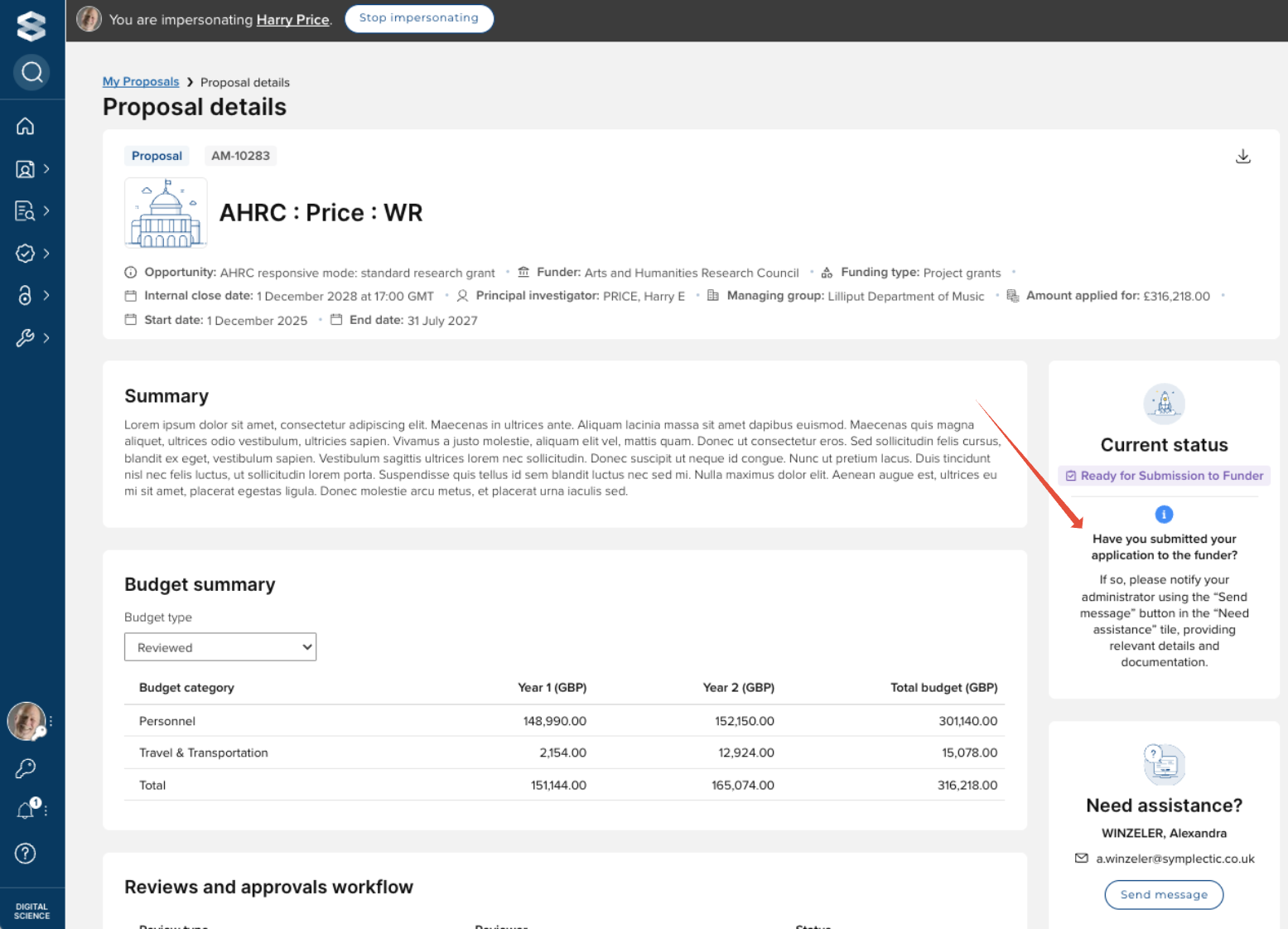
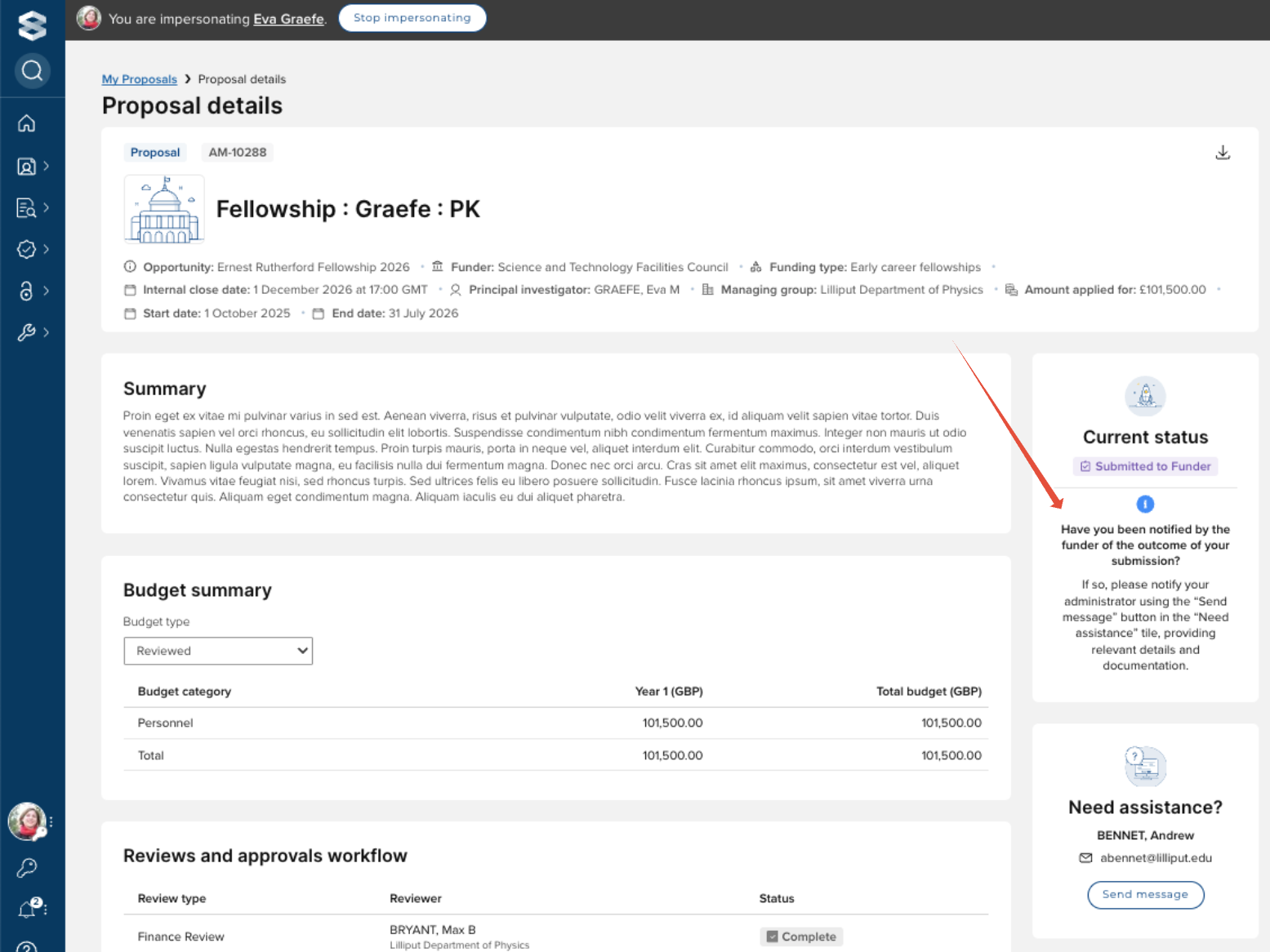
There is not yet functionality to enable the PI to capture the Funder submission or Funder outcome details directly. Until there is, Principal Investigators (or any other project team member) can notify the Grant Manager / Funding Opportunity support contact if they have submitted their application to the funder (when the status is 'Ready for submission to funder') or if they have been notified of the outcome of their application (when the status is 'Submitted to funder').
This is available on the Proposal details screen.