
Change requests
The Awards Management module includes functionality to support the management of project change requests for active Projects. This includes the facility to:
initiate a change request, capturing relevant metadata such as:
request type
description
whether funder approval is required
documentation
progress the request through internal approval, submission to funder, funder outcome, and completion
add internal comments including dates and relevant users
prompts to action the request once / if approved
The functionality to initiate a change request is available to authorised project team members in the Portal and authorised users in the Funding Management Console. Managing the request approval process is available to authorised users in the Funding Management Console.
Creating and completing a new Change request : Console
Once a Proposal has been moved to the 'Approved' state (see the Recording the approval decision support article), the 'Change requests' page becomes available on the Proposal's page in the Console.
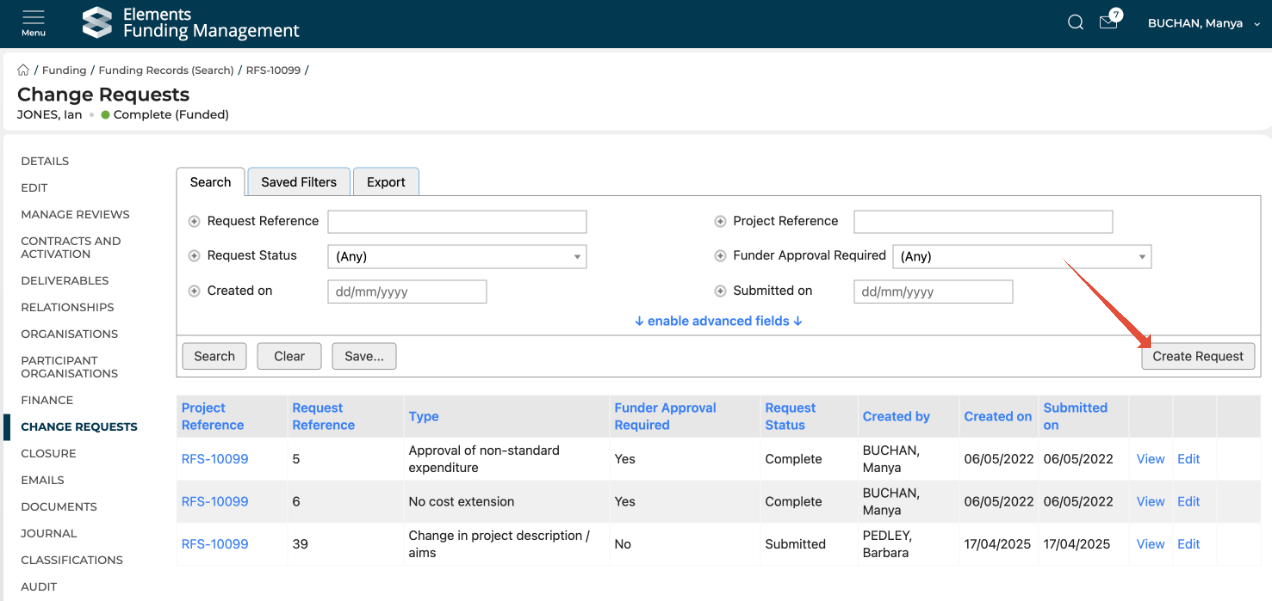
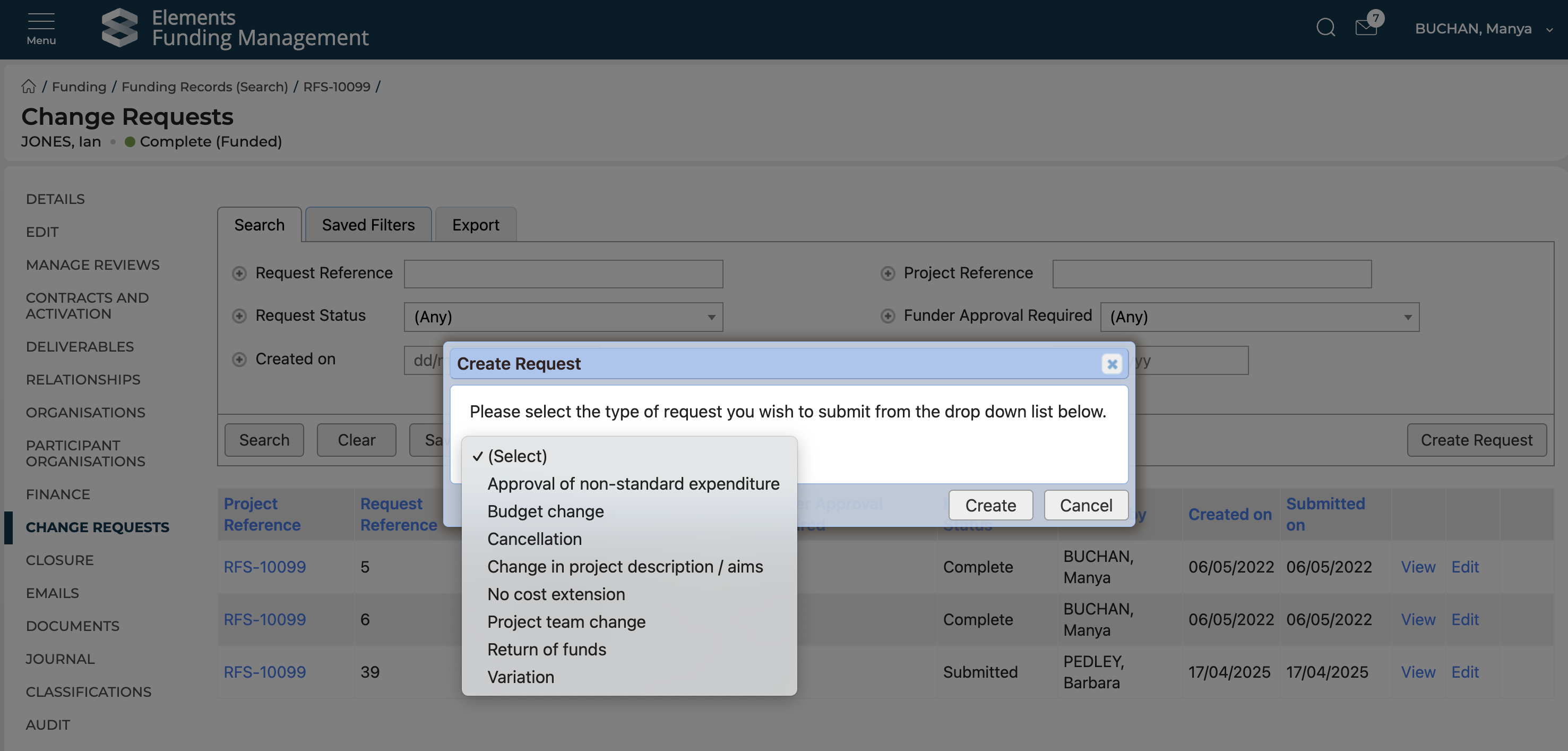
Select 'Create Request', then select the change request type.
A new page opens for capturing details of the Change request.
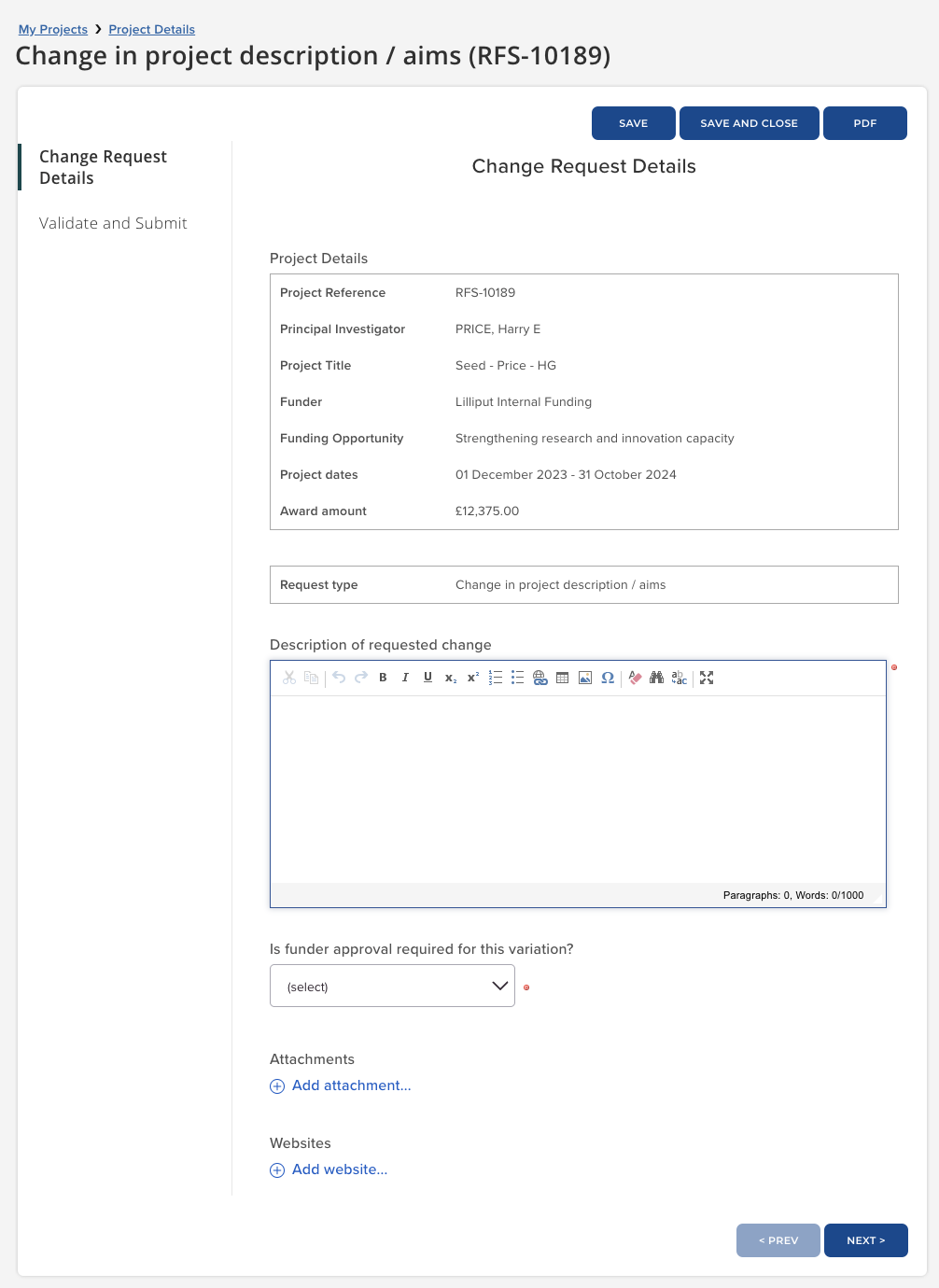
Once complete, navigate to the 'Validate and submit' tab to check for any validation errors. Once any errors are cleared, the request can be submitted.
Submitting the form returns you to the 'Change requests' page, where the status of the submitted request now shows as 'Submitted.'
Creating and completing a new Change request : Portal
Change requests can also be created by authorised project team members via the Proposal Details (once the proposal reaches the 'Approved' state) or Project Details page. This function is available to the following participant roles:
Principal investigator
co-Principal investigator
Project manager

Selecting '+ New change request' will prompt the user to select the type of change request, then will open the Change request form for the user to complete and submit.
Authorised project team members can continue to modify (including deleting) the Change request until it is submitted (i.e. status is 'In progress'), after which point they will only be able to download the PDF of the submitted Change request form.
The Grant Manager will be notified by email when a Change request is submitted via the portal.
Deletion of a Change request by a project team member will mark it as 'Abandoned', removing its visibility from the Proposal / Project details page (but it will continue to be visible to authorised users in the Management Console).
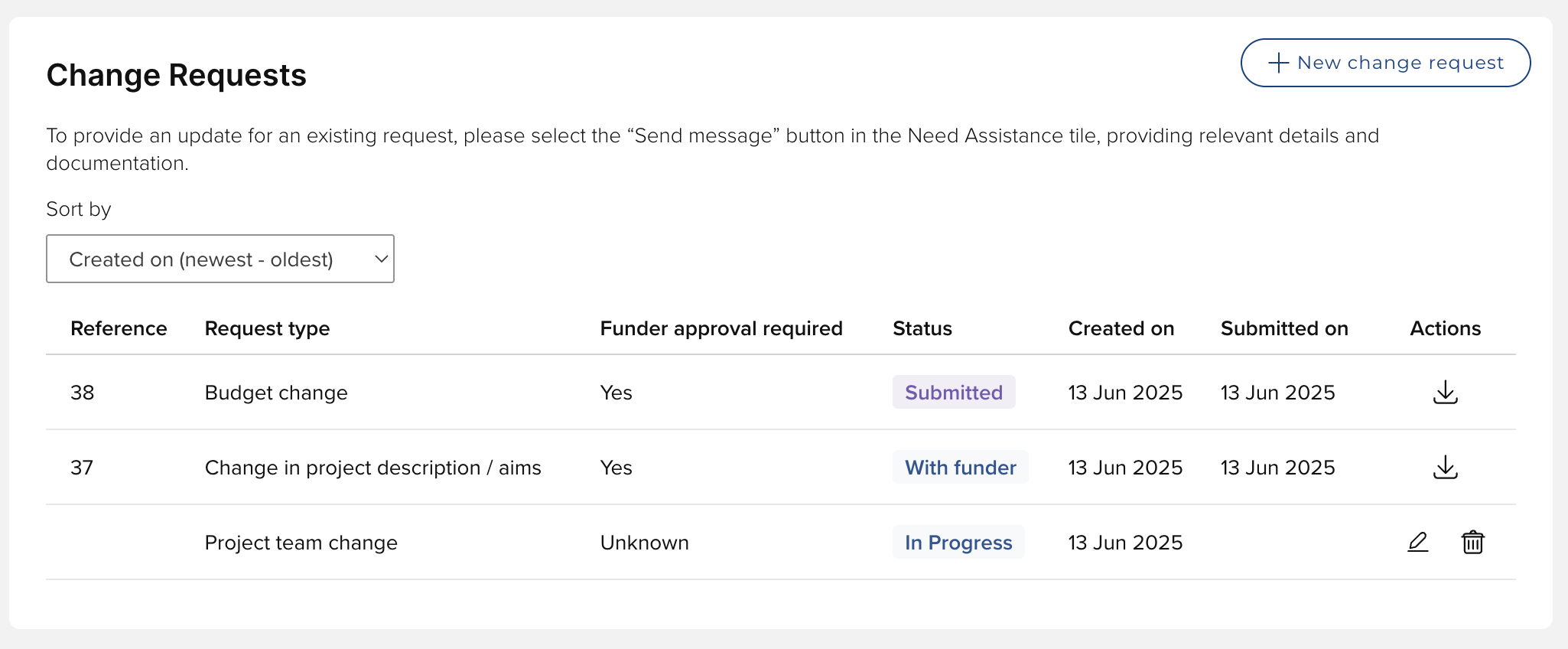
The Change requests section in the Proposal / Project details page is only visible to the PI, co-PI, or Project manager participant roles.
Managing the request approval process
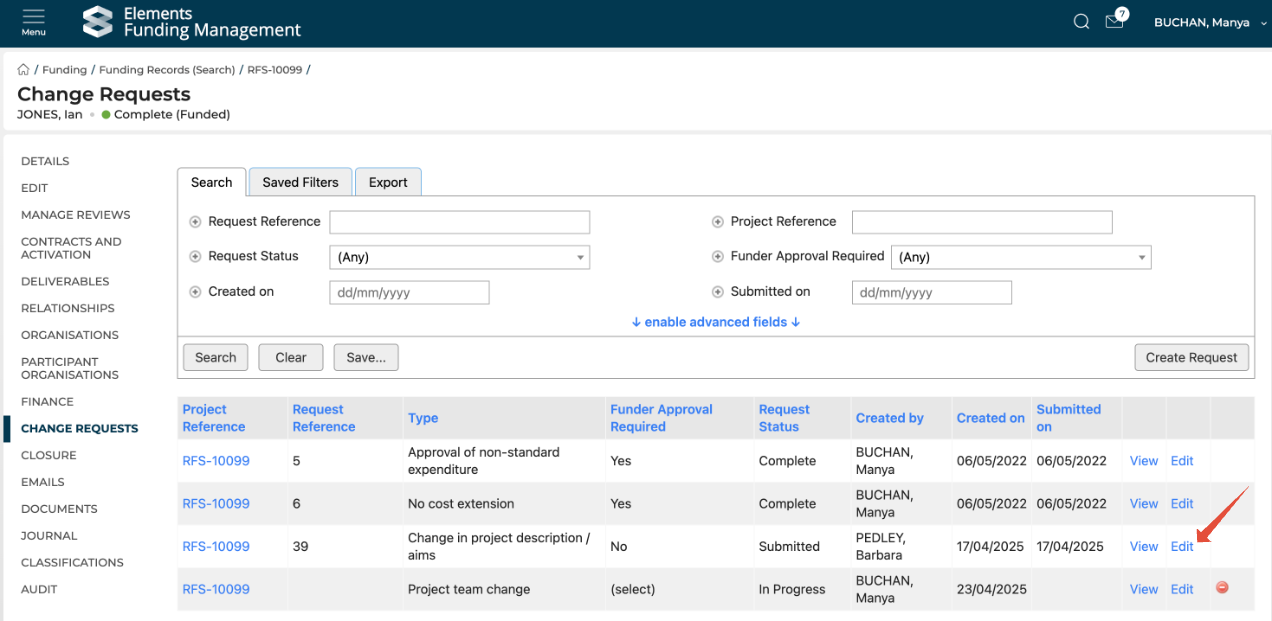
From the 'Change requests' page, click 'Edit' to open the Change request form.
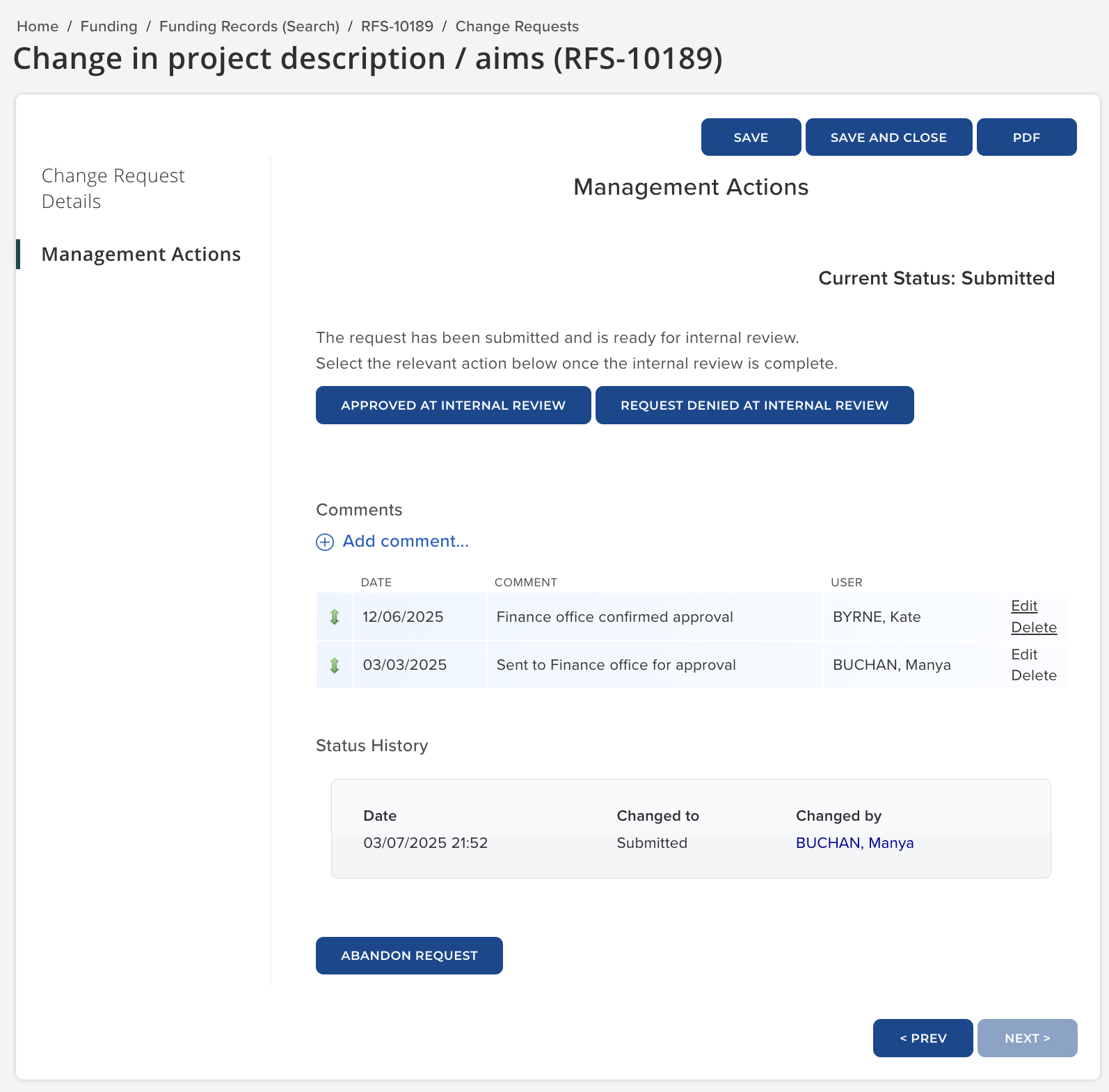
Navigate to the 'Management actions' page to process the request through the relevant stages. The current status of the request is displayed at the top of the page, with buttons for the available actions below.
Comments may be added as required, and a history of all status changes is displayed.
The action buttons available depend on the current status of the request and on whether funder approval for the change is required.
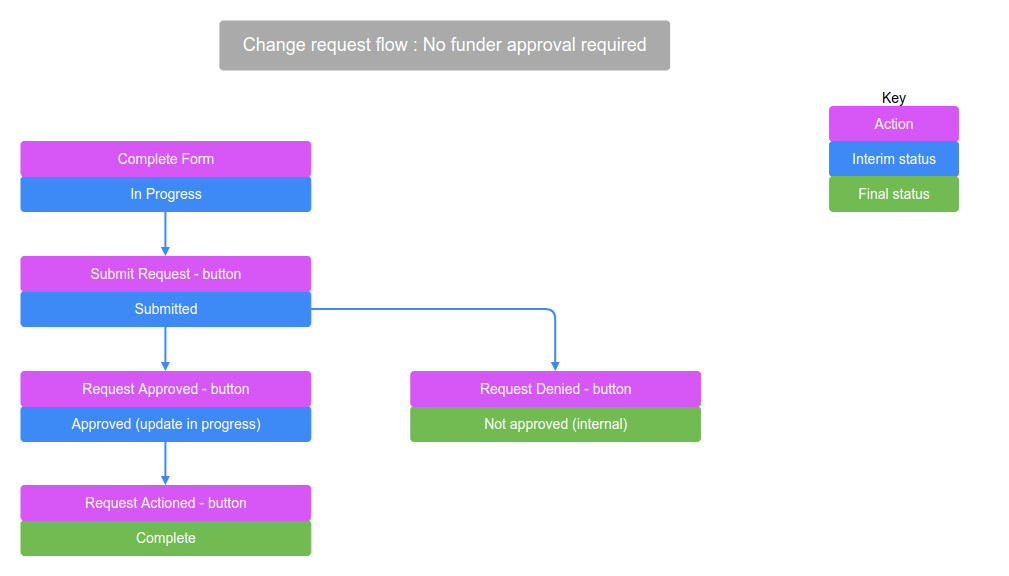
Image: Illustration of Change request process flow where no funder approval is required.
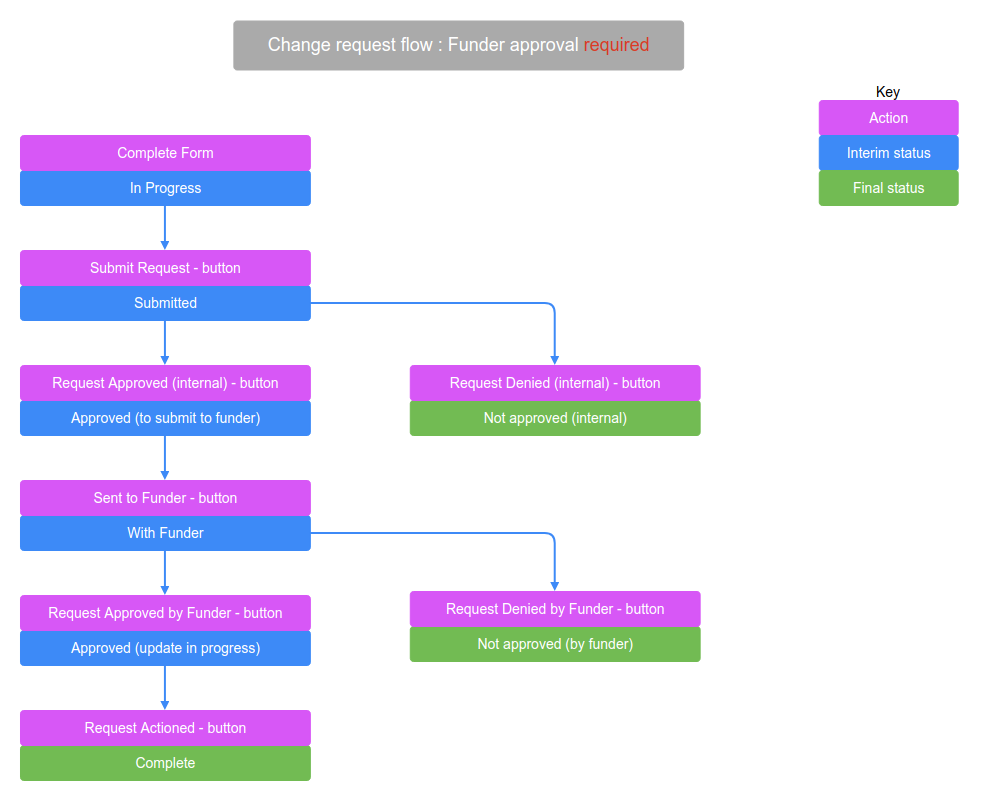
Image: Illustration of Change request process flow where funder approval is required. Additional actions allow tracking of the request through submission to funder and the funder response.
Once the status is at 'Approved (update in progress)', a new 'Implement change request' section is available in the form with prompts to action the request.
Once all relevant actions are complete (e.g. Project end date is changed, Active budget is updated), click the 'Request actioned' button to move the request status to 'Complete'.
Monitoring Change requests
The Change requests page within the Contracting & Post-award menu allows Console users to search for Change requests requiring further action. Clicking the reference hyperlink takes the user to the Change request page for the individual Project.
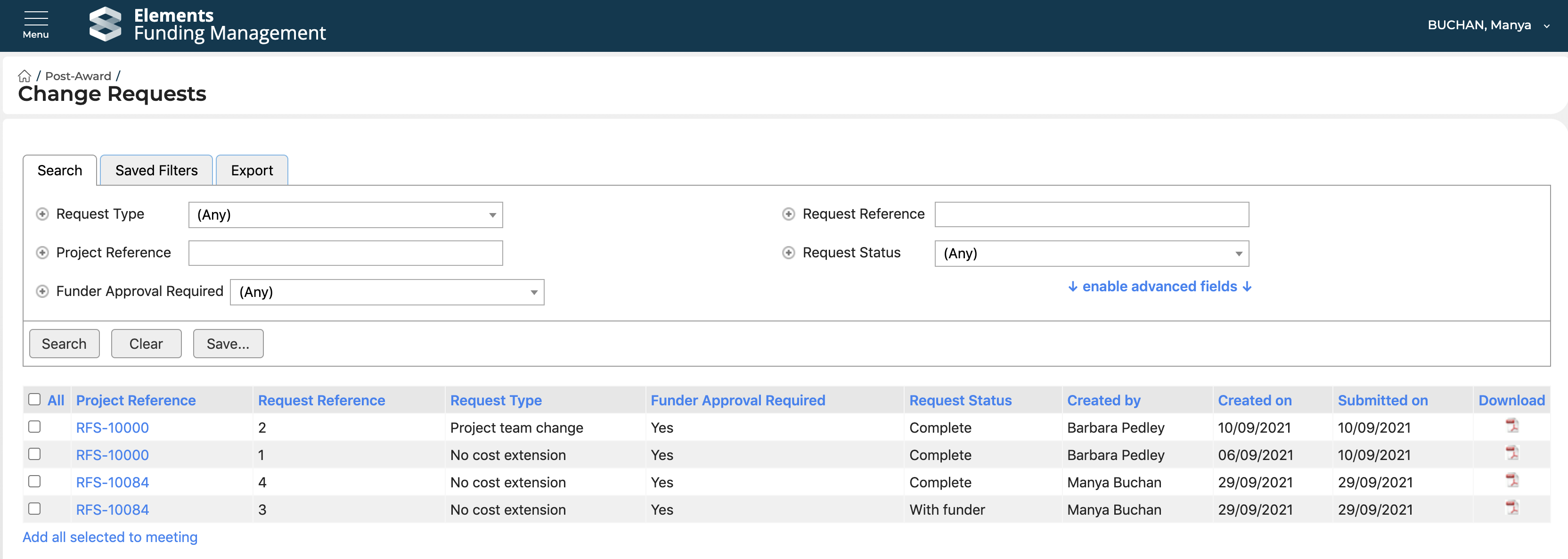
A PDF of the request details is created at the point of submission, and is available to download from this page (using the PDF icon in the 'Download' column), and from the Project Change requests page (by selecting 'View').