
Exporting Projects from Awards Management
The export of Project data is based on three separate exports (generating three separate export files):
Project data (RFS Finance Integration - Project Extract)
Budget information (RFS Finance Integration - Budget Extract)
Internal collaborators (RFS Finance Integration - Internal Collaborator Extract)
Each export is available as a full export and as a differential export. The differential exports only include those Projects where updates* have been made since the last scheduled export, and only the differential exports are flagged as active and can be scheduled.
* Note that this is triggered by any update to the Project data, not just updates to data included in the export file. As such, the data included in the export file may not have changed since the previous export. Such updates may include those made during the process of an upgrade, and could therefore include all active projects if the project datamodel has been updated as part of the upgrade process.
The facility to export this Project data and configure the relevant settings is available to System Administrators and Research Funding Administrators.
Before you begin
Before being able to export Awards Management Project data, a few areas need to be configured first.
Data directories
You need to specify where you want to save the exported files - the location from which your Finance system will 'extract' them. When you are ready to define this, get in touch with us so we can configure the data directory settings as required.
Export profiles
In the Management Console, go to Admin > Data import & export > Integrations > Export profiles.
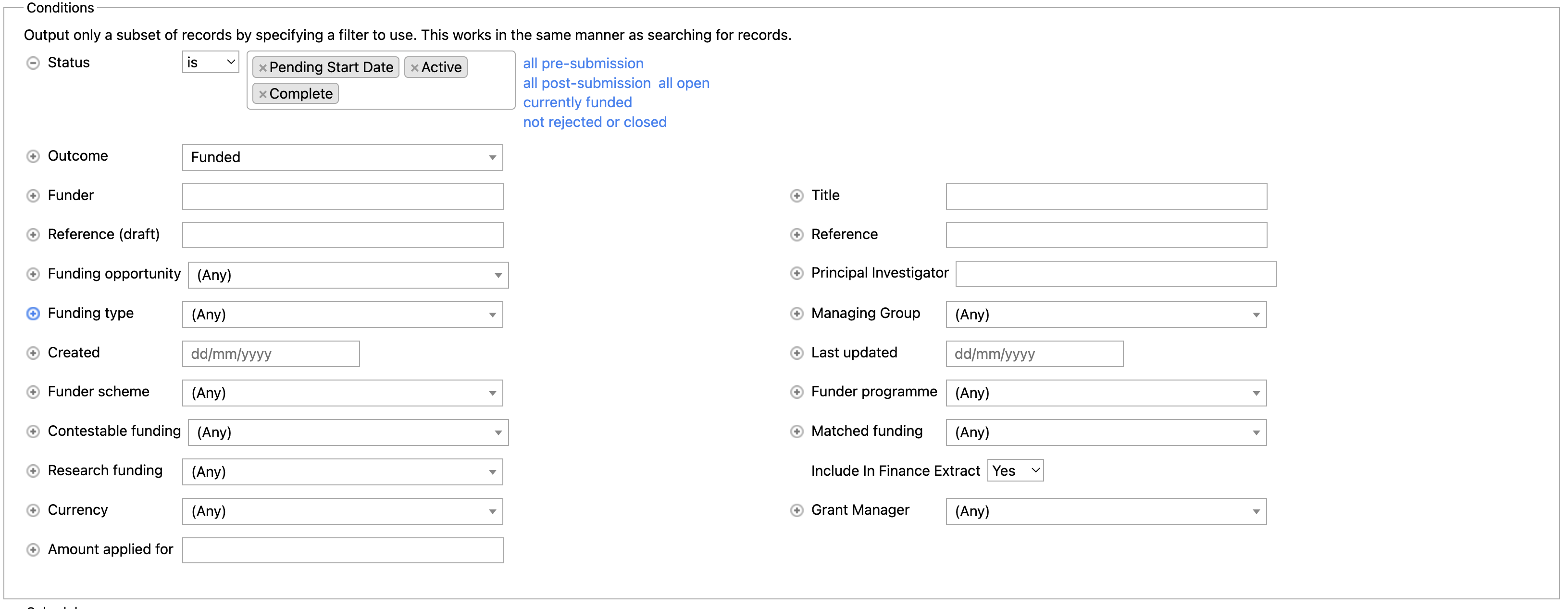
For each of the profiles (there are six), in the 'Conditions' section, apply the following filters (this will ensure only activated not-closed Projects will be included in the extract):
Status:
Pending start date
Active
Complete
Outcome:
Funded
Include in Finance extract (if your Projects are configured to capture this field)
Yes
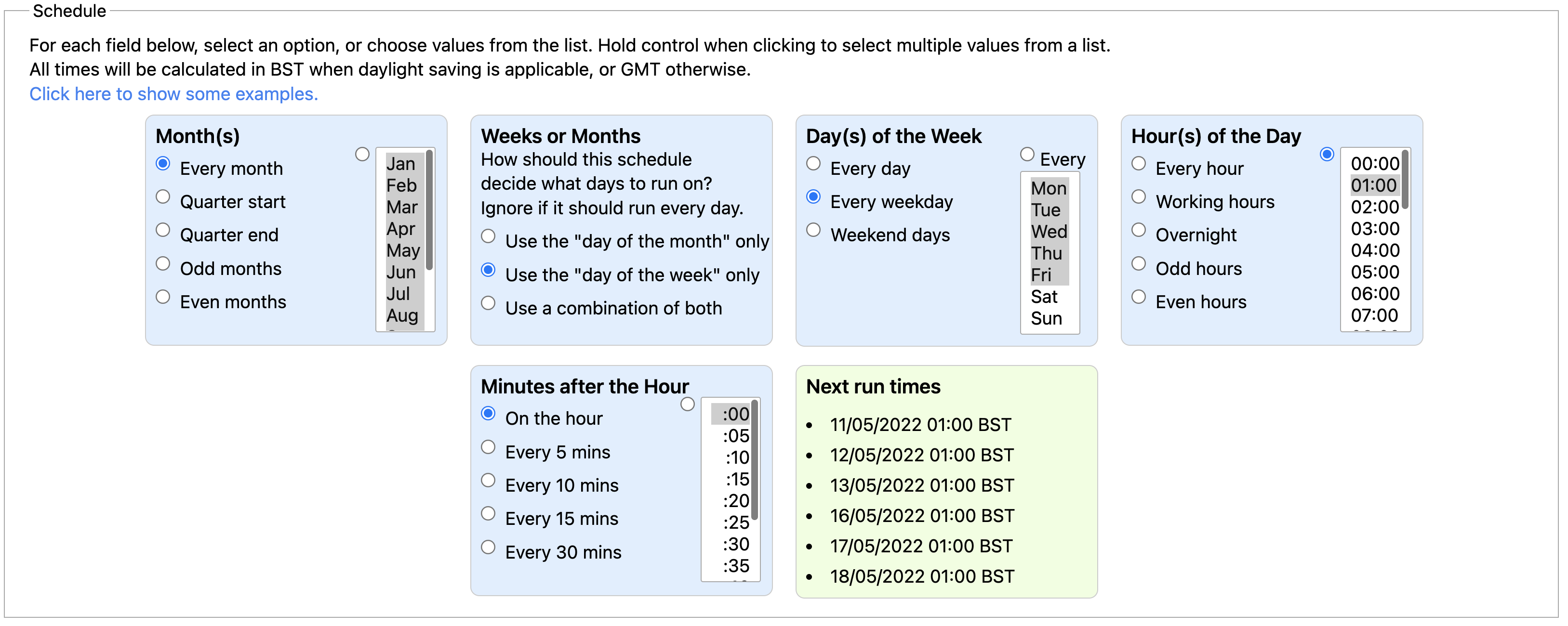
For the three Differential exports, in the 'Schedule' section, select the desired frequency of the scheduled job (by default, the job is scheduled to run every weekday at 1.00am). All three exports should be scheduled to run at the same time.
Any schedule set for the Full exports will not be applied as the scheduled jobs only run off of the Differential exports.
Make sure to save your changes.
NOTE: The first time the jobs are run by the scheduler, a full export will be performed. Every subsequent scheduled job will run the Differential exports, only including Projects where the data has been updated since the last scheduled job was run.
Running ad hoc exports
It is possible to run ad hoc exports outwith the scheduled jobs. There are two options for doing this:
Download to your computer
To run an export that will download the results to your computer, go to Admin > Data import & export > Integrations > Export profiles. For the desired export, select 'Run now'.
Note that when you run such an ad hoc export, this will not be added to the integration history and will not affect the cutoff times for future runs of differential output profiles.
Export to saved location
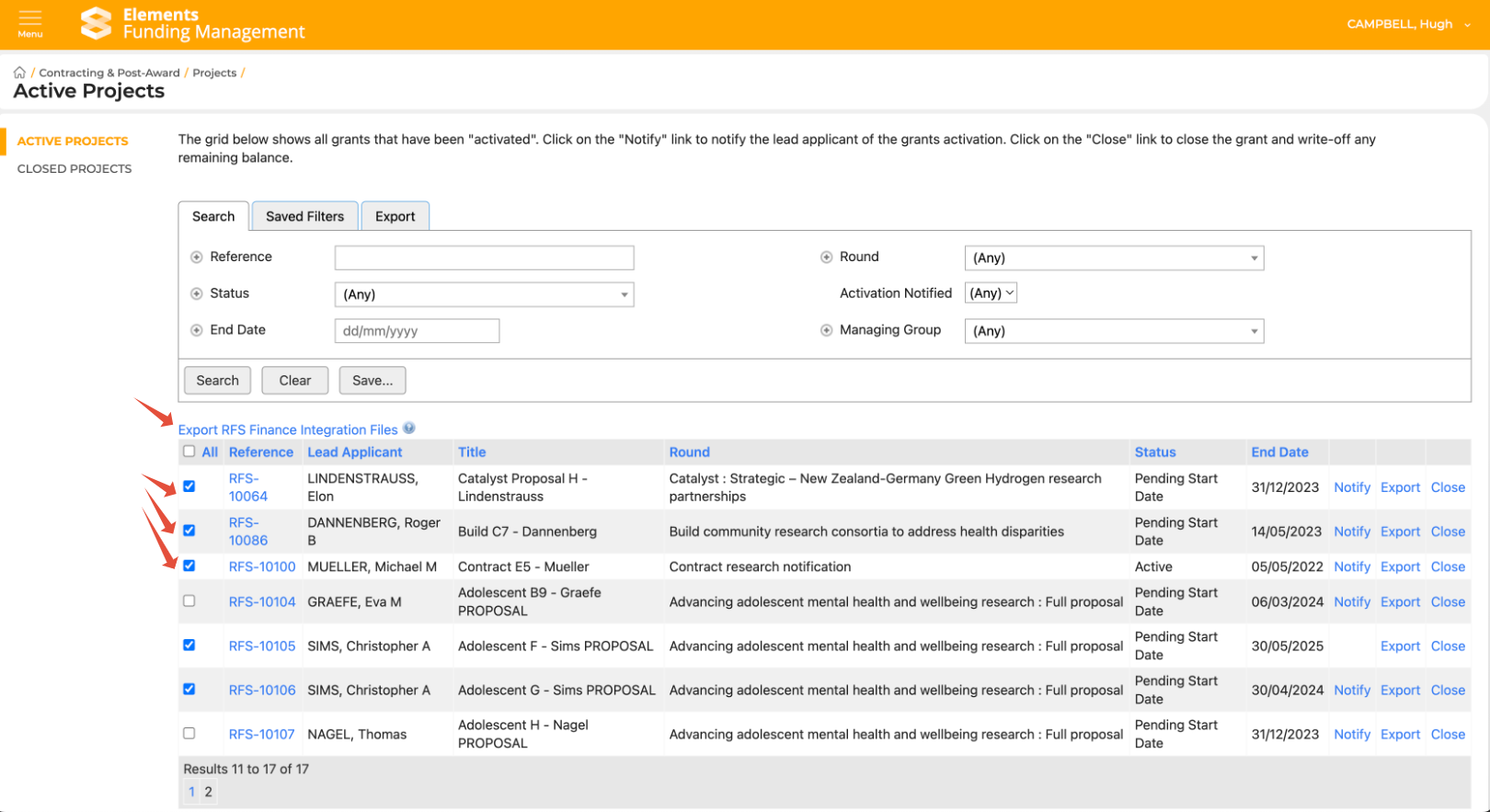
To run an export that will download the results to the saved location (as per the Data Directories settings referred to above), go to Main menu > Contracting & Post-award > Projects > Active Projects. Select the Projects you wish to export using the selection boxes on the left-hand side, then select 'Export RFS Finance Integration Files'.
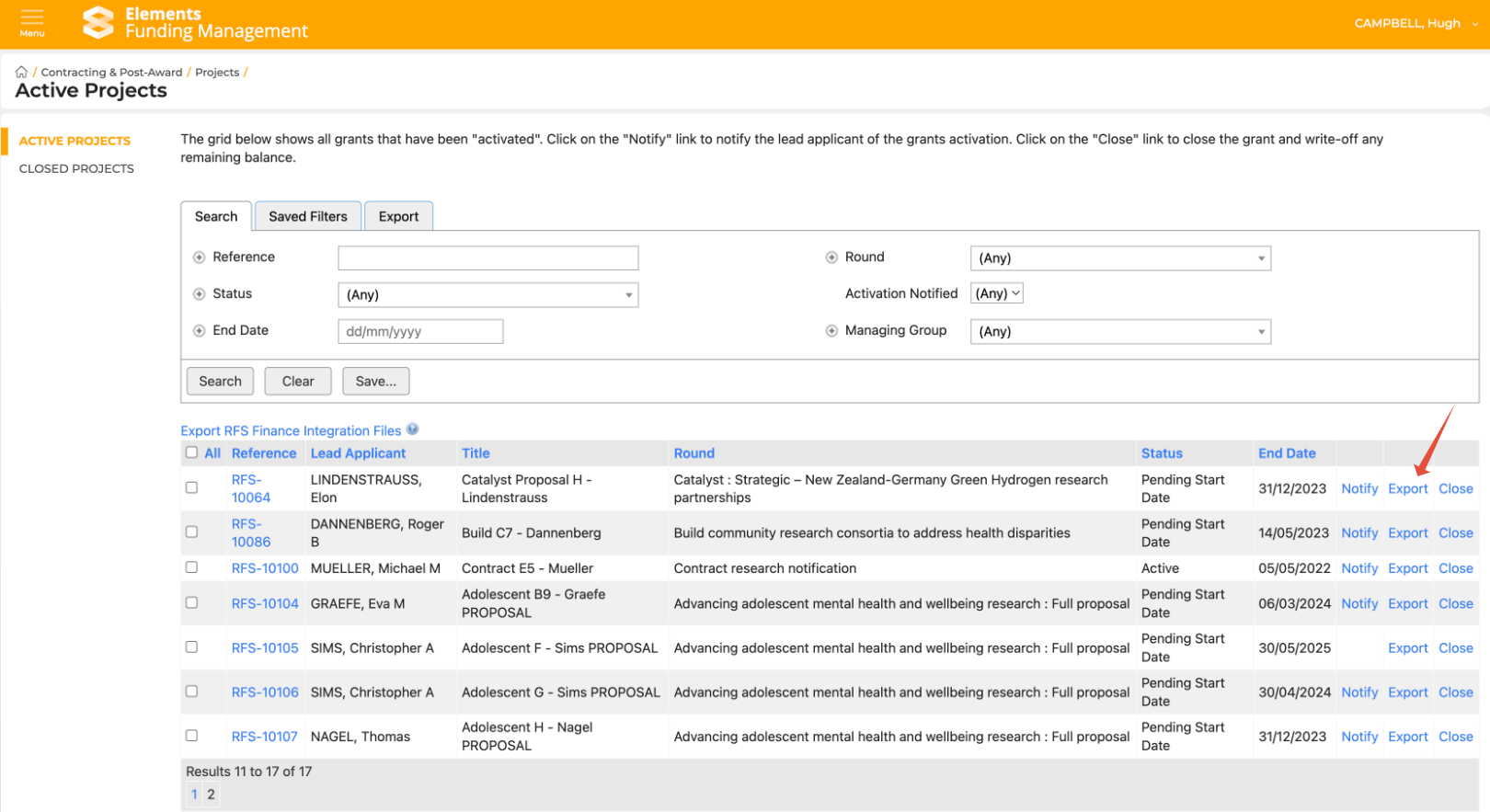
Or if you only want to export a single Project, you can use the 'Export' button on the right.
Exporting from the Active Projects page is a full export (not differential) and respects any filters set up on the export profile. The export produces the same 3 files. As with the 'Run now' ad hoc report described above, when you run such an ad hoc export, this will not be added to the integration history and will not affect the cutoff times for future runs of differential output profiles.
Note that this function is only available to System Administrators and Research Funding Administrators.