
Symplectic Elements v6.9 - Release Notes
Elements Version 6.9
Introduction
Welcome to Elements 6.9!
In this release we’ve made major user interface enhancements to the Assessment Module, focussing on improving the user experience for both researchers and reviewers when completing an Assessment Exercise. Our new Assessment interface has been designed to make it easier for users to rapidly understand their submission requirements, and empower them to move quickly and intuitively through the exercise, reducing the stress associated with annual reviews and other kinds of assessment activities.
Following the last release where we announced that you can now harvest data from DSpace 7, we are pleased to expand upon this integration, offering bi-directional integration support and the full suite of Repository Tools (RT2) functionality. This feature-rich integration will allow organisations using DSpace to upgrade to the latest version of this popular repository platform whilst continuing to streamline deposit and OA monitoring efforts using Elements.
Open Access publishing strategies continue to evolve and there are now many more ways researchers can make their work open. As the first step towards offering a wider range of OA monitoring and reporting, we have broadened the range of metadata available from existing data sources to provide organisations with a fuller picture of your OA publishing patterns.
And those using Google Analytics to track visits and engagement to their Discovery sites will be glad to hear we have updated our framework to support Google Analytics 4, keeping you up-to-date with the latest functionality.
As always, the new version of Elements and associated upgrade instructions can be found in the Elements upgrade forum.
Enhancing the Assessment Module
The Elements Assessment Module provides organisations with a configurable submissions & review solution which can be used to undertake a wide variety of evaluation and reporting exercises. The workflows supported by the module are often vital to a researcher’s career pathway. Following on from our review of this module in 2021, we have been redesigning this module to help organisations streamline their review and evaluation processes and to offer an enhanced user experience to make the experience of using the module as intuitive and stress-free as possible.
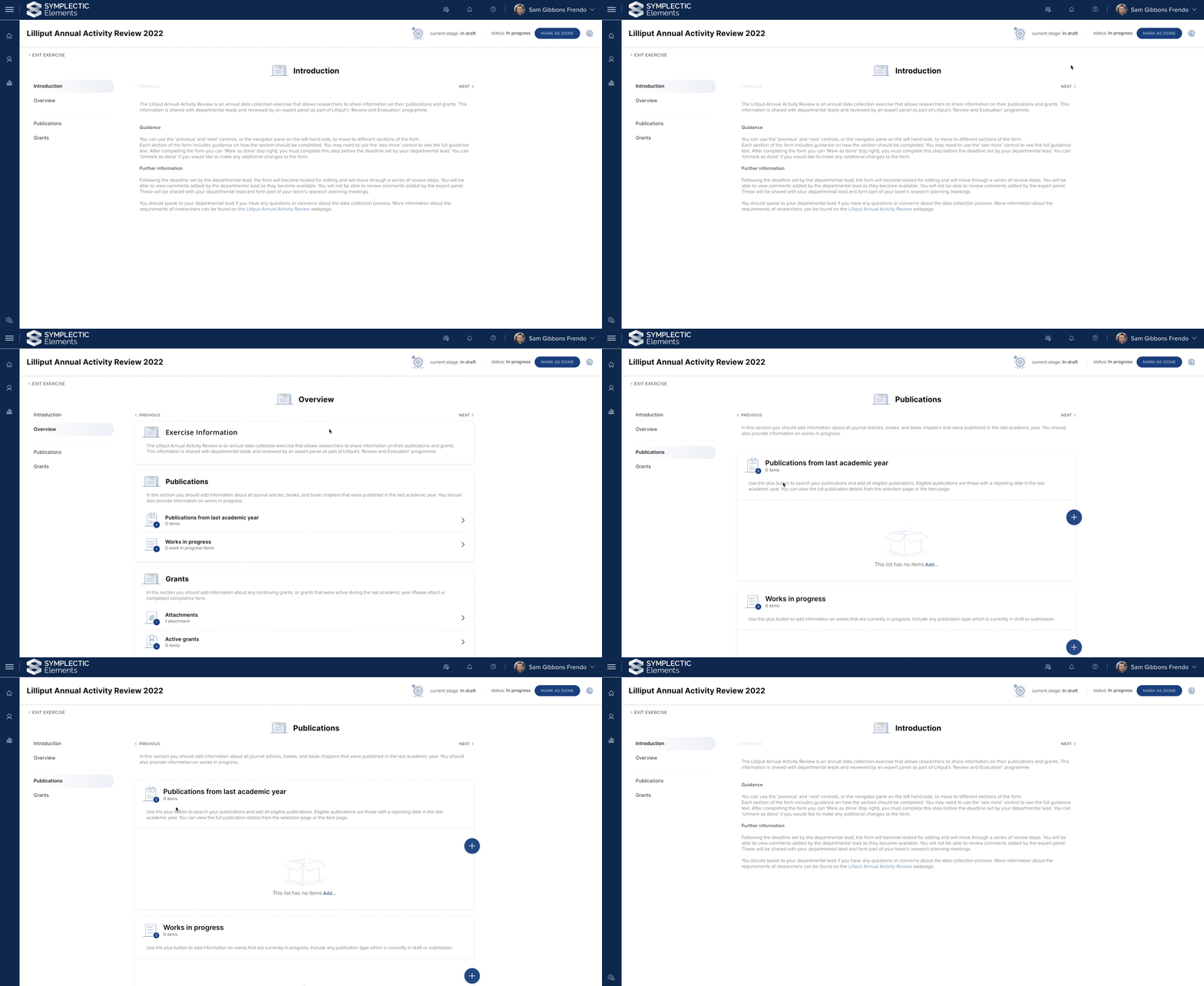
Image: The newly redesigned Assessment Module guides researchers and reviewers through their exercises using a new ‘section-based’ structure.
Our redesign of the Assessment Module has focussed on improving the user experience for both reviewers and researchers, making it easier and more intuitive for them to complete their exercise submissions and reviews. We have worked closely with members of our community throughout the design and development of this functionality, and we would like to thank everyone for their valuable feedback and contributions to our user research process.
In addition to improving user journeys through the Assessment Module, we have also worked to improve the accessibility of this module in step with our commitment to ensuring that all new or significantly redeveloped pages are updated in line with WCAG 2.1 requirements. Improving digital accessibility is a continuing effort and we remain focussed on this as we work to extend the functionality available in the Assessment Module in future releases.
Introducing ‘sections’ to the Exercise form
We have improved and simplified the display of information on the Exercise form by introducing ‘sections’. Sections provide the ability to group similar information together in a logical and consistent manner, simplifying the navigational experience and allowing you to configure your exercises with a stronger sense of flow and help your users understand the contents of their exercise at a glance.
Like other components of the form, administrators can configure sections to contain any combination of fields, attachments and reviews, as well as adding section specific overview and guidance text. In addition, sections can contain lists. For details about how to configure the new Exercise form, please see Creating an Exercise.
Updated user experience for both researchers and reviewers:
1. Clear navigation through the Exercise form
We have introduced a new Introduction page to help users quickly and easily orient themselves when they first begin their submission or review. The Introduction page displays configurable overview and guidance text, allowing you to easily present your users with information to help them complete the exercise, including both contextual information such as about purpose of the data collection process and high-level guidance on how they should complete their submission or review.
Users can easily navigate through the exercise either sequentially by using the previous/ next controls, or by jumping directly to a particular section using the new navigator component. The navigator also allows users to keep track of their position within the Exercise form by highlighting the section that is currently being viewed, while also allowing them to easily return to sections later if needed.
2. Redesigned overview page
Following the Introduction page users are presented with a new Overview page, designed to allow users to quickly and easily gain a clear understanding of the information they will need to provide to complete their submission or review. This page displays a clear summary of the sections that make up the Exercise form and outlines the lists, attachments and fields within that section. Users can choose either to user the Overview page to dive further into a specific section or to use the other navigational features to progress through their exercise.
3. New ‘section’ pages
Each section of the Exercise form is represented as its own page which groups together the lists, fields and attachments associated with that section. Each section page features clear calls-to-action to guide users through the process of completing their submissions, and administrators can quickly and easily configure overview information and guidance text to provide users with additional information if required.
Administrators can configure how many sections are included in an exercise via the Exercise Definition, selecting what types of information should be collected in each section and configuring the name of the section and any associated guidance or overview text.
4. Clear, at-a-glance indication of Exercise status
The redesign of the Exercise form introduces a prominent utility area at the top right corner of the page that displays the stage and status of the Exercise form. Depending on how the exercise has been configured, users can move the Exercise to another stage, or mark the Exercise as ‘done’. We have also introduced much clearer visual indication of when an Exercise has been marked as ‘done’ to provide researchers with confidence their submission is complete.
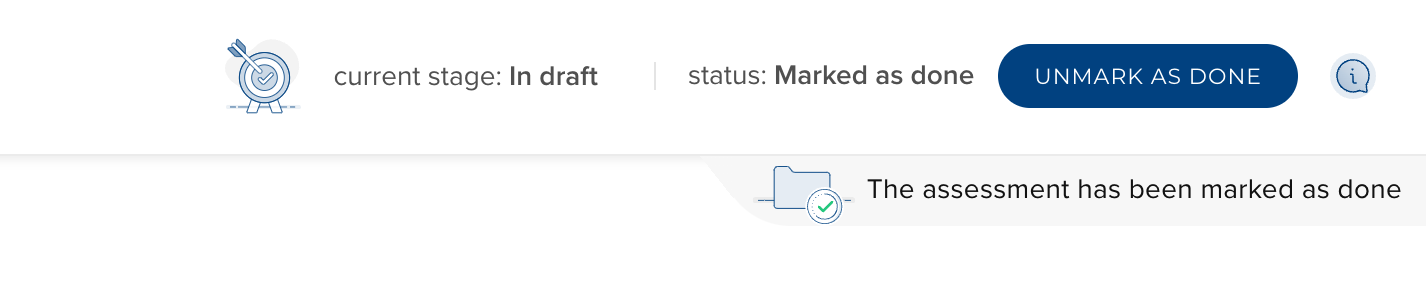
Image: The new utility area allows users to carry out key actions and communicates information about the current state of the Exercise.
Note: In order to increase the range of configuration options open to administrators, we have modified the behaviour of ‘Stage transitions’ such that users can move the stage of the Exercise form even when the Exercise form cannot be edited.
5. Contextual display of errors and warnings
When completing an Exercise form, it is important for the user to understand what information they are required to add, in order to make the process as painless as possible for both those filling in the form and those reviewing later. Along with the configurable overview and guidance text that can be displayed on different components of the Exercise form, the Assessment Module offers the ability to display warnings to a user if it appears that parts of their submission are incomplete.
In earlier iterations of the Assessment Module, these warnings were displayed from the time the exercise was commenced, which user feedback indicated could be overwhelming especially when a user may have only just started their exercise. As a part of this redesign, we have updated our approach to only show errors and warnings to users as a validation step when they prepare to indicate that they have completed the exercise either by attempting to move the Exercise form to a different stage or, marking the Exercise as complete. If a user wishes to check for errors or warnings before attempting to complete their exercises, they can do so by clicking on the information icon at the top right of their exercise.
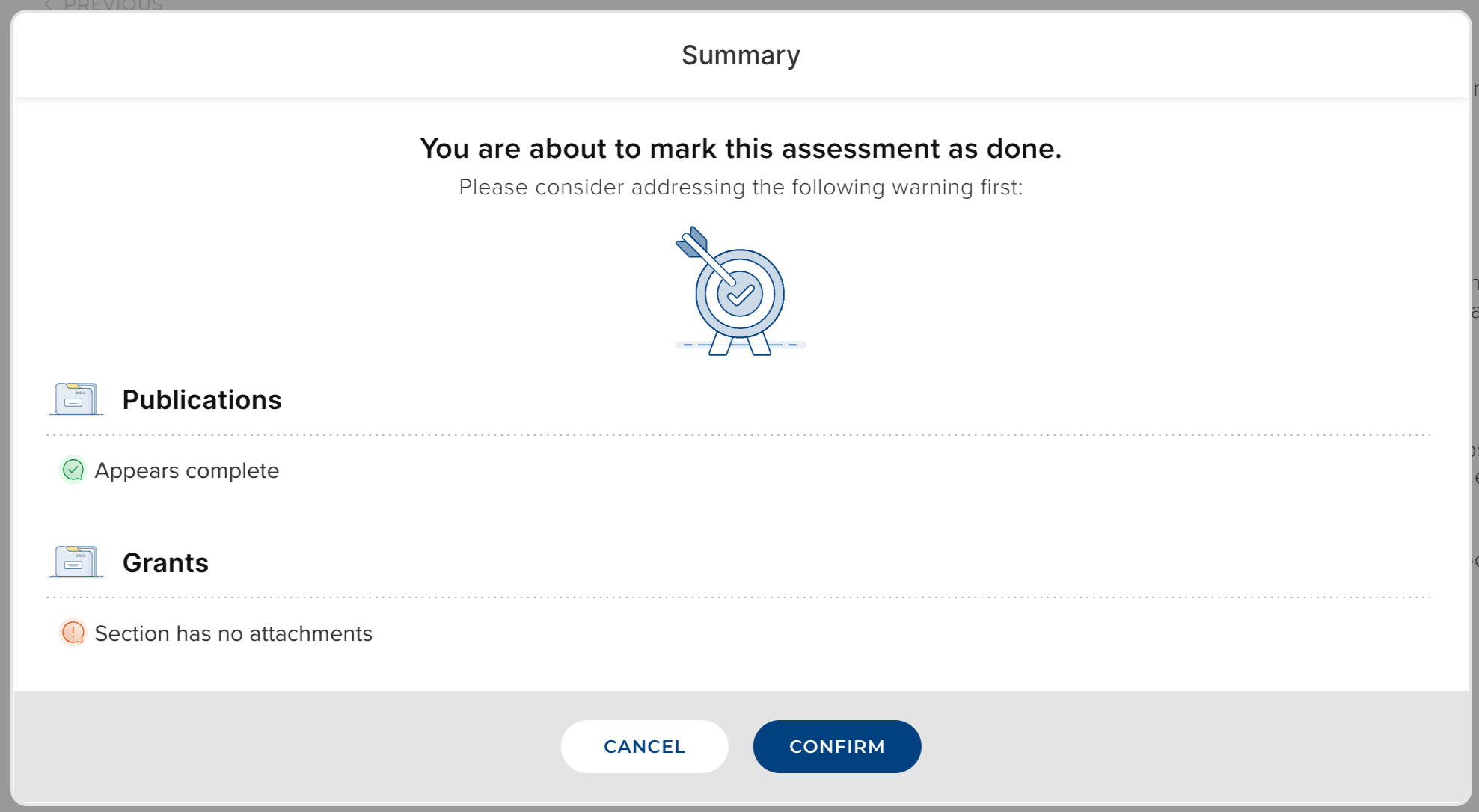
Image: The redesigned summary modal is displayed once a user indicates that they have completed the Exercise form and shows any errors or warnings. Users can jump from here to a specific section if they want to revisit it.
Please note that administrators continue to be able to configure which warnings should be displayed to users using the ‘Advanced’ tab on the Exercise Definition page. if the addition of information is configured to be optional, the user will not be shown a warning if they haven’t added information.
Additional improvements for reviewers:
To ensure that researchers and reviewers have a consistent user experience, and to help researchers feel confident they understand how their work will be seen by reviewers, we have aligned the reviewer interface within the Assessment Module with the researcher interface. This means that reviewers will be presented with each submission in the same format as the researcher completed it, but with an overlay which allows them to view and add reviews (as configured by the administrator).
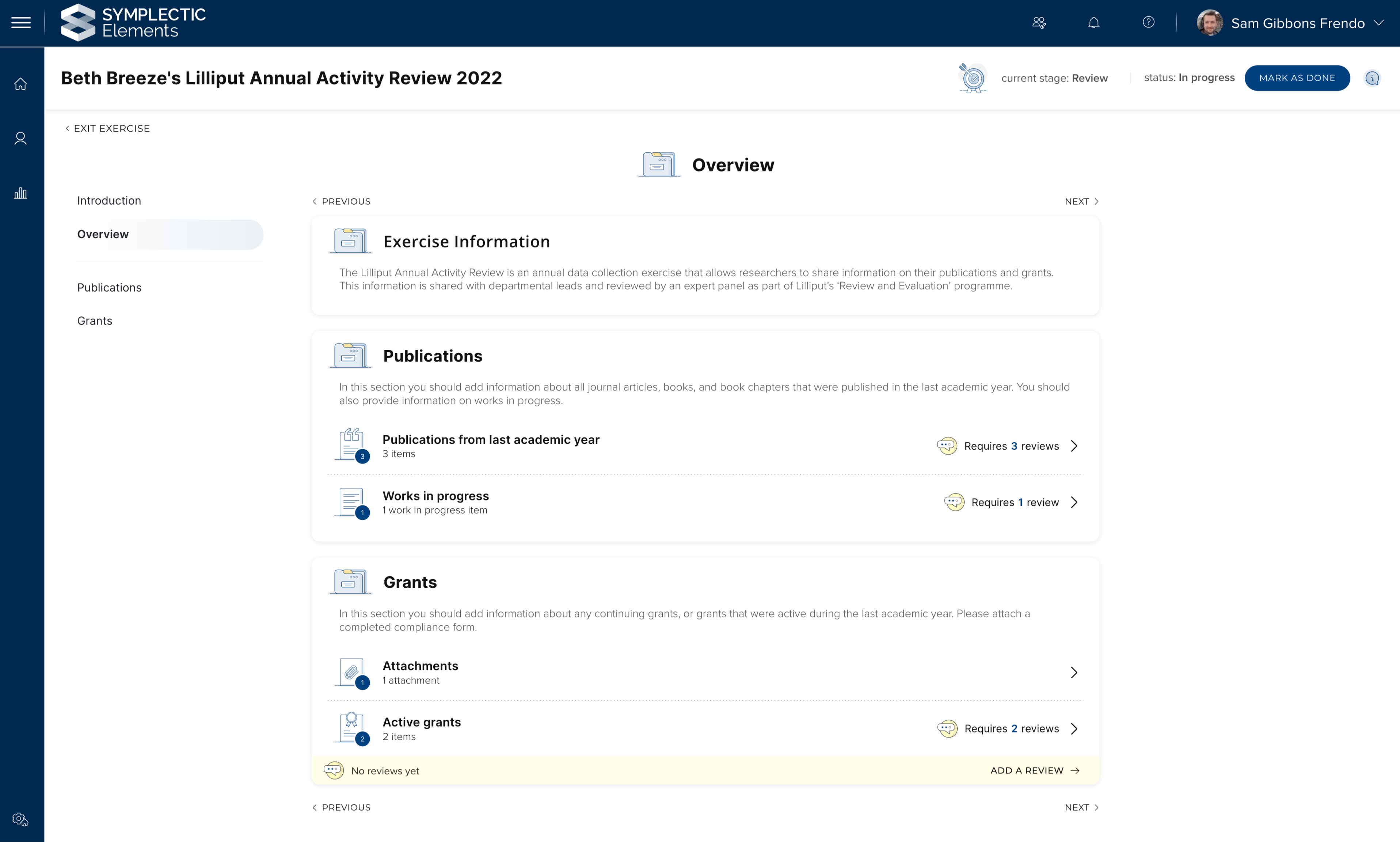
Image: The overview page for reviewers includes clear calls to action for the parts of the Exercise where they are required to add reviews.
When configuring an exercise, administrators can select which parts of an Exercise form require review. Reviews can be requested across different layers of the exercise submission including on the Exercise as a whole, on a specific section, or even an individual item. As a reviewer, it is important to be able to see at a glance what parts of the form they need to add reviews to. The revamped Overview page is designed to guide reviewers to complete their reviews as efficiently as possible by displaying clear calls to action on each part of the Exercise form where their input is required.
Important: We have modified the permissions related to private objects for reviewers. If a user selects a private object on a list this will grant reviewers permission to see the object. When a user assigns an item on the Exercise form, this now means that reviewers will be able to see the assigned object, even if it is private.
Other redesigned pages and experiences
Item page
We have updated the look and feel of the item page to be more visually engaging, to ensure users can easily review key information associated with that output or activity. As a part of the redesign process we have aligned the item page with the corresponding ‘object details page’ (eg. publication details page) to ensure the system feels as familiar to researchers as possible.
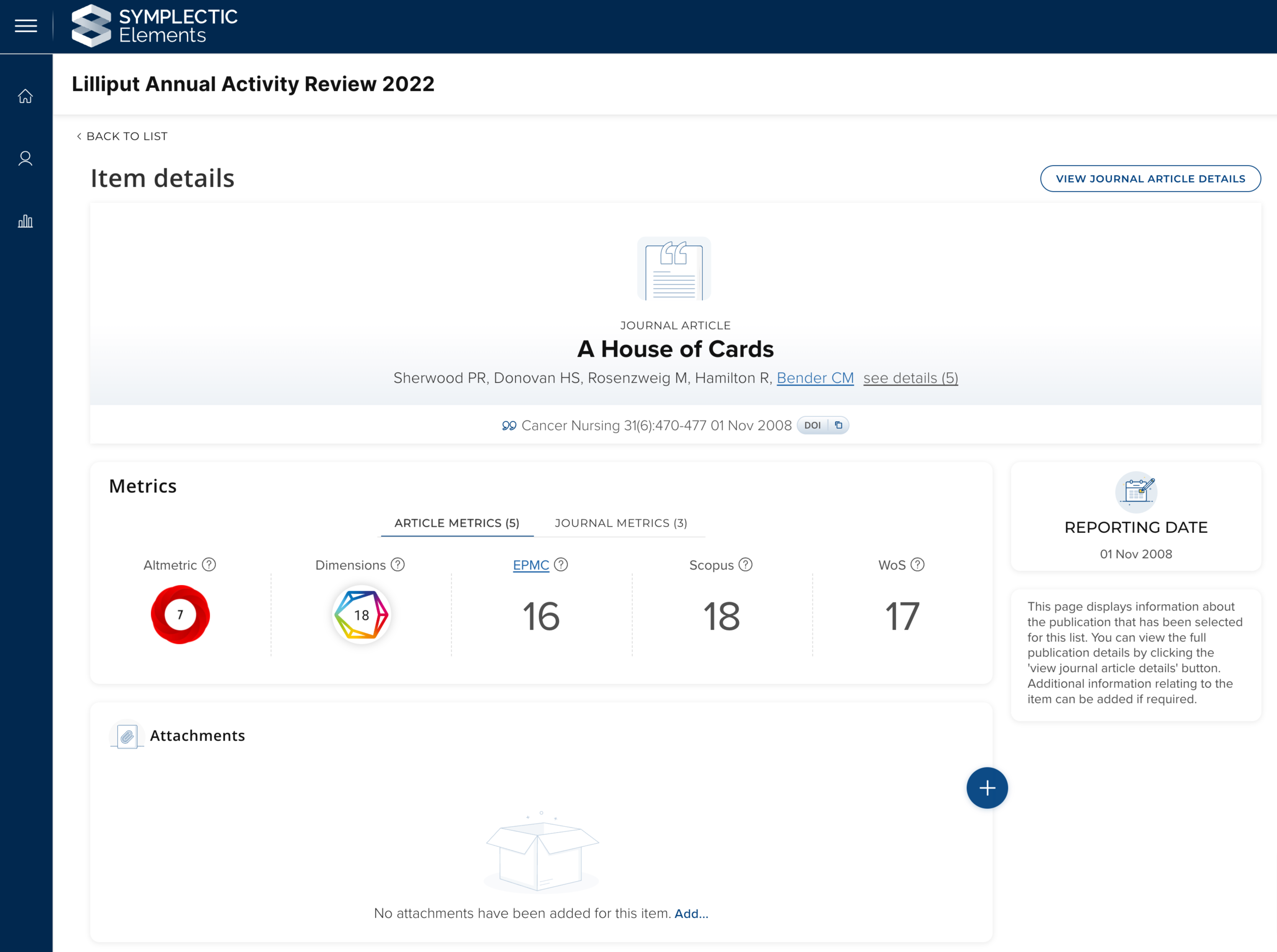
Image: The redesigned item page includes clear calls to action to add information to the item, a clear link to view the full journal article details in a new tab, and dynamic guidance text.
In order to make the purpose of the item page clear to users we have added default guidance text, which is dynamic, reflecting the configuration settings for the item itself. If the item page has been configured to support attachments and/or supporting fields, the user will see clear calls to action, inviting them to add the information. The item page also includes a prominent link for users to view the full details of the output/activity by viewing the related object details page in a new tab, making it easier to navigate to related objects and check or edit them without moving out of the Exercise.
Selection page
One of the strengths of the Assessment Module is the ability to leverage the pre-existing data in Elements when completing an Exercise form, saving researchers time and increasing consistency across data sets. Users can create curated lists of their work by selecting outputs or activities which have already been added to their Elements Profile (e.g. Publications, Grants etc.). Once selected, users can be prompted to enrich these items with additional information or attachments to support the review process. As a part of this redesign, we have also updated the look and feel of the submission page, bringing it in line with other list pages within Elements to offer researchers a consistent user experience.
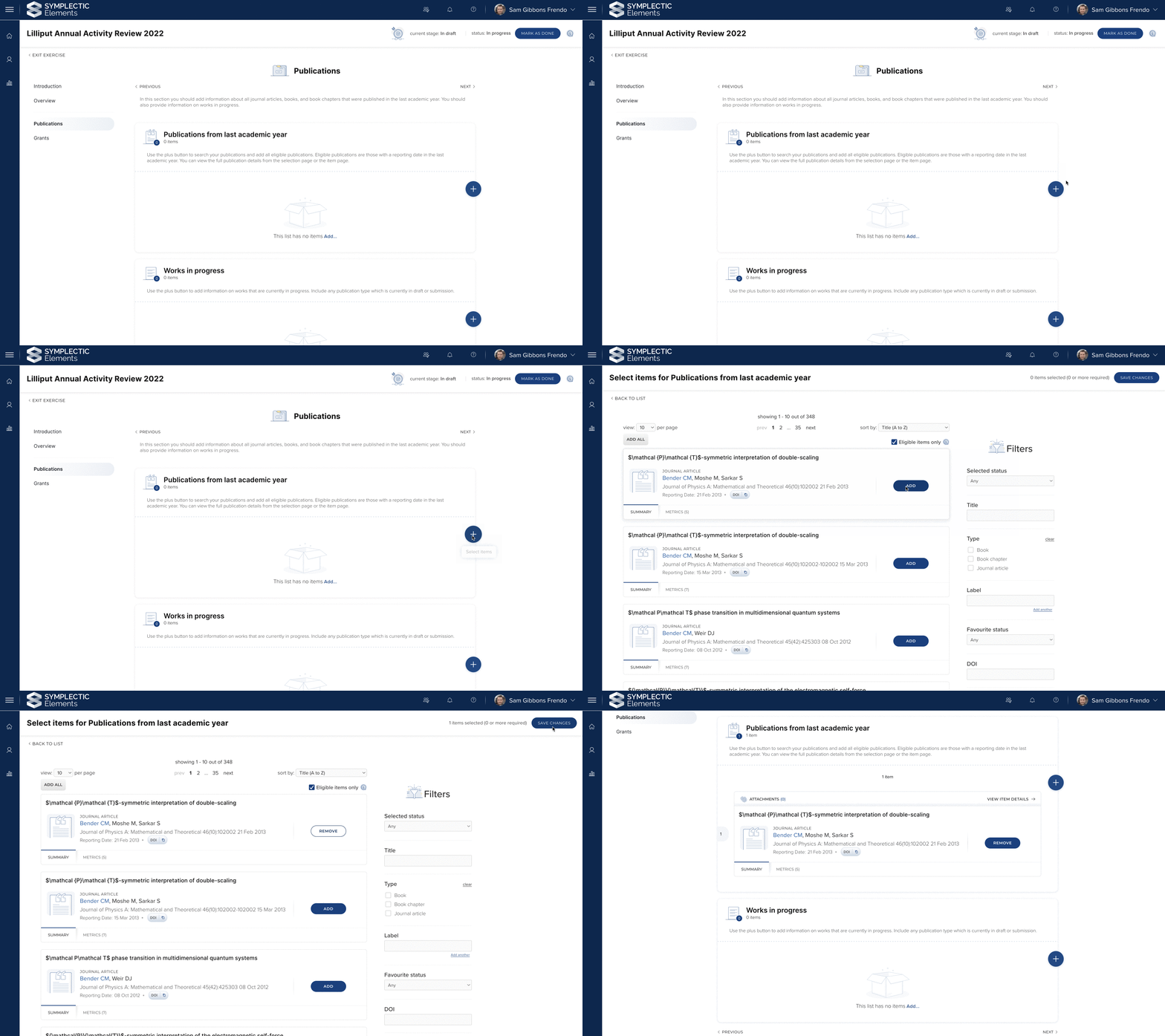
Image: The redesigned selection page allows users to easily identify objects to be added to their Exercise form.
We have also incorporated the ability to reorder lists into the Selection page, removing the need for users to navigate to a separate page to curate their lists. Once items have been added to a list they can be ordered by the user so that they are displayed exactly as they wish using controls available via the three dot menu on each item.
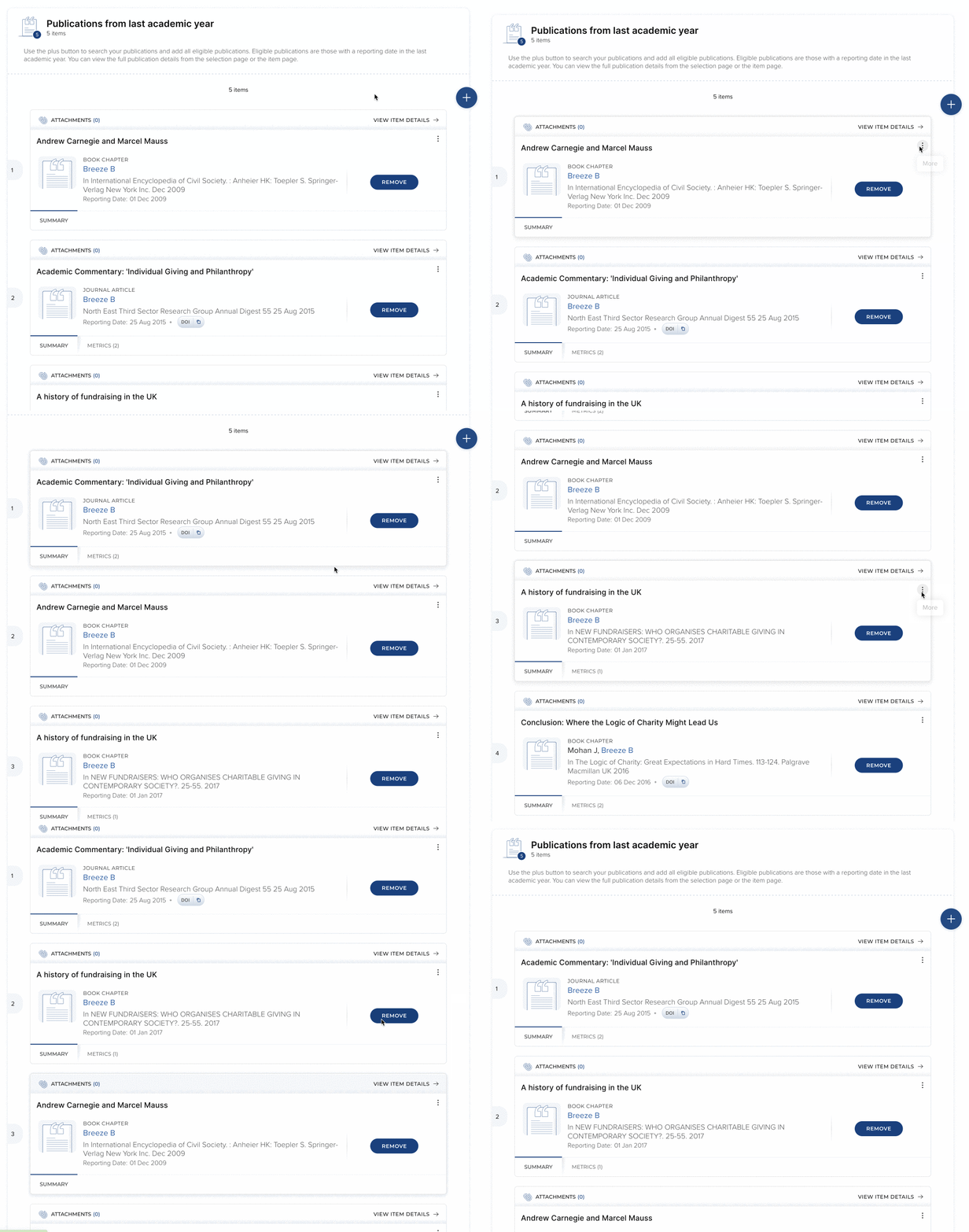
Image: Users can reorder items quickly and easily via the menu on each selected item.
Adding attachments
Attachments can be added throughout the Exercise form. This allows files of any format to be added by users to supplement their submission, and support the capture of a rich set of data. In this release we have introduced an improved workflow for adding attachments using a new pop-up prompt, meaning the user doesn’t have to navigate away from the page and can maintain their place on the Exercise form.
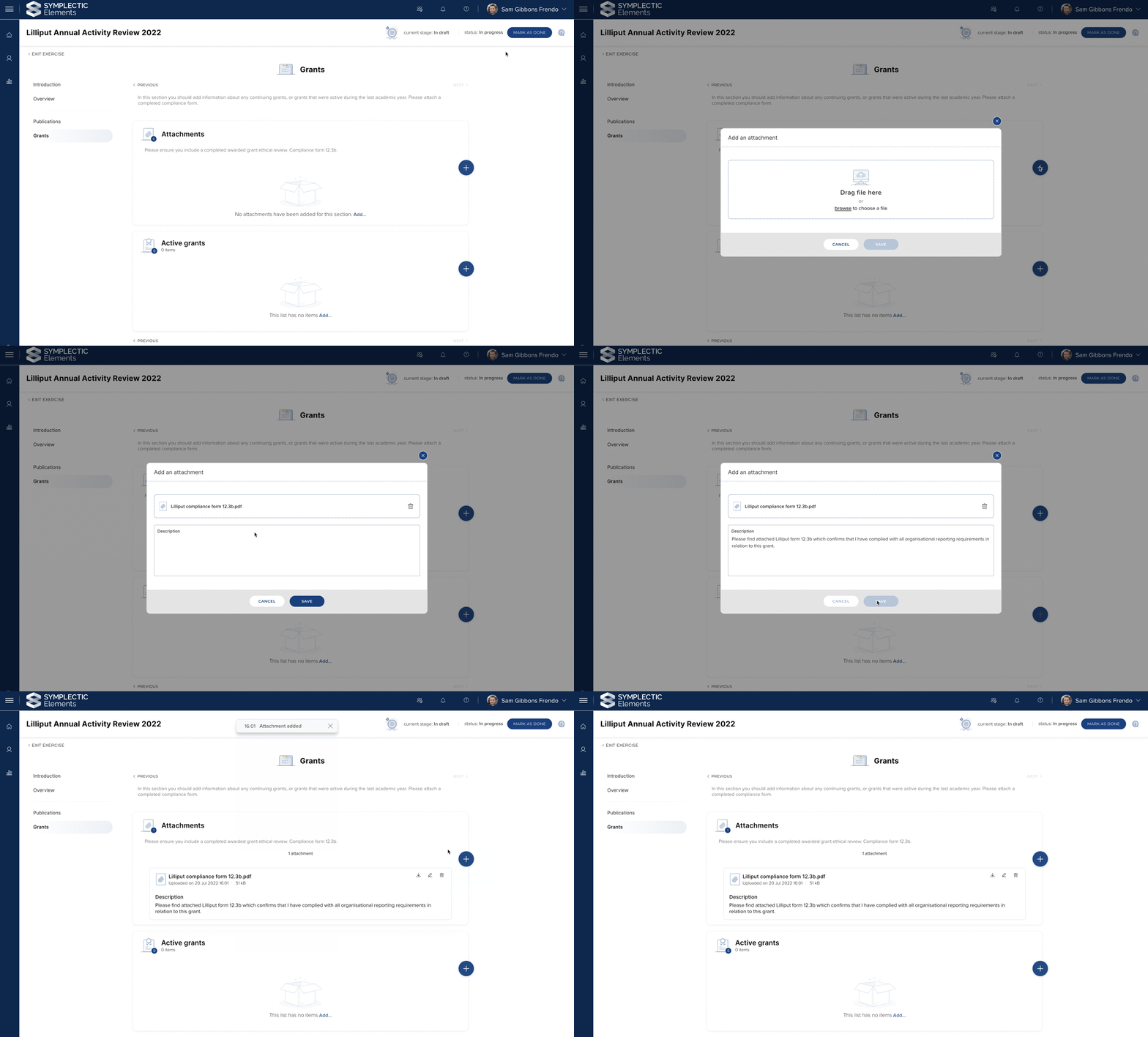
Image: Adding an attachment to a section, carried out via the new modal workflow.
Greater control over the display of supporting fields
Supporting fields can be used throughout the Exercise form to capture information from users. The precise data that the user is invited to add is completely configurable by administrators, helping you to set up an Exercise exactly tailored to meet your assessment use-case.
For custom field lists (previously known as fields-only lists), it is now possible for administrators to define which supporting fields should be shown on the summary item stub to allow users and reviewers to easily browse through the information within their submission. We recommend that all fields are included on the summary stub, unless they are likely to include large volumes of text. Users can view all fields on the item page.
Important considerations on upgrade
We recommend that organisations using the Assessment Module familiarise themselves with the new features that have been introduced and consider how you may wish to update the configuration of your Exercises to make the most of the new functionality available.
On upgrade, there will be some changes applied automatically to existing Exercise definitions in order for the new section component to be introduced:
All existing lists will be placed within a section. The title of the section will be automatically set upon upgrade using the name of the list. You can then easily move lists between sections, edit the title of the section and add the ability to capture supporting fields and attachments on the section as desired.
‘No item lists’ will be migrated to become sections. The name of the new section will be set using the previous name of the list, and all attachment and supporting field configurations will be automatically migrated. No pre-existing data will be lost during the upgrade.
We also particularly recommend you review the following configurations:
Any custom reports you have created that return information about an Assessment Exercise may need to be adjusted in order to return information related to sections.
Following the changes we’ve made to the display of summary supporting fields for custom field lists it will be important to update the display settings for item fields.
Given the significant interface changes in this release, we recommend organisations using the Assessment Module plan their upgrade and consider timing it around scheduled Assessment processes if possible.
More information about configuring the exercise can be found in Tips for building an exercise. Tips and guidance can be found in this support article.
Expanding our Open Access & Repository functionality
Full support for RT2-Dspace 7 integrations
Our feature-rich range of bi-drectional repository integrations are used by organisations around the world to make it easier for researchers to make their work openly available and to monitor open access engagement and compliance. Following the recent release of harvesting from DSpace 7 functionality, we are excited to complete development of our RT2 DSpace 7 integration, introducing deposit functionality and a range of other features in line with the full suite of RT2 functionality offered for earlier versions of DSpace and other repository platforms.
The RT2 DSpace functionality now includes deposit functionality as well as the full range of deposit-related configuration options including support for making subsequent deposits when required. We have also introduced our state-of-the-art automated metadata updates functionality which allows organisations to automatically enrich the metadata within their repositories in targeted ways. Using our highly configurable relevance framework, administrators can configure which fields are ‘relevant’ for your repository at a very granular level and only permit targeted automated updates to those fields under specific conditions. This functionality helps you protect the curated metadata whilst still enhancing the available metadata and increasing data consistency across platforms. For a brief guide to upgrade, please check Upgrading to DSpace 7. For more information on RT2-DSpace integration, please see Repository Tools 2: Configuring DSpace & Repository Tools 2: Enabling deposit via Elements.
Subsequent deposit now available for Figshare for Institutions
For clients using Figshare for Institutions, we have expanded this integration by introducing our subsequent deposit functionality. You can now choose to allow researchers to deposit additional files to supplement their initial deposit to your repository. The initial publication will maintain its existing repository status (e.g. In Review or Live), and will not be altered in any other way by the subsequent deposit. All files added via re-deposit are automatically restricted to repository-staff-only and have a file description added identifying who deposited the additional file. For more information, please refer to Repository Tools 2: Configuring Figshare for Institutions.
New metadata about the OA status of your publications
Open Access publishing strategies continue to evolve and there are now many more ways a researcher can make their work open. As the first step towards offering a wider range of OA monitoring and reporting, we have broadened the range of metadata available from existing data sources to provide organisations with a fuller picture of your OA publishing patterns.
In this release, we have:
Introduced a new field to capture the publications’ ‘Open Access Status’. Data will be automatically harvested from EPMC, Dimensions, and Web of Science (licences required) to populate this field with information about the OA status of each work (eg. Gold, Green, Hybrid) to support monitoring your researchers’ OA publishing patterns.
Updated and expanded coverage of data from DOAJ to offer more comprehensive OA information on the journal level. The new data captured from DOAJ includes: DOAJ OA indicators, Journal OA statement, licence terms, review policy, and information about the standard APC amount & terms. This additional data will help institutions comply with various funder mandates around peer-reviewed status and reuse licence as well as providing better visibility of the APCs associated with publishing in certain outlets.
Expanded the data captured fromCrossref for the fields ‘Publisher’s Url’ & ‘Record Created at Source Date’.
Once you upgrade to v6.9, these new data points will begin to be automatically harvested from the relevant sources. Please note, for records harvested into Elements prior to v6.9, the records will be automatically updated with this additional metadata the next time the records are refreshed from the data source.
Please note we anticipate that the new Open Access status field will replace the older record-level field ‘is-open-access’ in due course. Clients using this field are advised to plan to update any crosswalks, integrations or reports utilising this field.
Discovery now supports Google Analytics 4
Recently the team behind Google Analytics released the new Google Analytics 4 (GA4) platform. To ensure we continue to support use of Google Analytics, we have updated our framework to support use of GA4 for the Discovery Module. Google have announced the plan to stop tracking new events on standard Universal Analytics on 1 July 2023, so to ensure you do not lose the ability to track usage via Google Analytics at this time, we recommend you plan to upgrade and update your Google Analytics details in advance. For more information on how to, please consult Using Google Analytics 4 on your Discovery site. Should you need assistance, you can also reach out to us via the support site.
Research funding solution
Enhancements to Funding Opportunities
In our latest release, RFS development has focussed on extensions and improvements to Funding Opportunities functionality to support the capture of additional information, and offer an improved configuration experience including:
Adding new fields for capturing the funder’s opportunity identifier, source identifier, whether the opportunity is research funding, and currency of the award.
Improvements to how information about the funder programme and funder scheme are captured.
Improvements to the key dates functionality to streamline the data input experience.
Expanded support contact functionality, enabling the selection of existing users and a new fields to allow capture of a support URL
Addition of a field for identifying the Funding Opportunity managing group
Updated functionality for capturing tags/labels for each opportunity, retiring use of the 'Keywords' field, and introducing use of the more comprehensive ‘Classifications’ functionality.
Improvements to the ability to clone an opportunity, ensuring all populated fields are copied when creating a new opportunity from an existing one.
Improvements to 'inheritance' functionality such that where certain values are specified on the Funding Opportunity, they no longer also need to be configured in the Proposal form template to be captured against the Proposal.
In this release, we have also introduced the ability to create (clone) and update Funding Opportunities using the RFS API, allowing organisations to create and maintain opportunity records more efficiently.
As with previous releases, the full details of the RFS functionality released in v6.9 are available in the RFS release notes on our support site.
Other improvements
Videos on the Discovery will now display the title of the video file (video label) when a cursor hovers over the thumbnail image.
Filters on the Discovery can now be updated to identify if they are of the type ‘Location’ or ‘Sustainable Development Goal’, leading to the display of more targeted iconography to more visually differentiate these filters.
Updated the display of error messaging if an OA policy is misconfigured to target an unavailable repository.
Fixes
Improved error handling for the automatic refresh of repository metadata on the Publication details page to minimise additional calls to the repository.
Updated the Elements Login page to ensure that the keyboard focus is automatically applied to the user name field upon page load.
End of support
As always, we recommend that you regularly review our End of Support Announcements for information about upcoming end of support in Elements for various technologies.
We would particularly like to highlight to you the end of support for Repository Tools 1 integrations. Previously we issued a ‘soft’ end of support for this functionality, however following this release the remaining functionality will be removed from Elements and you will not be able to upgrade to v6.10 until you migrate to an RT2 integration. If you need information about migrating from RT1 to RT2, please contact our support team.
Learn more about the release
We hope you enjoy getting to know the latest version of Elements. Remember should you have any questions, we’re here to help! Just contact us at support@symplectic.co.uk for assistance.
Best wishes,
The Symplectic Team