
Symplectic Elements v6.20 - Release Notes
Welcome to Symplectic Elements v6.20!
In our fourth release for 2024, we are introducing many exciting new capabilities and enhancements, focusing on:
An initial redesign of the Open Access Monitor,
Streamlining the configuration options available for the Discovery Module,
A new cookie consent management system in Elements,
Improvements to external organisation functionality in Awards Management (RFS),
Many smaller improvements and fixes.
For the Open Access Monitor, we’re delighted to deliver the first phase of redesigning and expanding on a powerful new suite of functionality to support improved monitoring and reporting in Symplectic Elements. We’re making it easier for you to quickly access the tools that you need and to tailor them to specific institutional or externally-mandated OA requirements. These enhancements will give you greater control and transparency over your OA strategy, including support for a broader range of OA pathways, multi-policy compliance and exceptions, deposit prompts tailored to specific target groups, and a new and improved consolidated navigation UX for all OA related actions.
For those of you who utilise the Discovery Module for public profiles, this release also includes streamlined access to configuration settings which will allow you to more easily make your profiles portal your own. You can easily make changes to branding style, logo iterations, and names and labels for navigation elements such as tabs, lists and favourites.
Elements v6.20 also sees the introduction of cookie consent management, and improvements to external organisation functionality for Awards Management (RFS).
We have also made several other smaller improvements based on feature requests from our community, including a new configurable module display name for Grants, a new ORCID integration option, a new quick link to the Search page, updates to the User Profile Completeness report, and more.
As always, the new version of Elements and associated upgrade instructions can be found in the Elements upgrade forum.
Open Access Monitor
Symplectic Elements provides institutions with an advanced and intuitive platform to streamline the management of OA compliance, increase researcher engagement, and ensure publications meet institutional and funder OA policies.
The Open Access Monitor is a powerful ally for monitoring and encouraging open access compliance and engagement across your organisation. Its workflows include:
Automated prompting for users to deposit their publications.
Administrators can use the inbuilt OA Monitor to track, prompt, and report on this process, delivering a holistic view of OA compliance and engagement at an institutional level.
Administrators can take informed actions such as depositing on behalf of the researcher, or carrying out advocacy or training for those who are not up-to-date on mandates and requirements.
Filtering publications by a range of parameters to track progression towards compliance with individual schemes or policies.
Recording exceptions and reasons why publications are not compliant with the set criteria.
As the global OA movement continues to evolve, so too does the complexity of managing compliance. Research institutions now face a growing array of mandates from funders, governments, and internal bodies, each with their own unique requirements. Researchers must navigate multiple routes to Open Access, including traditional repository deposits and paid Gold Open Access options.
Accordingly, we have begun a significant redesign and expansion of our OA Monitor functionality to support multiple, independent OA schemes that optionally offer deposit prompts and guidance tied to Primary Group affiliations. Through this redesign, we will also be expanding the scope and compliance criteria available for selection (including ‘native’ OA properties such as open access status and DOAJ journals), and available reporting options.
In this release, we’re excited to deliver the first phase of enhancements to our OA Monitor functionality.
Upon upgrade to v6.20, all of your existing OA policies will be automatically migrated to this new framework, with all existing functionality and OA metadata retained. An update to the Exceptions methodology in v6.20 may require additional consideration for some clients. Please see below for more detail on how this may affect you.
Key updates in this release are outlined below.
Updated terminology
We are moving away from using the term ‘policy’ as not all entities within the OA Monitor will be official or formal ‘policies’. Accordingly, we have introduced the concept of ‘Open Access schemes’, with publications being defined as being within (or not) the scope of an OA scheme, and compliant (or not) with an OA scheme.
Navigation
The Elements navigation menu has been updated to consolidate all OA Monitor functionality under a single ‘OA Management’ menu item.
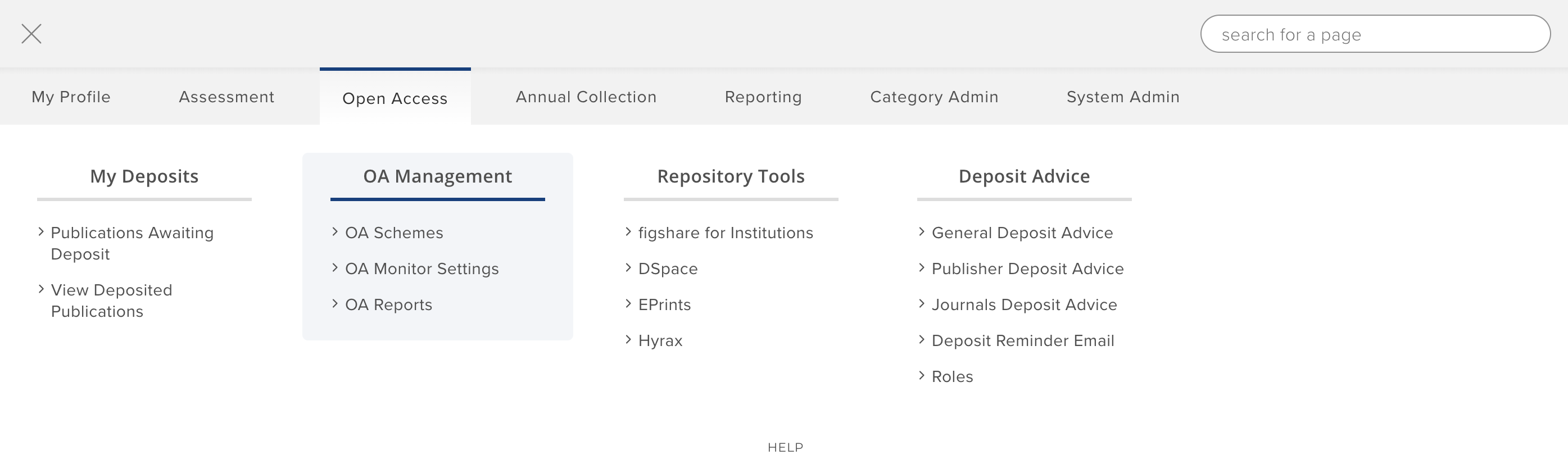
Image: OA Management menu navigation
Global settings that apply across all OA schemes continue to be set within ‘OA Monitor settings’, and all other per-scheme functionality is available via the ‘OA schemes’ list page, from which all OA schemes can be easily viewed, managed, and monitored.
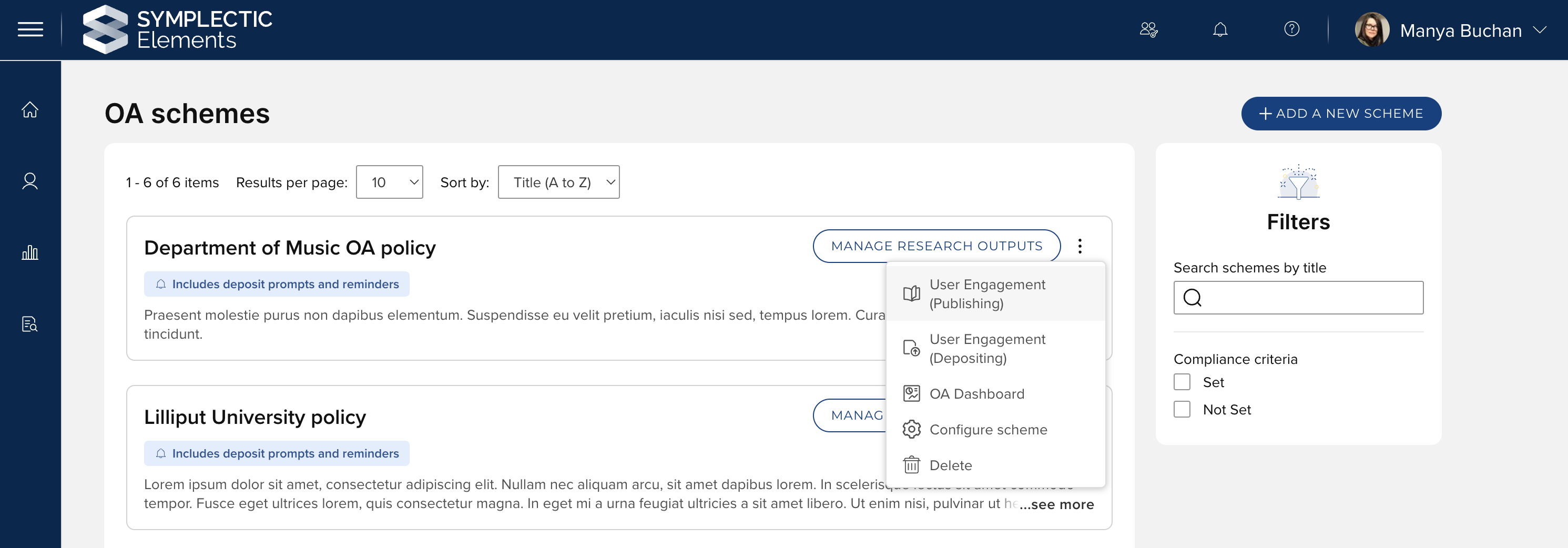
Image: OA scheme management
New design
We have redesigned the process for configuring an OA scheme, using a tabbed format to help you navigate through the configuration steps more easily.
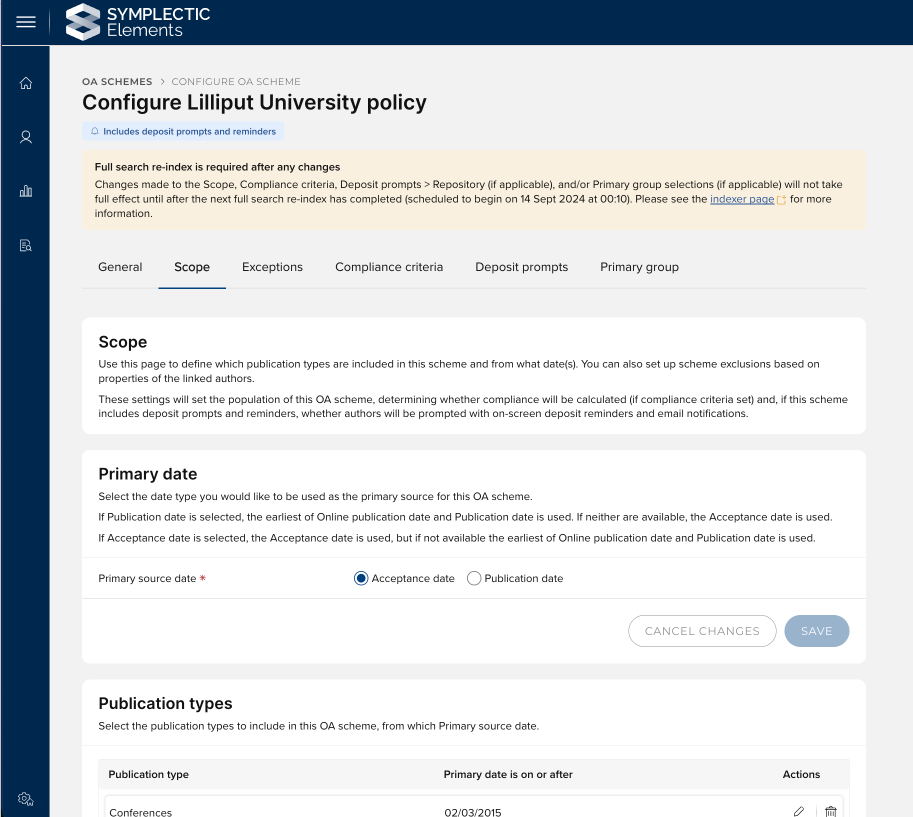
Image: Configuring an OA policy
The ‘Publications in OA policy’ page has been replaced with a new ‘Manage publications in a OA scheme’ list page. This page enables you to efficiently manage your OA workflows, offering an updated data layout with the function to ‘focus on’ desired tabs, easily accessible actions, and comprehensive filter options.
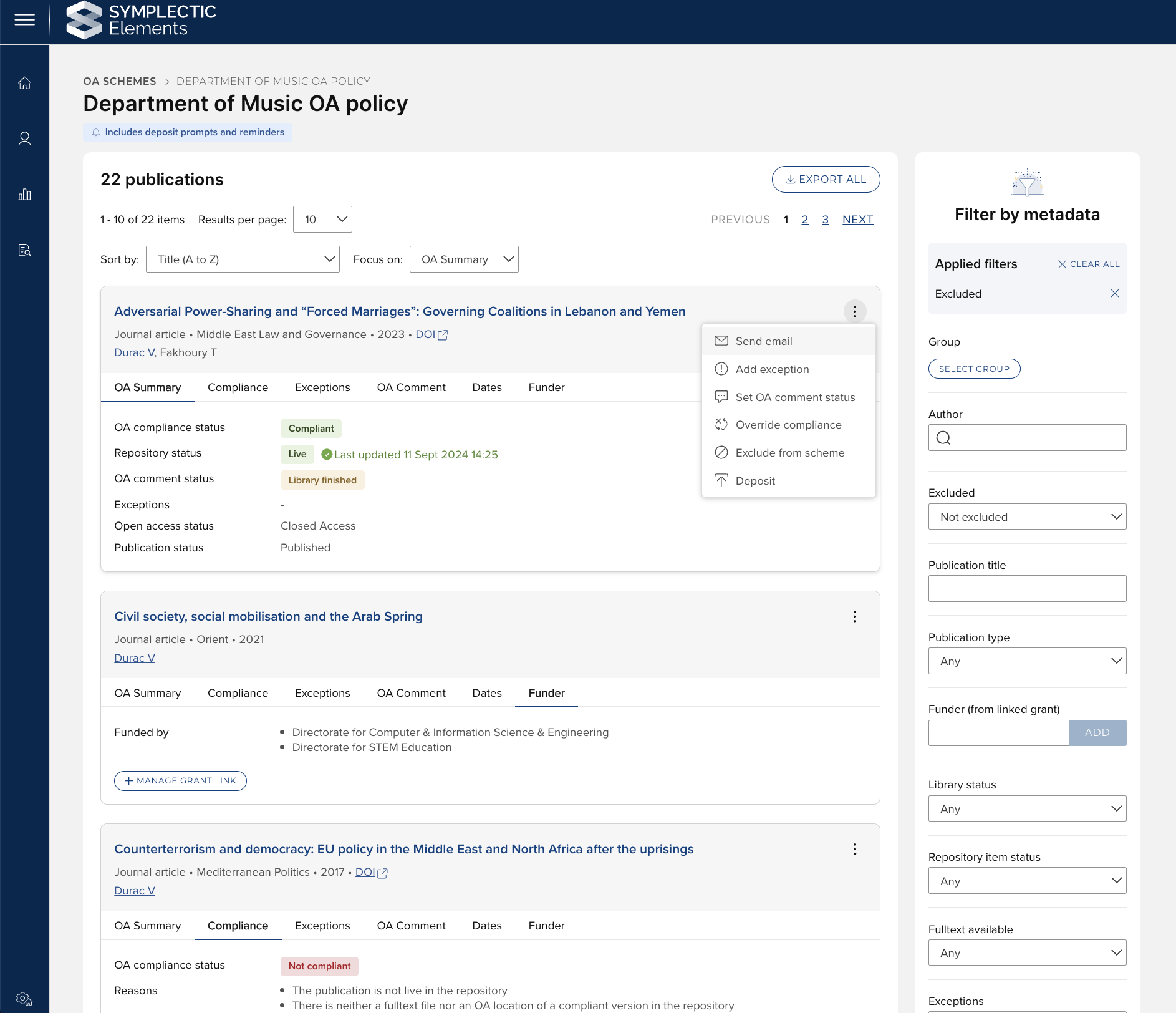
Image: Managing publications in a OA scheme
OA commenting tool
In this release, the ‘Library status’ function has been re-named ‘OA comment’, offering the facility for Administrators to record and track communications, and filter by the selected tag to manage workflow. In an upcoming release, we plan to expand this feature to enable configurable tags.
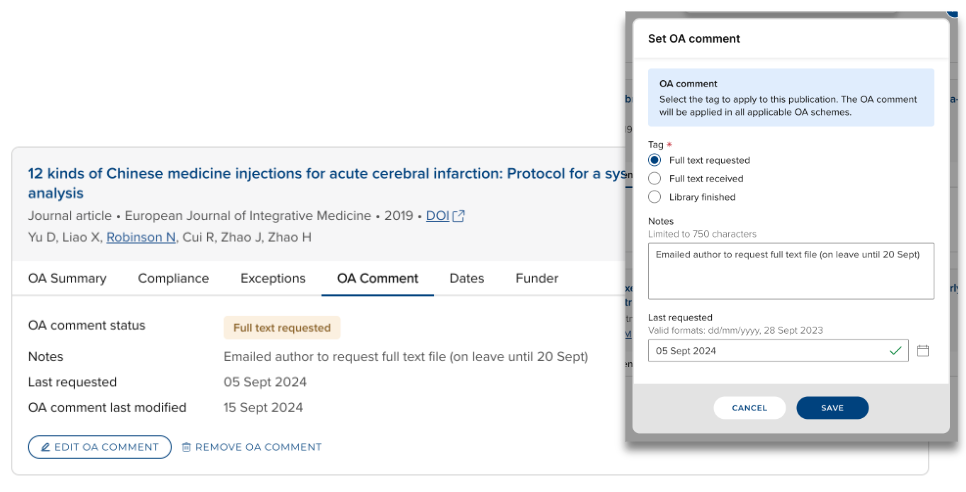
Image: OA commenting in the OA Monitor
Exceptions
Exceptions can be used to indicate why a publication is not compliant with an Open Access scheme. In this release, we have introduced the first phase of improvements to our Exceptions functionality, expanding the configuration options available and enabling more flexible deployment to individual schemes.
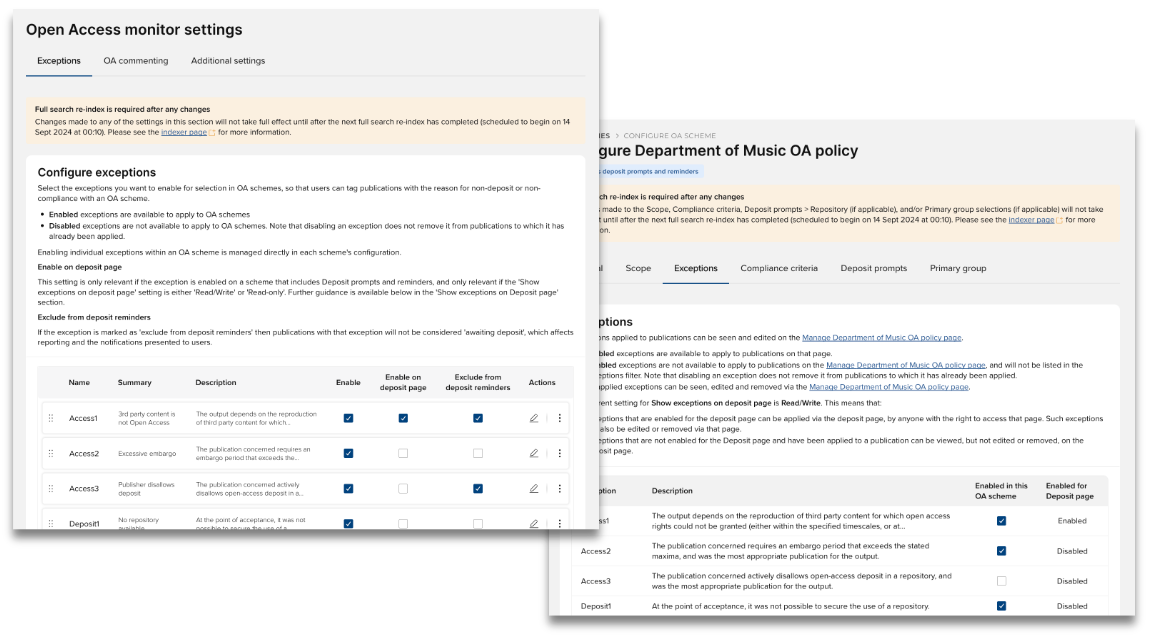
Image: Flexible options to configure Exceptions
Further, the behaviour of Exceptions has been updated such that when an Exception is applied against a publication, it is now applied across all applicable OA schemes for which that publication is in scope. This should help reduce the admin burden by managing non-compliance reasons across all schemes where the publication is in scope.
Note: This may have implications for the migration of OA content to the new framework upon upgrade to 6.20. Exceptions that were applied within a specific OA policy are now applied across all applicable OA schemes.
Exclusions
We have enhanced the OA Monitor Exclusion functionality to now support the capture of Exclusion notes, so the reasons for Exclusion can be recorded and visible across all OA schemes (if excluded from all schemes). We have also modified how excluded publications are treated, keeping them within the publications list but marked as excluded and filtered out of the list by default when navigating to the page.
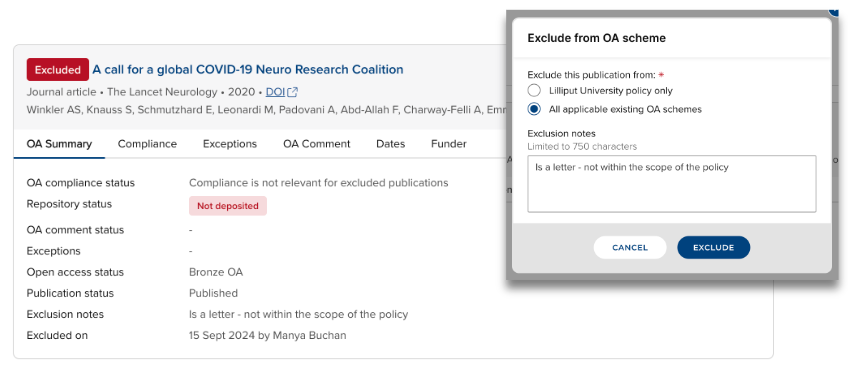
Image: Excluding publications from OA schemes
Support site
With this redesign and expansion of the OA Monitor, we have also updated our OA Monitor support articles, including introducing a new OA Monitor homepage where all OA Monitor support articles are accessible, including further information on the updates included in this release.
Updated ORCID integration
In response to a popular feature request, we have updated our ORCID integration options to enable the option to exclude unverified manual records. When this integration option is selected, only metadata from either verified manual records or internal or external data sources will be pushed to ORCID (different to the existing ‘Only include verified manual records’ option, where only verified manual records are sent to ORCID). This new option allows organisations who choose to invest in reviewing and verifying the metadata captured within the system to configure their integration with ORCID so that only the highest quality, curated data is pushed to ORCID.
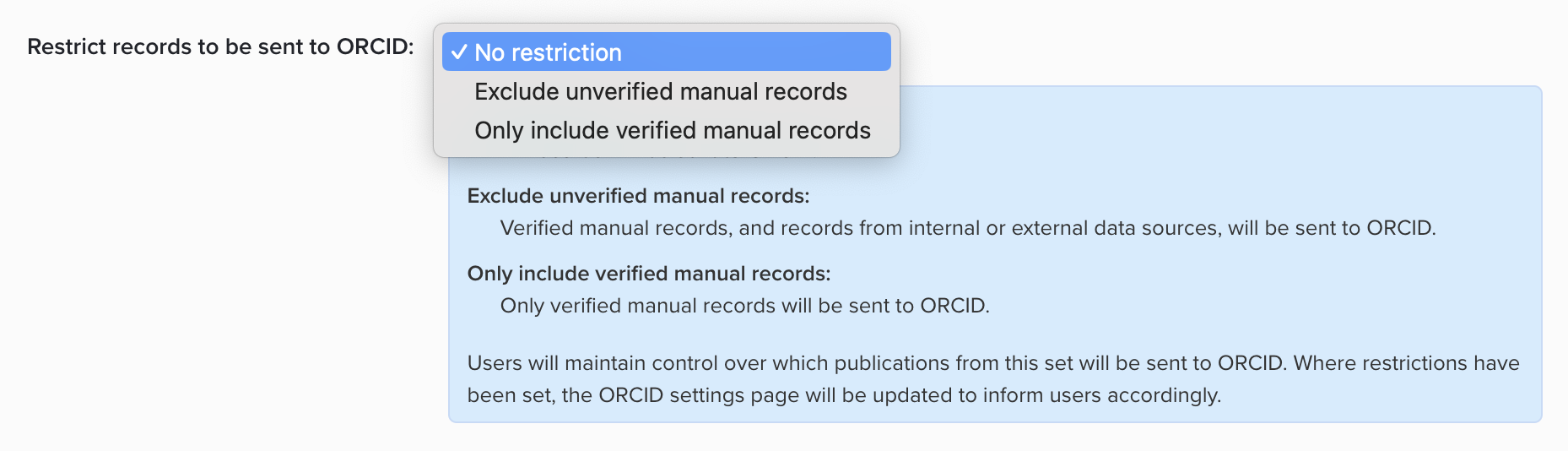
Image: Updated ORCID integration options
Discovery module
Additional configurations available via the Elements UI
To allow admins to update their Discovery Module configuration settings more quickly and easily, we have continued to migrate Discovery Configuration settings to the Elements administrative UI. The newly migrated settings are all available via the ‘Manage Discovery Configuration’ page in the System admin menu. To adjust the configuration of your Discovery instance, you simply change the desired settings within the Elements administration UI and then publish those settings to Discovery.
Naming options for search modes, tabs, lists and featured works
One of the key ways in which organisations can choose to tailor their Discovery Sites is by configuring display names for different search modes, tabs and lists. These display names allow the system to be better aligned with the ways your research community talks and thinks about their work. To make the process of configuring these display names easier than ever before, we have now migrated all of the naming option configuration settings from Discovery into the Elements administration UI.
The settings now available via Elements include display names for:
The three different search modes: Experts, Equipment and Groups.
Each of the profile tabs: About, Publications, Grants, Professional Activities, Teaching Activities, Impact, Projects and Equipment.
Each of the list sections: About, Publications, Grants, Professional Activities, Teaching Activities, Impact, Projects and Equipment.
Featured works labels for highlighting favourited publications.
For each setting, administrators will see a dropdown populated with the available options. Simply select the preferred display name and save and publish the setting to update your Discovery configuration. These lists have been developed based on input from clients using Discovery around the world; however, if there is an option you would like to see added, please raise a feature request.
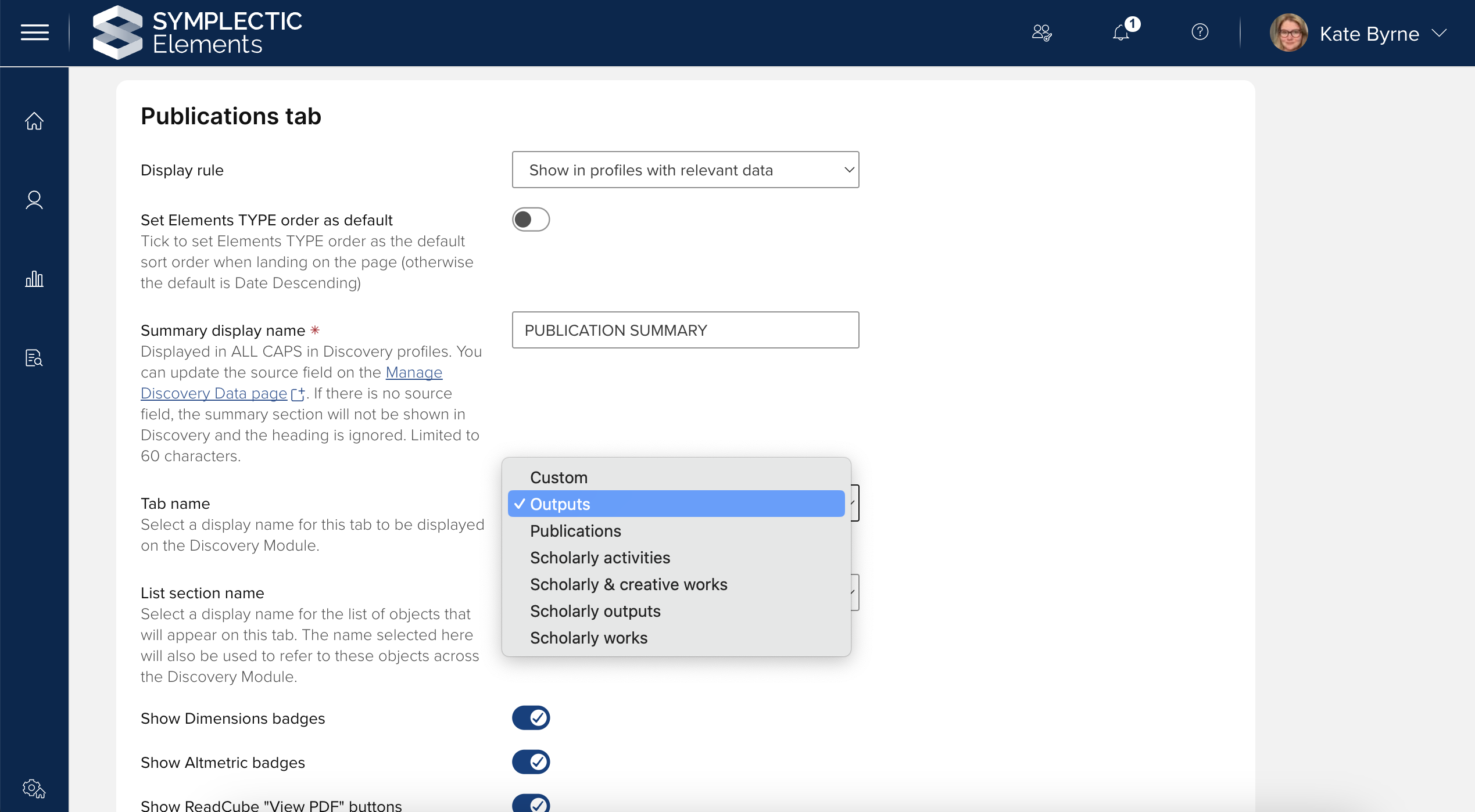
Image: Selecting a display name for the publications tab to appear on Discovery
For our clients using Discovery in bilingual regions, we can further configure the system by importing an additional ‘Custom’ display name option for each setting, with your selected bilingual terminology. As this requires additional configuration steps, the Symplectic team must assist you in setting this up.
Important note: Please note that for this setting, it is not possible for us to automatically migrate your existing settings from Discovery as a part of the upgrade process. We will work with you through this upgrade process to ease the transition as much as possible.
Branding style
Organisations can now easily choose to switch between two branding styles for the Discovery Module with a new branding style toggle. In selecting the default ‘light ’ branding style, uploaded branding colours are used as accents against a predominantly white profile design. In selecting the ‘bold’ branding style alternative, the institution’s selected branding colour is used as a stronger visual element, most notably in the profile sidebar.
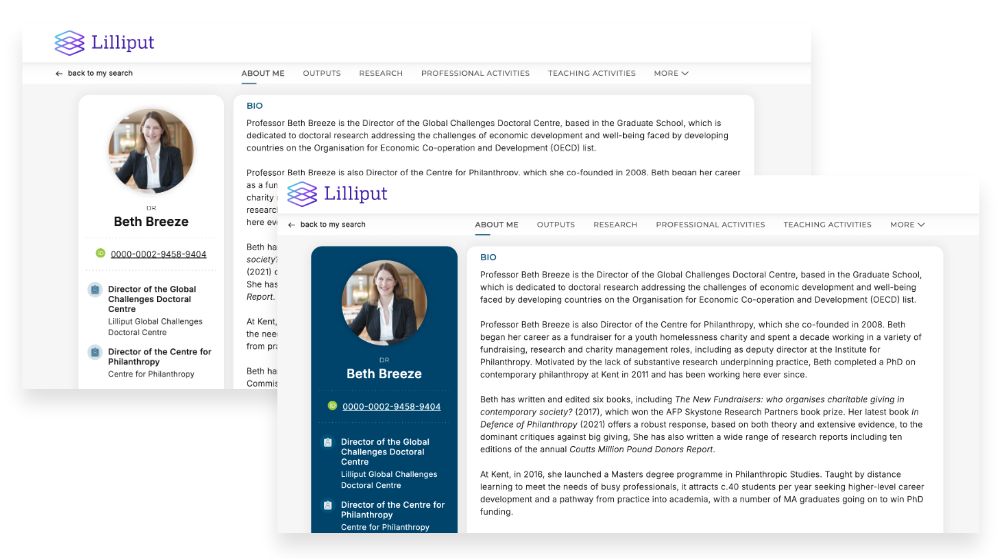
Image: Examples of ‘light’ and ‘bold’ branding styles on the Discovery profile page
Your existing selection for this setting will be preserved upon upgrade, and you can then choose to adjust the toggle and publish the changes if desired.
Logo size and positioning
To help organisations tailor Discovery site branding, administrators can now tailor the height of their logo and adjust the top & bottom margins for their logo via the Elements administration UI. These settings will allow you to decide how strongly branded you wish your Discovery instance to be, and to make adjustments to align with the structure and style of your logo. In an upcoming release, we plan also to migrate the upload process for logos and favicons to make it even easier for you to manage your Discovery branding.
Available in the Header section of the Site Design tab, each of these settings allows you to add your preferred values in pixels so that you can make fine adjustments to ensure your logo is well-placed and balanced. Your existing selection for this setting will be preserved upon upgrade. You can then review and adjust as desired.
Institutional appointments heading
The heading for the Institutional appointments section in the Discovery Module can now be configured by adding an override to the About tab section on the Manage Discovery Configuration page. This allows organisations to choose alternative names relevant to their organisational context. By default, this setting will be displayed on Discovery as <Your organisation name> Appointments. To adjust this setting, simply add your preferred name to the text box, and save and publish the new name. It will then automatically appear on your Discovery site.
Your existing selection for this setting will be preserved upon upgrade. You can then review and adjust as desired.
User feedback survey
For organisations who wish to support our ongoing efforts to ensure that the Discovery Module is as user-friendly as possible, we are making available a new configuration option that allows you to opt-in to support our user research efforts
When this setting is enabled, a 'Give Feedback' button may appear to visitors to the site on the right-hand side of the Discovery site when we are running an active user survey. This will allow visitors to optionally give feedback to Digital Science about their experience of using the site via a series of short questions. Data is collected anonymously and is used to support our user research efforts.
Your existing selection for this setting will be preserved upon upgrade.
Pre-setting filters using URL parameters
The URL parameters setting on the Discovery Configuration page allows Administrators to construct URLs for the Discovery Module Search Results page which will allow the page to be loaded into a pre-filtered state based on a range of URL query parameters.
This functionality allows organisations to link to the Discovery site from other websites, using the pre-set filters to direct users to a specific subset of the available profiles, groups or equipment. Using this functionality, organisations can easily link directly to a list of all of the experts associated with a specific group, theme, or other category represented in your filters, helping visitors find what they are looking for as seamlessly as possible.
This feature allows organisations to build links which pre-filter the search results page using one of the configured filters. When a visitor clicks on a URL and the search results page loads in this pre-filtered state, it will function in exactly the same way as when a user has manually applied those filters. The user can then go on to further interact with the results and filters as desired.
Your existing selection for this setting will be preserved upon upgrade. For more information about how to use this feature, please see the support site article.
Cookie Consent Management
In Elements 6.20, we introduce cookie consent management to Elements, providing an easy and effective route to compliance with GDPR and other similar legislation. This is designed to have minimal impact on end-users, with one-click accept and reject options. Once made, a user's choice will be remembered in their account settings, so they will not be asked for cookie consent repeatedly every time they log in.
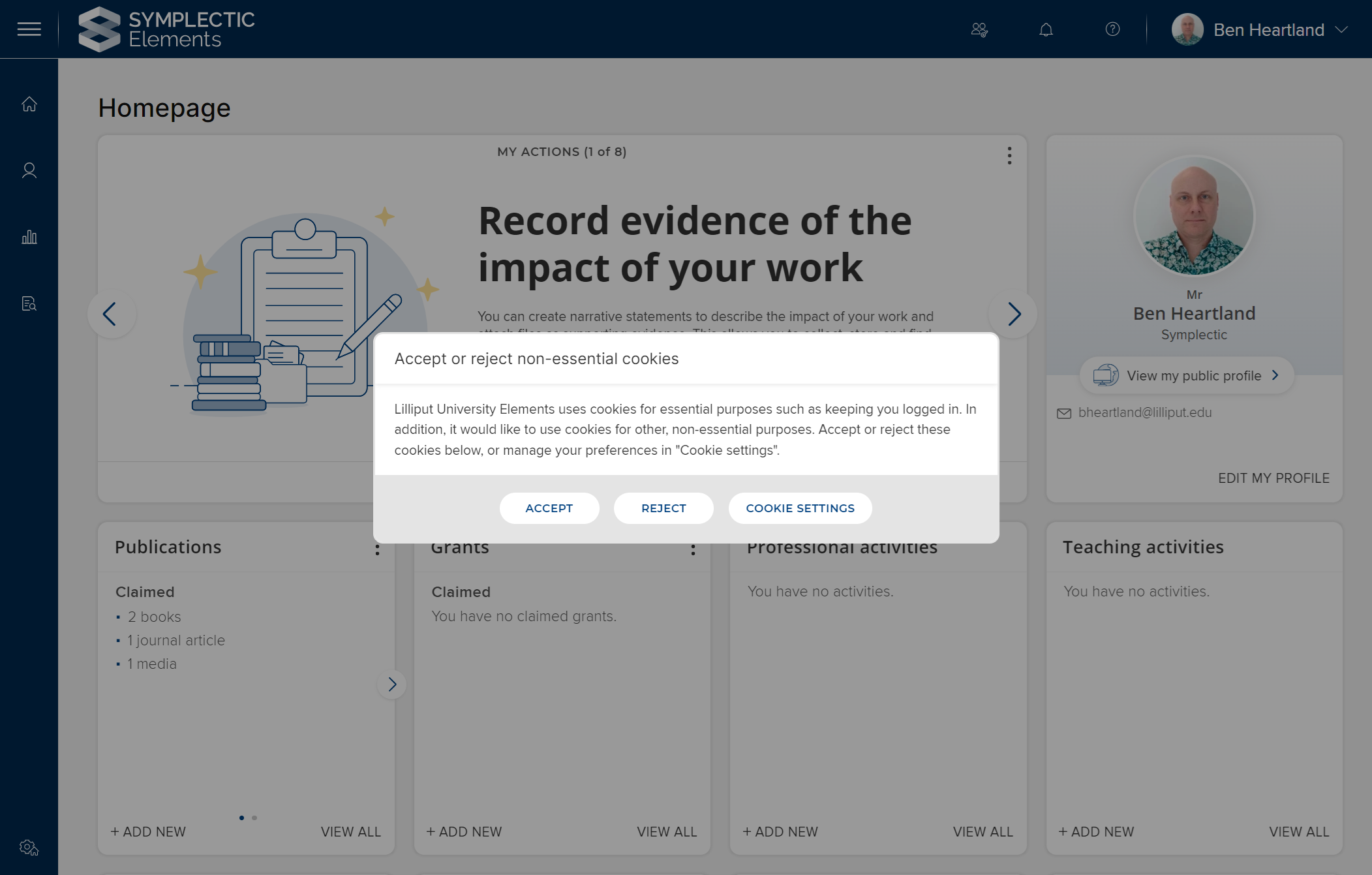
Image: Pop-up shown to end-users on login when a cookie consent choice is needed
Cookie consent configuration
We have introduced a new System Admin page that gives full control over the cookie consent management. From here, admins can declare whether scripts added to the system via Google Tag Manager and/or the custom script set non-essential or strictly necessary cookies (or indeed, no cookies at all), and provide information about these cookies to help users make an informed choice.
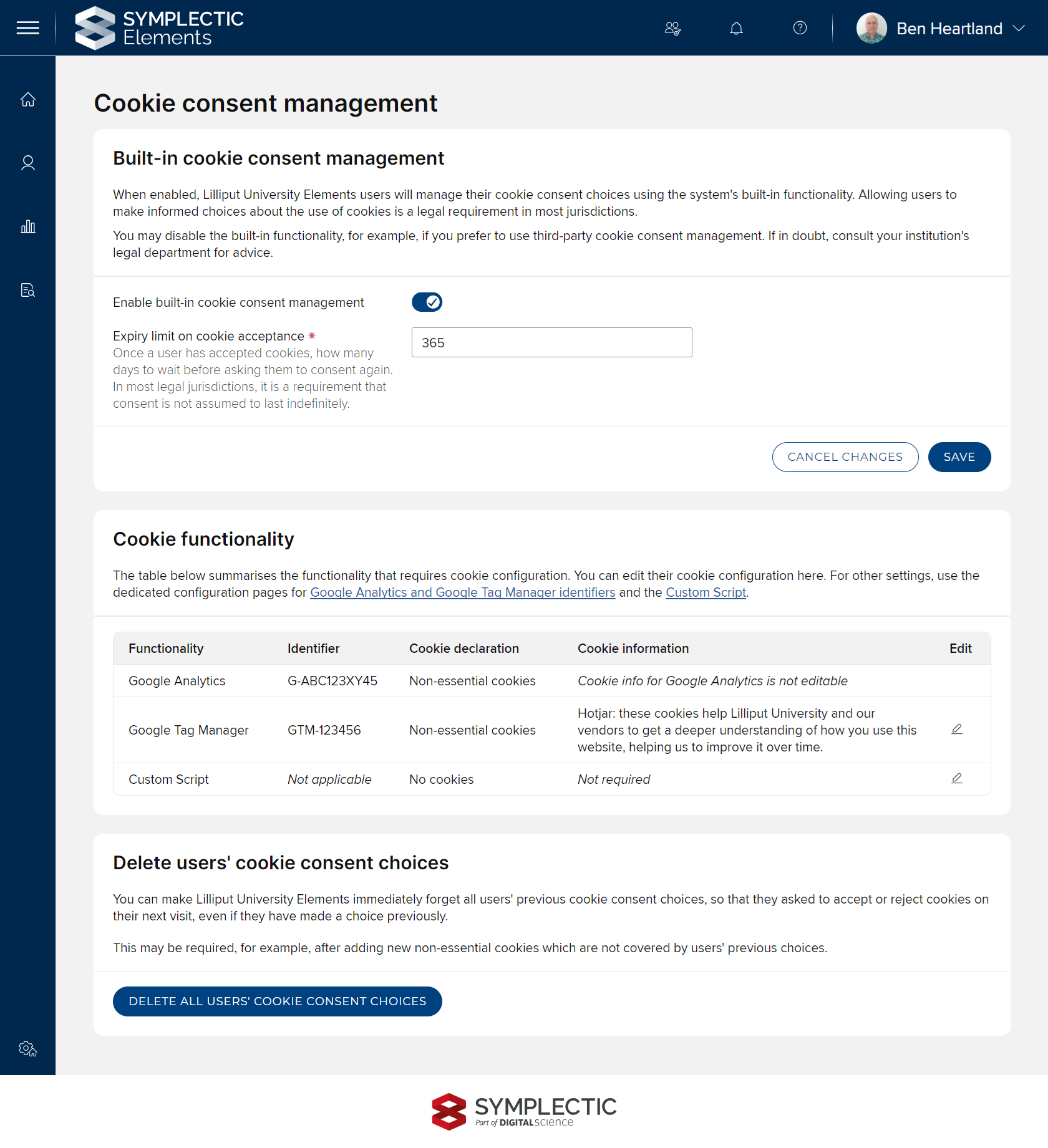
Image: Configuration page for cookie consent management
For organisations using their own system for cookie consent management, the built-in system can be disabled globally.
Depending on your current Elements configuration, you may need to take action upon upgrading to 6.20 to ensure that cookie consent management is correctly configured. See the Elements v6.20 Upgrade Pack for details.
For more information about configuring and using this feature, please see the support site article.
Cookie consent in the Discovery Module
A similar feature is planned for the Discovery module in future releases.
Awards Management (Research Funding Solution)
External organisations
Research proposals and active projects very often include collaborations and other relationships with other organisations - and it’s important for the Research Funding Solution (RFS) to accurately reflect these.
In this release, we have introduced improvements to the external organisation functionality that will:
Consistently enable multiple relationship types per external organisation per funding record.
Rationalise behaviour to ensure accurate and consistent data capture.
Resolve current issues around organisation validation behaviour.
Note that these improvements will require some preparatory work prior to upgrade. We will be in touch with you to work together to identify and resolve data considerations, and implement required modifications to form templates.
As with previous releases, full details of the Awards Management functionality released in v6.20 are available in the RFS release notes on our support site.
Brute-force attack mitigation
As part of our continuous ongoing efforts to provide the best possible security for our clients, we are implementing an additional security measure.
Attempts to log in to Elements via the built-in login page (that is, via authentication authorities of type Internal, ADS or LDAP) are now subject to additional brute-force attack mitigation checks. The system records login attempts where incorrect credentials have been supplied, and when five successive login failures are recorded within a period of one hour, the user account will become locked. The system will thereafter refuse any attempt to log in to the locked user account. Accounts are locked for 24 hours, automatically unlocking after that time period elapses.
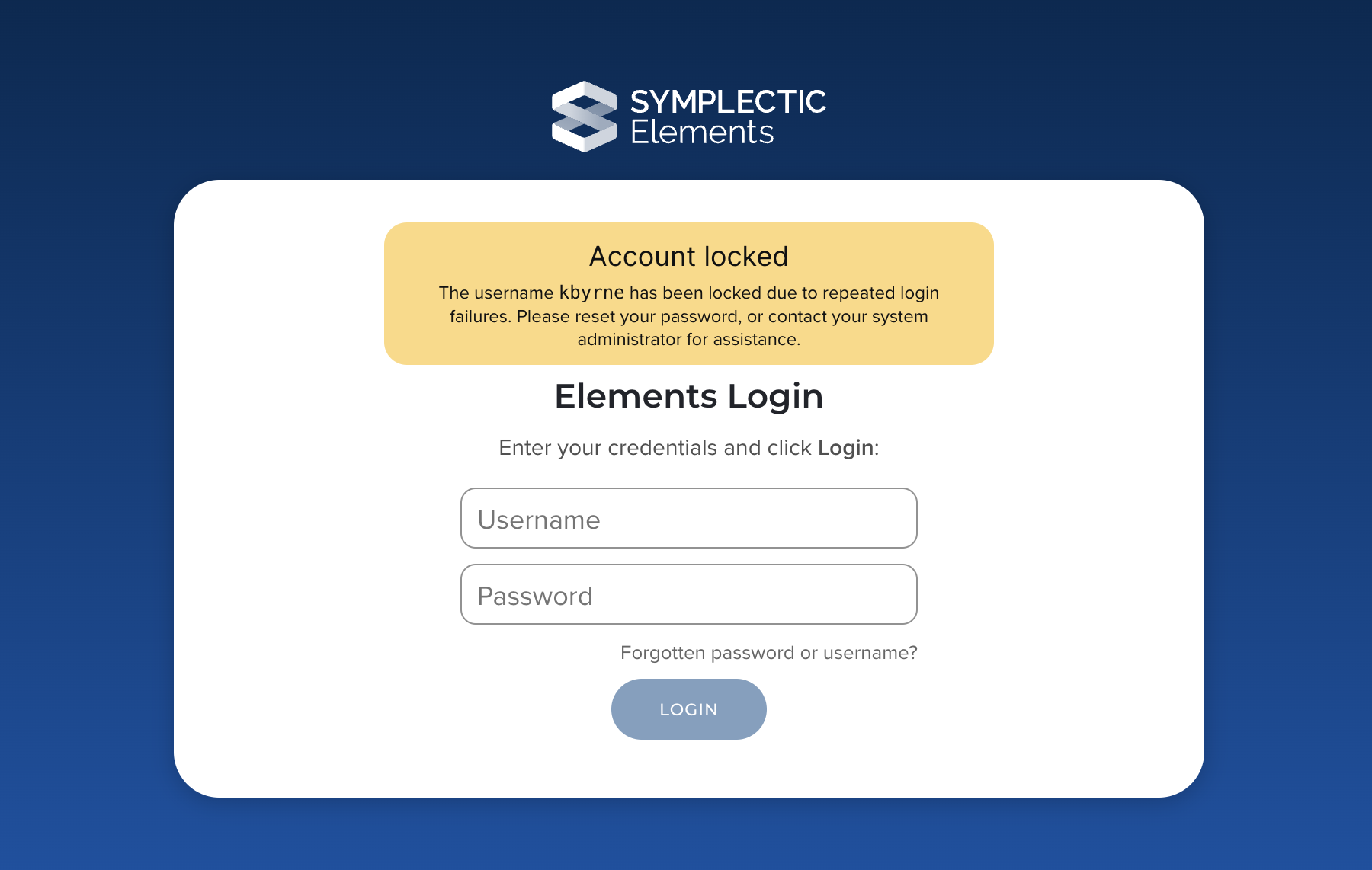
Image: An example of an account that has been locked after repeated failed login attempts
When an account is locked, attempts to log in to that account are presented with a message on the login page indicating that the account is locked, with an instruction to contact a system administrator. Accounts can be unlocked via several mechanisms:
The user can wait for the unlock period to elapse.
The user can unlock their account by resetting their password if the ‘forgotten credentials’ functionality is enabled and the user uses the Internal authenticating authority.
A system administrator can unlock any user’s account via the administration page, which shows a list of all currently locked user accounts.
Other improvements
We have significantly improved the automated metadata update integration between Elements and Figshare, reducing the number of ‘false positive’ review requests that could come through. This update will apply to all clients who have RT2 Figshare for Institutions metadata updates enabled.
We have introduced a new quick link to the Search page in the sidebar.
The Grants matching algorithm has been updated to incorporate institution-reference.
A new ‘Grants & awards’ configurable module display name has been added for Grants.
The 2024/2025 DHET Journal list has been added to the Journals data category.
User privacy level has been added to the User Profile Completeness report.
When a user is browsing a category on the Discovery site (eg. expert profiles) without search terms, the sort option of “Relevance” will no longer be displayed as profiles are sorted alphabetically.
Accessibility improvements
New focus outlines for links across Discovery to provide clearer guidance to keyboard users.
Updated the styling of links in the Discovery sidebar in line with accessibility guidance.
Improved Discovery Group Tree focus behaviours for users using a keyboard.
Improvements to accessibility and labelling for a number of boolean switches across Elements.
Icon buttons on the Impact Evidence page now include accessible names.
Updates to newer table components to improve accessibility.
Improvements to the sticky top bar within the Assessment Module to prevent it from overlapping with other focused content.
Improvements to accessibility and guidance text on the Objects Types page.
Fixes
We have fixed an issue with our drag & drop functionality in reorderable lists on the object edit page. Items are now only draggable by a new drag handle.
We have improved our normalisation of characters when searching in Discovery, ensuring words containing special characters (e.g. Māori characters) return the expected results.
In Discovery, we have fixed an issue where searching the object list while not on the first page could mistakenly result in a lack of results.
We have fixed an issue in Discovery to ensure that groups of custom types are displayed, and that highlighted profile data is parsed as expected.
In Discovery, we have resolved an issue where the tag suggestions could miss results if the tags had words in common.
In the Assessment Module, when a reviewer is able to see an attachment, they can now also always see the attachment type.
On the User profile page, we have fixed an issue to ensure that publications set to Private are not included in the Co-authors chord diagram.
We have improved our handling of invalid label percentage values in the API import to return a warning, rather than throwing an exception.
End of support
As always, we recommend you regularly review our End of Support Announcements for information about upcoming end of support in Elements for various technologies. We would like to draw your attention to the upcoming end-of-support dates for versions of Elements. Upcoming dates include:
Elements version | Release date | End of support date |
6.19 | 27 June 2024 | 27 June 2026 |
6.18 | 25 April 2024 | 25 April 2026 |
6.17 | 29 February 2024 | 28 February 2026 |
6.16 | 7 December 2023 | 7 December 2025 |
6.15 | 12 October 2023 | 12 October 2025 |
6.14 | 6 July 2023 | 6 July 2025 |
6.13 | 27 April 2023 | 31 October 2024* |
6.12 | 23 February 2023 | 31 October 2024* |
6.11 | 8 December 2022 | 31 October 2024* |
6.10 | 6 October 2022 | 6 October 2024 |
If you need assistance in planning to upgrade, please contact our team via the Support Site.
We’re here to help!
We hope you enjoy getting to know the latest version of Elements. Should you have any questions, we’re here to help! Just contact us at support@symplectic.co.uk for assistance.
Best wishes,
The Symplectic Team