
Manage publications in an OA scheme
This article applies to Elements v6.20 and above.
OA schemes can be accessed by authorised users via Open Access > [MANAGE OPEN ACCESS] > OA schemes. Find the OA scheme you wish to manage, and select 'Manage publications'.
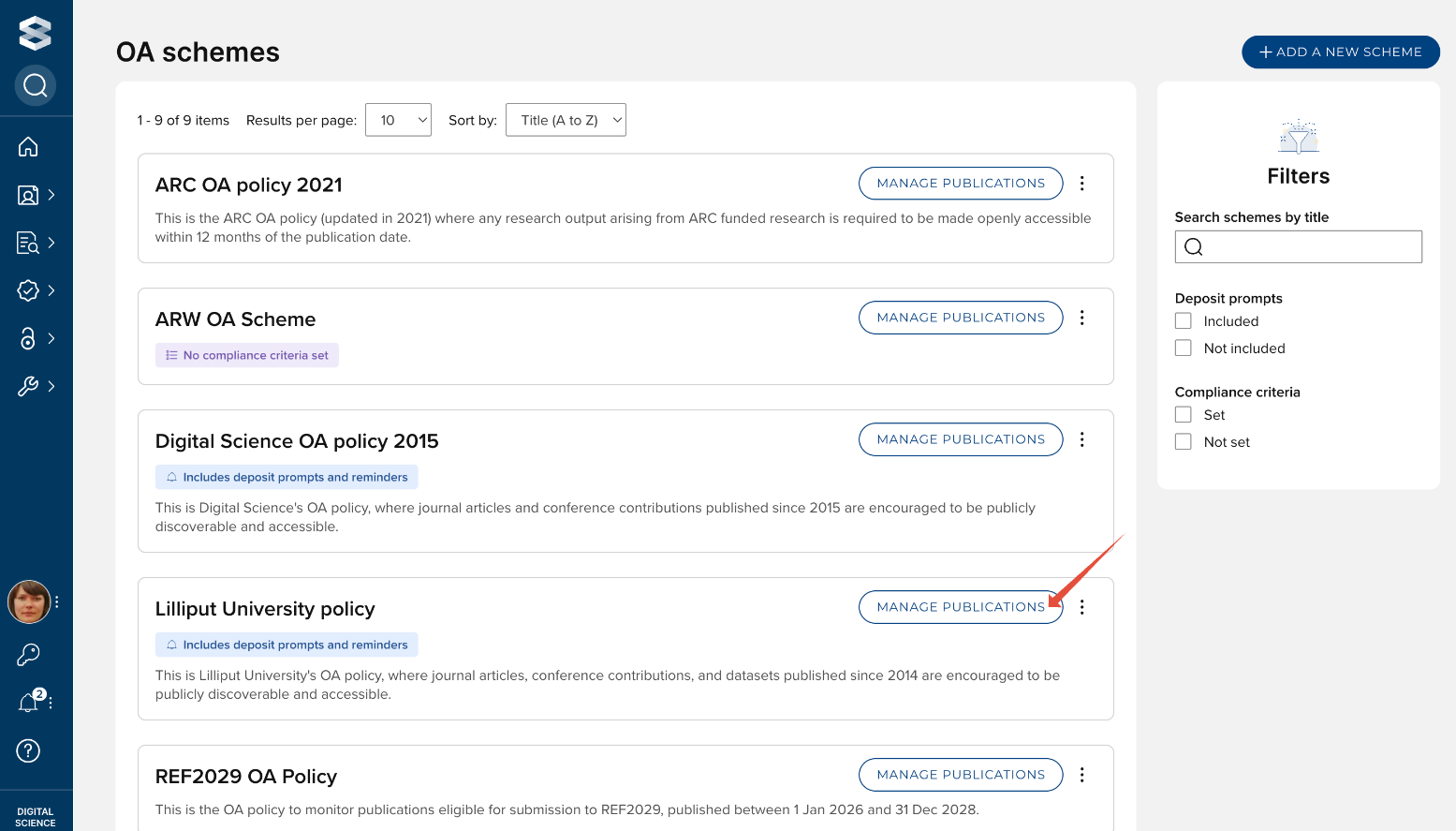
Image: Manage publications in an OA scheme
This will then open the publications list page for the OA scheme, listing all publications within scope, with excluded publications (see below) filtered out by default.
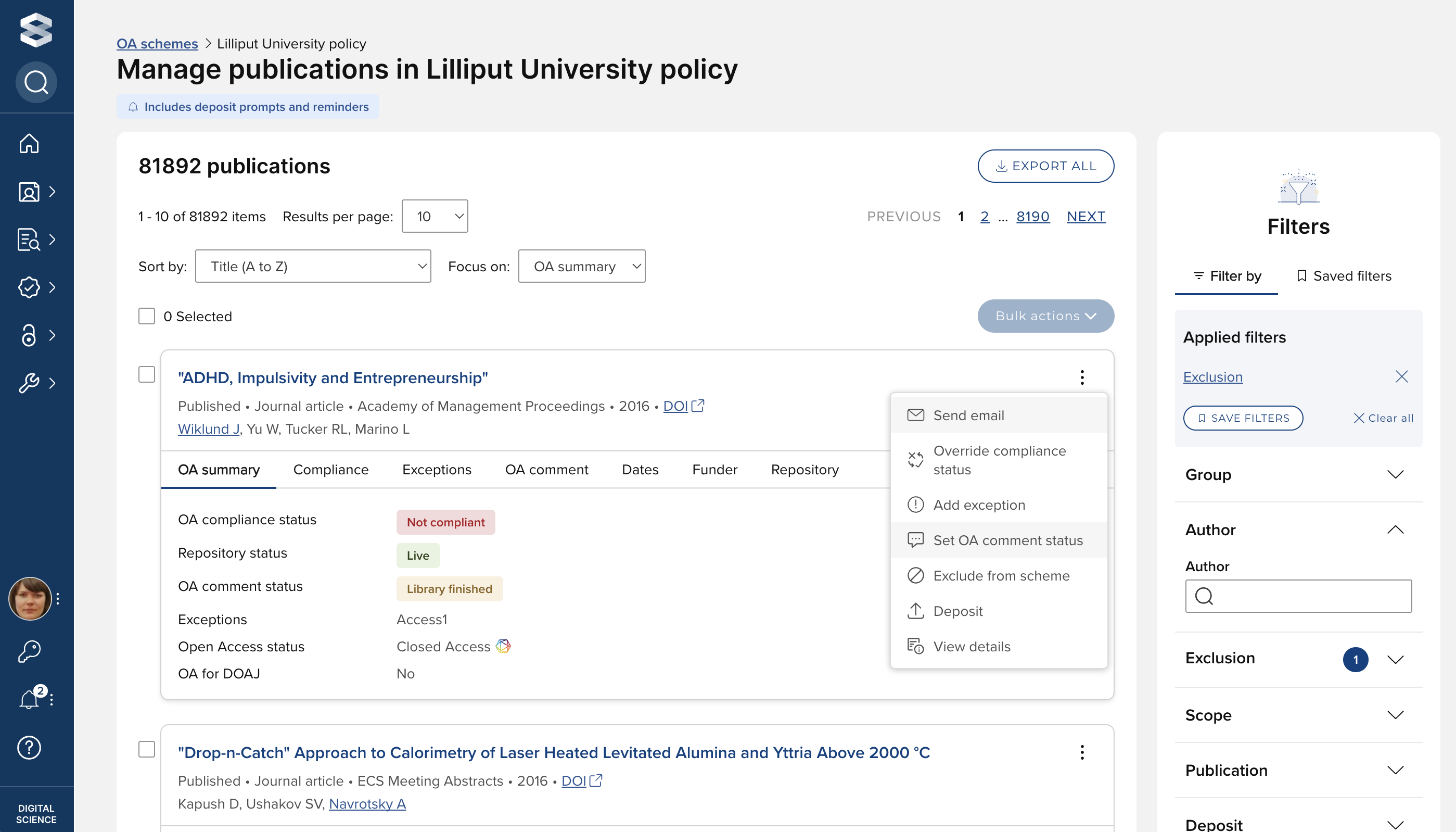
Image: Publications list page in an OA scheme
Various actions and information are available per publication, either via the options menu on the card, or the relevant tab within the publication card.
For those fields sourced from a repository record or file, we adhere to the following overarching logic:
If compliant with repository criteria
Display the data from the repository record (and file, where relevant) that determined that the publication is compliant
If not compliant with repository criteria or compliance not based off of repository criteria (e.g. overridden / based on publishing criteria)
Display the data from the highest precedence record (and the first file read into the record, where relevant)
Define precedence as:
If scheme includes repository compliance criteria, look at compliant repositories, in source precedence order - and stop
If scheme includes Deposit prompts, look at preferred deposit repository - and stop
If neither, in source precedence order
This then ensures consistency between the data displayed, the data used to assess compliance, and repository non-compliance reasons stated.
Compliance
A publication's compliance with the criteria set for a OA scheme is calculated as per the logic described at OA Monitor: Compliance Logic and Overrides.
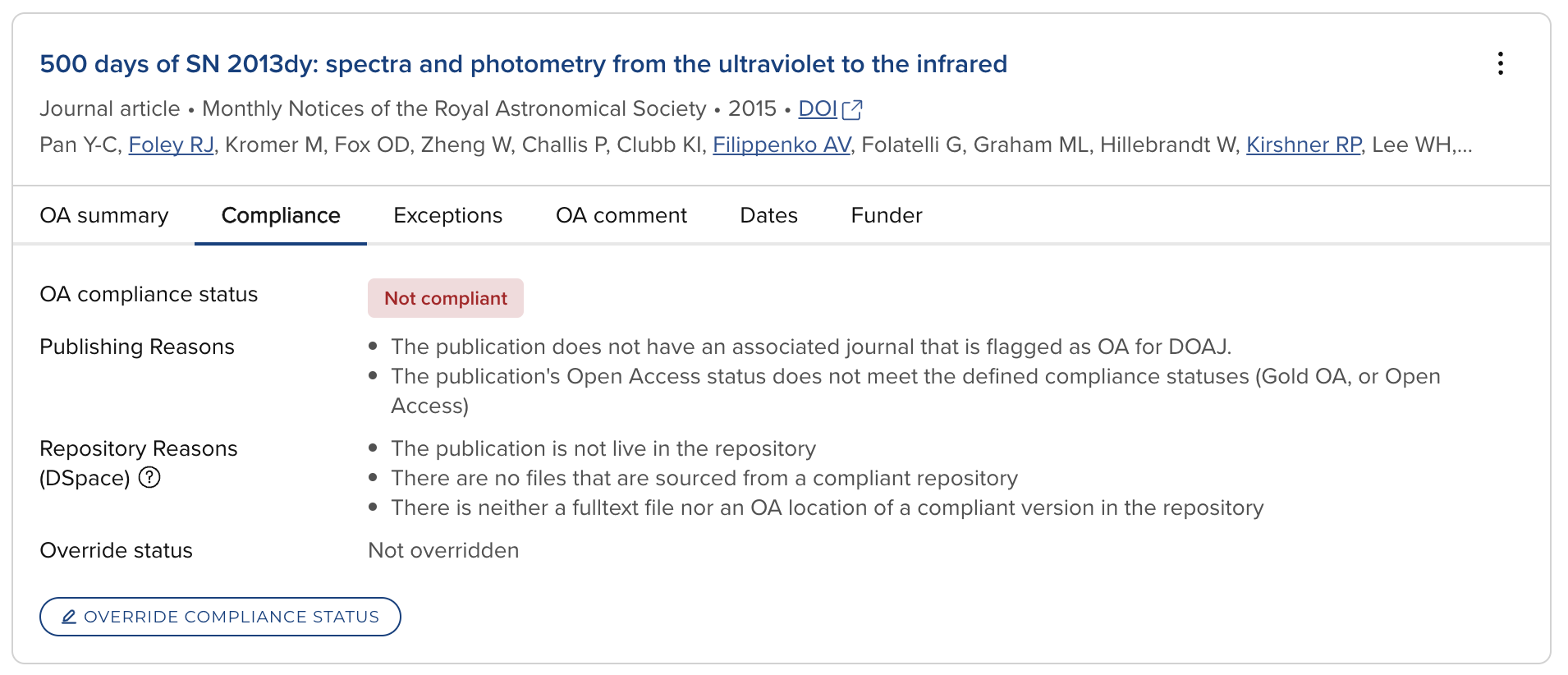
Where overrides of OA scheme compliance are enabled in the OA Monitor settings, the calculated compliance status of a publication can be overridden, along with the facility to capture notes relating to the override. Any applied override can be subsequently edited or removed.
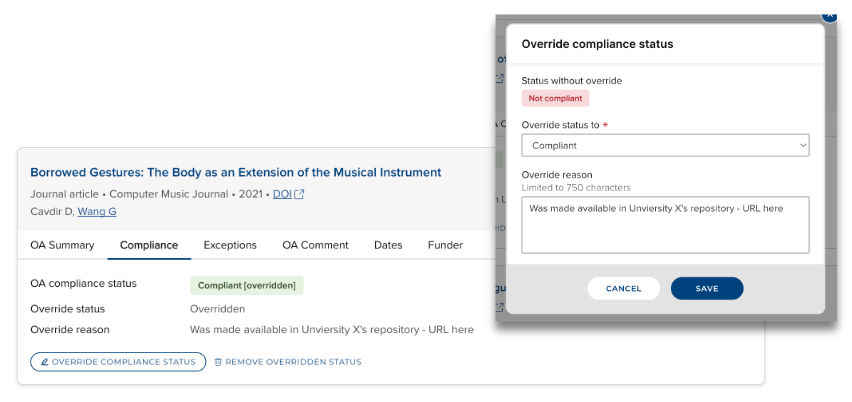
Image: Overriding the compliance status
Exceptions
Where exceptions have been enabled for the OA scheme (via the scheme's configuration) , exceptions can be applied to a publication, along with the facility to capture notes relating to each exception applied. Multiple exceptions can be applied to a single publication. Any applied exception can be subsequently edited or removed.
Any exceptions applied to a publication in a OA scheme will be applied across all OA schemes where that exception is also enabled (same applies for removing an exception).
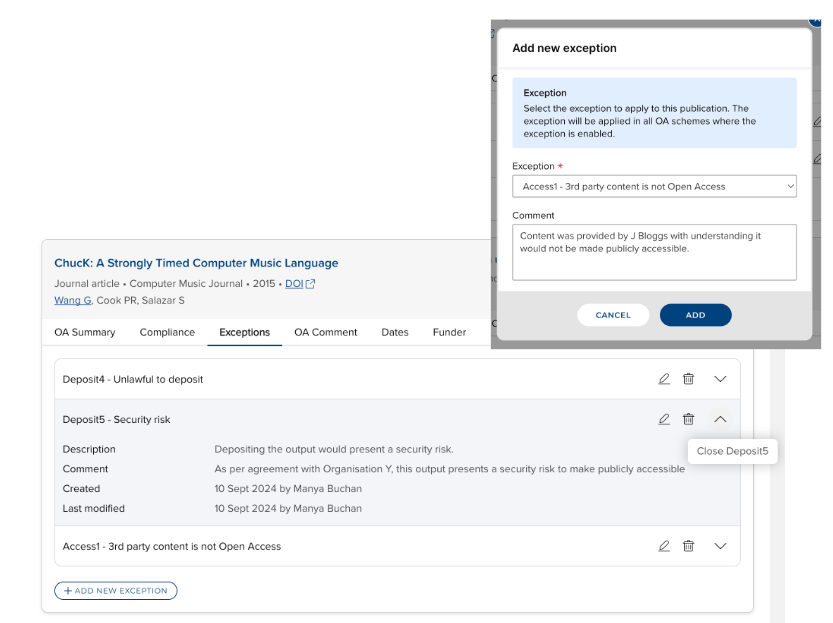
Image: Applying exceptions
OA comment
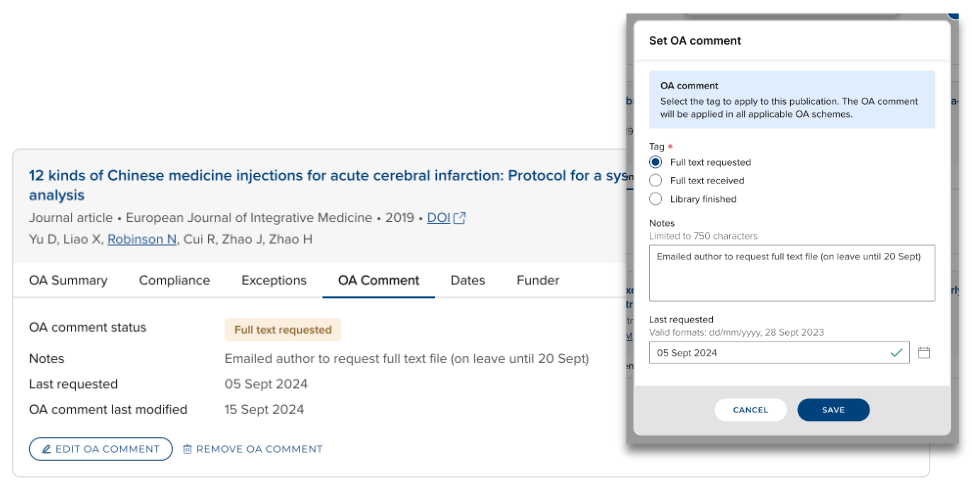
Where the OA commenting tool is enabled in the OA Monitor settings, OA comments and a tag can be added to a publication. The OA comment or tag can be subsequently edited or removed.
Any OA comment added to a publication in a OA scheme will be applied across all OA schemes (same applies for removing an OA comment).
Dates
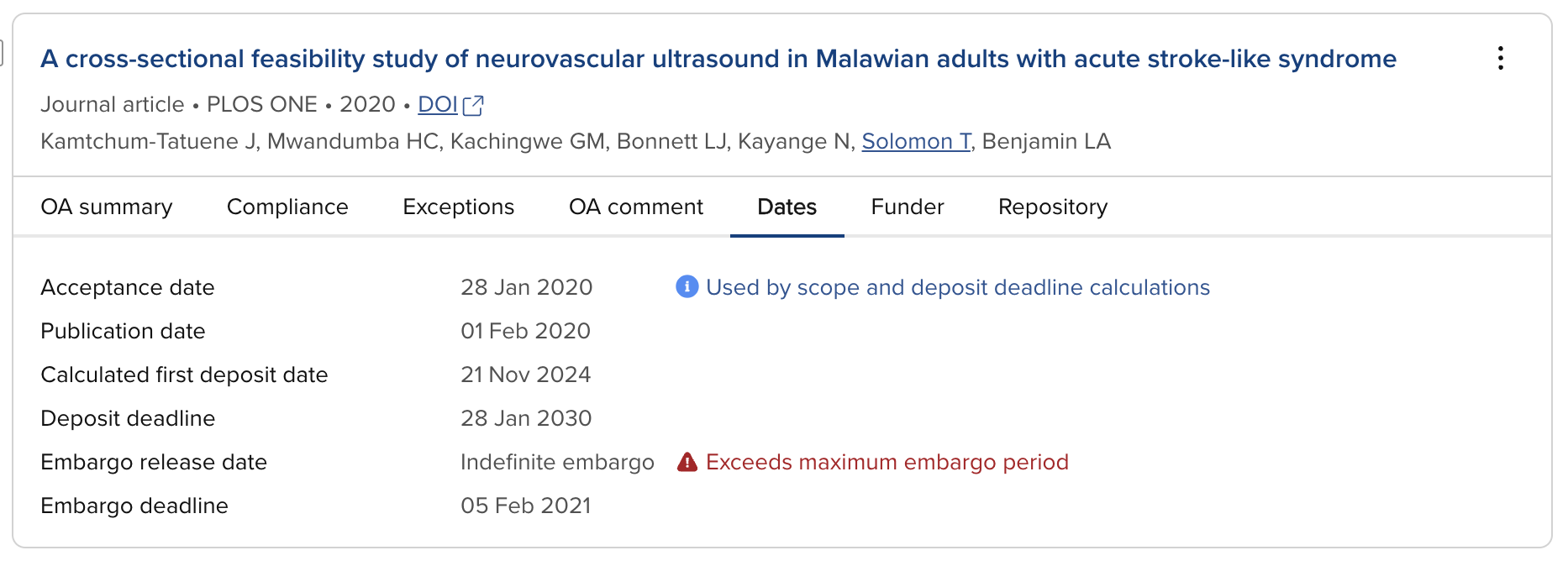
The Dates tab provides information on key dates employed by the OA Monitor to assess scope and compliance.
Funder
The OA Monitor sources Funder information from grants linked to the publication.
'Flagged as not externally funded' is sourced from the [Flagged As Not Externally Funded] field on the publication.
'No funding information' indicates there are no grants linked to the publication.
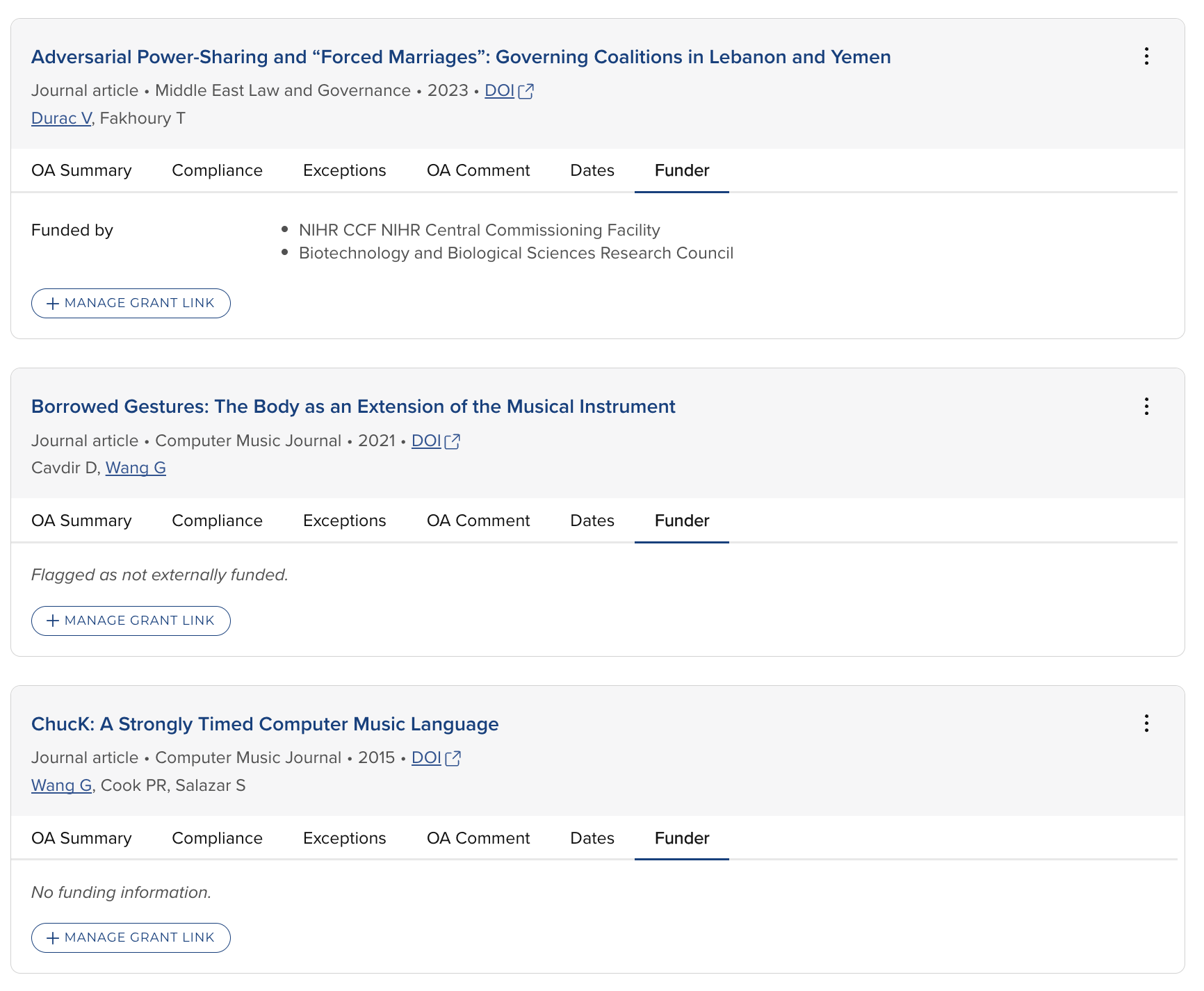
Image: Funder information displayed in the OA monitor
Repository
The Repository tab gives OA Monitor users direct visibility of deposited files, repository status, version, embargo release date, and repository location; along with the function to deposit, re-deposit, and view the item directly in the repository. The tab also gives an indication of which repository item and/or file formed the basis of the compliant / not-compliant status.
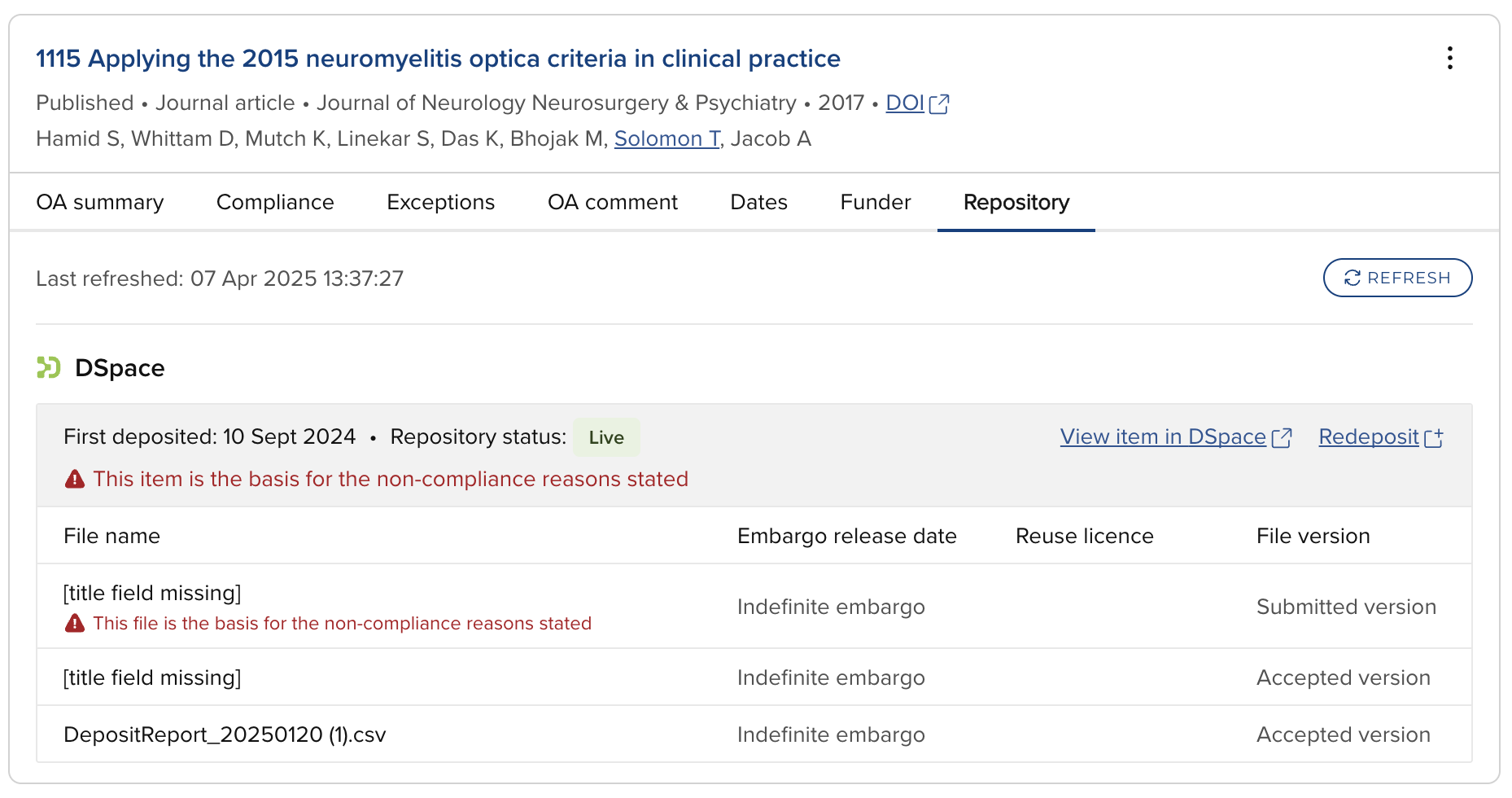
If multiple repository locations are defined as compliant in the OA scheme configuration:
All specified repositories will be listed
If the OA scheme also includes deposit prompts, the preferred repository for deposit will be so indicated
If the scheme does not include compliance criteria, the repository listed will be that where deposit prompts are encouraged (as set in the Deposit prompts tab).
Exclude from scheme
Where exclusions are enabled in the OA Monitor settings, a publication can be excluded from the OA scheme (or all existing OA schemes), along with the facility to capture notes relating to the exclusion. Excluding a publication will remove it from the scope of the scheme and compliance will not be calculated.
When navigating to the Manage publications screen, excluded publications are filtered out by default.
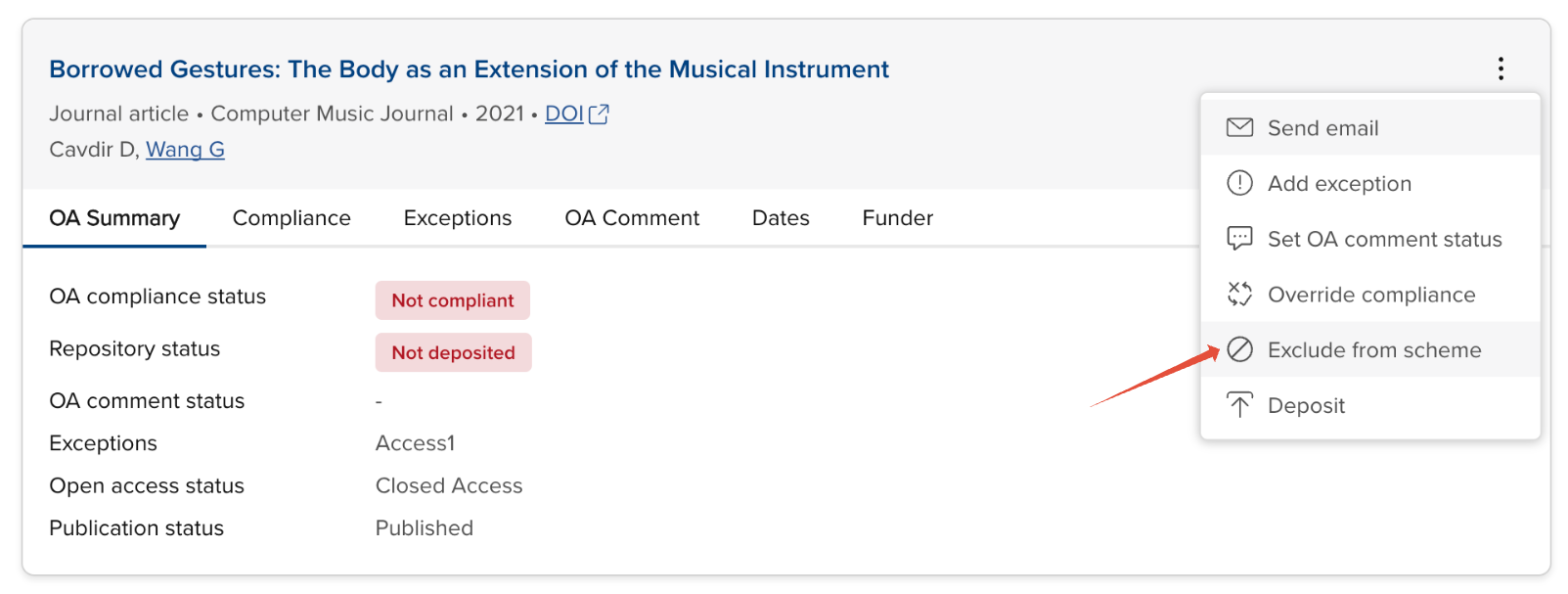
Image: Exclude a publication from a OA scheme
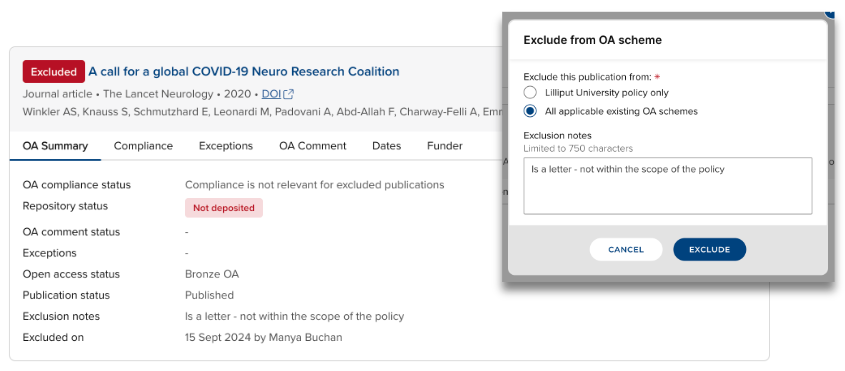
Image: Select whether you wish to exclude the publication from just this OA scheme or all existing OA schemes
Re-inclusion
An excluded publication can be re-included - either to the OA scheme in question, or all OA schemes (if initially excluded from all schemes). Any exceptions or compliance override that were applied prior to the exclusion will be re-instated.
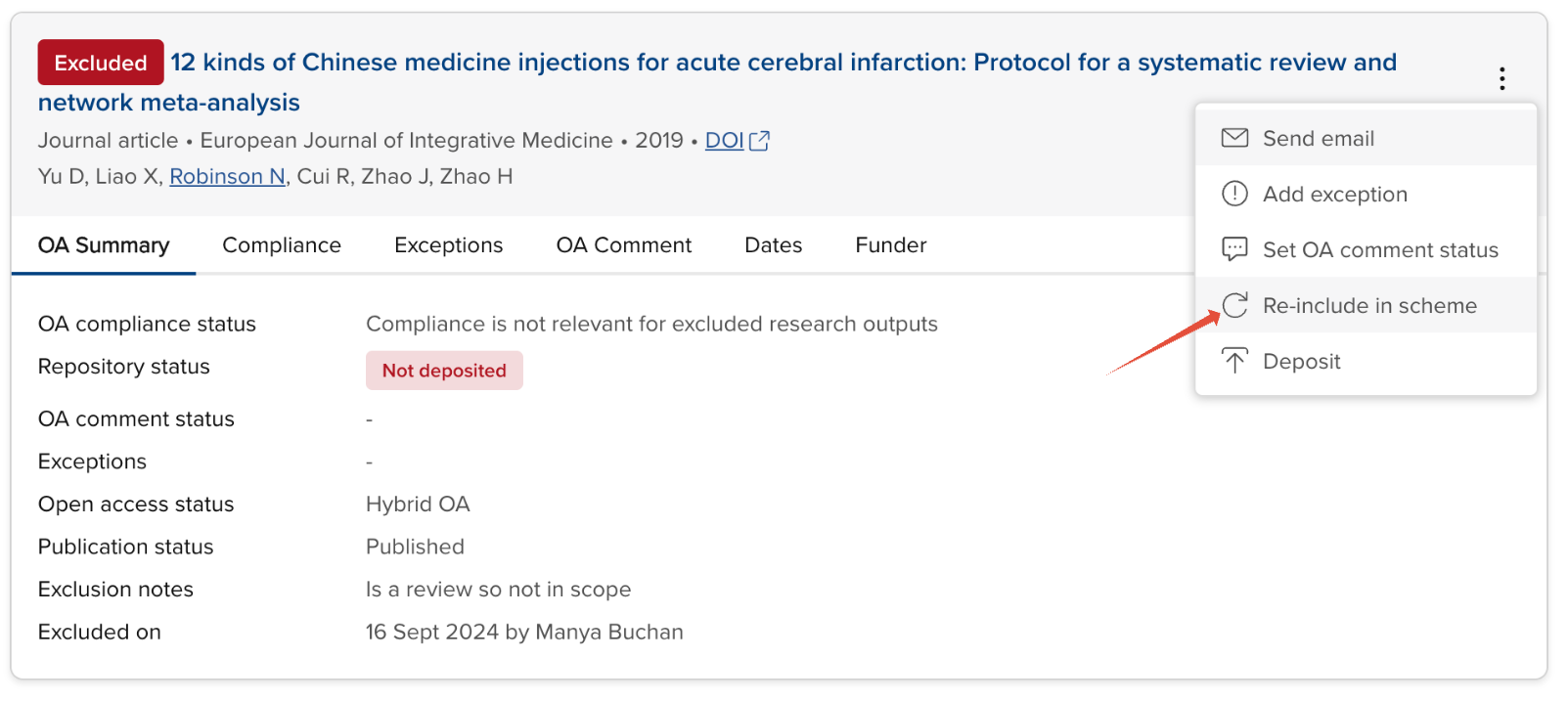
Image: Re-include action on an excluded publication
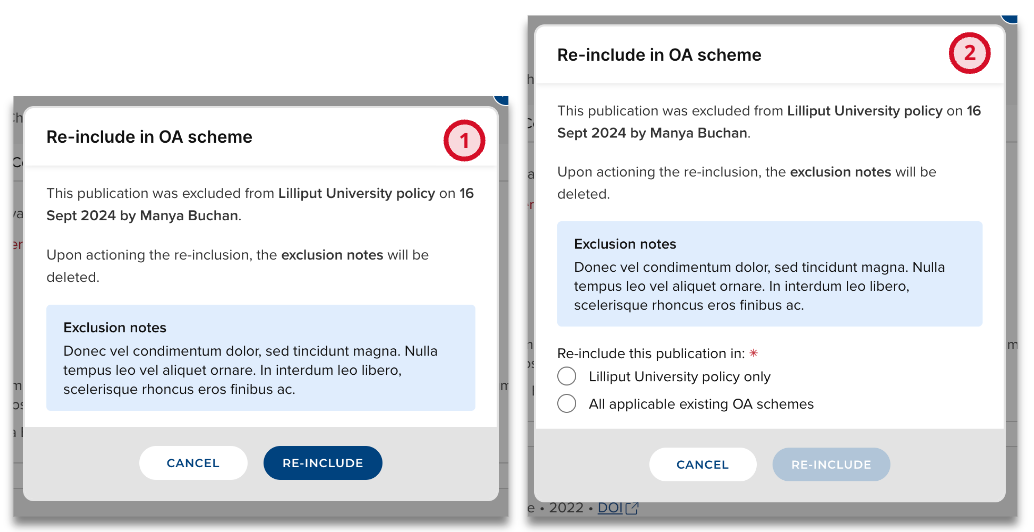
Image: Re-include a publication previously excluded from (1) this OA scheme or (2) all OA applicable OA schemes
Bulk actions
You can apply the following actions across a number of publications in a single action via the 'Bulk actions' button:
Apply / remove exceptions
Override compliance / remove compliance override
Exclude / re-include publications
First select the publications you would like to modify, then you will see that the 'Bulk actions' button is enabled.
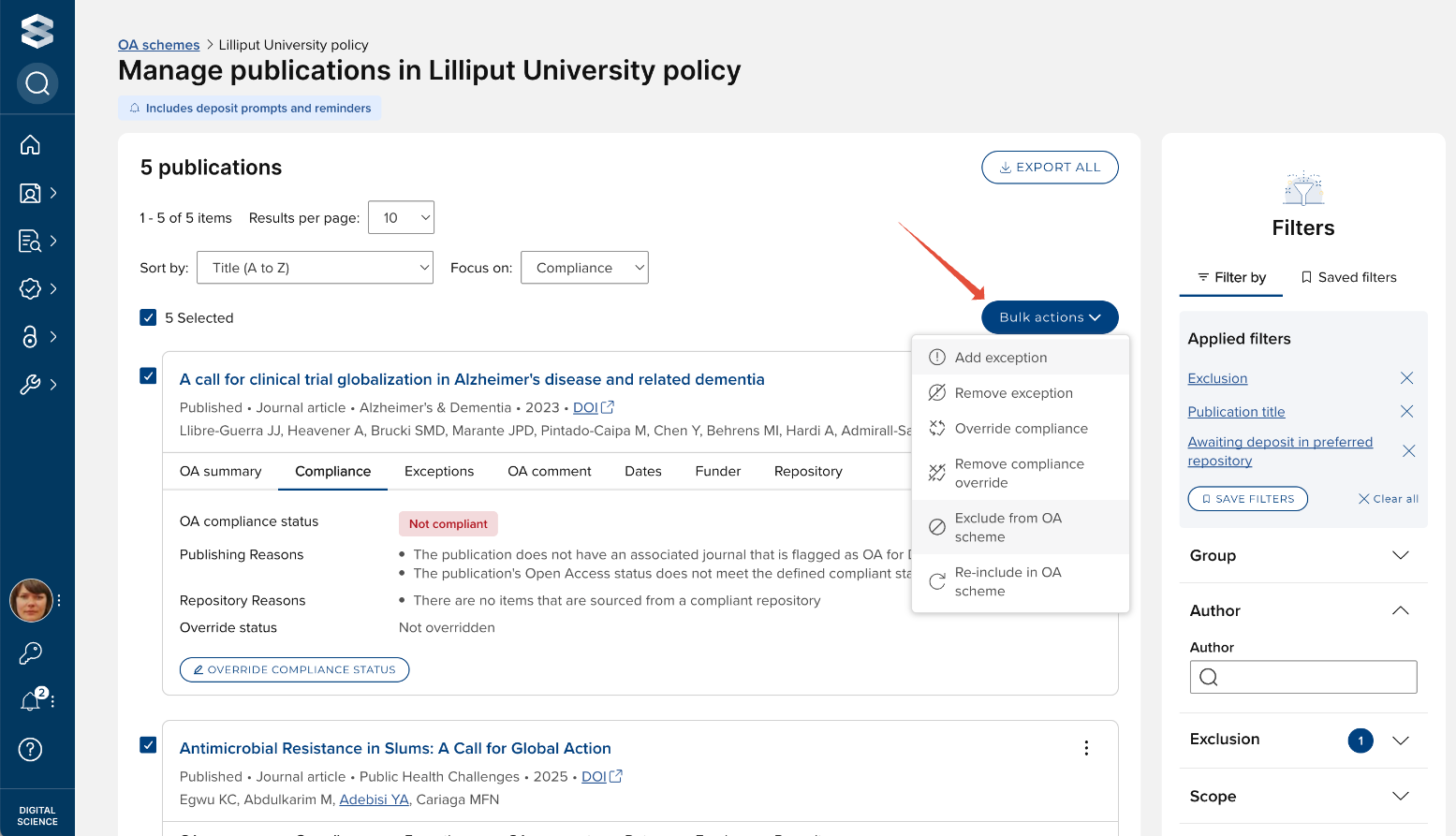
Some notes on bulk actions:
If you use the 'select all' tickbox at the top of the list, this will only select those publications visible on the page.
Exceptions:
When adding an exception, if any of the publications in the list already has that exception applied:
The exception isn't added a second time
If there was already a comment relating to that exception, any new comment added as part of the bulk action would be appended to the existing comment
When removing an exception, if any of the publications in the list does not have the selected exception applied:
The removal action is ignored for those publications
Compliance override:
When overriding the compliance status, if any of the publications in the list already has its compliance status overridden to the value selected:
The overridden status remains the same
If there was already a reason relating to the override, any new reason added as part of the bulk action would be appended to the existing reason
When removing compliance status override:
If any of the publications in the list does not have an overridden status, the removal action is ignored for those publications
Exclusions:
When excluding publications from a scheme:
If any of the publications in the list are already excluded:
They will remain excluded
If there were already notes relating to the exclusion, any new note added as part of the bulk action would be appended to the existing note
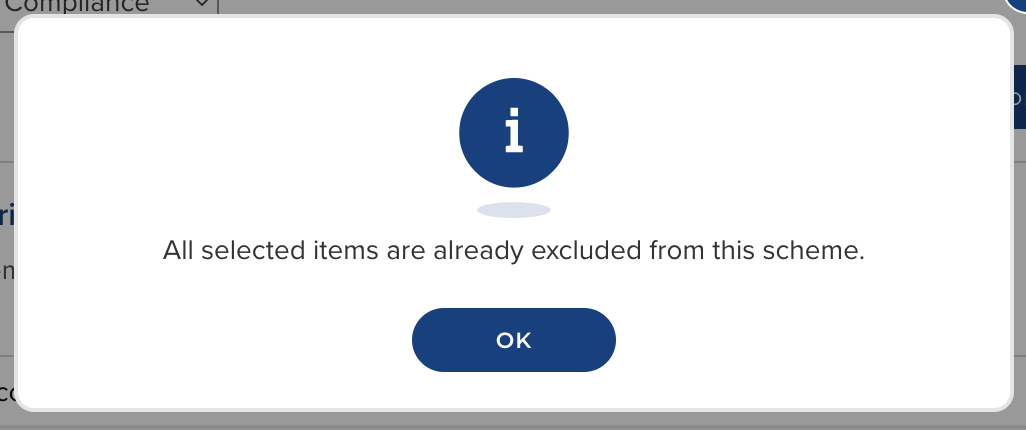
If all of the publications in the list are already excluded, you will be notified
When re-including publications in a scheme:
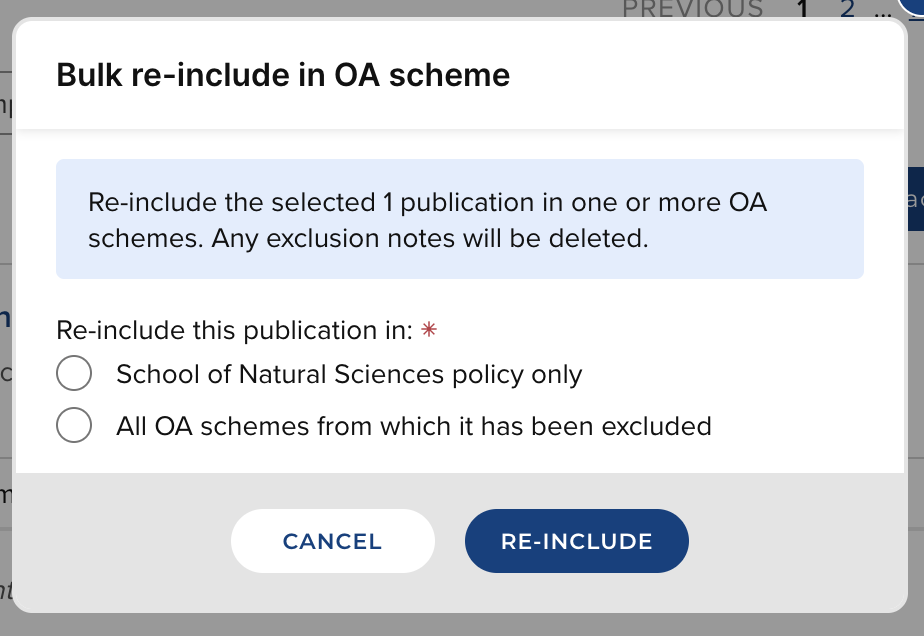
You can choose whether you would like to re-include this publication in this scheme only, or in all OA schemes from which it has been excluded
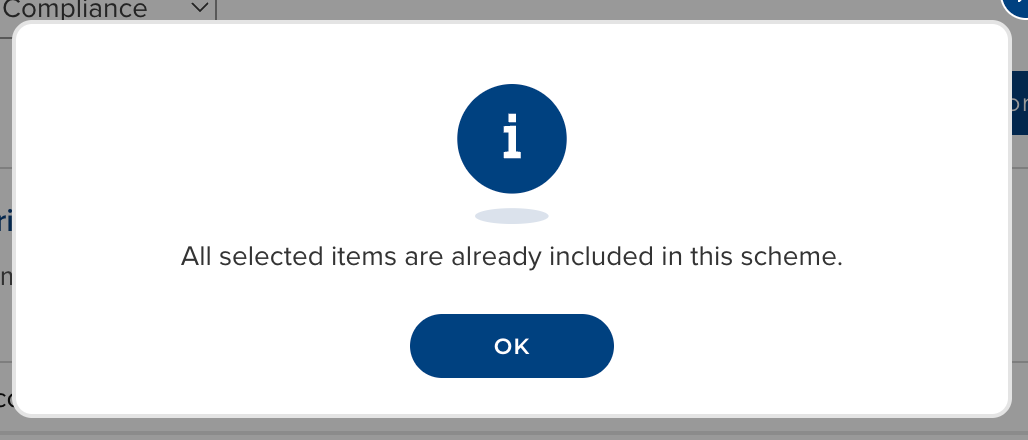
If any of the publications in the list are not marked as 'excluded', the re-inclusion action is ignored for those publications
If none of the publications in the list are excluded, you will be notified
Saved filters
To make it easier to return to drilled-down lists of publications that need further attention, you can save filter sets in the OA Monitor.
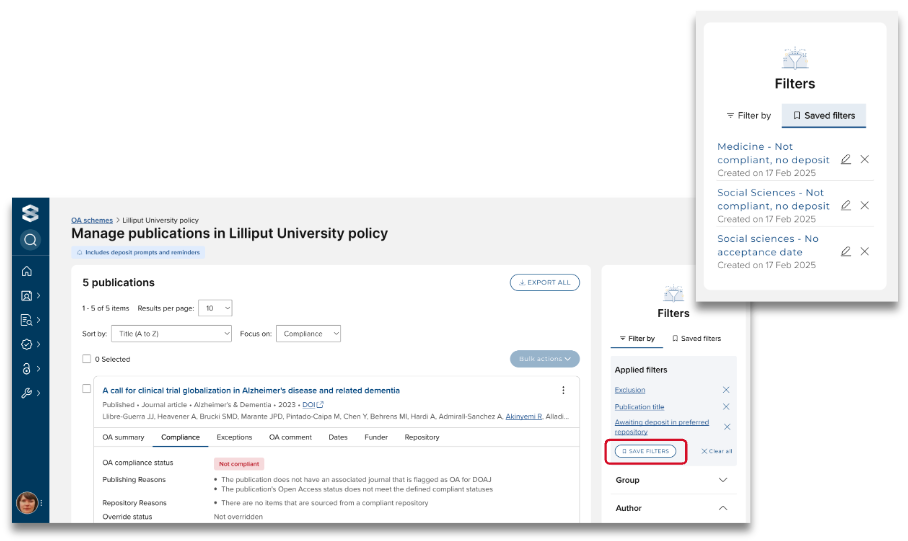
To save a filter set, once you have applied all of the desired filters, simply select the ‘Save filters’ function in the ‘Applied filters’ box and give the filter set a name. It will then be available for your future use in the ‘Saved filters’ tab. When saved, these filter sets will be available for you to apply across all OA schemes. Saved filters are personal - they are not available globally.