
OA Monitor : Create and configure an OA scheme
This article applies to Elements v6.20 and above.
OA schemes can be accessed by authorised users via Open Access > [MANAGE OPEN ACCESS] > OA schemes.
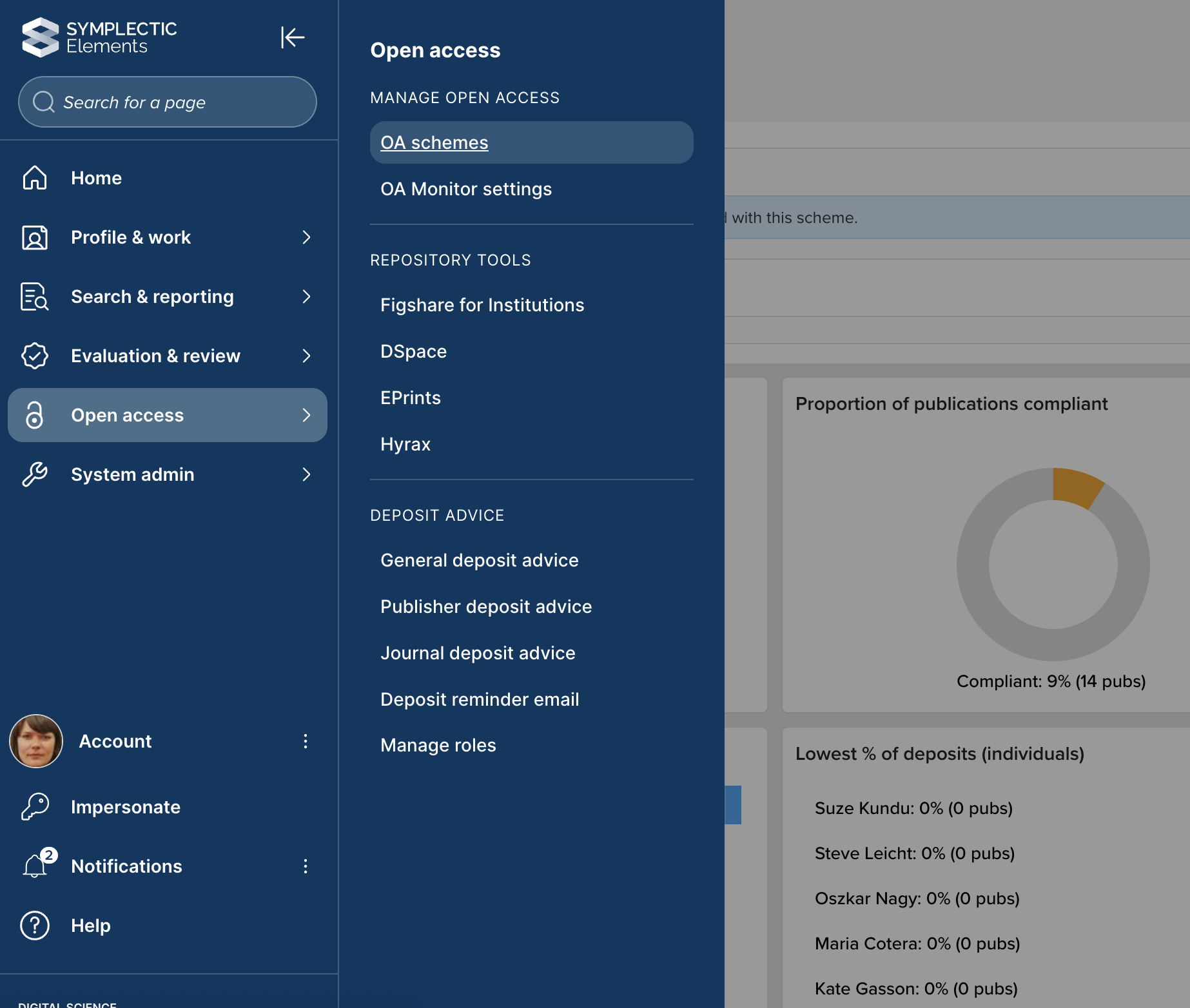
Image: Accessing OA schemes via the Elements navigation menu
The OA schemes list page lists all OA schemes that have been configured in your instance of Elements. Schemes are tagged with key properties:
Includes deposit prompts and reminders
Enables you to distinguish between schemes that only measure compliance and those that include deposit prompts
No compliance criteria set
Enables you to easily see those schemes that are not configured to monitor compliance
Create a new scheme
To create a new scheme, select the 'Add a new scheme' button in the top right-hand corner of the screen.
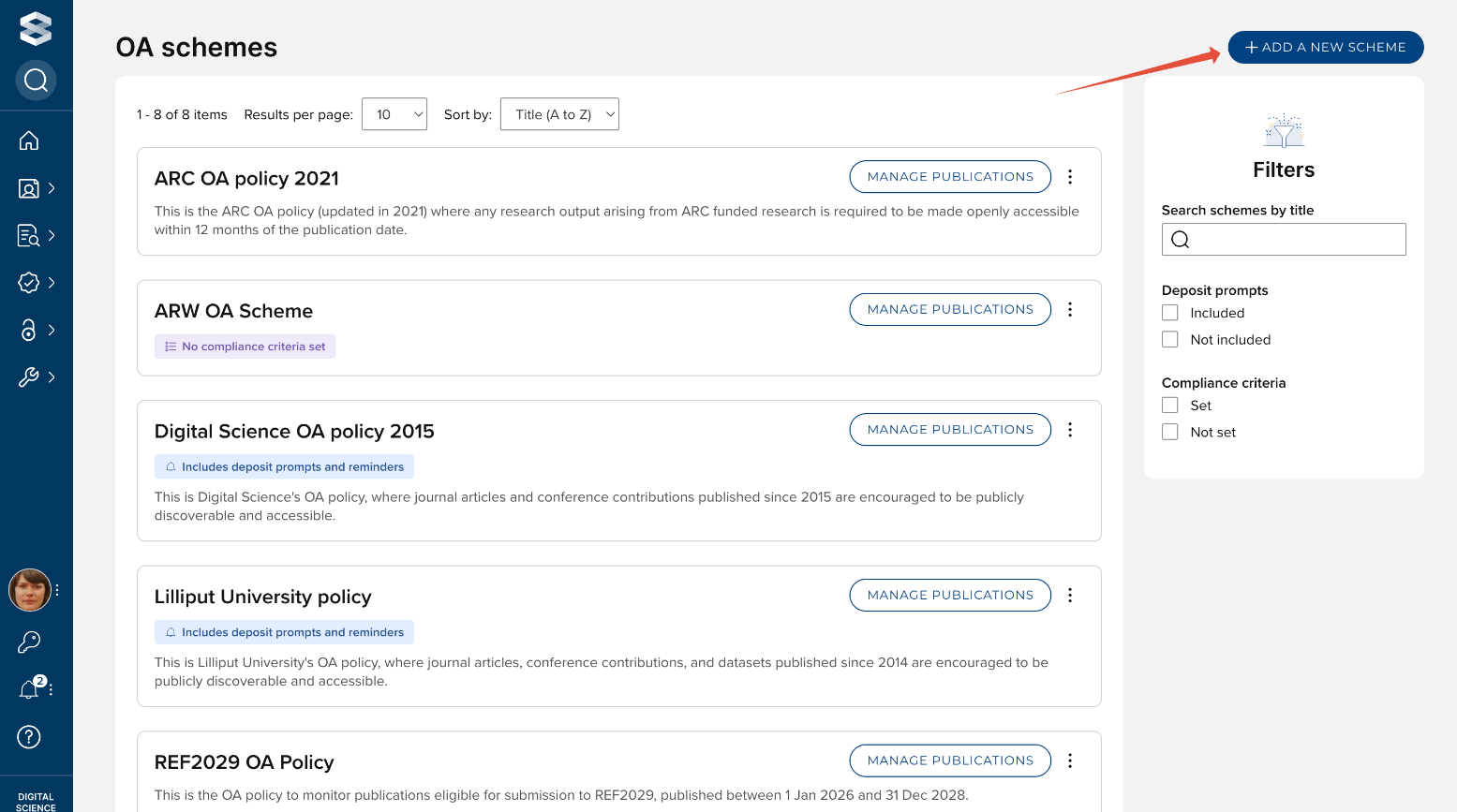
Image : OA schemes list page
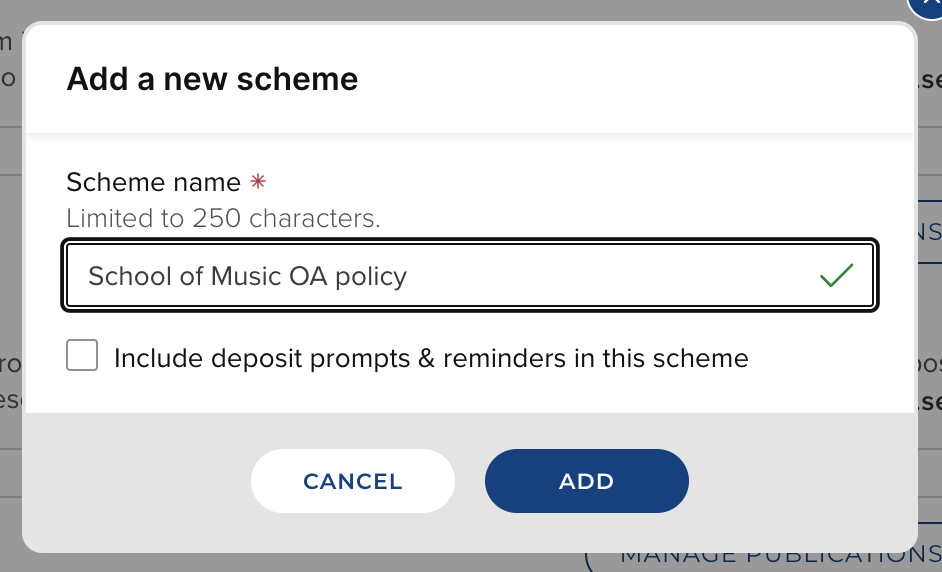
The first step is to give your OA scheme a name and indicate whether this scheme is to include deposit prompts and reminders, then select 'Add'.
If this scheme is only intended to measure compliance (e.g. with a Funder's OA policy), do not select the 'Include deposit prompts & reminders in this scheme' setting.
If this scheme is intended to prompt users to deposit publications that fall within the scope of the scheme, select the 'Include deposit prompts & reminders in this scheme' setting.
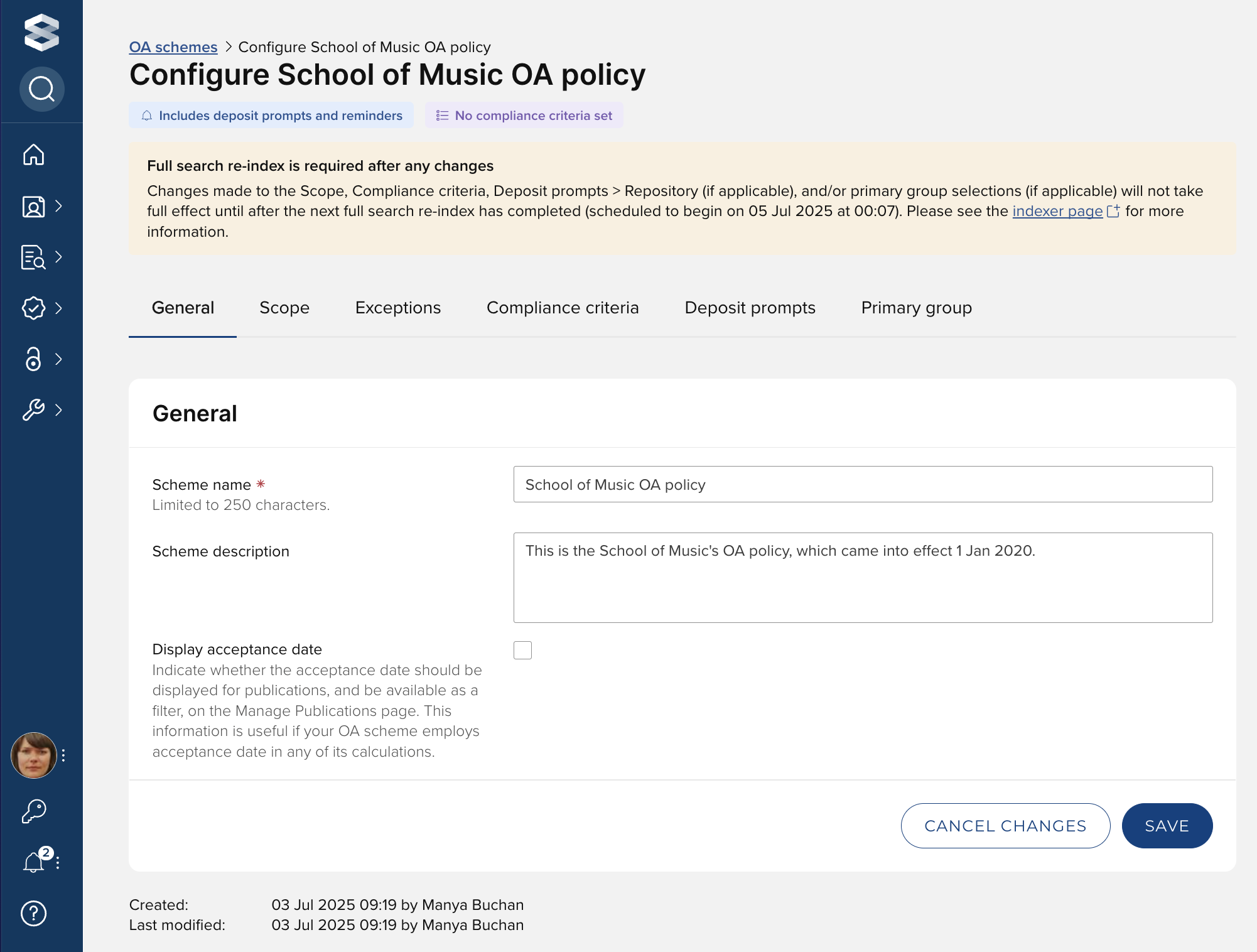
This then creates your new OA scheme, and you can now configure the specific settings to apply to this scheme.
Note that changes made to the Scope, Compliance criteria, Deposit prompts > Repository (if applicable), and/or Primary group selections (if applicable) will not take full effect until after the next full search re-index has completed.
On all tabs within the configuration space, you can see when the OA scheme was created (and by whom) and when it was last modified (and by whom).
General
In the General tab you can modify the name of the OA scheme, provide a description, and indicate whether the date of acceptance should be displayed for publications, and be available as a filter, on the Manage publications in OA scheme page (this information is useful if your OA scheme employs date of acceptance in any of its calculations).
Scope
The Scope tab is where you define which publications should be included in this scheme. Scope criteria includes:
Primary date
Publication type (including dates and sub-types)
Funder
Exclusions based on properties of the linked authors (note that only claimed author link types are included in the OA Monitor)
These settings will set the population of this OA scheme, determining whether compliance will be calculated (if compliance criteria set) and, if this scheme includes deposit prompts and reminders, whether authors will be prompted with on-screen deposit reminders and email notifications.
Primary date
Select the date type you would like to be used as the primary source for this OA scheme.
If “Acceptance date” is selected, the acceptance date is used. If it is not available, the earlier of the online publication date and publication date is used.
If “Publication date” is selected, the earlier of the online publication date and publication date is used. If neither is available, the acceptance date is used.
Notes on dates:
The most precedent dates are used (e.g. when calculating "Publication date", the earliest of the most precedent publication date and most precedent online publication date is used).
Precedence rules are always followed (even if there is a more complete date of lower precedence).
If a date is incomplete (e.g. year only or month+year only), the OA Monitor presumes the earliest possible value (so 1 Jan or 1 of month).
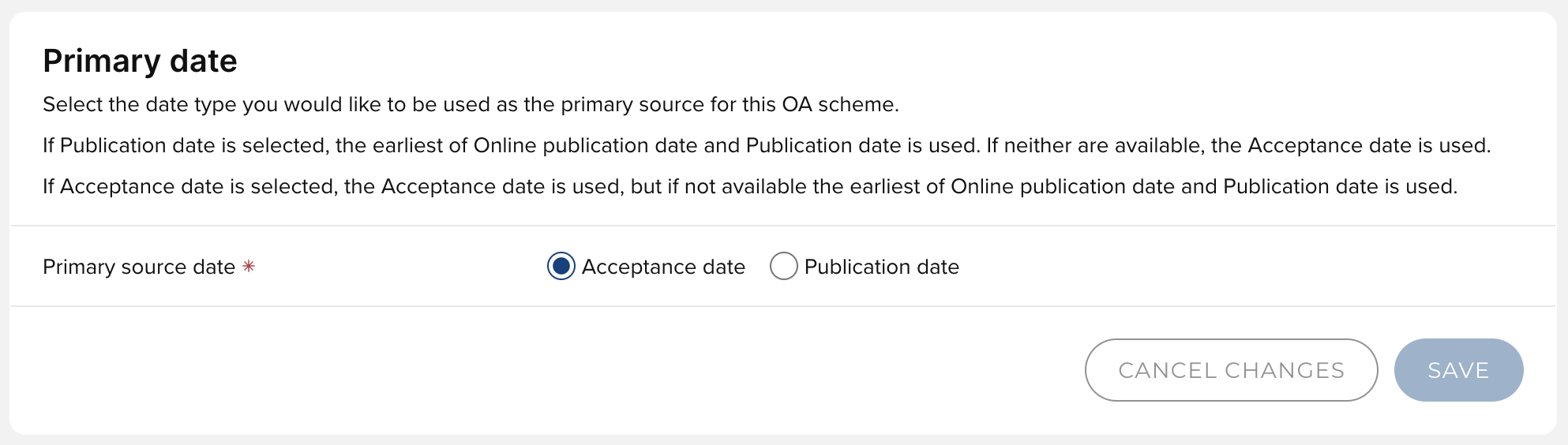
Image: Set the primary source date for the OA scheme
Publication types
Select the publication types to include in this OA scheme, from which Primary source date. You can also choose to exclude specified sub-types (e.g. Letters, Reviews) (where these exist for the selected publication type), and if the scheme does not include deposit prompts, you can also choose a Primary source end date (which will enable you to 'sunset' an old policy that is being superseded by a new one, while continuing to monitor compliance against the old policy).
If adding Conferences, you can choose to exclude those without an ISSN
This includes any ISSN (e.g. issn, eissn, custom issn- or issn list-type field)
The OA Monitor will search down the precedence order and use the first issn occurrence
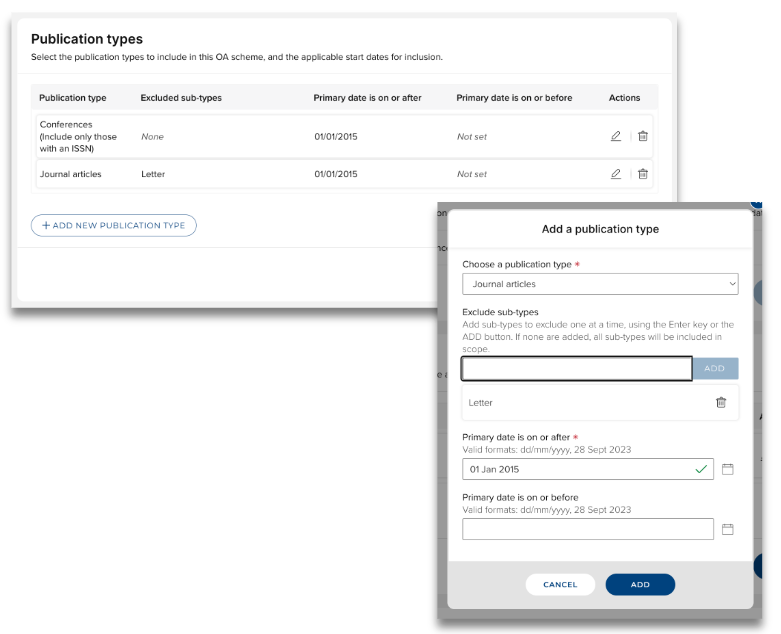
Image: Set the publication types to include in the OA scheme's scope
Exclusions
You can exclude publications from the scope of the scheme based on the properties of the linked authors. Publications will be deemed out of scope if all of their linked authors meet one or more of the specified exclusion criteria.
Exclude students
Exclude non-academic users
Exclude non-current users
Exclude publications published before all authors' 'user arrive date'
Exclude publications published after all authors' 'user leave date'
'Authors' in this context means that the user has a claimed authorship link with the publication.
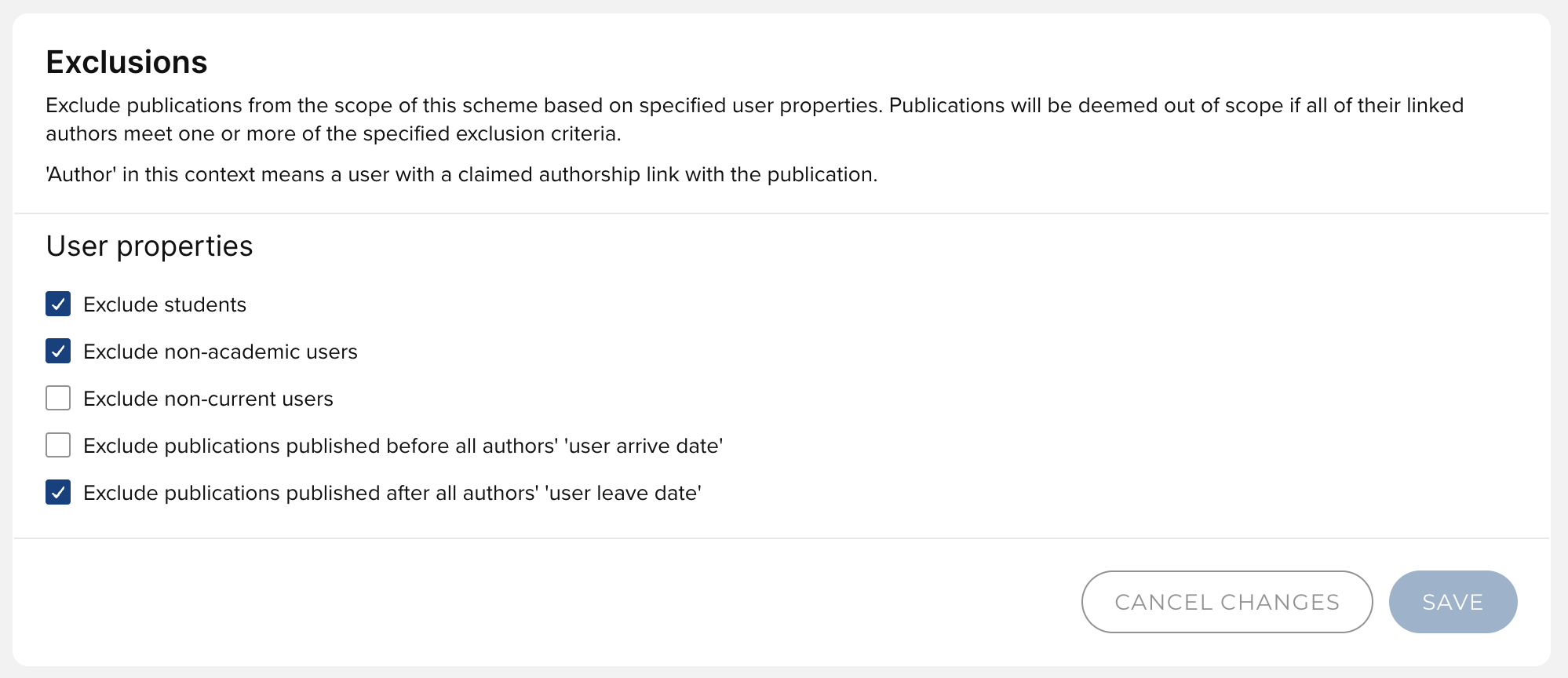
Image: Exclude publications from the scope of the scheme based on properties of the linked authors
Exceptions
Exceptions can be used to indicate why a publication is not compliant with an Open Access scheme.
This tab allows you to select which exceptions you want to make available for application within the OA scheme, then available to users of the OA Monitor, and/or researchers more generally.
The list of exceptions available to enable is determined by the global OA Monitor settings, as is whether the exception is enabled is available to users on the deposit page.
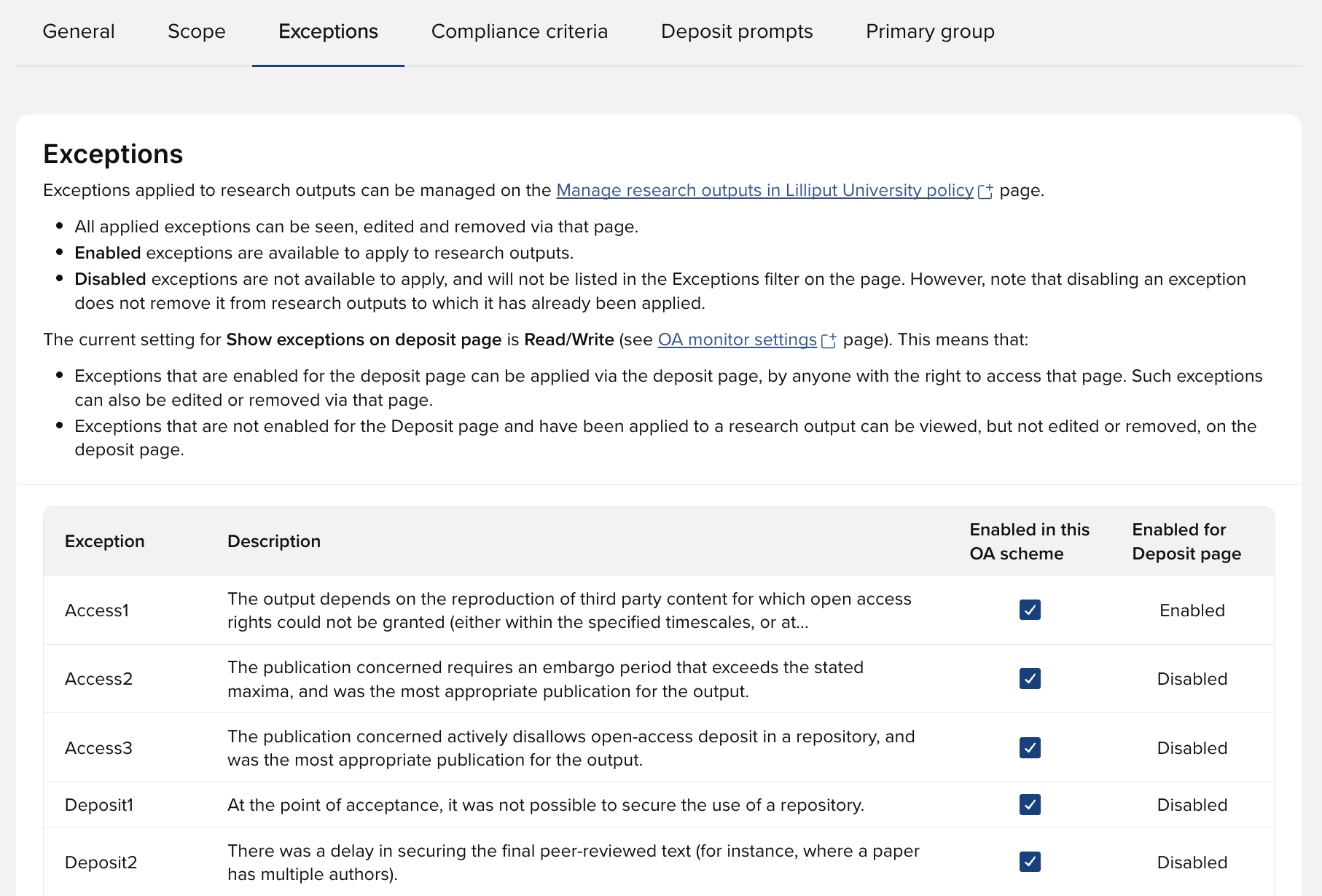
Image: Set the exceptions available for application in this OA scheme
Compliance criteria
Use this page to set the criteria against which you wish to monitor compliance with the OA scheme. You can choose to set Repository criteria (which looks at specified properties on harvested repository records) and/or Publishing criteria (which looks at other 'native' OA properties).
Compliance criteria available are:
Repository criteria
If compliance is selected to be measured against repository criteria, at a minimum the following properties are assessed:
It is live in a RT2 repository
It has at least one file or OA location
It has at least one file that is not indefinitely embargoed
Repository location
Define, per publication type included in the scope of the scheme, which repository locations are deemed compliant with the scheme.
When setting up a new scheme, the OA Monitor will default populate repository location as follows for each publication type set in the scope:
Default to enabled repositor(ies) for the publication type (most will only have one)
If no repositor(ies) are enabled for the publication type, the top precedent disabled repository is selected
And you can add further repository compliance criteria:
Deposit deadline
Embargo period
File versions
Repository decision
Reuse licence
Publishing criteria
Open access indicators:
Open Access status
OA for DOAJ
How compliance is calculated is outlined in the Compliance logic and overrides support article.
Setting compliance criteria is optional.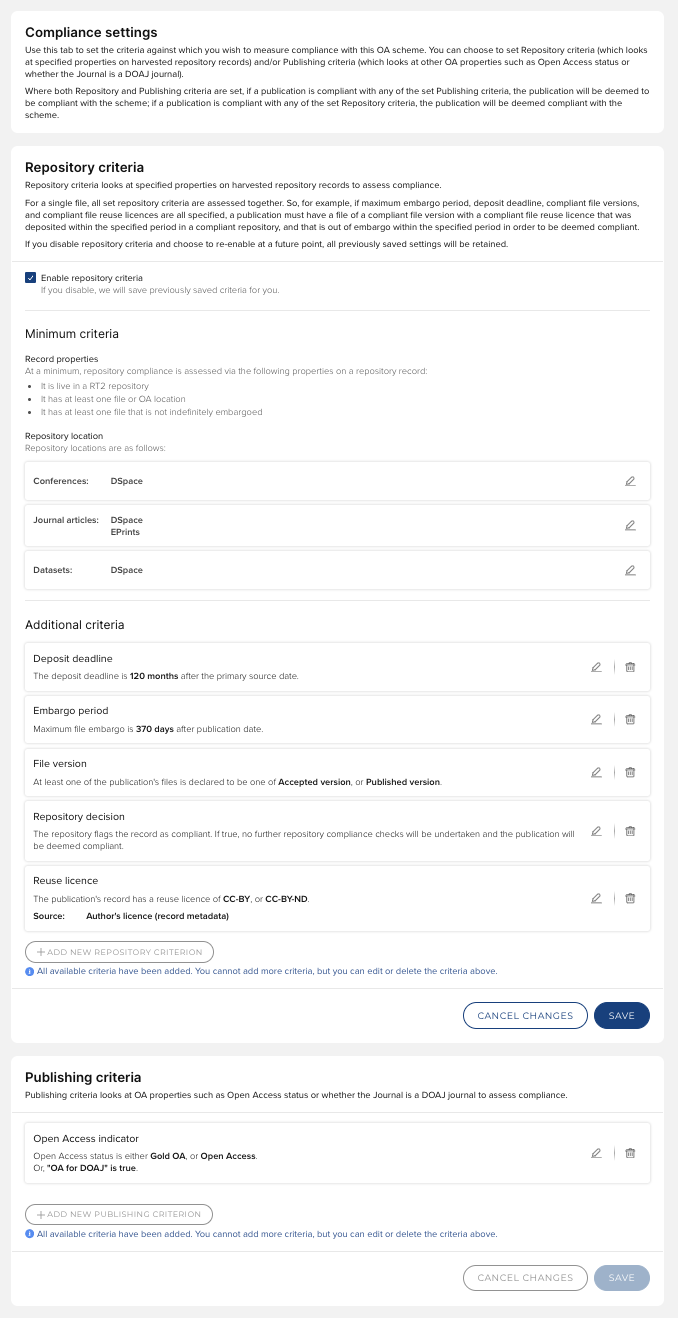
Image: Set the compliance criteria against which you wish to monitor compliance with the OA scheme
Deposit prompts
Available only for those OA schemes where 'Include deposit prompts & reminders in this scheme' is TRUE.
Use this tab to define the desired deposit prompts and guidance for publications within the scope of the OA scheme.
Repository
For each publication type within the scope of the OA scheme (as set in the Scope tab (see above)), select the repository where you wish to request deposit.
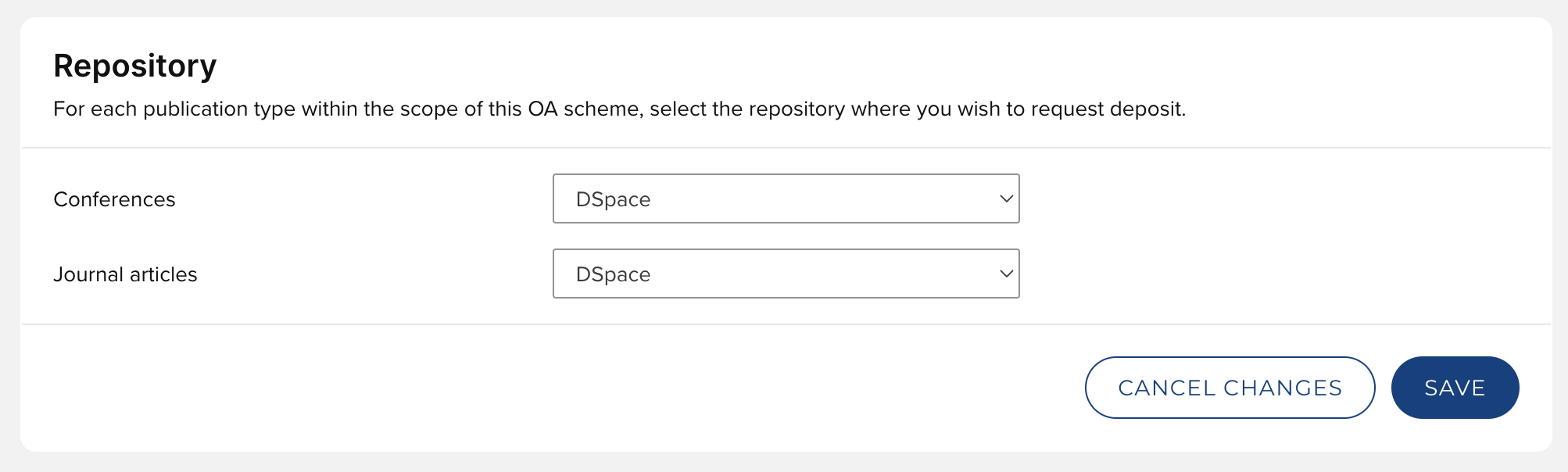
Image: Set the repositor(ies) where you wish to request deposit
On-acceptance deposit
Enable on-acceptance deposit
Indicate whether you wish to enable deposit of publications when they are accepted for publication. When you enable the check box, users are presented with the prompt Deposit Accepted Publications under "My Actions" on the Elements Home Page (where this homepage action is enabled).
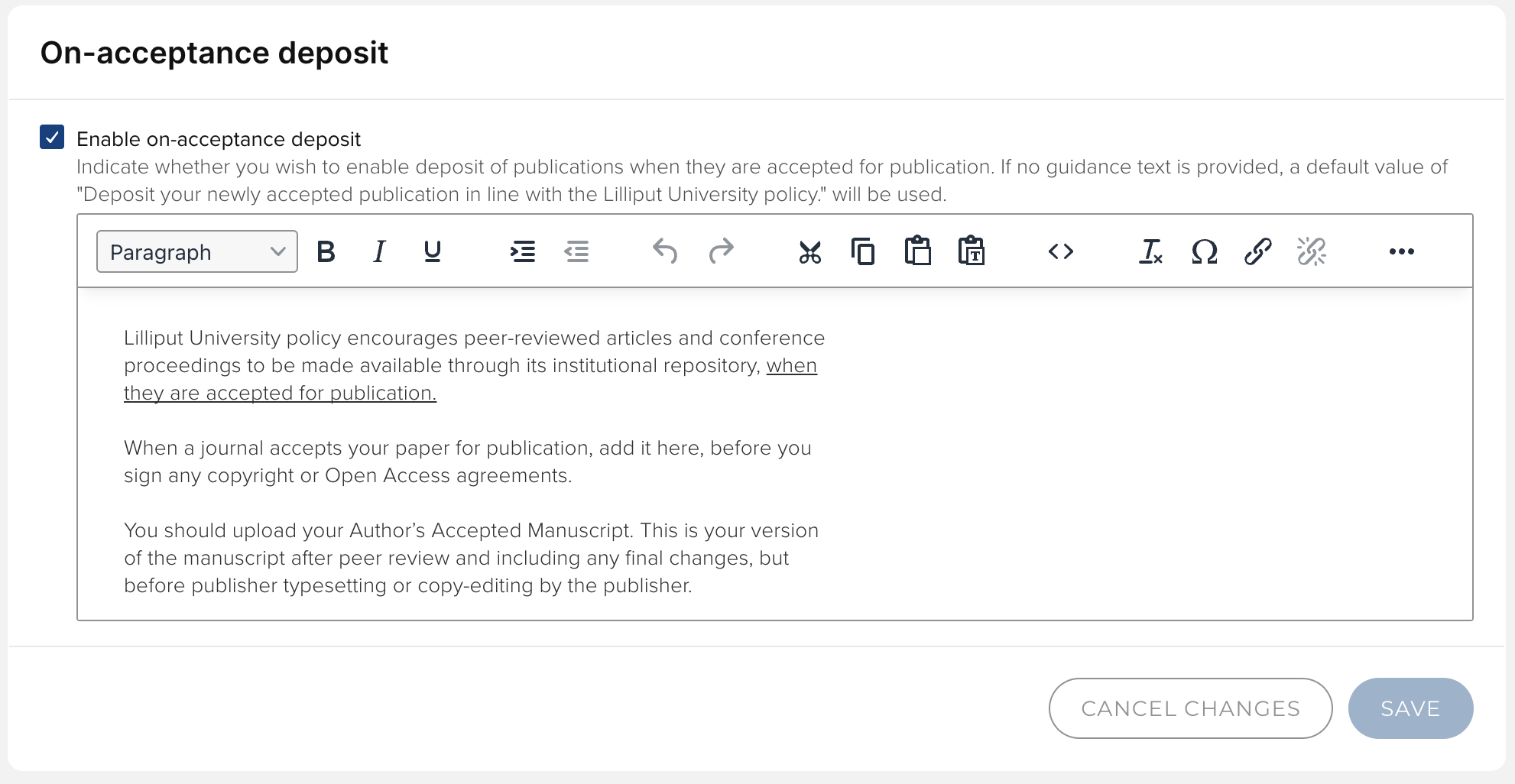
Image: Enable on-acceptance deposit configuration
Additional settings
Enable 'claim plus file upload' on pending publications page
Indicate whether you wish to present the user with the Repository Deposit page when they claim a publication sourced from an external data source.
Display 'In OA policy' indicator on the 'My publications' page
Indicate whether you wish to display the 'In OA policy' indicator on the 'My Publication's page. You can add hover text to provide the user with additional information.
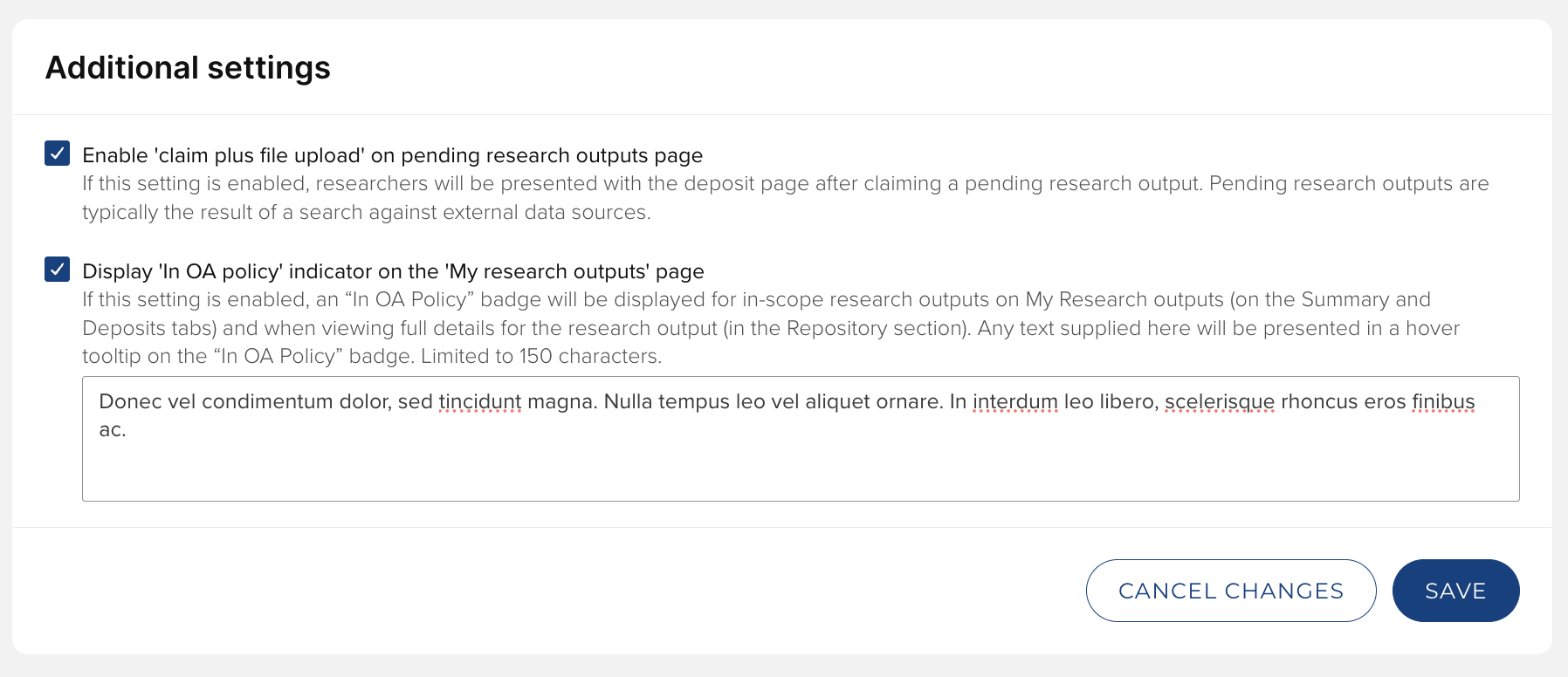
Image: Configure additional settings
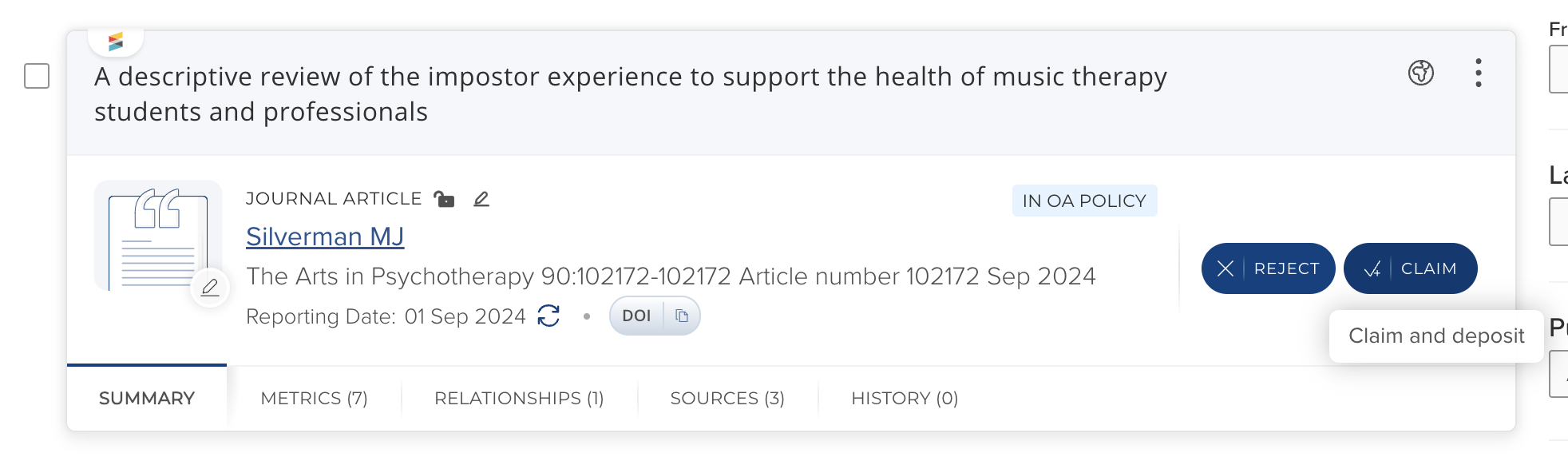
Image: Enabled 'Claim plus file upload' setting on a publication
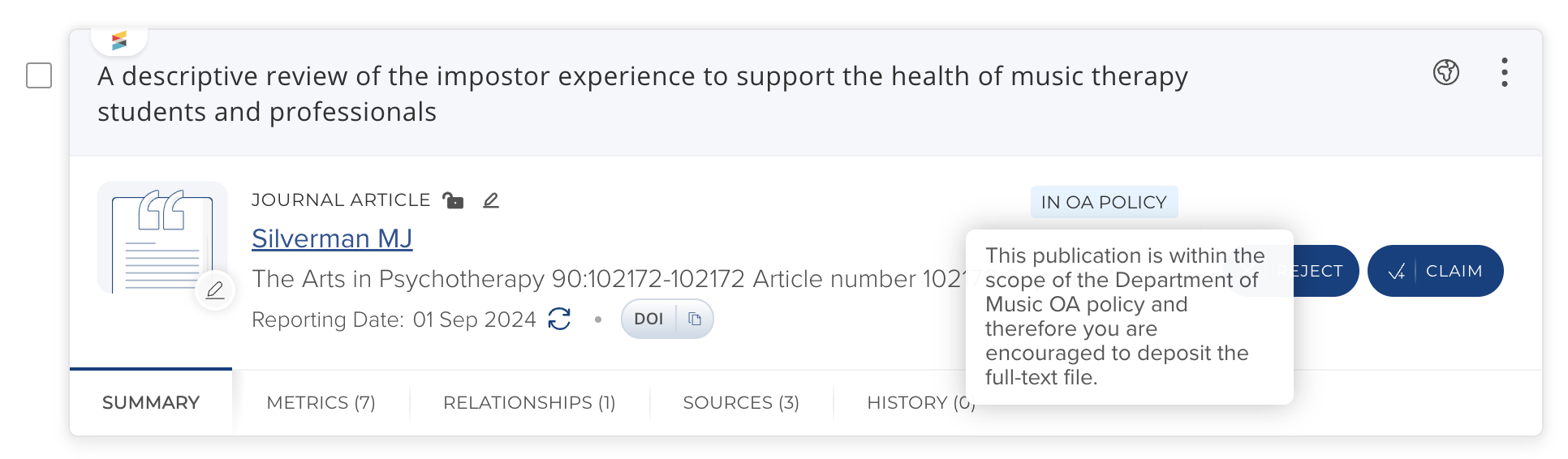
Image: Enabled 'In OA policy' setting on a publication
Primary group
Available only for those OA schemes where 'Include deposit prompts & reminders in this scheme' is TRUE.
Assign the primary group or groups for which you want to set this OA scheme’s configured deposit prompts and reminders. This will:
Limit the scope of this scheme to include only those publications affiliated (via author primary group assignment) with the selected primary groups.
Apply this scheme’s configured deposit prompts & reminders to members of the selected primary groups.
Notes:
For each primary group, the table displays its current OA scheme assignment (if any), and whether that assignment is explicit ('Assigned') or inherited from a parent ('Inherited')
Use the 'Assign' action to assign a primary group to this OA scheme
Use the 'Remove' action to remove an assigned primary group from this OA scheme (applies to all groups except the root group)
If its parent has an assigned / inherited OA scheme, upon removal of this OA scheme assignment, the selected primary group will inherit the assigned OA scheme from its parent
To assign a primary group to another OA scheme, you can do so via that OA scheme’s configuration settings
You can download the full list of OA scheme assignments via the 'Download primary group OA scheme assignments' button
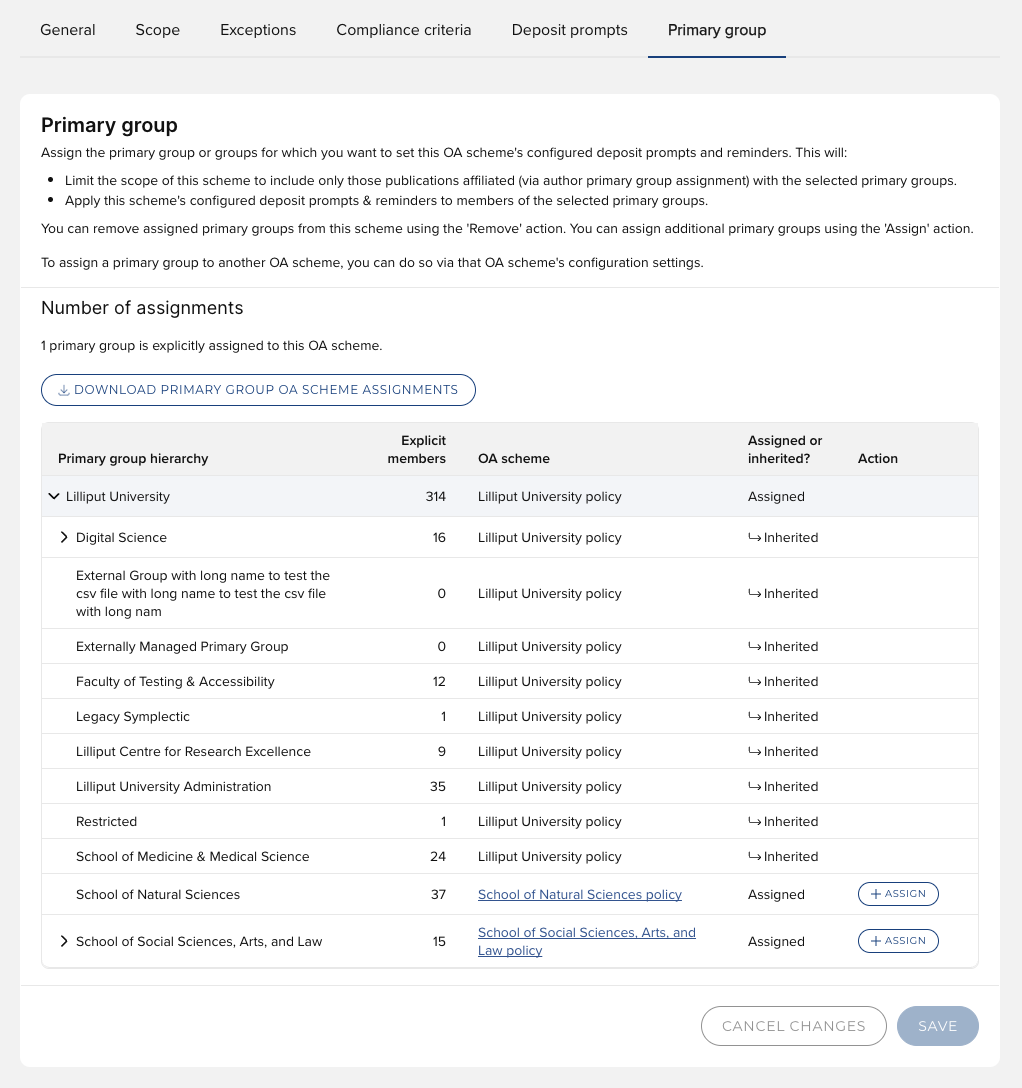
Image: Assign primary groups to the OA scheme
REMEMBER - once you have configured your OA scheme, changes made will not take full effect until after the next full search re-index has completed.
Various other actions are available for each scheme listed in the OA schemes list page. Further details are available here.