
Symplectic Elements v6.1 - Release Notes
Elements v6.1
Introduction
Welcome to our final release for 2020!
What a year it has been! It seems like just moments ago we were writing to tell you about the launch of Elements v6.0 and now here we are again, introducing Elements v6.1.
In this release, we’re excited to be launching the new Elements Reporting Hub. Available to all our clients as a new standard Elements feature, the Reporting Hub represents an exciting step in our ongoing work to enhance Elements Reporting functionality and to empower our users to make the most of data captured in Elements. This initial release of the Reporting Hub brings together Dashboards and Formatted Group Reports within a new easy-to-use UI. It also includes important work to harmonise roles and permissions associated with reporting which has resulted in some small changes to key roles. To assist with the transition to the Reporting Hub we have produced a new suite of support suite articles which we recommend you review before upgrading.
We’ve also significantly extended support for capturing Preprints in Elements in a number of ways. This year has really highlighted the importance of Preprints in supporting the rapid dissemination of research. To ensure researchers and their organisations can track preprints consistently and efficiently, we have introduced a new stock preprint publication type and adjusted our Dimensions, Arxiv, Crossref and EPMC data source integrations to help automatically collect preprint records where possible. We have also introduced new automated linking functionality to help organisations understand the relationships between preprints and later published works.
The release also includes many other smaller improvements developed in response to community feedback and feature requests. It continues to be our great pleasure to work closely with our community to envision and develop new features for Elements. We would like to thank you all for contributing to the Symplectic community throughout 2020. We look forward to continuing to work with you all in the new year.
As always, the new version of Elements and associated upgrade instructions can be found in the Elements upgrade forum.
Introducing the Reporting Hub
As the name suggests, the new Elements Reporting Hub has been designed to provide a central home for reporting functionality within Elements. It consolidates reports and dashboards from across the system to increase the discoverability of reporting functionality in Elements and to create a more consistent user experience. The Reporting Hub harmonises approaches to managing, viewing and running reports to ensure they are as easy as possible to administer, with an emphasis on data security and the clear communication of rights and permissions.
Initially, the Reporting Hub consolidates two kinds of reports, dashboards and formatted group reports. Over time the Reporting Hub will provide centralised access to all styles of reports including data extracts (e.g. ‘basic reports’), and other kinds of formatted reports (eg. user reports and assessment reports).
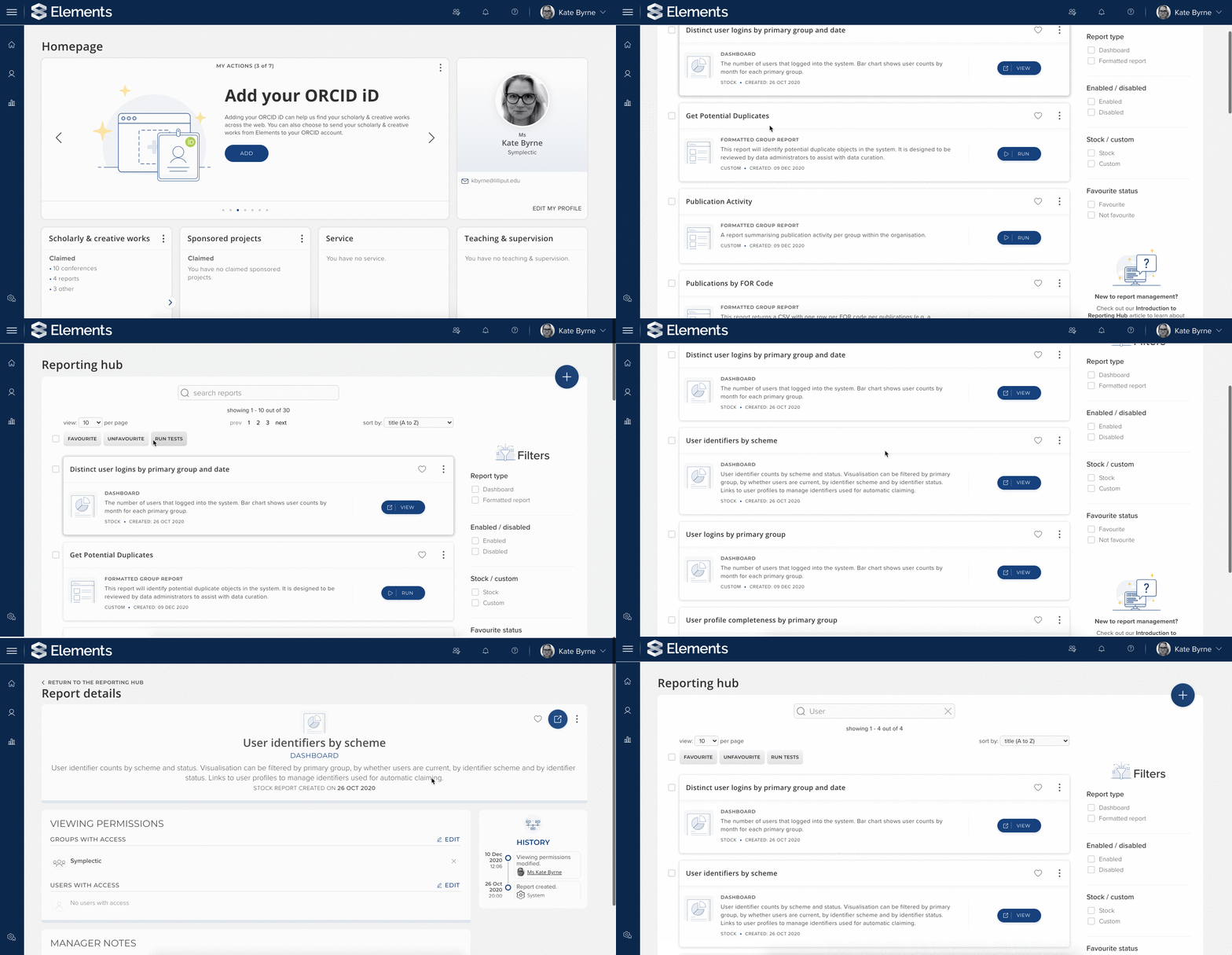
Image: Using the Reporting Hub search to find reports about users.
View, run and manage reports all in one location
The Reporting Hub not only brings together different kinds of reports in one place, it also consolidates functionality for both report-users & report-administrators into a single interface, allowing reports to be viewed, run and managed all in one place.
Instead of requiring users to work across multiple pages to manage and run reports, they can now come straight to the Reporting Hub, where the system will display a set of functionality which is specific to that user’s roles & viewing permissions. For example, a user with a role such as Statistician or Reporting Hub super-viewer will only be able to see and run reports, whereas a user with a role such as a System Administrator or Reporting Hub administrator will see additional functionality allowing them to manage the reports as well.
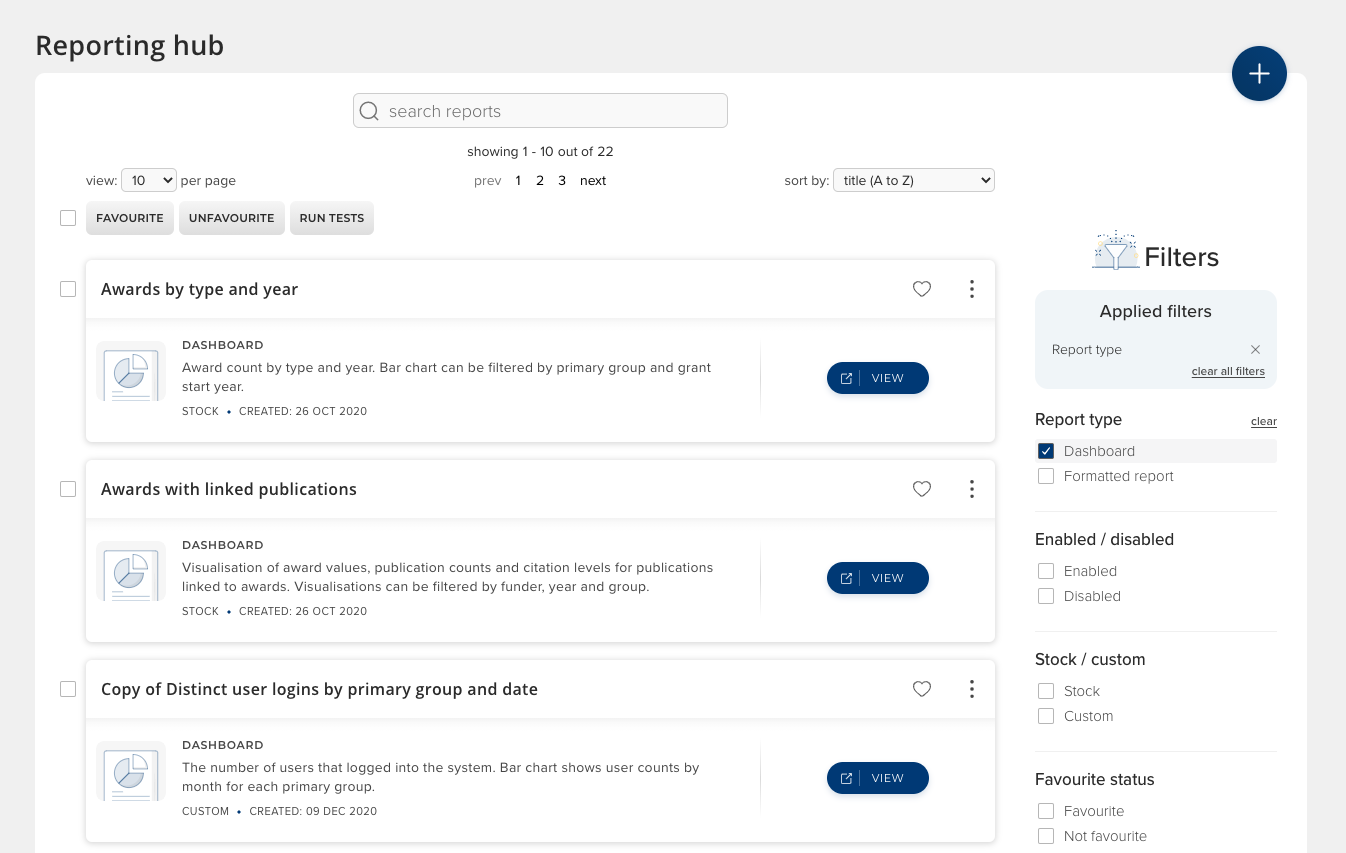
Image: The Reporting Hub, filtered to only display Dashboards. Reports can be filtered, searched, sorted and favourited.
The Reporting Hub presents each user with a list of all the reports that they have permission to view. Reports can be filtered, searched and sorted in order to make it easier to find reports of a particular kind or on a particular topic. Reports can also be ‘favorited’ so that they can be quickly found on subsequent visits to the page.
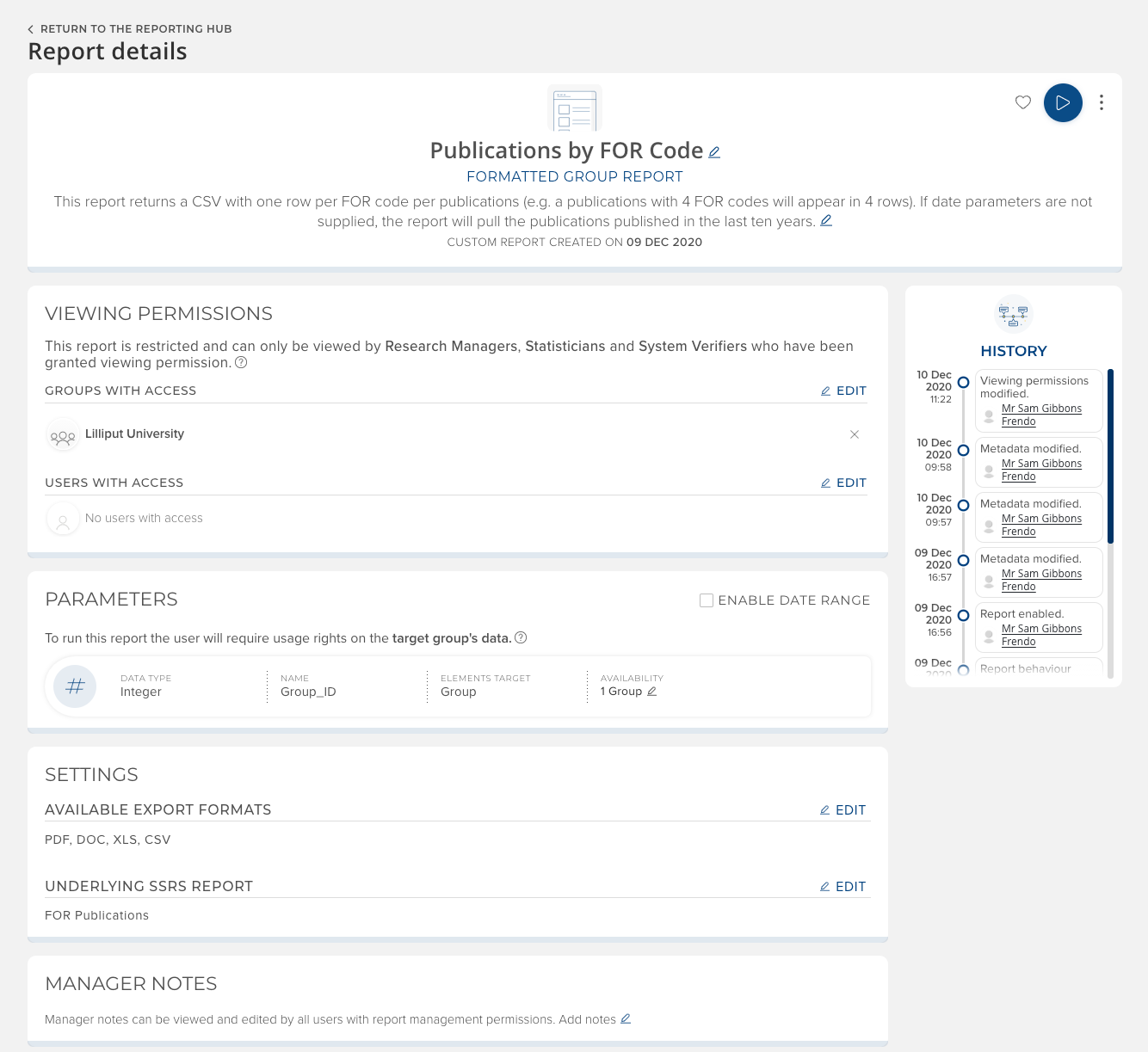
Image: The ‘Report details’ page for a Formatted Group Report. From here, users with report management permissions can view and edit a range of configuration options.
The settings available via the Report details page will vary depending on the report type (e.g. Dashboard or Formatted Report) but may include the ability to edit the title and description (custom reports only), configure viewing permissions or report parameters and add Manager Notes. The Manager Notes field is only visible to users who have report management permissions, and can be used to store information about a report’s implementation, maintenance or use.
For more information about configuring ‘Viewing permissions’, ‘Parameters’ and ‘Settings’ for reports please see the following support articles.
Changes to Dashboards & Group Reports
As mentioned above, in Elements v6.1 there are two kinds of reports accessible via the Reporting Hub, Dashboards and Formatted Group Reports. As a part of this transition, we have made the following changes to each report type:
Dashboards
Dashboards are now wholly managed and viewed from the Reporting Hub.
The ‘Manage Dashboards’ page has been removed, as Dashboards are now both managed and viewed in the Hub.
Formatted Group Reports
Registered (aka SSRS) Reports about ‘Groups’ are now managed and accessed via the Reporting Hub.
These reports can no longer be accessed via the group pages (System Admin > User Groups).
Formatted Reports with other targets (eg. user reports or Assessment reports) are still managed on the ‘Registered Reports’ page. Please note, we will gradually be transitioning from the term ‘Registered report’ to ‘Formatted report’ as we migrate report types to the Reporting Hub.
Changes to reporting related roles
We have been careful to minimise the impact of the transition to the Reporting Hub on existing report configurations as much as possible However, it has been necessary to make modifications to the behaviour of some reporting related roles in order to ensure these roles function consistently across report types. These changes to the permissions associated with some roles means that on upgrade some users may receive slightly elevated permissions.
We strongly encourage all organisations to review the assignment of system group roles related to reporting as a part of their upgrade to v6.1 to ensure that users have appropriate levels of access moving forward.
Key changes include:
Dashboard Administrator role has been extended to become a new role of Reporting Hub Administrator which can view and manage all reports in the Reporting Hub. Users who previously had the Dashboard Administrator role will be automatically rolled over to the new role upon upgrade.
Dashboard Super-Viewer role has been extended to become Reporting Hub Super-Viewer which can view all reports in the Reporting Hub. Users who previously had the Dashboard Super-Viewer role will be automatically rolled over to the new role upon upgrade.
System Verifier role will now allow users to view Formatted Reports in the Reporting Hub. This change is to increase consistency with the existing ability for users with this role to run Basic Reports on all groups and users within the system.
Research Manager and Statistician roles will continue to grant users the same data access rights as before (eg. a Statistician for the Chemistry group can only run reports on data for users associated with the Chemistry group). In order to view a Formatted Report in the Reporting Hub users with these roles will need to be given explicit ‘Viewing permissions’ over a report. See the section about viewing permissions below for further details.
More information about these changes can be found in the following support articles:
Configuring ‘viewing permissions’
In addition to harmonising reporting roles, the process for configuring ‘viewing permissions’, has been consolidated to be consistent across both Dashboards and Formatted Reports.
Administrators with a report management role can configure each report’s viewing permissions via the Reporting Hub. These permissions control which users can view each report and can be granted either directly to individual users, or to users based on their group membership (eg. you could grant permission to a group of Deans or Administrators).
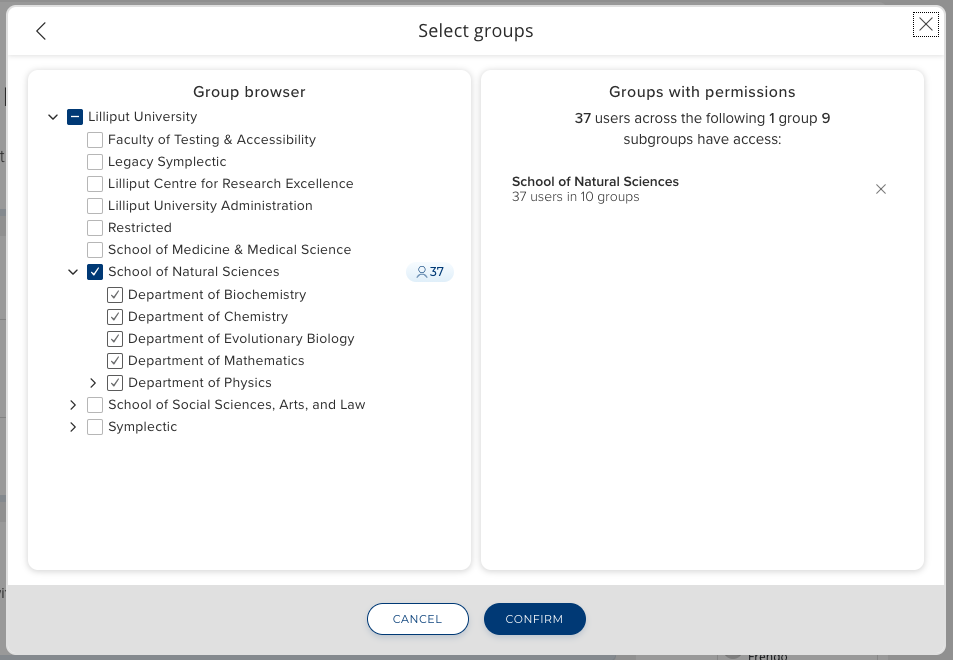
Image: Granting users permission to view a report based on their group membership can be controlled via the ‘Viewing permissions’ workflow from both the Reporting Hub and the Report Details page.
These viewing permissions work in partnership with the data security layer provided by the administrative roles. The viewing permissions control whether a user can see the report in the Reporting Hub, whilst the user’s role controls whether or not they are permitted to run that kind of report. For example a user must have a role such as Research Manager, Statistician, System Admin or System Verifier in order to be able to run Formatted Group Reports for a particular group. This provides an additional layer of security and is consistent with the behaviour of these roles prior to v6.1.
Please note that upon upgrade to v6.1 the viewing permissions for all existing Formatted Group Reports will be automatically set to the organisational group. This means that upon upgrade, all Research Managers, and Statisticians (as well as System Verifiers and System Administrators) will be able view (but not necessarily run) all existing custom Formatted Group Reports in the Reporting Hub. We strongly recommend that you review the viewing permissions for each of your Formatted Group Reports as a part of your upgrade process to ensure that users have appropriate levels of access moving forward.
For more information about managing viewing permissions please see the Managing reports in the Reporting Hub support article.
Automatic renaming of stock reports
In Elements v6.0 we introduced the ability to configure the display name of key modules. To ensure the Elements user experience is as consistent as possible, the titles and descriptions of stock reports in the Reporting Hub will also automatically update to reflect the module display names selected by your organisation. Please note, as the titles and description of custom reports are configured locally, updates to these will need to be made by administrators at your organisation.
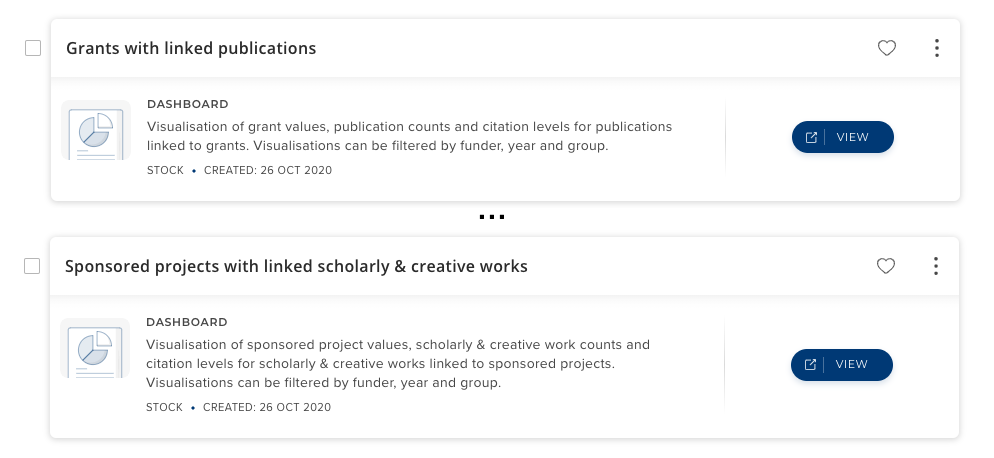
Image: Comparison of the same stock Dashboard following the configuration of the module display names for ‘grants’ and ‘publications.
Extending support for preprints
Elements has had a long history with preprints, starting with our integration with ArXiv as a data source over ten years ago. Over the last decade, we have seen preprints really come of age as a research output and be embraced by a wide range of research fields. There are now a plethora of preprint servers catering to different research disciplines and a standardised information management practice has begun to spring up around them.
In this release, we have significantly extended support for preprints in Elements in a number of ways, introducing a new stock preprint publication type and by adjusting data source integrations to collect preprints. We have also added new automated linking functionality to help organisations understand the relationships between preprints and later published works.
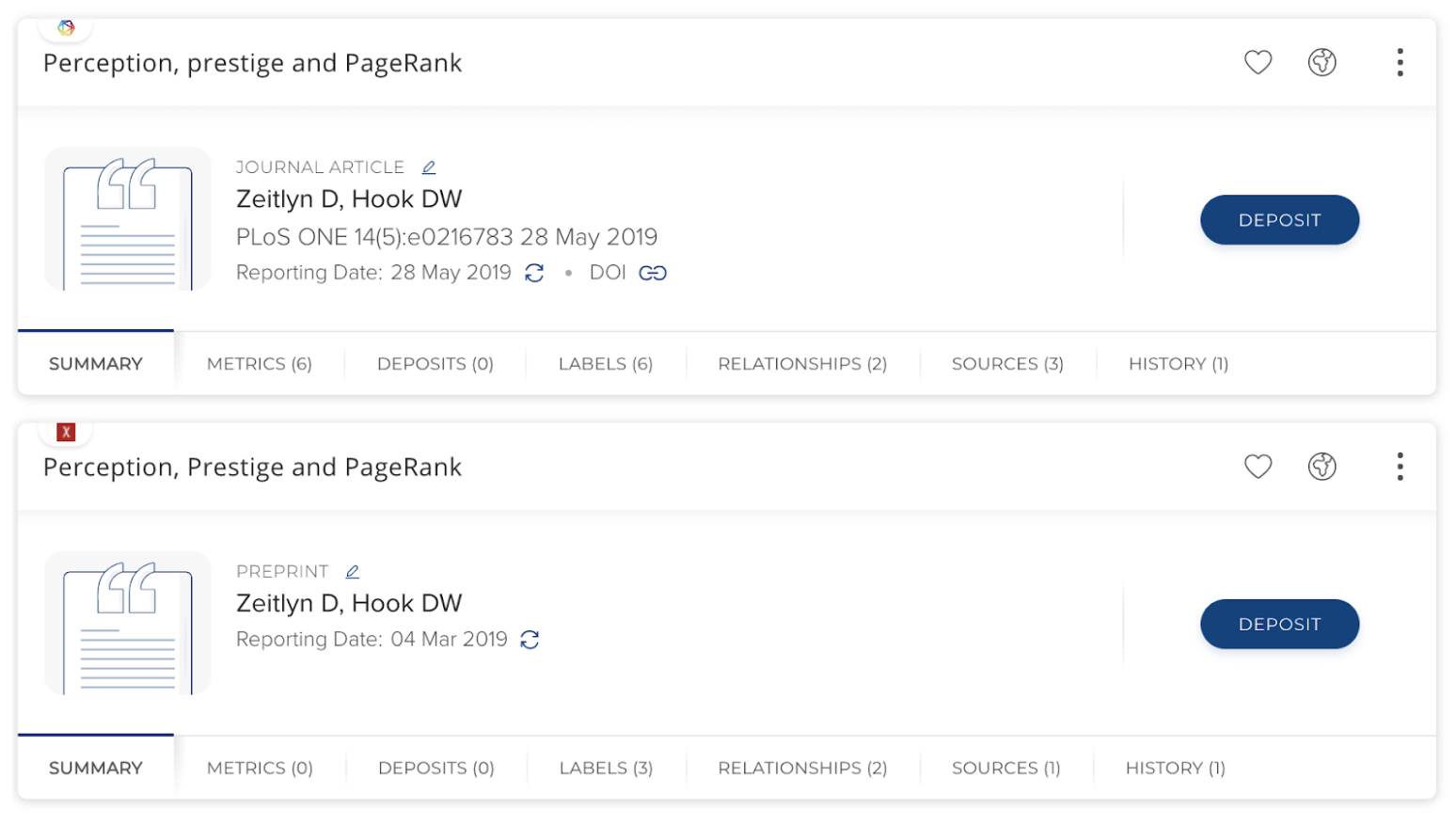
Image: A preprint record alongside the record for the later published journal article which it is linked to.
New stock publication type
We have introduced a new stock publication type for capturing Preprints within Elements. This new type includes a predefined set of metadata fields and as per other stock types, organisations can optionally make configuration adjustments, setting display names for fields or adding metadata fields to align with local requirements.
Finding preprints from data sources
We have expanded several of our data source integrations to help automatically collect preprints via a variety of methods including:
Dimensions - via name based search, automatic claiming using Dimensions Researcher IDs and/or supplementary search.
Arxiv - via name based search and/or automatic claiming using Arxiv IDs.
Crossref - via supplementary search and/or assisted entry via the seek duplicates page.
Europe PubMed Central - via supplementary search.
Matching and linking
We have adjusted the Elements matching algorithm so that newly harvested preprint records will only match to other preprint records in the system. These changes will ensure preprints will no longer automatically merge with journal articles even if they share a similar or identical title.
We have also extended Elements’ automatic linking functionality so that the system will automatically create an 'is preprint of' relationship between the preprint & an associated publication if the metadata for the preprint includes a CrossRef identifier which corresponds to a CrossRef record in an existing publication record. These links can also be created manually by researchers or administrators if desired. These publication to publication links will assist researchers and administrators understand the relationships between preprints and subsequent publications.
Managing previously harvested records
Historically Elements has treated ArXiv as an additional data source for journal articles. To ensure a smooth transition, any Arxiv records in your Elements instances which were ingested into the system prior to your upgrade to 6.1 will remain where they are and the ‘type’ of those existing objects won't change. This means that if there is an Arxiv record which was harvested prior to the 6.1 upgrade, it will remain of the type Journal Article, and if it previously merged with other sources it will stay merged. We are not automatically migrating Arxiv records previously harvested into Elements as a part of this upgrade as we do not wish to undo any data curation you may have done locally.
Whilst most of the changes will be confined to records harvested after the upgrade to 6.1, there is one key change which will impact previously harvested Arxiv records, publication dates will start to appear in the records. This will happen gradually after upgrade, as each record goes through the periodic data refresh process. This change is beneficial both in terms of general data quality and completeness and to ensure these records are appropriately represented in Reports or on the Discovery Module. However as the publication dates associated with the Arxiv version of a publication may be different to those of the final published work, this change could in some cases have an impact on your use of dates. To minimise the impact of this change, you may wish to ensure that Arxiv is set low in your data source precedence list if it is not already.
For more information about the new preprint functionality and how to best manage previously harvested records, please see our support article.
ORCID Certified Service Provider
We are excited to announce that Symplectic has been confirmed as an ORCID Certified Service Provider. We have worked closely with ORCID to make a number of small, behind-the-scenes refinements to the ORCID integration in Elements v6.1 to ensure it meets all technical requirements associated with the ORCID certification programme.
This certification ensures that organisations using the Elements ORCID integration can be confident that it adheres to industry best practices. Plus, any ORCID members wishing to integrate Elements to ORCID in future will benefit from a reduced ‘go-live’ time because the integration has been pre-approved by ORCID.
Other improvements
Discovery Module
Download PDF links: We have introduced some additional preference logic for clients with an RT2 integration to ensure the system will select the ‘most final’ non-embargo file version to offer to a user for download (eg. Published >Accepted > Submitted versions). Files marked Supporting information will not be presented for download even if no other file versions are available.
SEO improvements: We have implemented changes to the way we serve Discovery Module pages to search engines for indexing. These changes will speed up Google indexing and improve indexing in other search engines.
Improvements for 10,000+ profiles - We have made a number of small improvements to the Discovery Module to handle cases where there are more than 10,000 profiles presented on the search results page.
Labels
Updated UI for small Label schemes: We’ve updated the UI for label schemes with less than15 values so that a browseable dropdown will open when users click into the search box to add a label.
‘Availability scheme’ description: We’ve updated the description for the Availability label scheme to help users better understand how they can use this scheme.
New module display name option: We have added a new display name option of ‘Contributions’ for the Professional Activities Module.
Updated Elements logo and favicon: In 2021 we are refreshing our branding for Symplectic and Elements. The introduction of this new logo marks the start of a new chapter for Symplectic and the Elements platform. We are looking forward to sharing more in 2021.
Accessibility Improvements: We have made accessibility related improvements to improve keyboard navigation on pop-ups, within the menu search and where multiple sets of radio buttons are used.
Homepage actions - Assessment Reviewers: The wording on homepage actions presented to Assessment reviewers has been adjusted to clarify which assessment the reviews related to to avoid confusion for reviewers involved in multiple exercises.
Deposit tab on My Publications page: We have adjusted the logic for the ‘sub tabs’ so they will only show if more than one repository is integrated with Elements.
Verification indicators: We have updated iconography and colours associated with verification statuses on the My Publications and Publication details screens. The colour indicators are now: not yet verified (grey), verified (green), cannot verified (red), queried (purple).
Fixes
The Filters on the System Log page had an issue where the times selected were interpreted as UTC, not as the local server time. This has been fixed.
The ‘export selected items only' check box on the My <Objects> pages (eg. My Publications) will now automatically be checked if you have selected items.
Fixed an issue you could run an empty search on the seek duplicates page and encounter an error message as a result.
Some filter values on the Assessment Managers page were renamed to remove confusion with the default ‘any’ values.
Fixed an issue where an RT2 push to EPrints would log an error if EPrints responds to the PUT request with a 200 OK response instead of the expected 204 No Content. The system has been adjusted to accept the 200 OK response as an alternative.
There was an issue on the RT1 Deposit page where uploading a file with a long filename could result in text overflow in the UI. This has been fixed.
There was an issue where the special character inserter on the ‘Add a <Object>’ page could load partially hidden by the header bar. This has been resolved.
End of support
As always, we recommend that you regularly review our End of Support Announcements for information about upcoming end of support in Elements for various technologies. A key item for our self-hosted customers to note is the end of support for SQL Server 2014 from Elements v6.2, our first release of 2021.
Learn more about the release
You can also join us for a webinar about the new release on Tuesday 15 Dec at 4pm GMT (register here!) If you register you'll also get access to the recording to view at a later date.
Remember should you have any questions, we’re here to help! You can contact us at support@symplectic.co.uk for assistance.
We hope you all have an enjoyable and restful holiday season!
Best wishes,
The Symplectic Team