Deliverables
Awards Management includes functionality to support the management of project deliverables for upcoming and active Projects. This includes the facility to:
create and modify a schedule of deliverables
communicate with the PI and other project team members involved in the completion of deliverables
tracking the status of deliverables, including marking deliverables as complete
capturing data and documents associated with a particular deliverable
This functionality is available to authorised users in the Funding Management Console.
Deliverable types and schedule
By default, Awards Management includes the following deliverable types configured with the following schedule:
Deliverable type | Available for completion | Due for completion by |
Invoice | 1 month prior to the project start date, and 1 month prior to the start of each subsequent year. | The project start date and each subsequent year start date. |
Annual progress report | End date of each project year. | 1 month after the end date of each project year. |
Financial report | End date of each project year. | 1 month after the end date of each project year. |
Additional deliverable types are also available:
Conference presentation
Contract milestone
Ethics approval
External engagement
Final financial reconciliation
Final report
Government engagement
Industry engagement
Other
Other regulatory requirement
Patent
Policy
Progress meeting
Progress report
Publication
Quarterly progress report
Research outputs
During implementation, we will work with you to define how these default settings should be configured for your institution. It is possible to update the default configuration to:
Enable / disable individual deliverable types
Amend the schedule to have different frequencies, availability period, or due date, or to remove the schedule so that all deliverables are added to a project individually
Update deliverable template forms per deliverable type
Update the content of the email templates, and to have different templates for each deliverable type
The schedule of deliverables is created when the Proposal is moved to the 'Approved' state and will be visible to project team members on the Project details page upon Project activation.
Accessing and updating the Deliverables schedule
Once a Proposal has been moved to the 'Approved' state (see the Recording the approval decision support article), the 'Deliverables' page becomes available on the Proposal's page in the Console - and continues to be available upon Project activation.
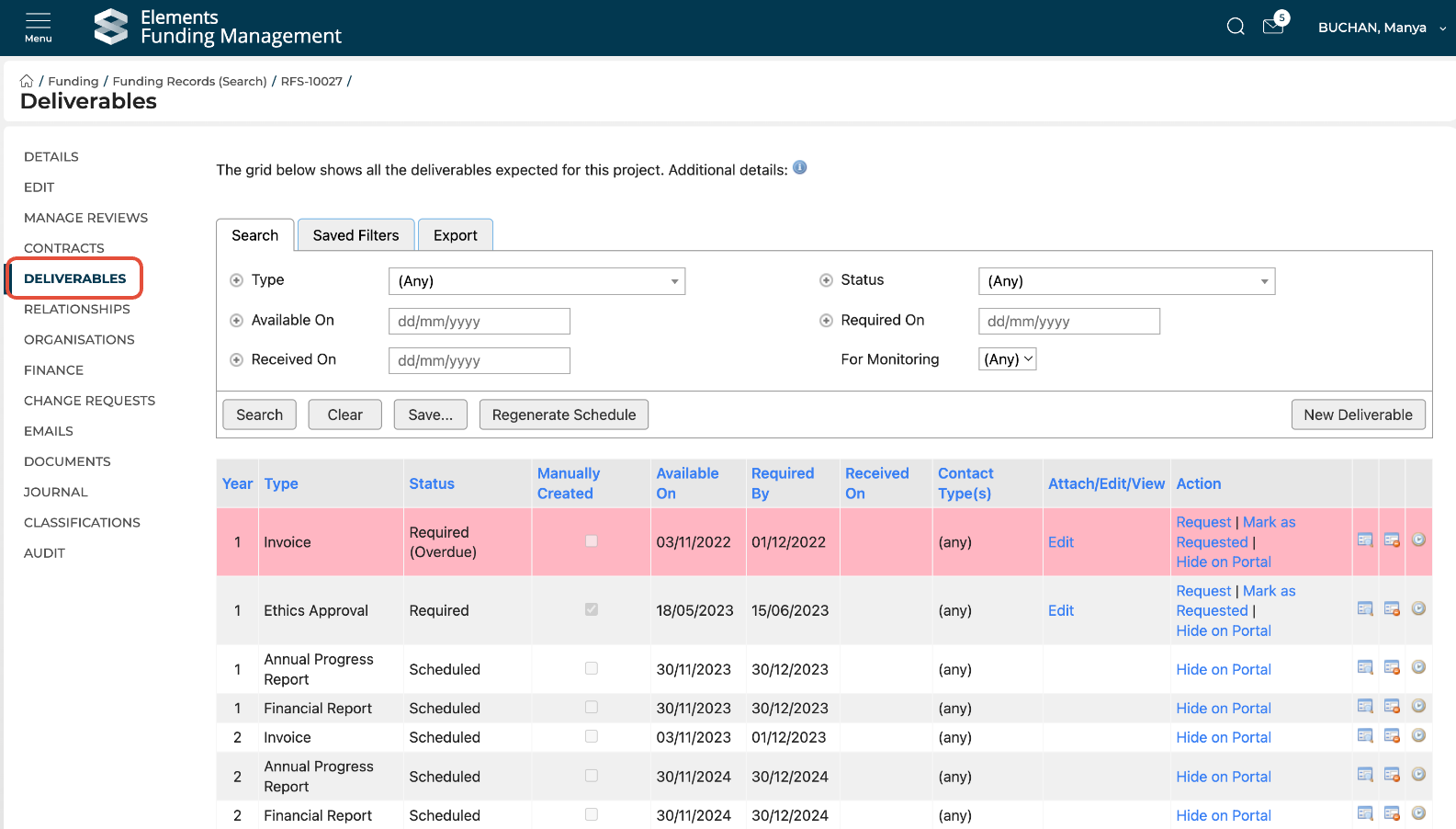
The page displays deliverables created using the default schedule at the point of approval. If no default schedule has been set up, no deliverables will be created automatically.
New deliverables can be created manually, as required.
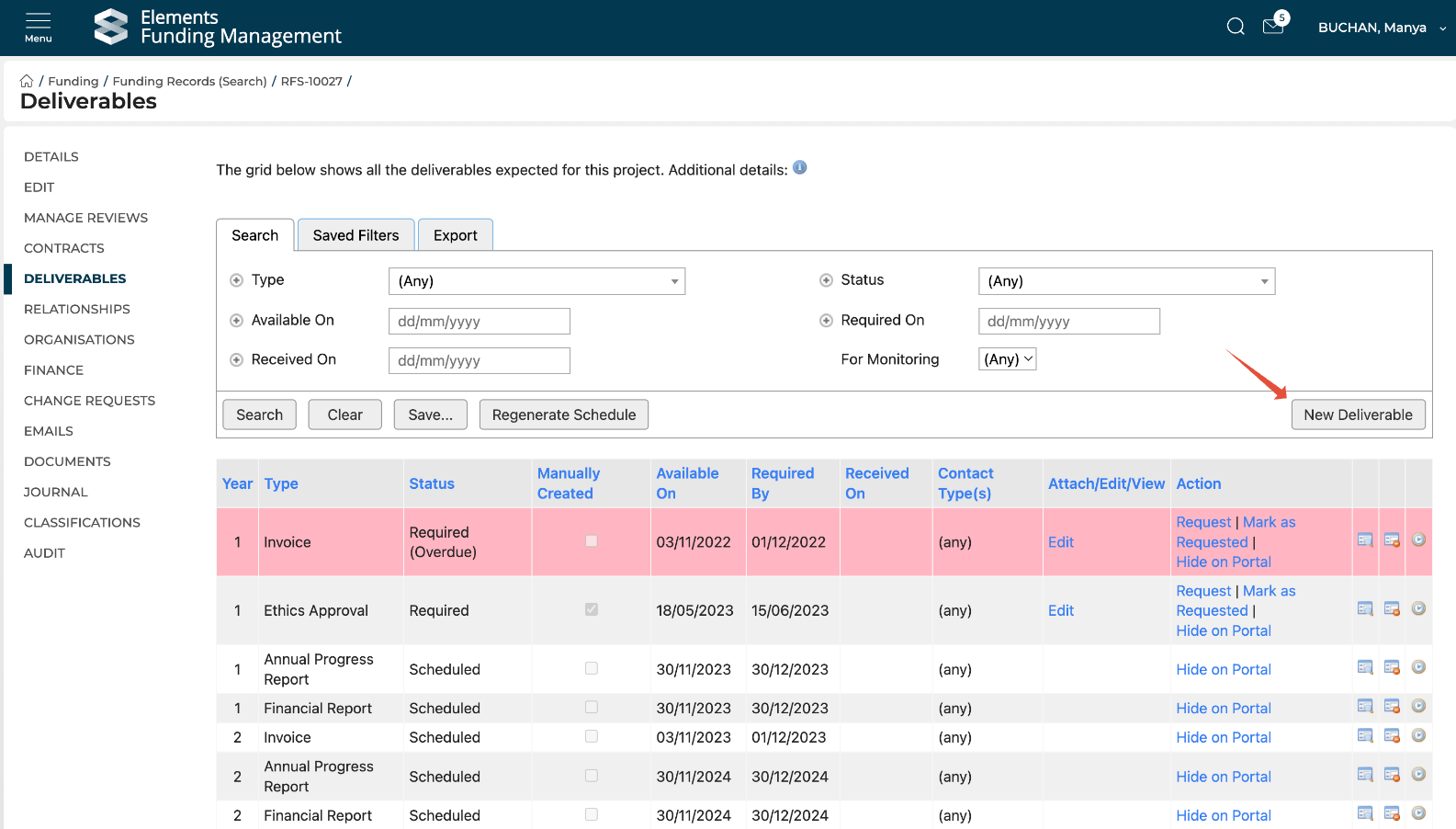
Deliverables available for completion will have an Edit link in the Attach/Edit/View column.
Overdue deliverables are highlighted in red.
Options available in the Action column vary depending on the current deliverable status (see below).
Updating an existing Deliverable
Click the 'Select' (magnifying glass) icon for the Deliverable you wish to edit.
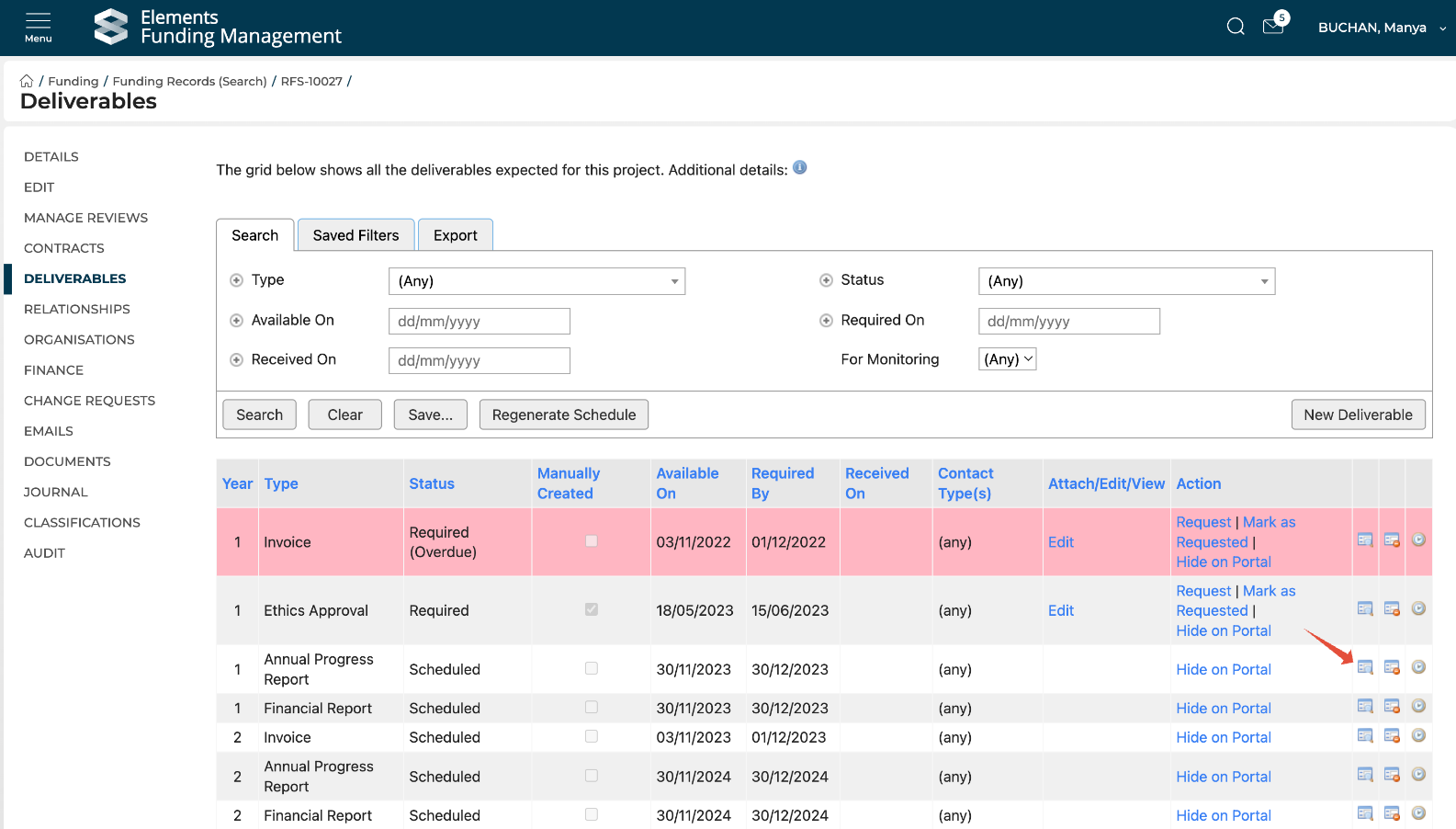
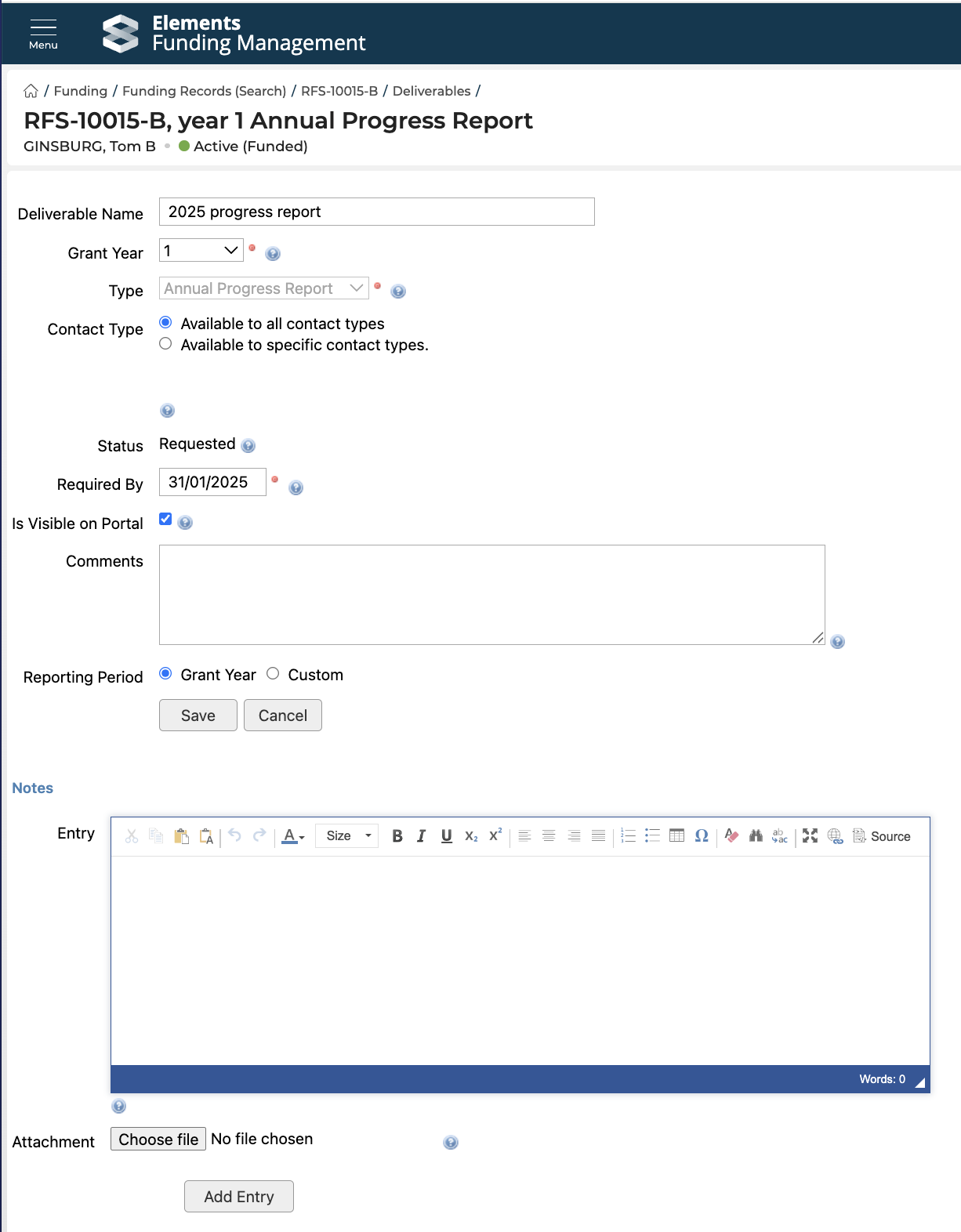
The edit window opens, which allows you to:
Update the 'grant' or project year of the deliverable
Specify which team roles should receive request and reminder emails relating to the deliverable (in an upcoming release, this will also determine which team members (based on Participant role) are able to complete and submit deliverable details via the Project Details screen)
Change the 'required by' date
Add a comment
To save your edits, select 'Save'.
In the Notes section, journal comments can be added and associated files uploaded. This can be useful, for example, to record details of correspondence with the PI and/or Funder. To save your edits, select 'Add entry'.
Adding a new Deliverable
Select the 'New Deliverable' button to create a new Deliverable.
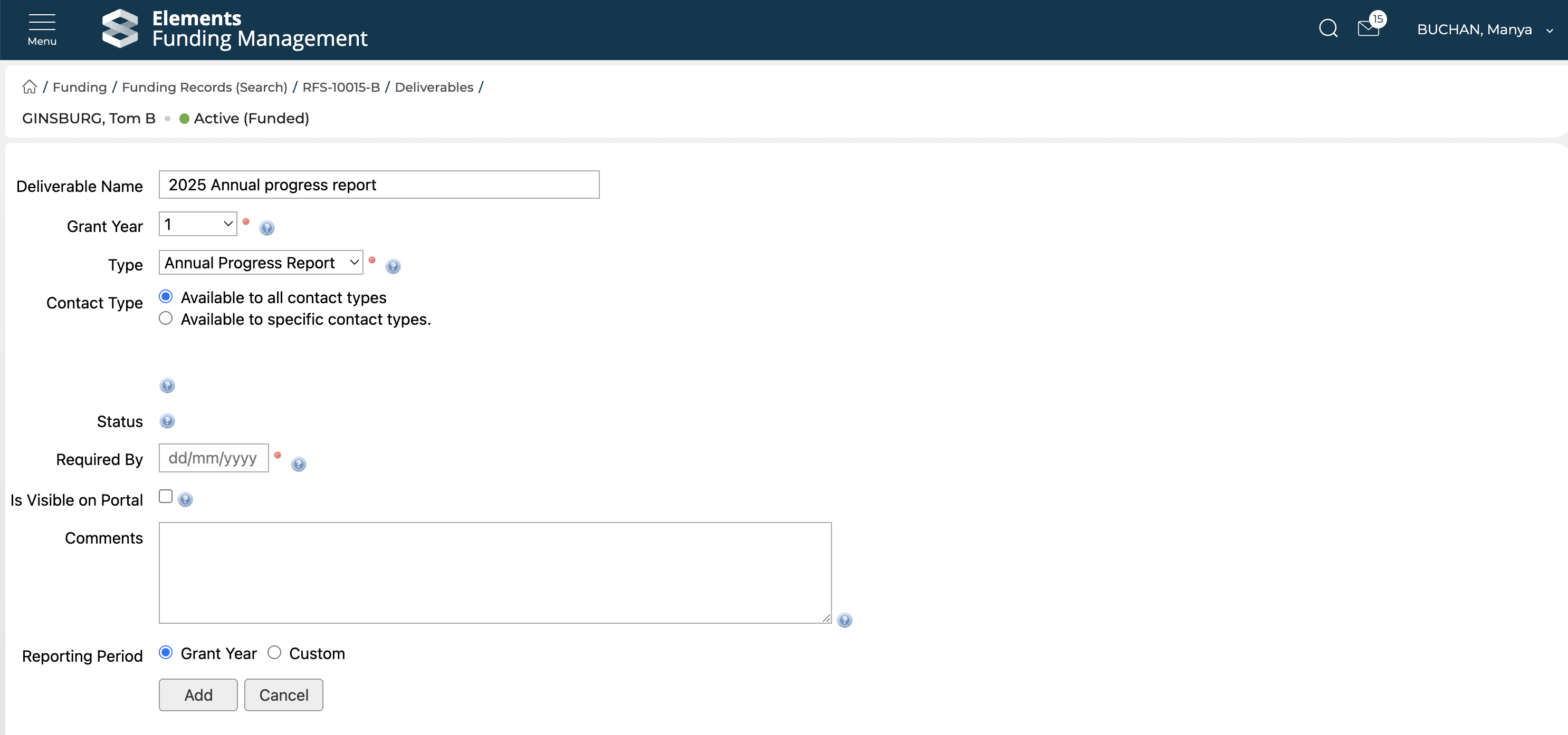
Field | Description | Mandatory? |
Deliverable name | Provide a name for the deliverable | |
Grant year | Select the year of the grant in which the deliverable applies | Yes |
Type | Deliverable type (e.g. Annual progress report, Invoice). It is possible to have additional types that are not included in the default schedule. | Yes |
Contact type | Select the project team members to receive the request notification (see below)
| |
Status | Once created, the Deliverable status will be populated (see below) | |
Required by | Date when the Deliverable is due | Yes |
Is visible on portal | Select whether this Deliverable should be visible to non-Console users (i.e. Project participants) on the Project Details screen | |
Comments | Add comments about the deliverable | |
Reporting period | Keep 'Grant year' selected |
Initiating Deliverable completion actions
It is possible to send an email to the PI and/or other project team members to remind them of an upcoming Deliverable and request details of a completed Deliverable. The recipients are determined by the Contact type(s) selected for the deliverable.
Once a Deliverable's status has changed to 'Required' (i.e. the 'available on date' has passed - see below), the action to Request the Deliverable becomes available, both in the Console and in the Portal.
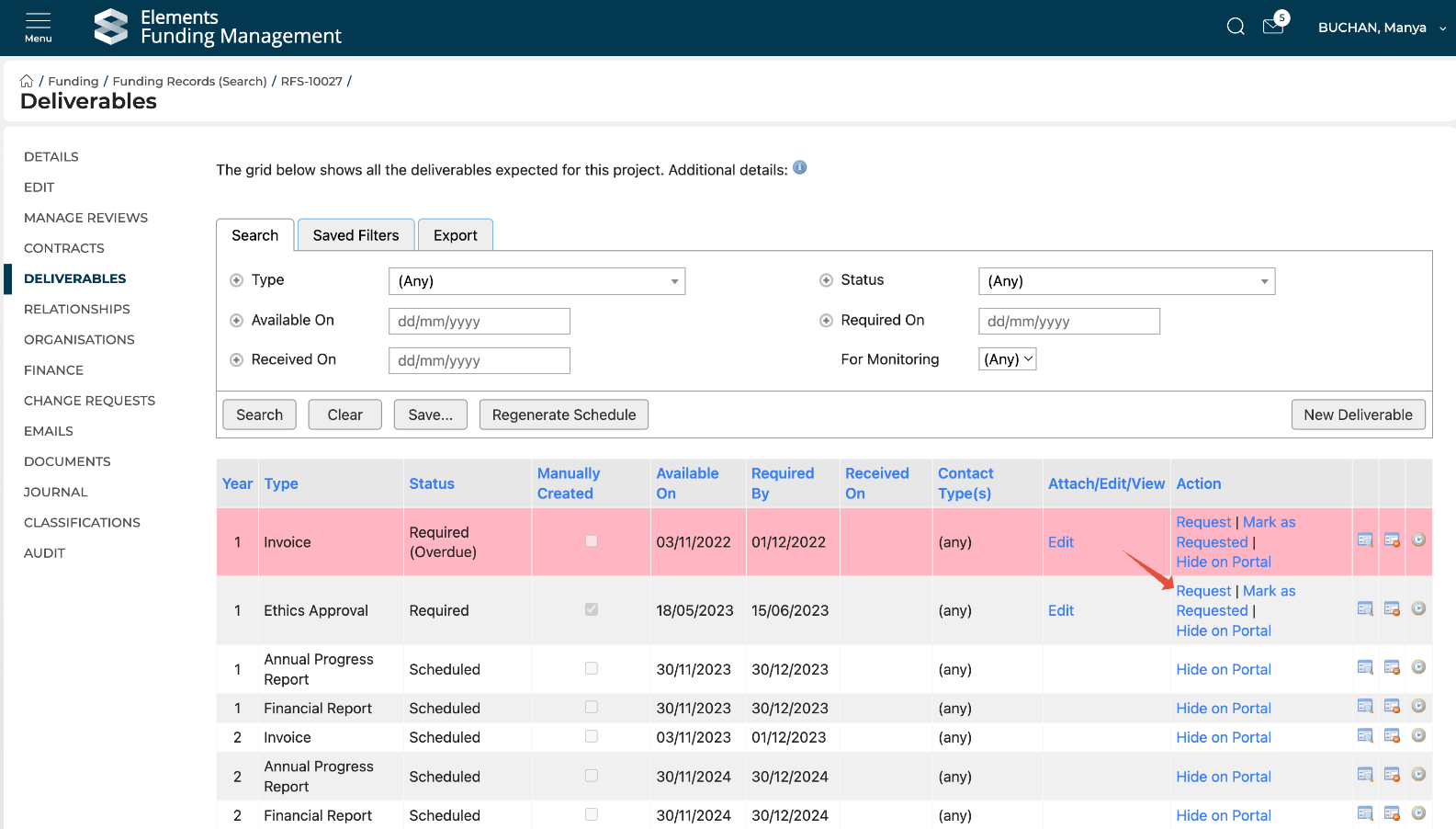
Selecting the 'Request' action will open the email page, pre-loaded with the relevant email template. The subject and body can be customised before sending if required.
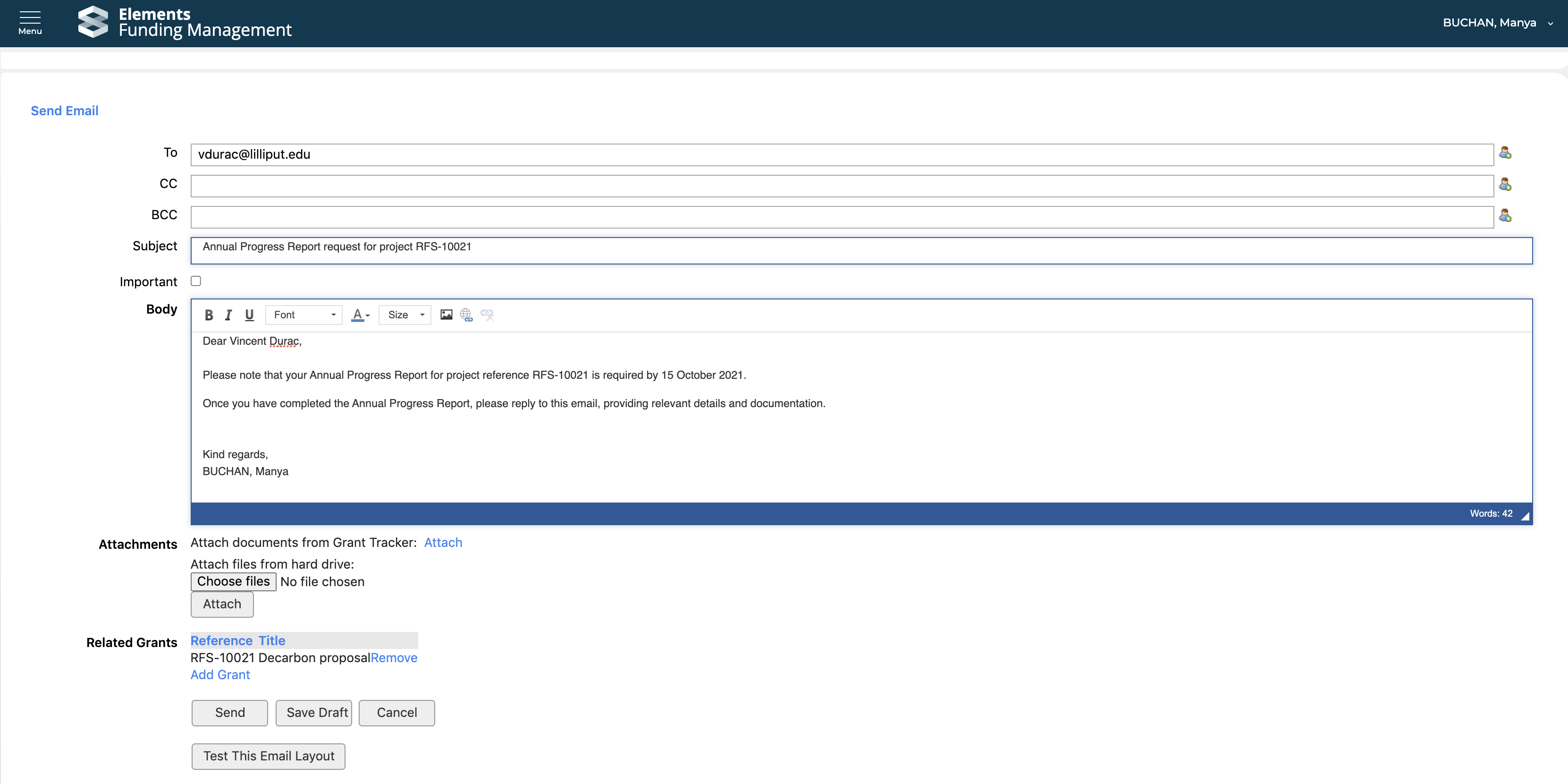
Once the email is sent, the Deliverable status updates to 'Requested' and a new action to send a follow-up request becomes available. Sending a follow-up request works in the same way as sending the initial request, but does not update the Deliverable status.
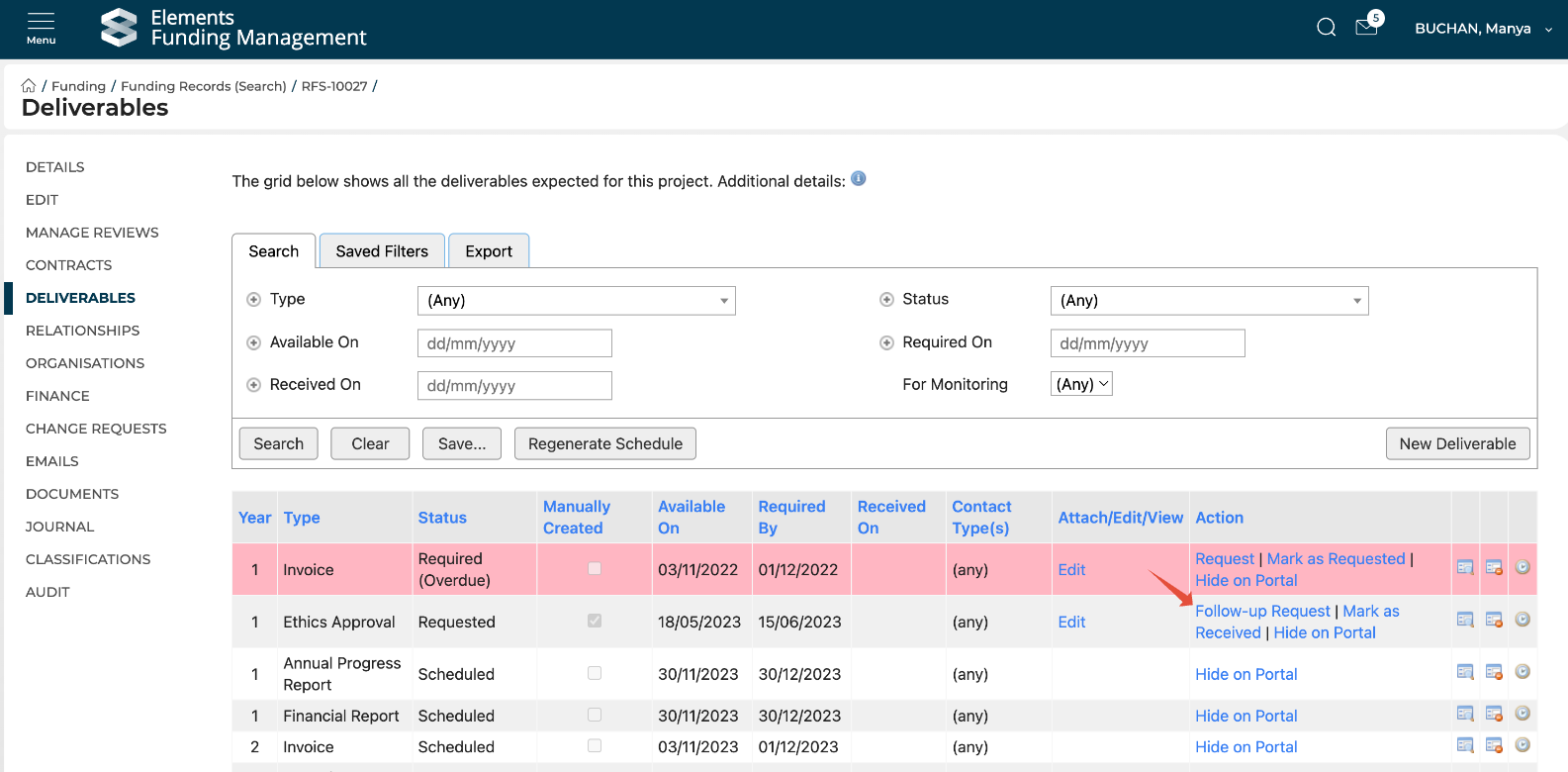
It is possible to perform this Request action in bulk for a number of Deliverables at once - see details below under 'Monitoring Deliverables'.
Marking a Deliverable as complete
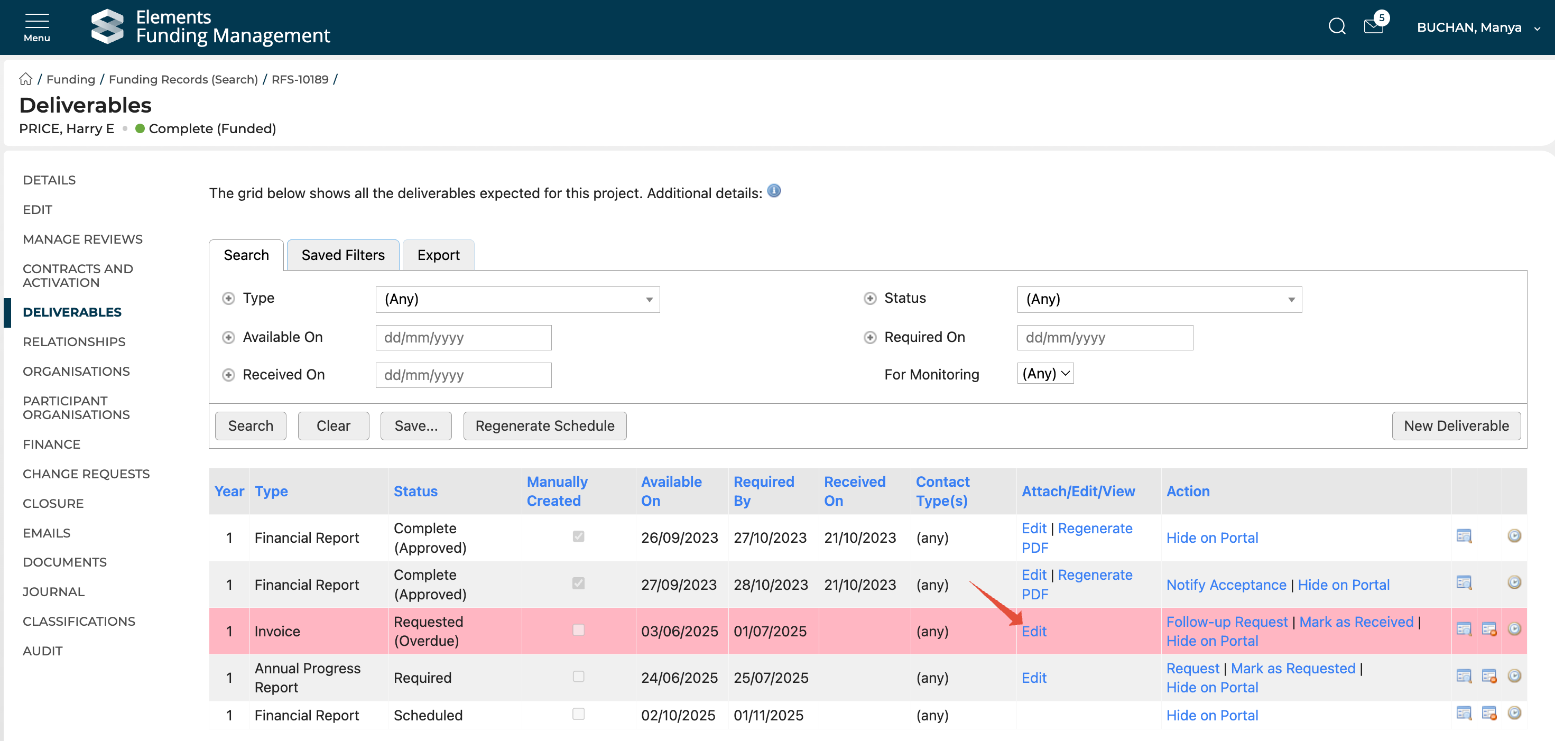
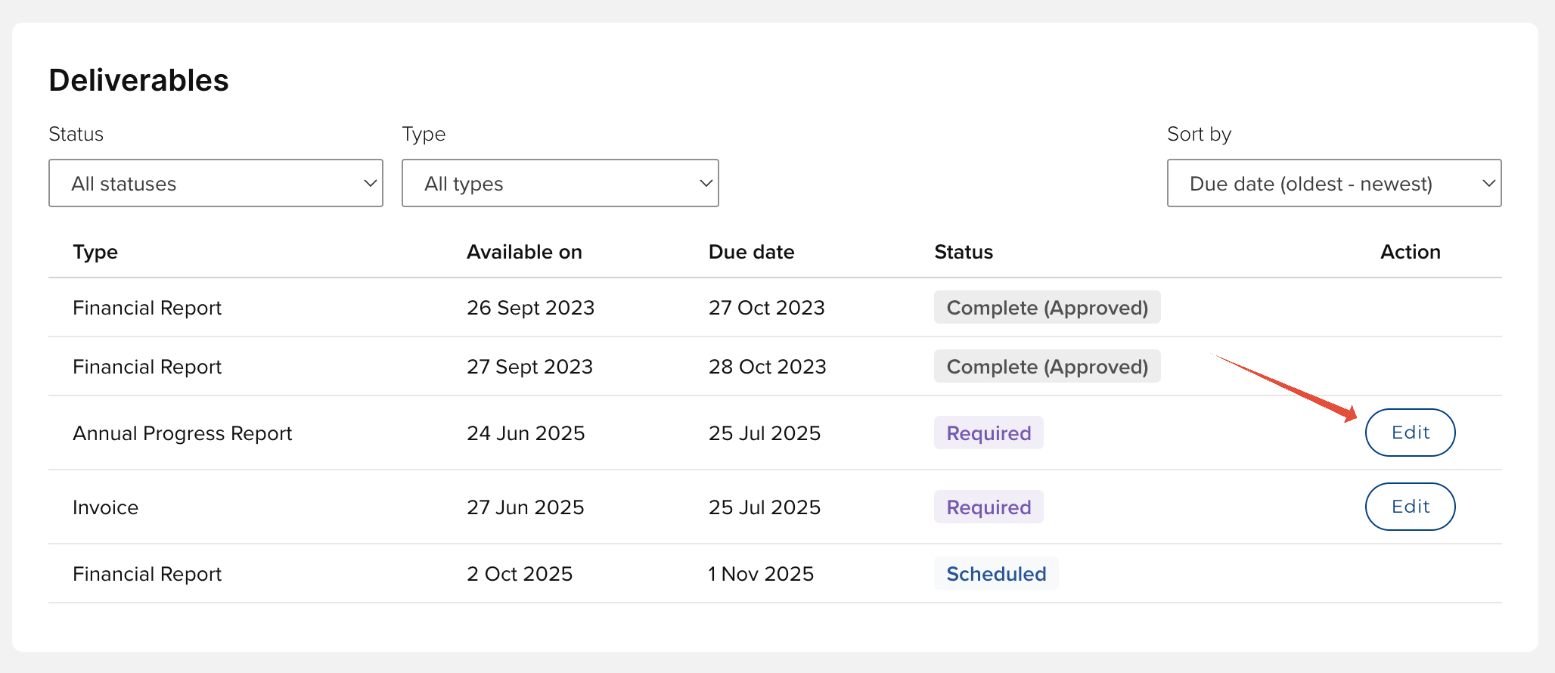
Once a Deliverable's status has changed to 'Required' (i.e. the 'available on date' has passed - see below), the ability to capture details of its completion becomes available via the 'Edit' function, both in the Console and in the Portal.
Console:
Portal:
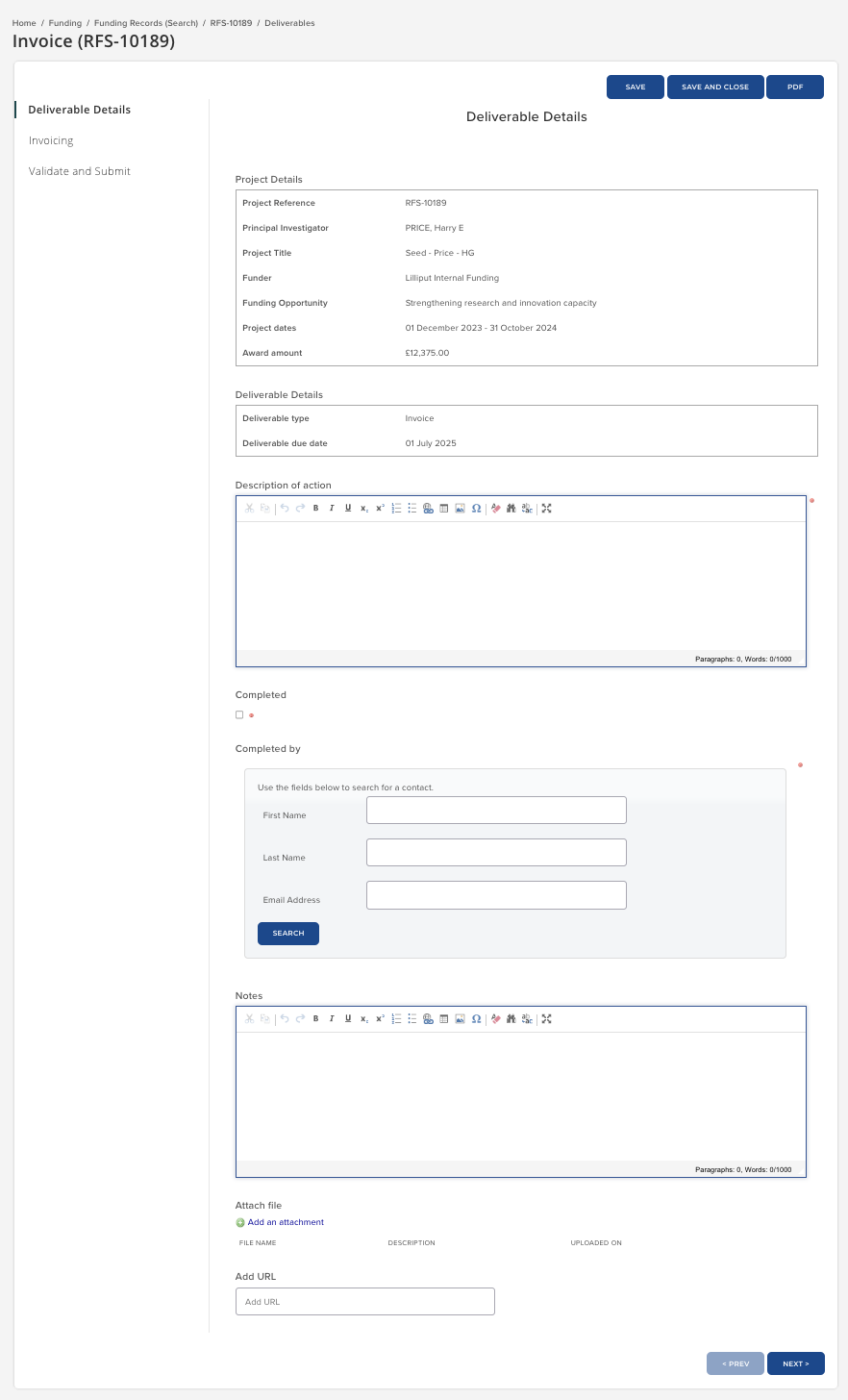
Once all details have been provided, navigate to the 'Validate and submit' to check for any validation errors. Once any errors are cleared, the form can be submitted.
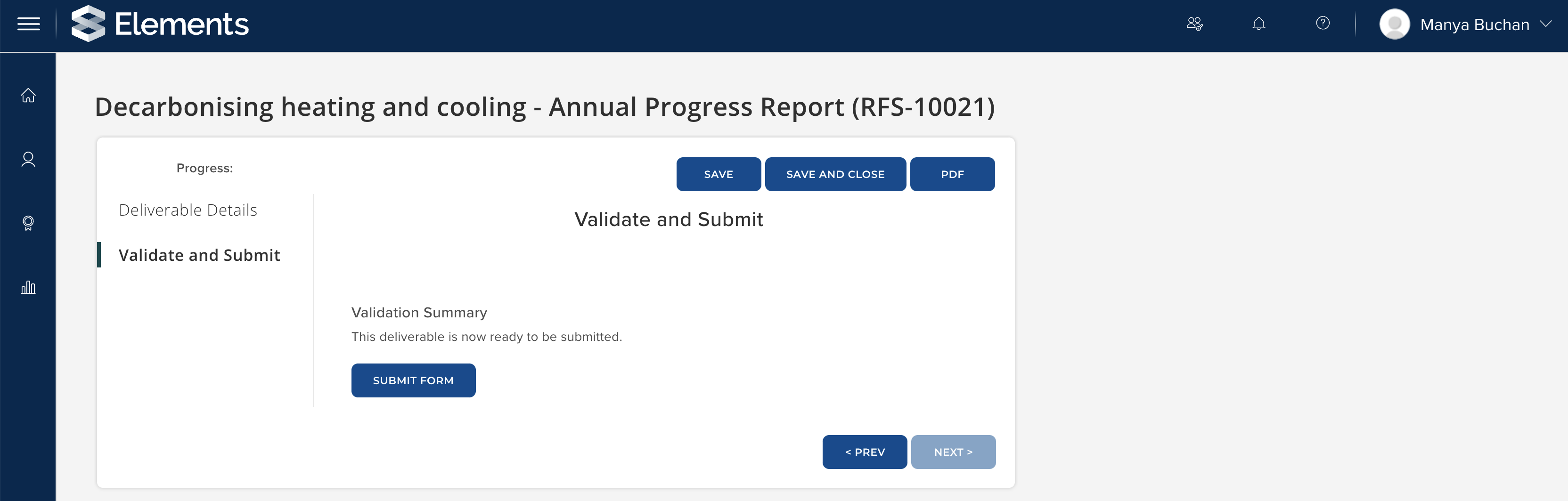
On submission, a submission confirmation email is sent to the PI (and potentially the Grant Manager, depending on the configuration set up during implementation), and the Deliverable status is updated to 'Received'.
Re-opening a submitted Deliverable for further editing
If a Deliverable requires further editing following submission, click the 'Reject' action (which becomes available after submission). This closes the current Deliverable with a status of 'Complete (Rejected)' and creates a new version (with all details copied over) for updating (this will need to be requested, as above). A PDF of the original submission is retained by way of a snapshot.
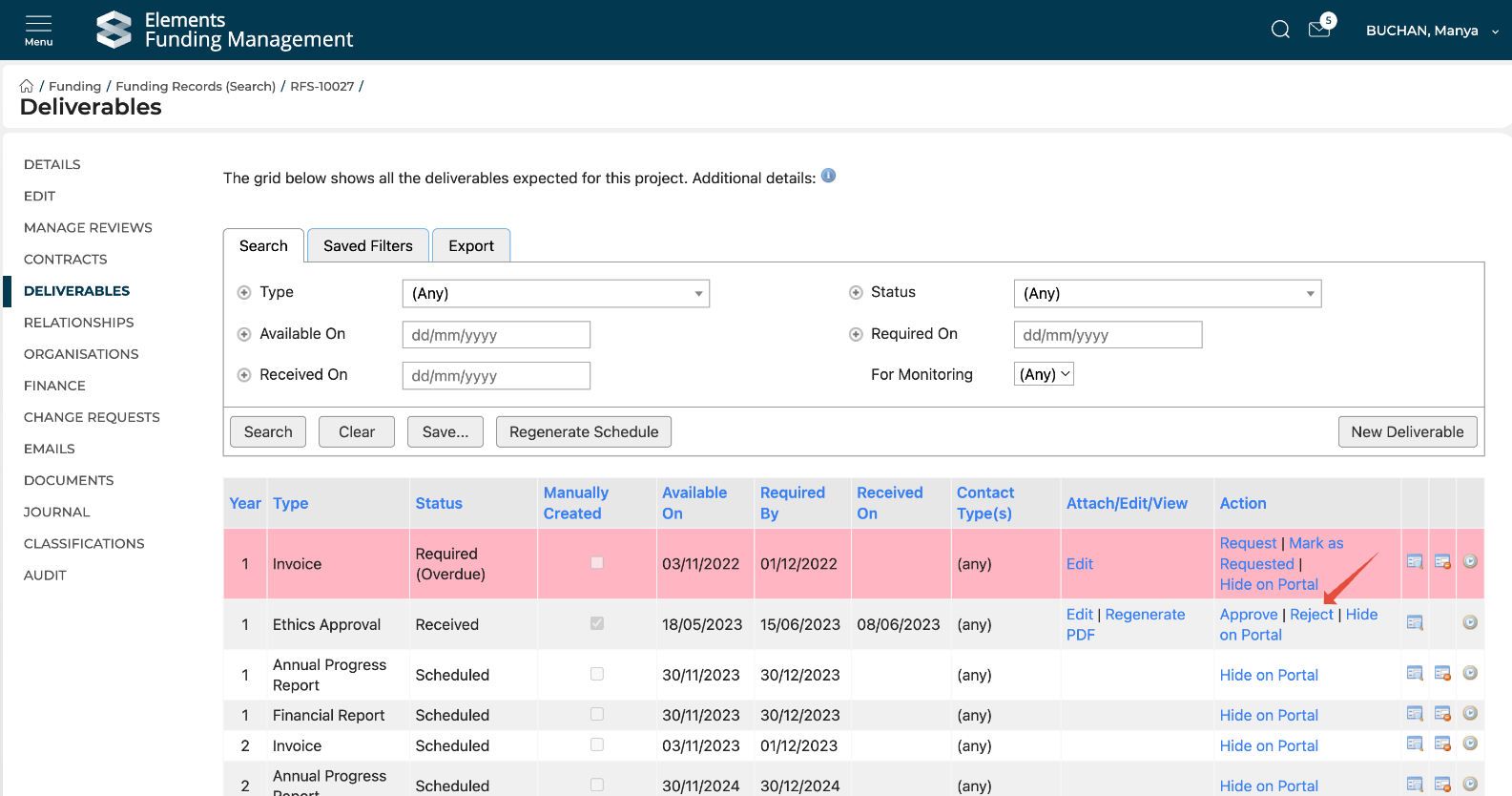
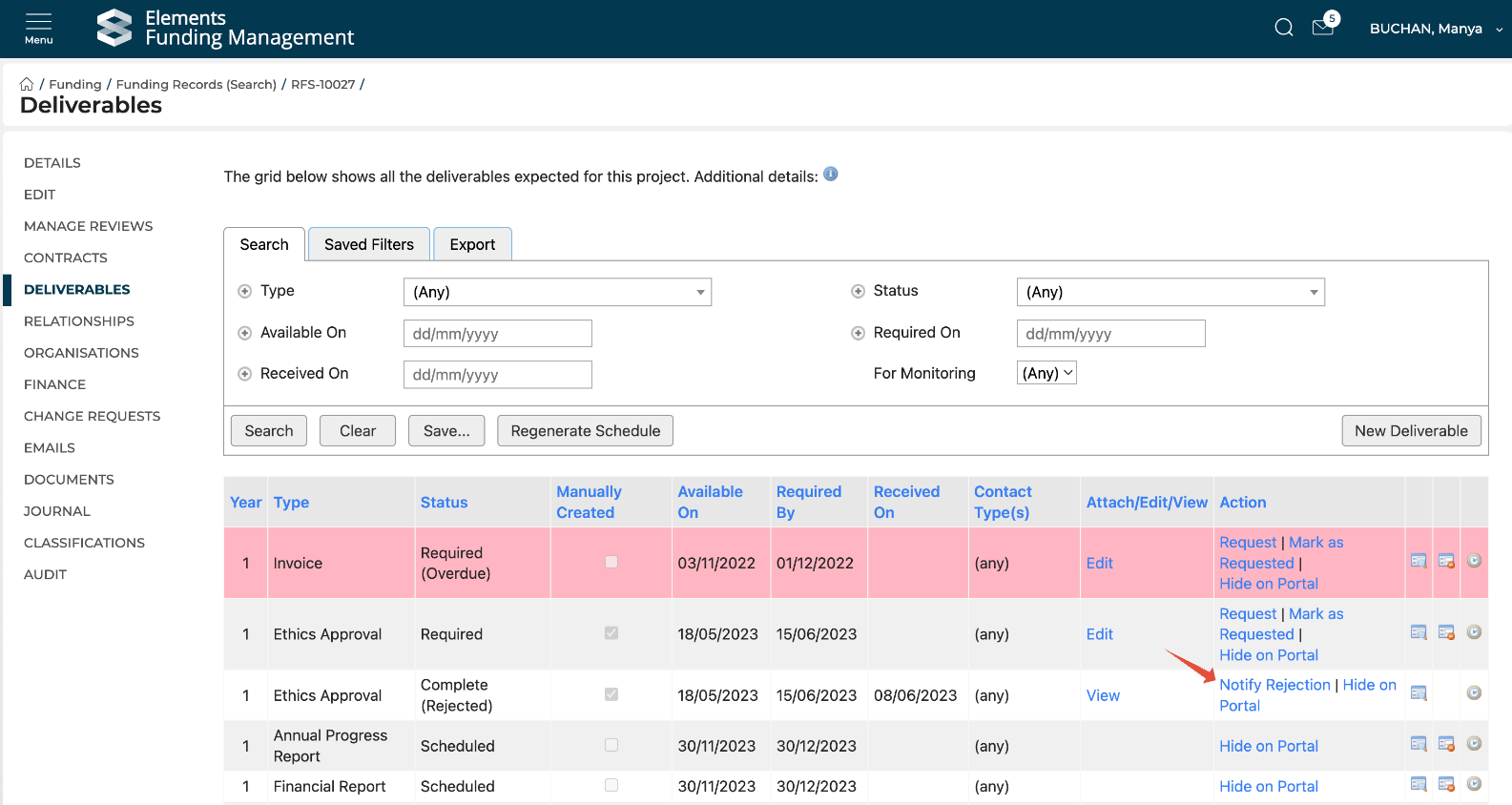
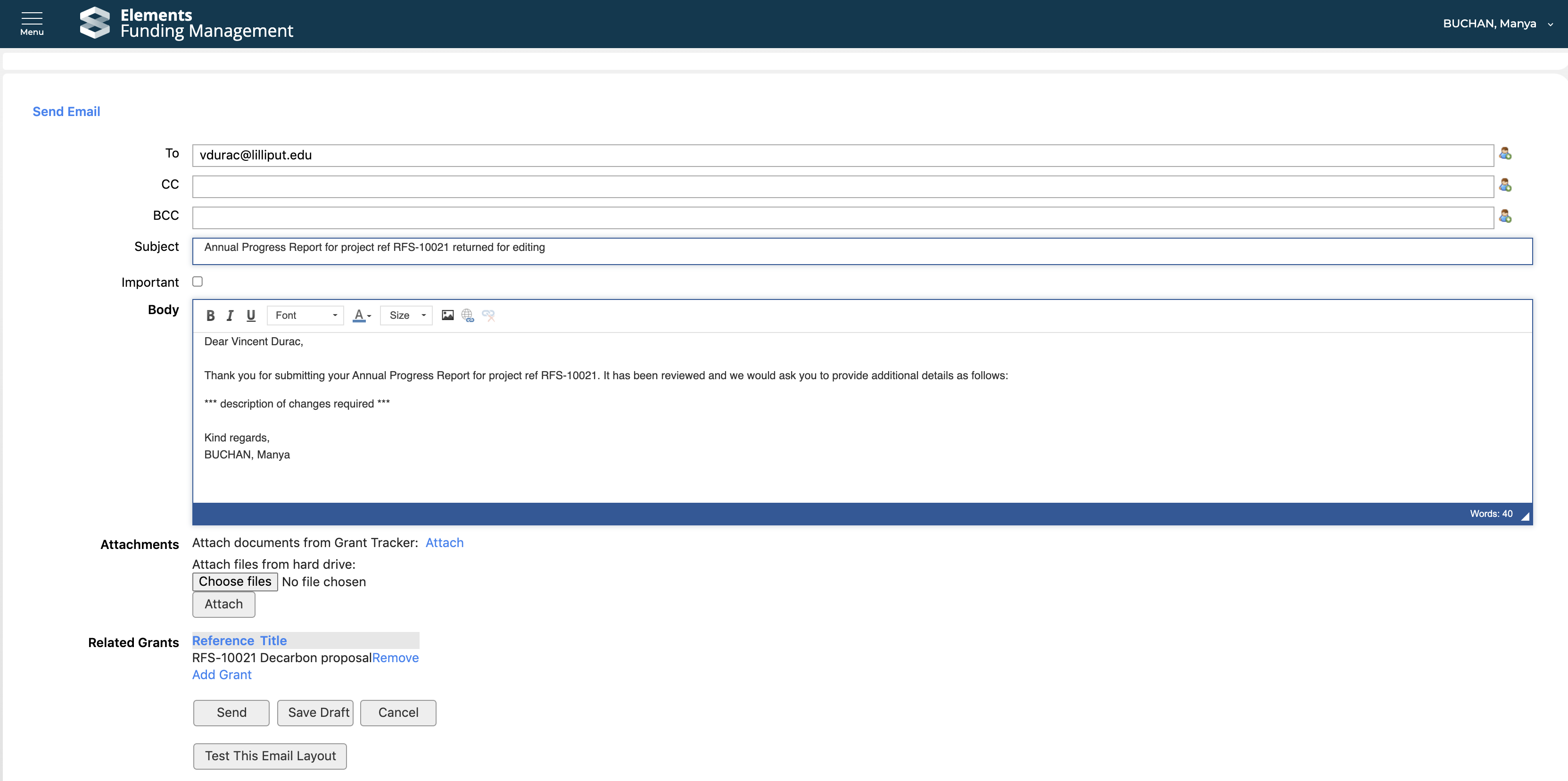
The new Deliverable is pre-populated with the previously submitted details and can be updated and submitted as described above.
Finalising a Deliverable
The option to Approve a Deliverable becomes available after submission.
Once the Deliverable is complete and no further action is required, click the 'Approve' action to update the status to 'Complete (Approved)'.
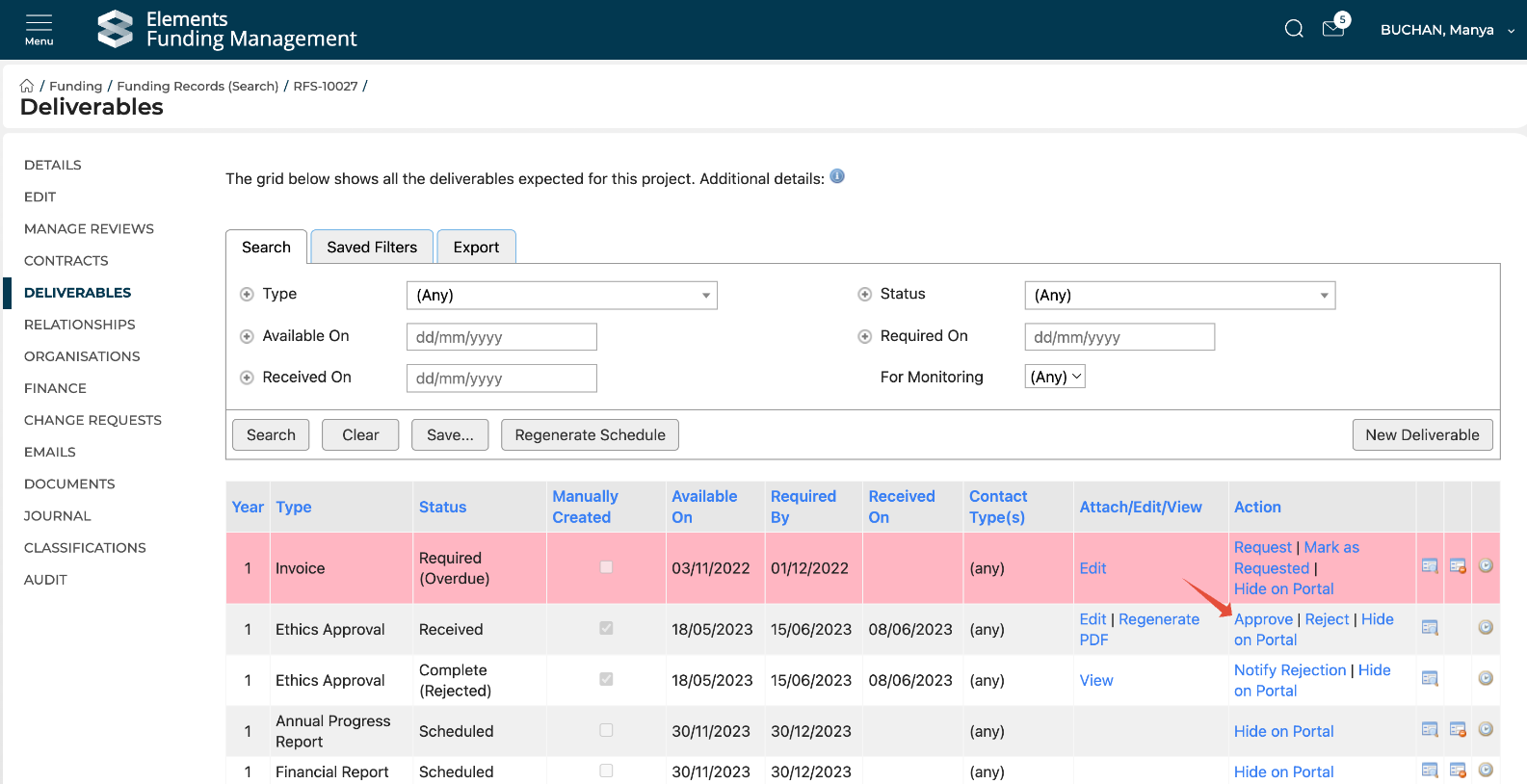
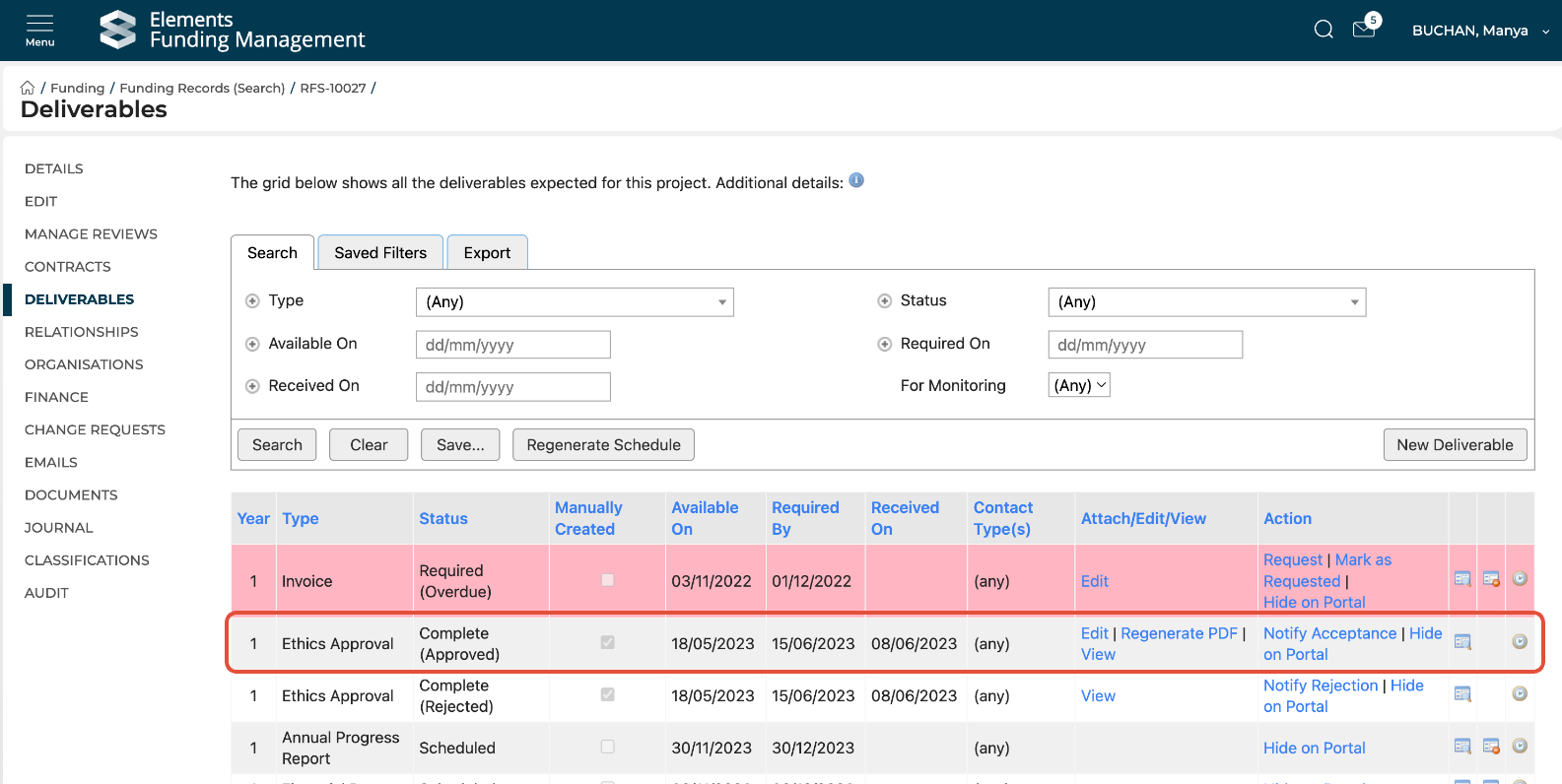
The 'Notify acceptance' action provides and email template for notifying the relevant team members that the Deliverable is now complete.
Deleting or cancelling a Deliverable
To remove a Deliverable, click the 'Delete' icon.
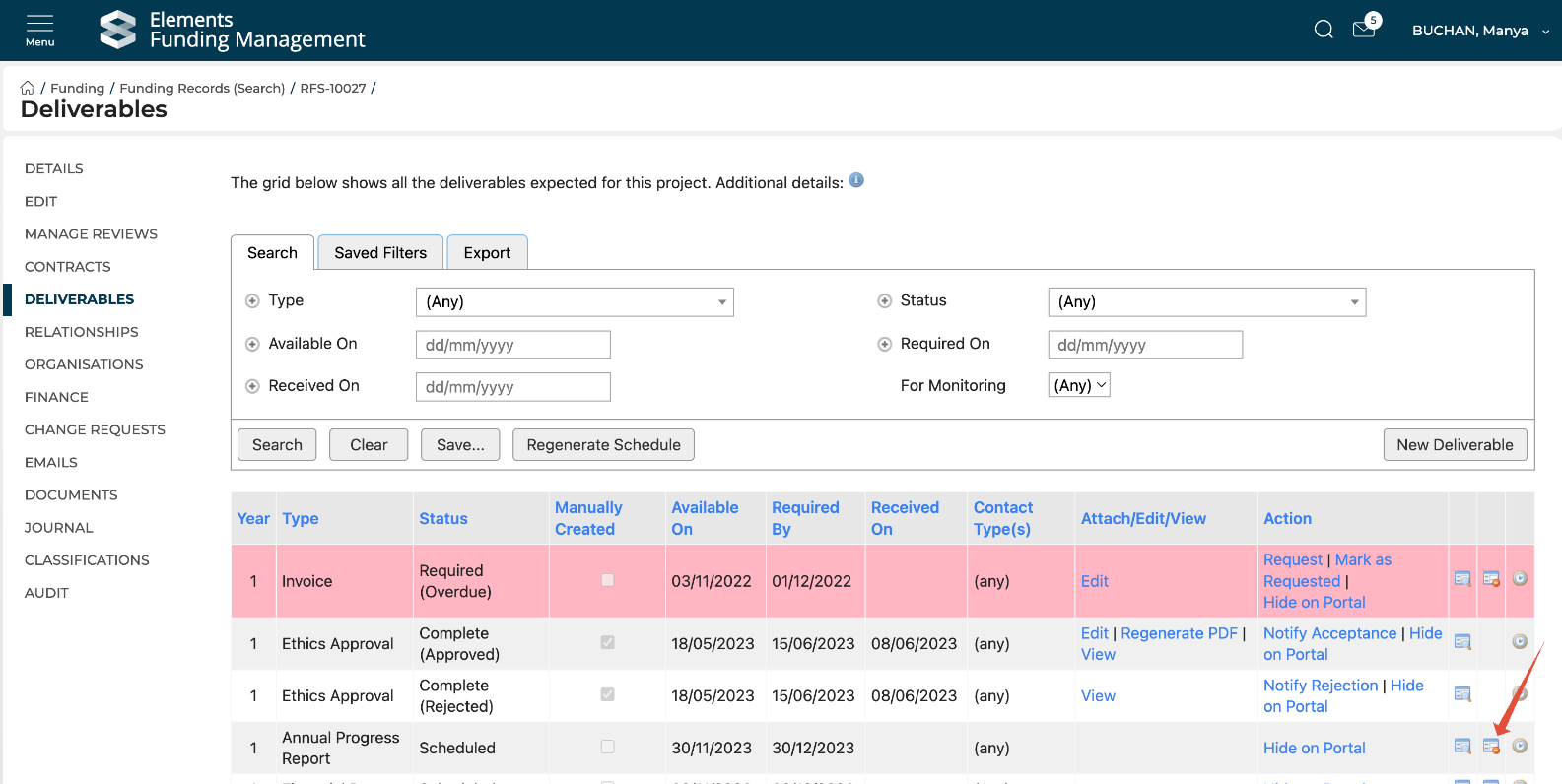
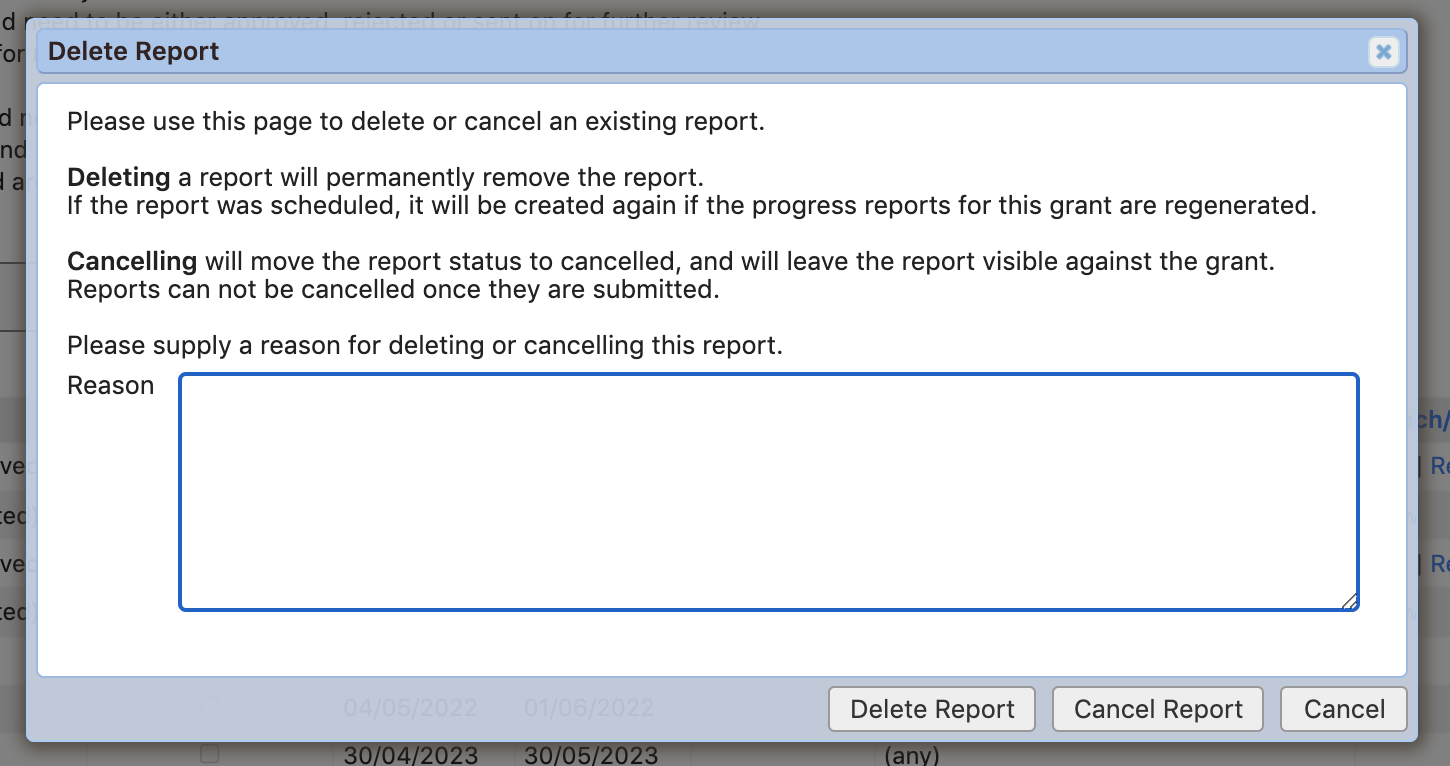
Enter a reason, then select 'Delete Report' to remove the Deliverable completely, or 'Cancel Report' to retain the Deliverable but update its status to 'Cancelled'.
Deliverable statuses
Deliverable status | Description |
Scheduled | Initial status on creation of the Deliverable, where today's date is before the 'Available on date'. |
Required | Automatically updates to Required at the 'Available on date' |
Requested | Automatically updates to Requested when an initial request email is sent from the system, either manually or as a scheduled email. It is also possible for a Console user to mark the Deliverable as requested without sending an email. |
Received | Automatically updates to Received when the Deliverable is submitted. |
Complete (Approved) | Updates to Complete (Approved) when a Console user manually approves the Deliverable. |
Complete (Rejected) | Updates to Complete (Rejected) when a Console user manually rejects the Deliverable. This causes a new Deliverable of the same type, for the same year, and using the same form, to be created. |
Cancelled | Updates to Cancelled when a Console user manually cancels the Deliverable. It is also possible to delete a Deliverable, which results in full deletion from the database. |
Monitoring Deliverables
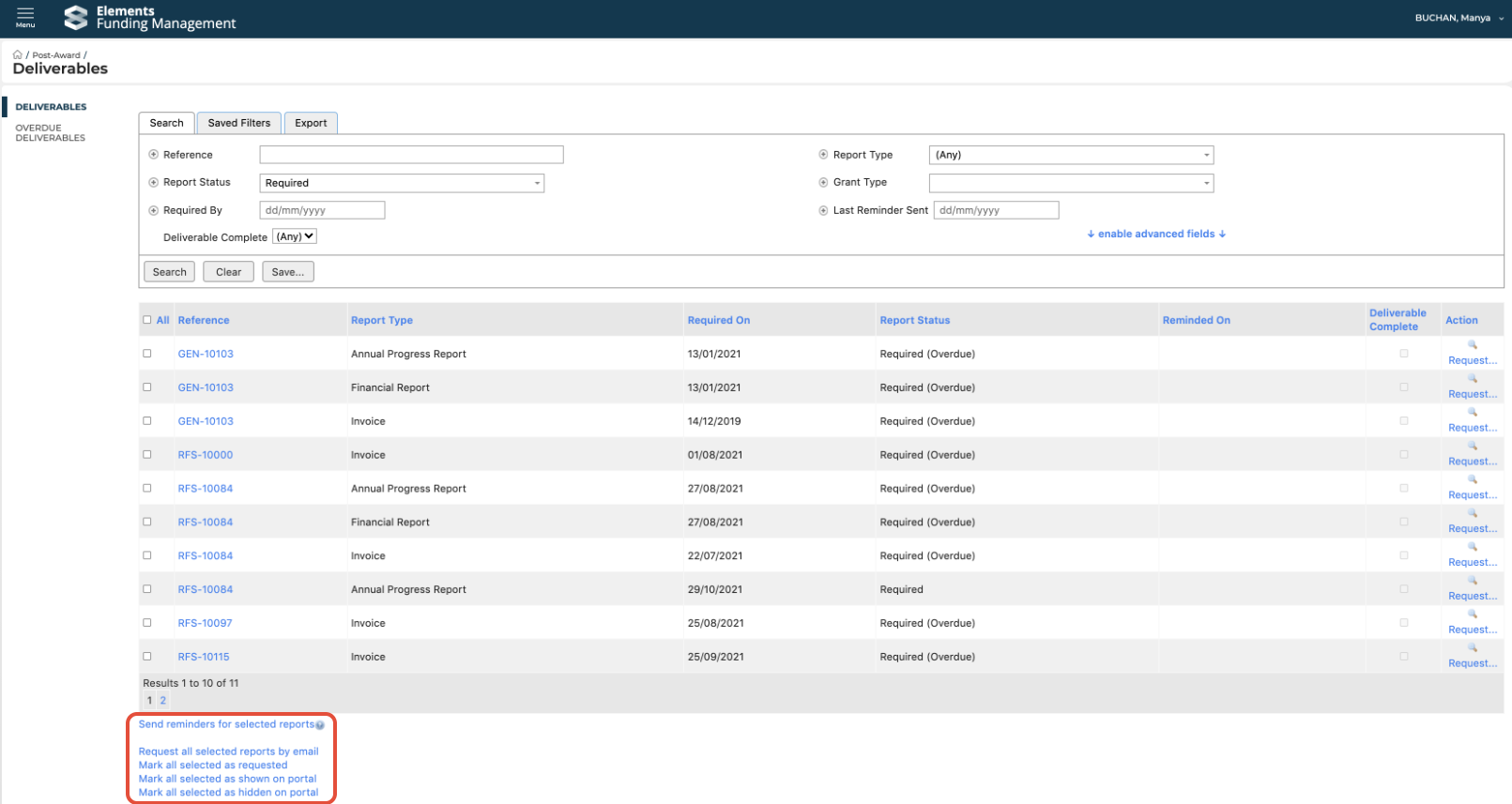
The Deliverables page within the Contracting & Post-award menu allows Console users to search for Deliverables requiring further action. Clicking the reference hyperlink takes the user to the Deliverables page for the individual Project.
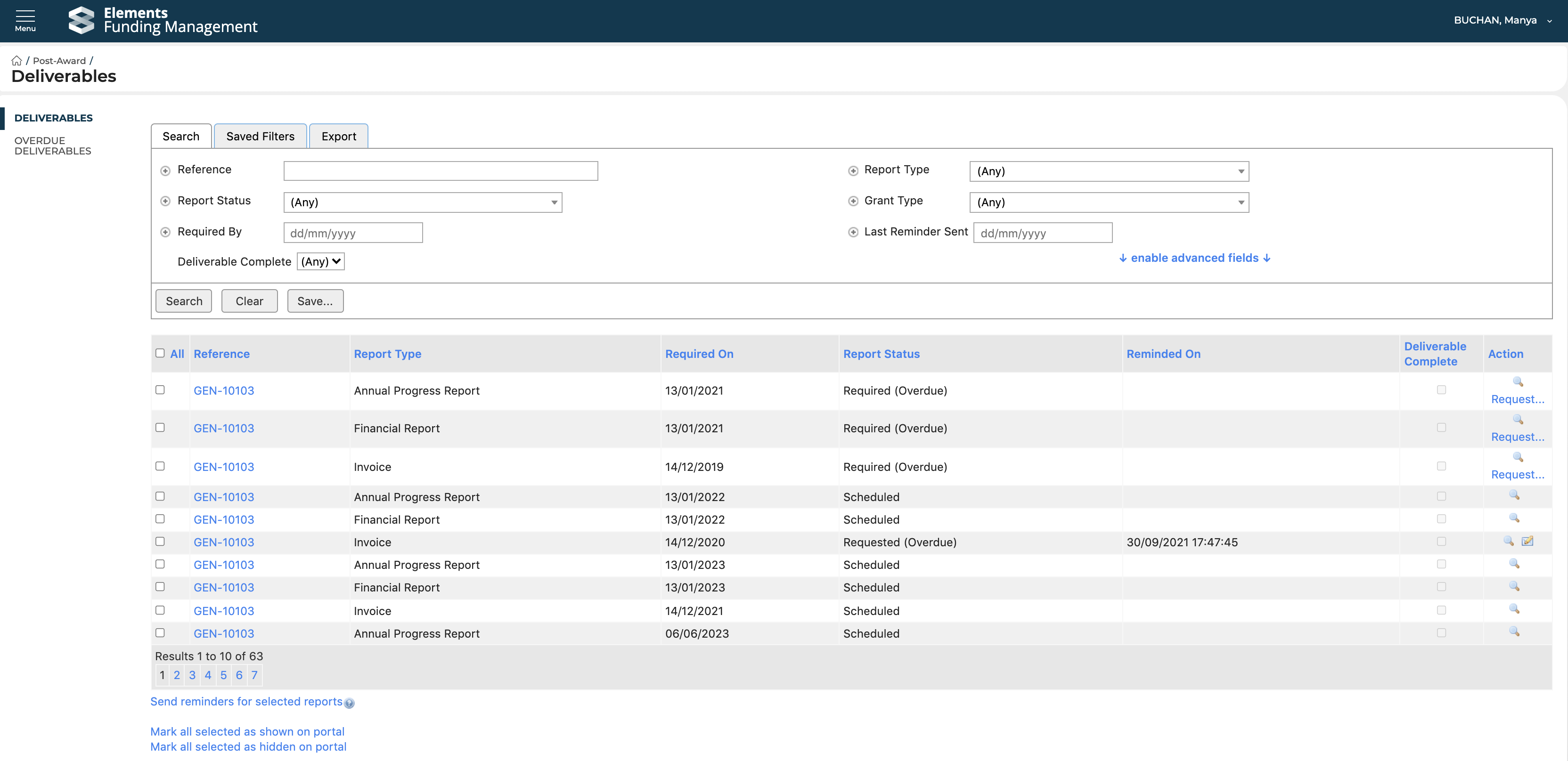
Some bulk actions are available on this page:
Bulk action | Description |
Sending request emails | Search for Deliverables at 'Required' status to enable the link to 'Request all selected reports by email'. This will email all relevant users for the selected Deliverables, changing the status of these Deliverables to 'Requested'. |
Mark Deliverables as Requested | Search for Deliverables at 'Required' status to enable the link to 'Mark all selected as requested'. This will change the status of all selected Deliverables to 'Requested'. |
Sending follow up requests | Search for Deliverables at 'Requested' status to use the link 'Send reminders for selected reports'. This will send follow up emails to all relevant users for the selected Deliverables. |
Show/hide deliverables on the Portal | Deliverables of any type and at any status may be visible to / hidden from non-Console users (i.e. Project participants) on the Project Details page. |