
Configure the overall outcome form
If desired, you can configure an overall outcome form for Unit managers to complete when assessing the overall outcome of an item in the exercise (e.g. you may want to capture an overall moderated score).
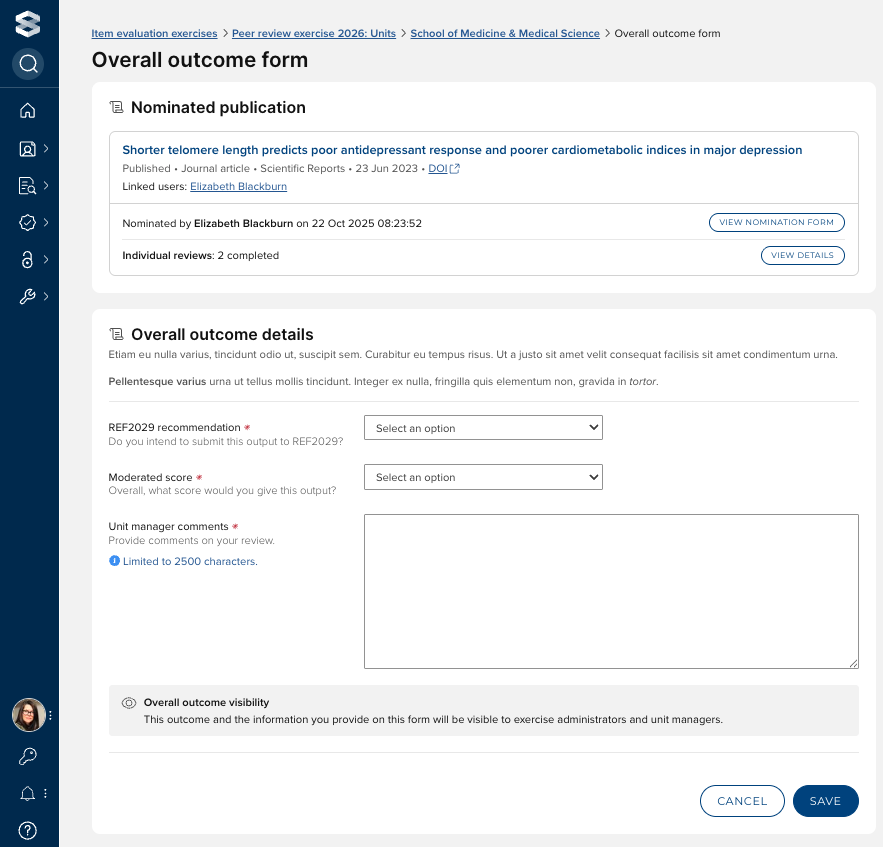
If no overall outcome form is configured, the item evaluation completion process is a single-click action via the 'Capture overall outcome' action on the Manage exercise unit page.
Configure the outcome form
In the exercise configuration, go to the Management & outcome tab, and navigate to the 'Overall outcome form' section.
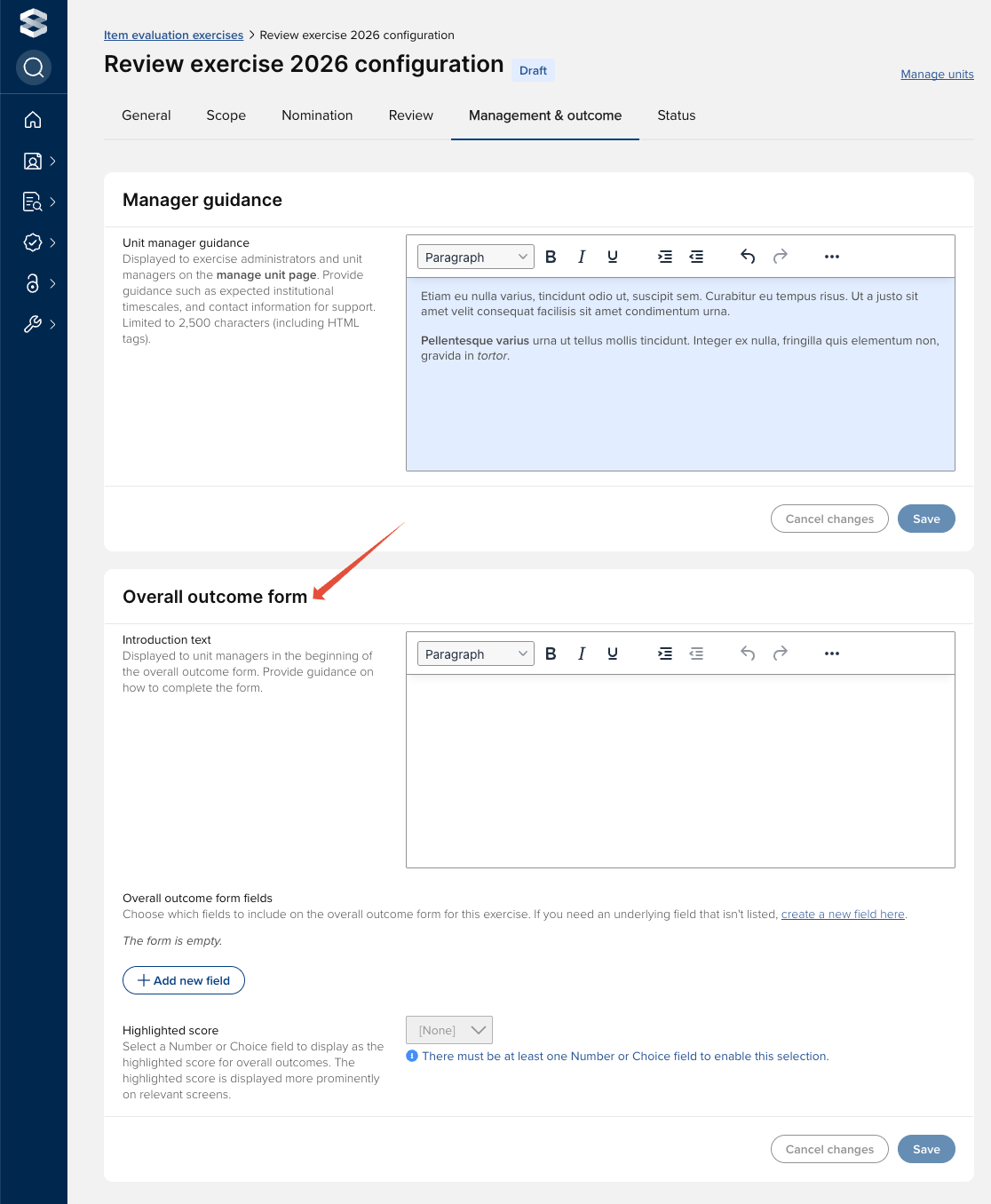
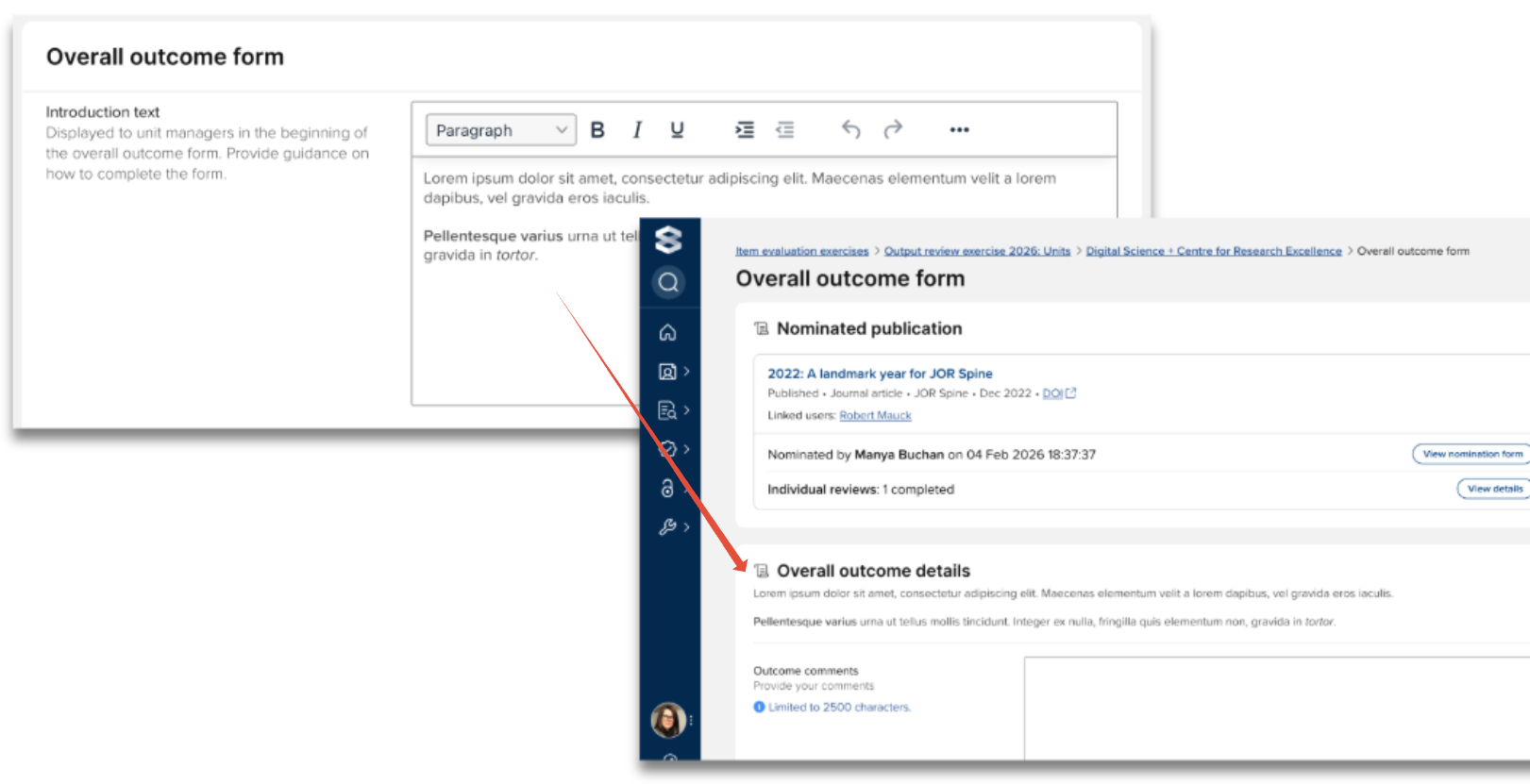
Introduction text
In this section you can provide introduction text that will assist the user in completing the outcome form.
Outcome form fields
In this section, you can configure which underlying fields you would like to include on the outcome form for this exercise.
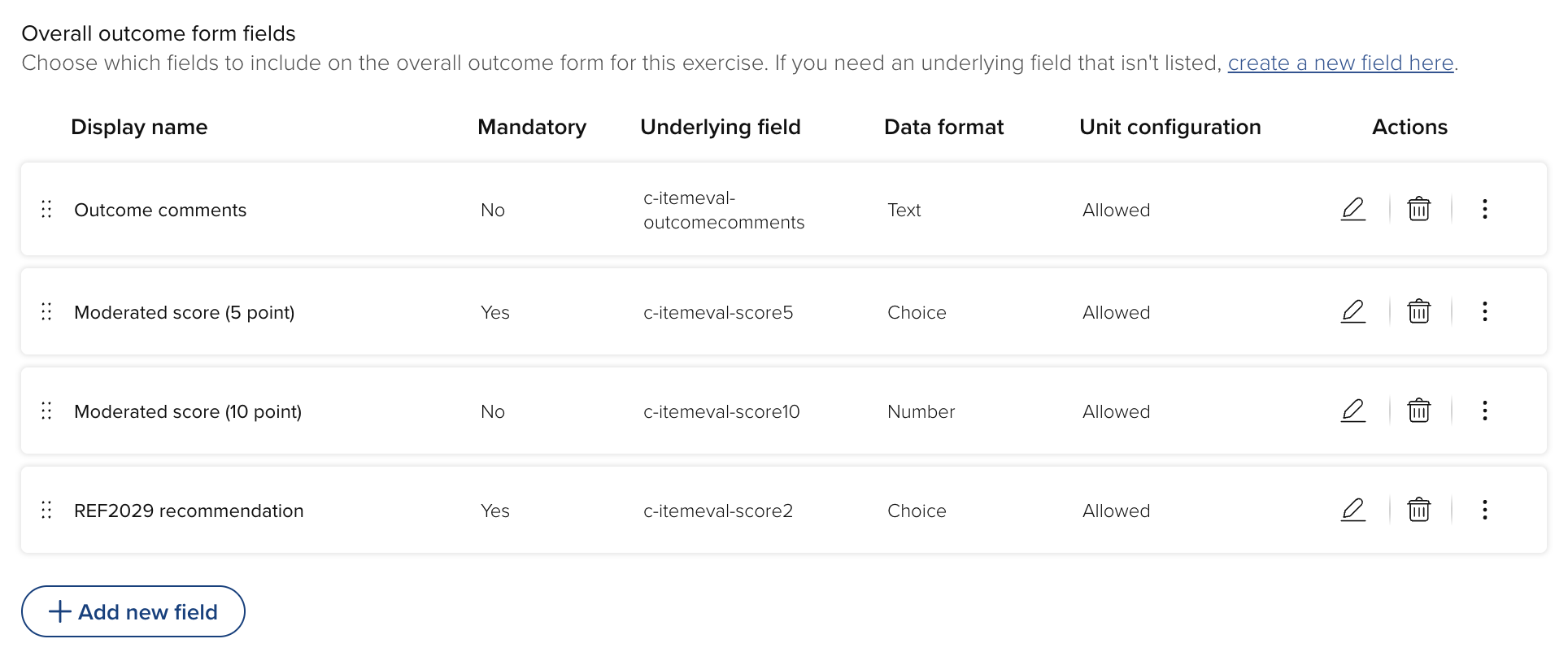
Each underlying field can be used exactly once on the outcome form.
Underlying fields can be created by System Administrators and Research Information Administrators via Evaluation & review > [ITEM EVALUATION] > Manage item evaluation fields. Further details are available in this support article.
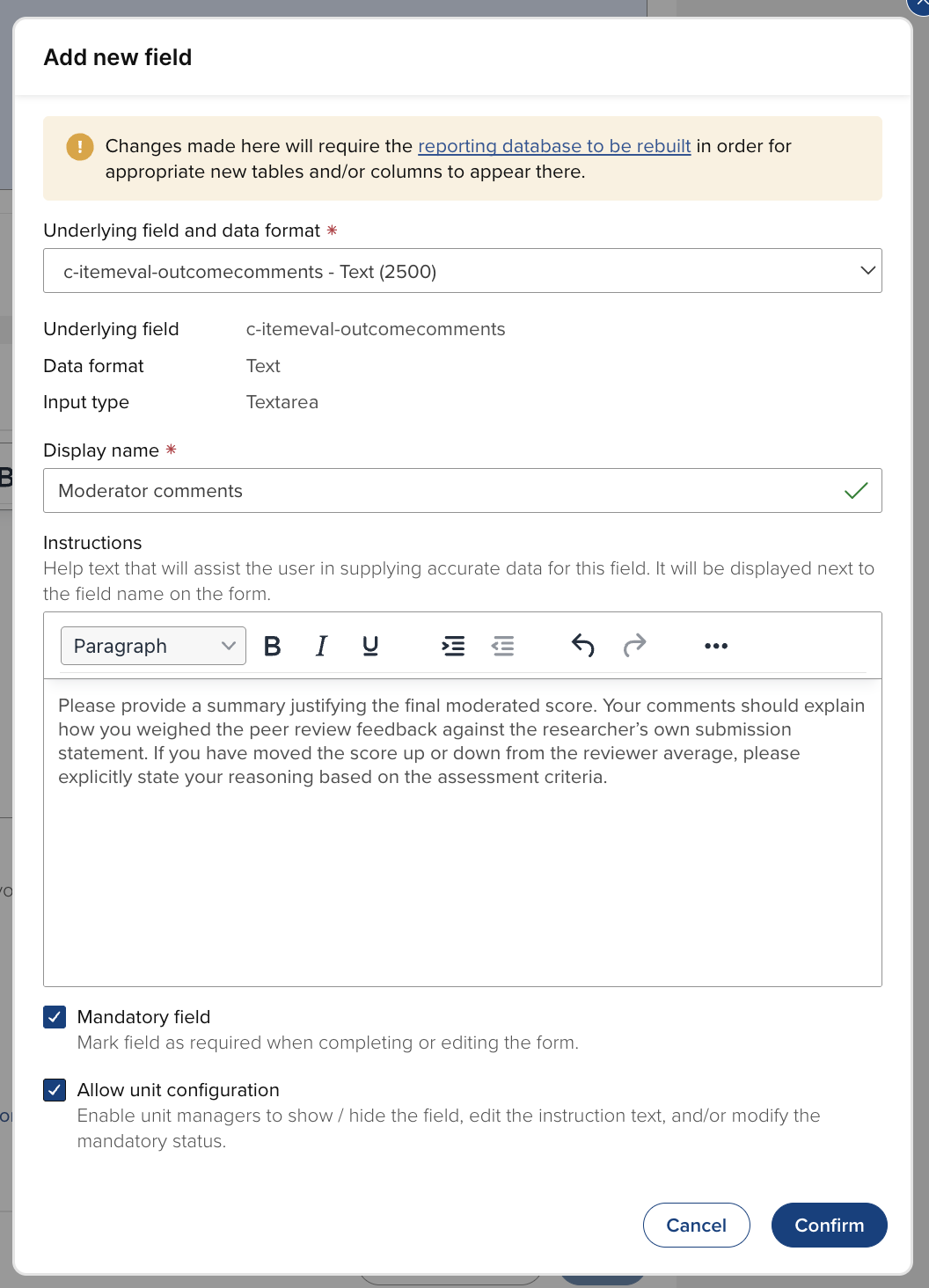
Select 'Add a new field', and you will be directed to the 'Add new field' modal, where you can:
Select the applicable underlying field
Supply the display name for the field on the form
Provide instructions to the user on that field
Indicate whether the field is mandatory (the user will not be able to submit the form without supplying the requested information)
Indicate whether unit configuration is allowed (see the 'Unit-level configuration options' support article for further details)
You can edit each field, edit the order of the fields, and you can delete any previously configured field (note that deleting a field will delete any previously provided data in that field).
Highlighted score
As the outcome form enables any number of scores to be captured, you can identify a ‘highlighted score’. Highlighted scores are more prominently displayed on key screens, making outcomes easier to interpret.
Further information is available in the 'Highlighted scores' support article.
