
What can a Research Manager do?
The purpose of this article is to explain how you can become a Research Manager, the kinds of activities a Research Manager generally undertakes, and how these activities can best be accomplished.
A Research Manager assists researchers and other Elements users with curating their search settings and managing publication approvals. To perform these tasks, the Research Manager has the ability to impersonate any member of a group.
Research Managers have data usage rights over the group(s) for which they have been assigned the role. This allows Research Managers to run Formatted Group Reports if they have been granted viewing permissions for the report. Please the Introduction to the Reporting Hub for further information on configuring reports.
Q: How Do I Become a Research Manager?
Research Managers can be added to a group by either the Group Administrator or System Administrator. More information about the mechanics of assigning roles can be found in the article Roles in Elements.
Q: How Does a Research Manager Impersonate a User?
If you are a Research Manager for a group, when you log into Elements, you should see a button in the tool bar at the top of the page labelled "Impersonate Another User."
It looks like this:

When you click this button, you will be presented with an alphabetical list of every user you have the right to impersonate. In addition to scrolling through the list, you can also click on letters to filter results (by last name), or search for individual users with the "Name Contains" search box. If you're a System Administrator or are a Research Manager for multiple groups (that can happen), you'll also see the "Member of Group" dropdown so you can restrict your searches to a particular Group.
The menu looks like this:
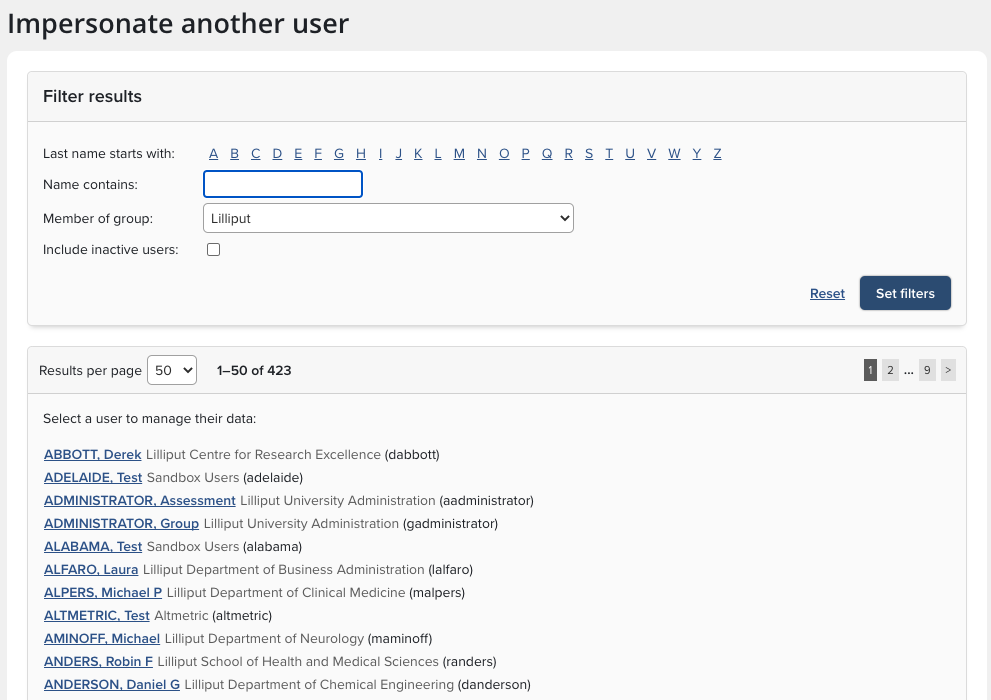
Clicking on a user's name will take you to their Home page. In the center of the tool bar, there will be the name (and possibly the photo) of the person who you are impersonating. It looks like this:

Q: What Can the Research Manager Do While Impersonating a User?
While impersonating a user, the Research Manager can do anything the end user does: Modify search settings; claim author identifiers; approve or reject publications; merge or split records; add manual records; create links between publications and other data types; or deposit items into the institutional repository.
Note: The user does not have to grant any rights to a Research Manager in order for the Research Manager to perform these activities. This is distinct from a Delegate, a person to whom the user explicitly grants those rights. Users can elect a Delegate by going to Account > Account Settings.
Q: How does a Research Manager modify search settings?
A Research Manager can modify search settings by, first, impersonating a user, and then going to Profile & work > Tools & settings > Search settings.
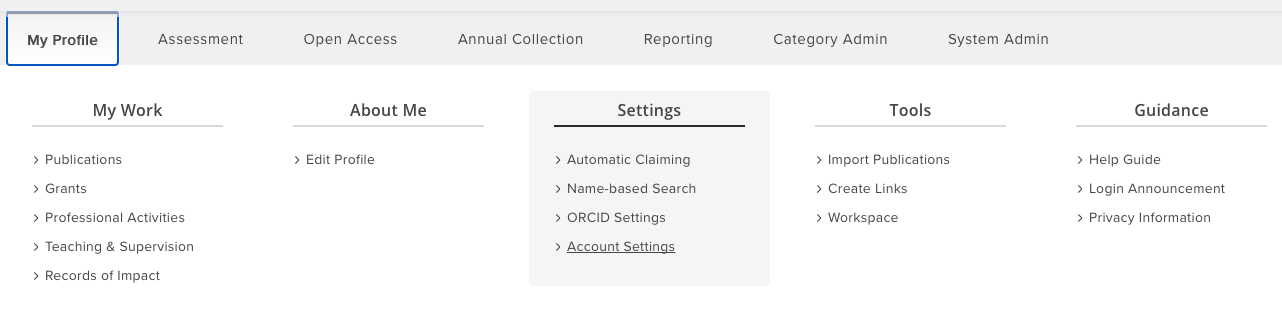
Here you can add, remove, or modify name variants, address terms, start dates, keywords, and other search criteria.
Please see the Symplectic ElementsTrouble-shooting Guide for Search Settings for an in-depth look at how and when to alter search settings. Here are a few points Research Managers should keep in mind when working with researchers:
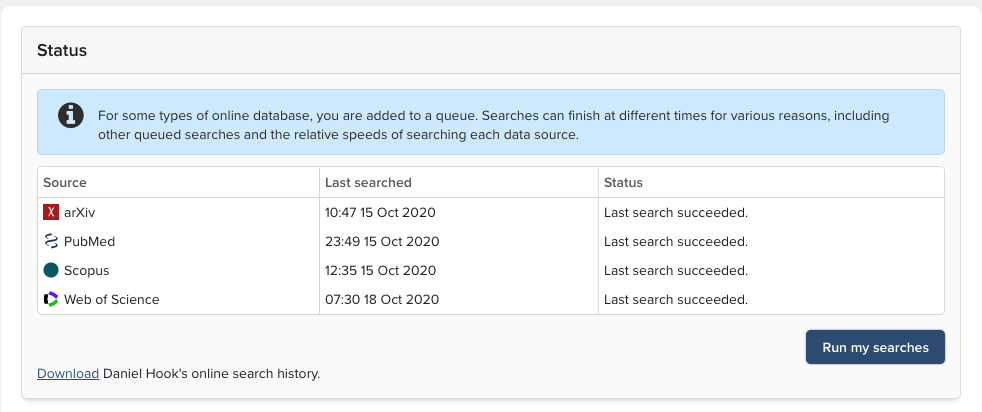
The "Status" section lists out the sources which the user has recently searched, the date of the last search, and the status, including the date scheduled for the next search. Also, there is a link from which the user's online search history can be downloaded. Being able to view the user's entire search history, including a listing of how many publications have been downloaded from each data source, can be valuable information when refining search settings.
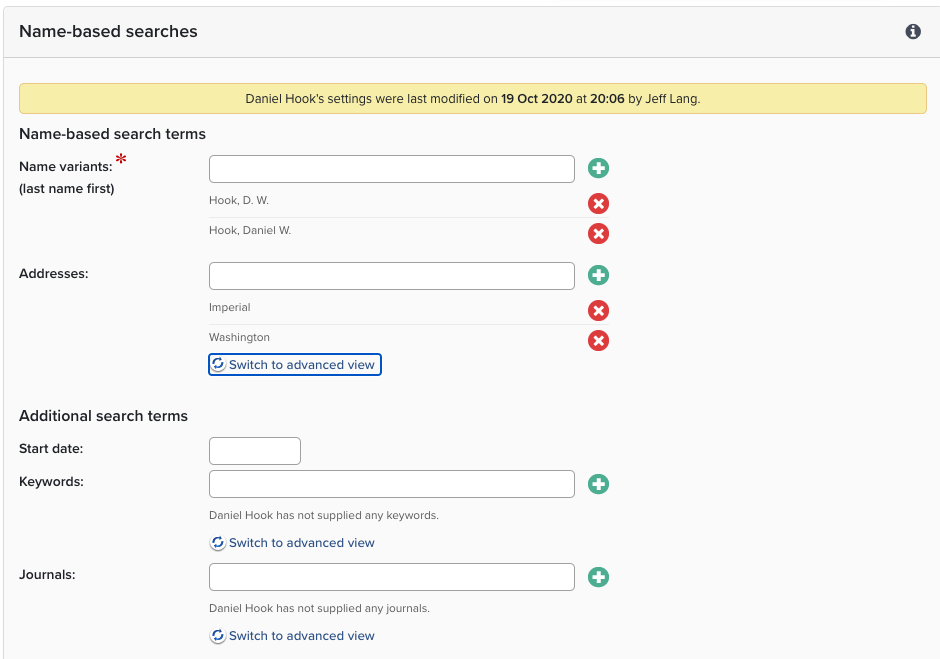
The second section is concerned with "Name-based searches," or the search terms used to retrieve documents from data sources. For a large percentage of users, the "Last Name, Two Initials" name variant is sufficient to retrieve all or most documents; however, some HR systems do not store two initials, in which case a researcher (or Research Manager) must either add or edit the name variants. In other instances, researchers published under various names, all of which must be entered in order for all documents to be retrieved. Recent versions of Elements will also automatically add a "Last Name, First Name" variant as more and more data sources are indexing this variant.
Addresses are valuable to disambiguate common names or researchers who share a Name, Initials variant. Address terms for previous (or subsequent) employers should be added if you wish to retrieve all documents. When entering the names of institutions, it is valuable to check how the names are listed in the data sources from which you harvest. Frequently, simply entering terms such as "Cambridge" or "Dartmouth" is sufficient, though sometime variants are required. In particular, Web of Science uses abbreviated terms that must be accommodated; thus "Cambridge Univ" and "Dartmouth Coll" might be needed.
Start date should only be used when you wish to limit retrieval chronologically.
Keywords and Journals should only be entered if you wish to restrict the results set to items that match those terms. In other words, all the field types in the Settings section are treated as if they are being ANDed in the Boolean sense. Items within a field are ORed.
The "Online Database IDs" section is for when a researcher wants to retrieve a specific record from a database. The identifiers entered here are for records, not individuals. You can find tips for finding the identifiers in the Trouble-shooting Guide.
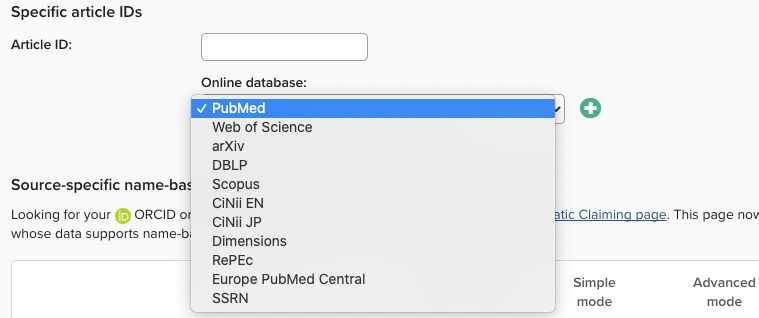
The final section -- Source-specific name-based search terms -- is where search settings can be configured against specific data sources.
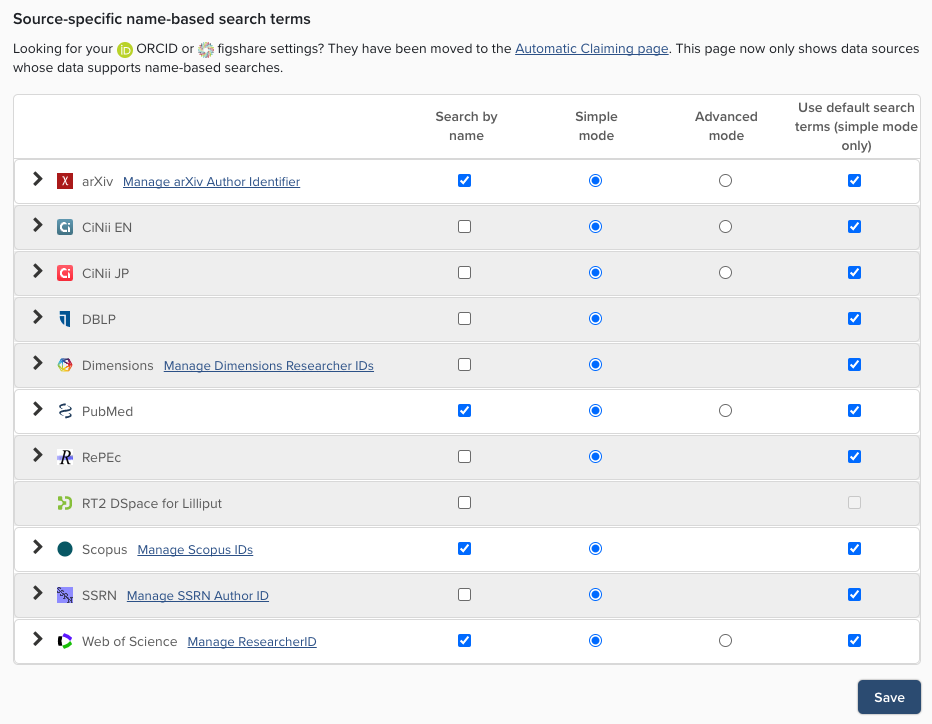
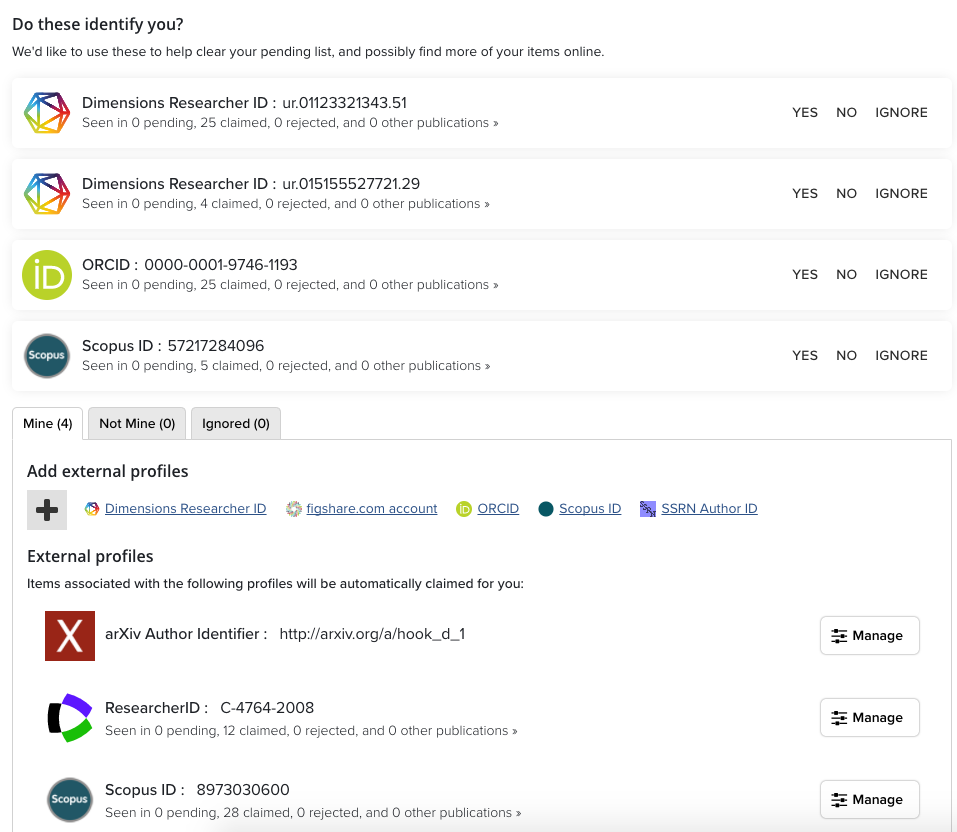
Clicking on a "Manage..." link beside arXiv, Dimensions, Scopus, SSRN, or Web of Science, will take you to the Automatic Claiming page (also accessible at Profile & work > Personal profile & identifiers > My research identifiers ). Here, all identifiers, including ORCID and figshare.com accounts, can be managed by claiming or rejecting the identifiers. You can check whether an identifier is correct by clicking on it and going to the profile information in the product. Also, please note that Ignoring an identifier means that the publications associated with it will neither be claimed or rejected, but left in the Pending folder.
The External profiles section shows all of the identifiers that have already been managed.
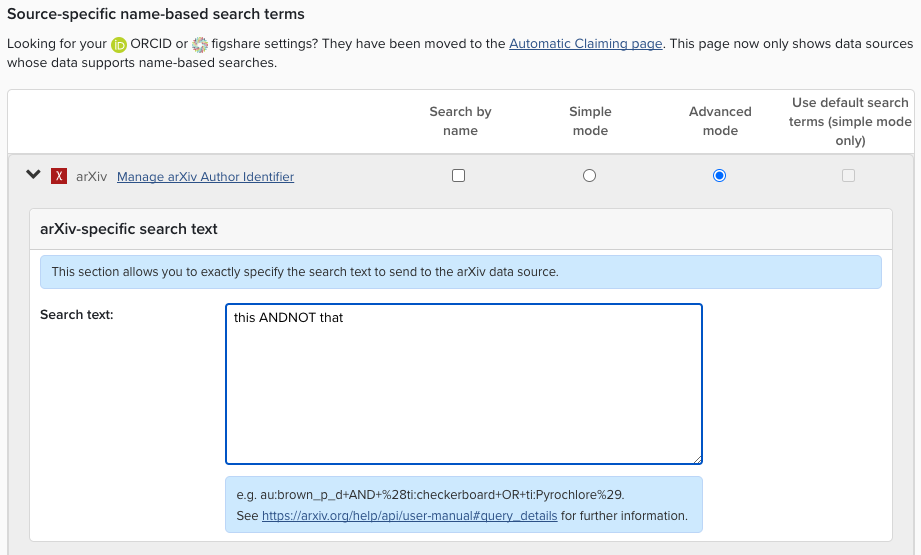
Clicking the Advanced mode button allows users to enter very precise search terms for a specific database. A link to specific instructions for each database is displayed at the bottom of the section.
Q: Can you Suggest a Workflow for Managing Changes to Search Settings?
But of course.
Step 1: Claim author identifiers.
Step 2: Update the search settings.
Step 3: Click the "Run my searches" button.
Step 4: Examine the results in the Pending folder.
If the results seem generally good, you're done. Accept and reject as needed.
If there are too many or too few results, clear out the pending publications. Revise the search settings and run the synchronizer again.
Step 5: Repeat as needed.
A methodology for revising search settings for Groups is reviewed in Testing the Elements Synchroniser
Q: Can a Research Manager Reset (clear) Declined Publications?
No, only the System Administrator has the ability to reset (or clear) declined publications.
Q: How Does a Research Manager Approve or Reject Another User's Publications?
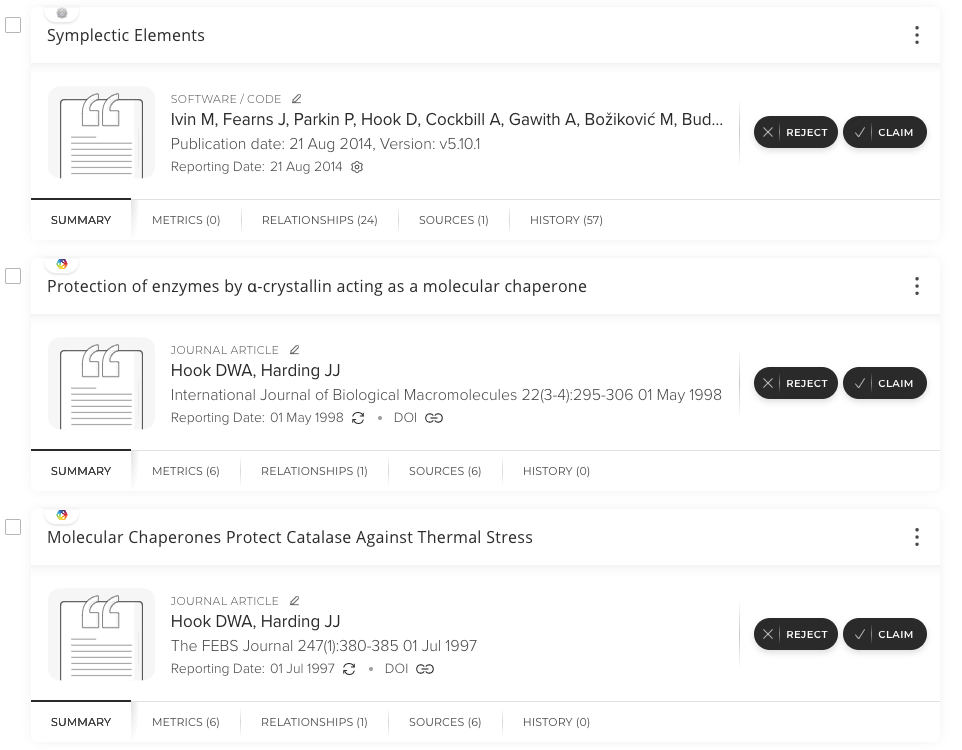
While impersonating a user, the Research Manager can navigate to the Pending folder and review any new items that have been harvested. Claim or reject using the buttons on the right side of the page. If every article on a page should be treated the same (all claimed or all rejected) use the "Select all" check box at the top of the page and then the "Claim" or "Reject" buttons. Another option is to use the "Select all" button and then uncheck the one or two items that are the exceptions before submitting the update.
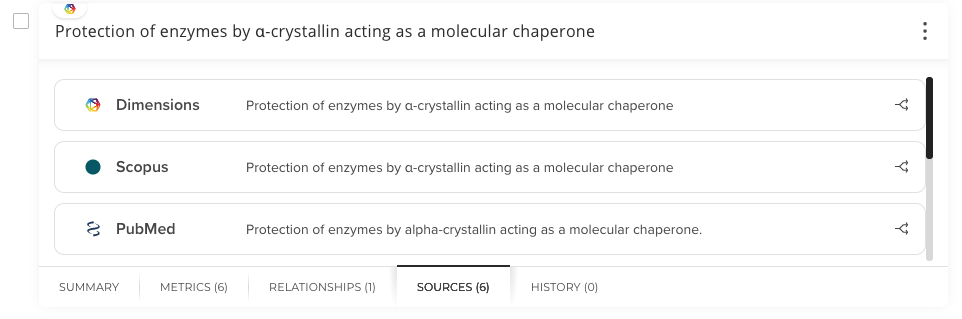
Clicking on the "Sources" tab reveals the data sources from which the record was harvested and may reveal differences in how the article was indexed by various providers.
Q: How Does a Research Manager Merge Records?
Please see the article How to Merge or Split Records for detailed instructions.
Q: Can Research Managers Email Members of a Group?
Yes, if email notifications are activated, a Research Manager can send reminder emails and one-off messages to members of the group(s) the RM manages. For more information about use of email, see Publications Module - Manage Email Notifications.