
Creating a Funding Opportunity
Research Funding Administrator, Research Funding Data Administrator, and Research Manager (Funding) can create, edit, and copy funding opportunities via the Funding Management Console. Only the Research Funding Administrator is able configure Proposal and Eligibility form templates.
Guidance on configuring a Funding opportunity end-to-end is available in this support article.
Creating and configuring a new funding opportunity
Go to the Funding Management Console and navigate to Funding Opportunities. Select 'New'.
On the first screen you will be asked to provide some basic information:
Funding opportunity name | The name of the funding opportunity | Mandatory |
Configuration type | Initial Expression of Interest, Expression of Interest, or Proposal | Mandatory |
Proposal form | Select from available templates | Mandatory |
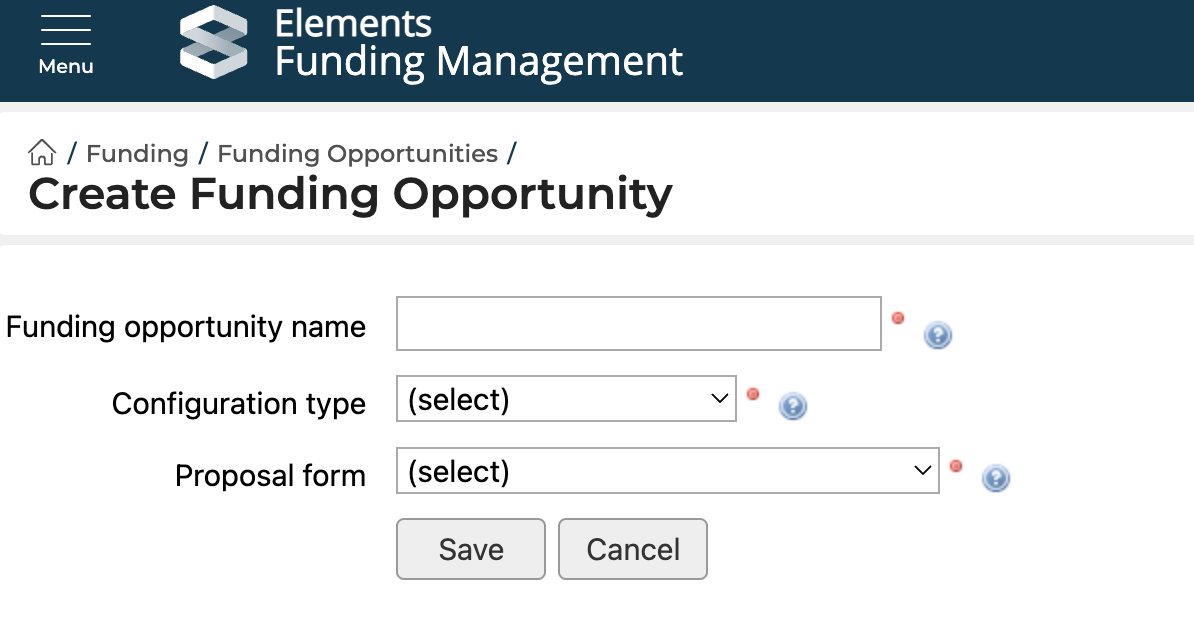
Select 'Save'. On the next screen you will be asked to provide additional descriptive details:
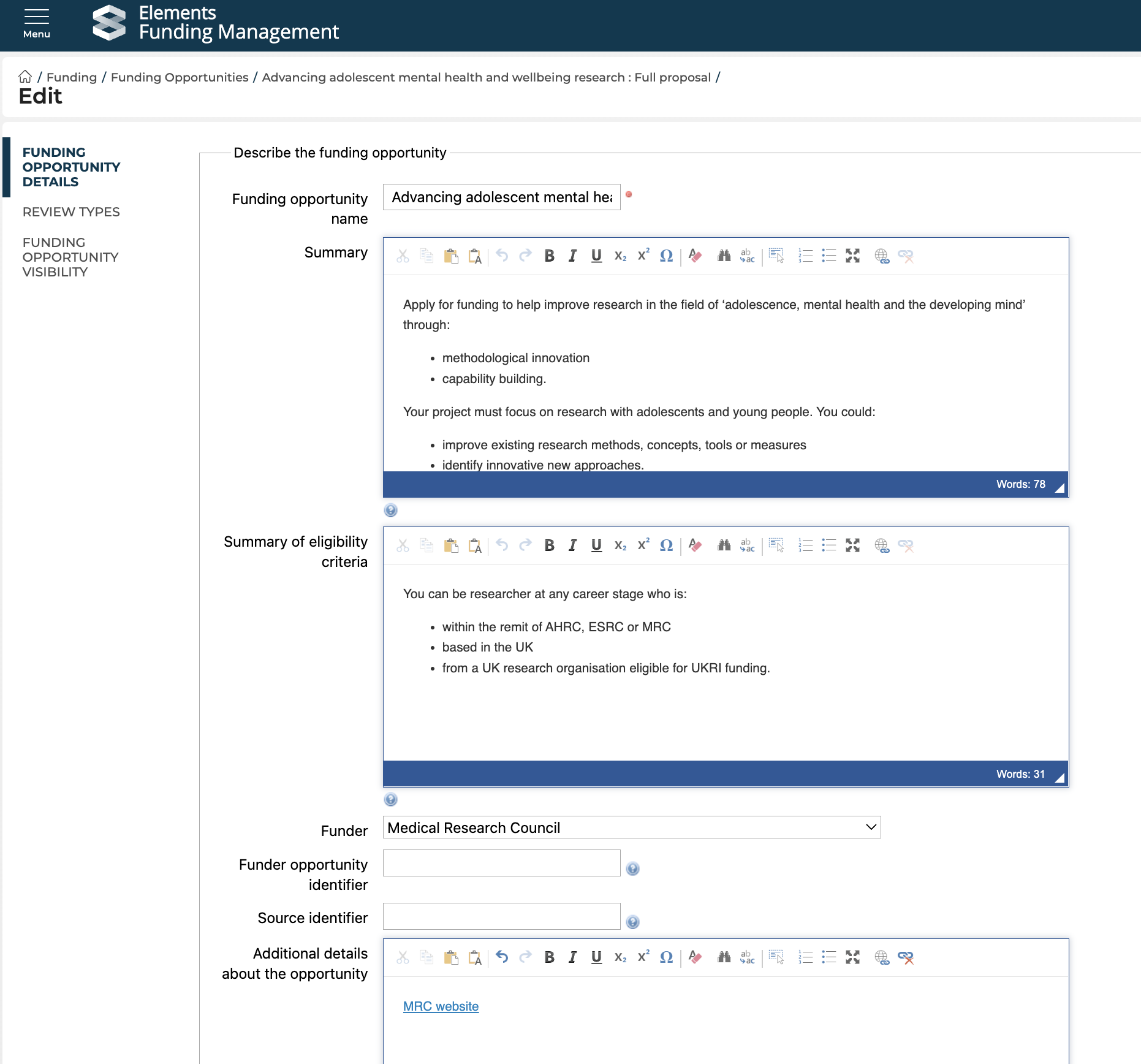
Describe the funding opportunity | ||
Funding opportunity name | The name of the funding opportunity | Mandatory |
Summary | Formatted text field | |
Summary of Eligibility criteria | Formatted text field | |
Funder | Select the funder from the list of available organisations. If the desired funder is not listed, it must be added to the list of Awards Management Organisations. | |
Funder opportunity identifier | Funder's ID for the opportunity | |
Source identifier | Source ID for the opportunity where sourced from another system | |
Additional details about the opportunity | Field to support providing additional details about the opportunity such as links back to the original source of the funding opportunity (e.g. Funder's website) | |
Currency | Select the currency value of the award, if different to your base currency (where no value is selected, the currency is interpreted as your base currency) (note that your base currency is not available for selection) | |
Funder programme | A funder may offer multiple funding opportunities with different research priorities within a funding programme. Listing the wider funding programme allows for individual funding opportunities to be grouped together. | |
Funder scheme | A funder may offer multiple funding opportunities with different research priorities within the one funding scheme. Listing the wider funding scheme allows for individual funding opportunities to be grouped together. | |
Funding type | Select the funding type from the set list | |
Contestable funding | Indicate whether the opportunity is contestable or an RFP / Tender | |
Internal funding | Indicate whether the opportunity is internal to the institution | |
Matched funding | Indicate whether the opportunity requires the institution (or another organisation) to contribute funding to match that granted by the funder | |
Research funding | Indicate whether this is a research funding opportunity | |
Funder fEC policy | [determined during implementation whether Full Economic Costing applies at your institution, and therefore whether this field is displayed] | |
Add relevant dates | ||
Funder open date | Informational date to communicate when the funder will start accepting applications | |
Funder close date | Informational date to communicate when the funder will cease accepting applications | |
Funder timezone | Select the funder timezone. | |
Internal open date | Date on which the funding opportunity opens for proposals in Elements | Mandatory |
Internal close date | Date on which the funding opportunity closes and proposals can no longer be submitted in Elements | Mandatory |
Internal close (timezone) | LEAVE BLANK | |
Show closing date | Indicate whether to show the internal closing date to users. It is recommended this is selected. For 'generic' funding opportunities (see below), or where the institution wishes to keep an opportunity open indefinitely, enter an internal close date decades into the future and do not show the closing date. | |
Internal approval date | Estimated date when internal review and approval processes are expected to be completed and the decision whether to proceed to funder application is made. | Mandatory |
Key dates and descriptions | You can capture additional dates that are key to the timeline of the funding opportunity. These dates are informational and do not control any system behaviour, other than appearing on the timeline display for the funding opportunity. | |
Set the visibility of the funding opportunity to users | ||
The 'Published', 'Status', 'Access', and 'Internal open / close dates' are used in combination to determine the visibility of the Funding Opportunity to users.
| ||
Published | If ticked, visible to all users, if Status and Access settings below permit | |
Status |
| Mandatory |
Access |
| Mandatory |
Configure the opportunity | ||
Configuration type | Initial Expression of Interest, Expression of Interest, or Proposal | Mandatory |
Proposal outcome workflow | Select the appropriate configuration:
| Mandatory |
Eligibility form | Select from available templates | |
Proposal form | Select from available templates | Mandatory |
Reference format and Next reference | Upon proposal submission, the proposal is assigned a new 'Submitted proposal reference' ID; the format of that reference is determined by this field. Use any of the below codes to merge information into the generated reference number. e.g. AM-{0} (and Next reference = 1) will produce AM-001, AM-002, etc. Available Codes | Mandatory |
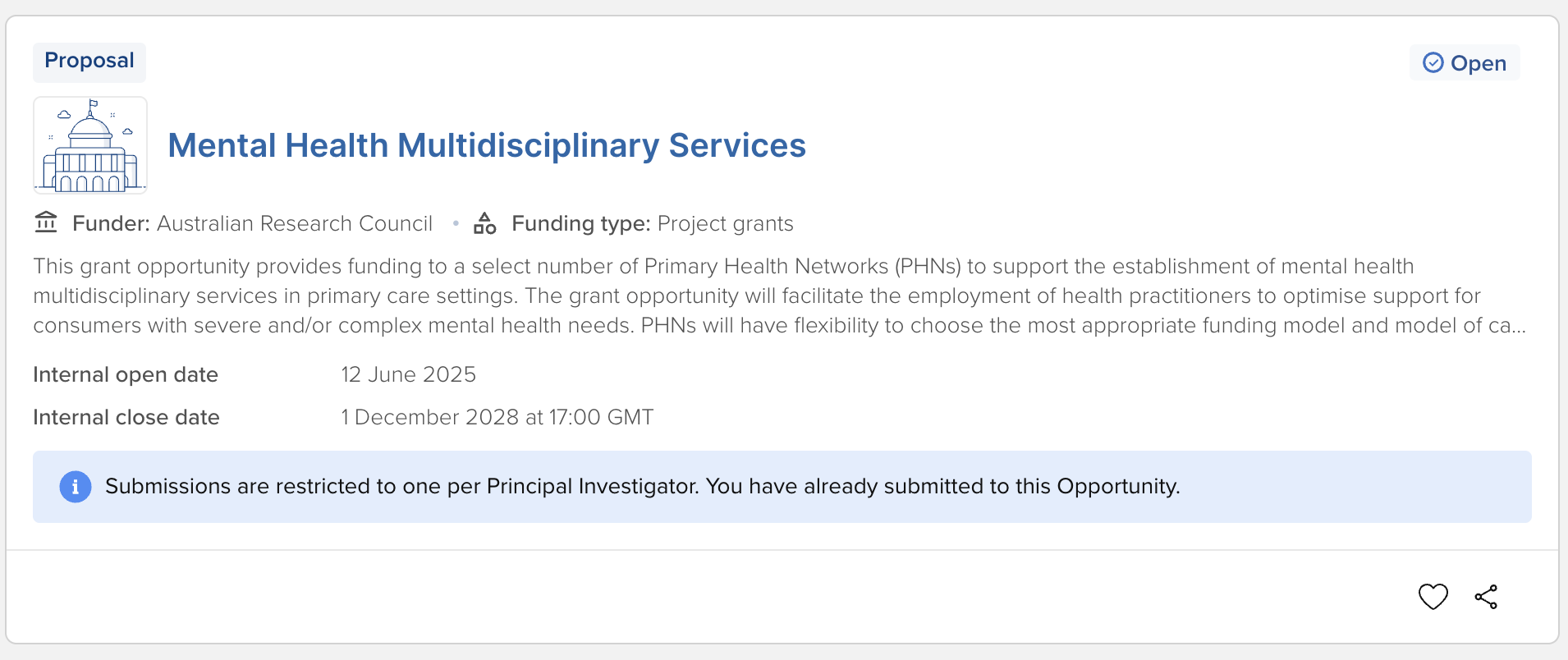
Prevent multiple proposals being submitted | Select to block users from submitting multiple Proposals for this opportunity
| |
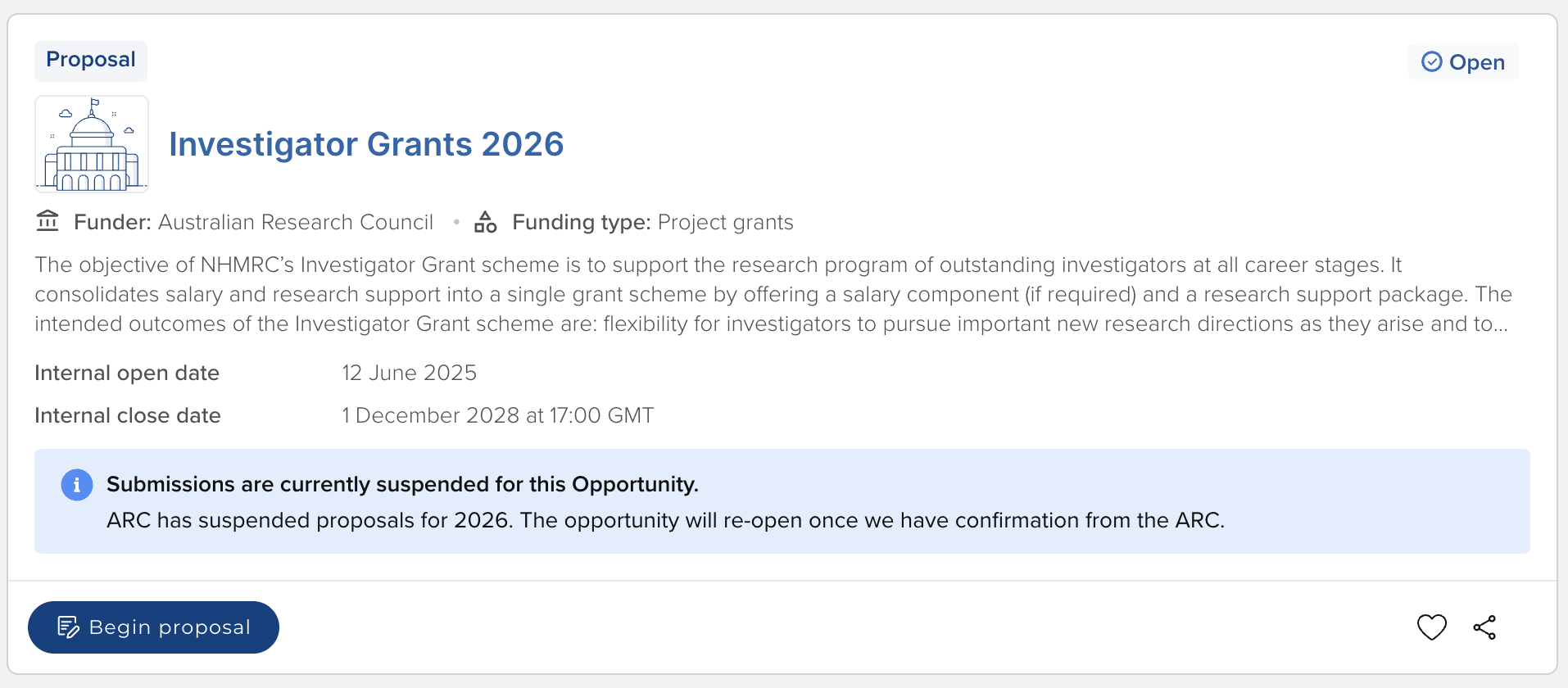
Disable submissions | Select to disable the ability to submit Proposals for this opportunity
| |
Reason for block | Provide the reason for disabling submissions | |
Meetings (from v7.1) | ||
Approval decision | In order to be able to record overall approval decisions on Proposals, you must add the relevant Funding Opportunity to the 'Approval Decision Meeting'. This can be done here, or via the Meeting's edit page, as described here. | |
Provide contact details for internal support and management | ||
Support contact | To select the Support contact from available Console users, enter at least 3 characters and select from the list - otherwise, input the desired support contact directly.
| |
Contact phone | Phone number | |
Contact email | Email address | |
Contact URL | Support contact URL (e.g. to an FAQs page) | |
Contact URL description | The name of the URL to be provided to users (e.g. Research Office FAQs page) | |
Funding opportunity managing group | Select the administrative owner of the funding opportunity | |
Customise submission confirmation messages | ||
On-screen confirmation | On-screen message that can optionally be displayed to the Principal Investigator when they have successfully submitted their proposal | |
Email confirmation | Message that is merged into the email that Principal Investigators receive when they have successfully submitted their proposal. Note that HTML is NOT supported. | |
Copying an existing funding opportunity
To copy an existing funding opportunity, go to the opportunity you wish to copy, then select 'Copy' from the left-hand menu.
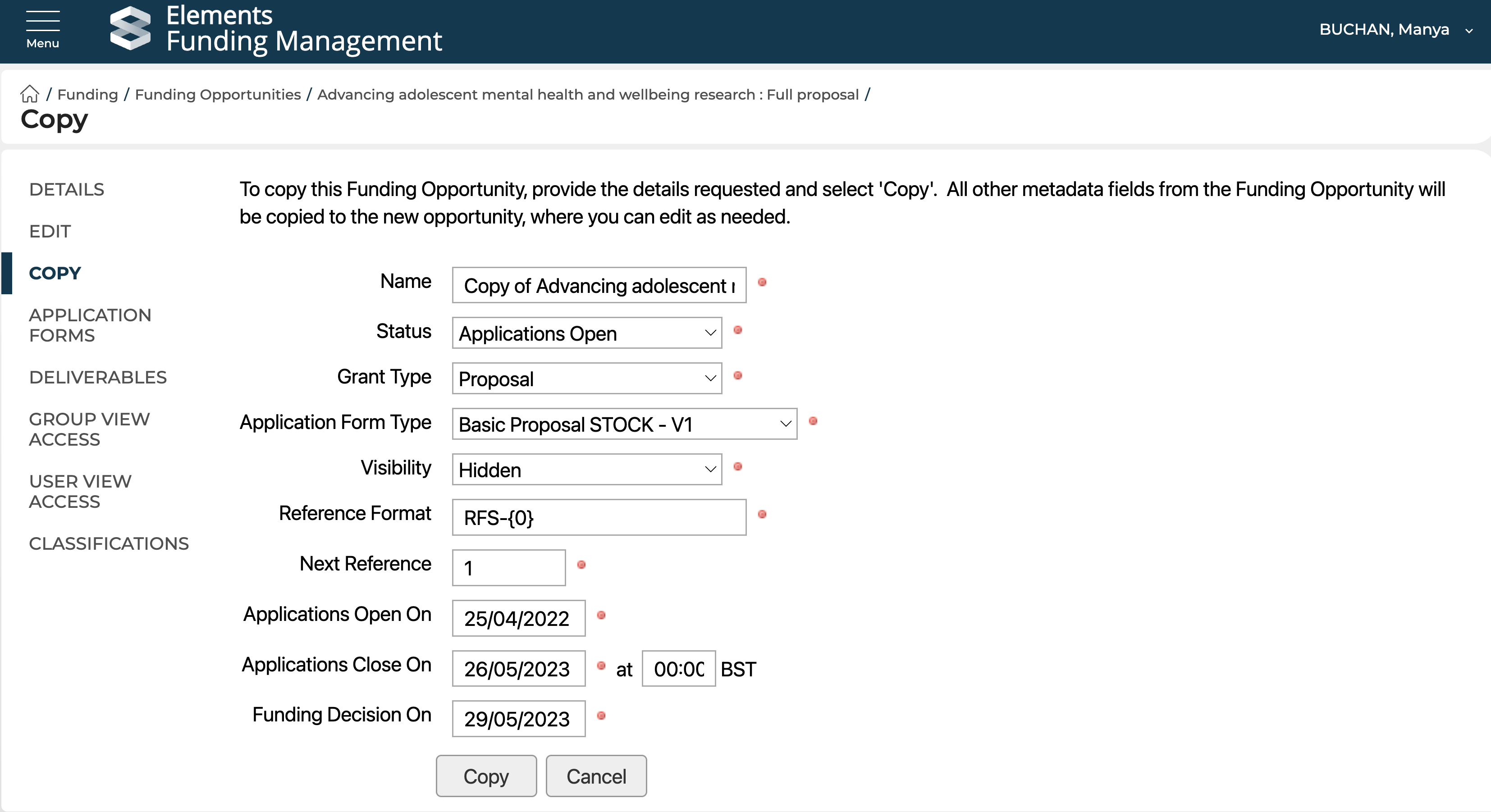
Copying a Funding Opportunity will also copy the following from the original opportunity:
the Review and Approval configuration
for Hidden opportunities, the selected users and/or groups granted access
the allocated Approval Decision Meeting
Copying a Funding Opportunity does not copy the following:
Funder fEC policy
Classifications
Creating a funding opportunity using the API
Details on how to create a funding opportunity using the RFS API are available here.