
Project Closure
Once a Project has been activated, a new 'Closure' menu option becomes available on the Project in the Management Console, where you can close the Project:
Close (following normal completion of the Project, following the passing of the project end date)
Transfer (close the project early, as a result of key project team members leaving the institution)
Terminate (terminate the Project early)
All users that have access to the Project in the Management Console are able to close / re-open a Project.
Closing a Project
You can initiate the closure of a Project from the Closure screen, which is accessible from:
'Closure' menu in the left-hand navigation of the Project page
'Close' action from the Project > Edit page
'Close' action from the Active Projects search page
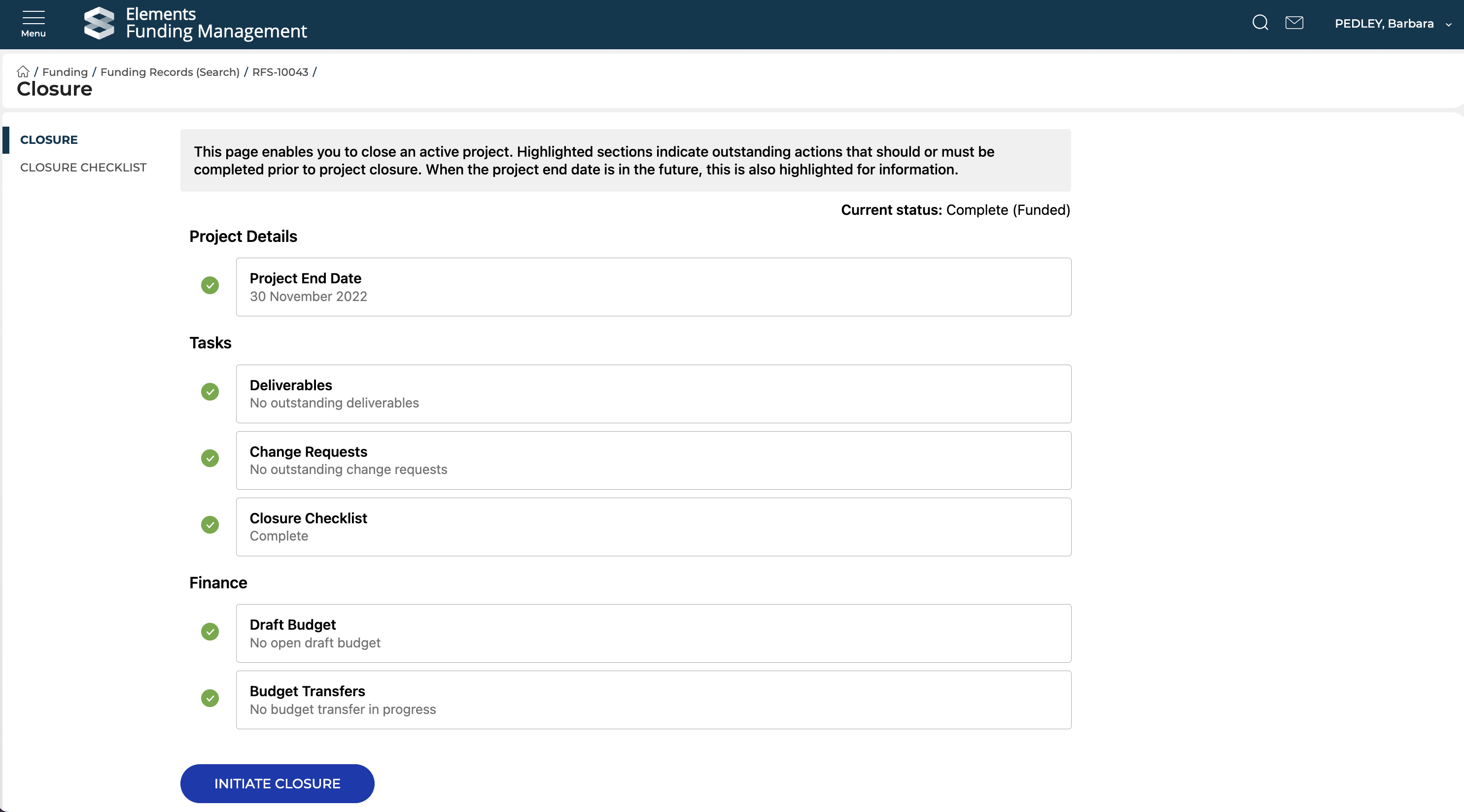
The Closure screen summarises the following content:
Project end date (flagged if in the future)
Deliverables (flagged if any are outstanding)
Change requests (flagged if any are outstanding)
Closure checklist status (if enabled) (flagged if incomplete)
Draft budget (flagged if there is one open)
Budget transfer (flagged if there is one in progress)
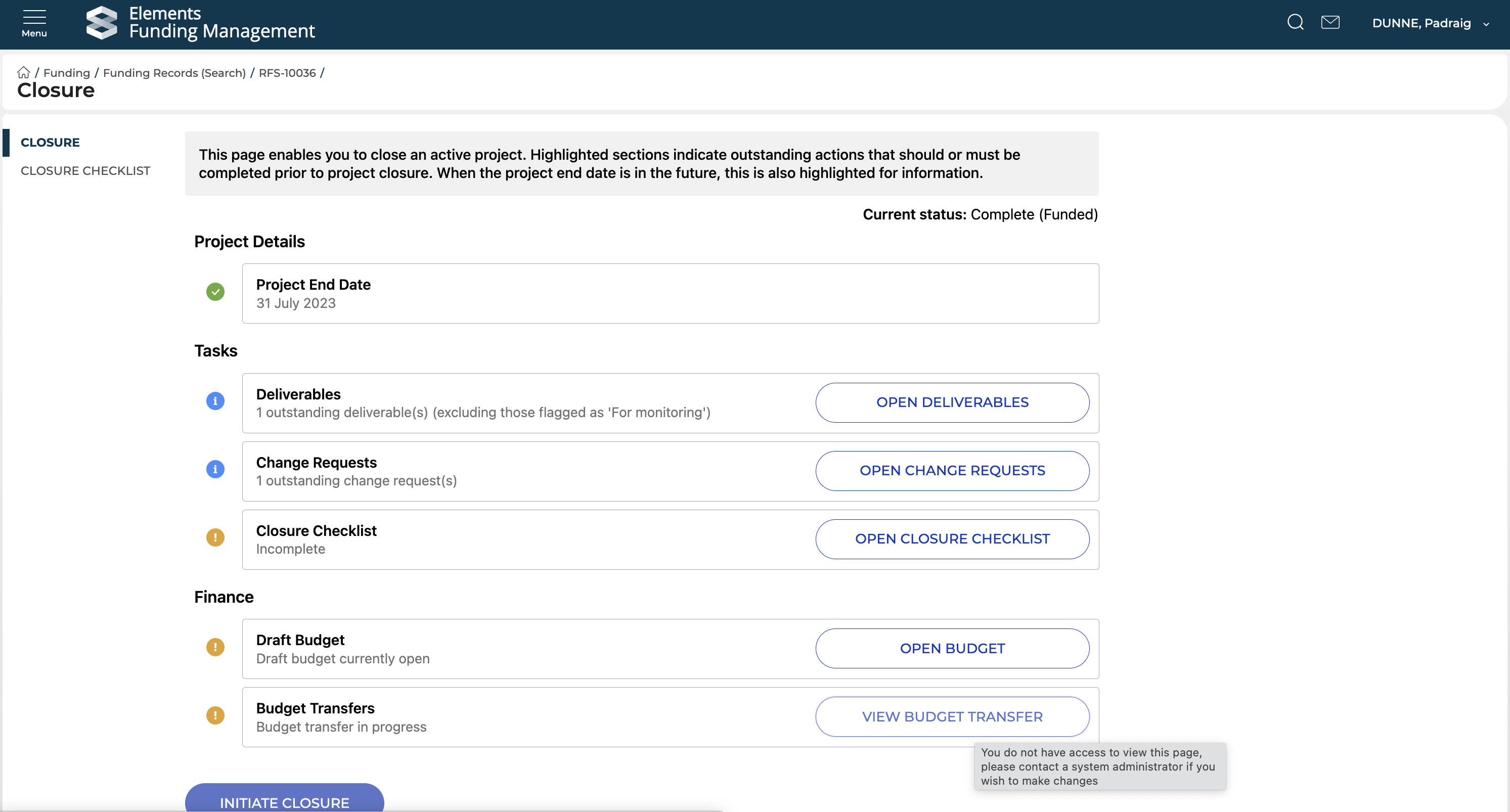
A Project cannot be closed (the 'initiate closure' button is disabled) if:
The closure checklist (if enabled) is not complete
There is a remaining draft budget (note this can be due to an in-progress budget transfer)
There is a budget transfer in progress
Any outstanding Reviews and Deliverables will automatically be closed upon Project closure. Any outstanding Change requests will remain unmodified upon Project closure.
Note that where a user doesn't have access to a closure action (e.g. Research Manager (Funding) and Finance Manager (Funding) do not have access to Budget Transfers), the relevant action button is disabled.
Once all outstanding actions have been completed and the 'Initiate closure' button is enabled, select 'Initiate closure' to begin the closure action. First select the desired outcome:
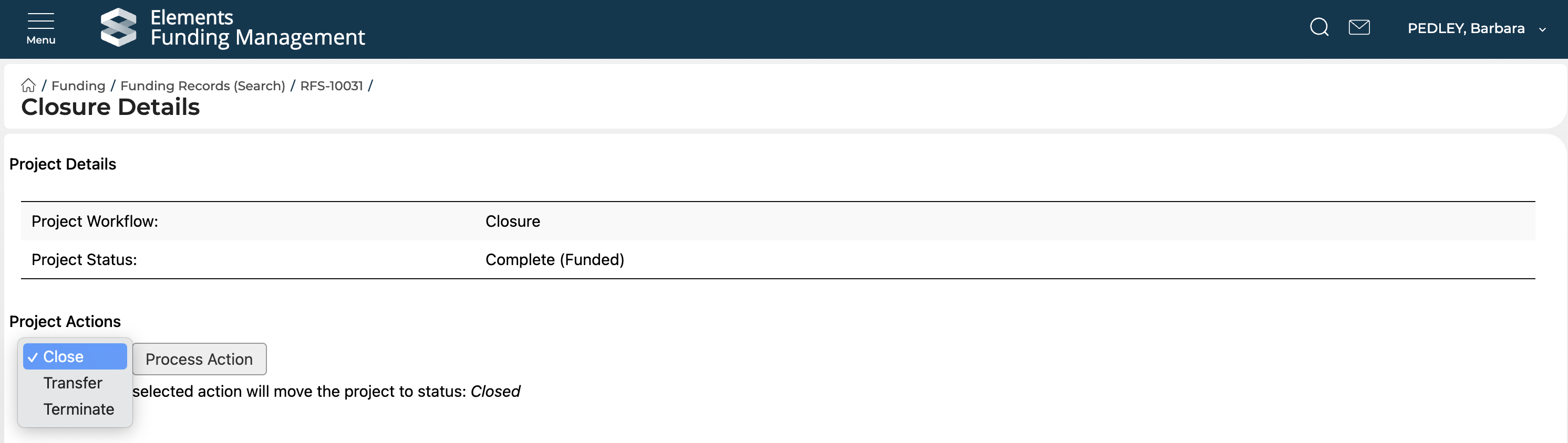
Plain closure (Close)
Following successful normal completion of the Project, following the passing of the project end date (where the current status of the Project would normally be 'Complete'), select the 'Close' action. The screen will then re-load, enabling you to capture the following information:
Field | Description |
Close notes | Capture any notes relating to the closure of this Project |
Close date | Is automatically set to the date the closure is actioned |
Transfer
Where you wish to close the project early, as a result of key project team members leaving the institution, select the 'Transfer' action. The screen will then re-load, enabling you to capture the following information:
Field | Description |
Transfer date | Capture the date of the transfer (i.e. the effective date of the closure) (defaults to today's date) |
Transfer notes | Capture any notes relating to the closure of this Project |
Close date | Is automatically set to the date the closure is actioned |
Termination
There the Project is terminating early, select the 'Terminate' action. The screen will then re-load, enabling you to capture the following information:
Field | Description |
Termination date | Capture the date of the termination (i.e. the effective date of the closure) (defaults to today's date) |
Termination reason(s) | Select the reason(s) for the termination. The default reasons available are as follows, but if you require additional / different values, please get in touch:
|
Termination notes | Capture any notes relating to the closure of this Project |
Close date | Is automatically set to the date the closure is actioned |
Once you have populated all values as desired, select 'Close' (you will be asked to confirm the action). To abandon the closure, select 'Cancel'.
Depending on the closure action selected, the project status and outcome will be updated as follows:
Closure action | Status | Outcome |
Close | Closed | Funded |
Transfer | Closed | Transferred |
Terminate | Closed | Terminated |
Modifying closure information on a Project
Once a Project has been closed, you can still modify some of the closure information. Go to go to [Project] > Closure summary, and select 'Edit closure details'.
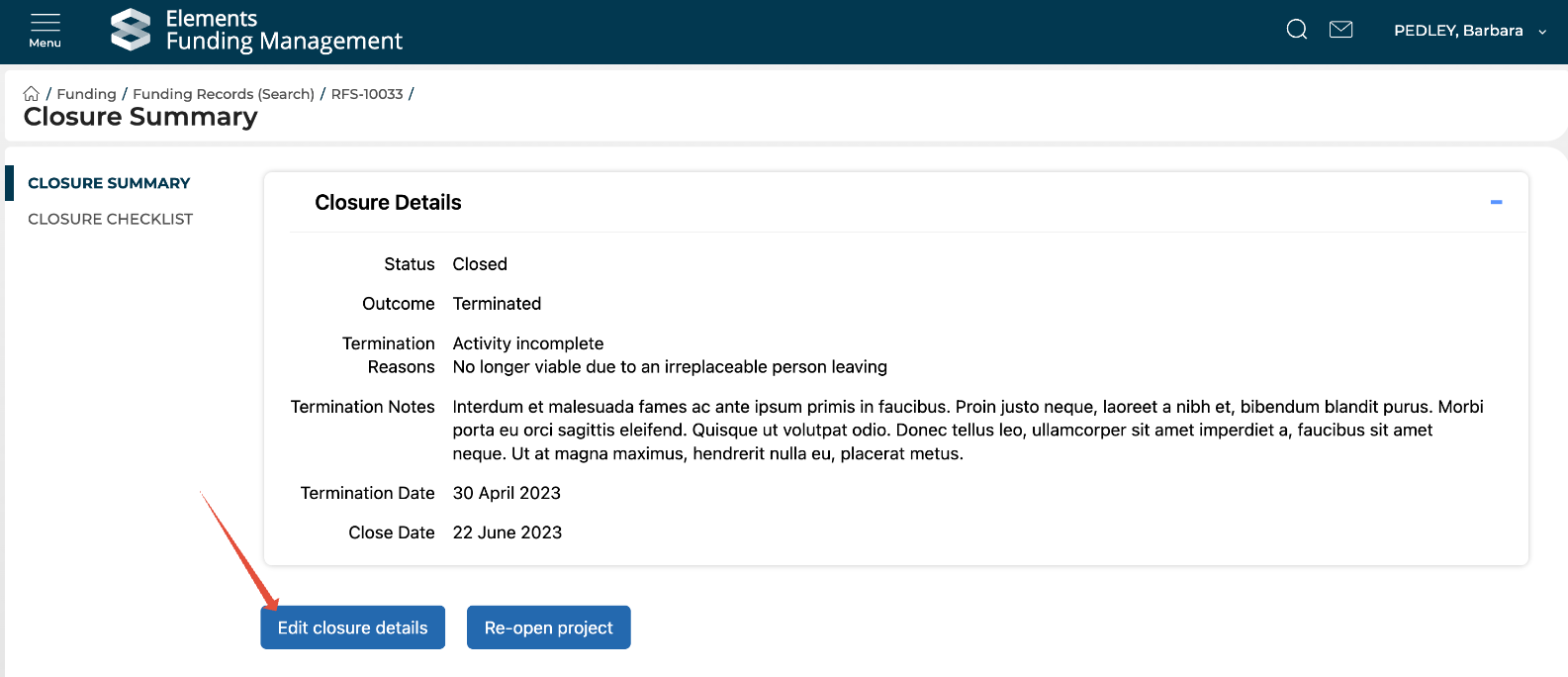
You can modify:
Termination / Transfer date
Termination reasons
Close / Termination / Transfer notes
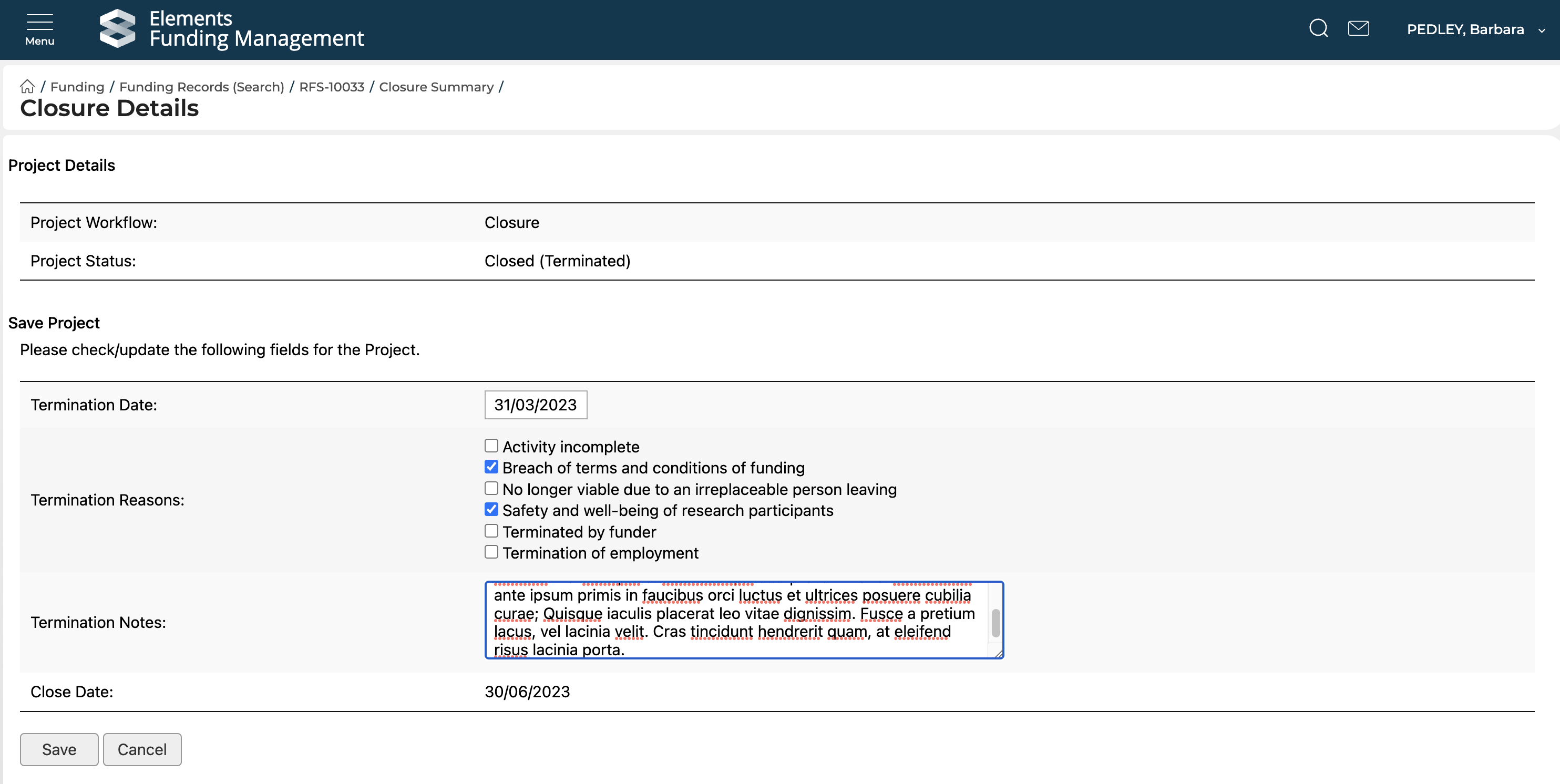
If you need to change the closure outcome (e.g. from simply Closed to Terminated) or the Close Date, you will need to re-open the Project (as per details below) and process a new closure.
Re-opening a closed Project
You can re-open a closed Project via the Closure Summary screen, which is accessible from:
'Closure summary' menu in the left-hand navigation of the Project page
'Re-open' action from the Project > Edit page
'Re-open' action from the Closed Projects search page
Select 'Re-open project'
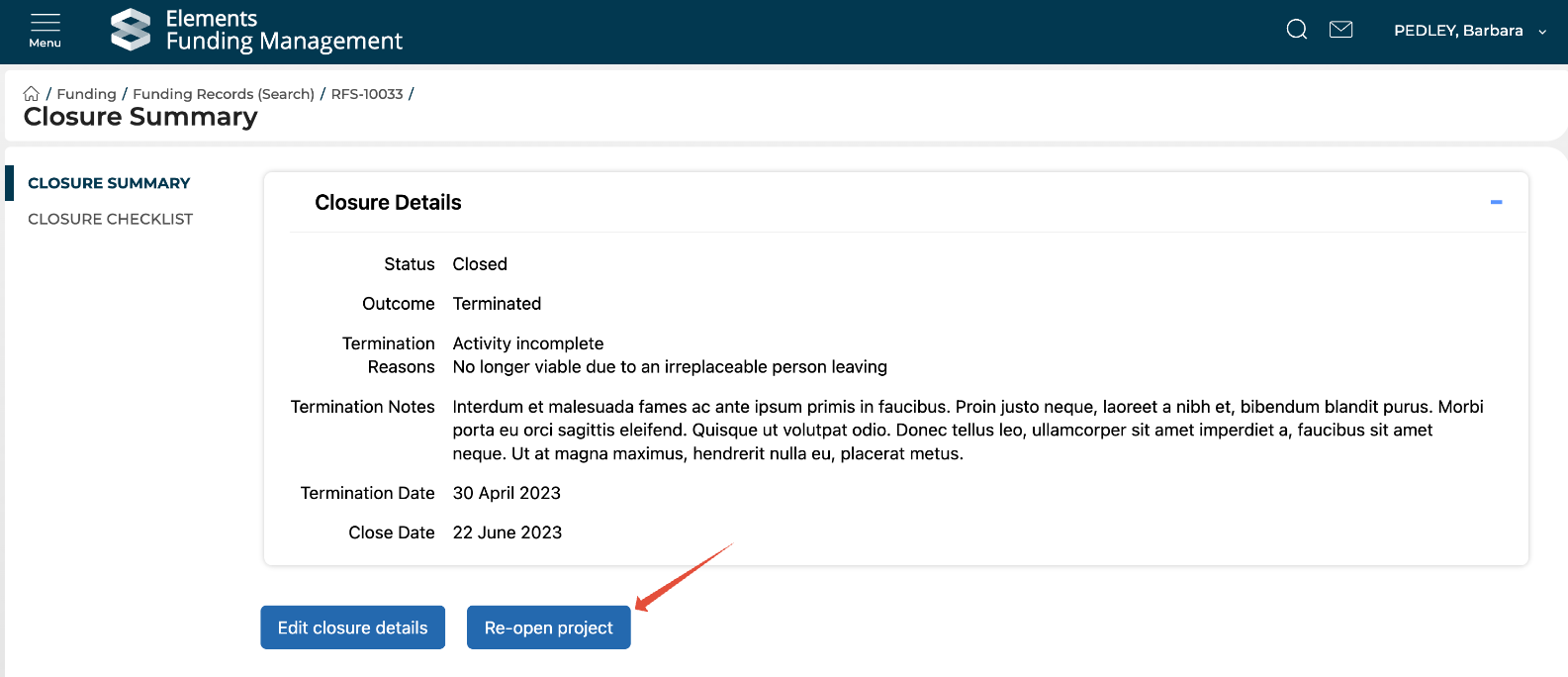
Re-opening a Project will return it to its previous Status (i.e. Complete, Active, Pending start date), and will re-enable the full closure action (with all previously populated closure content deleted).